Vipin PG
If you tried to logout from Netflix on your Google TV and the only options you could find were things like clearing app data or removing the app entirely, you’re not doing anything wrong — the actual Sign Out button is just tucked away somewhere most people never think to look. The same thing happened to me recently when I wanted to switch Netflix accounts on my Google TV without wiping the whole app. I went through Settings, then Apps, and nowhere could I find a simple “Sign Out.” After a bit of digging, I found where Netflix actually hides it.
The reason this happens is that Netflix doesn’t put Sign Out in your TV’s system Settings at all. It’s buried inside the app’s own “Get Help” menu, which most people associate with troubleshooting playback issues, not account management. So it’s easy to miss completely and assume the only way out is to delete the app.
Fix the Netflix Logout Issue on Google TV
Here’s exactly where to find it:
- Open the Netflix app and go to its Home screen (press Back a couple of times if you’re inside a show or menu)
- Press Left on your remote — this slides out the sidebar menu
- Scroll down to Get Help
- Select Sign Out
- Confirm with Yes
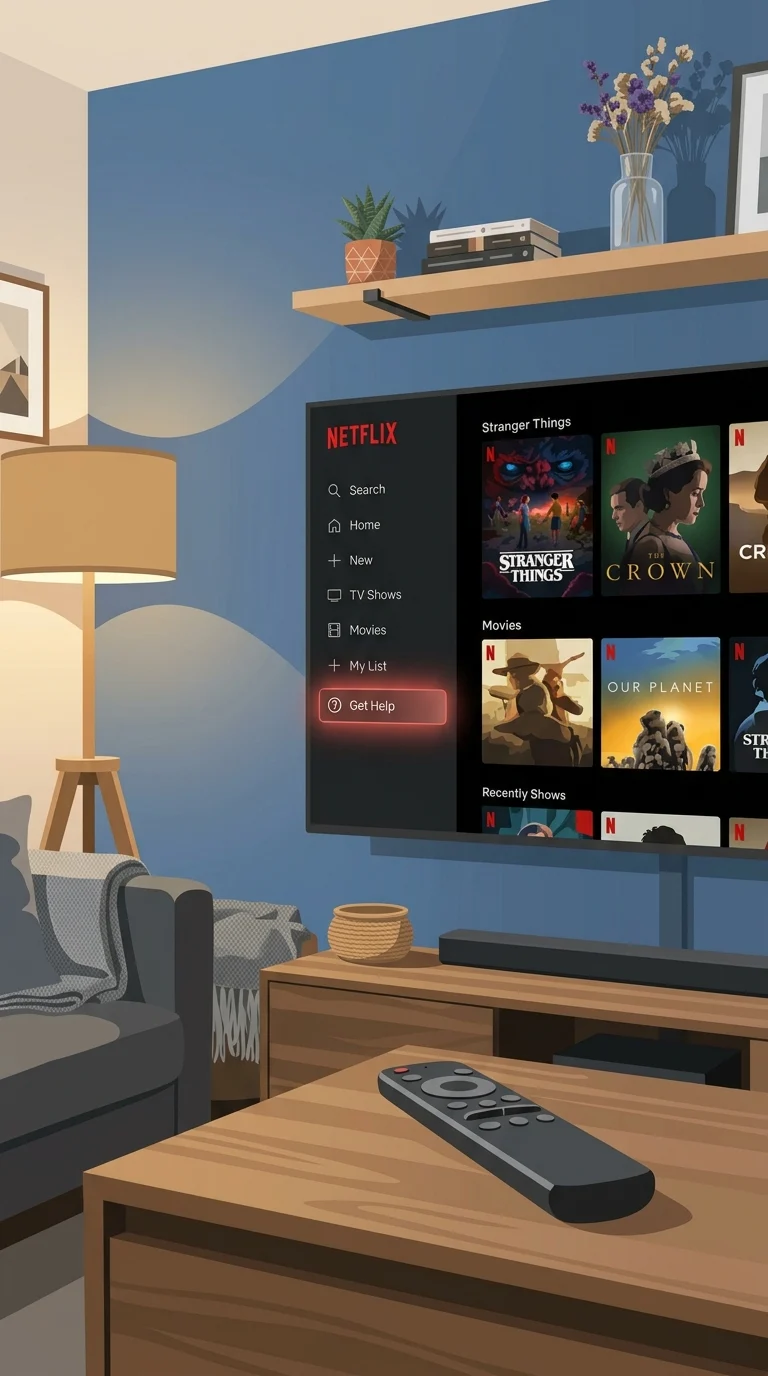
Once you confirm, your account is signed out completely and the app returns to the sign-in screen — the app itself, your watch history settings, and everything else stay untouched.
Do One More Step if Not Fixed
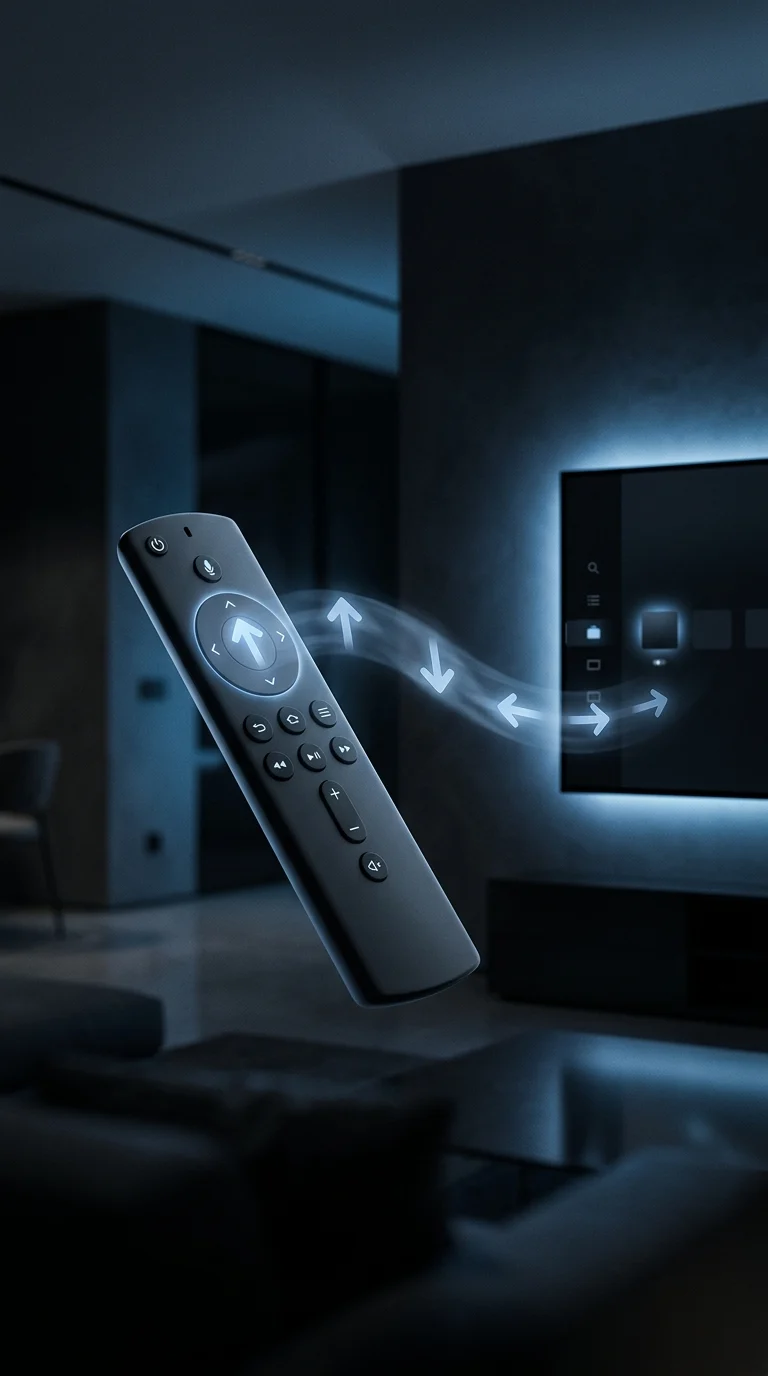
If the sidebar won’t open or “Get Help” isn’t showing up for some reason, there’s a backup shortcut built into the app. Point your remote directly at the TV and press the following in order:
Up, Up, Down, Down, Left, Right, Left, Right, Up, Up, Up, Up
This forces the Get Help screen open from anywhere in the app, and from there you can select Sign Out.
If Netflix keeps signing you back in automatically right after you sign out, that’s usually not a Netflix problem — it’s Smart Lock for Passwords on your Google account auto-filling your login. Head into your Google account settings and disable Smart Lock, or unlink that Google account from the TV, and the sign-out will actually stick.
Does This Fix Work on All Google TV Devices?
Yes — the Get Help menu is part of how the Netflix app itself is built, not something specific to one TV brand. So this works the same way whether you’re on a Chromecast with Google TV, a Google TV Streamer, or a smart TV from Sony, TCL, Hisense, or Philips running Google TV. As long as it’s the Netflix app on Google TV, the sign-out path is identical.