Vipin PG
Archiving an Amazon order moves it out of your main order history so it’s less likely to be seen by anyone glancing at your account, without actually deleting the purchase. Amazon keeps the record either way , you’re just choosing where it shows up. Here’s how to do it, how to find an archived order again, and what to do if your account doesn’t have the option.
Step 1: Sign in on a desktop browser and open Your Orders
Archiving only works through Amazon.com in a browser , go to Amazon.com and sign in, then click Returns & Orders near the top right. If you don’t see that link, go to Account & Lists and choose Orders instead. This opens your full order history, which is where the archive option lives. 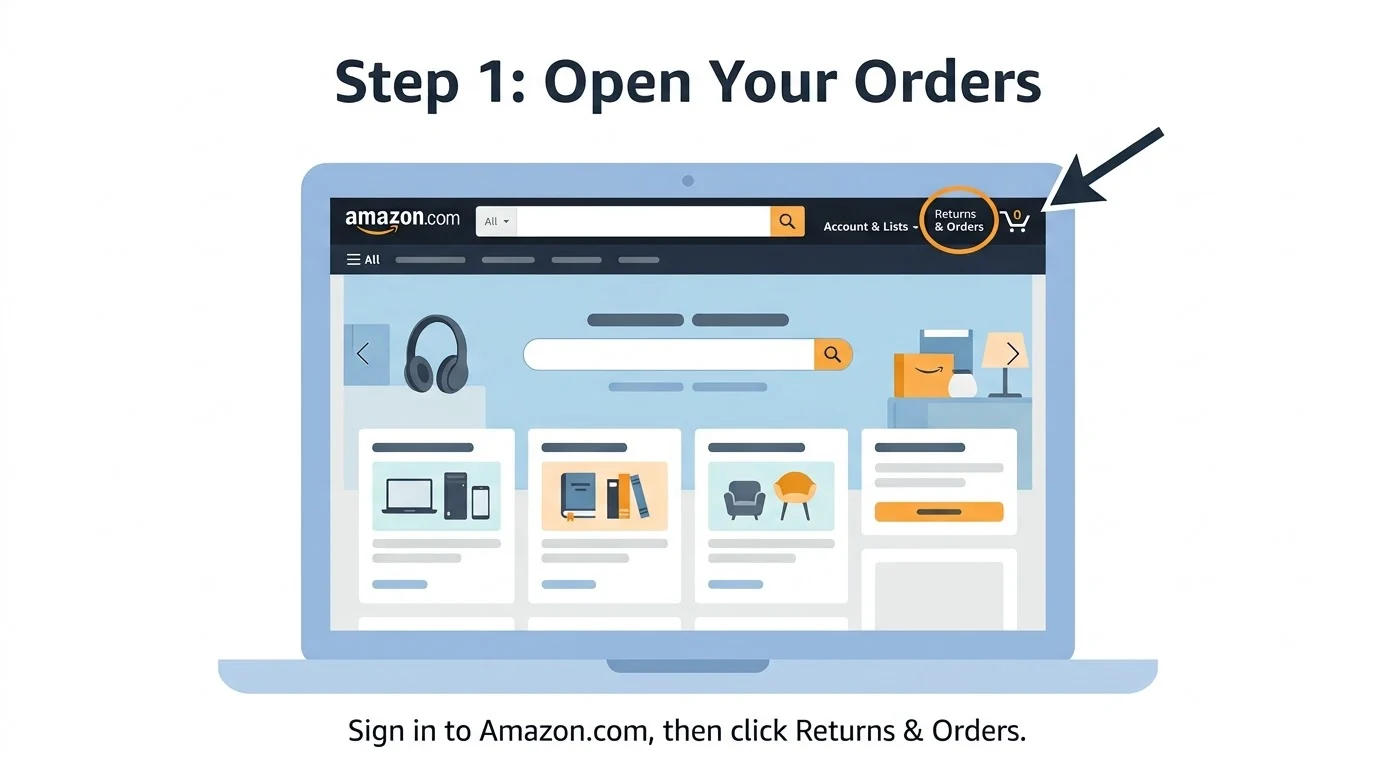
Step 2: Find the order you want to archive
Scroll through the order list, or use the search bar and date filter above it if the purchase is older. Once you spot the right order, its details , items, price, and delivery date , will confirm it’s the one you want to move. 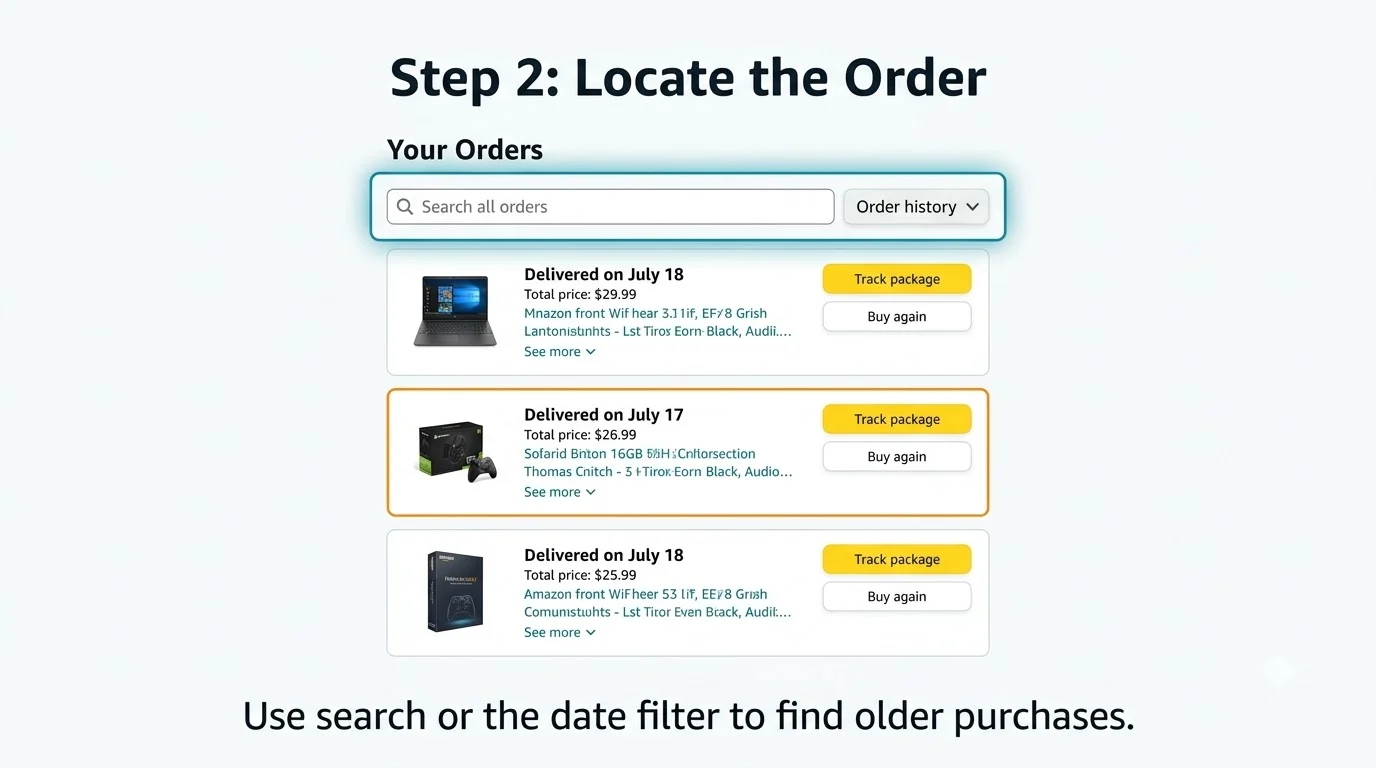
Step 3: Select Archive Order and confirm
On the order you found, click Archive Order. Amazon will ask you to confirm , click Archive Order a second time. The order disappears from your default order list immediately, but it’s still attached to your account. 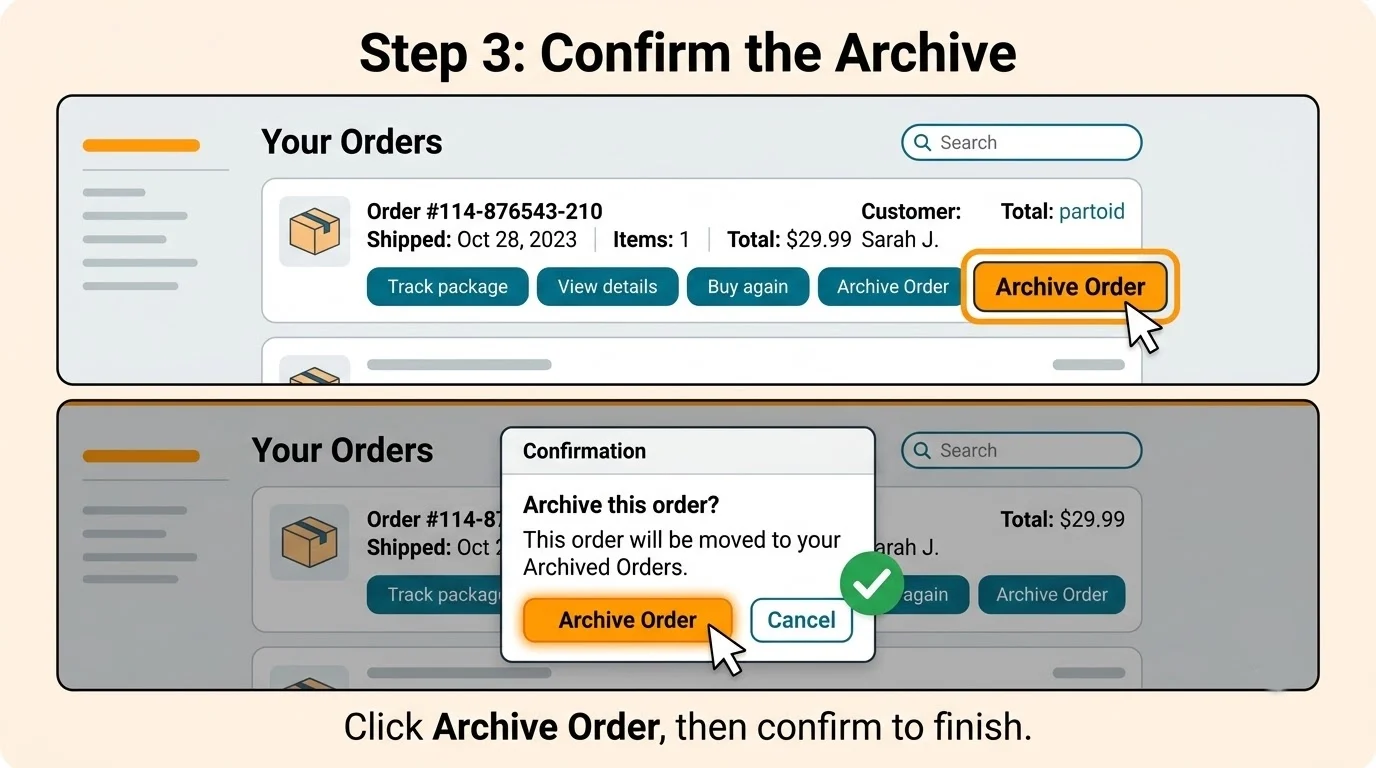
Step 4: Find an archived order again later
Go back to Amazon.com, sign in, and open Returns & Orders. Search for the order name, or filter by the date range when you originally bought it , archived orders still surface in these searches. If your account shows an Archived Orders filter or link in the order-history menu, you can open that view directly to see everything you’ve archived in one place. 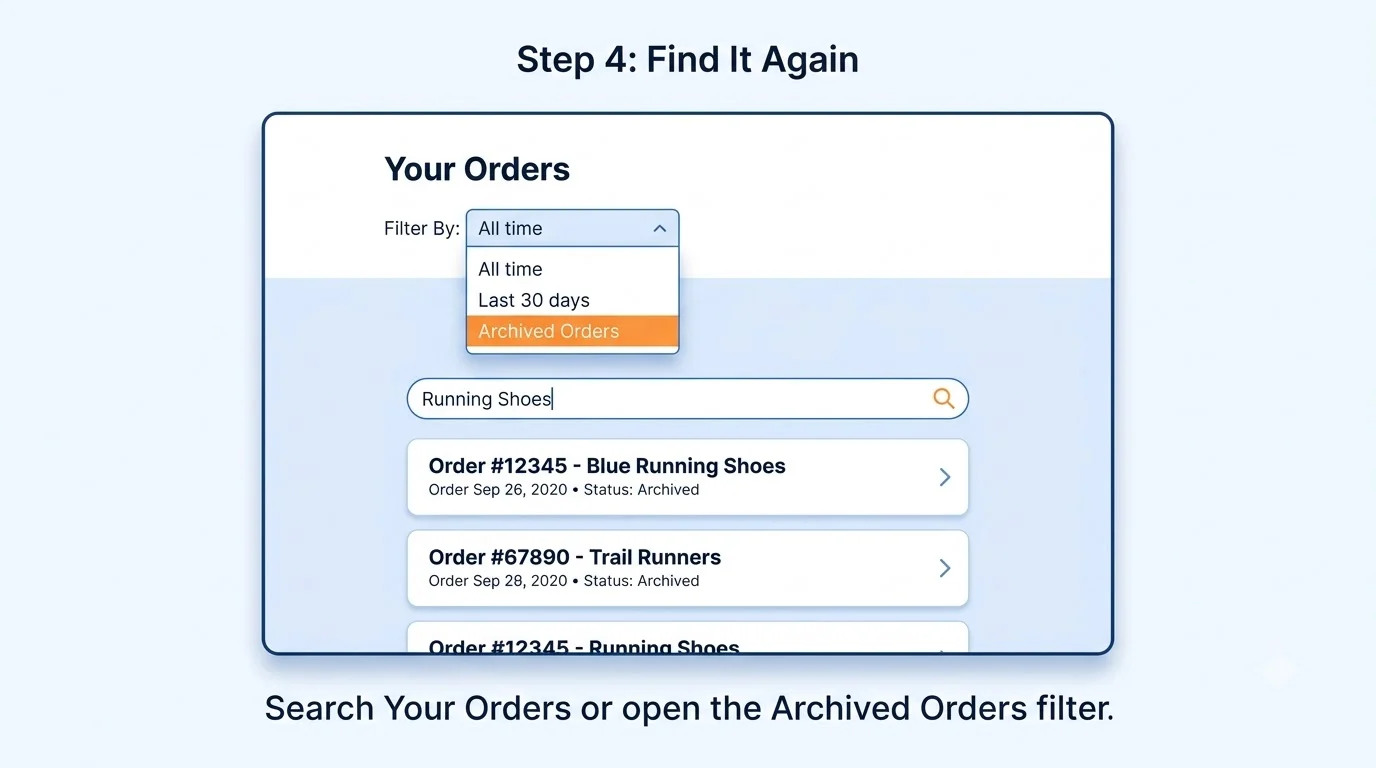
Step 5: Restore an order with Unarchive Order
If you want an archived order back in your default list, open it from the Archived Orders view or via search, then select Unarchive Order. It moves back into your regular order history right away. 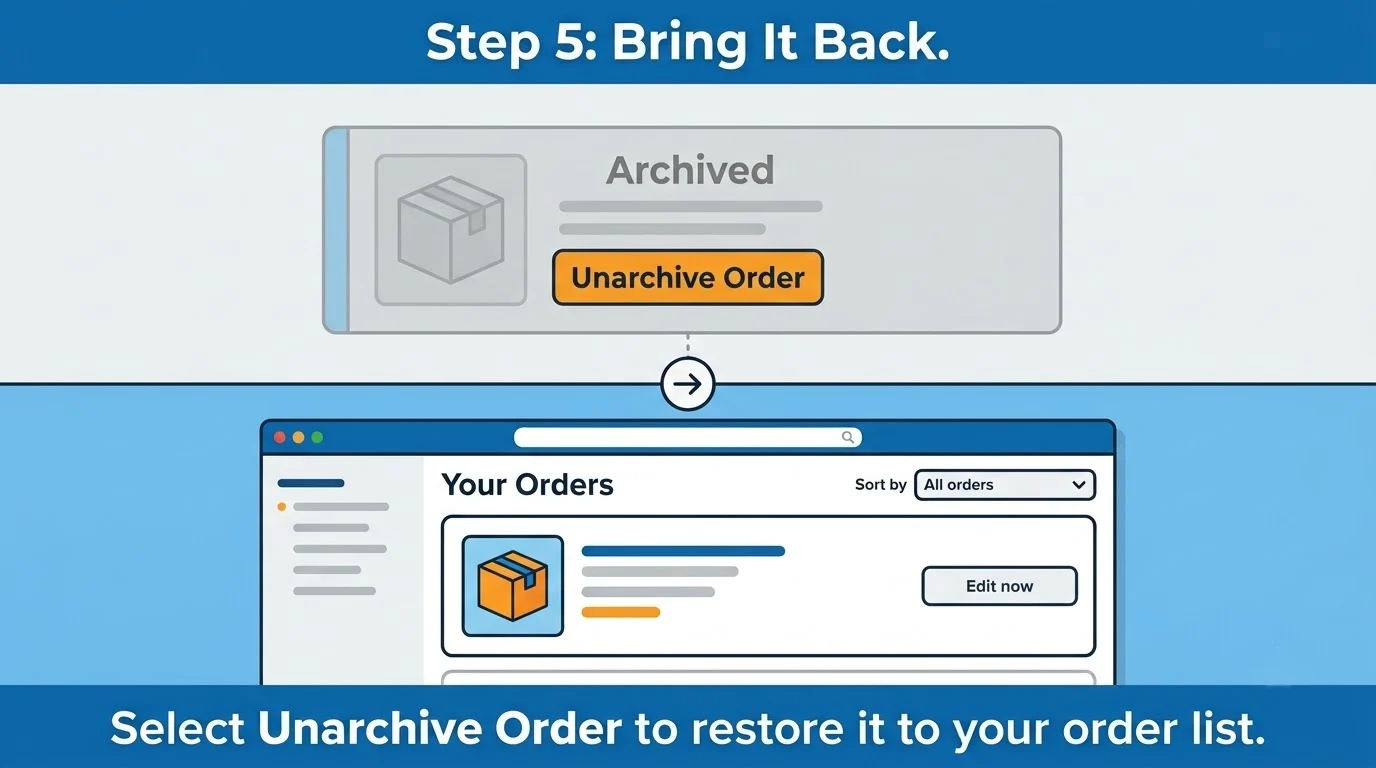
Step 6: Archive an order from your phone
The Amazon Shopping app doesn’t include an archive option, so use a mobile browser instead. Open Chrome, Safari, or another browser, go to Amazon.com, and sign in. Open the browser’s menu and choose Request Desktop Website or Desktop Site. From there, tap Returns & Orders, find the purchase, and archive it exactly as you would on a computer. 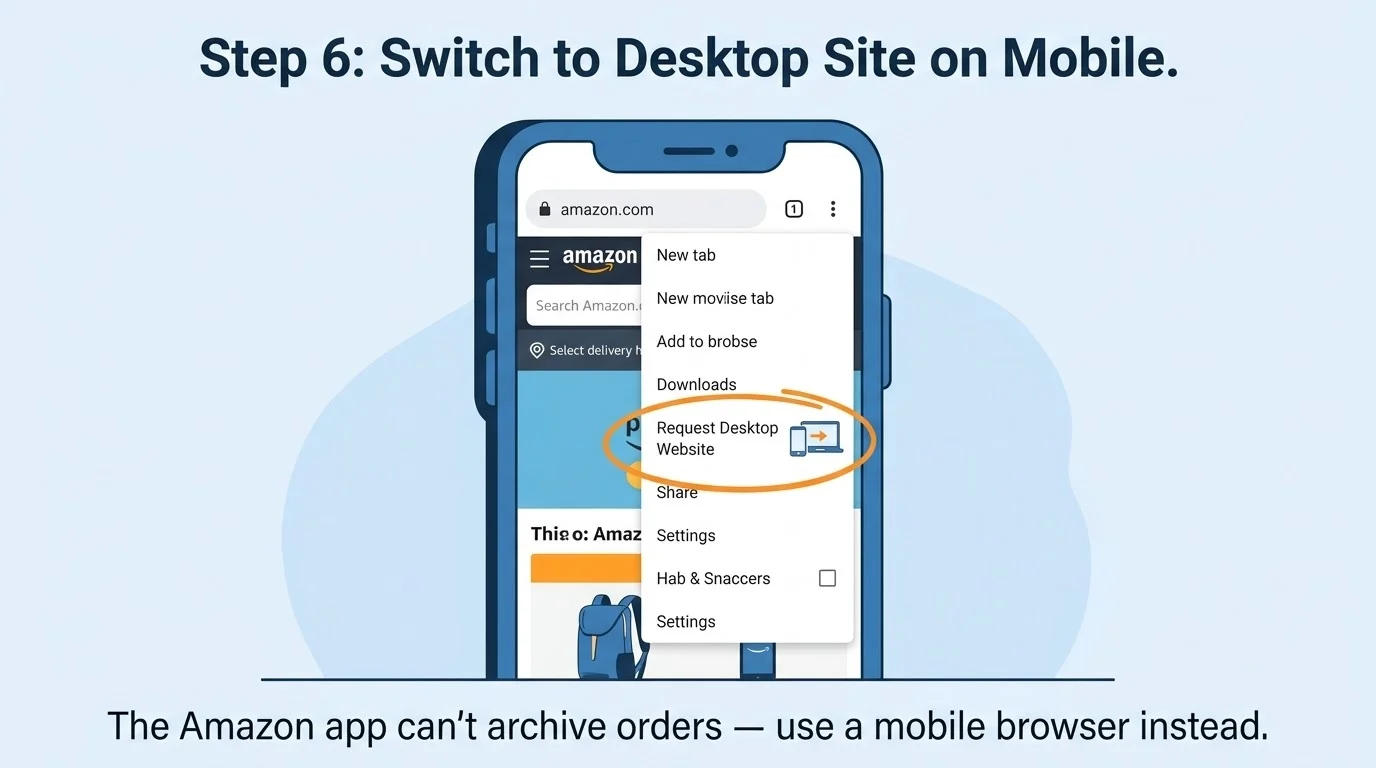
Step 7: If the Archive Order button is missing
Some accounts don’t show Archive Order at all, and there’s currently no reliable in-app or URL-based workaround for that , trying one risks account issues for no real benefit. If your goal is keeping future purchases private on a shared account, set up a separate adult profile through Amazon Family instead: go to the Amazon Family page, select Add Adult, enter their email, and have them accept the invite. Each adult then gets their own private order history going forward. This won’t archive anything already purchased, but it solves the problem for everything you buy after setting it up. 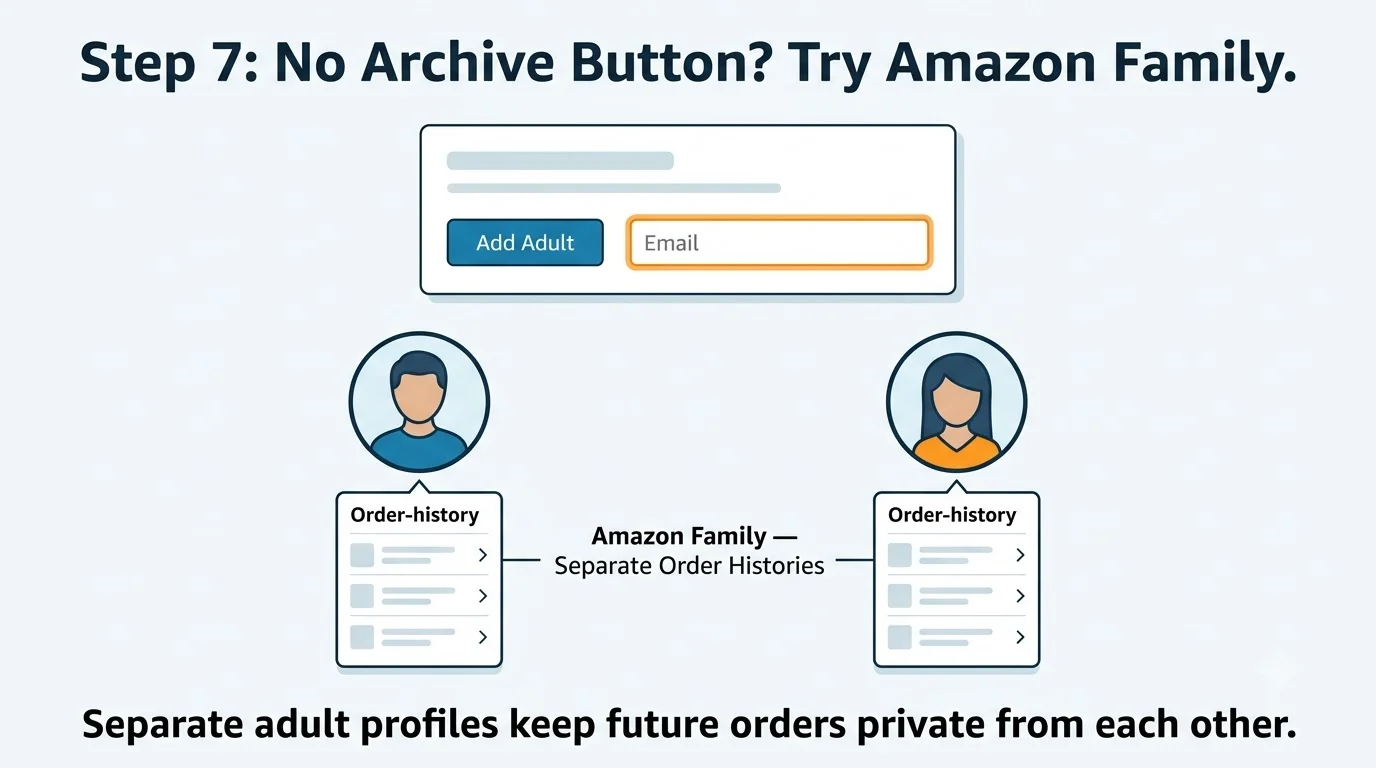
The bottom line
Archiving an Amazon order is a two-click process once you’re on the desktop site , the only real hurdle is that the app doesn’t support it and some accounts don’t get the button. Between the desktop-site steps above and Amazon Family for shared accounts, you now have a full path to archive an order, find it again whenever you need it, and handle the cases where archiving isn’t available at all.