Vipin PG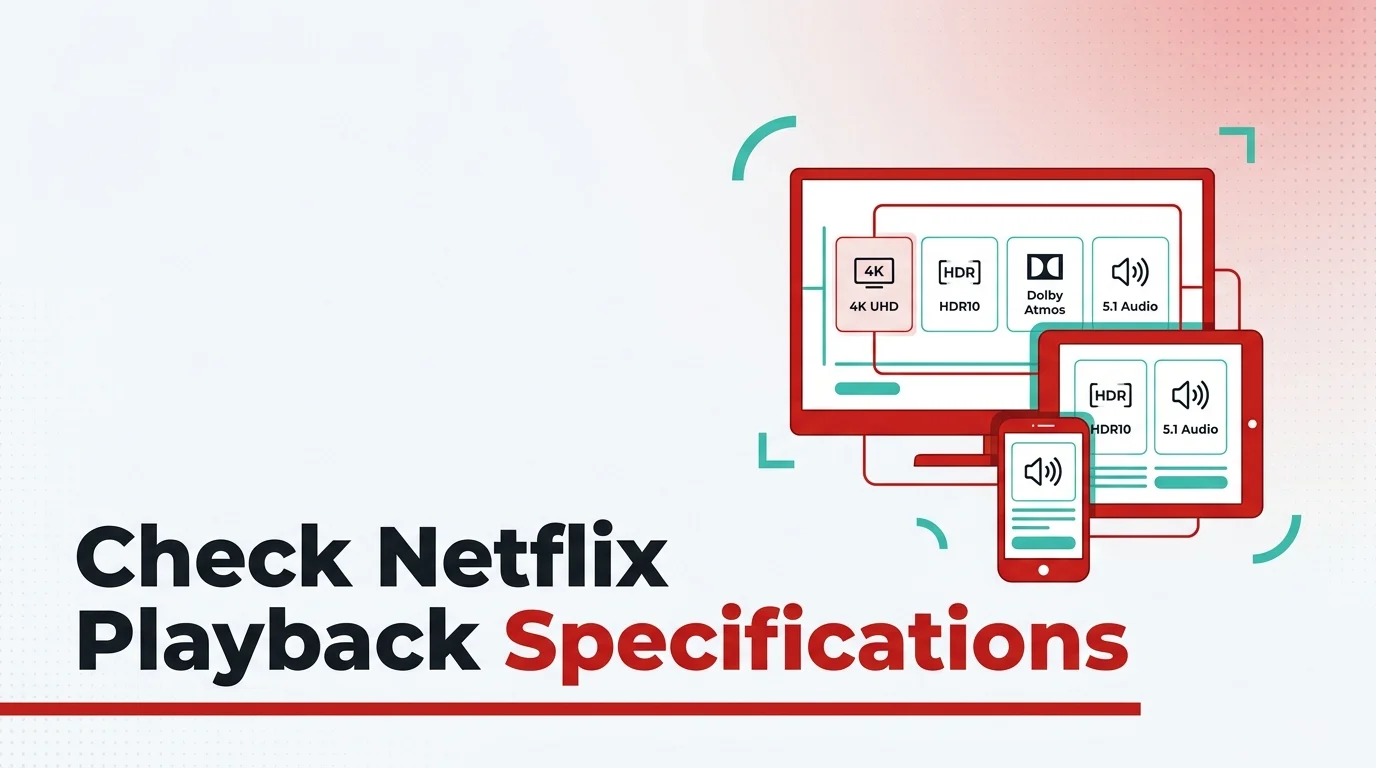
When you stream on Netflix, the quality you actually see and hear depends on your device’s playback specification. Not every device can stream 4K or Dolby Atmos — Netflix limits this based on your device’s hardware and software capabilities. Checking your playback spec is straightforward and takes less than a minute, whether you’re on a smart TV, phone, tablet, or browser.
How to Check Netflix Playback Specification on Your Device
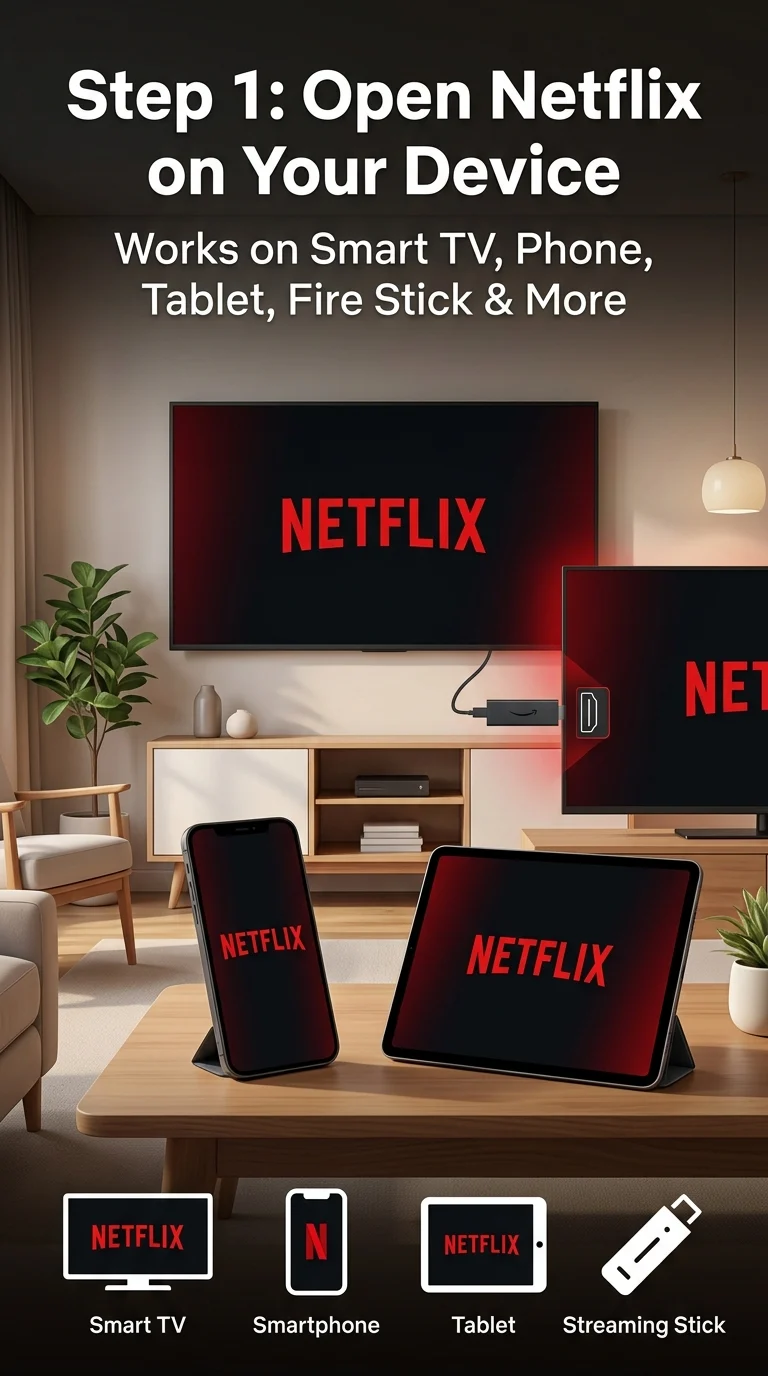
Step 1: Open the Netflix App on Your Device
Launch Netflix on the device you want to check — this could be your smart TV, Android phone, iPhone, iPad, Fire TV Stick, or any streaming device. Make sure you’re signed in to your account.
Step 2: Go to Your Profile and Tap the Menu
Once you’re on the Netflix home screen, look at the top-right corner of the screen. Tap or click on your profile icon. A dropdown or side menu will appear with account and app options listed.
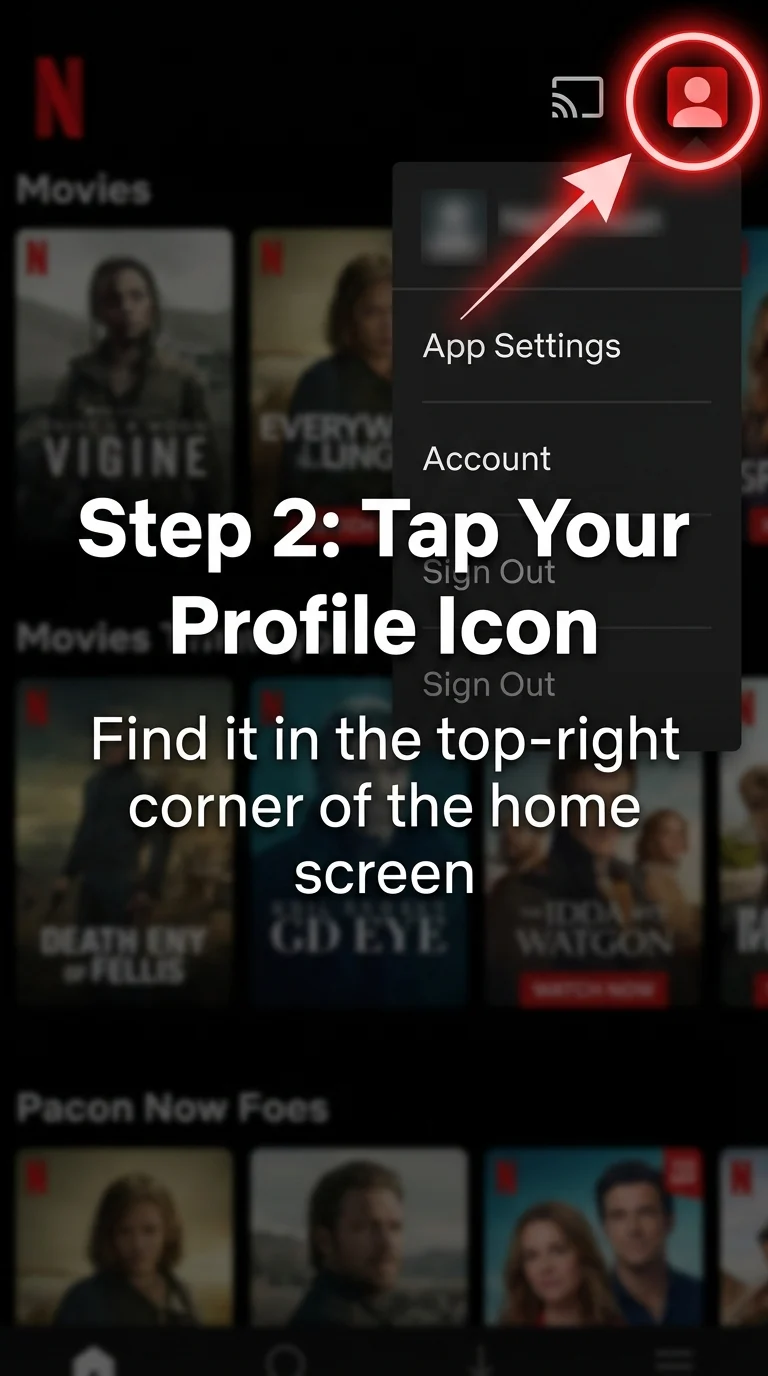
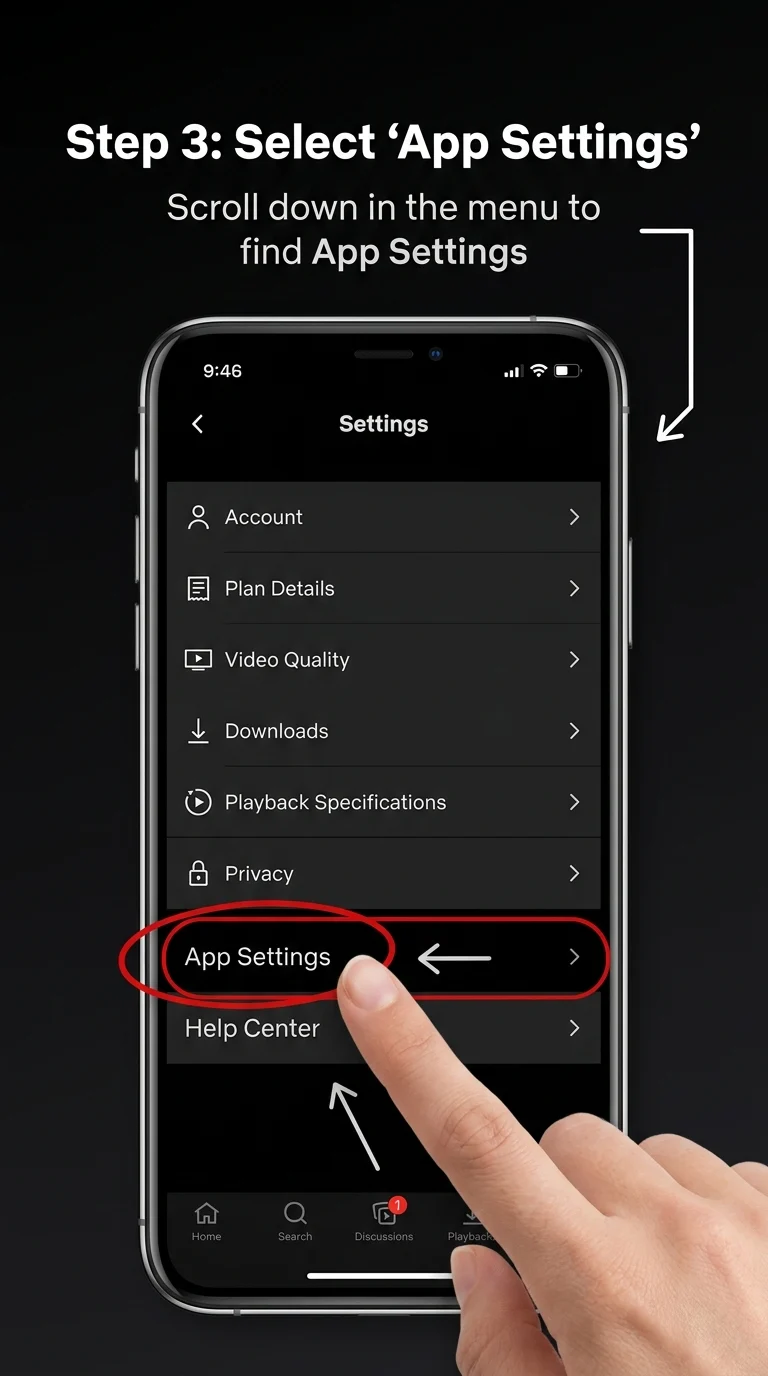
Step 3: Open App Settings
From the dropdown or side menu, scroll down and select “App Settings”. This section controls how Netflix behaves on your specific device — including data usage, downloads, and playback options.
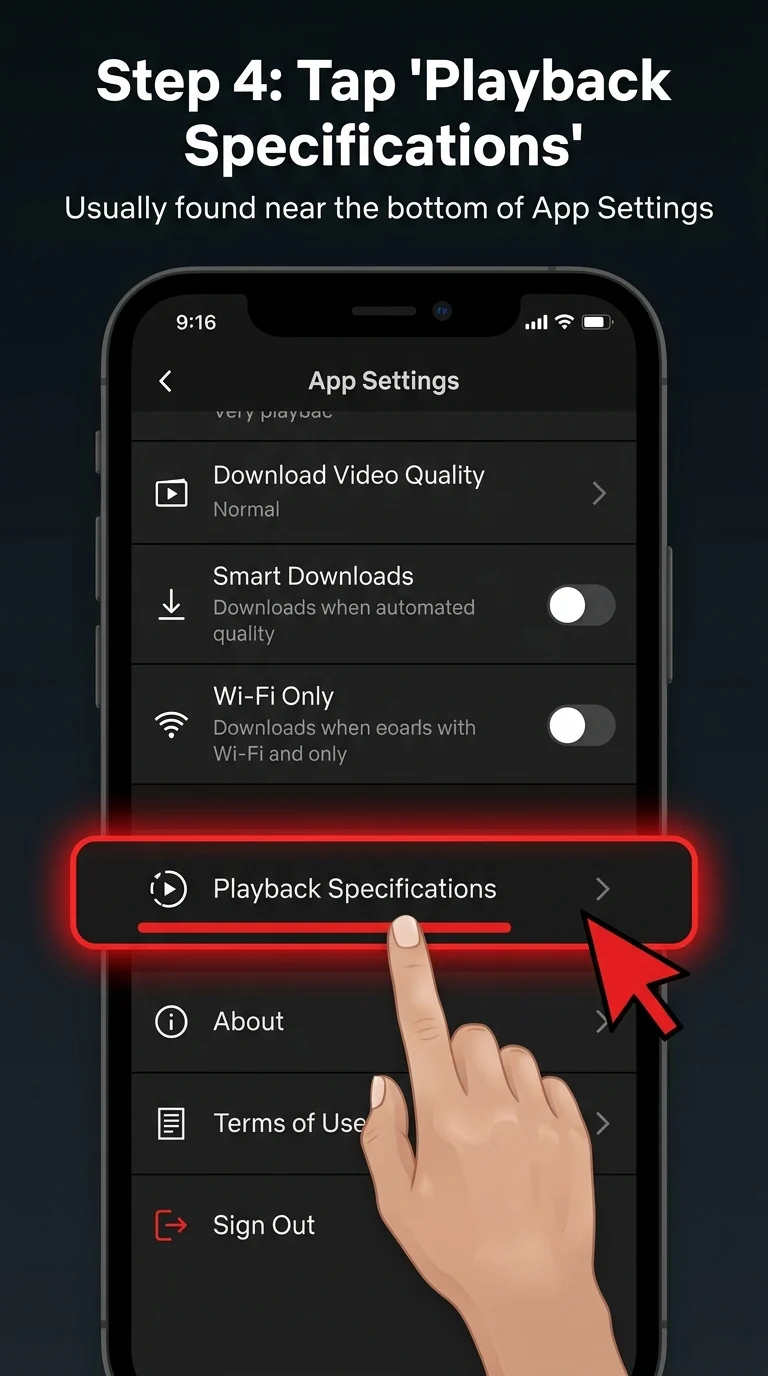
Step 4: Scroll Down to Find “Playback Specifications”
Inside App Settings, scroll down until you see a section labeled “Playback Specifications”. It’s usually toward the bottom of the settings list. Tap or click on it to open the detailed specs for your device.
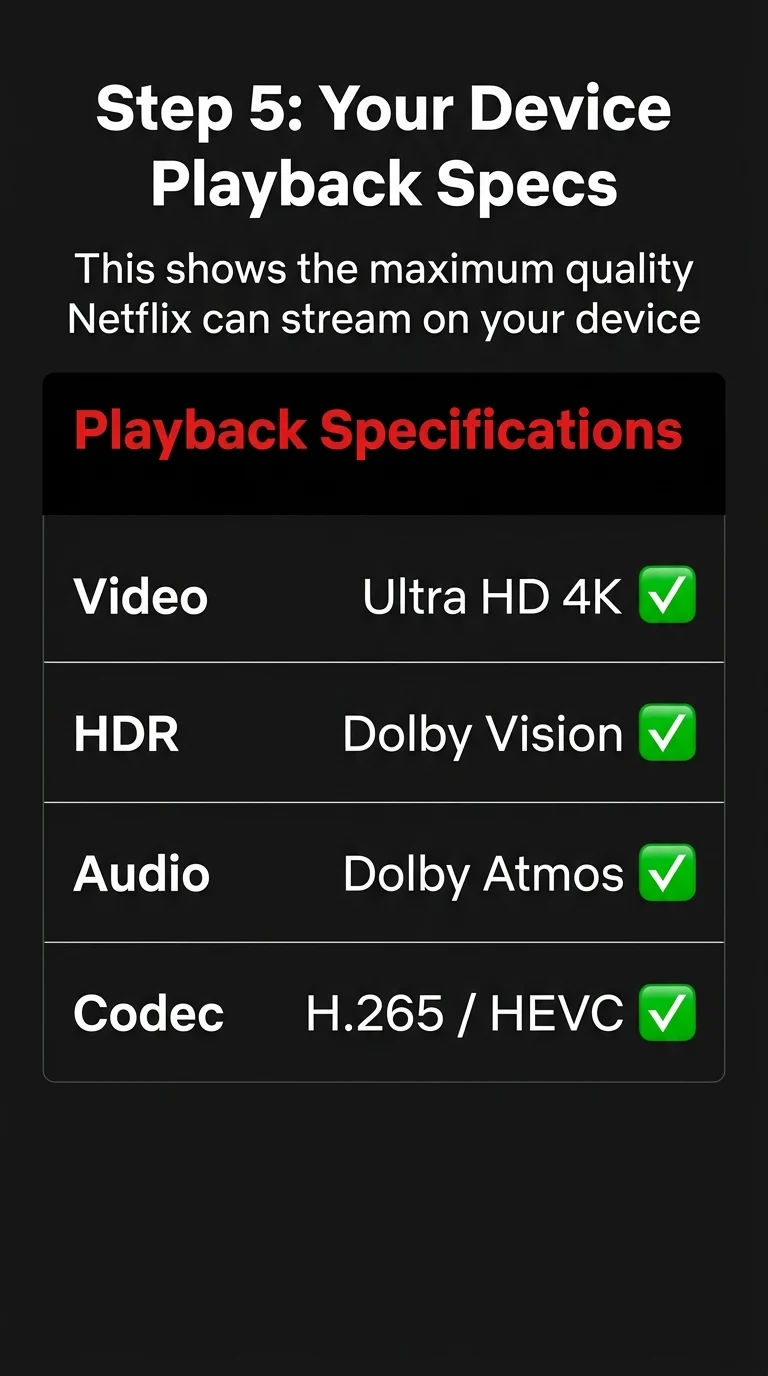
Step 5: Read Your Device’s Playback Specifications
You’ll now see a detailed breakdown of what your device supports. This includes:
- Video Playback: Whether your device supports SD, HD (720p), Full HD (1080p), or 4K Ultra HD
- HDR Support: HDR10, Dolby Vision, or HLG (or none)
- Audio: Stereo, 5.1 Surround, Dolby Atmos, or other audio formats
- Streaming Technology: The codec being used (like H.264 or HEVC/H.265)
This is the maximum quality Netflix can deliver on your current device under ideal network conditions.
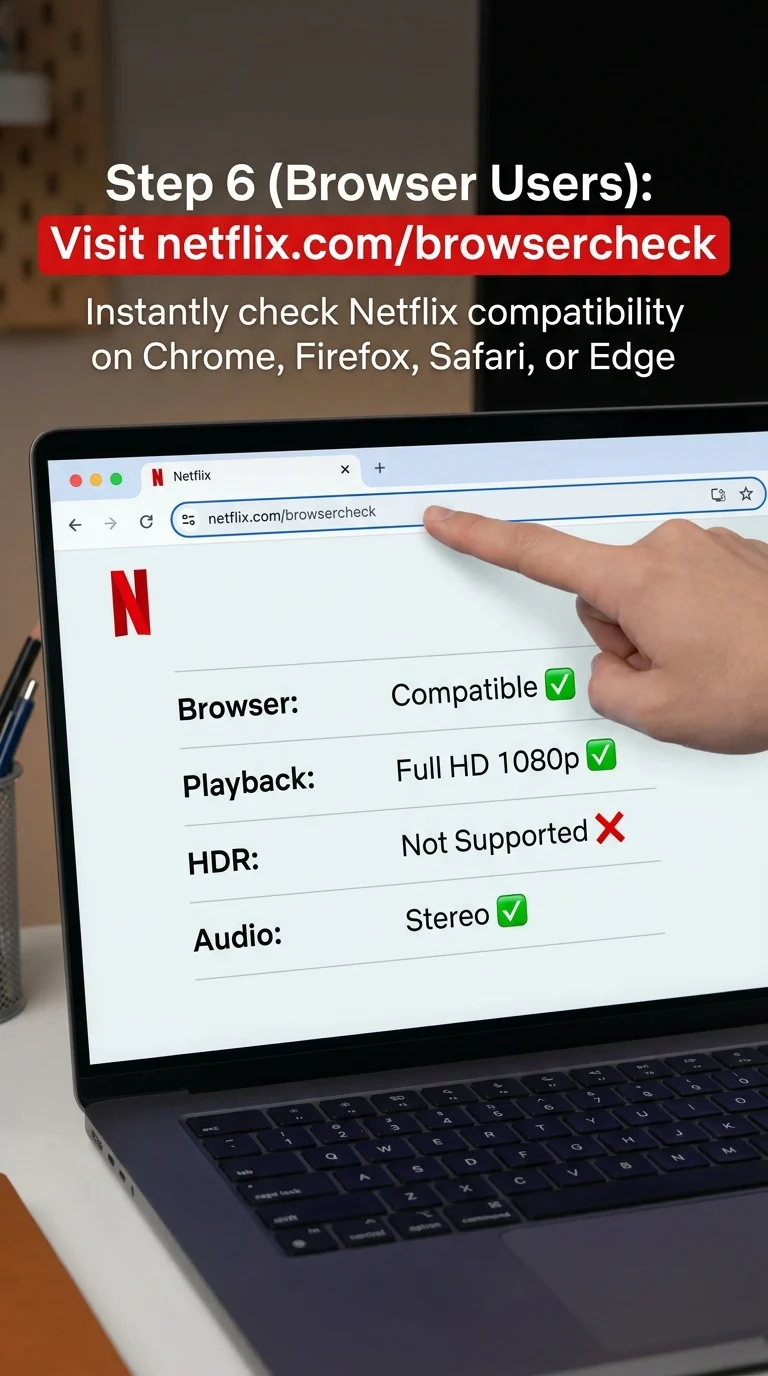
Step 6 (Alternative): Check via Browser at netflix.com/browsercheck
If you’re watching Netflix on a laptop or desktop browser (like Chrome, Firefox, Edge, or Safari), you can also check your playback specs directly by visiting:
This page automatically detects your browser’s compatibility and shows whether it supports HD, Full HD, or any limitations based on your browser and OS combination.
What the Playback Specs Actually Mean
Here’s a quick breakdown to help you understand what you’re seeing:
| Spec | What It Means |
|---|---|
| SD (480p) | Standard definition — basic quality, older devices |
| HD (720p) | High definition — good for smaller screens |
| Full HD (1080p) | Best quality on most laptops, phones, and mid-range TVs |
| 4K Ultra HD | Best quality — requires 4K TV/device + 4K Netflix plan |
| Dolby Vision / HDR10 | Enhanced color and contrast for supported displays |
| Dolby Atmos | Spatial surround sound — needs compatible audio system |
Wrapping Up
Checking your Netflix playback specification is the easiest way to know exactly what streaming quality your device is capable of — no guessing needed. Whether you’re on a phone, smart TV, or browser, the steps above take less than a minute. If your device shows lower specs than expected, it could be due to your Netflix plan, your device’s hardware, or a browser limitation — and knowing that helps you decide if an upgrade is worth it.