Vipin PG
The keyboard shortcut is usually the quickest method. It works in most places where you can type, including messages, emails, documents, search boxes, social media posts, and browser-based tools.
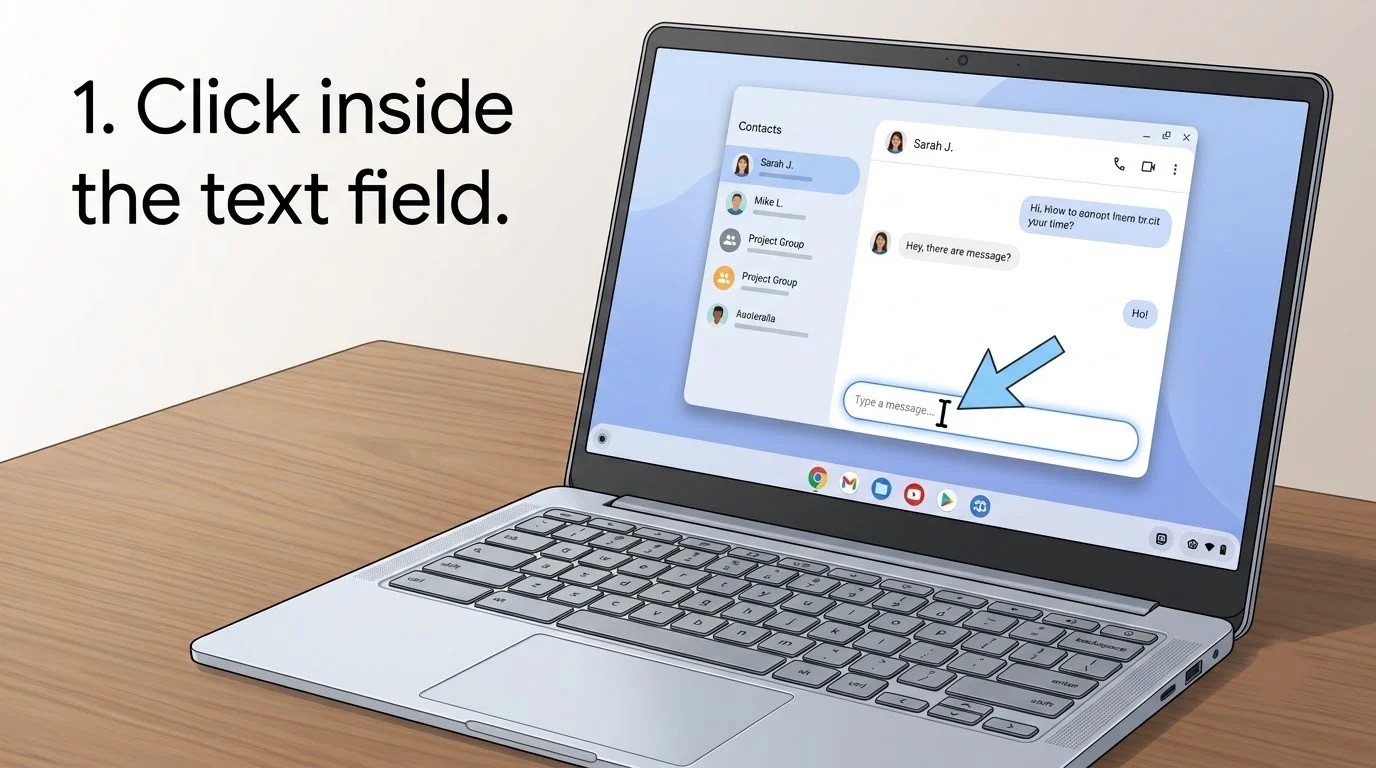
Step 1: Click Where You Want to Add the Emoji
Open the app, website, email, or document where you want to use an emoji. Click inside the text field so that the blinking text cursor appears.
The cursor is important because it tells your Chromebook where the selected emoji should be inserted.
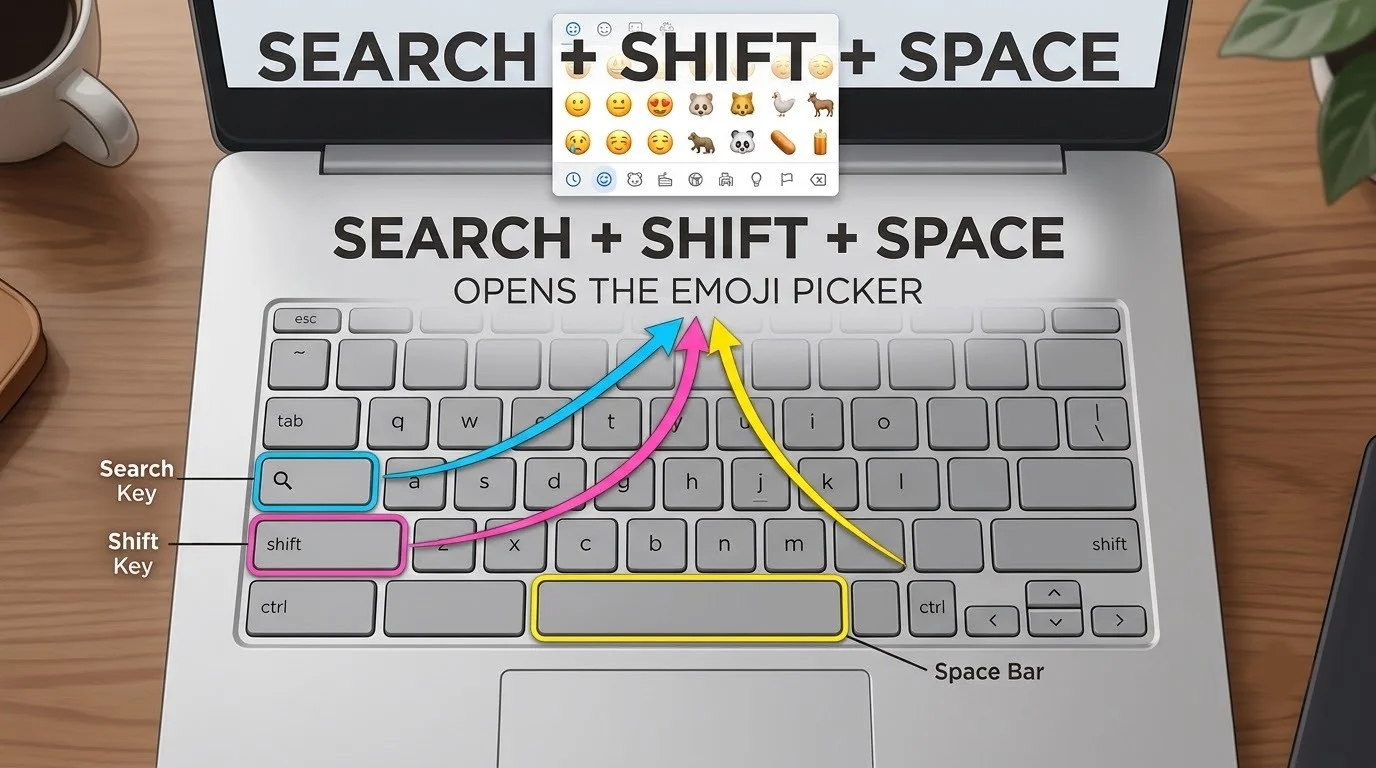
Step 2: Press Search + Shift + Space
While the cursor is inside the text field, press these three keys together:
Search + Shift + Space
The Search key normally has a magnifying-glass or Launcher symbol. It is usually located where the Caps Lock key appears on a standard Windows keyboard.
On some newer Chromebook keyboards, this key may be called the Launcher key. The shortcut works the same way: Launcher + Shift + Space.
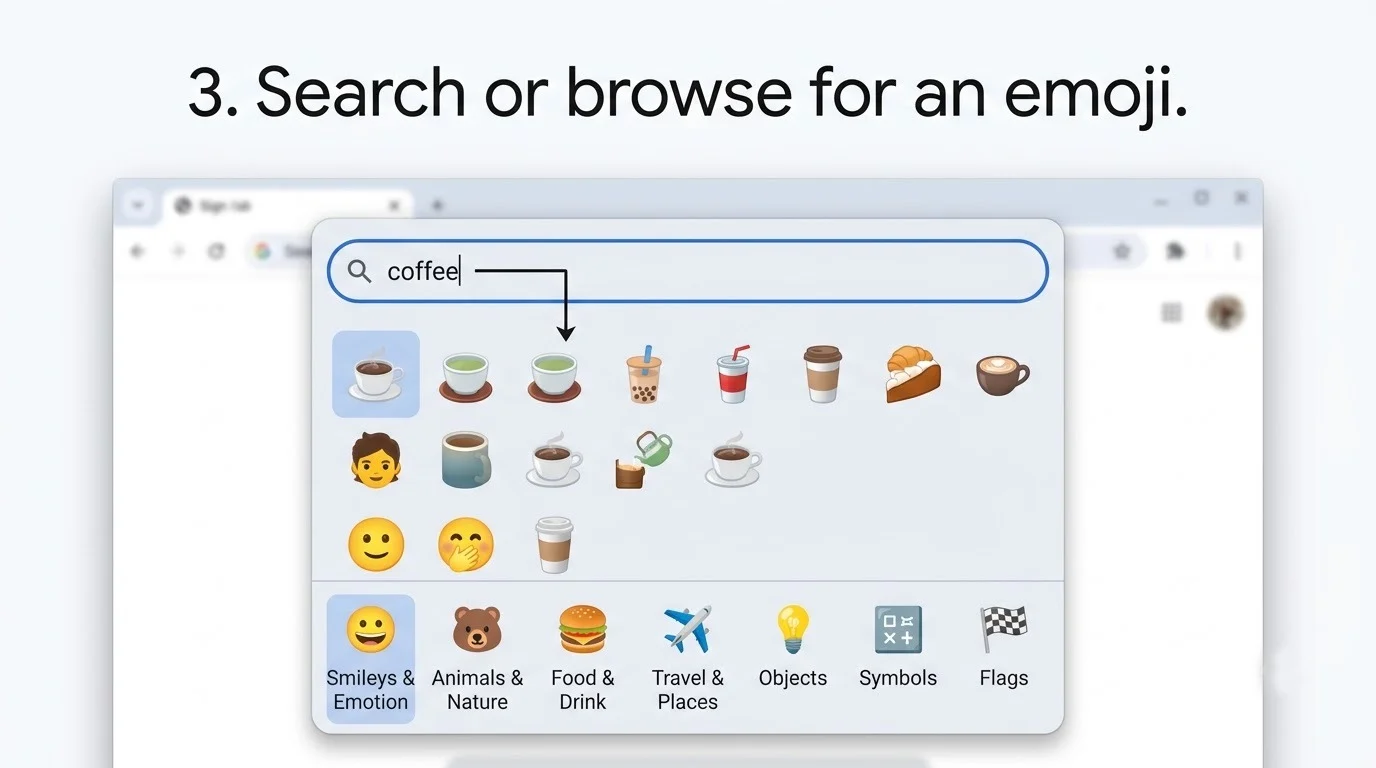
Step 3: Find the Emoji You Need
When the picker opens, browse the available emoji categories or use the search box. For example, type laugh, heart, or coffee to see matching emojis.
The same picker may also provide access to symbols, text-based emoticons, and GIFs. Make sure the emoji tab is selected if you only want standard emojis.
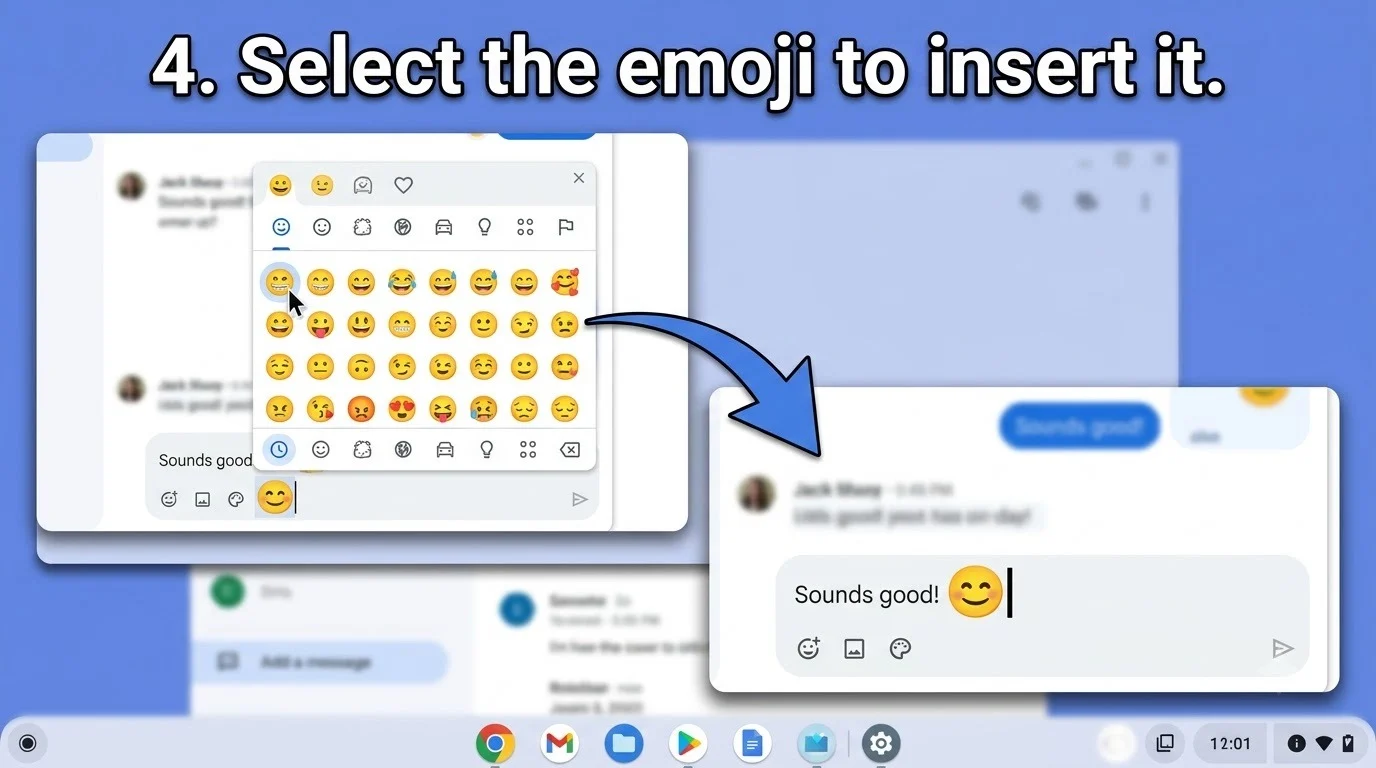
Step 4: Select the Emoji
Click the emoji you want. It will be placed at the current cursor position in the text field.
You can reopen the picker and repeat the process if you want to add more emojis. When you are finished, continue typing normally.
Opening the Emoji Picker with a Mouse or Touchpad
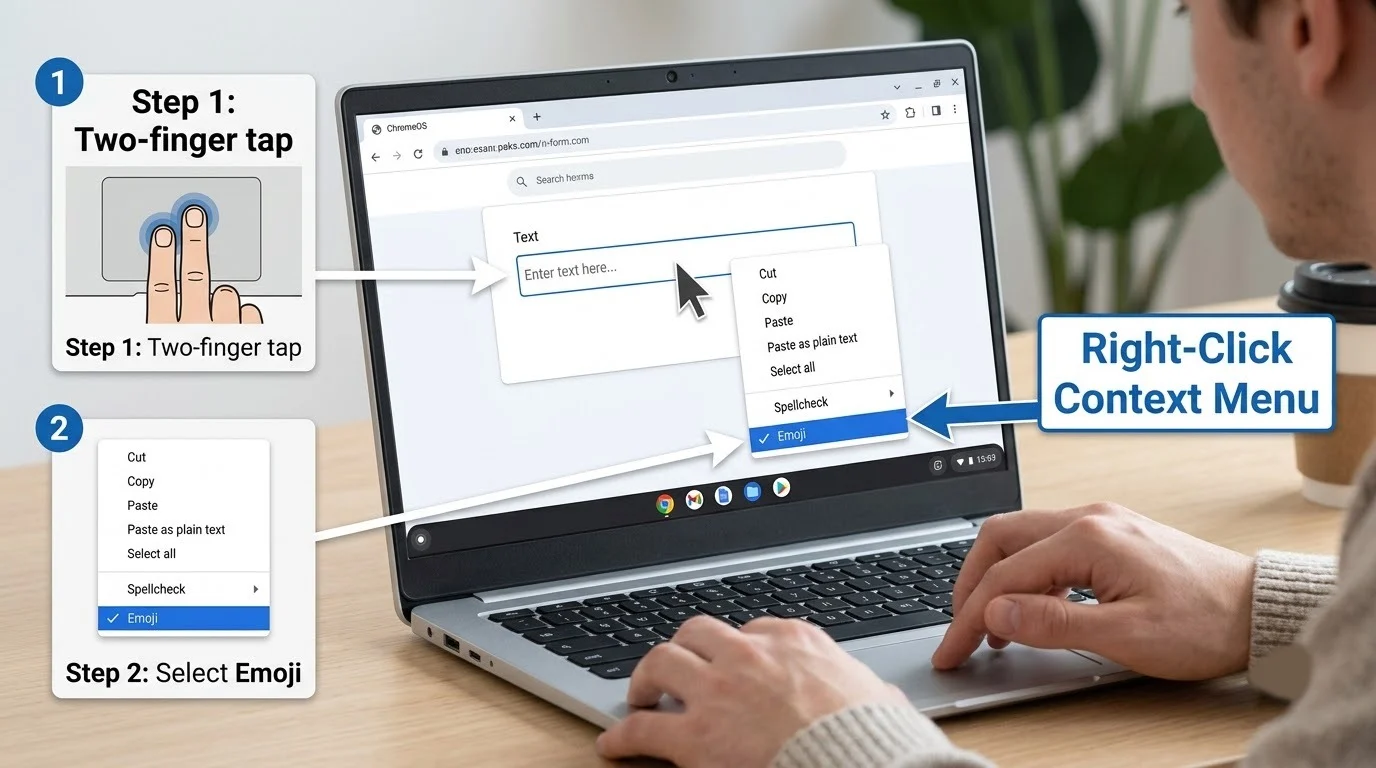
If you prefer not to remember the keyboard shortcut, you can open the picker from the right-click menu.
Step 1: Right-Click Inside a Text Field
Place the cursor inside an editable text field. Right-click with your mouse, or tap the Chromebook touchpad with two fingers.
Select Emoji from the menu that appears. The emoji picker will open, allowing you to search for and insert an emoji.
Opening Emojis in Chromebook Tablet Mode
On a touchscreen Chromebook, tap inside a text field to display the on-screen keyboard. Tap the emoji or smiley-face icon near the bottom of the keyboard, then select the emoji you want to insert.

If the Emoji Picker Does Not Open
- Check the cursor: Click inside an editable text field before using the shortcut. The picker may not open when no typing area is selected.
- Try the right-click method: Right-click or two-finger tap inside the text field, then look for Emoji.
- Check the keys: Press Search or Launcher, Shift, and Space at the same time.
- Using an external keyboard: The Windows key or Command key may replace the Chromebook Search key.
- Try another app: Some restricted fields or applications may not support direct emoji insertion.
Conclusion
To access the emoji picker on a Chromebook, click inside a text field and press Search + Shift + Space. If you prefer using the mouse or touchpad, right-click the text field and select Emoji. Both methods open the same picker, where you can search for an emoji and insert it immediately.