Vipin PG
If your Fire TV keeps rebooting on its own — showing the flame logo, restarting mid-show, or looping every few minutes — it’s frustrating, but it’s rarely a sign of a dead device. Below are the fixes in the order you should actually try them, starting with the most common cause first.
Step 1: Check the Power Adapter and Cable
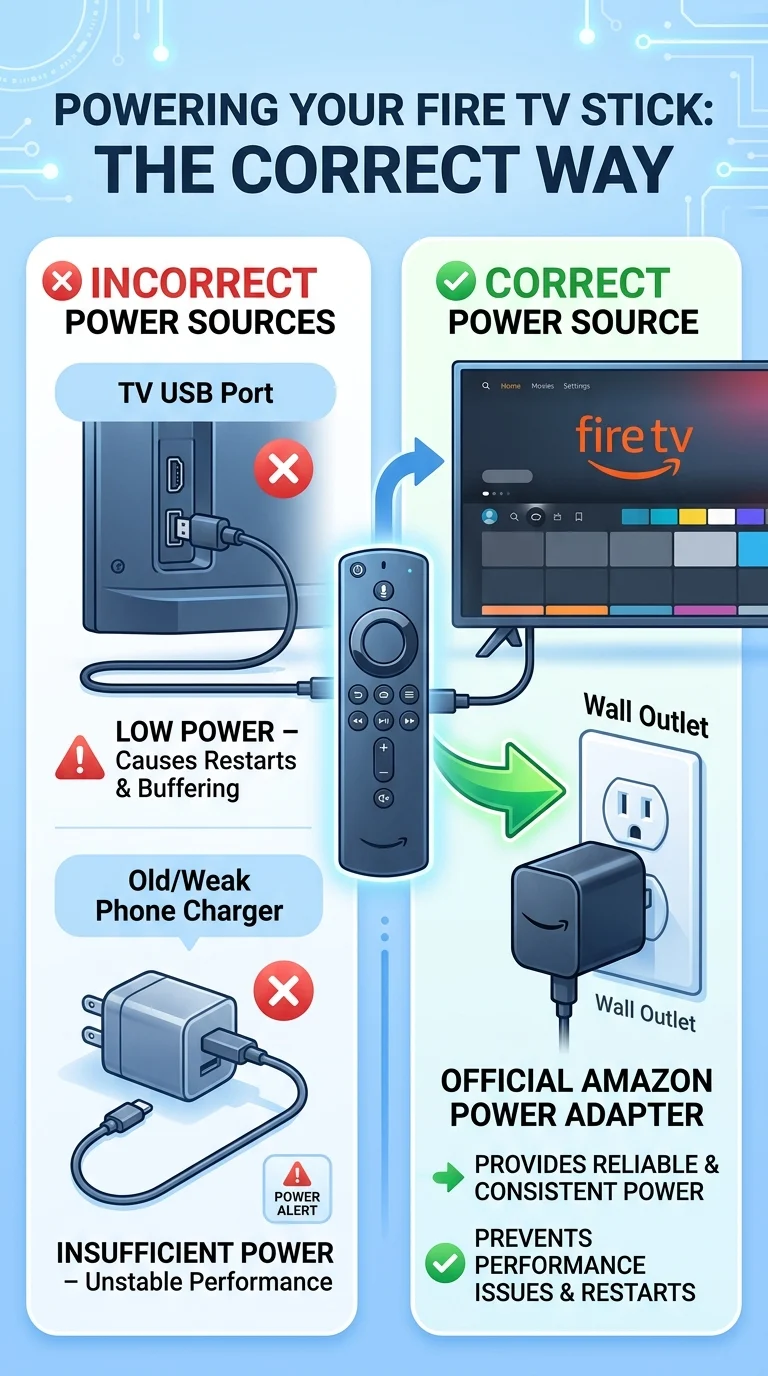
This is the single most common cause of random restarts. Fire TV Stick devices need a stable power supply — plugging them into a TV’s USB port or using a phone charger often doesn’t provide enough consistent power, causing the device to reboot. Always use the official Amazon power adapter and cable plugged directly into a wall outlet, not a power strip or the TV itself.
Step 2: Give Your Fire TV Room to Breathe (Overheating)
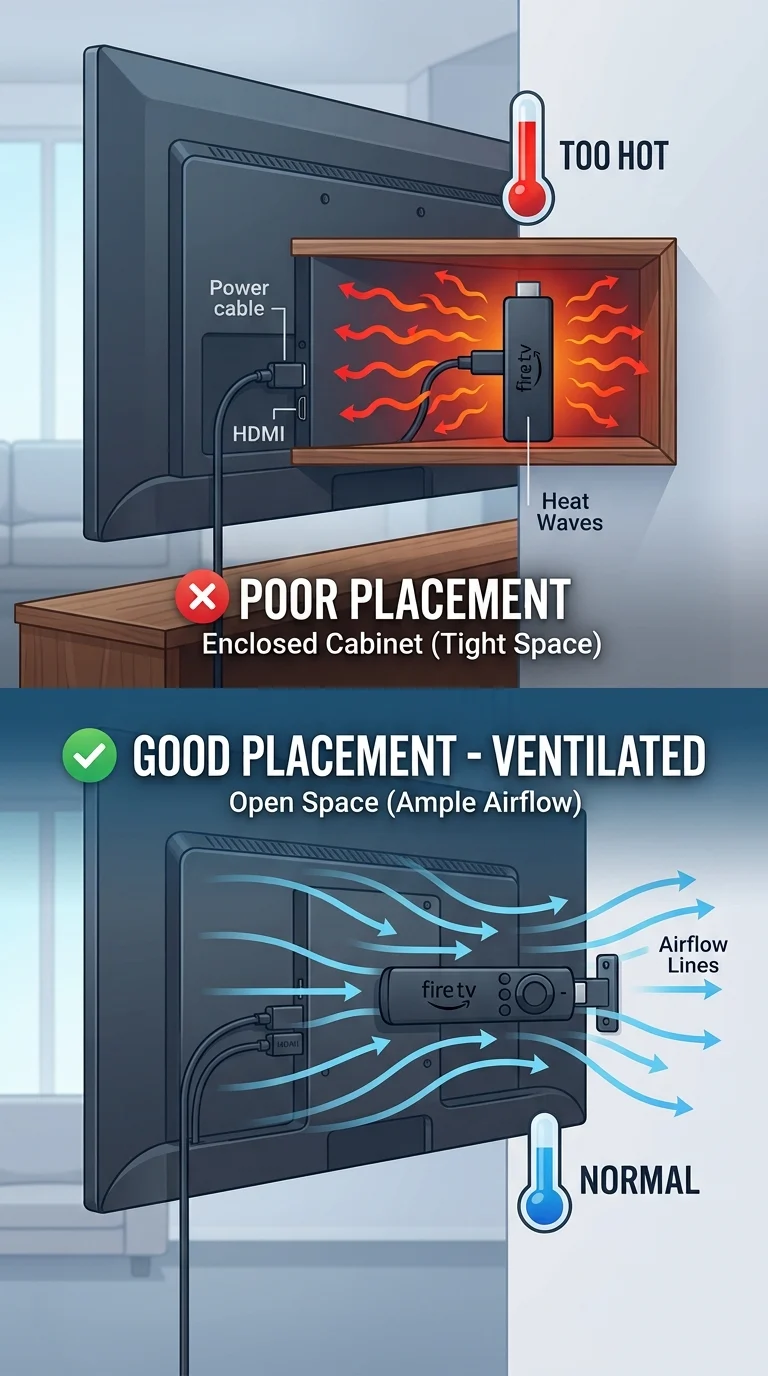
Fire TV devices can overheat if they’re tucked behind a TV in a tight space, stacked with other electronics, or placed in direct sunlight. Overheating triggers automatic restarts as a safety measure. Unplug the device, let it cool for 10-15 minutes, and reposition it somewhere with open airflow — ideally not directly touching the back of a warm TV.
Step 3: Do a Proper Power Cycle (Cold Restart)
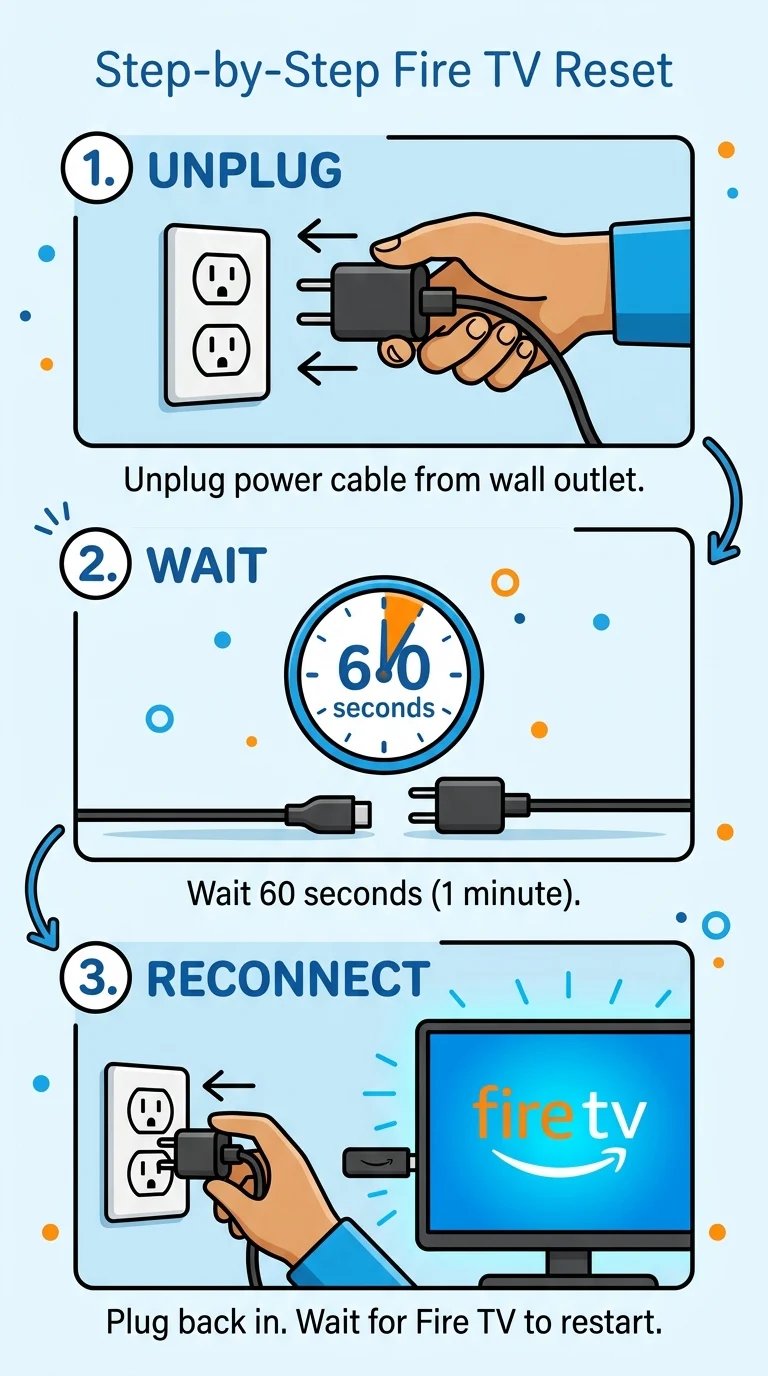
A regular restart from the settings menu isn’t always enough. Unplug the Fire TV device from power completely, wait a full 60 seconds, then plug it back in. This clears temporary memory issues that a normal restart can miss and is often enough to break a restart loop entirely.
Step 4: Check the HDMI Connection and Disable HDMI-CEC
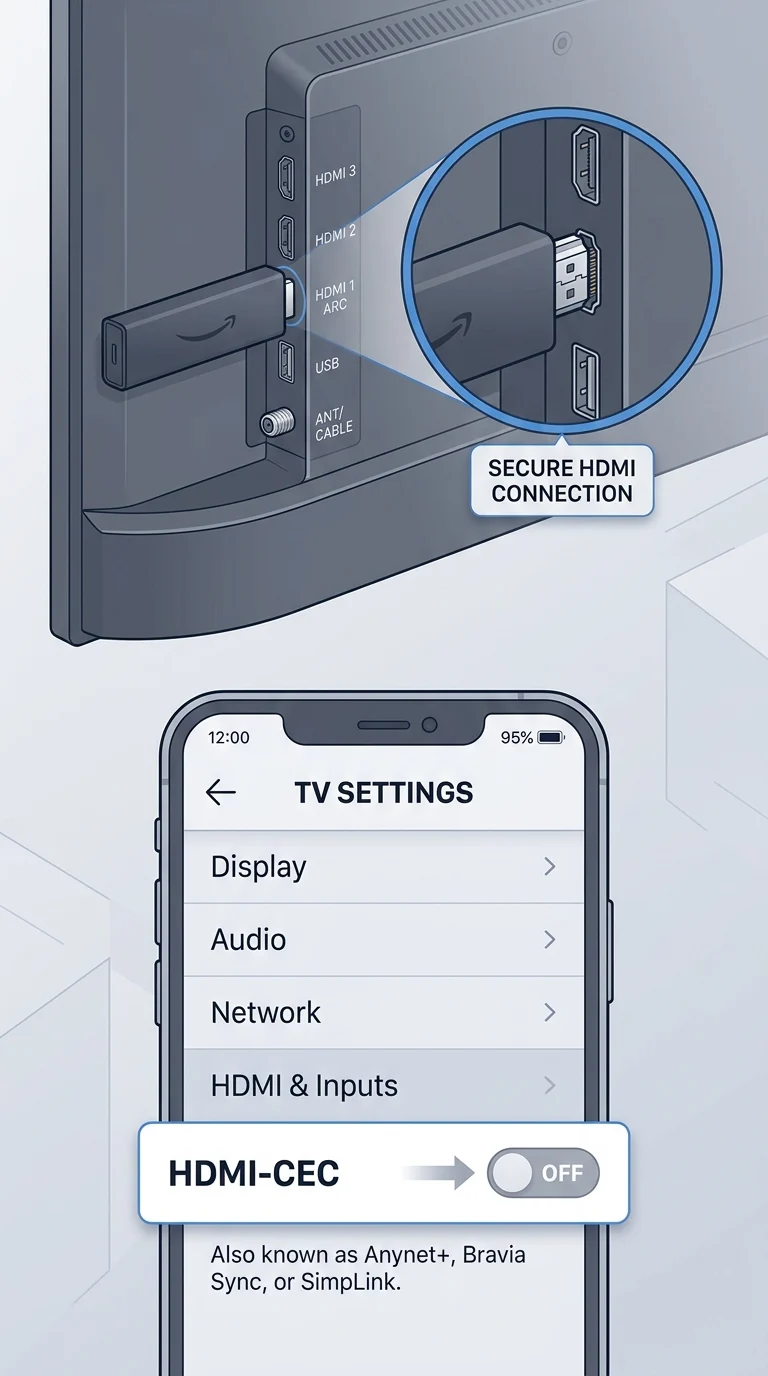
A loose HDMI connection can cause power fluctuation and trigger restarts. Reseat the HDMI cable firmly, or try a different HDMI port on your TV. Also, HDMI-CEC (the feature that lets devices control each other) can sometimes cause conflicting restart signals between the TV and Fire TV. Try turning off CEC-related settings on your TV (often called Anynet+, Bravia Sync, or SimpLink depending on the brand).
Step 5: Clear Cache and Free Up Storage
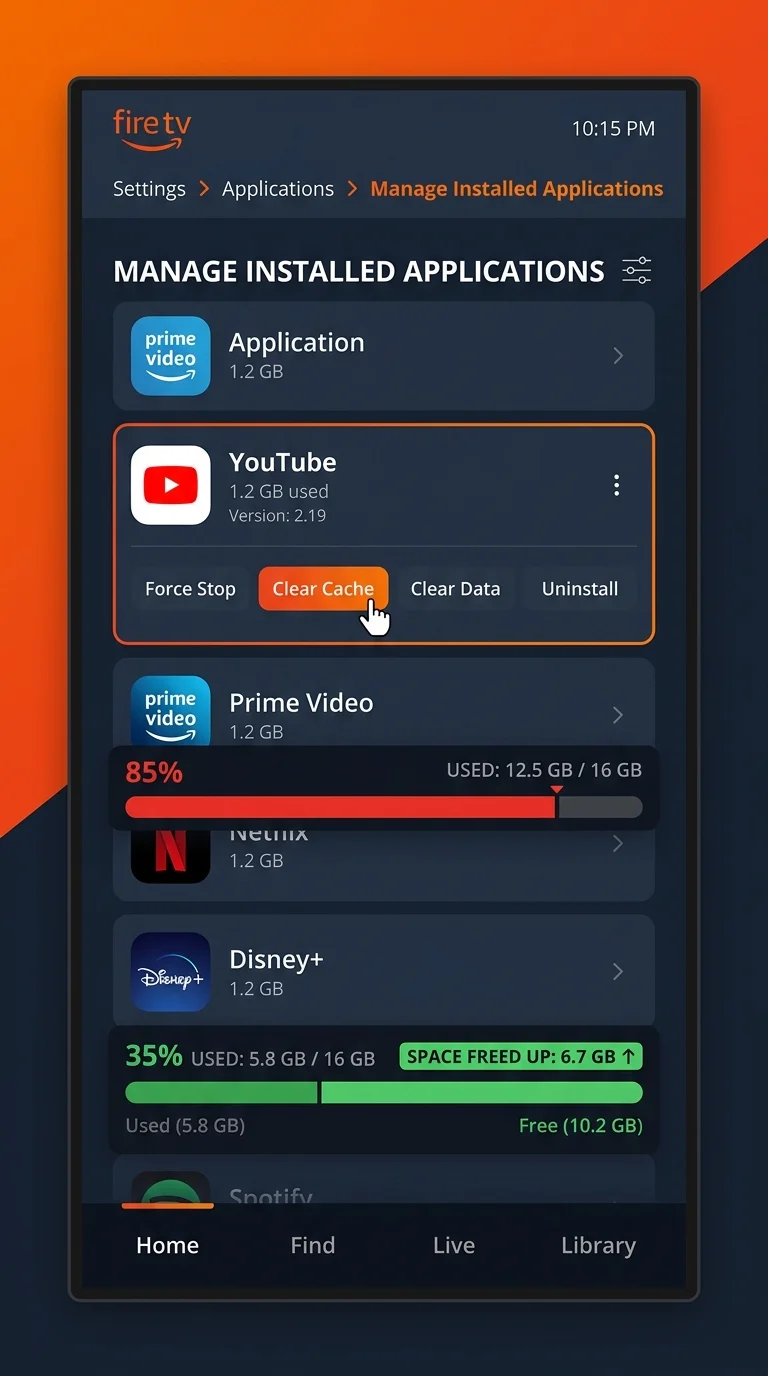
Low storage or a bloated app cache can cause the system to become unstable and restart. Go to Settings > Applications > Manage Installed Applications, select apps you use often (especially streaming apps), and clear their cache. Also uninstall apps you no longer use to free up space.
Step 6: Update Fire TV Software Manually
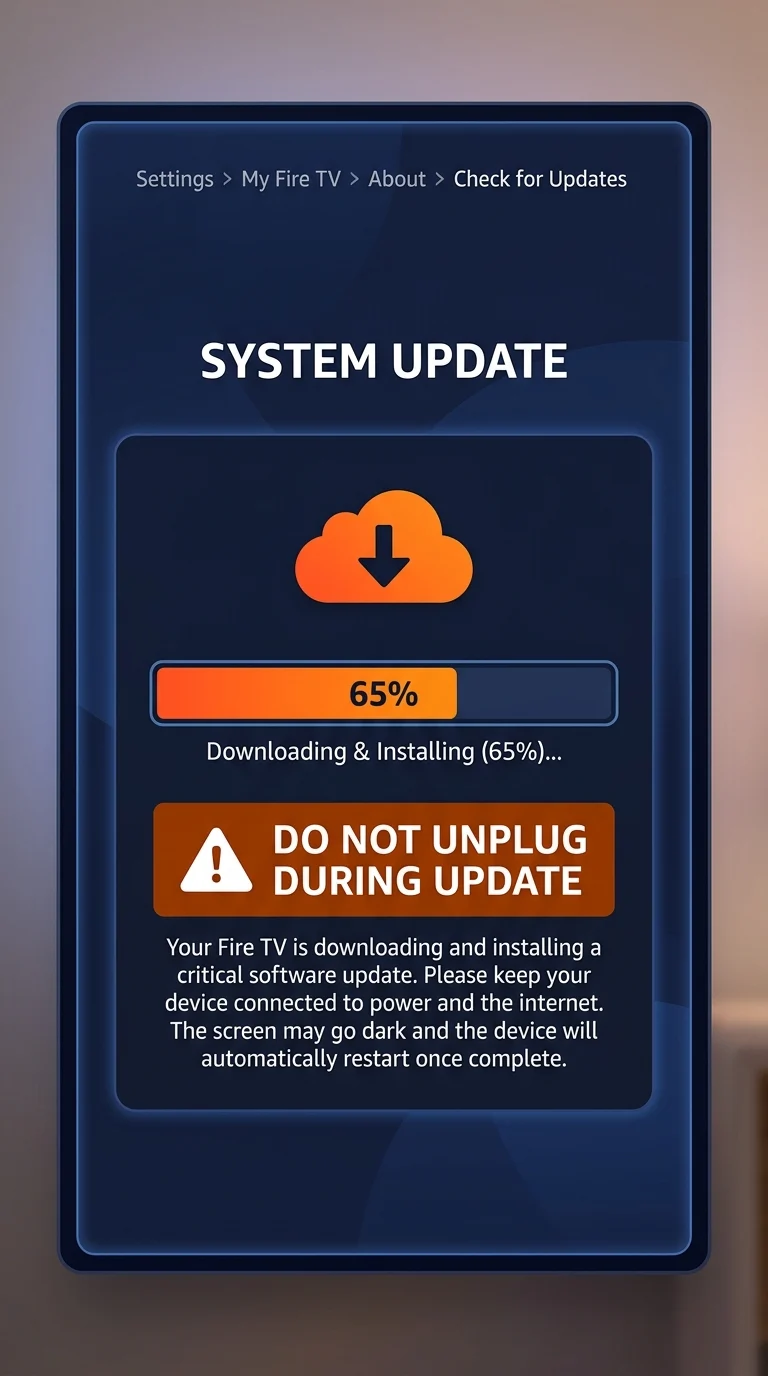
Sometimes a Fire TV gets stuck mid-update, which causes repeated restarts until the update finishes. Go to Settings > My Fire TV > About > Check for Updates and let it run fully without interrupting the power. This can take several minutes, so leave it alone until it completes.
Step 7: Factory Reset as the Last Resort
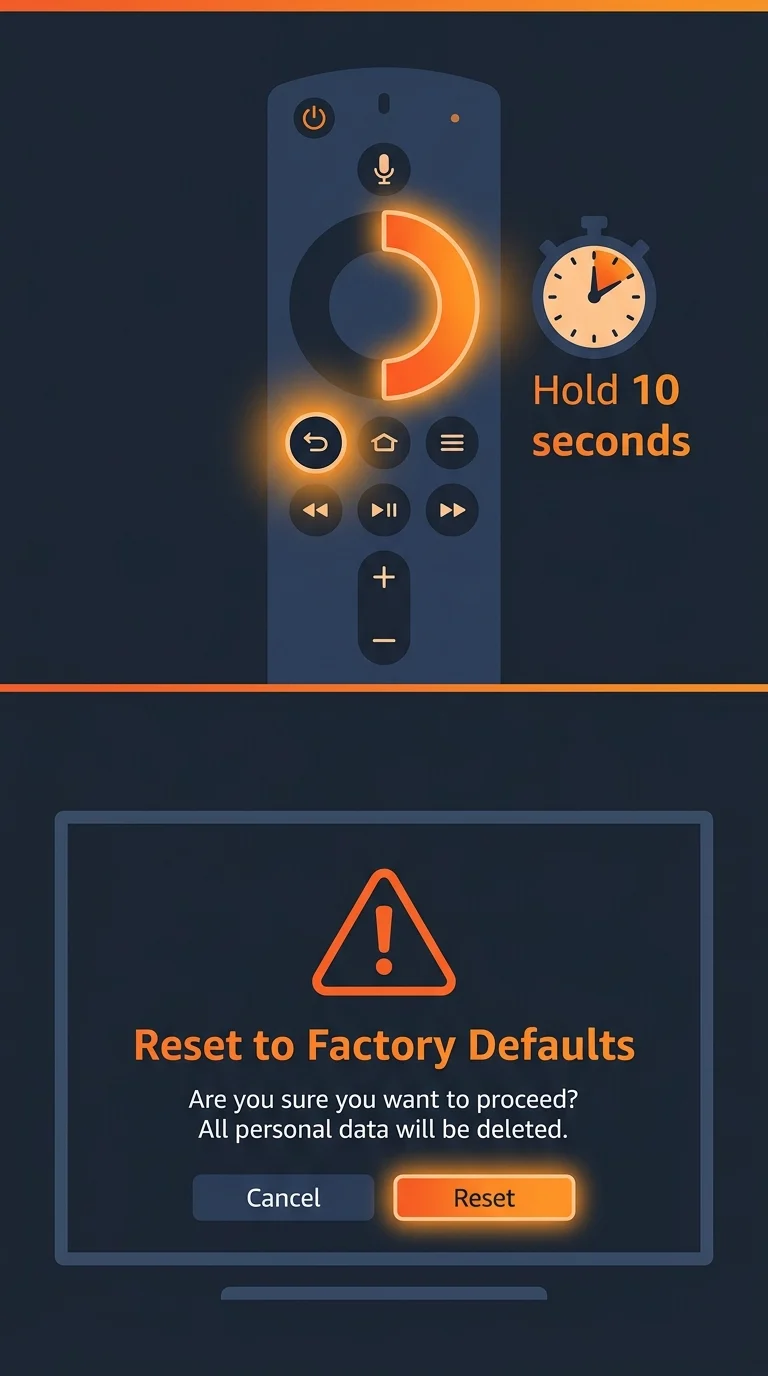
If the restart loop continues after everything above, the software itself is likely corrupted. Go to Settings > My Fire TV > Reset to Factory Defaults. If the device restarts too quickly to reach settings, hold the Back and Right buttons on the remote for 10 seconds to trigger a reset menu directly. This wipes the device and reinstalls a clean version of the software.
Final Thoughts
Fire TV restart loops almost always come down to power, heat, or software — not a broken device. Working through these steps in order fixes the vast majority of cases, and the factory reset in Step 7 resolves nearly every remaining one.