Vipin PG
The “Additional Authentication Required” message on Xbox One shows up when the console can’t confirm it’s allowed to use your network. It’s not a hardware fault, it’s almost always a router-side or network-configuration issue, most commonly linked to MAC address filtering or a leftover Alternate MAC Address setting on the console.
Why This Error Happens
A few things typically trigger it:
- Your router has MAC filtering or parental controls enabled, and the Xbox isn’t on the allowed list
- The console’s Alternate MAC Address setting (meant for campus or dorm networks) is turned on and conflicting with your home network
- The router assigned a new IP but the Xbox is still holding onto old network data
- In rare cases, your ISP has flagged or restricted the connection
How to Fix It
Step 1: Restart Your Xbox and Router
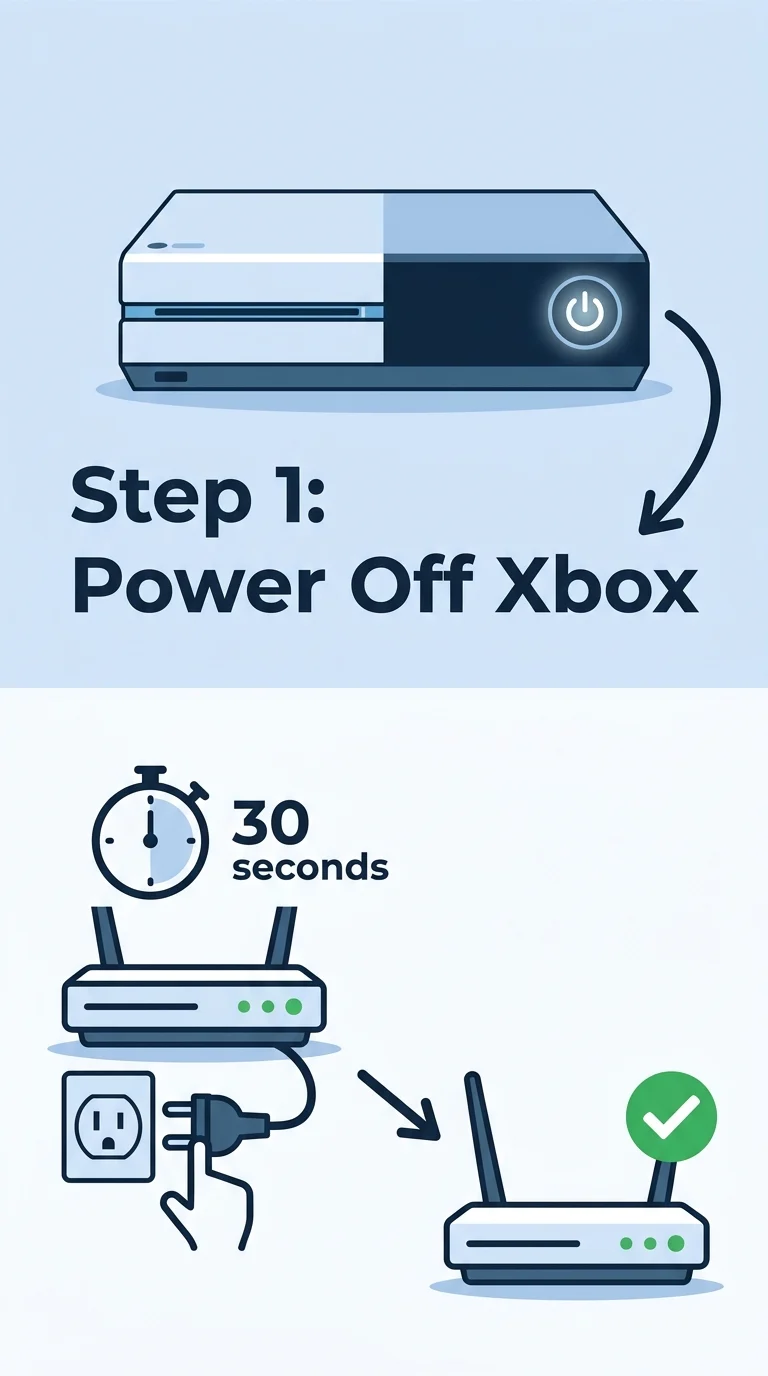
Power off the Xbox completely (hold the Xbox button until it shuts down), then unplug your router for 30 seconds. Power the router back on first, wait for it to fully reconnect, then turn the Xbox back on. This forces both devices to refresh their network data and often clears the error immediately.
Step 2: Clear the Alternate MAC Address on Xbox
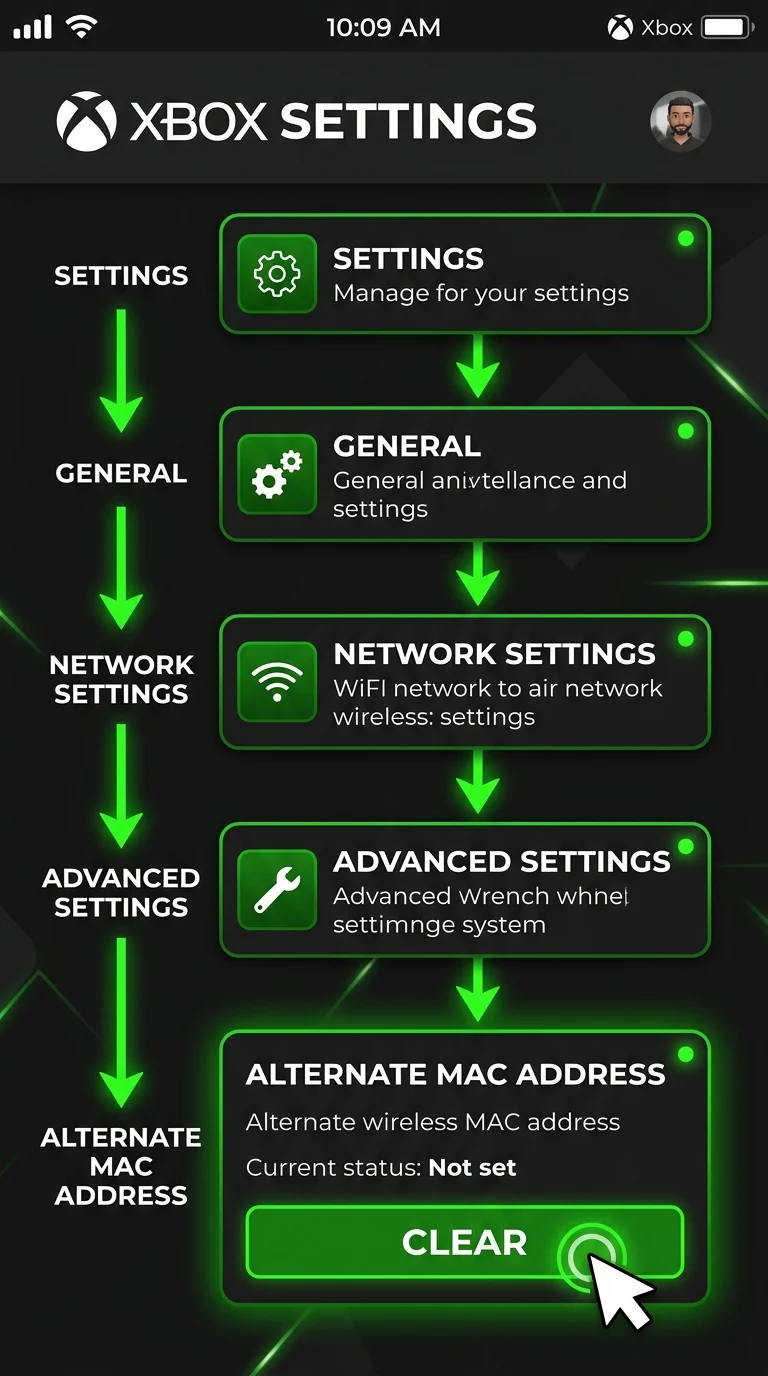
Go to Settings > General > Network Settings > Advanced Settings. Look for Alternate MAC Address (it may say Wired or Wireless). If anything is entered there, select it and choose Clear. Restart the console and test your connection again.
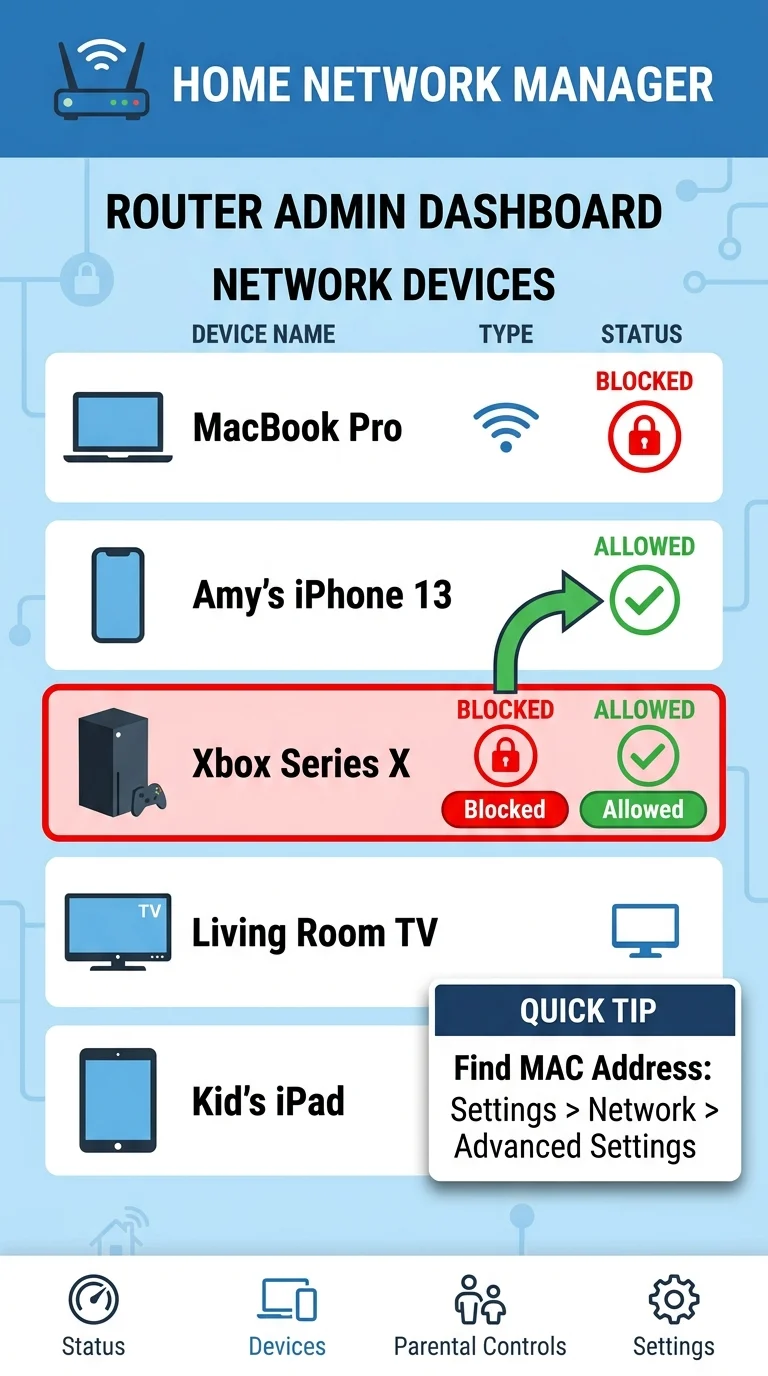
Step 3: Check Your Router for MAC Filtering or Blocked Devices
Log into your router’s admin panel (usually 192.168.0.1 or 192.168.1.1, printed on the router itself). Look for a section called MAC Filtering, Access Control, or Device Management. Make sure the Xbox isn’t listed as blocked, and if MAC filtering is on, add the Xbox’s MAC address to the allowed list. You can find the console’s MAC address under Settings > Network > Advanced Settings.
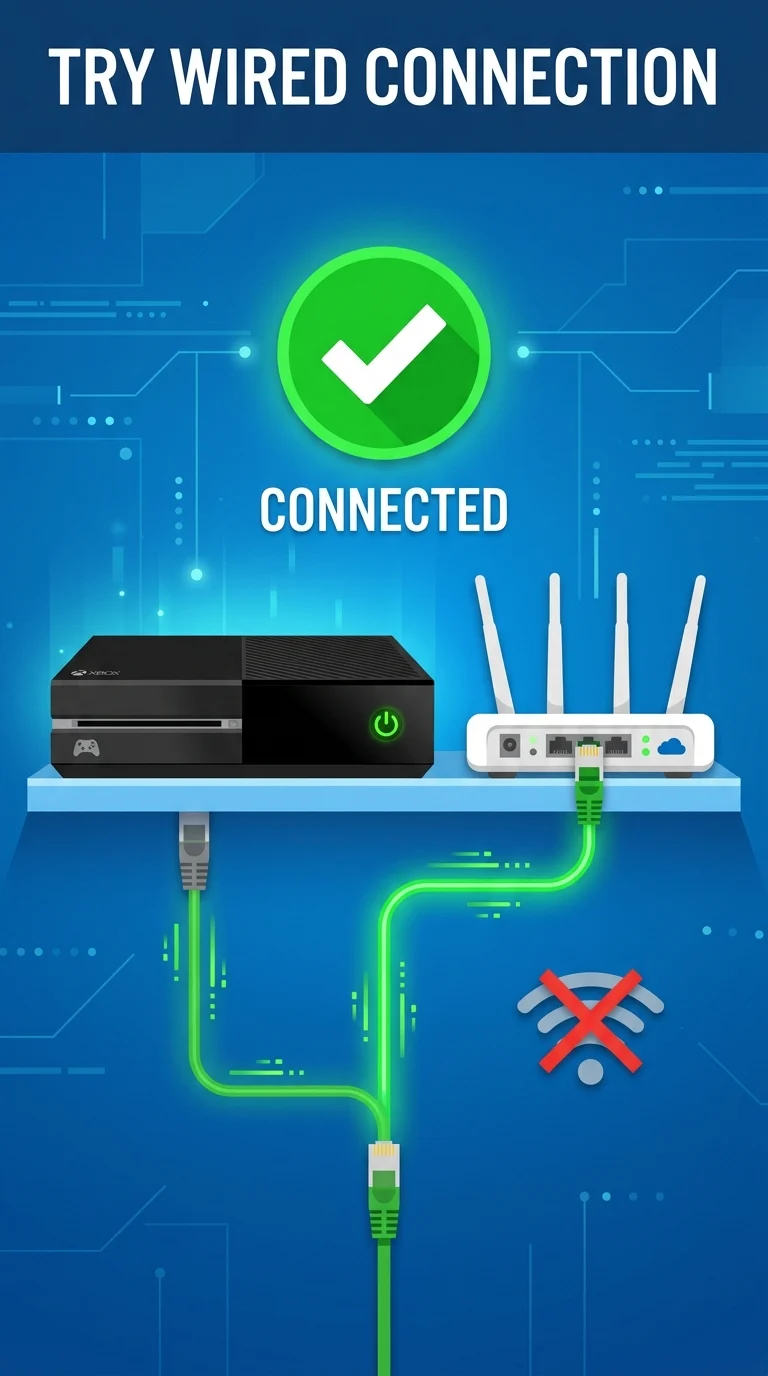
Step 4: Try a Wired Ethernet Connection
If you’re on Wi-Fi, connect the Xbox directly to your router with an Ethernet cable and test the connection. This rules out wireless-specific authentication issues and often gets you online while you troubleshoot the Wi-Fi side separately.
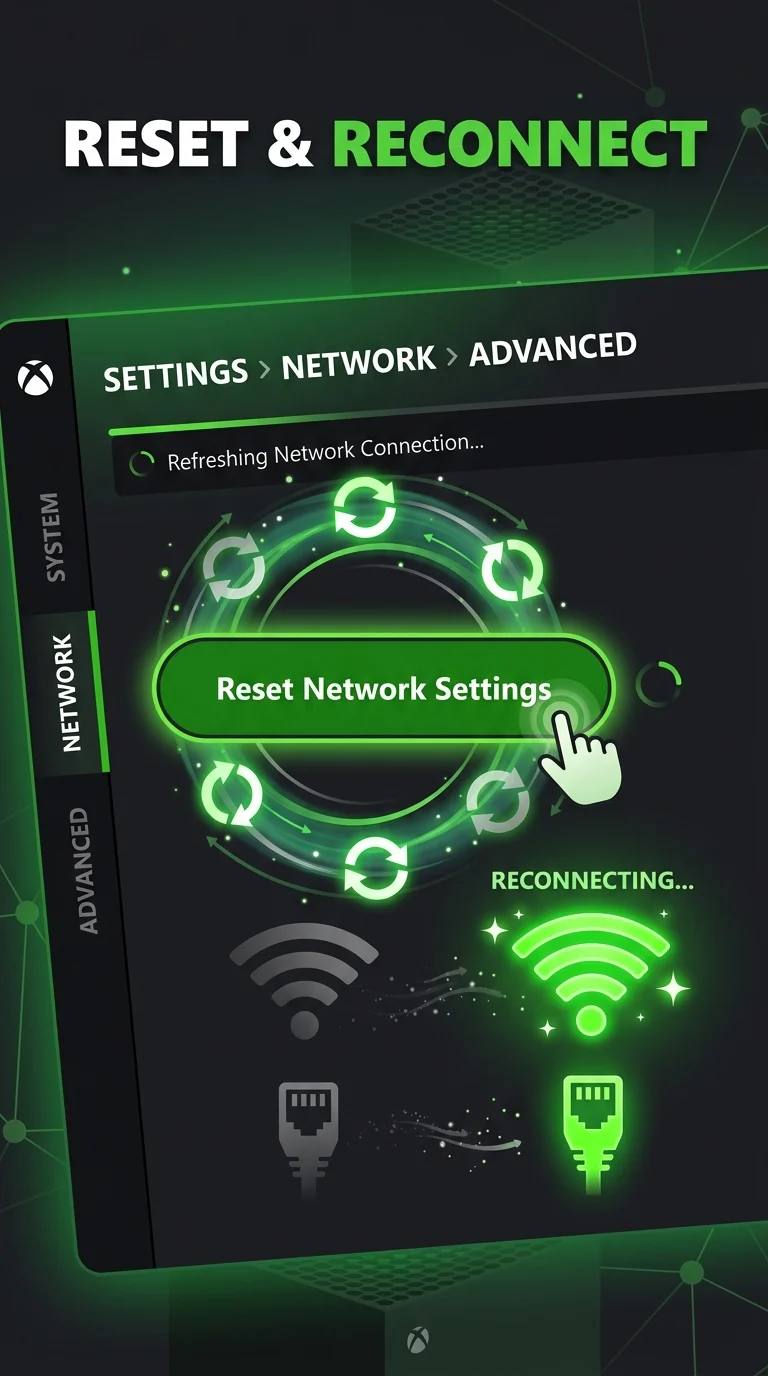
Step 5: Reset Xbox Network Settings
Go to Settings > General > Network Settings and select Reset Network Settings. This wipes saved Wi-Fi profiles and network configurations, forcing the Xbox to set up the connection fresh. Reconnect to your Wi-Fi or Ethernet afterward and test again.
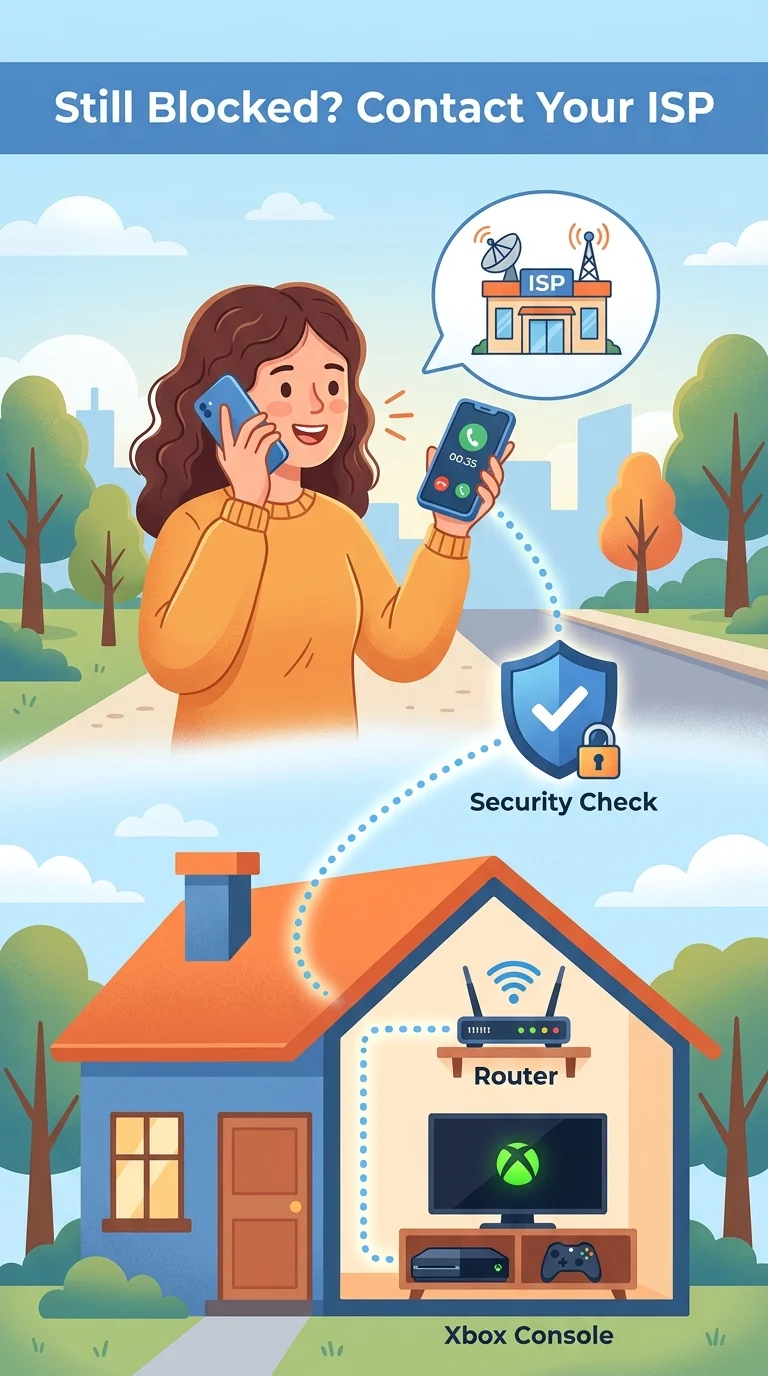
Step 6: Contact Your ISP
If the error still won’t clear after all the above, the restriction may be happening outside your router, some ISPs apply network-level security blocks or content restrictions. Contact your ISP’s support line and ask if there’s a block, security flag, or restriction on your connection tied to console traffic.
Conclusion
The “Additional Authentication Required” error looks alarming, but it’s almost always a router or MAC address issue rather than a problem with the Xbox itself. Working through these steps in order, starting with a simple restart and ending with your router’s device permissions, resolves it for the vast majority of users without needing any technical support.