Vipin PG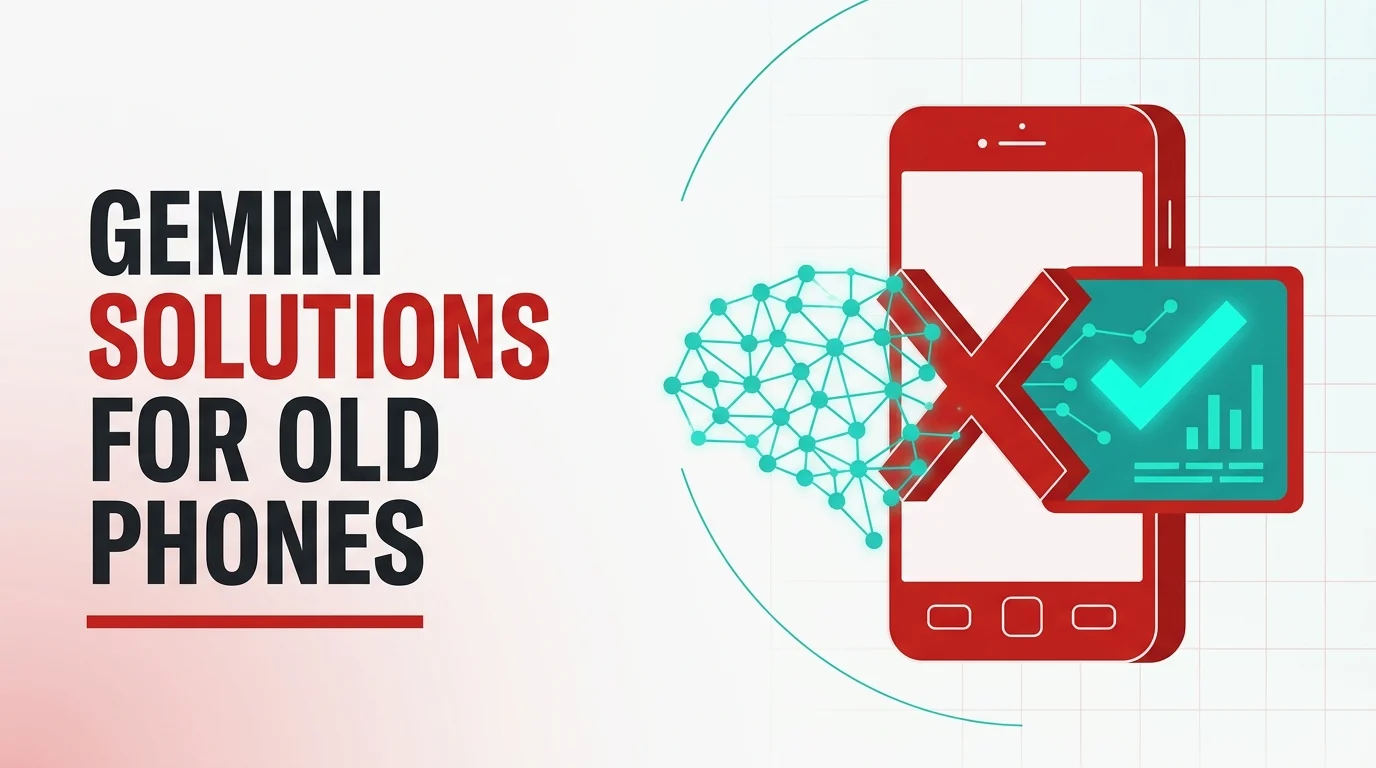
If you’ve tried installing Gemini from the Play Store and got a message saying your device isn’t compatible, it almost always comes down to one of three things: your Android version is too old, your phone doesn’t have enough RAM, or you’re running a lightweight version of Android called Android Go. This isn’t a bug — it’s a hardware and software limit that Google has set on purpose, because Gemini needs a certain amount of processing power and a modern enough version of Android to run its AI features properly. The good news is that most people in this situation still have a few real options, and this article walks through all of them in order, starting with the simplest.
Step 1: Confirm exactly why your phone is being flagged
Before trying any fix, it helps to know which requirement your phone is actually failing. Go to Settings > About Phone (on some phones this is under Settings > System > About Phone) and check two things: the Android version number, and the RAM (sometimes listed under “Memory” instead of “About Phone,” depending on the brand).
Google’s official requirement for the Gemini mobile app is Android 9 or higher, with at least 2GB of RAM. If your phone shows Android 8.1 or below, that’s your answer — the app simply won’t install regardless of how much free storage or RAM you have. If your Android version is 9 or above but you still can’t install it, RAM or the Android Go edition is more likely the cause. Knowing which one applies to you saves time, since the fix is different for each.
Step 2: Check if your phone runs Android Go
Android Go is a stripped-down version of Android that manufacturers put on budget and entry-level phones with very little RAM (usually 1-2GB). It looks almost identical to regular Android, so many people don’t realize they’re using it. Google has confirmed that Android Go does not support the Gemini app at all, even if the RAM and Android version otherwise look like they’d qualify.
To check, look for apps like “Files Go,” “Gallery Go,” or “Google Go” already installed on your phone — these are unique to the Go edition. You can also check your phone’s exact model name and search “[your phone model] Android Go edition” to confirm. If your phone is a Go edition device, unfortunately there’s no software fix for this — the Gemini app is blocked at the system level, and the only way around it is switching to a phone that runs standard Android.
Step 3: Update your Android version if an update is available
If your phone is running Android 8 or older but the hardware is actually capable of running a newer version, check whether a system update is available. Go to Settings > System > System Update (wording varies by brand) and check manually, since some phones don’t prompt you automatically once they’re a few years old.
Keep in mind that most manufacturers stop releasing Android version upgrades for a phone after 2 to 4 years, so if your phone was released before roughly 2019-2020, there’s a good chance no further updates are coming, even if you check. In that case, this step won’t help, and you’ll want to move to Step 5 instead of waiting on an update that isn’t coming.
Step 4: Update the Google app and Google Play Services
This step is easy to overlook, but it fixes more cases than people expect. Sometimes a phone technically meets Gemini’s minimum requirements, but the Play Store still shows “incompatible” because the Google app or Google Play Services on the phone is outdated. Gemini is built on top of these, so if they’re several versions behind, the Play Store can misjudge compatibility.
Open the Play Store, tap your profile icon, go to Manage apps & device, and update the Google app and Google Play Services if updates are listed. After updating, restart your phone and try installing Gemini again before moving on to other fixes — this alone resolves the issue for some borderline devices.
Step 5: Use Gemini through your phone’s browser instead of the app
This is the most reliable workaround if your phone genuinely doesn’t meet the app’s requirements. Open Chrome or any browser on your phone and go to gemini.google.com, then sign in with your Google account. The web version gives you the same conversational AI experience — text chat, image understanding, and most of the core features — without needing to install anything from the Play Store.
You won’t get certain app-only features this way, such as the floating Gemini overlay, voice activation through a button, or deep integration with your phone’s lock screen. But for everyday use — asking questions, drafting text, getting explanations — the browser version works on essentially any phone with a modern browser and an internet connection, regardless of RAM or Android version. For most people whose phone is blocked from installing the app, this ends up being the actual long-term solution rather than a temporary workaround.
Step 6: Check if Gemini is available through Google Assistant on your phone
In some regions, Google has been rolling out Gemini’s capabilities through the existing Google Assistant, rather than requiring a separate app install. If your phone already has Google Assistant set up, open the Assistant settings and check if there’s an option or invitation to “switch to Gemini.” This path sometimes works on phones where the standalone Gemini app is blocked, because it upgrades the assistant already running on your device instead of installing a new one.
This isn’t available everywhere yet, and Google is still expanding it gradually by country and language, so it may simply not have reached your device yet even if the app path is blocked. It’s worth checking, but don’t count on it as your only plan.
Step 7: Avoid installing Gemini through unofficial APK files
When an app shows as “incompatible,” it’s tempting to search for an APK file from a third-party website and sideload it manually, bypassing the Play Store’s check. This is worth actively avoiding with Gemini. Since Gemini is connected to your Google account and processes real conversations, an APK from an unverified source is a genuine security risk — it can be modified to log what you type, request excessive permissions, or install alongside malware. There is no safe version of “install it anyway” here. If the Play Store says a device isn’t supported, treat the browser method in Step 5 as the real alternative instead.
Step 8: If nothing works, understand what you’re actually missing
If your phone fails every check above — old Android version with no updates coming, under 2GB RAM, or Android Go — and the browser version isn’t a good enough substitute for your needs, the honest answer is that the phone’s hardware has reached the end of what it can run. This isn’t unique to Gemini; most AI-heavy apps released from 2024 onward have similar minimum requirements, because on-device AI processing genuinely needs more memory and processing power than older phones were built with.
It’s also worth knowing that there are now two separate tiers of Gemini compatibility. The basic Gemini app (Android 9+, 2GB RAM) is what most people mean when they say “Gemini.” But Google has also introduced a more advanced, system-level AI layer for Android called Gemini Intelligence, which requires around 12GB of RAM and a specific on-device AI chip capability that, as of mid-2026, only the newest flagship phones released this year actually have. So even some phones from 2024-2025 that run the basic Gemini app fine will not get these newer, deeper AI features — that’s a hardware ceiling that no update can fix, and it’s a different issue from the basic “incompatible” message discussed in this article.
Conclusion
Gemini isn’t compatible with older phones for a straightforward reason: it needs Android 9 or later and at least 2GB of RAM to run at all, and phones on the Android Go edition are excluded regardless of specs. For most people, this is fixable — either by updating the phone’s software, updating the Google app itself, or simply switching to the browser version at gemini.google.com, which works around the app’s install restrictions entirely. Only phones that are genuinely too old or too limited on memory are left without a real solution, and in those cases, the browser is the practical way to keep using Gemini until it’s time for a new device.