Vipin PG
If you’re mid-stream and suddenly see “There was a network error. Please try again (Error #2000),” it means Twitch’s player couldn’t hold a stable connection to load the video. It looks alarming, but it’s usually a quick fix — here’s how to clear it, step by step.
How to Fix Twitch Error 2000
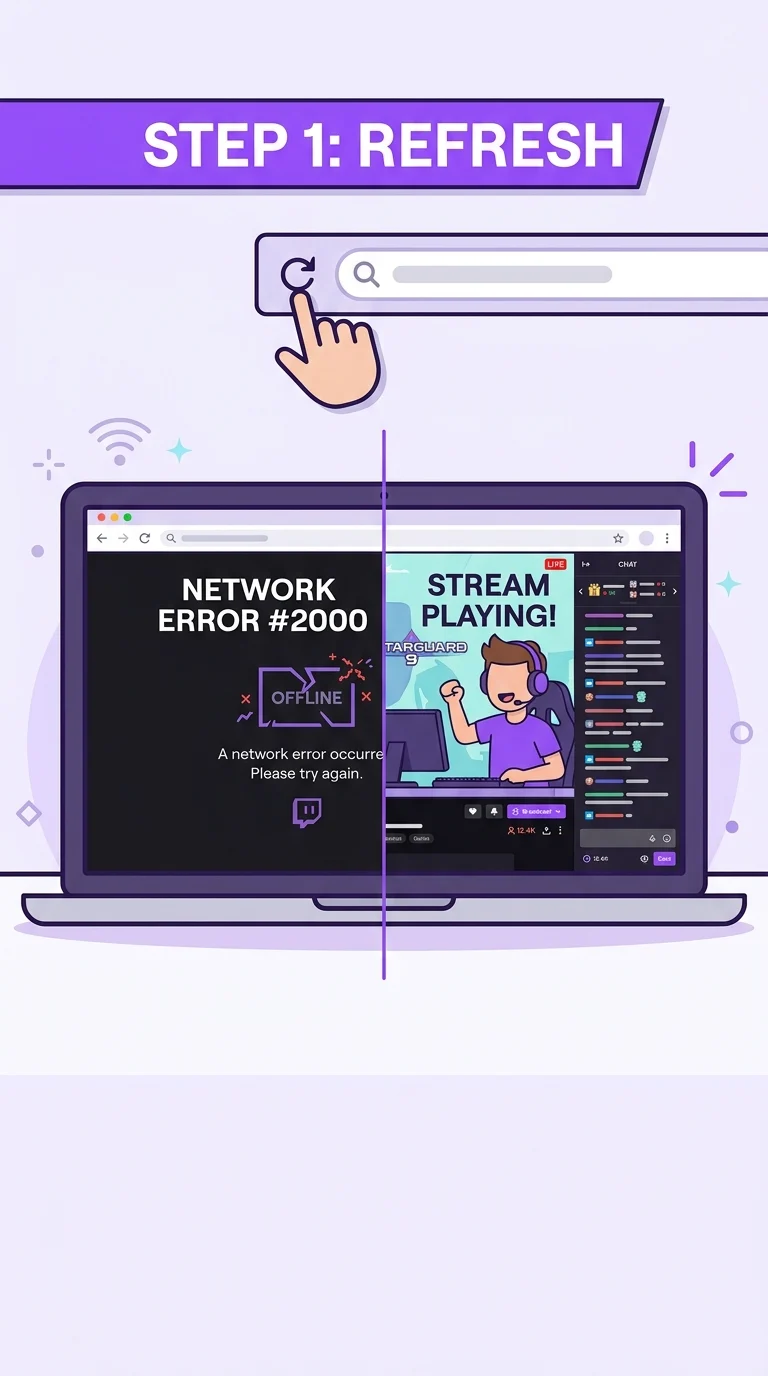
Step 1: Refresh the Page or Restart the App
Start simple. On desktop, hit refresh (F5) or reload the tab. On the Twitch mobile app, fully close the app and reopen it rather than just backgrounding it. This clears whatever short glitch triggered the error and is enough to fix it more often than people expect.
Step 2: Check Twitch’s Server Status
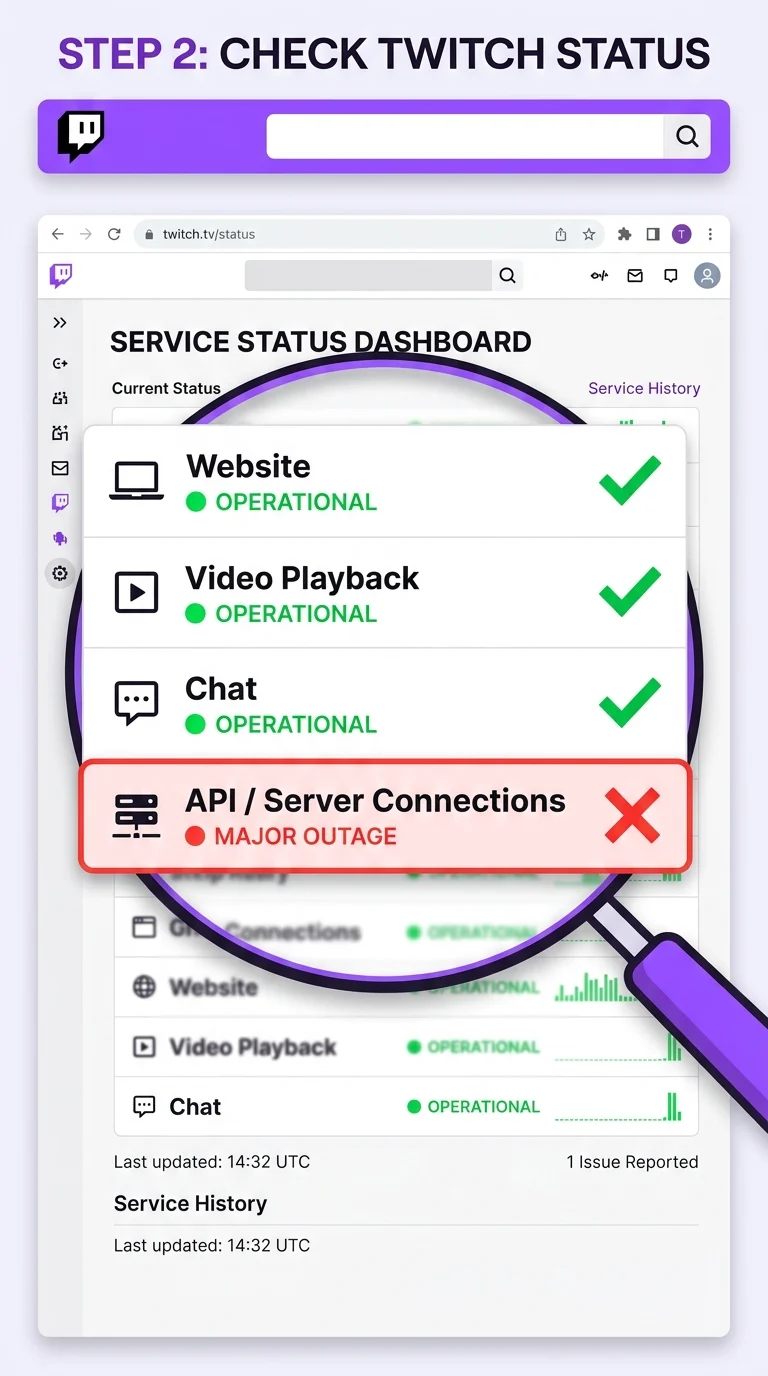
Before touching any settings, rule out Twitch’s end. Visit the official Twitch Status page (status.twitch.tv) or check Twitch’s social accounts for outage reports. If Twitch is down, no local fix will help — you just have to wait it out.
Step 3: Test and Stabilize Your Internet Connection
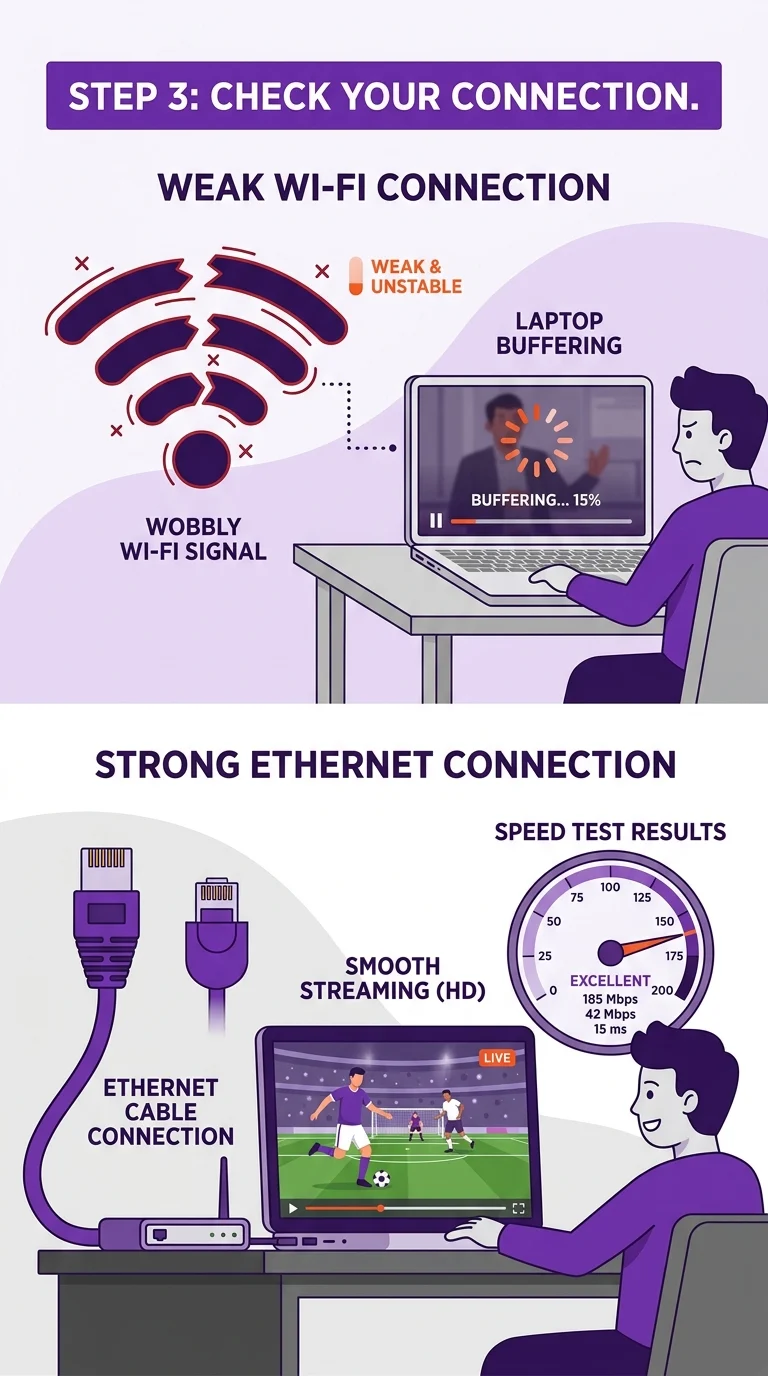
A weak or fluctuating connection is the most common cause of Error 2000. Run a quick speed test, and if you’re on Wi-Fi, switch to a wired ethernet connection if possible — it’s far more stable for live video. If you’re on mobile data, try switching to Wi-Fi or vice versa to see if the error follows.
Step 4: Clear Your Browser Cache and Cookies
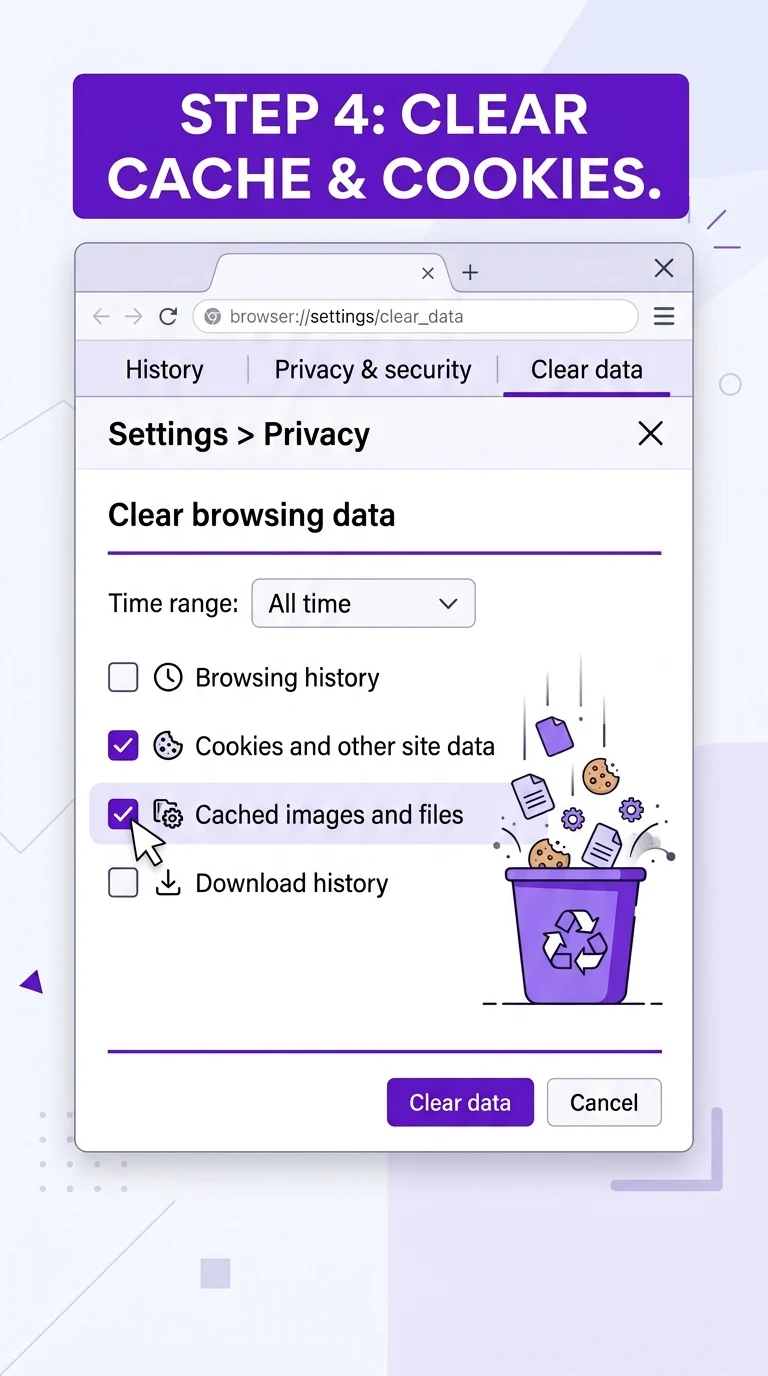
Corrupted cache files or outdated cookies can block Twitch’s player from loading properly. Go into your browser’s settings, clear cached images/files and cookies for the last 24 hours, then reload Twitch. This resolves the error for a large share of desktop users.
Step 5: Disable Ad Blockers and Extensions
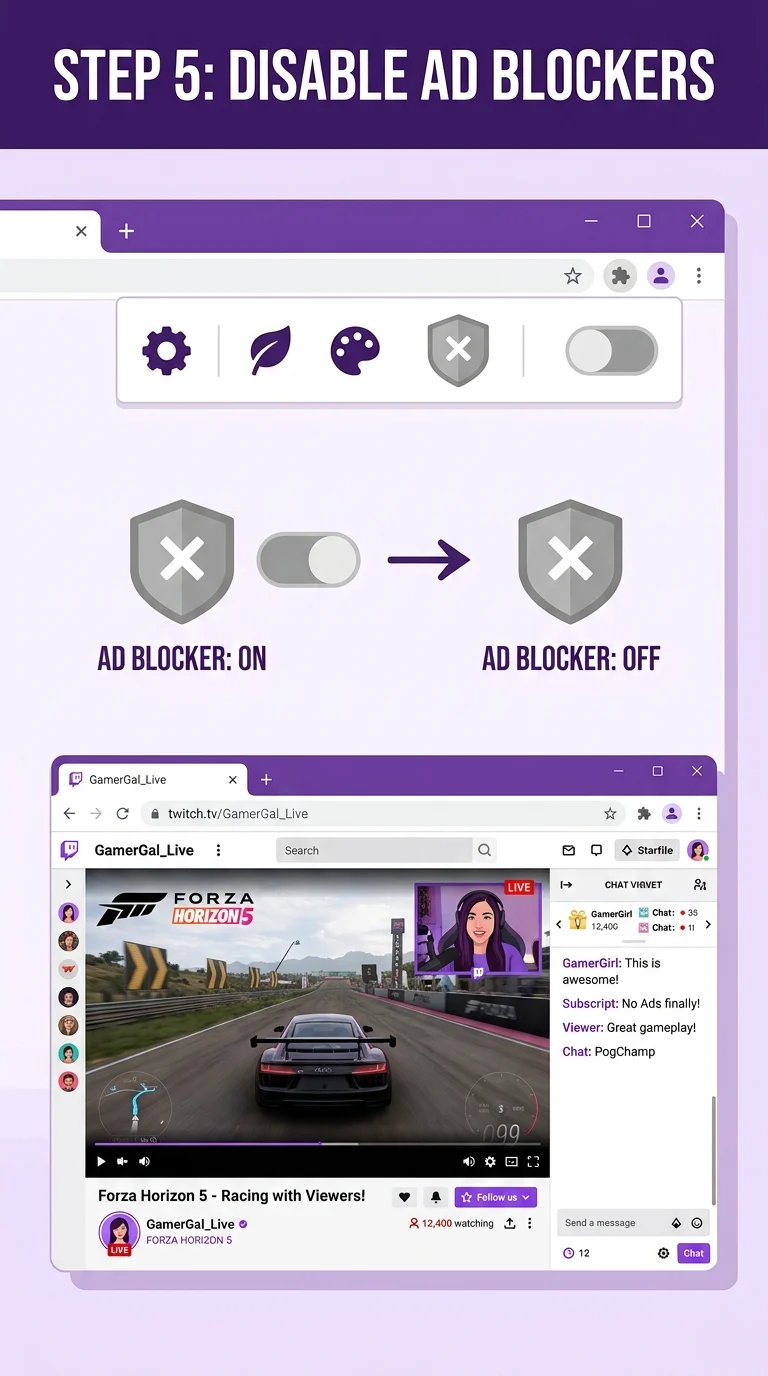
Ad blockers like uBlock Origin or AdBlock often interfere with Twitch’s required ad-delivery scripts, which can trigger Error 2000. Turn off ad-blocking extensions for twitch.tv specifically, or disable all extensions temporarily to see if the stream loads.
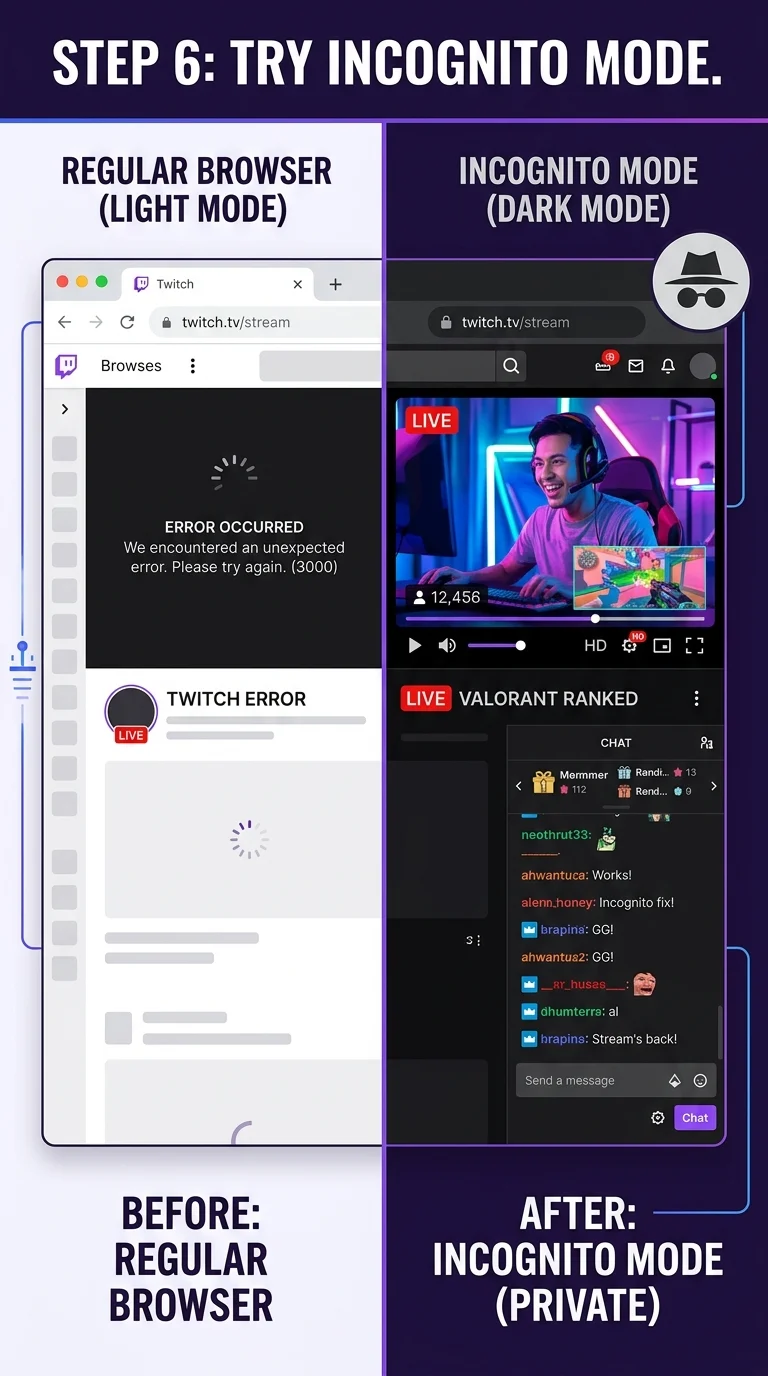
Step 6: Try Incognito Mode or a Different Browser
Open Twitch in a private/incognito window, which runs without extensions and existing cookies. If the stream works there, an extension or corrupted browser data was the cause. If it still fails, try a completely different browser like Firefox or Edge to isolate the issue further.
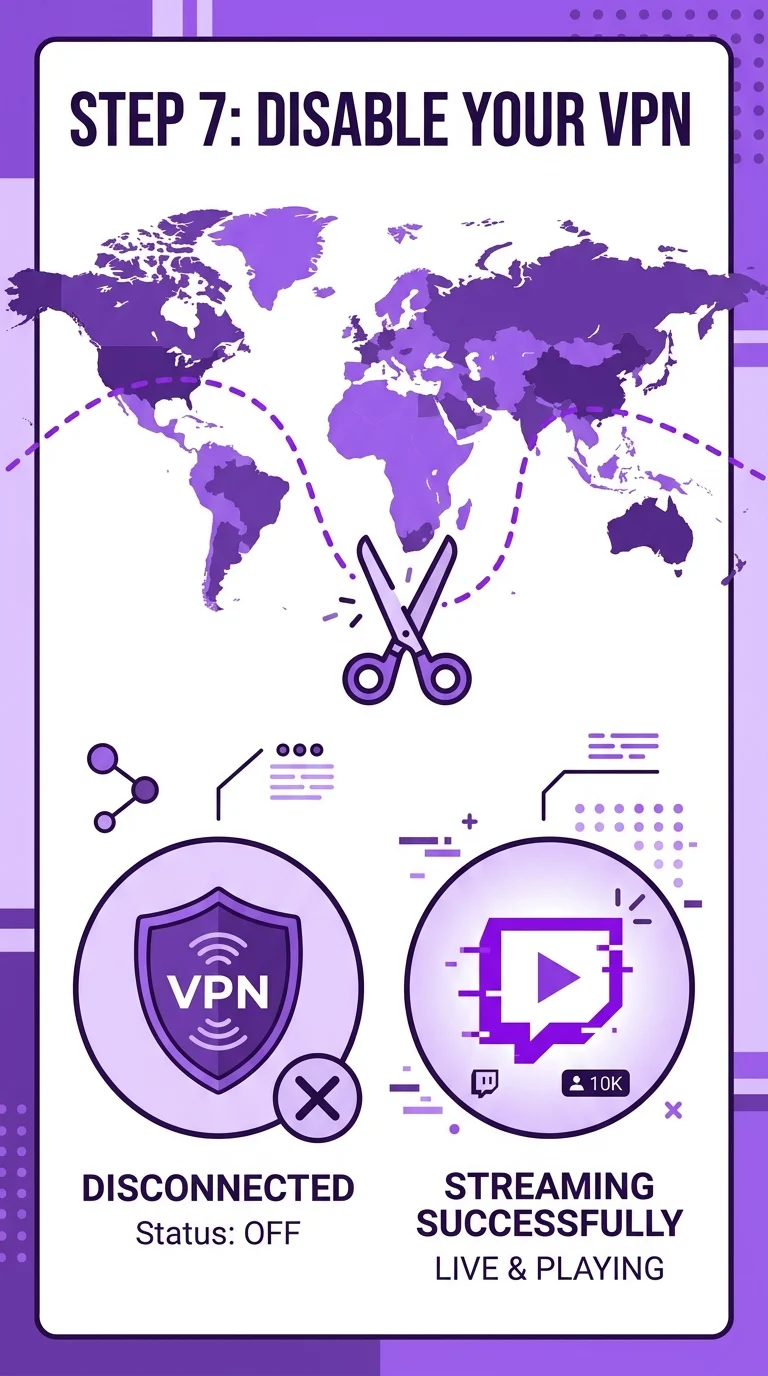
Step 7: Turn Off Your VPN
Twitch actively flags and blocks IP addresses tied to many VPN services to prevent bot traffic and region bypassing. If you’re using a VPN, disconnect it fully and reload Twitch. If you need the VPN for another reason, try switching server locations or excluding Twitch from the VPN tunnel (split tunneling).
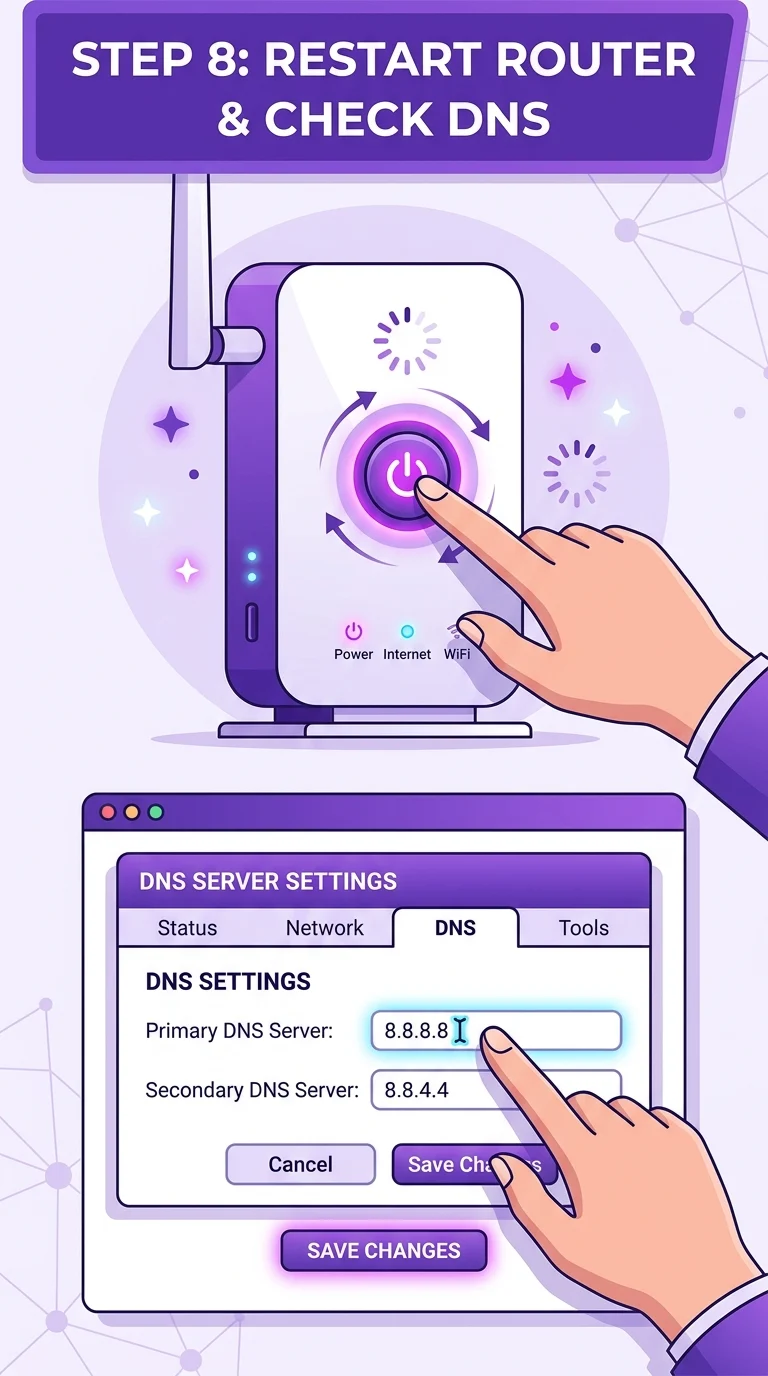
Step 8: Restart Your Router and Check DNS Settings
If nothing above works, the issue may sit deeper in your home network. Restart your router and modem, then reload Twitch once your connection reconnects. You can also try switching your DNS to a public option like Google DNS (8.8.8.8) or Cloudflare (1.1.1.1), which sometimes resolves stubborn connection errors.
Conclusion
Twitch Error 2000 looks like a big interruption, but it’s almost always something local — your browser, an extension, your VPN, or your connection — rather than Twitch itself. Working through these steps in order clears it for the vast majority of users, usually within the first few fixes.