Vipin PG
Roku streaming devices, especially the stick models, are small and compact, which unfortunately also means they can trap heat easily. If your TV screen has shown a warning that your Roku is too hot, or the device itself feels warm to the touch and starts lagging or restarting, it's reacting to a buildup of heat rather than a serious internal fault in most cases. Here's how to cool it down and stop the warning from coming back.
Step 1: Unplug the Roku and Let It Cool Down
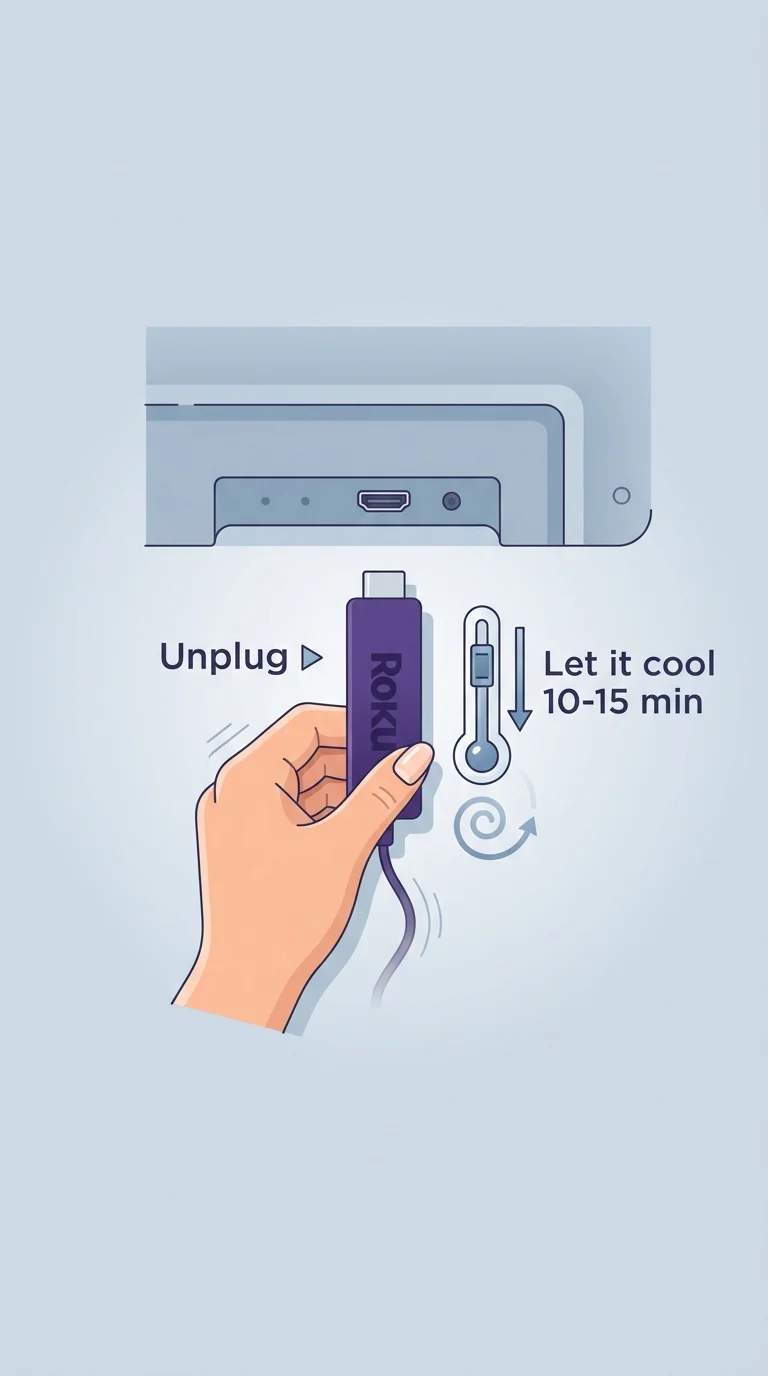
As soon as you notice the warning, disconnect the Roku from power and remove it from the HDMI port. Leave it untouched for about 10–15 minutes in an open area. This gives the internal components time to cool before you troubleshoot anything else. Don't plug it back in immediately, since reconnecting a still-hot device can trigger the same warning right away.
Step 2: Use the Included HDMI Extender Cable
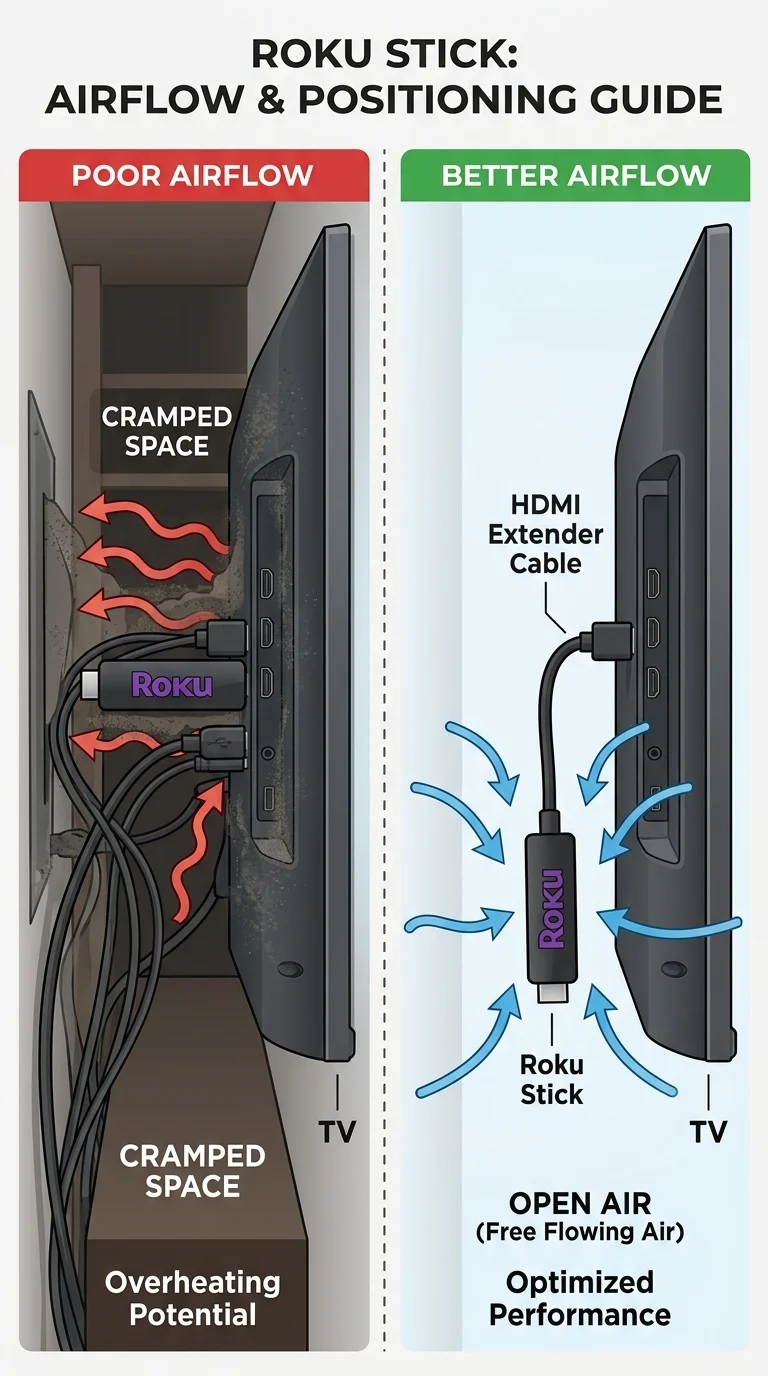
Most overheating issues happen because the Roku stick is plugged directly into the TV's HDMI port, pressing it flush against the wall or the back of the TV where air can't circulate. Roku ships an HDMI extender cable with most stick models for exactly this reason. Use it to let the device hang freely in open air instead of being wedged into a tight gap.
Step 3: Check and Improve Ventilation Around the Device
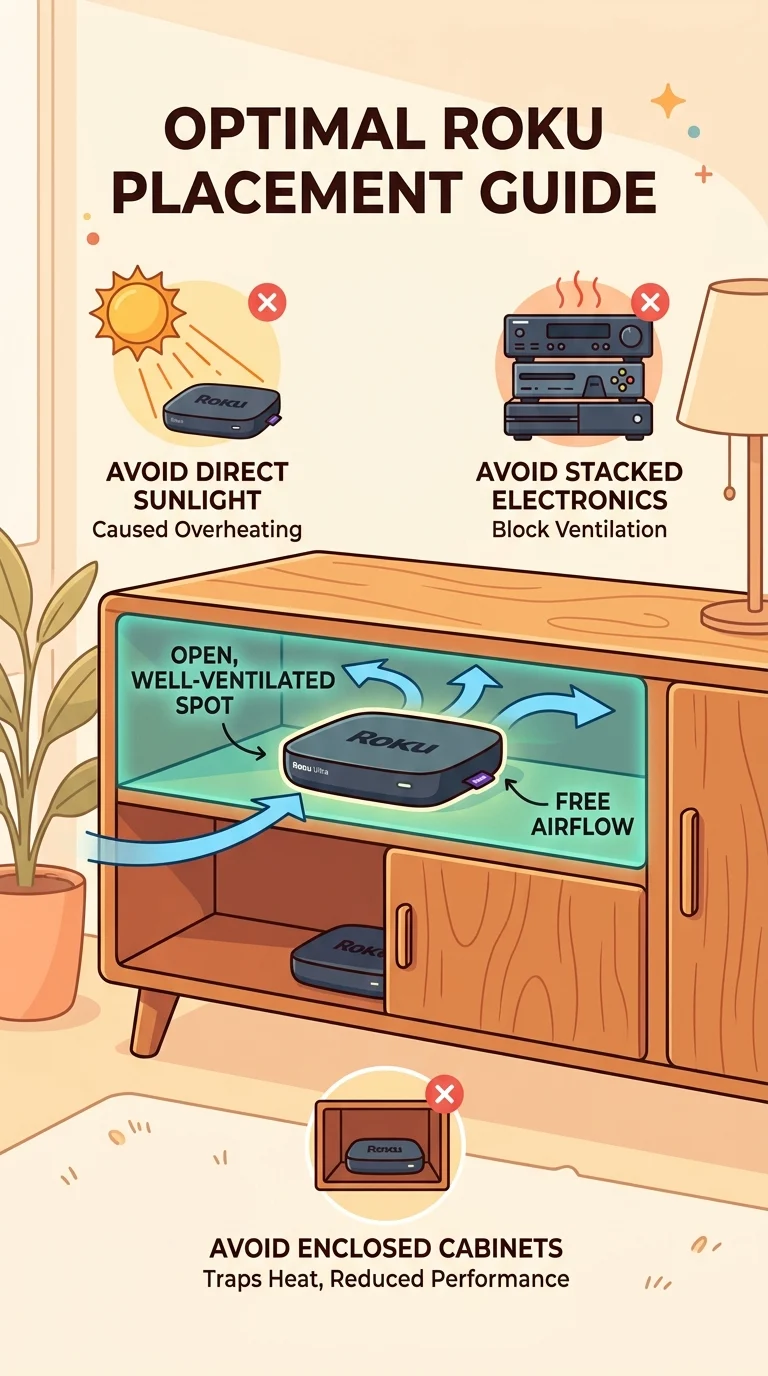
Even with the extender cable, a Roku placed inside an enclosed TV cabinet, behind thick curtains, or squeezed next to other warm electronics like a cable box, router, or soundbar will keep overheating. Give it a few inches of open space on all sides, and avoid mounting it in direct sunlight or near heating vents.
Step 4: Use the Original Power Adapter
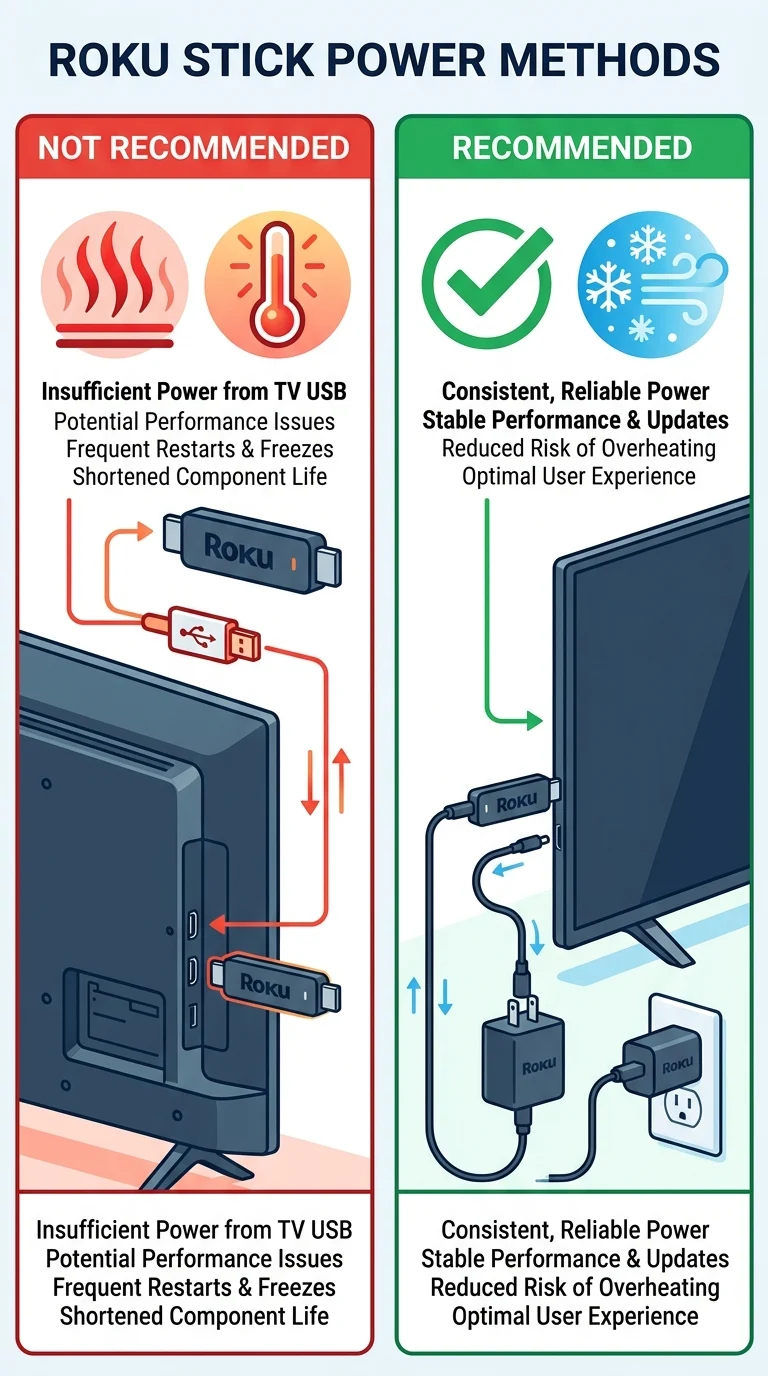
A common but overlooked cause of a roku overheating message is using a weak or incorrect power source, such as plugging the Roku into a TV's USB port instead of the wall adapter that came in the box. TV USB ports often don't supply enough consistent power, forcing the device to work harder and generate more heat. Always use the official Roku power adapter plugged into a wall outlet.
Step 5: Update the Roku Software
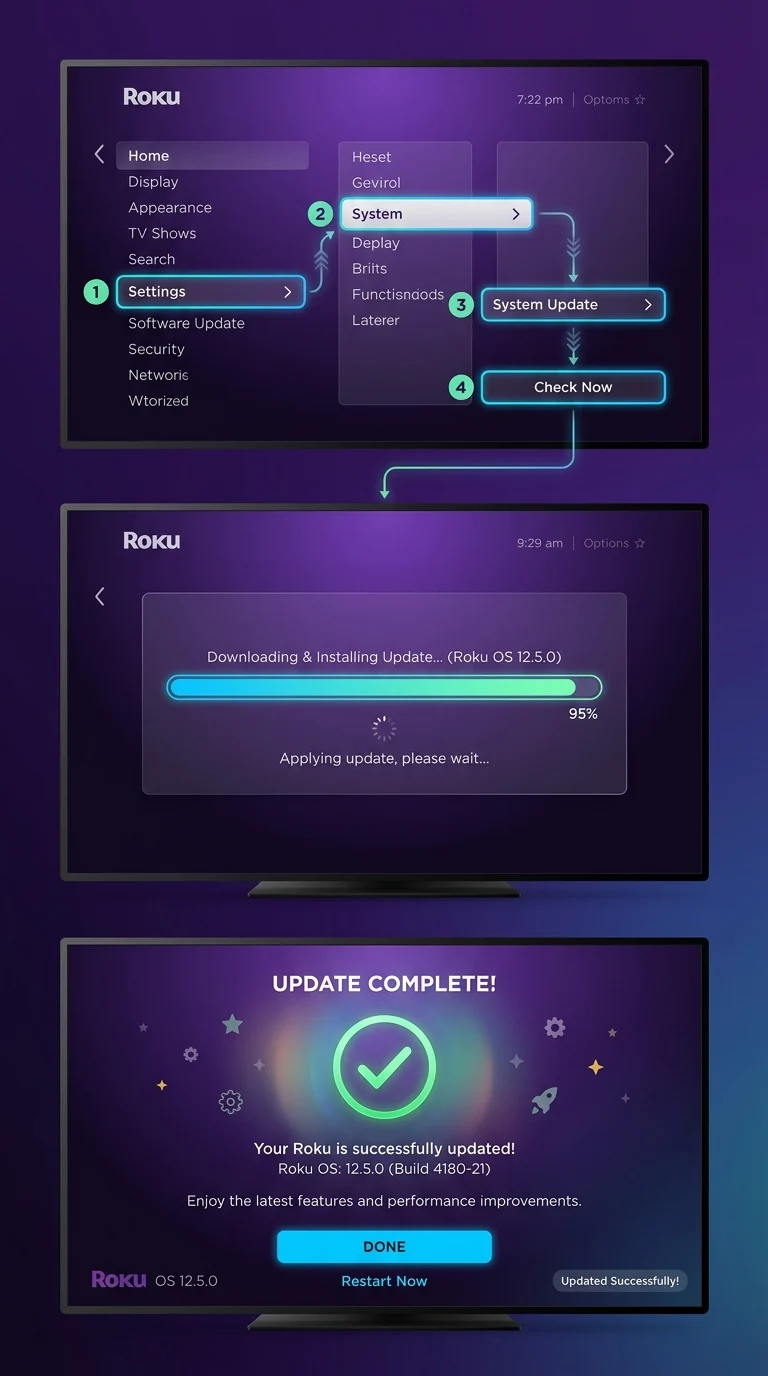
Outdated software can sometimes cause the device to run background processes inefficiently, generating extra heat. Go to Settings > System > System Update > Check Now on your Roku home screen and install any available update. A restart after updating often clears temporary glitches that contribute to overheating warnings.
Step 6: Give the Device a Full Power Cycle
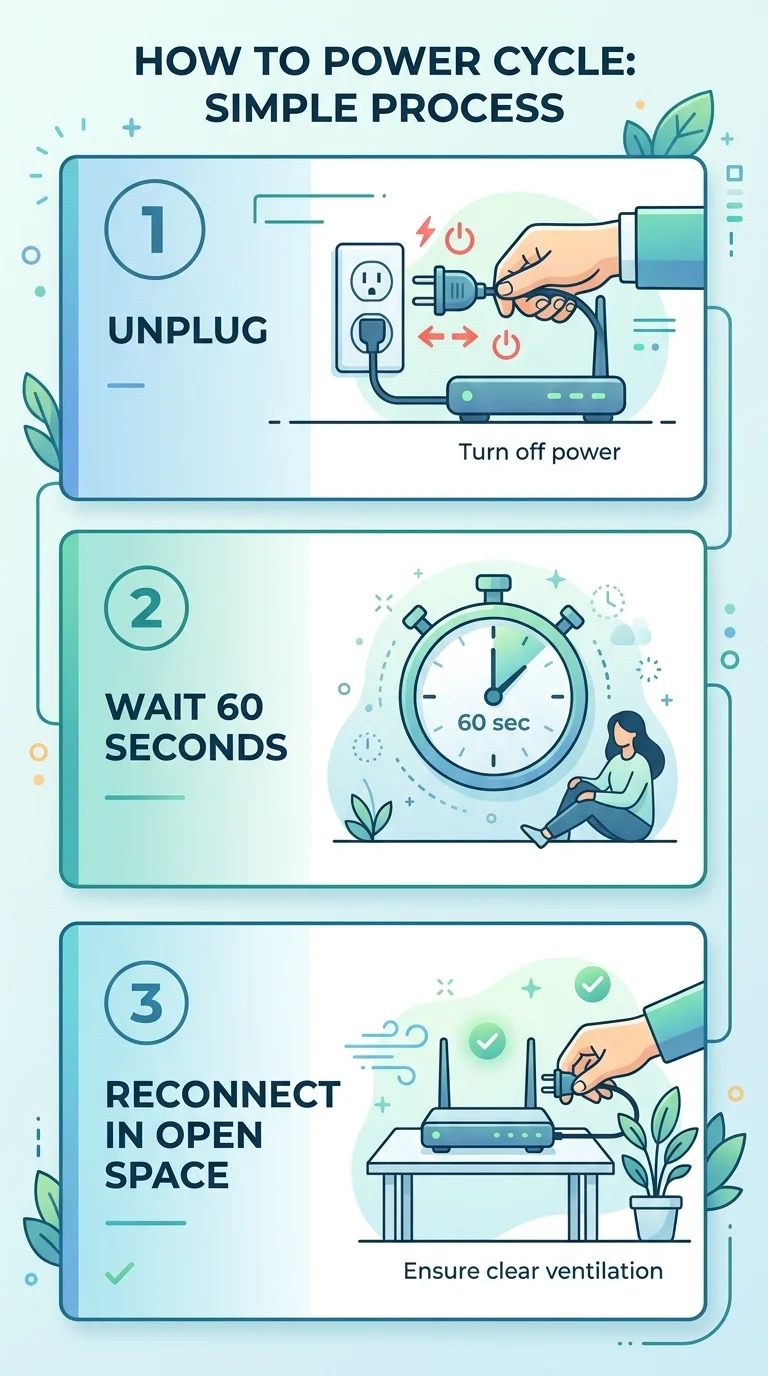
If the warning still appears after the above steps, do a complete power cycle: unplug the Roku, wait a full minute, then reconnect it to a wall outlet using the extender cable in an open space. This clears any lingering heat-related error state the device may be holding onto internally.
Step 7: Contact Roku Support If the Warning Persists
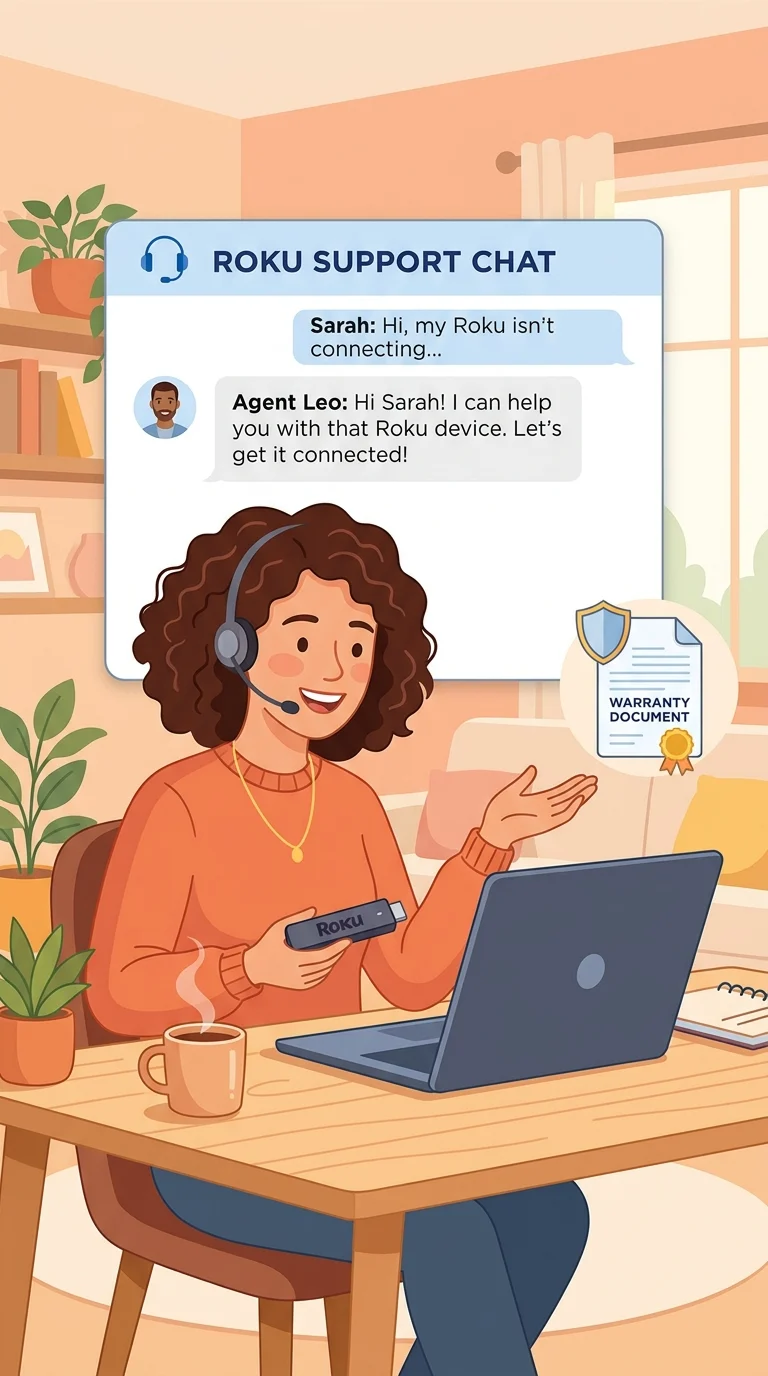
If you've improved airflow, switched to the correct power adapter, updated the software, and the overheating message still shows up repeatedly, the issue may be a hardware fault rather than an environmental one. At this point, reach out to Roku support for a warranty check or replacement, especially if the device is still within its coverage period.
Conclusion
A Roku overheating warning almost always comes down to airflow and power rather than a failing device. Giving it room to breathe with the HDMI extender, keeping it away from enclosed or sunny spots, and using the correct power adapter solves the problem for most users. If the warning keeps coming back despite these fixes, that's your signal to get Roku support involved rather than continuing to troubleshoot on your own.