Vipin PG
Losing a Roku remote is annoying on a normal day and a small disaster during a live game or a show you were mid-episode on. The good news is Roku was built with this problem in mind , there are several legitimate ways to get it back online without the physical remote, and which one works best depends on whether your Roku has connected to WiFi before or is brand new out of the box.
Step 1: Use the Roku Mobile App as a Virtual Remote
This is the easiest fix if your Roku has connected to WiFi at some point before , you’re just changing networks or need to navigate a menu. Download the free “Roku – Official Remote Control” app from the App Store or Google Play. Connect your phone to the same WiFi network your Roku last used , the app can only find and control the Roku once both devices share a network. Open the app, tap the remote icon, and use it exactly like the physical remote to go to Settings > Network and update your WiFi connection. Note: this method has one catch , it needs the Roku to already be reachable on a network your phone can join. If your Roku isn’t connected to anything at all, skip to Step 2. 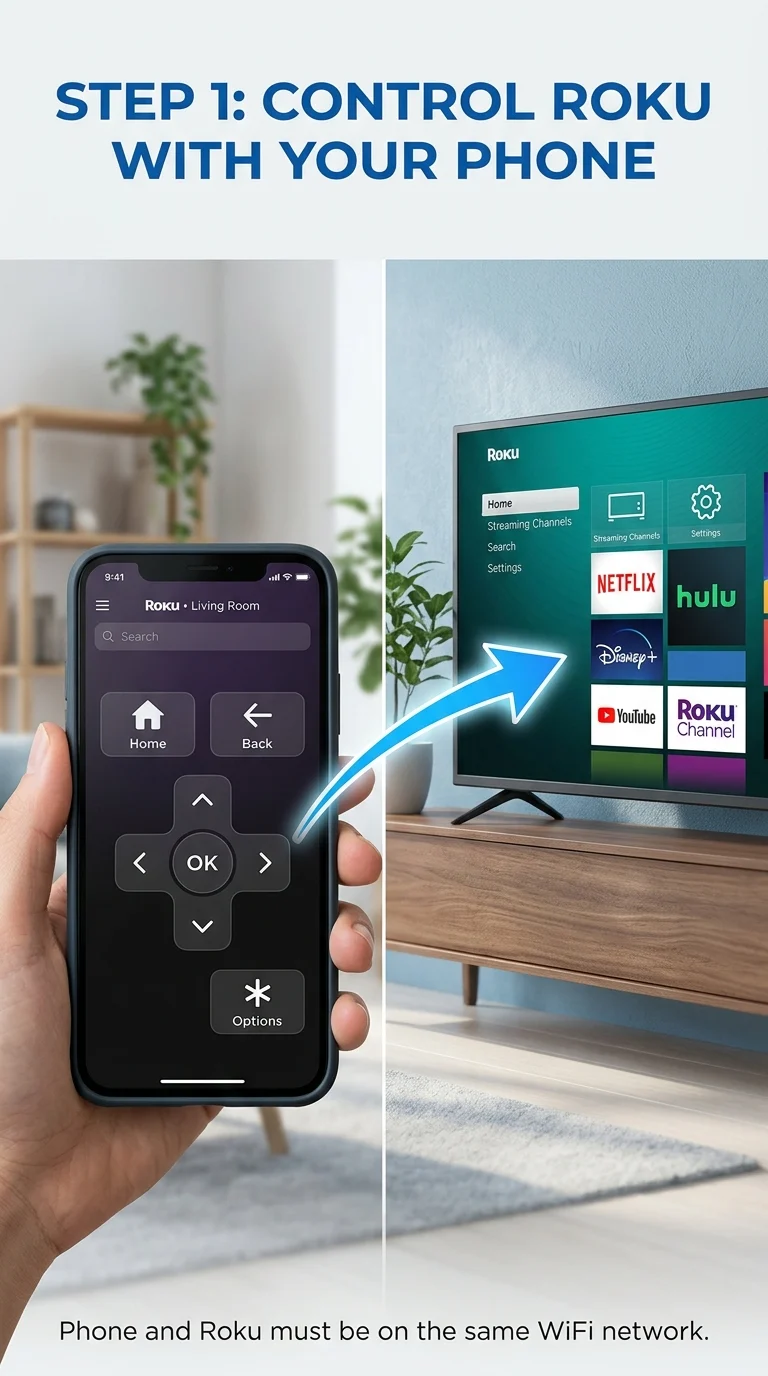
Step 2: Use the Mobile Hotspot Trick (When WiFi Changed or Roku Is Offline)
This is the method that solves the real Catch-22: your Roku only knows its old network, and the app can’t reach it because your phone is now on a different one. The fix is to make your phone’s hotspot look exactly like the old network.
- On one phone, go to Settings > Personal Hotspot (or Mobile Hotspot) and set the network name (SSID) and password to exactly match your previous home WiFi , same name, same password, same case-sensitivity.
- Turn the hotspot on. Roku remembers that network and will automatically connect to it, since as far as it’s concerned, it’s the same WiFi it always used.
- On a second phone or tablet, join that same hotspot, open the Roku app, and use it as a remote to go into Settings > Network and switch Roku over to your actual current WiFi network.
This does need two devices, but it’s the most reliable fix when your WiFi password changed or you moved your Roku to a new house. 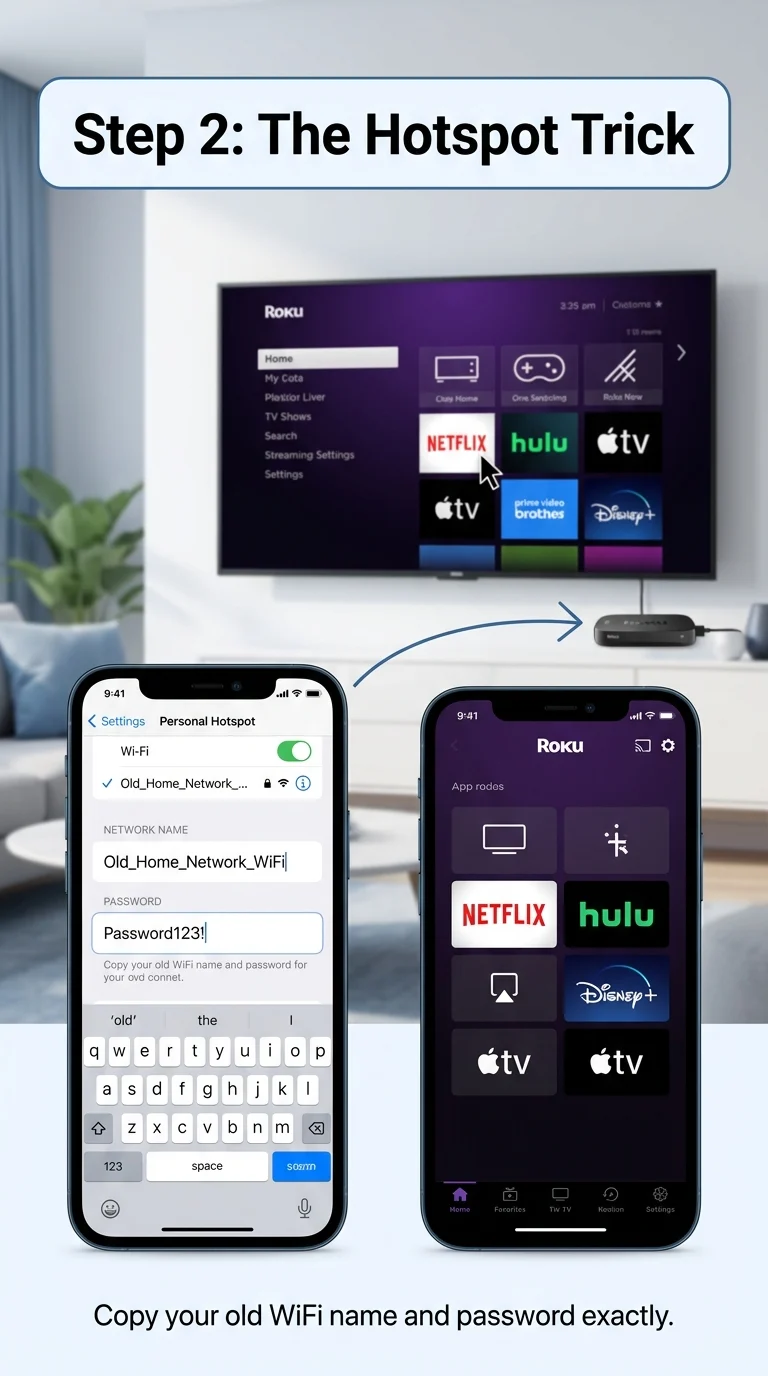
Step 3: Connect an Ethernet Cable (Skip WiFi Entirely)
If your Roku model has an Ethernet port , this includes most Roku TVs, Roku Ultra, and Roku Express , plugging in a wired connection bypasses the need to set up WiFi at all. Connect one end of an Ethernet cable to your Roku’s port and the other to your router. The device will detect the wired connection and get you online without touching any network settings. Roku Streaming Sticks don’t have an Ethernet port, so this method won’t apply to that model. 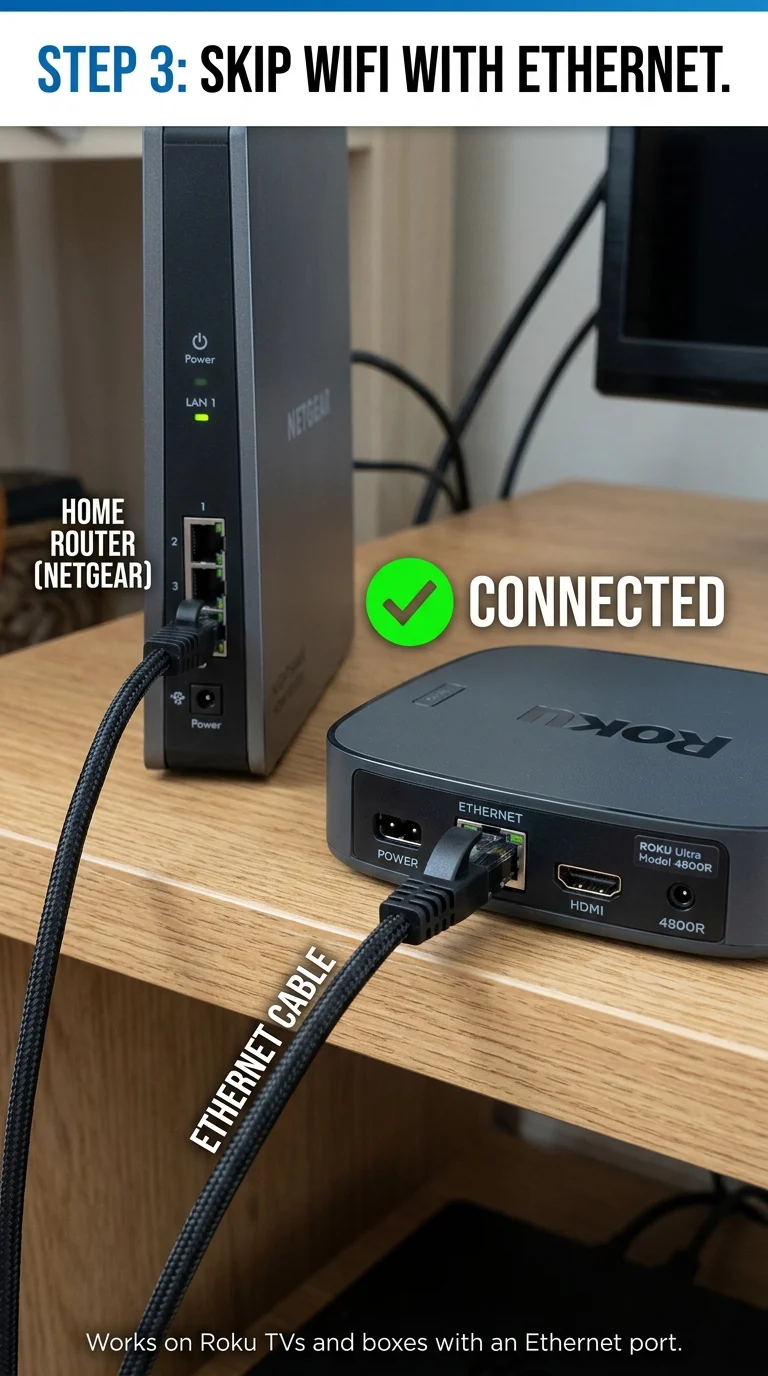
Step 4: Use Your TV Remote via HDMI-CEC (Roku TVs Only)
If you have a Roku TV (not a separate Roku box or stick), your television’s own remote may already be able to control it through a feature called HDMI-CEC. Go into your TV’s settings menu and look for an option like “HDMI-CEC,” “Anynet+,” “SimpLink,” or “Bravia Sync,” depending on the TV brand, and turn it on. Once enabled, your TV remote’s navigation buttons can move through the Roku menu, letting you reach Settings > Network and reconnect to WiFi without the Roku remote at all. 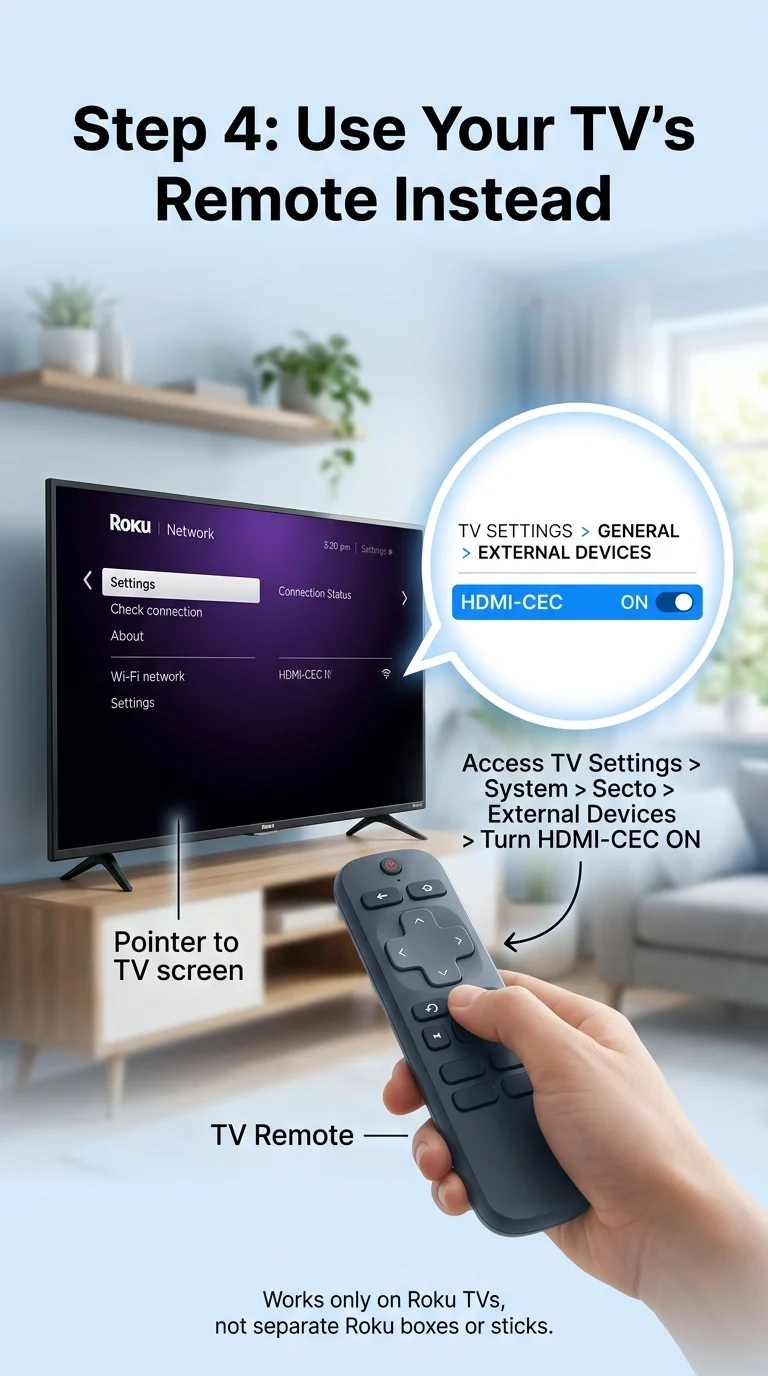
Step 5: Borrow or Buy a Replacement Remote (Standard Roku Boxes and TVs Only)
Standard Roku boxes and Roku TVs use an infrared (IR) sensor, which means any compatible replacement or universal remote will work to get you through initial setup , you only need it long enough to connect WiFi, after which you can rely on the Roku app for everyday use. One exception: Roku Streaming Sticks use WiFi Direct pairing instead of infrared, so a generic universal remote won’t work on that model; you’ll need Steps 1–3 instead. 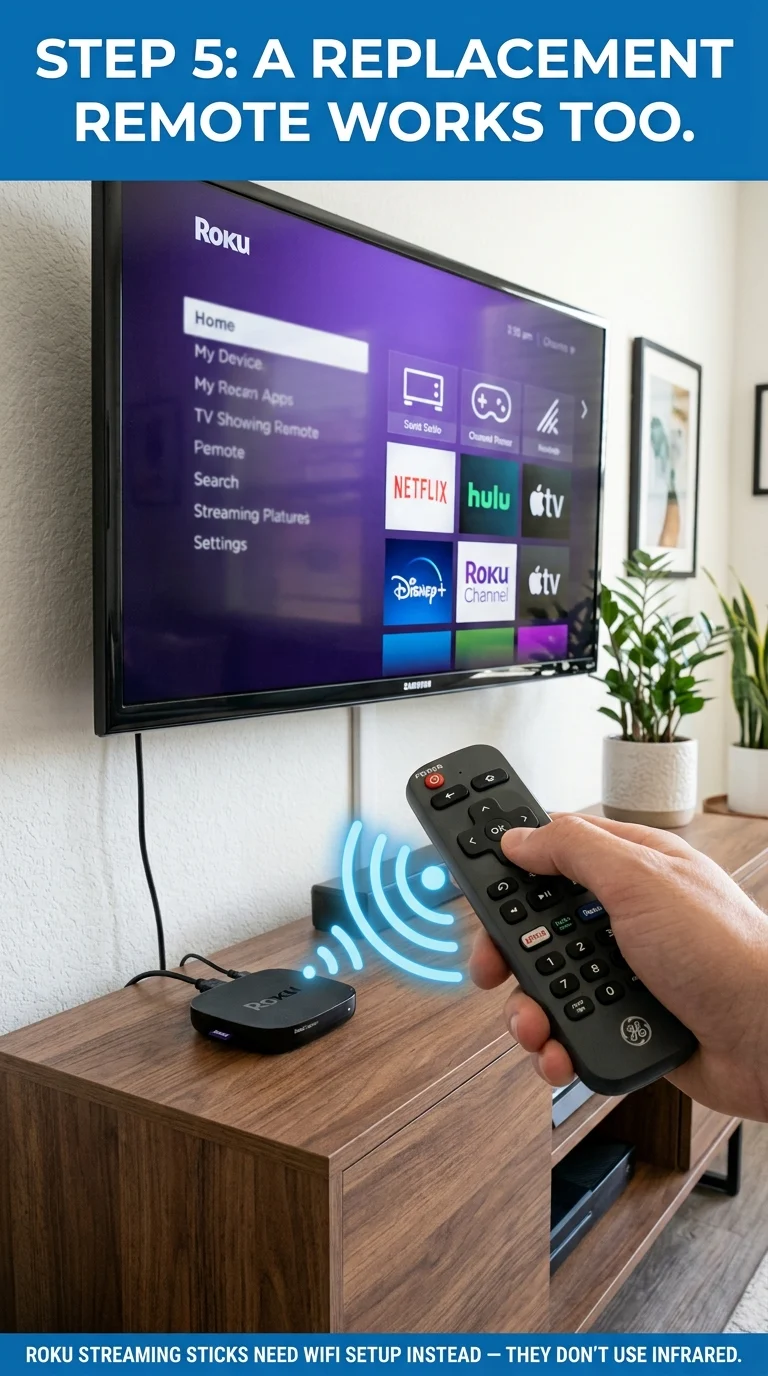
Which Method Should You Use?
If your Roku has connected to WiFi before, the app or hotspot trick will get you back online in a few minutes. If it’s a Roku TV, check HDMI-CEC first since it needs no extra devices. If your Roku model supports Ethernet, that’s the fastest fix of all , no app, no hotspot, no waiting. Between these options, a missing remote doesn’t have to mean a dead TV.