Vipin PG
If you’ve decided to leave ChatGPT and close your account, it’s a good idea to wipe your conversation history first. Your chats may contain sensitive information, personal questions, work details, or private thoughts, that you don’t want sitting in any system after you’re gone. Here’s exactly how to do it, step by step.
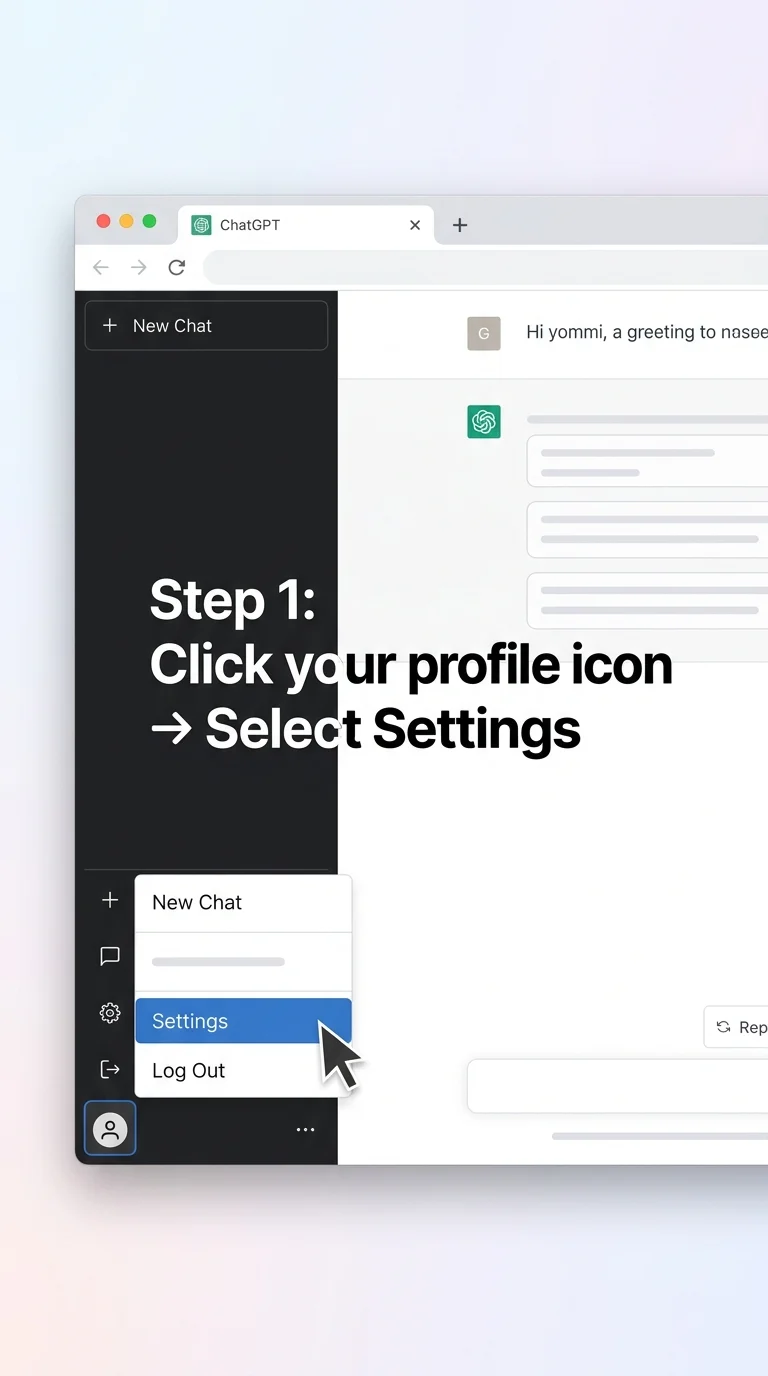
Step 1: Open ChatGPT and Go to Settings
Log in to your ChatGPT account at chat.openai.com. On the left sidebar at the bottom, click on your profile name or icon, then select Settings from the menu that appears.
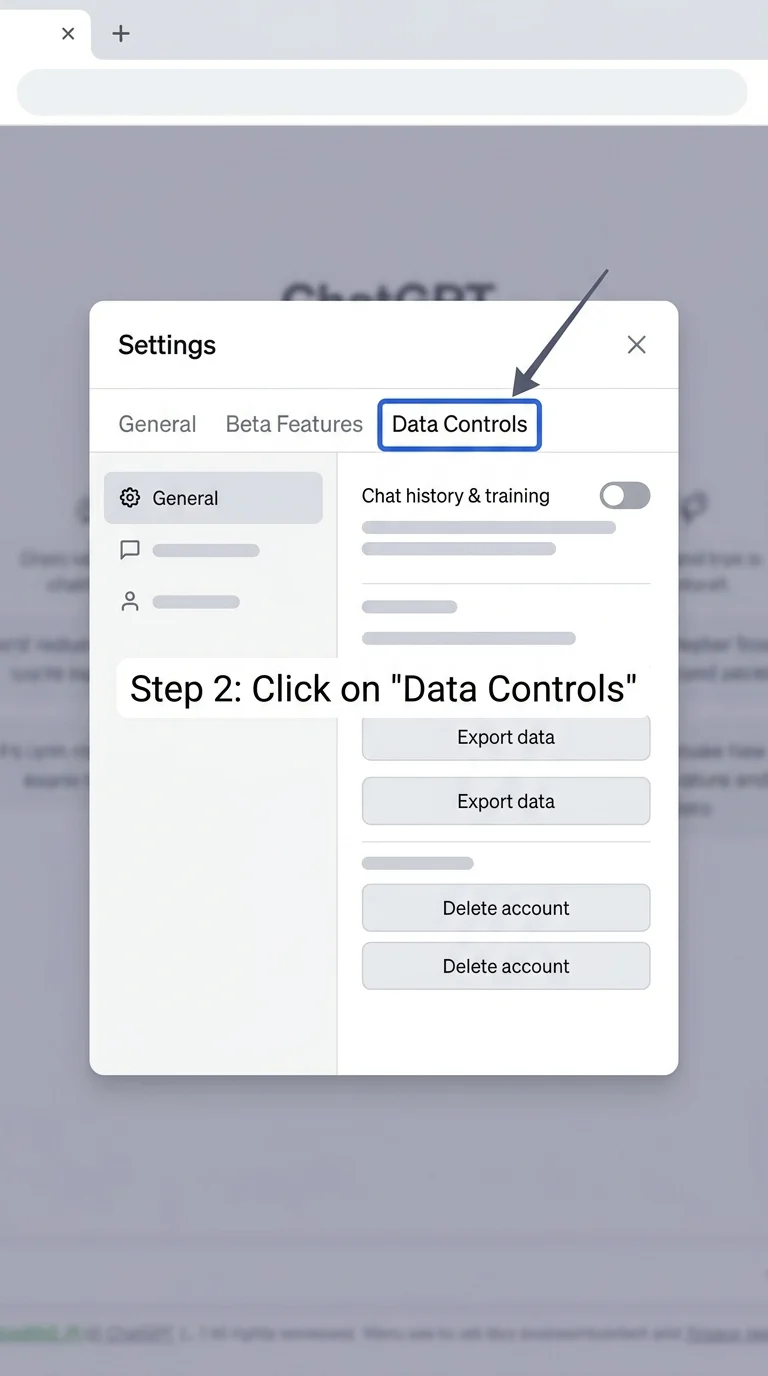
Step 2: Navigate to the Data Controls Section
Inside the Settings window, you’ll see several tabs across the top. Click on “Data Controls”. This is the section where OpenAI gives you control over your data, including your chat history and account.
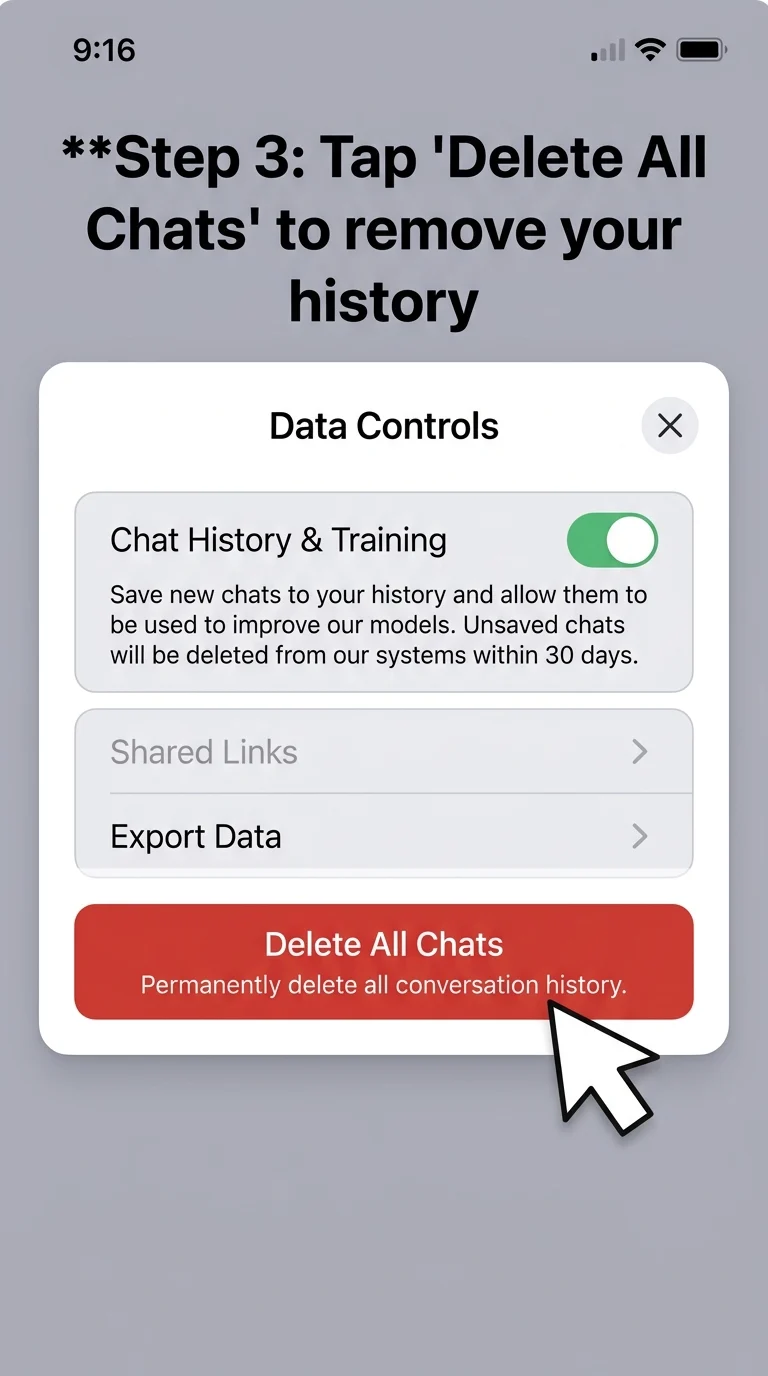
Step 3: Click “Delete All Chats”
Under Data Controls, you’ll see a button that says “Delete All Chats”. Click it. This will queue the deletion of every conversation you’ve ever had in your account, not just the ones visible on screen.
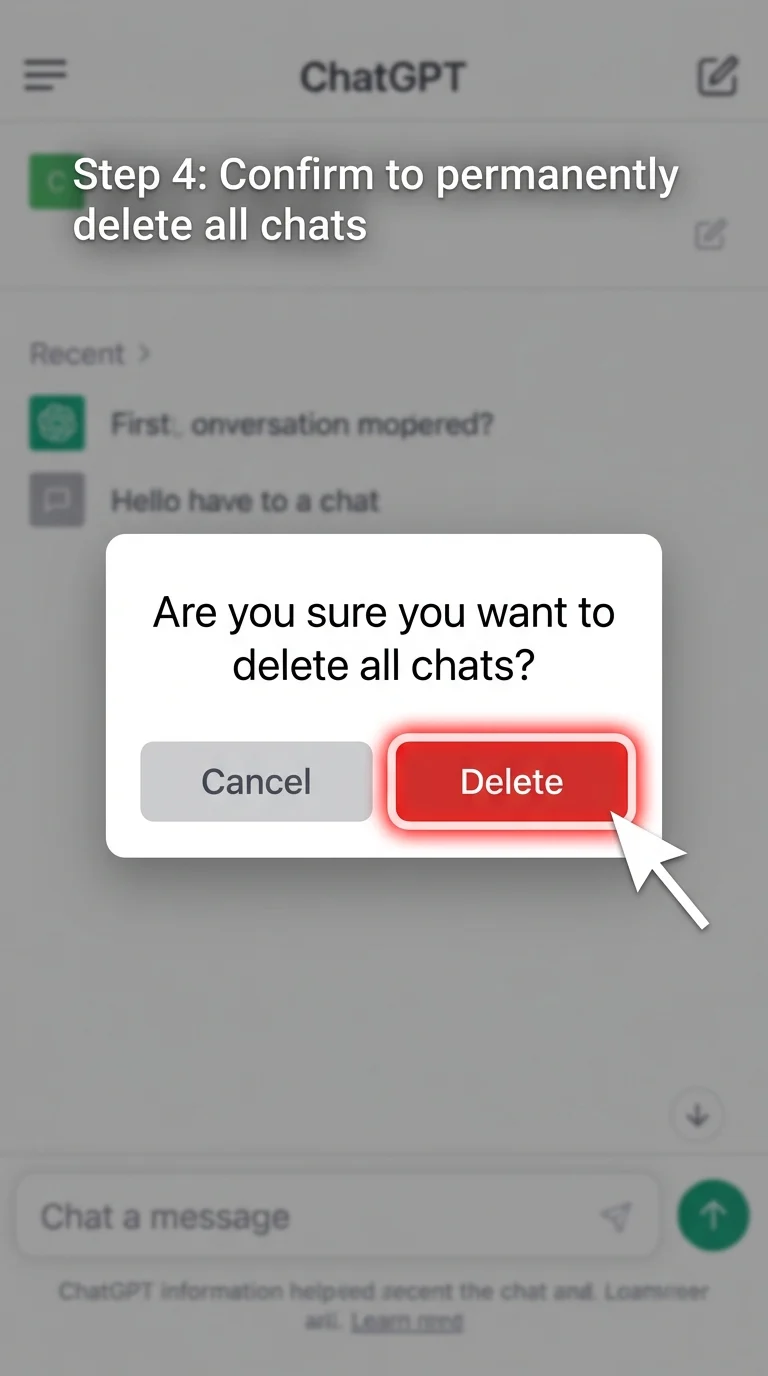
Step 4: Confirm the Deletion
A confirmation dialog will appear asking if you’re sure. Click “Confirm deletion” or “Delete” in the popup. Once you confirm, ChatGPT will permanently remove all your conversation history from your account.
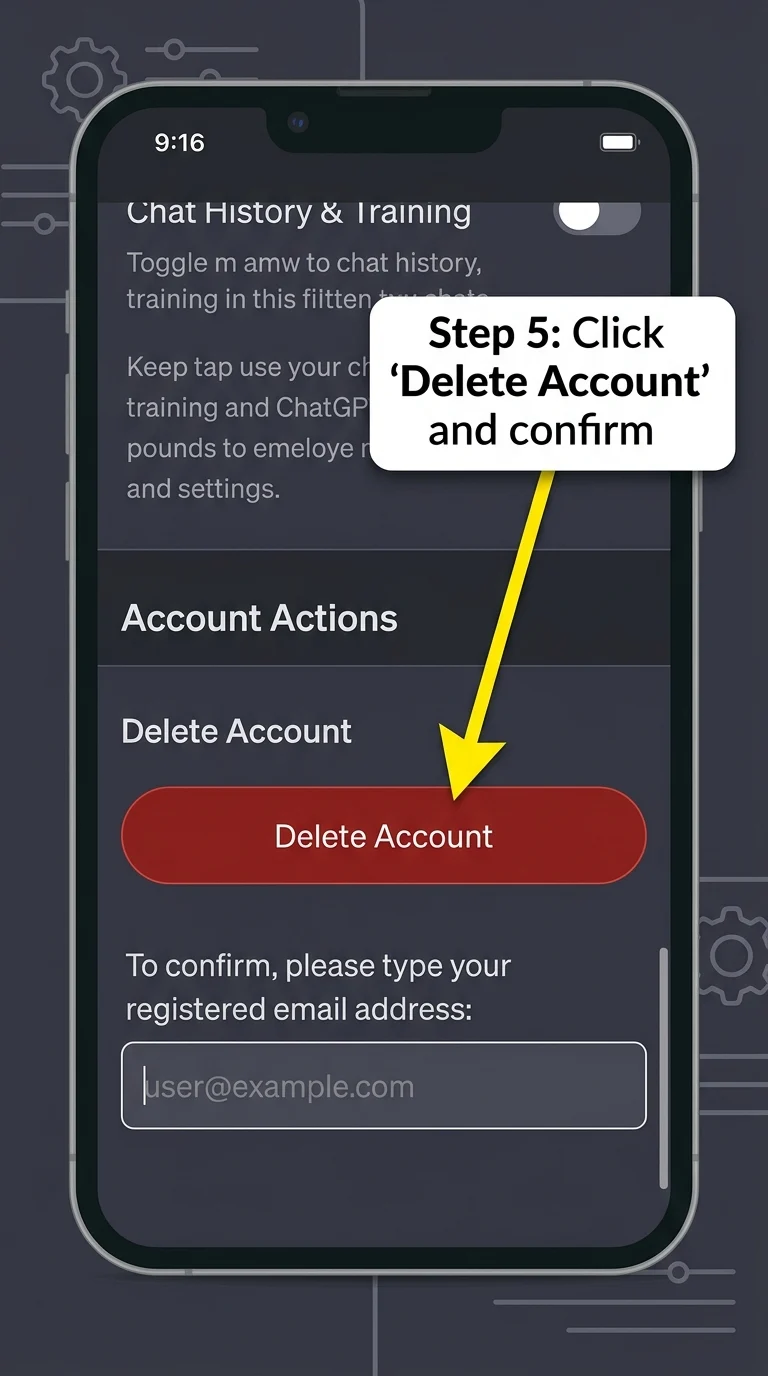
Step 5: Now Delete Your ChatGPT Account
Once your chats are cleared, scroll down in the same Data Controls section and find the option that says “Delete Account”. Click it. You’ll be asked to confirm again and may need to type your email or a confirmation phrase. Complete the steps to permanently close your account.
Doing This on the ChatGPT Mobile App?
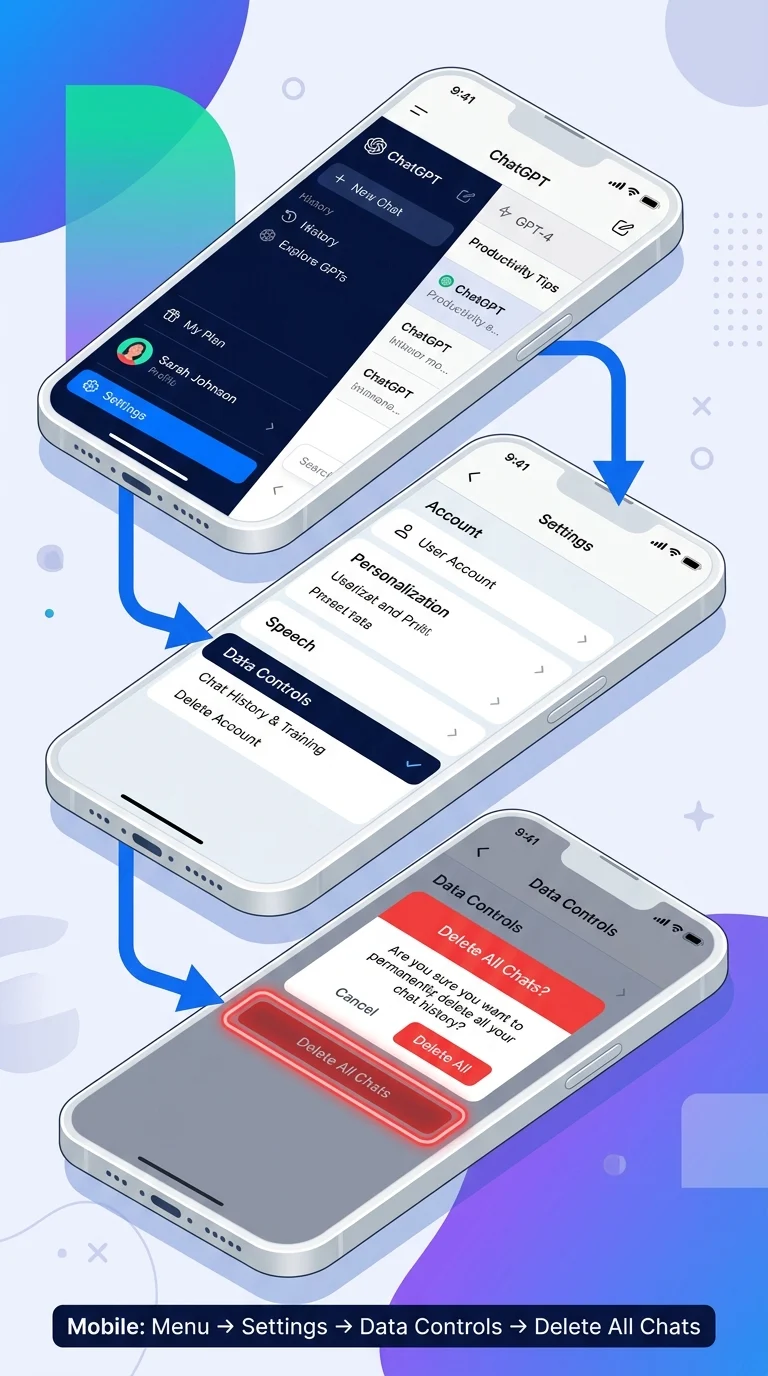
If you’re using the ChatGPT iOS or Android app, the process is slightly different:
- Open the app and tap the menu icon (☰) at the top left.
- Tap your profile/account name at the bottom of the sidebar.
- Go to Settings → Data Controls.
- Tap Delete All Chats, then confirm.
- To delete your account, visit chat.openai.com on a browser, as account deletion is typically only available on the web version.
Final Thought
Clearing your ChatGPT history before closing your account is a simple but important step. Your conversations might hold more personal information than you realize, and taking two minutes to delete them ensures that data doesn’t remain in the system after you’ve moved on. Once you’ve confirmed the chat deletion and completed the account removal, your ChatGPT presence is fully gone.