 Vipin PG
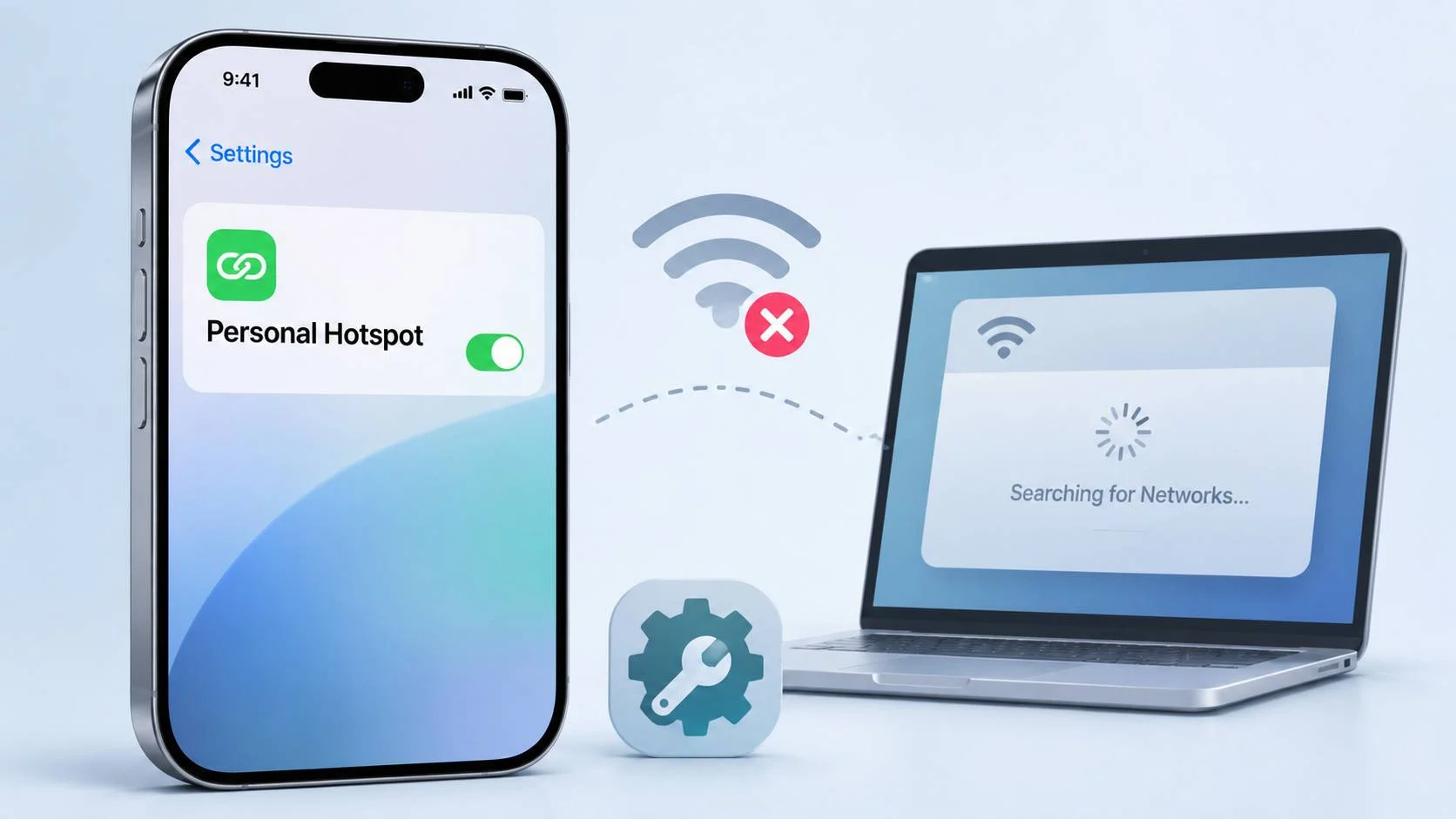
Your iPhone says Personal Hotspot is on, but no other device can find its Wi-Fi network. You’ve restarted the phone, changed the hotspot name, checked the carrier settings, and even reset the network settings. Nothing seems to help.
There’s another detail that makes this problem unusual: Bluetooth tethering works. You can share the iPhone’s mobile data over Bluetooth, yet its Wi-Fi hotspot remains invisible to nearby devices.
This can happen when the Wi-Fi hotspot fails to become discoverable, even though the phone can share its cellular connection through another method. The cause isn’t always obvious. It may involve an iOS software problem, Wi-Fi compatibility, device-management settings, or a fault affecting the wireless hardware.
A recent Stack Overflow question about an iPhone 17 running iOS 27.2 describes almost exactly this situation. The user had already tried the standard troubleshooting steps, and Apple diagnostics reported no hardware issues. The phone was also enrolled in MicroMDM, raising questions about whether its management configuration was involved.
If you’re dealing with a similar problem, there are several ways to narrow it down before considering a factory reset or hardware replacement. You can check whether the hotspot is being advertised, collect Wi-Fi diagnostics directly from iOS, and investigate management restrictions if your phone is enrolled in MDM.
Why Bluetooth tethering can work when the Wi-Fi hotspot doesn’t
Personal Hotspot allows an iPhone to share its cellular internet connection through Wi-Fi, Bluetooth, or USB. These connection methods use different parts of the phone’s networking system.
With Wi-Fi tethering, the iPhone makes a wireless network available for other devices to discover and join. Bluetooth tethering uses a Bluetooth connection between the devices instead. USB tethering uses a cable.
Because the connection methods work differently, one can fail while another continues working.
iPhone 17
Wi-Fi
Bluetooth
USB
When Bluetooth tethering works, you know that cellular data is available and the iPhone can share that connection through Bluetooth. You still need to establish whether the Wi-Fi hotspot is starting correctly.
It’s also worth separating two problems that can look similar:
- The hotspot appears, but another device cannot connect. This may involve authentication, compatibility, or a connection failure.
- The hotspot never appears in the Wi-Fi list. This points toward a discovery or broadcasting problem, although the receiving device’s scanning capabilities must also be considered.
The second situation is the focus here.
What happened in the reported iPhone 17 case?
The original report, posted on November 4, 2026, involved an iPhone 17 running iOS 27.2. Personal Hotspot showed as enabled, but nearby devices could not reliably find its Wi-Fi network.
The user had already tried restarting the phone, renaming it, switching Maximize Compatibility on and off, resetting network settings, and consulting the carrier.
There were two particularly interesting observations.
After a network reset, another iPhone occasionally detected what appeared to be a hidden Wi-Fi network. Even when a connection was established, it disappeared within minutes. A Linux laptop also failed to detect a matching hotspot network during scans of the available Wi-Fi bands.
The affected phone was enrolled in MicroMDM. Its visible restrictions did not block Personal Hotspot, although the management server could apply supported settings and configuration profiles.
Apple’s initial diagnostics found no hardware problem. The report did not include a confirmed cause or successful fix.
This is a useful example of why the usual hotspot troubleshooting checklist sometimes isn’t enough. There is still no verified evidence from this case that iOS 27.2 has a widespread hotspot defect, or that MicroMDM caused the failure.
1. Confirm that the hotspot is discoverable
Start with the connection procedure Apple recommends. Even if Personal Hotspot is enabled, the iPhone’s discoverability behavior can depend on whether you’re actively attempting to connect another device.
- Open Settings on the iPhone.
- Tap Personal Hotspot. Depending on the device configuration, you may find it under Cellular or Mobile Data.
- Enable Allow Others to Join.
- Keep the Personal Hotspot settings screen open.
- On another phone or laptop, turn Wi-Fi off and back on.
- Open the list of available Wi-Fi networks.
- Look for your iPhone’s network name and try connecting.
Keep the devices close together during the test. A distance of a few metres is sufficient.
The hotspot’s network name normally matches the iPhone’s device name. You can check that under Settings > General > About > Name.
Apple specifically recommends staying on the Personal Hotspot screen until the other device connects. Its Personal Hotspot connection instructions explain the supported connection methods.
Check Maximize Compatibility
On supported iPhones, Maximize Compatibility changes the Wi-Fi configuration used by Personal Hotspot to improve compatibility with certain devices. In particular, it can help when a client has trouble with the hotspot’s usual band or wireless settings.
To test it:
- Open Settings > Personal Hotspot.
- Enable Maximize Compatibility.
- Keep the Personal Hotspot screen open while another device searches for the network.
- Check whether the network appears and whether you can connect.
- Turn Maximize Compatibility off and repeat the test.
Apple warns that enabling this setting can reduce hotspot performance and Wi-Fi security, so it is worth testing both states.
If the hotspot appears only with Maximize Compatibility enabled, investigate compatibility between the iPhone and the receiving device. If it remains invisible in both modes, continue with the checks below.
2. Check whether the iPhone is advertising its Wi-Fi hotspot
When a Wi-Fi access point is operating normally, it generally announces its presence using wireless management frames known as beacon frames. Nearby devices use information from these frames, along with other discovery methods, to find available networks.
In this situation, the aim is to establish whether the hotspot is consistently missing from multiple independent scans.
Compare results from two different devices
Use another iPhone and a laptop if you have both available. Keep the affected iPhone in the same location throughout the tests.
Start with Personal Hotspot switched off and check the nearby networks. Then enable it, leave its settings screen open, and scan again.
Repeat the process with Maximize Compatibility enabled and disabled. If the hotspot appears, try connecting and leave the connection active for several minutes.
| Test | Compatibility | What to check |
|---|---|---|
| Hotspot off | Either | Nearby networks before testing |
| Hotspot on | Off | Whether the iPhone SSID appears |
| Hotspot on | On | Whether discovery changes |
| Hotspot connected | Record setting | Connection stability over several minutes |
When one device fails to detect the hotspot but others can connect, the receiving device deserves closer attention. If several devices consistently fail to find the network, the iPhone becomes the main subject of the investigation.
Scan for the hotspot using Linux
A Linux laptop with a supported Wi-Fi adapter can provide more technical information than a normal Wi-Fi network list. You can use the iw command to inspect nearby wireless networks.
Open Terminal and identify the wireless interface:
iw devThe interface might be named wlan0, wlp2s0, or something similar, depending on your Linux distribution and hardware.
Next, check the adapter’s capabilities:
iw listLook at the supported wireless bands and frequencies. The adapter needs to support the channels you intend to scan.
Now run a scan, replacing wlan0 with the correct interface:
sudo iw dev wlan0 scanRun this command with the hotspot disabled, then repeat it after enabling Personal Hotspot and opening its settings screen.
Perform another scan with Maximize Compatibility enabled.
The output may include the following network information:
- SSID: The network name.
- BSSID: The identifier of the detected wireless access point.
- Frequency: The operating frequency of the network.
- Signal: The received signal strength.
Compare the results and check whether a new network appears when the iPhone hotspot is enabled.
You can find details about supported scanning commands in the Linux Wireless documentation for iw.
What if the Linux scan doesn’t find the hotspot?
Suppose the laptop detects nearby Wi-Fi routers normally, but the iPhone’s hotspot never appears. If another independent device gets the same result, you have reasonable evidence of a discovery problem.
There is still a limitation: a normal Wi-Fi scan cannot prove that the iPhone transmitted no wireless frames. The adapter might miss activity because of channel coverage, driver behavior, regulatory settings, or scan timing.
For more detailed investigation, a compatible Wi-Fi adapter operating in monitor mode can capture wireless management frames on selected channels. This requires additional technical setup and may be unnecessary for ordinary troubleshooting.
For most users, multiple consistent scan results are enough to support an escalation to Apple.
Why might the hotspot appear as a hidden network?
The reported iPhone 17 occasionally appeared to another phone as a hidden network after a network reset.
A hidden network is one whose name is not advertised in the usual way. However, an entry labelled “Hidden Network” might belong to a completely different access point.
There is no verified evidence that iOS 27.2 deliberately hides the hotspot SSID in this situation.
If you see a hidden network appear only after enabling Personal Hotspot, record its BSSID, frequency, and the time it appeared, where your scanning tools expose those details. Further testing is needed before attributing that network to the iPhone.
3. Collect iPhone Wi-Fi logs without restoring the phone
When the hotspot repeatedly fails the discovery tests, system logs can help investigate what happened inside iOS.
Apple provides diagnostic logging profiles and a tool called sysdiagnose. You can use them to gather information without erasing the iPhone or reinstalling its operating system.
These logs are mainly intended for engineers and technical support. Some information may be difficult to interpret without Apple’s tools, but capturing it while the failure occurs can make a support investigation more productive.
Download Apple’s Wi-Fi logging profile
Open the official Apple Developer Profiles and Logs page.
Look for the section named Wi-Fi for iOS/iPadOS. Apple provides diagnostic instructions and a Wi-Fi logging profile through this page.
- Open the Wi-Fi for iOS/iPadOS instructions.
- Download the diagnostic profile from Apple’s website.
- On the iPhone, open Settings and look for the downloaded profile.
- If prompted, open Profile Downloaded, or inspect it under Settings > General > VPN & Device Management.
- Follow Apple’s instructions to install the profile.
- Restart the iPhone only if the current diagnostic instructions require it.
Some resources on Apple’s diagnostic page require an Apple Developer login. If the profile is unavailable, Apple Support may provide instructions for collecting the appropriate logs.
A managed iPhone may prevent you from installing additional configuration profiles. If the device belongs to an organization, contact its administrator before attempting the installation.
The logging profile is intended for diagnosis. It does not change the underlying hotspot problem or guarantee that the missing network will become visible.
Reproduce the failure while logging is enabled
Once the diagnostic profile is active, try to reproduce the missing hotspot under controlled conditions.
- Record the current date and time, iPhone model, and exact iOS build.
- Turn Personal Hotspot off.
- Enable Allow Others to Join again.
- Leave the Personal Hotspot settings screen open.
- Search for the network from another device.
- Note whether it appears, whether you can connect, and the time of each attempt.
- Repeat the test with Maximize Compatibility in its other state.
- If the hotspot appears briefly, record when the connection starts and when it drops.
Use the same receiving device and keep the phones in the same location for each test. This makes the results easier to compare.
Recording exact timestamps is useful because a diagnostic archive contains logs from many parts of the operating system. An engineer can concentrate on the period when the hotspot failed.
Capture sysdiagnose on the iPhone
Sysdiagnose collects system logs and other diagnostic information into an archive. Apple uses this information when investigating problems that routine checks cannot explain.
To trigger a sysdiagnose on a modern iPhone:
- Reproduce the missing Personal Hotspot problem.
- Briefly press and hold Volume Up, Volume Down, and the Side button together, then release them.
- A short vibration normally indicates that the diagnostic process has started.
- Allow several minutes for the archive to be generated.
- Open Settings > Privacy & Security > Analytics & Improvements > Analytics Data.
- Look for a recently created file beginning with
sysdiagnose_. - Use the available sharing option to save it to Files or transfer it to a Mac.
Do not continue holding the buttons until the power-off or Emergency SOS interface appears. The combination should be brief.
The archive can be large and may take several minutes to appear. If it doesn’t show up, consult the current instructions on Apple’s Profiles and Logs page or ask Apple Support for help with the collection procedure.
Enable Apple’s Wi-Fi logging
Reproduce the hotspot failure
Trigger sysdiagnose
Share the diagnostic evidence
What can sysdiagnose tell you?
Sysdiagnose can contain information about Wi-Fi subsystem activity, operating-system errors, network configuration, and events occurring around the time of the failure.
The additional Wi-Fi logging profile may capture more detailed diagnostic information, depending on the current profile and Apple’s logging implementation.
There are limits to what you can conclude from the archive.
A sysdiagnose does not automatically confirm whether the Wi-Fi radio physically transmitted beacon frames. Some firmware and driver details may be unavailable or difficult to interpret. The absence of an obvious error message doesn’t establish that the wireless hardware is functioning normally.
For this reason, keep the independent Wi-Fi scan results and test timestamps alongside the archive. Together, they give Apple engineers a better account of what the phone was doing when the hotspot disappeared.
Diagnostic archives may contain sensitive device and network information. Share them only with Apple, your authorized device administrator, or a trusted engineer involved in the investigation.
4. Check whether an MDM profile is interfering with Personal Hotspot
If your iPhone is enrolled in a device-management system, the administrator may be able to control certain Personal Hotspot settings remotely.
This matters in the reported iPhone 17 case because the phone was enrolled in MicroMDM. The user could not remove the enrollment, and the server had permission to install settings and profiles.
Apple’s device-management framework supports both restrictions and management commands affecting Personal Hotspot. Checking the installed profiles is a sensible starting point, although the administrator may also need to inspect the server’s command history.
Inspect the installed configuration profiles
On the iPhone:
- Open Settings.
- Go to General > VPN & Device Management.
- Open the available configuration profiles and device-management details.
- Look for Wi-Fi, VPN, network-extension, and device-restriction settings.
- Record any relevant profile names and ask the administrator about their assigned settings.
Apple explains the purpose of these profiles in its iPhone configuration profile documentation.
A managed device may also show a supervision message in Settings.
Avoid removing profiles simply to see whether the hotspot starts working. Removing a configuration profile can also remove managed network settings, applications, or associated data. Organizational enrollment may prevent users from removing certain profiles altogether.
Check the Personal Hotspot restriction
Apple documents a device-management restriction called:
allowPersonalHotspotModificationWhen set to false on a supported supervised iPhone, this restriction prevents the user from changing Personal Hotspot settings.
You can find it in Apple’s device-management restrictions reference.
This restriction controls whether the user can modify the hotspot setting. Its presence does not, by itself, establish that MDM is stopping the Wi-Fi network from broadcasting.
Even when the restriction is absent and the hotspot controls remain available, it is worth checking for other management actions.
Check whether MDM is sending Personal Hotspot commands
Apple’s management protocol includes a Personal Hotspot setting that an authorized management server can use to enable or disable the feature.
The relevant setting is represented by:
Item: PersonalHotspot
Enabled: true or false
Apple describes this in its PersonalHotspot Settings command documentation.
There is also a device-information query named:
PersonalHotspotEnabledIt allows an authorized management server to query the device-reported Personal Hotspot state when supported by the carrier and the relevant management permissions.
The Apple Device Information documentation describes the supported queries.
Keep in mind that the enabled state reported by MDM does not confirm whether nearby Wi-Fi devices can discover the hotspot.
Why the iPhone’s visible restrictions may not reveal the issue
Device management can involve more than installed configuration profiles. An MDM server may send supported commands that change device settings without creating a separate, persistent restriction visible in the profile list.
Microsoft’s Intune documentation for Apple device restrictions provides an example of a Personal Hotspot management action that may not appear as a setting in the device’s management profile.
MicroMDM and Intune are different products, but this illustrates why the administrator should inspect server-side activity as well as the phone’s installed profiles.
If you have access to the MicroMDM administrator, ask them to review:
- The complete inventory of installed configuration profiles.
- The effective Personal Hotspot modification restrictions.
- Any Settings commands that enable or disable Personal Hotspot.
- The reported Personal Hotspot state returned by supported device-information queries.
- Recent profile changes and command history.
- Any automation that periodically reapplies network settings.
- Management activity around the timestamps of the hotspot failure.
If the problem started after an MDM configuration change, compare the old and new settings before making further changes.
Can a managed Wi-Fi profile hide the hotspot network?
Apple’s managed Wi-Fi configuration supports a Hidden Network property. This setting describes a Wi-Fi network the iPhone is expected to join.
It is not documented as a setting that causes the iPhone’s own Personal Hotspot network to advertise a hidden SSID.
Therefore, finding a Hidden Network property in an installed Wi-Fi configuration should not be treated as the explanation for the hotspot disappearing.
VPN and network-extension profiles may also be relevant when investigating network behavior, particularly if the problem began after a policy change. Their presence alone is not proof that they are affecting hotspot discovery.
Test the hotspot without the suspected management setting
Any change to a managed device should be coordinated with its administrator.
The administrator can first review the existing configuration and identify whether a Personal Hotspot-related policy or command is being applied.
If organizational policy permits it, they can temporarily stop a suspected management action or withdraw a nonessential setting while leaving the required device enrollment intact.
Repeat the same hotspot discovery tests during that period. Avoid changing several unrelated settings at once, since that makes it difficult to identify what caused a different result.
If the hotspot consistently works after one specific management setting is withdrawn and fails when that setting returns, there is stronger evidence of an MDM-related cause.
If nothing changes, review the diagnostic logs and continue investigating the iPhone’s Wi-Fi subsystem. Do not erase the phone or remove its enrollment simply to perform this test.
5. Work out whether the problem is software or hardware
Once you’ve established that the hotspot repeatedly fails to appear, you need to decide what to investigate next.
The available evidence may point toward a software or configuration problem, but an intermittent hardware fault remains possible. Even Apple diagnostics can miss failures that don’t occur while the tests are running.
Failure remains unexplained
What suggests a software or configuration issue?
A software-related explanation becomes more plausible when the hotspot changes behavior after a specific update, configuration change, or management action.
For example, the hotspot might start working again after resetting network settings but disappear later. This can indicate that the problem depends on the current system state, although it doesn’t identify the underlying cause.
Other useful observations include:
- The issue started immediately after installing an iOS update.
- A recent MDM configuration change matches the timing of the failure.
- Maximize Compatibility consistently changes whether the hotspot appears.
- The hotspot works while a particular management policy is temporarily disabled.
- Diagnostic logs record relevant Wi-Fi subsystem errors when discovery fails.
These observations can help Apple or the device administrator identify where to investigate. None of them provides a definitive diagnosis on its own.
When should you suspect a hardware problem?
A hardware fault becomes more concerning when the hotspot is consistently missing across multiple receiving devices and supported software and configuration checks have failed to explain it.
Pay attention to how ordinary Wi-Fi behaves on the same iPhone. If the phone also struggles to discover or maintain connections to normal Wi-Fi networks, mention that to Apple Support.
However, ordinary Wi-Fi working normally doesn’t conclusively rule out a hotspot-specific failure. Bluetooth tethering working normally doesn’t rule out Wi-Fi hardware trouble either.
Apple’s initial diagnostics may report no fault when the problem is intermittent or not reproduced during the test. That is why the controlled test results and sysdiagnose archive are useful.
Should you restore or replace the iPhone?
For a phone that has already undergone a network reset without a lasting improvement, repeating the reset is unlikely to provide much additional diagnostic information.
A complete erase is a more disruptive step. It removes user data and configuration, and a managed device may require organizational assistance or automatic re-enrollment afterward.
If Apple recommends restoring the phone, make sure you have a suitable backup and, where applicable, approval from the device administrator.
Hardware service becomes a reasonable option when the problem remains reproducible, management interference has been investigated, and Apple cannot resolve it through supported software diagnostics.
Before agreeing to a replacement or repair, ask Apple Support to review the evidence and confirm the available service options for your device.
6. What to send Apple Support when the hotspot remains invisible
A support report is easier to investigate when it describes exactly what fails.
Instead of saying only that Personal Hotspot isn’t working, explain that the iPhone’s Wi-Fi hotspot cannot be discovered by multiple devices even though Bluetooth tethering works.
Include the following information:
- The iPhone model and exact iOS version and build.
- Whether cellular data and Bluetooth tethering work normally.
- Whether the iPhone can connect to ordinary Wi-Fi networks.
- Which phones or laptops you used to search for the hotspot.
- Results with Maximize Compatibility enabled and disabled.
- Whether the Personal Hotspot settings screen remained open during testing.
- Any Wi-Fi scan output, including relevant frequencies and timestamps.
- Whether the failure began after an iOS update or configuration change.
- Whether the device is supervised or enrolled in MDM.
- Any sysdiagnose archive and additional logs requested by Apple.
If the hotspot appears briefly, describe what happens next. Mention whether the receiving device successfully connects, how long the connection lasts, and whether the network disappears from the Wi-Fi list afterward.
You can also explain which ordinary troubleshooting steps you’ve already tried. This may help avoid repeating a network reset or other checks that have produced no lasting improvement.
Frequently asked questions
Why does Bluetooth tethering work when my iPhone Wi-Fi hotspot doesn’t?
Bluetooth and Wi-Fi tethering use different connection methods. Bluetooth working confirms that the iPhone can share cellular data through Bluetooth. The Wi-Fi hotspot still needs to be checked separately because its discovery and connection process may be failing.
Can Personal Hotspot be enabled without broadcasting a visible Wi-Fi network?
Yes. The setting can show as enabled while nearby devices cannot find the network. This can result from normal discoverability conditions, compatibility problems, configuration issues, or a failure involving the Wi-Fi subsystem. Additional testing is needed to establish why it happens.
Will Maximize Compatibility fix a missing iPhone hotspot?
It can help when the receiving device has trouble with the hotspot’s normal wireless configuration. If the network remains invisible with the setting both on and off, the problem may require further investigation.
Can MicroMDM or another MDM system disable Personal Hotspot?
Apple’s management framework allows authorized administrators to restrict changes to Personal Hotspot and issue supported commands that enable or disable the feature. Whether MicroMDM is responsible in a particular case depends on the policies and commands actually applied to that device.
Can I collect iPhone Wi-Fi logs without resetting or restoring it?
Yes. Apple provides diagnostic logging profiles and a sysdiagnose mechanism. They allow you to collect system information without erasing the phone. The resulting logs may require Apple Support or an experienced engineer to interpret.
Does a normal Apple diagnostic result mean the Wi-Fi hardware is fine?
It means the diagnostic test did not identify a problem at that time. Intermittent faults can be difficult to reproduce. If the hotspot continues to fail, collect the relevant logs and provide a repeatable set of test results for further investigation.
Is this a confirmed iOS 27.2 bug affecting the iPhone 17?
The original report does not establish a confirmed iOS 27.2 hotspot bug. The same visible symptoms can come from different causes, and the reported case has no verified resolution identifying the responsible component.
What to do next
If your iPhone’s hotspot never appears on Wi-Fi, start by keeping the Personal Hotspot settings screen open while another device searches for it. Compare the results with Maximize Compatibility turned on and off, preferably using more than one receiving device.
When the network remains invisible, a Linux Wi-Fi scan can provide additional evidence. Apple’s Wi-Fi logging profile and sysdiagnose are the next options when the usual fixes have already failed.
For an organization-managed iPhone, involve the administrator before changing profiles. They can inspect the management commands and restrictions that aren’t necessarily obvious from the phone’s settings.
If those checks don’t explain the failure, send Apple Support the diagnostic archive, test results, and timestamps. That gives them a clearer basis for investigating whether the problem lies in iOS or the phone’s Wi-Fi hardware.