 Vipin PG
Your Wi-Fi works normally for a while, then suddenly disconnects. A few seconds later, it reconnects on its own. You might notice it during a video call, while downloading a file, or when a page takes too long to load.
Restarting the router may help temporarily. But if the connection keeps dropping, you need to find out which part of the network is failing.
Repeated Wi-Fi disconnections can come from a wireless driver, power-saving settings, interference, router configuration, or problems moving between wireless access points. The cause is easier to identify once you know whether the problem affects one device or everything connected to your network.
This guide starts with a few simple checks, then covers specific fixes for Windows, Android, iPhone, and home routers. There are also instructions for checking Windows disconnect logs when the usual fixes don’t work.
First, Check What Actually Disconnects
Two different connection problems can produce almost identical symptoms.
In the first case, your phone or computer loses its wireless connection to the router. The Wi-Fi icon may disappear, the network name may briefly vanish, or the device may show that it’s reconnecting.
In the second case, the device stays connected to Wi-Fi, but internet access stops working. This can happen when the router loses its internet connection, DNS stops responding, or another network service has a problem.
The distinction matters because the fixes are different.
Wi-Fi connection drops
Disconnected
Wi-Fi router
Investigate the wireless adapter, signal quality, authentication, roaming, and router Wi-Fi settings.
Wi-Fi connected, internet unavailable
Connected
Router
Offline
Internet
Investigate the router’s internet connection, ISP, DNS, routing, VPN, or related network services.
Figure 1. A wireless disconnection and an internet outage can look similar, but they involve different parts of the network.
During the next interruption, open the Wi-Fi settings on your device. Check whether it’s still connected to the network.
If it remains connected but reports “No Internet,” start with the internet connection tests later in this article. If the device leaves the Wi-Fi network and reconnects, continue with the wireless troubleshooting steps.
Step 1: Find Out Whether One Device or All Devices Are Affected
Connect two devices to the same Wi-Fi network. A laptop and phone will do. Leave them connected while the problem normally occurs.
If your laptop disconnects but your phone stays online, there’s a good reason to investigate the laptop first. If both disconnect together, the router or shared network equipment deserves more attention.
NO
One device
Test its driver, saved network, power settings, and compatibility with the router.
YES
Multiple devices
Check router settings, access points, wireless interference, and internet status.
Figure 2. The number of affected devices helps narrow down the likely source of the problem.
If only one device disconnects
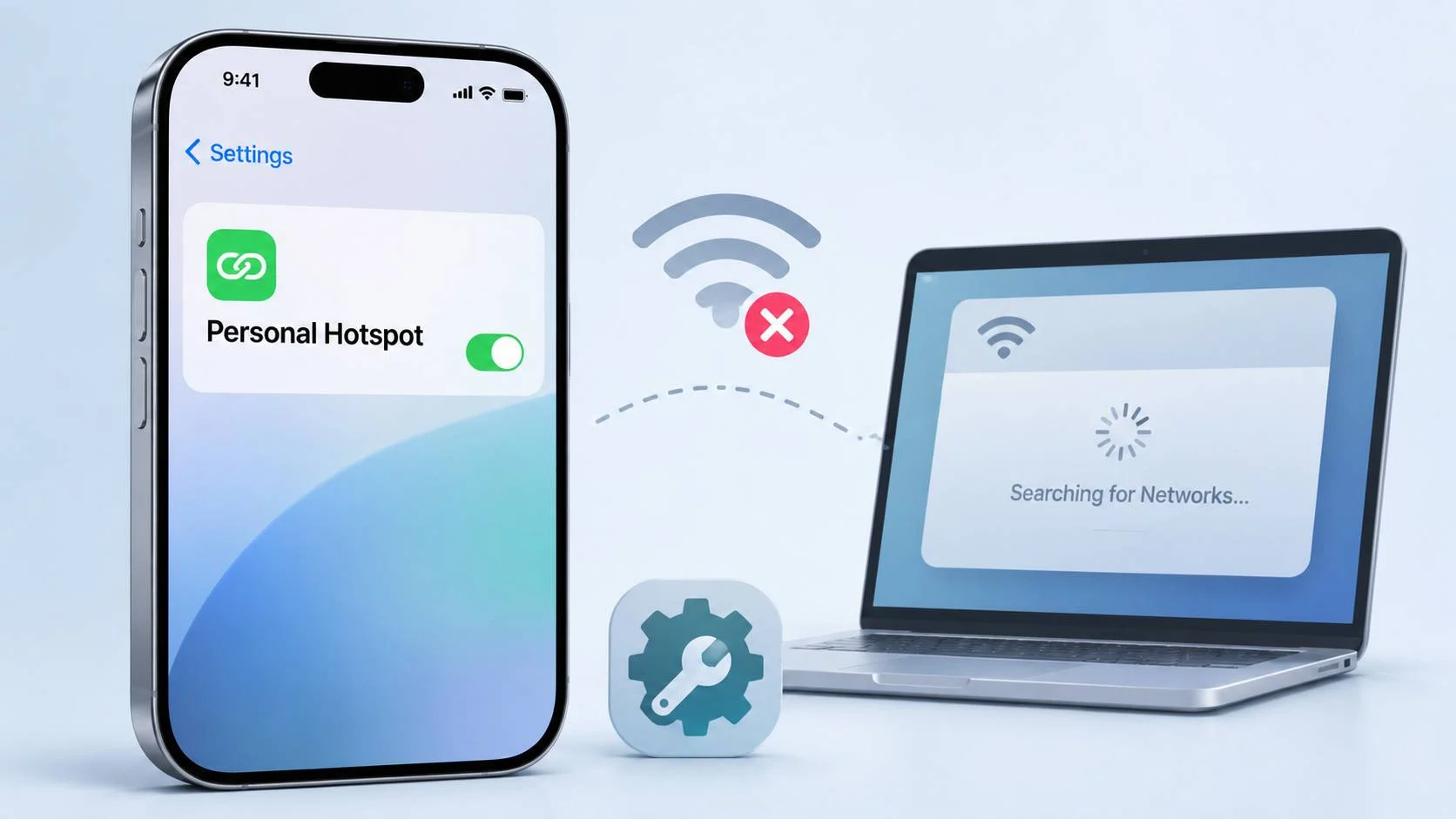
Try connecting the affected device to another trusted Wi-Fi network. A phone hotspot can also work for this test.
If the device stays connected elsewhere, the problem may involve compatibility between that device and your home router. It doesn’t necessarily mean either device is faulty.
If the same device disconnects on several unrelated networks, pay closer attention to its wireless driver, operating system settings, and hardware.
If several devices disconnect together
Check the router’s status lights and system logs, if available. Look for restarts, power interruptions, overheating, wireless channel changes, or access point failures.
For mesh networks, check whether a particular access point is going offline.
When every device stays connected to Wi-Fi but loses internet access simultaneously, investigate the modem, router WAN connection, or ISP before changing wireless settings.
How to Fix Wi-Fi Disconnecting and Reconnecting on Windows
On Windows 11 and Windows 10, power management and wireless drivers are worth checking early, especially if the connection drops after sleep or when the laptop runs on battery.
1. Disable Wi-Fi adapter power saving
Windows can allow the wireless adapter to enter a low-power state to conserve battery. Some adapters don’t recover cleanly from certain power-state changes, which can interrupt the connection.
- Right-click the Start button and open Device Manager.
- Expand Network adapters.
- Right-click the wireless adapter. Its name may include Intel, Realtek, Qualcomm, Broadcom, or MediaTek.
- Select Properties.
- Open the Power Management tab, if available.
- Uncheck Allow the computer to turn off this device to save power.
- Click OK and test the connection.
Wireless Adapter Properties / Power Management
Allow the computer to turn off this device to save power
Figure 3. Leave the checkbox unchecked when testing an adapter power-management issue.
The Power Management tab is missing on some laptops and newer Windows configurations. If you don’t see it, move on to the next fix. There’s no need to modify the registry to make the tab appear.
Some Windows systems also expose a wireless power plan option under Control Panel.
- Open Control Panel and select Hardware and Sound.
- Open Power Options.
- Select Change plan settings for the active power plan.
- Click Change advanced power settings.
- Expand Wireless Adapter Settings, then Power Saving Mode.
- Choose Maximum Performance, if available.
This may increase battery use, so treat it as a troubleshooting test. Microsoft documents related steps in its guide to fixing Wi-Fi connection problems in Windows.
2. Update or roll back the wireless driver
If the disconnects started after a Windows update or driver installation, check the wireless driver version before changing router settings.
- Open Device Manager and expand Network adapters.
- Right-click the Wi-Fi adapter and open Properties.
- Select the Driver tab.
- Check the version and driver date.
- Visit your laptop manufacturer’s support website and look for the recommended wireless driver for your model.
If the problem began immediately after installing a newer driver, use Roll Back Driver when that option is available.
A generic driver isn’t always the best choice for every laptop. Manufacturers sometimes provide versions tested against their hardware and firmware.
3. Forget the saved Wi-Fi network
A saved network profile can cause trouble after the router’s security or connection settings have changed.
On Windows 11, open Settings, then Network & internet, Wi-Fi, and Manage known networks.
Find the affected network, select Forget, and reconnect with the Wi-Fi password.
On Windows 10, use Settings, Network & Internet, Wi-Fi, and Manage known networks.
4. Check Random hardware addresses
Windows can use randomized MAC addresses to reduce tracking on wireless networks. This normally works without any connection problems.
However, a router using MAC-based access controls, parental controls, or device-specific policies may not recognize the address your computer currently uses.
On supported Windows devices, check Random hardware addresses in Wi-Fi settings or the properties of the affected network.
If your home router relies on MAC-based rules, temporarily turn off address randomization for that trusted network and test again.
Keep the privacy feature enabled on other networks unless you have a specific reason to change it.
5. Generate a Windows Wi-Fi report
If the connection still drops, Windows can generate a report showing recent wireless sessions and connection failures.
Open Command Prompt as administrator and run:
netsh wlan show wlanreportThe command displays the location of the generated HTML report. A common location is:
C:\ProgramData\Microsoft\Windows\WlanReport\wlan-report-latest.htmlOpen the report in your browser. Look for repeated disconnections and match their timestamps with the times you noticed the problem.
The report can show failed connection attempts, session information, adapter details, and other evidence that helps narrow down the cause.
Microsoft explains this process in its wireless network connectivity troubleshooting documentation.
How to Fix Wi-Fi Reconnect Loops on Android
Android phones can lose connectivity because of saved network settings, router compatibility, third-party networking apps, or automatic switching between Wi-Fi and mobile data.
Settings names vary across Google Pixel, Samsung Galaxy, OnePlus, Xiaomi, and other Android phones.
Forget the Wi-Fi network
On a Google Pixel, open Settings, select Network & internet, then Internet.
Open the affected network’s settings, or find it in your saved networks, and select Forget. Reconnect with the Wi-Fi password.
On Samsung Galaxy phones, the equivalent controls are generally under Settings, Connections, and Wi-Fi.
Check Adaptive Connectivity and mobile data switching
Some Android devices switch internet traffic to cellular data when the Wi-Fi connection becomes unreliable.
On supported Google Pixel phones, check Settings, Network & internet, and Adaptive connectivity.
If an option such as Auto-switch to mobile network is available, temporarily turn it off and test.
Adaptive Connectivity behaves differently across Android versions. On some Pixel phones, it primarily manages mobile network behavior and battery use. Its presence doesn’t mean it’s responsible for Wi-Fi disconnecting.
Figure 4. Cellular fallback can interrupt applications or change the active internet connection even when the Wi-Fi radio has not disconnected.
Turning off automatic switching can help identify the source of the interruption. It won’t repair a failing wireless connection.
Google provides further steps in its Pixel Wi-Fi troubleshooting guide.
Check randomized MAC address settings
Android normally uses randomized MAC addresses for privacy. They should work on most home networks without any changes.
If your router has MAC-based access rules or device-specific restrictions, open the affected network’s settings and look for Privacy, MAC address type, or Randomized MAC address.
Where available, temporarily select Use device MAC on your trusted home network to test whether an address mismatch is involved.
Restore address randomization if it makes no difference.
Check VPN and network management apps
A VPN, firewall, or security app can interrupt internet traffic while the phone remains connected to Wi-Fi.
If the problem started after installing one of these apps, temporarily disable it and test again.
Safe Mode is another option on supported Android phones. If the problem disappears in Safe Mode, a downloaded app may be contributing to it.
Reset Wi-Fi settings if the problem continues
On a Google Pixel, the relevant option is generally found under Settings, System, Reset options, and Reset Bluetooth & Wi-Fi.
The exact label depends on the device and Android version. This reset can remove saved Wi-Fi networks and Bluetooth pairings, so make sure you have the necessary passwords before proceeding.
How to Fix Wi-Fi Disconnecting on iPhone
If your iPhone keeps disconnecting while other devices remain stable, check the saved network first. Then investigate cellular assistance and private Wi-Fi address settings if the symptoms match.
Forget and reconnect to the network
- Open Settings and select Wi-Fi.
- Tap the information icon beside the affected network.
- Select Forget This Network.
- Reconnect with the network password.
This is particularly useful if the problem began after changing the router password or wireless security mode.
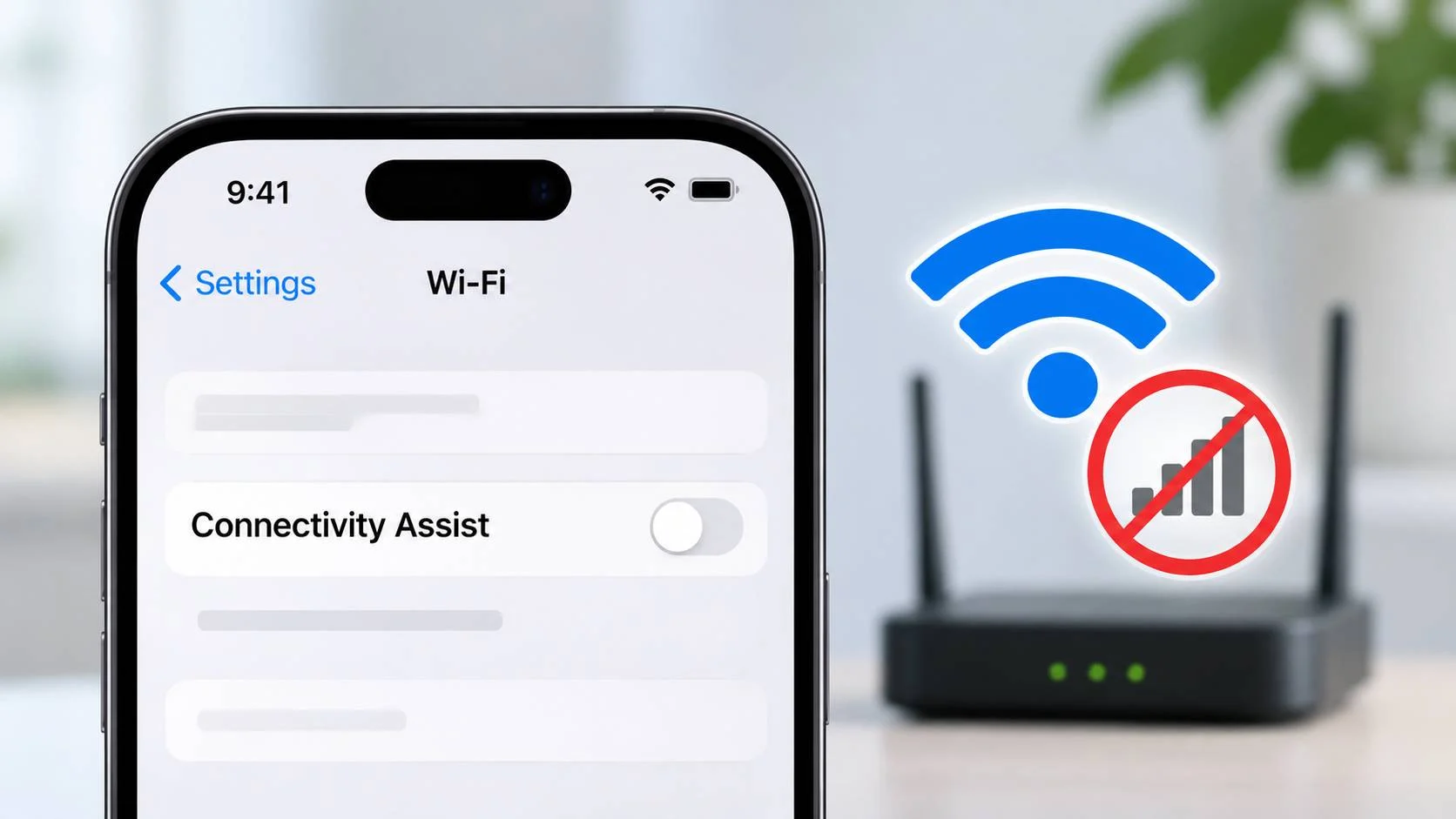
Check Wi-Fi Assist or Connectivity Assist
On older iOS versions, Wi-Fi Assist allows the iPhone to use cellular data when Wi-Fi internet performance is poor.
You’ll generally find it under Settings, then Cellular or Mobile Data.
On newer supported iOS versions, Apple’s Connectivity Assist replaces the older feature and is accessible through Wi-Fi settings.
If your iPhone appears to switch between Wi-Fi and mobile data, temporarily disable the relevant assistance feature and test the connection.
These controls manage cellular fallback. If the iPhone repeatedly loses its wireless connection to the router, you’ll need to investigate the wireless network itself.
Check Private Wi-Fi Address
Apple uses private Wi-Fi addresses to reduce tracking across networks. On iOS 18 and later, the feature includes Off, Fixed, and Rotating options.
| Option | Behavior |
|---|---|
| Off | Uses the device’s hardware MAC address. |
| Fixed | Uses a stable private address for the network. |
| Rotating | Changes the private address periodically. |
For a trusted home network using modern security, Fixed is generally a suitable choice where available.
If your router uses MAC-based controls, make sure its rules recognize the iPhone’s current address.
Apple explains these options in its private Wi-Fi address documentation.
Reset Network Settings as a last software step
If the problem persists, open Settings, General, Transfer or Reset iPhone, Reset, and Reset Network Settings.
This doesn’t erase your photos or installed apps. It does remove saved network settings and resets applicable networking configurations, so you may need to reconnect to Wi-Fi and reconfigure certain VPN settings afterward.
Check Your Router’s Wi-Fi Channels and Band Settings
If several devices disconnect, or one device works on another network but keeps dropping at home, the router’s wireless configuration is worth checking.
Start by finding out whether the problem occurs on 2.4 GHz, 5 GHz, or both.
Wi-Fi disconnects only on 2.4 GHz
The 2.4 GHz band generally reaches farther through walls, but it can be crowded. Nearby Wi-Fi networks, Bluetooth devices, and some household electronics can interfere with it.
Open your router’s wireless settings and check the channel width. A 20 MHz width is generally recommended for 2.4 GHz reliability.
Automatic channel selection is a reasonable starting point. If it performs poorly, try a less congested channel permitted in your region.
Channels 1, 6, and 11 are commonly used to reduce overlap when operating at 20 MHz, where those channels are permitted.
Channel
1
Channel
6
Channel
11
Figure 5. Common 20 MHz channel choices. Actual channel availability and interference depend on your region and neighboring networks.
Keep the router away from equipment that may interfere with its radio signal. Also check whether nearby routers are using the same or overlapping channels.
Apple recommends 20 MHz channel width for 2.4 GHz networks in its recommended Wi-Fi router settings.
Wi-Fi disconnects only on 5 GHz
The 5 GHz band generally has more channel capacity and can provide higher speeds, but coverage may fall off more quickly through walls.
If the connection works near the router and fails farther away, test the device in the same room as the access point before changing drivers or security settings.
Router channel changes can also interrupt some connections. On routers using Dynamic Frequency Selection (DFS), radar detection may require the access point to change channels.
Check the router logs for channel changes around the time of the disconnections. If the timing matches, test a permitted non-DFS channel where supported.
Wi-Fi disconnects when moving between rooms
Mesh systems and routers with band steering can encourage devices to switch between wireless bands or access points.
Most devices handle these transitions without difficulty. Some combinations of client hardware, drivers, and access point settings can produce repeated disconnections during roaming.
If your router uses a combined network name for 2.4 GHz and 5 GHz, temporarily separate them for testing.
2.4 GHz
Home-2G
5 GHz
Home-5G
Connect the affected device to each band independently. If the connection is stable on both separately but fails with steering enabled, investigate the router’s band steering configuration.
Figure 6. Separate network names can help isolate band-specific connection problems.
You can restore the combined network name after testing.
On a mesh network with multiple access points, try staying near one access point for a while. If disconnects happen only when moving between locations, investigate roaming behavior and access point placement.
Check WPA3 compatibility
WPA3 improves wireless security, but older devices and wireless drivers may have compatibility problems with WPA3-only networks.
If the reconnect loop started after changing the router to WPA3-only mode, check the affected device’s support for WPA3 and install compatible driver or firmware updates.
Where necessary, WPA2/WPA3 Transitional mode can help older devices connect. WPA2 Personal with AES is another compatibility option for devices that cannot use WPA3.
Avoid WEP, TKIP, or open Wi-Fi networks as workarounds for connection problems.
Use Windows Event Viewer to Find the Disconnect Reason
When a Windows computer repeatedly disconnects and the basic fixes haven’t worked, Event Viewer can provide more useful evidence than another router restart.
Windows records wireless connection activity in the WLAN-AutoConfig log.
- Press Win + R.
- Enter
eventvwr.mscand press Enter. - Expand Applications and Services Logs.
- Open Microsoft, then Windows.
- Select WLAN-AutoConfig, then Operational.
- Find events recorded at the time of the disconnection.
Open the relevant event and read its General and Details sections.
| What the log reports | What to investigate |
|---|---|
| Authentication or security failure | Saved network profile, wireless security, or driver compatibility |
| Access point-initiated disconnection | Router logs, inactivity settings, or steering behavior |
| Roaming-related event | Mesh roaming, access point coverage, or steering configuration |
| Driver or adapter error | Wireless driver, firmware, power management, or hardware |
| Failure immediately after sleep | Sleep-resume behavior and adapter power settings |
What do Wi-Fi disconnect reason codes mean?
Some log entries include numeric reason codes. Read the complete event message before interpreting them.
Windows WLAN operation codes and IEEE 802.11 disassociation reason codes use different numbering systems. A code from one system should not be interpreted using the other system’s definitions.
For example, IEEE 802.11 disassociation reason code 4 indicates inactivity. That may point toward access point inactivity settings, client power saving, or missing traffic.
The code describes what was reported during the disconnection. It doesn’t always identify the original cause.
Match the event with the wireless report and router logs. Microsoft’s wireless connectivity troubleshooting reference explains how to collect and interpret additional evidence.
Why Wi-Fi Keeps Disconnecting After Sleep
If your laptop connects normally after a fresh restart but repeatedly loses Wi-Fi when waking from sleep, focus on the wireless adapter’s resume behavior.
Start with the power management settings described earlier. Then check whether an updated or rolled-back wireless driver changes the behavior.
Compare what happens on battery power with what happens when the laptop is plugged in. Some systems use different power policies depending on their power source.
After the next failed resume, check Event Viewer for wireless errors recorded at the wake time.
You can also temporarily disable and re-enable the Wi-Fi adapter in Device Manager. If that restores connectivity consistently, but the problem returns after every sleep cycle, a driver or power-state problem becomes more likely.
Reinstalling Windows or changing unrelated router settings is unnecessary at this stage. Use the failure pattern and logs to guide the next step.
Check Whether the Problem Is Wi-Fi or Your Internet Connection
Windows includes a simple command-line test that can help locate interruptions between your device, router, and the internet.
Open Command Prompt and run:
ipconfigFind the Default Gateway address for your active Wi-Fi connection.
Open two Command Prompt windows. In the first, ping your gateway address. For example:
ping -t 192.168.1.1Replace 192.168.1.1 with your actual gateway address.
In the second window, test an external IP address:
ping -t 1.1.1.1Keep both tests running until the connection drops. Press Ctrl + C to stop each test.
Gateway ping fails
Check the local connection between the computer and router.
Gateway responds, external ping fails
Check the router’s internet connection, routing, or ISP.
Both respond, but websites won’t load
Check DNS, VPN, proxy settings, or the affected application.
Figure 7. Comparing local and external responses can narrow the investigation. Some routers and remote servers limit ping traffic, so confirm unexpected results with another test.
If the gateway remains reachable but the external address stops responding, a wireless driver change may have little effect. The router or its upstream connection needs attention.
Similarly, changing DNS servers won’t repair a wireless adapter that physically disconnects from the network.
What to Do If the Connection Still Drops
At this point, another round of random settings changes can make the problem harder to diagnose.
Keep a short record of the disconnections. Note which devices are affected, when the problem occurs, and whether it happens on one wireless band or both.
Save the Windows wireless report if you have one. Router logs may also show access point restarts, disconnected clients, or wireless channel changes.
If the same laptop repeatedly disconnects on unrelated Wi-Fi networks despite using a compatible driver, consider testing with a supported external USB Wi-Fi adapter. That can help distinguish problems with the internal adapter from the rest of the system.
If several devices lose internet access together while remaining connected to Wi-Fi, collect the outage times and contact your internet provider.
Before replacing equipment or performing a router factory reset, back up the router’s current configuration. A reset can remove your internet credentials, Wi-Fi settings, port forwarding, and other custom rules.
Frequently Asked Questions
Why does my Wi-Fi disconnect for a few seconds and reconnect automatically?
Short reconnect loops can result from interference, roaming, authentication failures, wireless adapter power saving, or driver problems. Check whether other devices disconnect simultaneously before changing settings.
Why does Wi-Fi keep disconnecting even with full signal?
A strong signal doesn’t guarantee a stable connection. The device may still encounter interference, authentication errors, router compatibility problems, or driver failures. Check the connection logs if the signal remains strong during the drops.
Why does my laptop disconnect from Wi-Fi while my phone stays connected?
The laptop’s wireless driver, power settings, saved network, or compatibility with the router may be responsible. Test the laptop on another Wi-Fi network, then check its adapter settings and wireless report.
Why does my phone switch between Wi-Fi and mobile data?
Some phones use cellular fallback features when Wi-Fi internet performance becomes poor. Check Adaptive Connectivity or auto-switch settings on Android, or Wi-Fi Assist and Connectivity Assist on supported iPhones.
Why does Wi-Fi disconnect only on 2.4 GHz?
The 2.4 GHz band can experience heavy interference from neighboring networks and other wireless devices. Test a 20 MHz channel width, check channel congestion, and compare the connection with 5 GHz.
Why does Wi-Fi disconnect after my laptop wakes from sleep?
The wireless adapter or driver may not restore the connection correctly after sleep. Check power management, update or roll back the driver, and inspect Windows events recorded immediately after waking.
Can changing DNS fix Wi-Fi disconnections?
DNS changes can help when website names fail to resolve, but they won’t fix a device losing its wireless connection to the router. Confirm which part of the connection fails first.
Should I factory reset the router?
Try less disruptive fixes first. A factory reset can remove internet connection details and other network settings. Back up the configuration before considering one.
Before You Replace the Router or Wi-Fi Adapter
A connection that drops repeatedly can make perfectly good equipment appear faulty. A laptop that disconnects only after sleep may have a driver problem. A phone that works on another network may be struggling with a particular router setting. Several devices going offline together can point to an issue outside the devices themselves.
The most useful evidence is the pattern of failure. Keep the results of your device comparisons, connection tests, and any relevant logs.
If you’re contacting your laptop manufacturer, router support team, or internet provider, share those details with the support request. It gives them a specific failure to investigate and may save you from replacing hardware that wasn’t causing the problem.