Vipin PG
If you’ve searched “classroom events” recently, you’ve probably noticed something odd: some results point to a real Google Classroom feature, while others point to something that has nothing to do with school work at all. This mix-up isn’t your imagination, and it isn’t a glitch. It’s a naming coincidence that’s confused a lot of students, parents, and even some teachers. Let’s clear it up properly, starting with what Google Classroom actually does, then explaining where the confusion comes from and how to stay on the right side of it.
What “Classroom Events” Actually Means in Google Classroom
Google Classroom has a built-in calendar that keeps track of everything time-sensitive for a class. There are really two layers to this, and understanding the difference makes the whole thing much less confusing. The first layer is the Classroom Calendar. Every time a teacher creates an assignment or a question with a due date, it automatically shows up here. You can’t add anything to this calendar directly , it’s more like a read-only summary of what’s due and when, organized by class. The second layer is Google Calendar, which is the fuller, more flexible version. This is where actual “events” live , things a teacher deliberately adds, like a field trip, an exam date, a guest speaker visit, or a Google Meet class session. Once a teacher adds an event here, students can see it, and in some cases, get invited to it directly. Students can also add their own personal reminders in Google Calendar, like “bring calculator,” without those reminders showing up for anyone else or on the official Classroom Calendar. So when someone says “classroom events,” they’re almost always talking about this calendar system , a simple, practical tool for keeping a class organized, not a separate app or extension you need to install.
How a Teacher Adds a Real Classroom Event
This part is genuinely simple, and it’s worth walking through once so it’s clear how ordinary this feature is.
- Open the class in Google Classroom and go to the Classwork tab.
- Click “Google Calendar” at the top of the page. This opens the full calendar view for that class.
- Add the event , a field trip, an exam, a guest speaker session , directly on the calendar, the same way you’d add any event in Google Calendar.
- Students see it automatically once they open their own Google Calendar and check the class calendar listed under “Other calendars.”
Assignments work slightly differently , they don’t need a separate step, because setting a due date when creating the assignment is enough to make it appear on both calendars automatically. 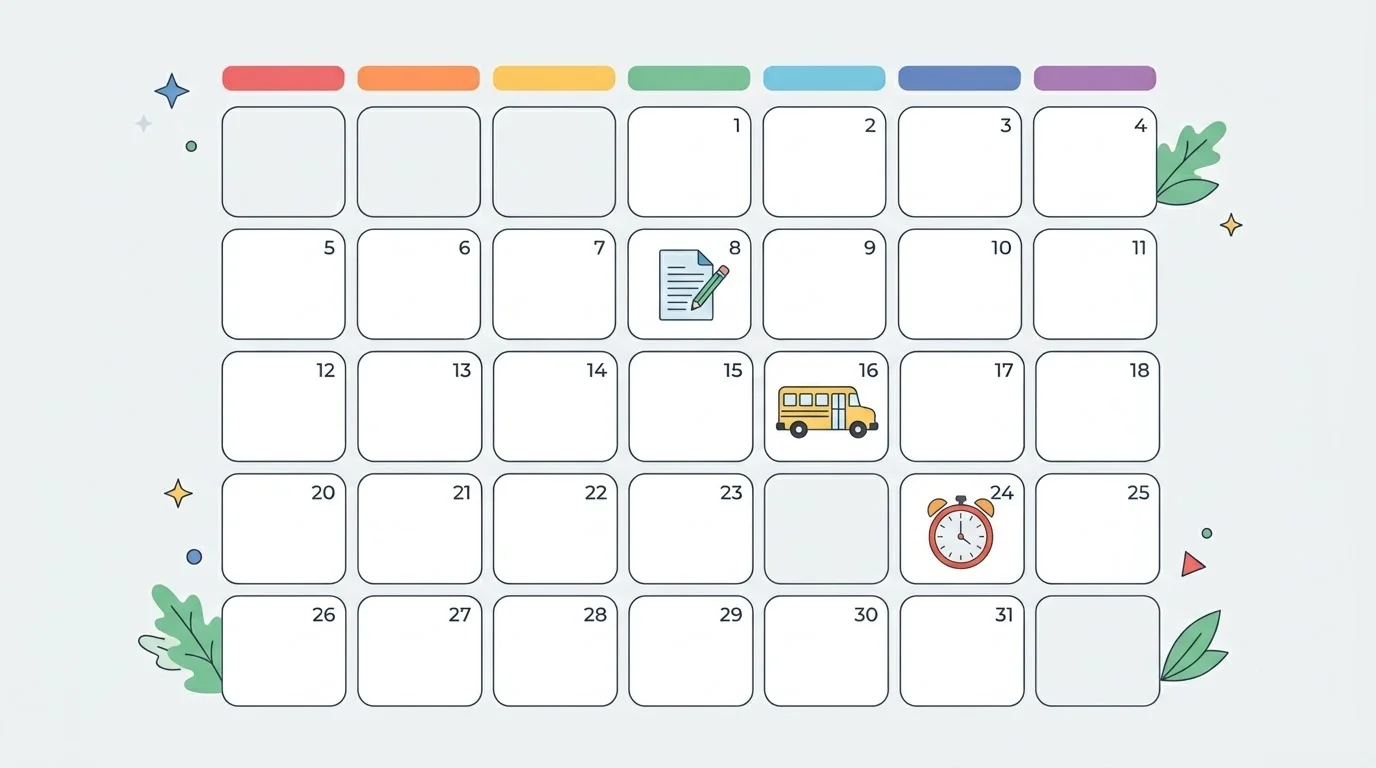
Why the Same Search Sometimes Leads Somewhere Else Entirely
Here’s where it gets interesting, and honestly, a little concerning if you’re a parent or teacher and don’t know this is happening. Separately from anything Google runs, a handful of websites have adopted names that sound almost identical to “Google Classroom” or “Classroom Events.” These sites aren’t extensions, updates, or hidden features , they’re independent websites, usually built around a library of browser-based games like racing games, puzzles, and arcade titles. They’re specifically marketed toward students who are on restricted school Wi-Fi networks, using familiar-sounding education terms to slip past casual searches or filters. This happens because of how search engines work, not because Google renamed or repurposed anything. A confusingly similar name is enough to get a site to show up next to legitimate results, especially for a term like “classroom events” that doesn’t have an obvious single meaning. It’s the same pattern you’ll see in other corners of the internet , a name that’s close enough to something official to create doubt, without actually being connected to it. It’s not necessarily a scam in the traditional sense, but it’s worth being clear-eyed about: these sites exist to get clicks, not to help with schoolwork, and they have no relationship with Google or with your school’s actual Classroom setup.
A Simple Way to Tell If You’re in the Real Google Classroom
You don’t need to be tech-savvy to check this. A few quick things to look for:
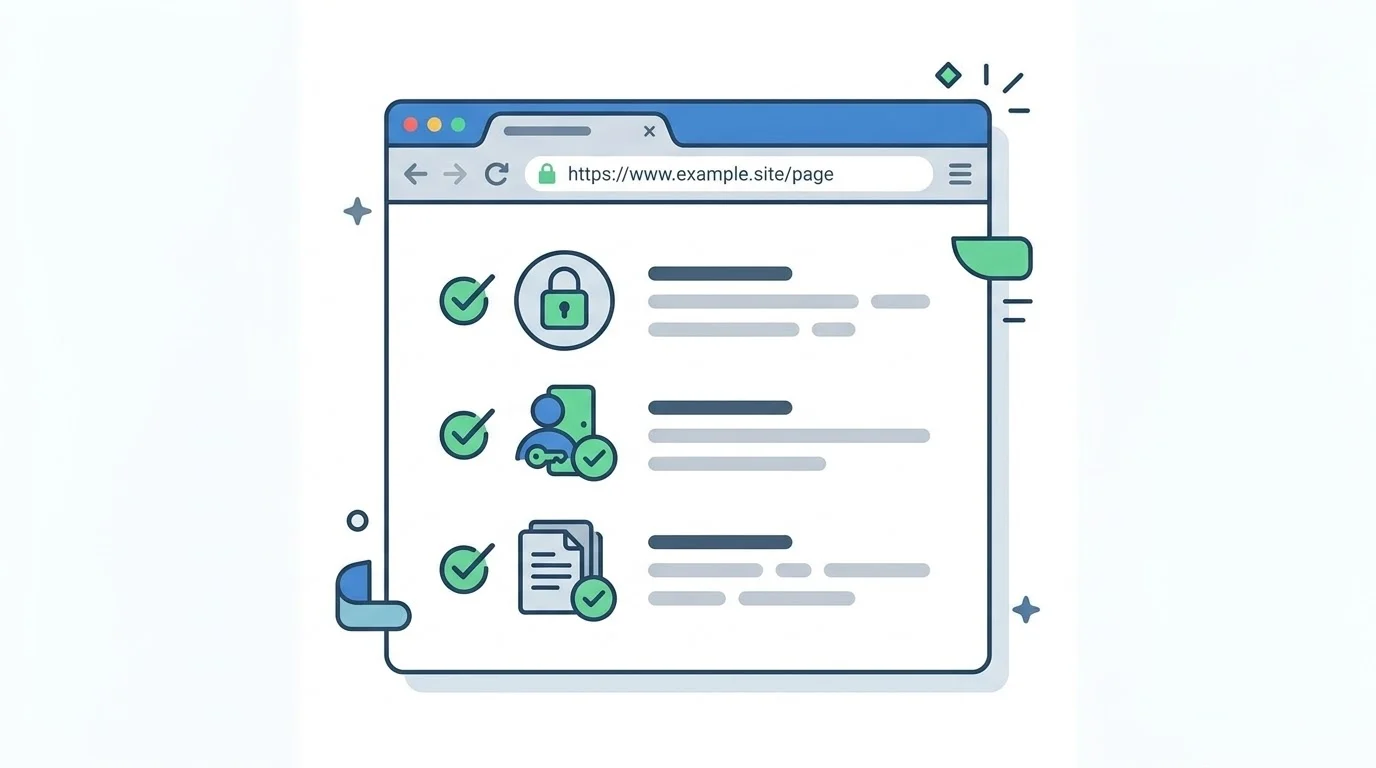
- Check the address bar. The real Google Classroom always lives at classroom.google.com. If the address looks similar but different, it’s not Google Classroom.
- You should be asked to sign in with a Google account , usually a school email address. A site that lets you jump straight into games with no sign-in isn’t part of your school’s actual system.
- There’s no game library on the homepage. Google Classroom’s homepage shows your classes, assignments, and announcements , never a menu of games to play.
- When in doubt, go through your school’s official portal or bookmark rather than searching the term again, since search results can vary and aren’t a reliable way to reach the right site every time.
How Schools and Parents Can Block Copycat Sites
If a school issues Chromebooks, this is usually handled at the network level rather than on each individual device. IT administrators can use the Google Admin console to block specific website addresses across all school-managed Chromebooks, so a lookalike site never loads in the first place, regardless of what a student searches for. This kind of blocking works by address, not by category, so it does need someone to add the specific site once it’s identified , but it applies instantly across every managed device afterward. For personal devices at home, Google’s Family Link app offers a simpler version of the same idea. A parent can set browsing filters and add specific sites to a blocked list, without needing any technical background. It’s worth noting that Family Link controls only apply to devices set up under a child’s personal account , a school-managed Chromebook is controlled by the school’s admin settings instead, and a parent generally can’t override those from the Family Link side. For a more thorough, home-network-wide approach, some families also use DNS-level filtering tools that block certain domains for every device connected to the home Wi-Fi, rather than configuring each device separately. This is a more advanced option, but it’s worth knowing it exists if website-level blocking on individual devices isn’t practical for your household.
Where Google Classroom Is Actually Headed With AI in 2026
While the “events” confusion is about a naming mix-up, Google Classroom itself has been changing quickly this year, and it’s worth knowing what’s real and current. As of August 2026, Google has been expanding Gemini in Classroom to students of all ages, including K-12, rolling out AI-powered study guides, flashcards, quizzes, and contextual learning tools directly inside Classroom. Before this, Gemini access in Classroom was mostly limited to educators and to students aged 18 and above. Teachers now have access to a dedicated Classroom app inside Gemini that connects directly to their specific assignments, grades, and class materials, so instead of getting generic suggestions, they can ask Gemini things like which students are showing common learning gaps based on recent assignments. Google has framed these updates around three ideas: giving Gemini real context from the classroom, keeping educators in control of how AI is used, and turning AI into a tool for surfacing insights rather than just generating content. On the student side, Gemini now offers free SAT practice tests through a partnership with Princeton Review, alongside tools for drafting assignments and summarizing progress on the teacher side. Google has also added the ability to use NotebookLM as a grounding source for Gemini’s answers, which keeps AI responses tied to approved documents and materials rather than open-ended generation , a way of reducing the chances of AI simply making things up. For anyone worried about data privacy, Google has stated that Workspace for Education data is not used to train its AI models, and the newer premium classroom management tools like Focus Mode and screen locking are restricted to managed Chromebooks under paid Education plans. None of this changes what “classroom events” means in the calendar sense , but it does show that Google Classroom, as a platform, is changing fast, and it’s a good reason to occasionally check your school’s Classroom settings for new features that might genuinely be useful.
The Bottom Line
“Classroom events” isn’t a hidden feature or a mysterious extension , it’s simply the calendar system built into Google Classroom for tracking assignments, exams, and events like field trips. If a search for that term takes you somewhere that looks more like a gaming site than a school tool, it’s worth a second look at the address bar. The real thing is straightforward, it’s already built into the account your school gave you, and it doesn’t need any workaround, extension, or lookalike site to work properly.