
 Vipin PG
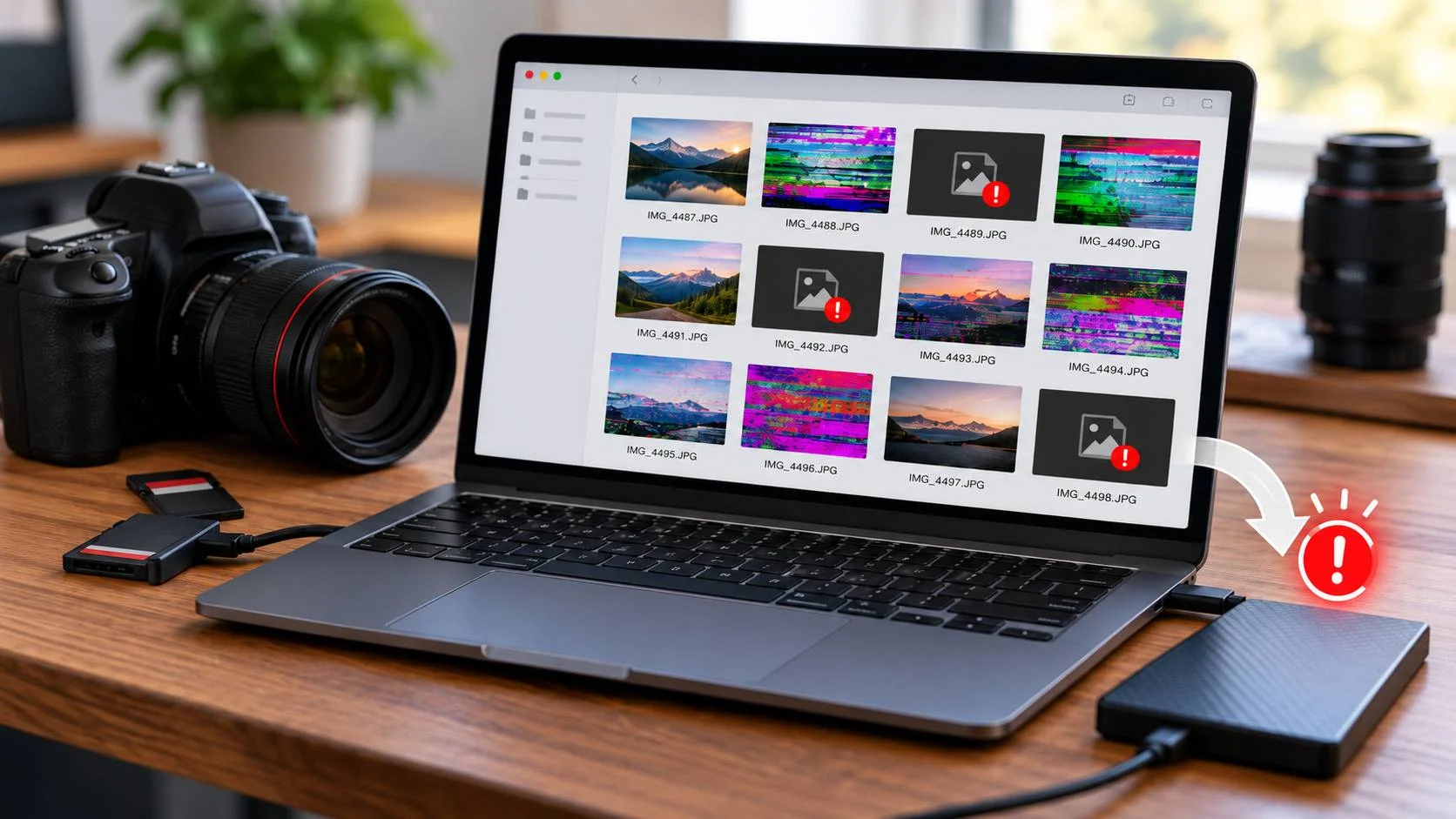
So I was trying to backup my SD card on my hard drive, as I often do. However, it’s taking an unusually long time for my computer to transfer the files (about 15 minutes for only 40 or so JPEG pictures). These are old pictures that I took a few months ago and that I was previously able to view both on my camera and my computer without any issues. However, this time, everytime they load, they become corrupted with weird lines and colors. I can see the image for a few seconds, but once the picture actually loads (which also takes a suspiciously long time), it’s completely ruined. I’m really worried, it feels bad seeing all of my pictures disappear and become grey squares – “User” (Reddit)
After a shoot you can plug your memory card or camera into your computer and copy all the files onto an external hard drive, and once you’ve done that you’re expecting to see them all in finder or explorer – but wait, what are these funky colored lines, some of them won’t load, and they don’t look the same as they do on the camera.
Now you have an even bigger problem: Did you damaged the photos before, or did the file go wrong while you were backing it up?
Some photographers have expressed similar experiences in online forums, with their images appearing to be distorted or having strange colours as they were being copied from cards. It’s annoying as your back-up was supposed to help you avoid losing those images, not make you wonder whether they’re salvageable or not.
Rather than copying all over again and experimenting with various fixes tools, try to learn how the issue started.
Was the backup to blame, or are the pictures already damaged?
This can be the most important to get right, so it may not be the first thing you find easy to do.
Occasionally, the file is already corrupted on your memory card, but you don’t notice it until you open it on your computer. Other times, you’re experiencing the errors due to transfer issues or a damaged storage device.
Compare the original file to the backup copy. If the file on your memory card opens fine but the duplicated file does not, there’s something to be examined about the copy or the drive to which it was copied. If both files do not work, the photo might have been damaged earlier, or there is a concern with the application you are making use of to check out the picture.
A final note: Just because you observed the problem while backing up the file does not mean that backup process damaged it. The timestamp points toward the blame, but isn’t definitive.
What to do when your photos appear to be corrupted after restoring them
1. Do not erase those originals
You want to erase the memory card after the transfer is complete to free space for your next shoot. However, wait before deleting if you’ve been getting corrupted images.
Retain the original files in their original locations. Don’t format the card until you are sure your photos are safe. Don’t write to the card or drive if it or the drive is presenting frequent errors.
In case the pictures are priceless and the storage unit could also be failing, take measures to preserve the rest of the information, earlier than you undergo further troubleshooting.
2. Open the original and backup individually
Select an impacted photograph and analyze both variants.
Attempt to open the original file from the memory card and the duplicate file from your PC or external drive. Choose an appropriate image viewer, and if possible, check the other app.
Here’s what the results might tell you:
– Originals, not backup: Copy process / destination storage may be the cause.
– It is likely that the problem occurred before the backup was made.
– Somebody else can open the picture: Perhaps the original program that was used to take it will not open the picture.
– The card and reader as a whole require investigating, don’t treat each image as an individual bug.
These may not catch everything but they should save you from unnecessary repair.
3. Use another card reader or connectivity
Memory card readers are a simple component of the setup that can be easily missed. If the transfer fails or the reader is not consistently working, attempt the same process using a different reader, USB port or cable.
If the original card still shows no problems, copy a portion of corrupted files to another location and examine them.
Repeatedly copying the whole collection over and over when the card keeps disconnecting or erroring will wear out the device. If the device might be failing, this could make things more difficult to recover.
4. Verify destination drive
Some other times, it’s not the memory card at all. You could have storage or file-system problems with the external drive or computer you’re copying onto.
Check for other errors, such as files that can’t be copied, random disconnects, or other files that become unreadable.
Don’t depend on destination drive if it appears to be bad. Use a known good drive, though keep your data intact before copying. If you think the drive may have failed mechanically, seek recovery rather than repeatedly running repair tools.
5. Confirm if the picture itself is corrupt
If you see colored lines, blocks or missing segments in the photo, it’s possible the image data is corrupt. However, similar symptoms can also be caused by a viewer or decoding problem.
Attempt to open a duplicate image in a different program that accepts its file extension. For RAW files, confirm the program supports the camera’s RAW version.
Compare the file size to a picture taken at the same time, during the same shoot. A very small file size could be evidence of an incomplete transfer of the image, but without the other symptoms of corruption, file size alone does not prove the problem.
If the image stays damaged in the safe applications and you don’t have a good original, then you may begin experimenting with repairing the image.
Can image repair software help?
It depends on what’s flawed in the photo.
When the file itself is corrupt, image repair software will only assist in some cases of damage. In the case of a bad drive or partial transfer or an incompatible image viewer, repair software may not be the answer.
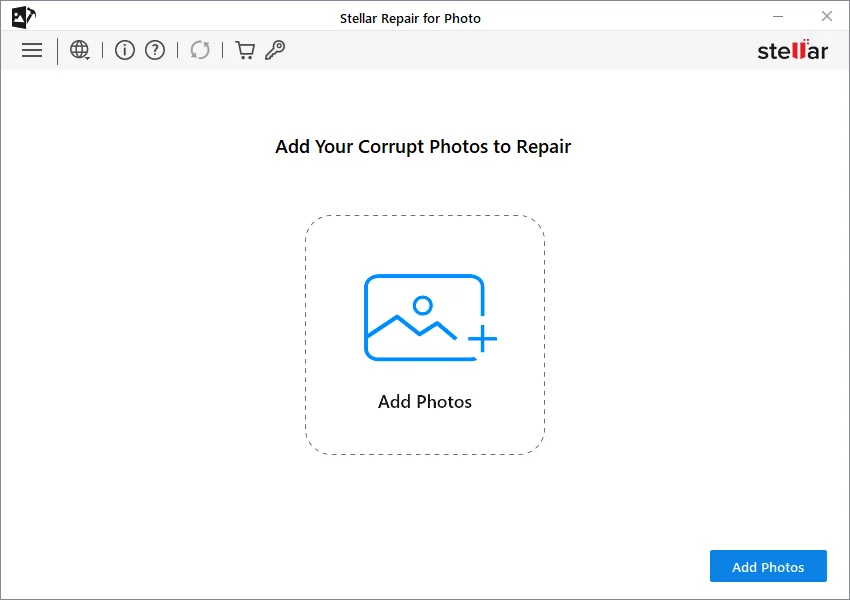
A possible solution is to try Stellar Repair for Photo to fix image files that it supports, such as a JPEG. Before you repair the file, photograph a copy of the damaged file, and do not alter the original. Save any recovered output at a different location than the damaged file. Then try opening the repaired file at full size to see if the missing or distorted information has been repaired.

Be practical about the outcome, as well. You cannot restore a corroded image file if crucial image info is lacking. If the data are very important or the disks is failing, you could be better off bringing it to a professional for info recovery rather than trying out different tools.
How to Prevent This on Your Next Backup
Backups are only helpful if your files are still accessible. Some small steps in your daily habits can reveal issues sooner.
Open several full-size images from the destination drive after copying a shoot. Avoid depending solely on thumbnail images. If the shoot is particularly significant, hold onto your original files until you’ve confirmed the copy is successful.
It’s also a good idea to keep one more version of any critical images on a separate drive or with a trusted backup service. Two copies on the same drive isn’t much better than one.
If one specific card continues to error, don’t use it for any important tasks. Delete copies of files you are saving and keep a copy elsewhere, then replace the card if it is unstable.
Final thoughts
Images going corrupt during a backup are cause for concern. But it doesn’t necessarily mean the transfer broke them or that they can’t be repaired.
Compare the original and copied files, use another compatible viewer, and inspect the card reader as well as the destination drive. If the photo looks damaged itself, you could consider image repair software, depending on the file format and the extent of the corruption.
The most important thing to remember is to not delete the original files until you are sure that the backup is working.