 Vipin PG
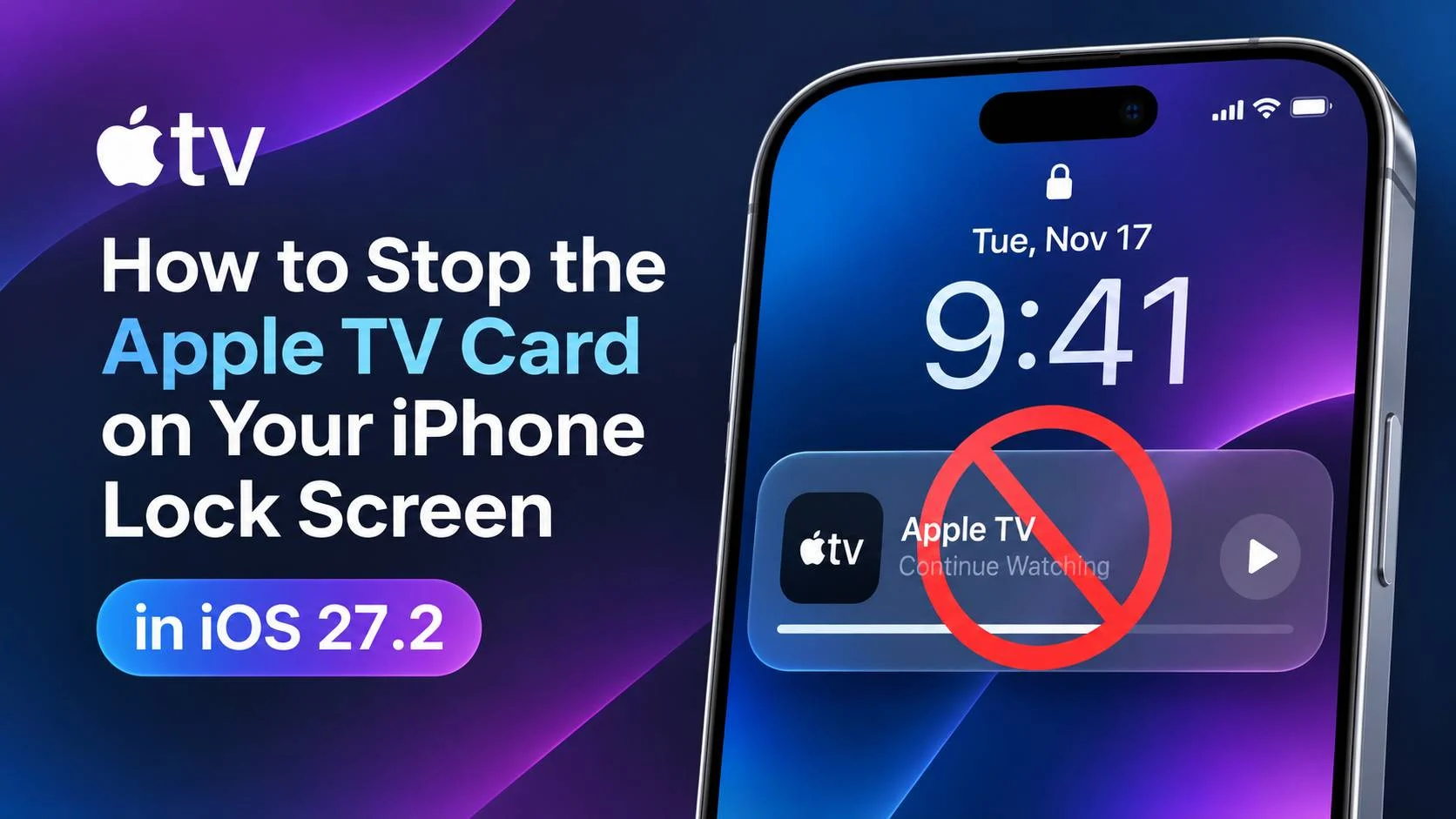
After updating to iOS 27.2, many iPhones show an Apple TV card on the Lock Screen whenever someone in the house plays something on an Apple TV. Tapping the card opens the Apple TV Remote. It can appear even for Apple TVs that are not signed in with your Apple ID.
This guide explains what the card is, which settings can reduce it, and what to do if none of them work.
Quick Answer
- There is no “Show Remote on Lock Screen” setting on iOS 27.2 or tvOS 27. Apple has not added one.
- The fastest relief is to swipe left on the card and tap Clear. It only lasts for the current session.
- The only Apple TV-side change that reliably stops it is turning AirPlay off on that Apple TV. This also disables AirPlay streaming to that TV.
- The old iOS 18 fix (Automatically AirPlay set to Never) no longer works for many people on iOS 27.2.
Step 1: Confirm Which Item You Are Seeing
Three different things are often confused. Check which one matches before changing settings.
| What you see | What it is |
|---|---|
| A wide card above the Flashlight and Camera buttons showing the title, artwork and play/pause controls | The Now Playing card, mirrored from the Apple TV. This is the one covered in this guide. |
| A small pill in the Dynamic Island, or a panel with directional buttons | The Apple TV Remote control. |
| A banner asking you to type on your iPhone | An Apple TV Keyboard notification. This is separate. Turn it off in Settings > Apps > Apple TV Keyboard > Allow Notifications. |
Why It Happens
The card is a media control for a nearby playback device. Apple describes this behavior in its guide to accessing features from the iPhone Lock Screen: you can control playback on a remote device, such as an Apple TV 4K or HomePod, from the Lock Screen.
The card appears based on the iPhone being near the Apple TV and on the same network. It is created separately on each iPhone. That means there is no single iPhone setting that silences it for everyone in the house.
Fixes on the iPhone
Fix 1: Swipe the card away
- On the Lock Screen, swipe left on the Apple TV card.
- Tap Clear.
This also removes the Dynamic Island version. The card can return when playback starts again or when you open a new app, so repeat the step when needed.
Fix 2: Set Automatically AirPlay to Never
- Open Settings > General > AirPlay & Continuity.
- Tap Automatically AirPlay.
- Select Never.
This was the working fix on iOS 18 and is still the documented control for automatic AirPlay connections. On iOS 27.2 it does not stop the card for many users, so treat it as a first step and not a guaranteed solution. Apple notes that automatic and suggested connections to an Apple TV depend on the devices using the same Apple Account, as described in its AirPlay support article. An Apple TV that is not signed in with your Apple ID falls outside what this setting was designed to control.
Fix 3: Make your iPhone the Now Playing device
- Open Control Center.
- Tap the Now Playing tile.
- Tap Control Other Speakers & TVs.
- Select iPhone.
Users report this works for a few minutes before the card returns, so it is a temporary measure.
Fix 4: Turn off Live Activities for the app
- Open Settings > Apps > TV.
- Tap Live Activities and turn it off.
- If a Remote app is listed under Settings > Apps, repeat the same steps there.
Not every app has a Live Activities option. If you do not see it, skip this step. Results are mixed on iOS 27.2.
Fix 5 (last resort): Turn off Live Activities on the Lock Screen
- Open Settings > Face ID & Passcode.
- Under Allow Access When Locked, turn off Live Activities.
This affects all Live Activities, including your own music controls. Some users report it does not remove playback controls at all, so only use it if you accept both limits.
Fixes on the Apple TV
Apple TV settings control who can stream to the TV. They do not include an option for hiding what is playing from nearby iPhones. The options below are the ones that exist.
Option 1: Turn AirPlay off (most effective)
- On the Apple TV, open Settings > AirPlay and Apple Home. On older tvOS versions this menu is called AirPlay and HomeKit.
- Select AirPlay and set it to Off.
Users report this is the only change that stops the card for good. The trade-off is that nobody can stream or mirror to that Apple TV using AirPlay. The Remote keeps working.
Option 2: Restrict who can access the Apple TV
- Open Settings > AirPlay and Apple Home.
- Select Allow Access.
- Choose Only People Sharing This Home. You can also choose Require Password.
This is good practice for a shared home, and Apple lists these choices in its guide to AirPlay and Apple Home settings on Apple TV. It controls who can stream to the TV, so it may not stop the card from appearing.
Option 3: Forget the iPhone as a remote
- On the Apple TV, open Settings > Remotes and Devices > Remote App and Devices.
- Select the iPhone.
- Choose Forget This Device.
Reports are mixed. Some users say it helped, while others say the iPhone reconnected or the card still appeared.
Things That Do Not Remove the Card
- Removing the Remote from Control Center. It removes the control, but not a card created by active playback.
- Deleting the Remote app from the Home Screen, for the same reason.
- Turning off notifications for the TV app. The card is not a standard notification.
- Using a Focus. Apple documents Focus for allowing or silencing notifications, and there is no confirmation that it hides this card.
- Changing Family Sharing or Apple ID settings. The card depends on nearby devices, not on account membership.
Whole-Household Options
Because the card is generated on each iPhone, only these changes stop it for everyone:
- Turn AirPlay off on each Apple TV that triggers it.
- Put the Apple TV on a separate network from the iPhones. This is untested, and it will also disable Remote, keyboard and AirPlay features.
If you need AirPlay to keep working, set Allow Access to Only People Sharing This Home and use swipe-to-clear on the iPhones.
If Nothing Works
As of November 18, 2026, Apple has not documented a fix. The iOS 27.2 release notes, the iOS 27.2.1 update and the iOS 27.3 beta 2 notes do not mention it. Send feedback so Apple can track the issue:
- Go to Apple product feedback.
- Describe the problem clearly. For example: “Since iOS 27.2, the Apple TV Now Playing card appears on the Lock Screen for Apple TVs not signed in with my Apple Account. Automatically AirPlay set to Never does not stop it.”
- Include your iPhone model, iOS version and Apple TV model.
After that, check again when iOS 27.3 is released.
Recommended Setup for Most Households
- Set Automatically AirPlay to Never.
- Turn off Live Activities for the TV app, and for Remote if listed.
- Set the Apple TV Allow Access option to Only People Sharing This Home.
- Swipe left and tap Clear when the card appears.
- If the card is still unacceptable, turn AirPlay off on the Apple TV.
Frequently Asked Questions
Is there a new setting in iOS 27.2 to turn this off?
No. Neither iOS 27.2 nor tvOS 27 has a setting for hiding the Apple TV card on the Lock Screen.
Can I stop it from the Apple TV so no one in the house sees it?
Only by turning AirPlay off on that Apple TV. No other Apple TV setting is designed for this.
Why did the old iOS 18 fix stop working?
The Automatically AirPlay setting is documented to cover Apple TVs signed in with the same Apple Account. The card on iOS 27.2 appears for Apple TVs that are not, so the setting does not reach it. This is an explanation based on Apple’s documentation, not an Apple statement.
Will the card come back after I clear it?
Yes. It can return when playback restarts or when you open a new app.