Vipin PG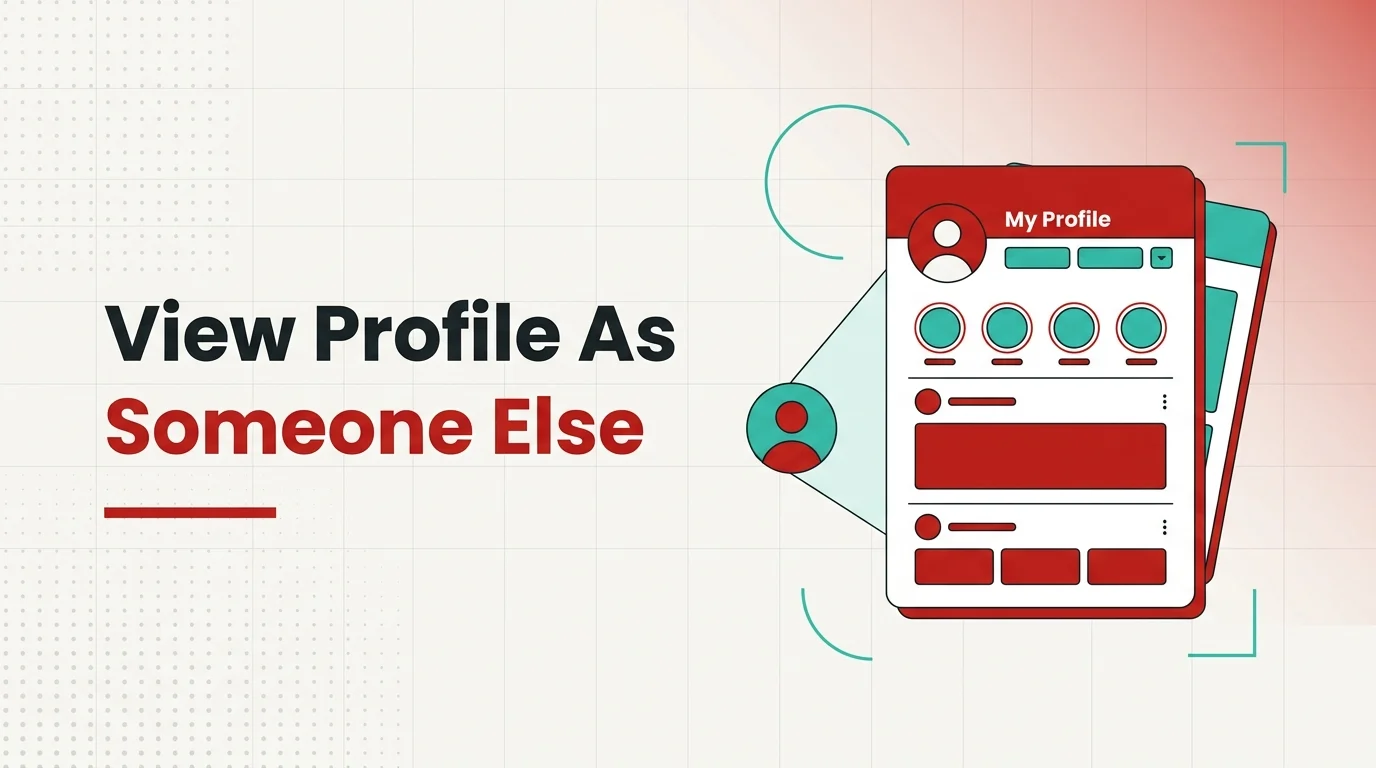
If you’ve searched for a “View As” button on Instagram, you’re not alone — and you also haven’t missed anything. That feature exists on Facebook, but Instagram has never built an equivalent. A number of articles online talk about an Instagram “View As” option, but that’s simply not accurate. What you can do instead is view your profile the same way any outsider would, using two simple methods that don’t need any special tool or app.
Here’s how to actually do it, step by step, along with what you will and won’t be able to see depending on whether your account is public or private.
Method 1: View Your Profile in a Logged-Out or Incognito Browser
This is the fastest way to see your profile exactly as a stranger browsing the web would see it. Since you won’t be logged into your account, Instagram treats you like any random visitor.
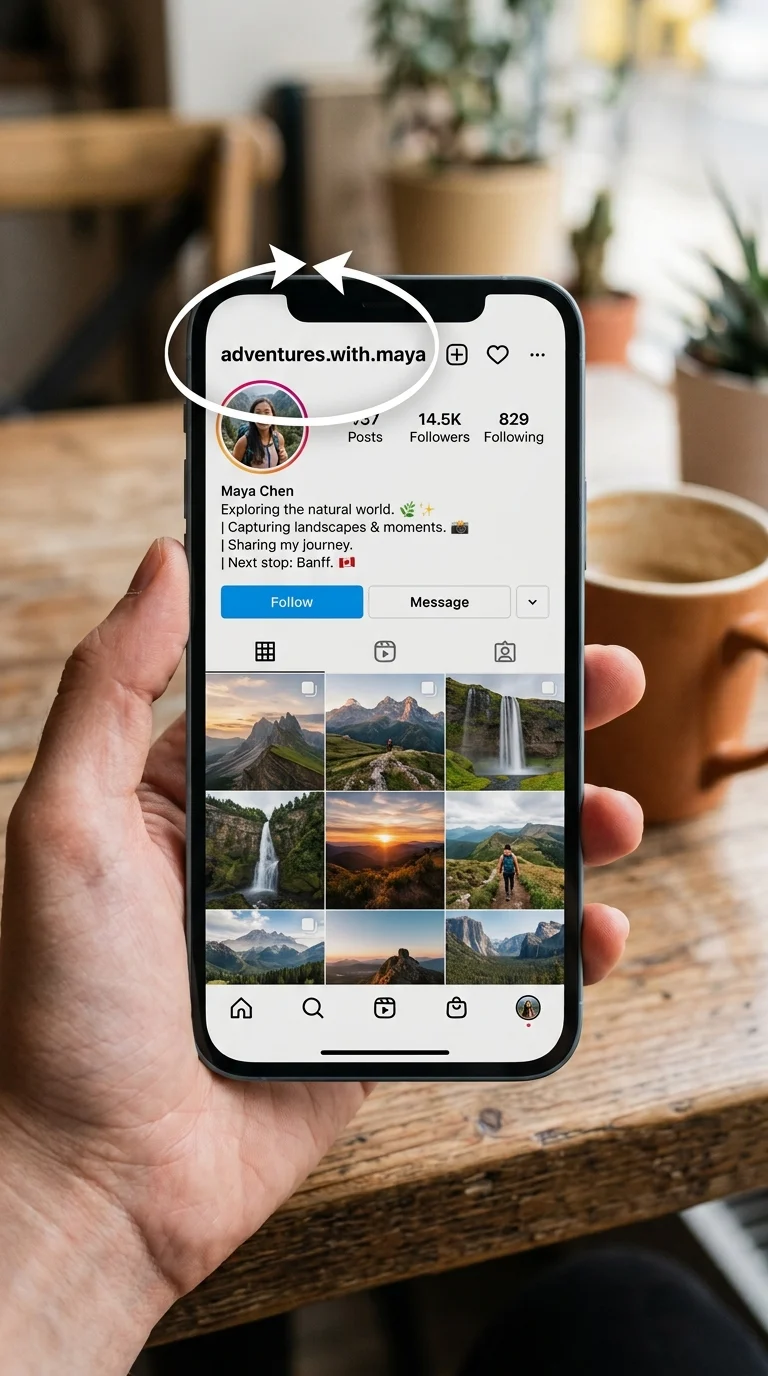
- Find your exact username. Open the Instagram app and go to your profile. Your username is the text at the top of your profile screen (not your display name, which appears below your profile photo). It usually starts with “@” in the app, but you only need the part after that symbol.
- Open a private browser window on your computer or phone. On Chrome, this is “New Incognito Window.” On Safari, it’s “New Private Window.” On Firefox, it’s “New Private Window” as well. This ensures you aren’t automatically signed into your Instagram account through saved browser sessions.
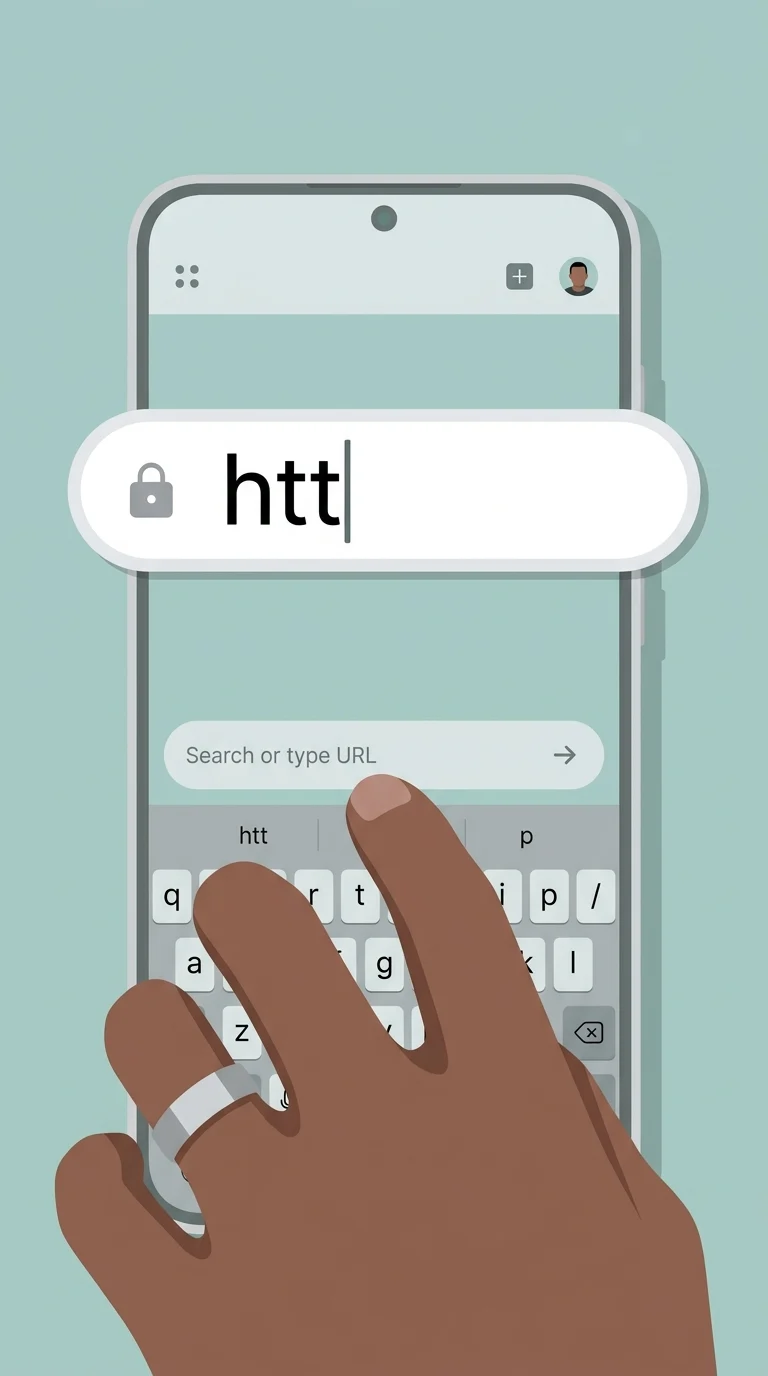
- Type your profile URL directly into the address bar. Use the format instagram.com/yourusername, replacing “yourusername” with the username you found in Step 1. Press enter.
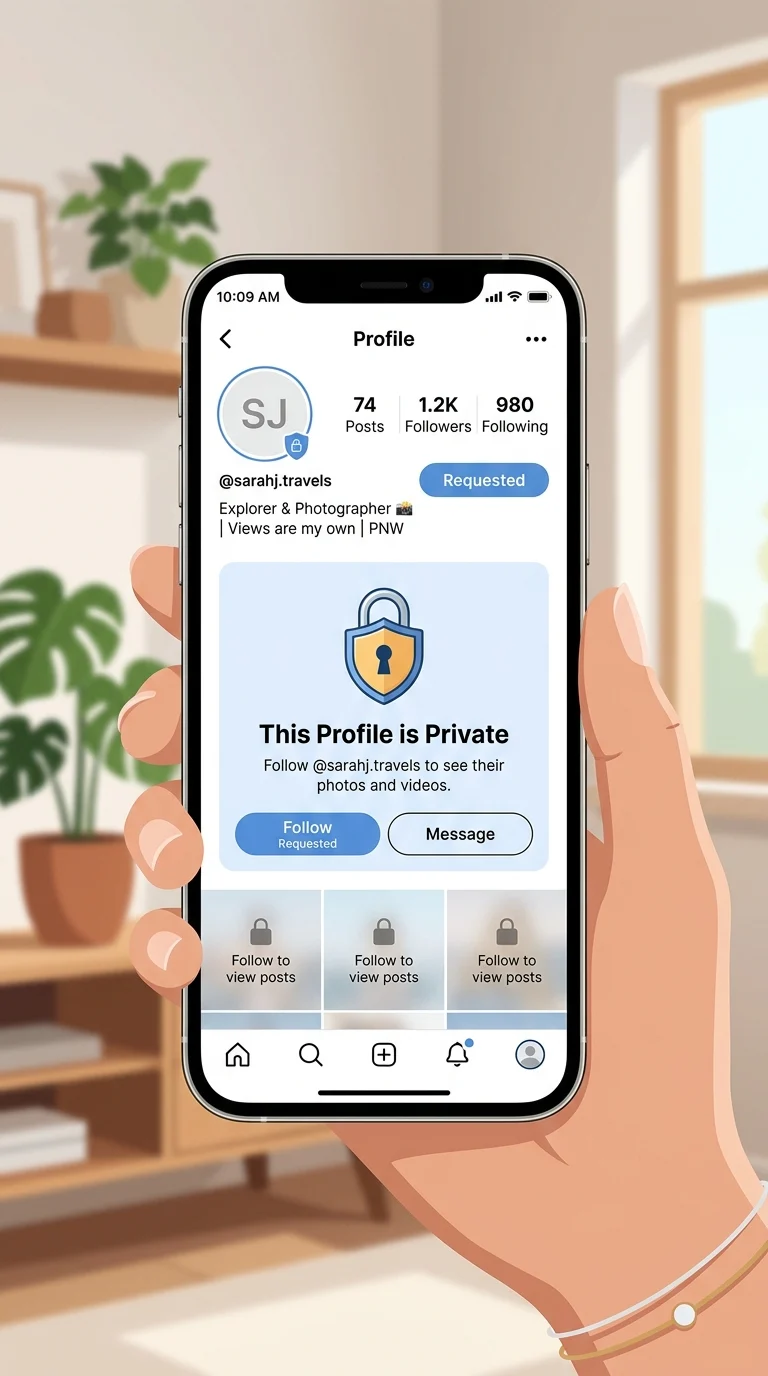
- Review what loads on the page. If your account is public, you’ll see your posts, reels, follower count, and bio exactly as any stranger would. If your account is private, you’ll only see your name, profile photo, bio, and follower/following counts — your posts and reels will be hidden behind a “This Account is Private” message, just like they would be for any non-follower.
This method takes under a minute and is the most reliable way to check your public-facing profile without creating anything new or installing any tool.
Method 2: Create a Second Instagram Account
This method takes a bit more setup but is useful if you want to check your profile regularly, or if you want to actually interact with it as a stranger would — for example, to test what happens when someone tries to follow you or send you a message.
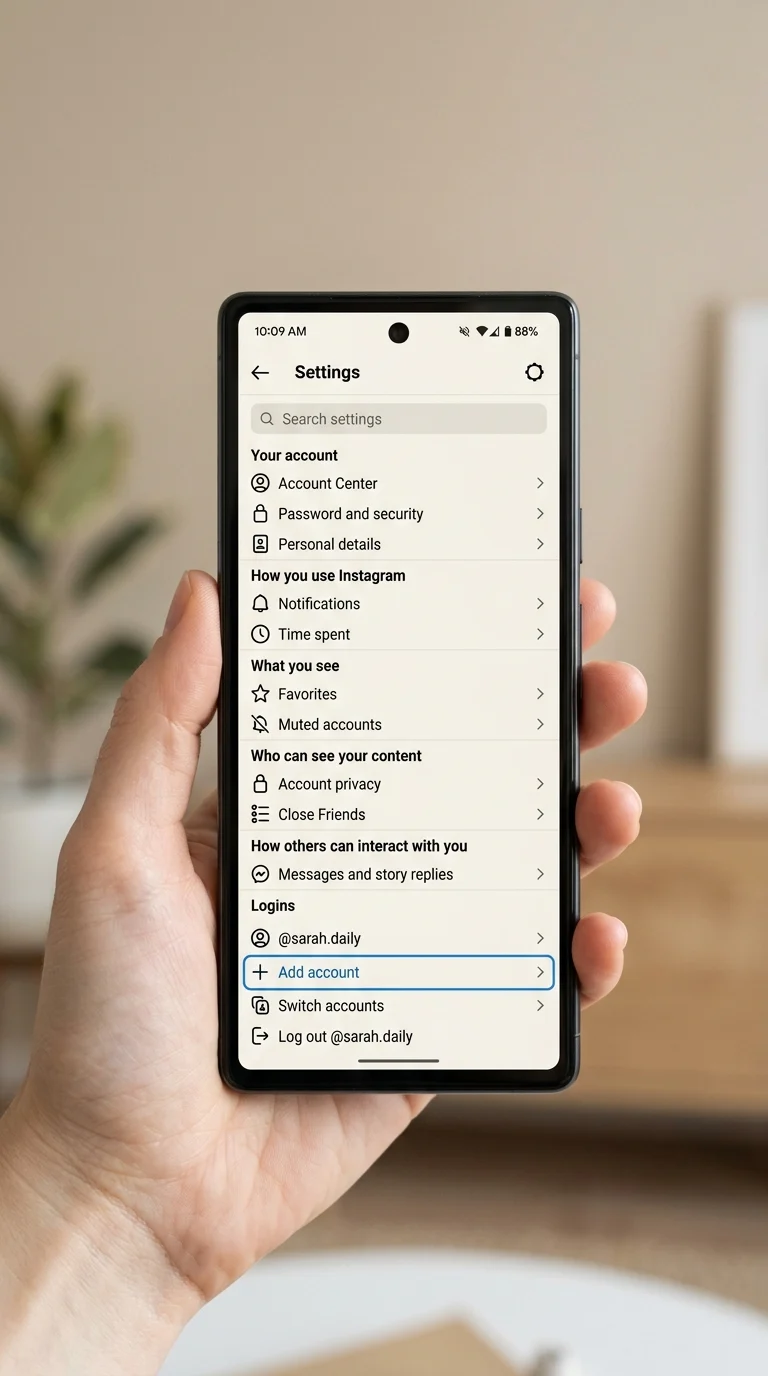
- Open the Instagram app and go to your account settings. Tap the menu icon on your profile, then look for the option to add a new account.
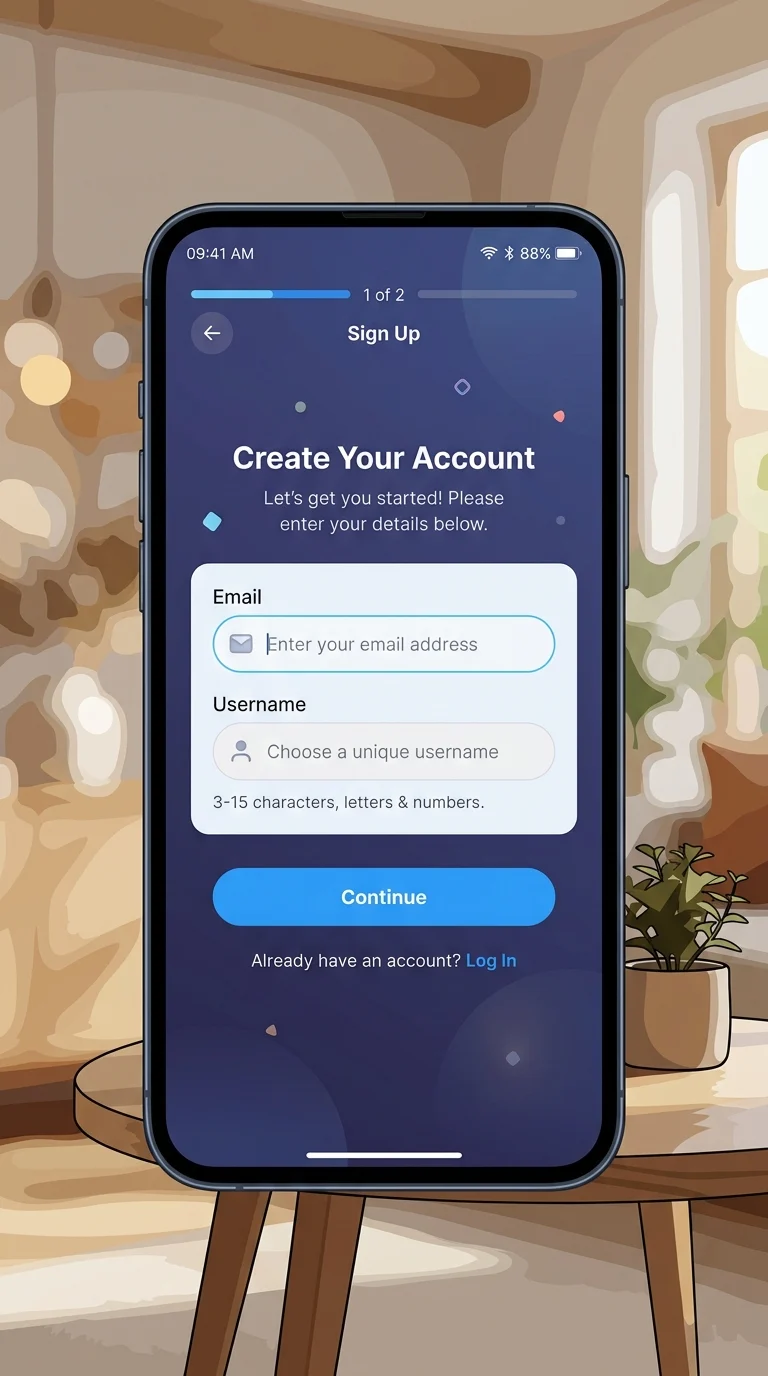
- Create a new account using a different email address or phone number. Instagram won’t let you register a second account with the same contact details as your primary one, so you’ll need a spare email address. Use a username that isn’t connected to your real identity if you want a genuinely neutral test view.
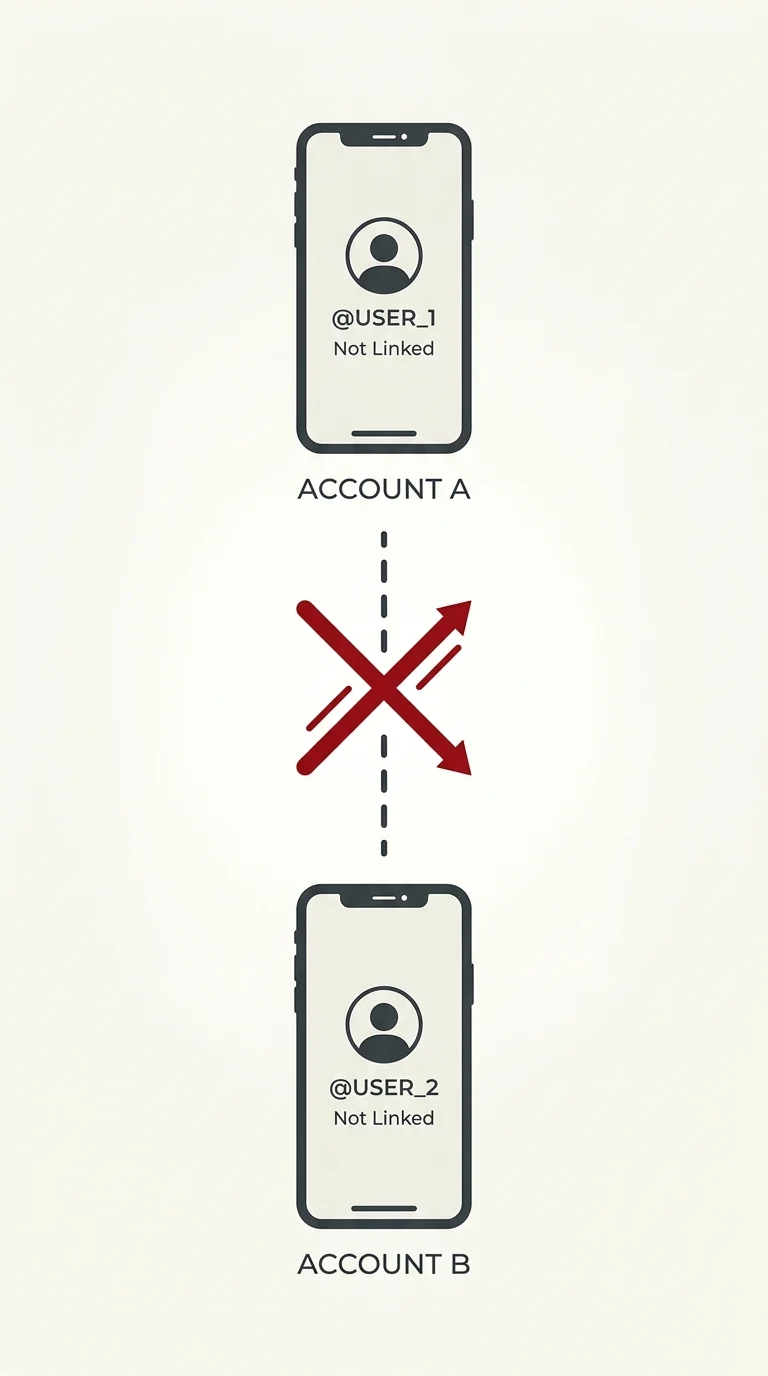
- Do not follow your main account from this new one. This is the part people often get wrong. If your second account follows your main account, you’ll see your profile as a follower sees it, not as a stranger sees it — which defeats the purpose if you have a private account.
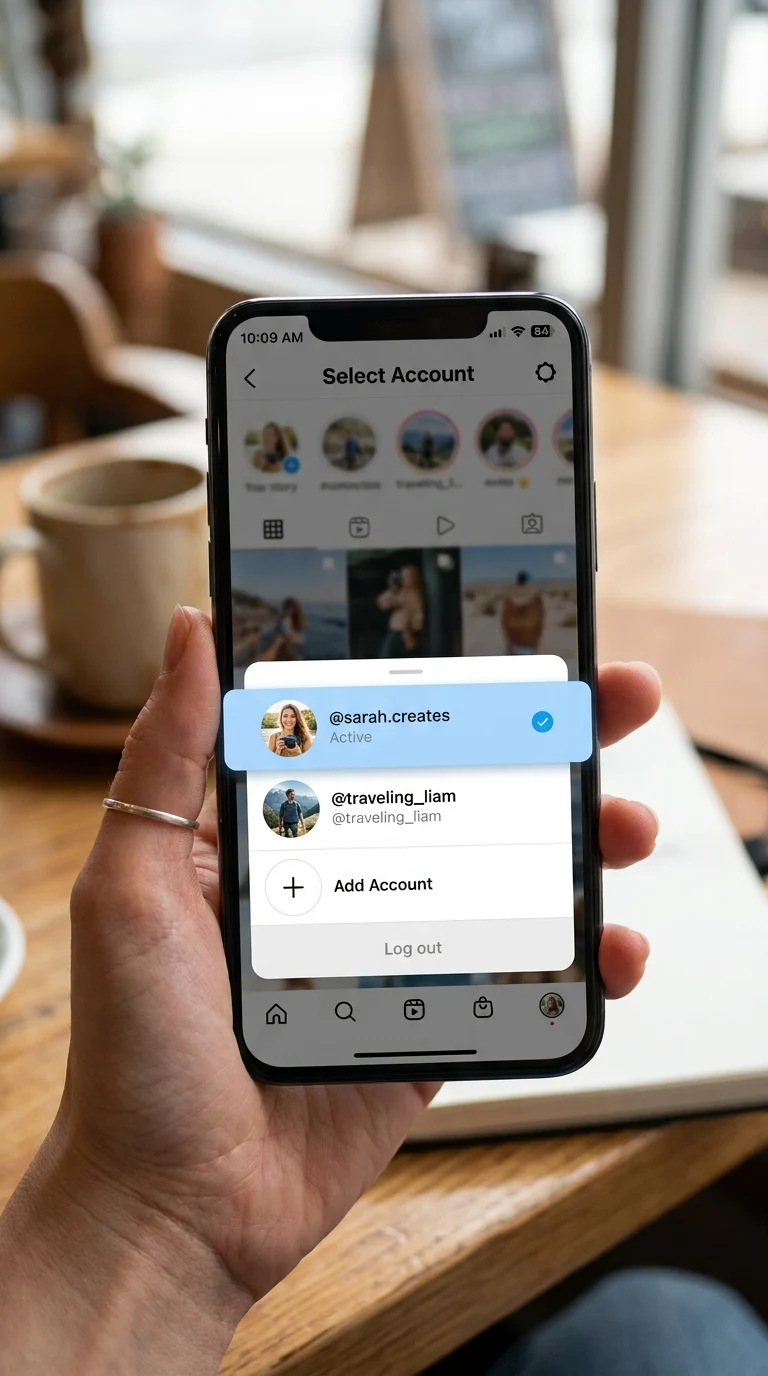
- Switch to the new account and search for your username. You can switch between accounts on Instagram without logging out, by tapping your profile photo and selecting the other account from the list. Then search for your main profile as you normally would search for anyone else.
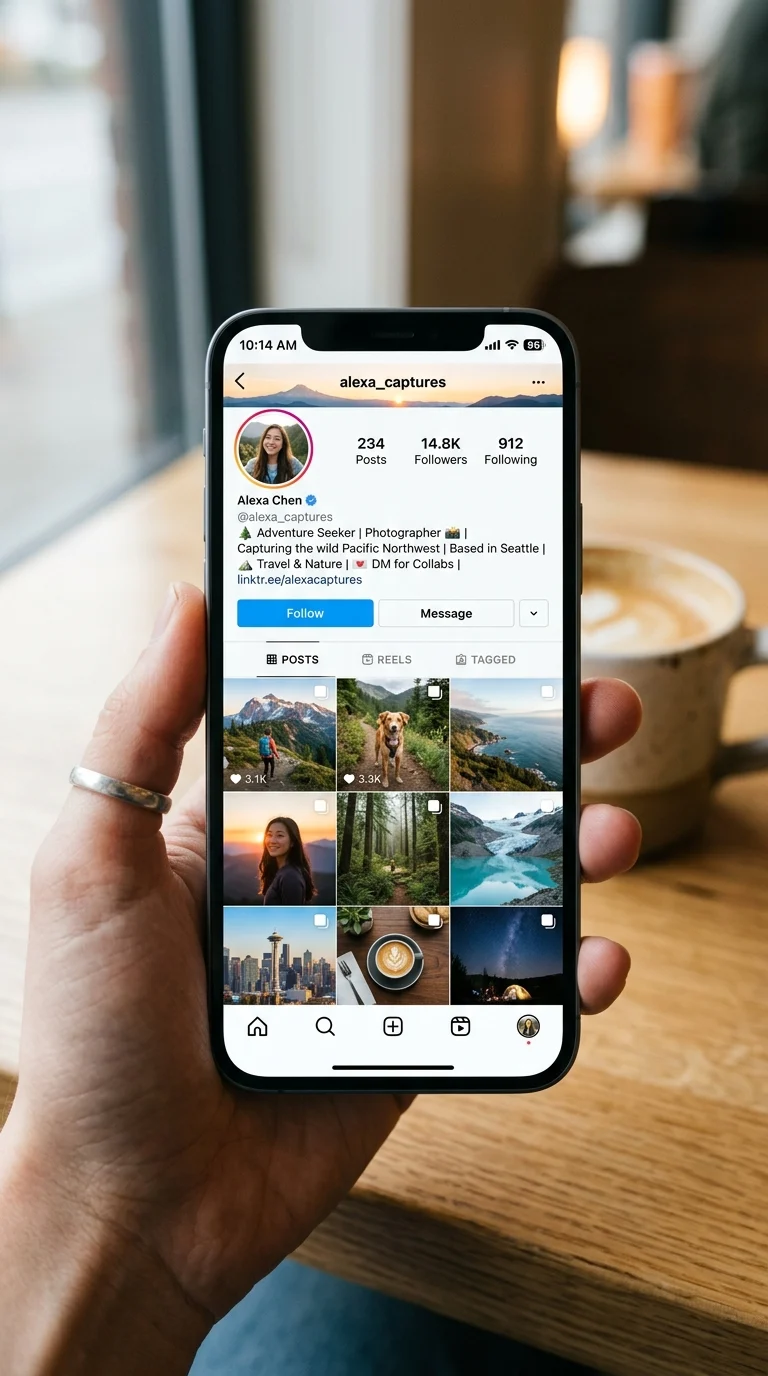
- View your profile exactly as this second account would see it. If your main account is private, you’ll see the same limited view as any other non-follower. If it’s public, you’ll see everything, same as Method 1.
What These Methods Won’t Show You
It’s worth being upfront about the limits here, since a lot of pages online oversell what’s possible:
- Stories and Highlights won’t load for logged-out visitors. Instagram requires a login to view Stories at all, even on public accounts, so Method 1 won’t let you check how your Story looks to a stranger. You’ll need Method 2 (a second account) for that, and even then, only if your Story is set to be visible to that account.
- You can’t see who has actually visited your profile. This is a separate and much more commonly searched question, and the honest answer is that Instagram has never offered this feature to anyone, regardless of account type or any paid feature. Any app or website claiming to show you a list of profile visitors is not showing real data.
- Direct messages and tagged photos work differently. These are tied to relationships between accounts (following, blocking, restricting) rather than your public profile page, so neither method fully replicates what a specific person sees if you’ve blocked or restricted them individually.
A Word on “Instagram Profile Viewer” Tools
You may come across websites or apps that promise to show you your profile “as someone else,” view private accounts, or reveal who’s been checking your profile, often without needing you to log in at all. Treat these with caution. Instagram’s own systems don’t expose this data to anyone, official partner tools included, so any third-party tool claiming otherwise is either just showing you public information you could see anyway, or asking for your login details in a way that puts your account at risk. The two methods above cost nothing, need no sign-ups, and give you an accurate picture without handing your credentials to an unknown service.
Quick Recap
There’s no built-in “View As” button on Instagram, unlike Facebook. To see your profile the way an outsider does, either open your profile link in a private browser window while logged out, or set up a second account that doesn’t follow your main one. Both methods are free, take just a few minutes, and give you an honest look at what the public actually sees when they land on your page.