Vipin PG
Error 3004 shows up when Discord tries to start capturing your screen or camera and the request gets rejected somewhere along the way. Think of it as a handshake between Discord and your operating system , Discord asks for permission to grab a video feed, and your OS, your GPU driver, or the app you’re sharing has to agree. That handshake can fail at several different points: a permission that was never granted, a driver that’s out of sync, a setting inside Discord itself, a corrupted local file, or even the app you’re trying to share actively blocking capture. None of these causes are related to each other, which is exactly why the error is so persistent , fixing your GPU driver won’t help if the real problem is a permission setting, and clearing your cache won’t help if the app you’re sharing has built-in screen recording protection. The steps below go from the quickest checks to the more involved ones. Most people find their answer in the first three or four. 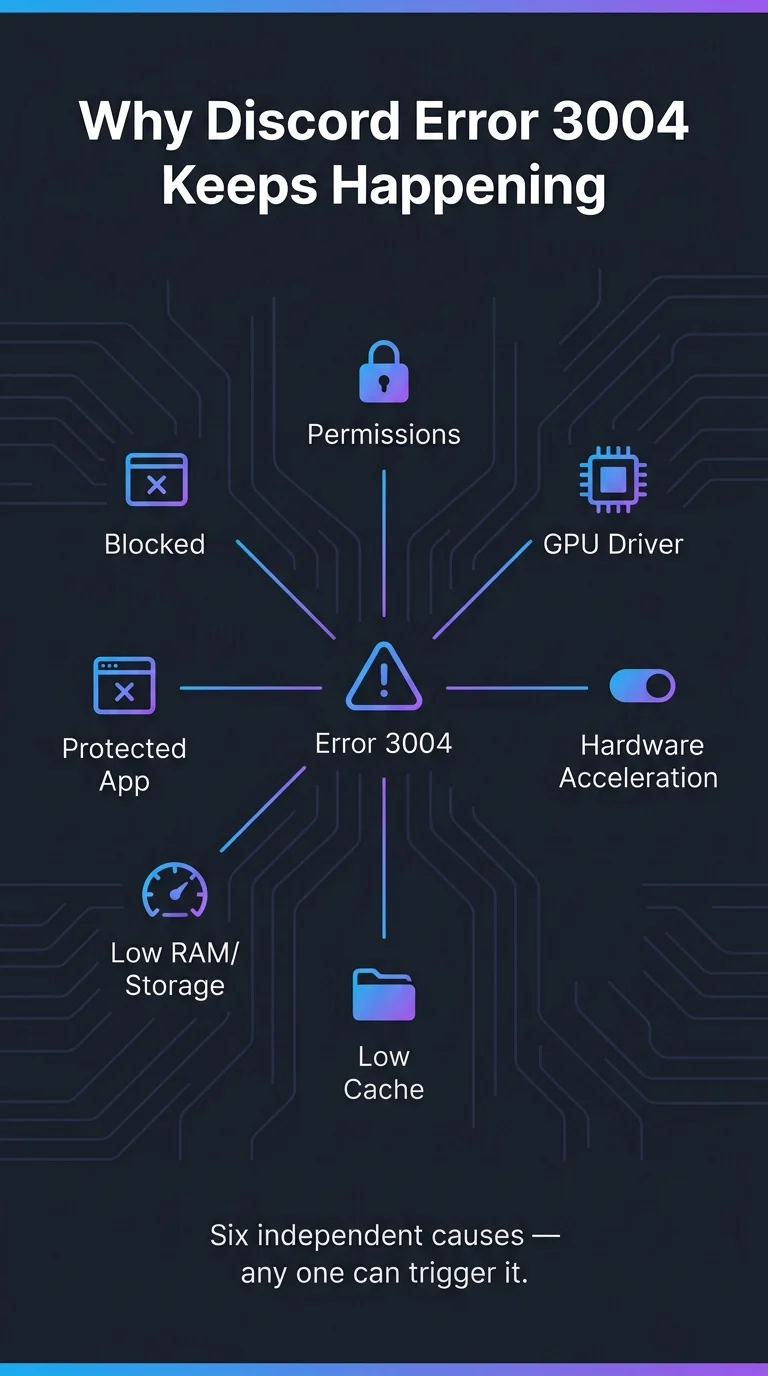
Step 1: Fully Close Discord and Restart Your Computer
When Discord crashes mid-stream or gets force-closed while it’s still mid-capture, it can leave behind a stuck “capture lock” in your system’s memory , even after you reopen the app, that old lock can still be sitting there blocking a fresh attempt. Minimizing Discord doesn’t fix this, because the app (and its video pipeline) is still running in the background exactly as it was. To actually clear it, open Task Manager on Windows or hit Force Quit on Mac and end the Discord process completely, then restart your computer rather than just the app. A full restart also resets any GPU or capture-related background services that might be stuck, which a simple app relaunch won’t touch. Reopen Discord and try streaming again before moving on.
Step 2: Update Your Graphics Driver
Discord’s screen capture hooks directly into your GPU’s rendering pipeline to grab frames efficiently. If your graphics driver is outdated, or was updated separately from a recent Windows or macOS update, there can be a version mismatch between what Discord expects and what your driver actually supports , and that mismatch tends to surface specifically during GPU-heavy tasks like streaming games or rendered apps. Open your graphics card manufacturer’s control software (or check their official site directly), install the latest stable driver , not a beta , and restart your PC before testing again. This one fix alone resolves the issue for a large share of people who see 3004 specifically while gaming.
Step 3: Turn Off Hardware Acceleration in Discord
Separately from your graphics driver, Discord has its own hardware acceleration setting that uses your GPU to render Discord’s interface and help encode your stream. The problem is that this can compete for the same GPU resources the game or app you’re sharing is already using heavily, and when both are fighting for the same hardware, the capture request can fail outright. Go to Discord Settings → Advanced and switch “Hardware Acceleration” off, then fully restart Discord. This forces Discord to fall back on your CPU instead of the GPU , you’ll use slightly more processing power, but it removes the resource conflict that was likely causing the error.
Step 4: Give Discord the Right System Permissions
Both Windows and macOS deliberately gate screen capture behind explicit permission grants , this is a security feature, not a Discord limitation. If Discord hasn’t been given full access, especially when you’re trying to share something running with elevated privileges (many games run as administrator) or a protected window, the OS silently denies the capture request and Discord reports it as error 3004. On Windows, right-click the Discord shortcut and choose “Run as Administrator” so Discord matches the privilege level of whatever you’re sharing. On Mac, go to System Settings → Privacy & Security → Screen Recording and make sure Discord’s toggle is switched on , macOS often requires a full restart of Discord (sometimes the whole system) after you change this before it takes effect.
Step 5: Clear Discord’s Cache Files
Discord stores temporary session and rendering data locally so it can start up faster. If one of those files becomes corrupted , which commonly happens after a crash or a forced shutdown , Discord can end up reading a broken capture configuration and repeatedly trying (and failing) to start the same broken session every time. Clearing the cache doesn’t touch your login, servers, or settings; it just forces Discord to rebuild those temporary files from scratch. Close Discord completely first. On Windows, press Win + R, type %appdata%, open the Discord folder, and delete the Cache folder inside it. On Mac, navigate to ~/Library/Application Support/discord and delete the Cache folder there. Reopen Discord and test again.
Step 6: Free Up RAM and Storage Space
Encoding and buffering a live stream in real time requires your system to set aside a meaningful chunk of free memory and disk space on the fly. If either is running low, Discord may simply not be able to allocate what it needs to even start the capture process , this is a particularly common trigger for 3004 on Mac, where the error has been directly tied to low available storage. Before streaming, close unused apps and browser tabs, and make sure you have at least a few gigabytes of free disk space. It’s a simple check, but it’s easy to overlook when you’re focused on the app you’re trying to share rather than what else is running in the background.
Step 7: Test With a Different App or Window
Not every instance of error 3004 is actually Discord’s fault. Some apps , DRM-protected video players, certain banking apps, and games with anti-cheat software , deliberately block any form of screen capture at the operating system level, and no amount of troubleshooting on Discord’s end will get around that. Before assuming Discord is broken, try sharing your entire desktop or a completely different, simple app. If that works without issue, you’ve confirmed the problem is specific to the app you were originally trying to share, not Discord itself , and the fix is choosing a different window to capture, not chasing a Discord setting that was never broken.
Step 8: Update or Reinstall Discord
If you’ve worked through everything above and 3004 is still showing up, there’s a good chance a file involved in Discord’s capture pipeline is missing or partially broken from an earlier update. Download the latest installer directly from Discord’s official site, uninstall your current version completely, and install a fresh copy. This guarantees every file matches the version you’re running, with no half-updated leftovers from a previous install , it’s the most reliable fix when nothing else has worked, which is why it’s worth doing last rather than first. 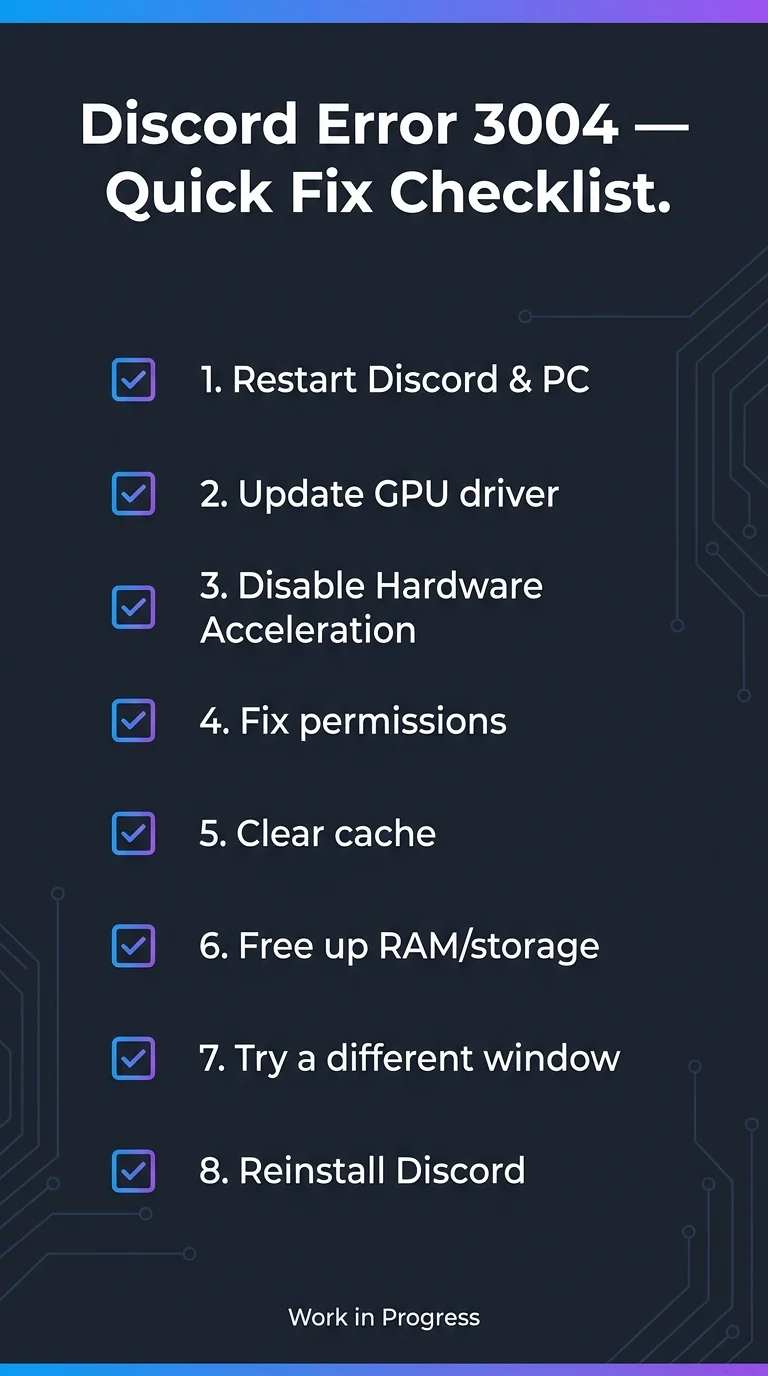
The Real Reason It Keeps Happening
Error 3004 keeps returning because it’s rarely one problem , it’s whichever of these independent causes happens to be true on your device at that moment. A driver update, a Windows or macOS system update, or even installing a new app can quietly reintroduce a cause you’d already fixed, which is why the error can resurface weeks after you thought it was gone. Working through the steps above in order, and giving your permissions and drivers a quick recheck after any major system update, is what actually keeps it from coming back for good.