Vipin PG
This error shows up when your PC’s firmware can’t find a valid, bootable operating system on any connected drive — even though Windows may already be installed. It’s not a sign that your files are gone. It’s almost always a mismatch between how the installer wrote the drive and how your BIOS is trying to read it. Here’s how to track down the exact cause and fix it.
Step 1: Check If the BIOS Even Detects Your Hard Drive
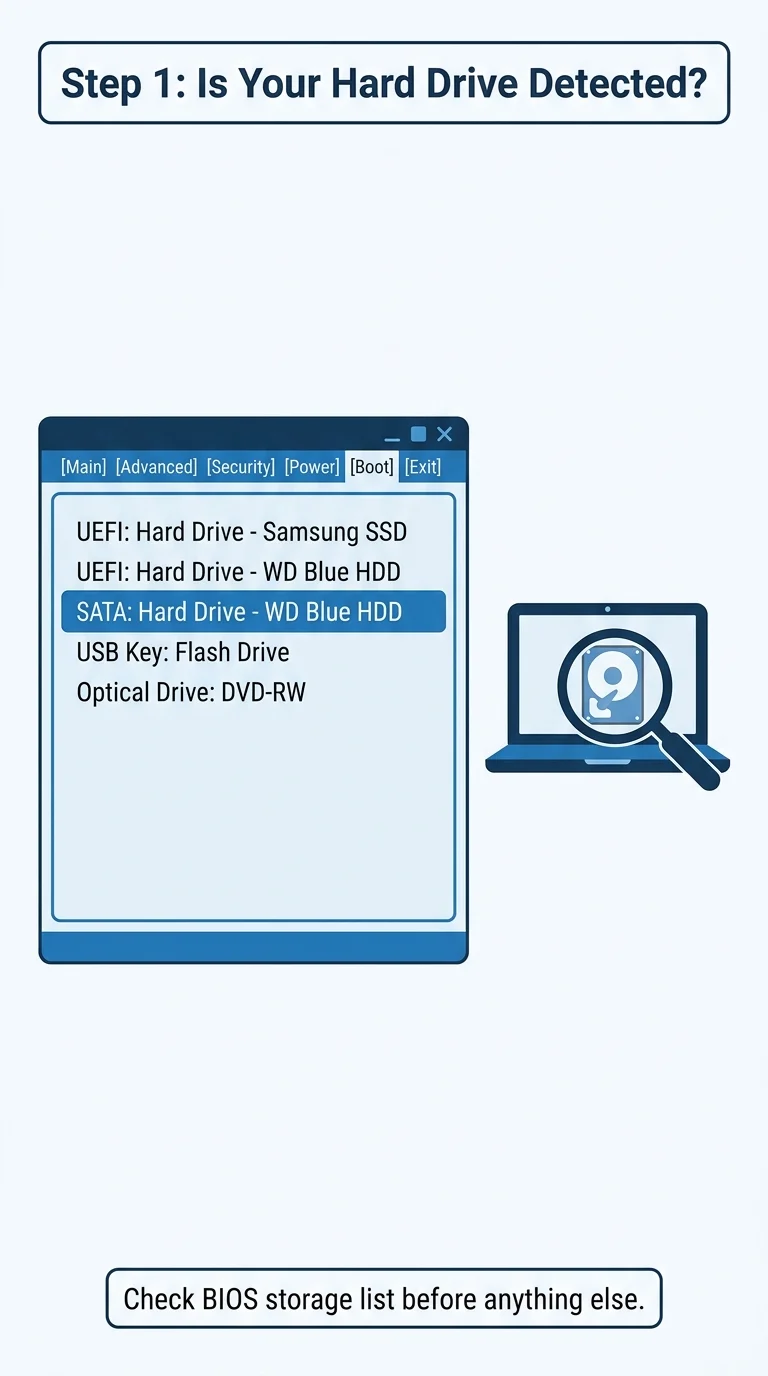
Restart your PC and enter the BIOS/UEFI setup (usually by pressing Del, F2, or F10 during startup). Go to the Boot or Storage section and look for your internal hard drive or SSD in the device list. If it’s missing entirely, the “No OS Installed” message isn’t a boot configuration issue — it’s a detection issue, and you’ll need to check the SATA/NVMe connection or the drive mode (AHCI vs RAID) before going further.
Step 2: Match the USB Partition Scheme With Your BIOS Boot Mode
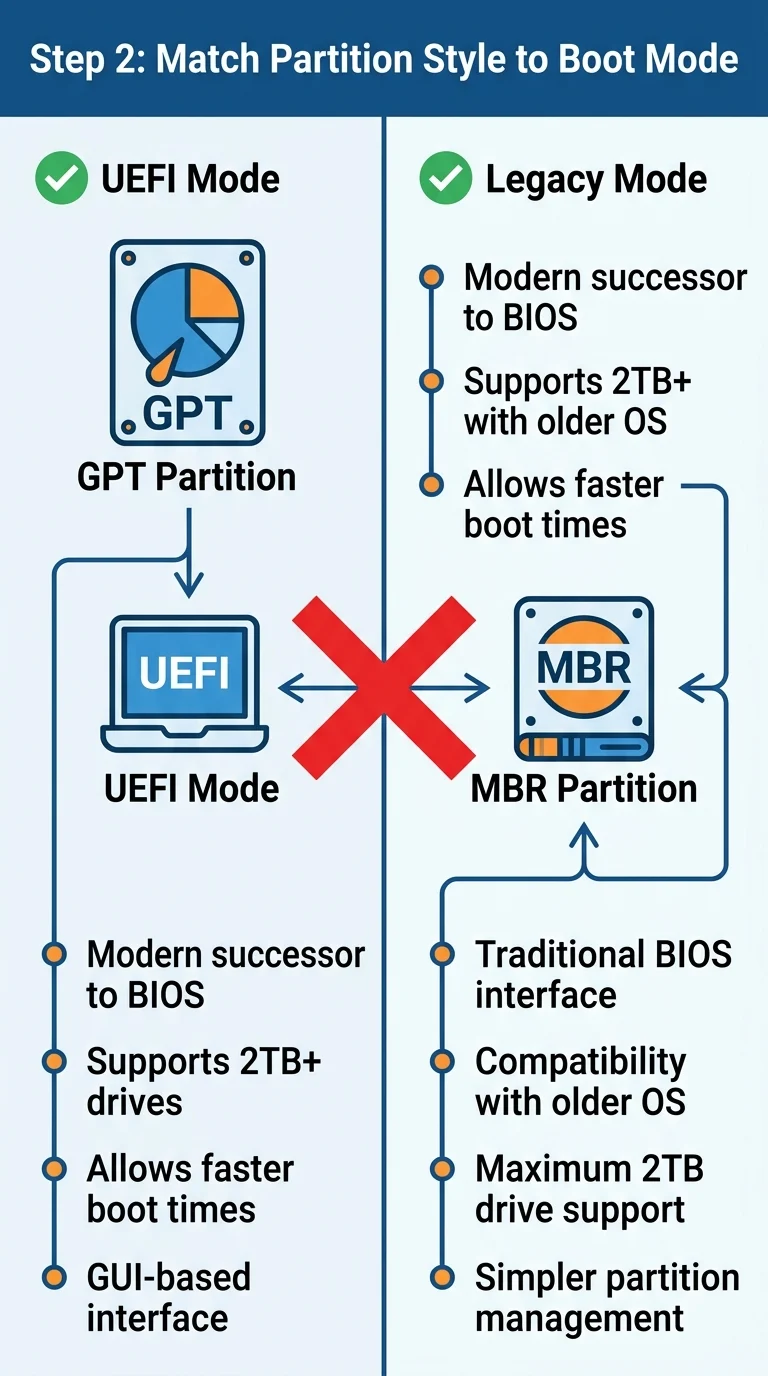
Most “No OS Installed” errors happen because the bootable USB was created as MBR while the BIOS is set to UEFI, or the reverse. In BIOS, check whether your system is set to UEFI, Legacy, or CSM boot mode. Then confirm the USB was created to match — GPT partition style pairs with UEFI, and MBR pairs with Legacy/CSM. A mismatch here means the firmware simply can’t read the installer as a valid boot device.
Step 3: Recreate the Bootable USB With Correct Settings
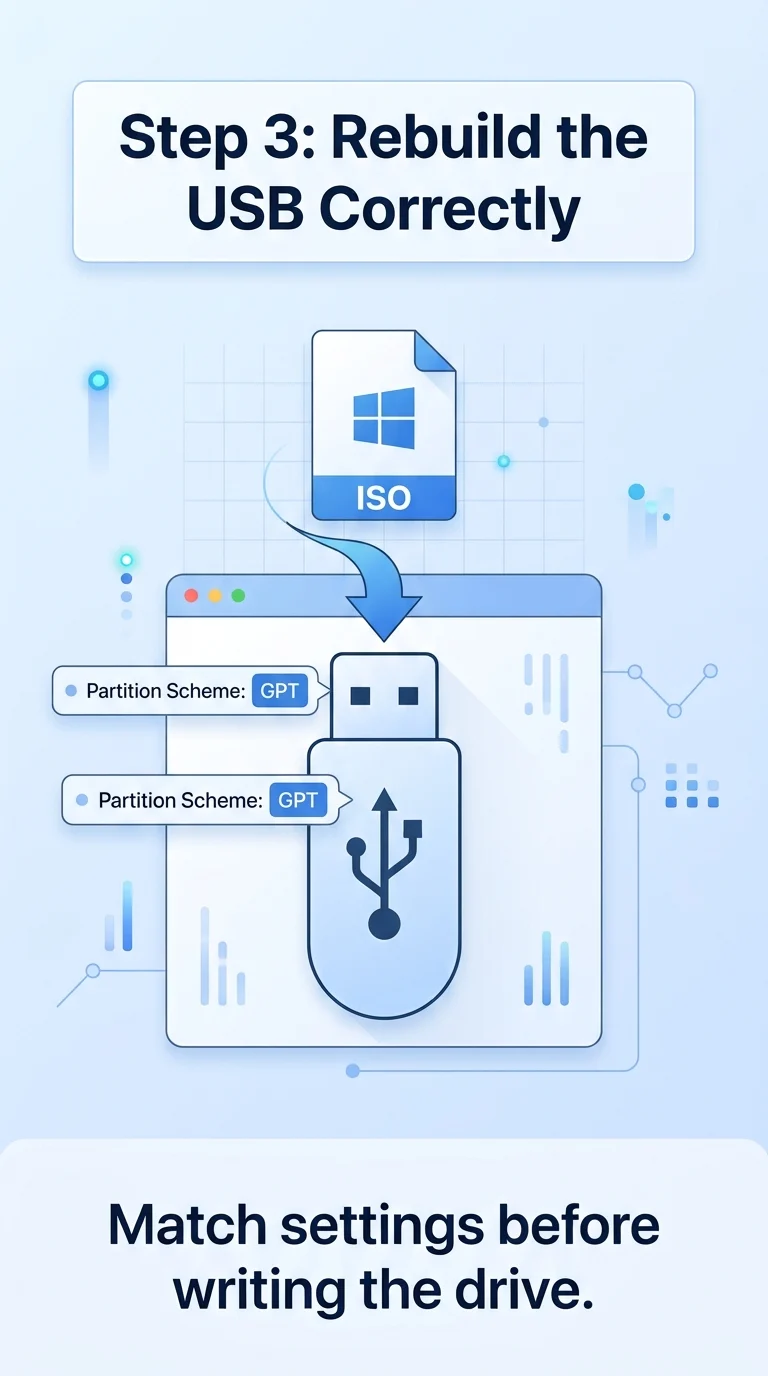
If Step 2 revealed a mismatch, the fastest fix is rebuilding the USB. Using a tool like Rufus, select your Windows ISO, then explicitly choose the partition scheme (GPT for UEFI or MBR for Legacy) that matches your BIOS mode before writing the drive. This ensures the installer boots correctly and writes the boot files in a format your firmware can actually use.
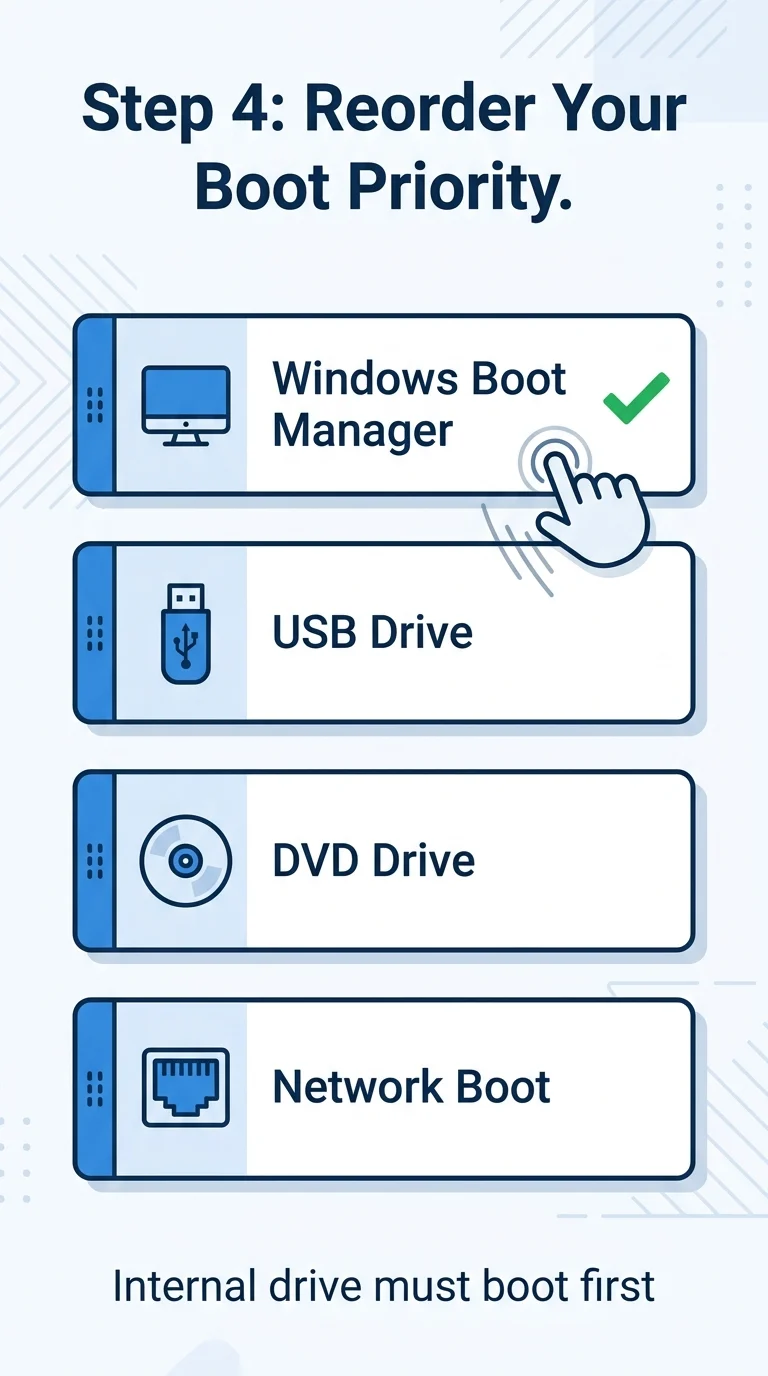
Step 4: Fix the Boot Order After Windows Installation
After installing Windows, the internal drive needs to be set as the first boot device in BIOS — otherwise the system may keep trying to boot from the USB or another device and show “No OS Installed” even though Windows is fully installed. Go to the Boot Order section in BIOS, move your internal drive (often labeled as “Windows Boot Manager” once installed) to the top, remove the USB, and save changes.
Step 5: Rebuild the Boot Files Using Windows Recovery Environment
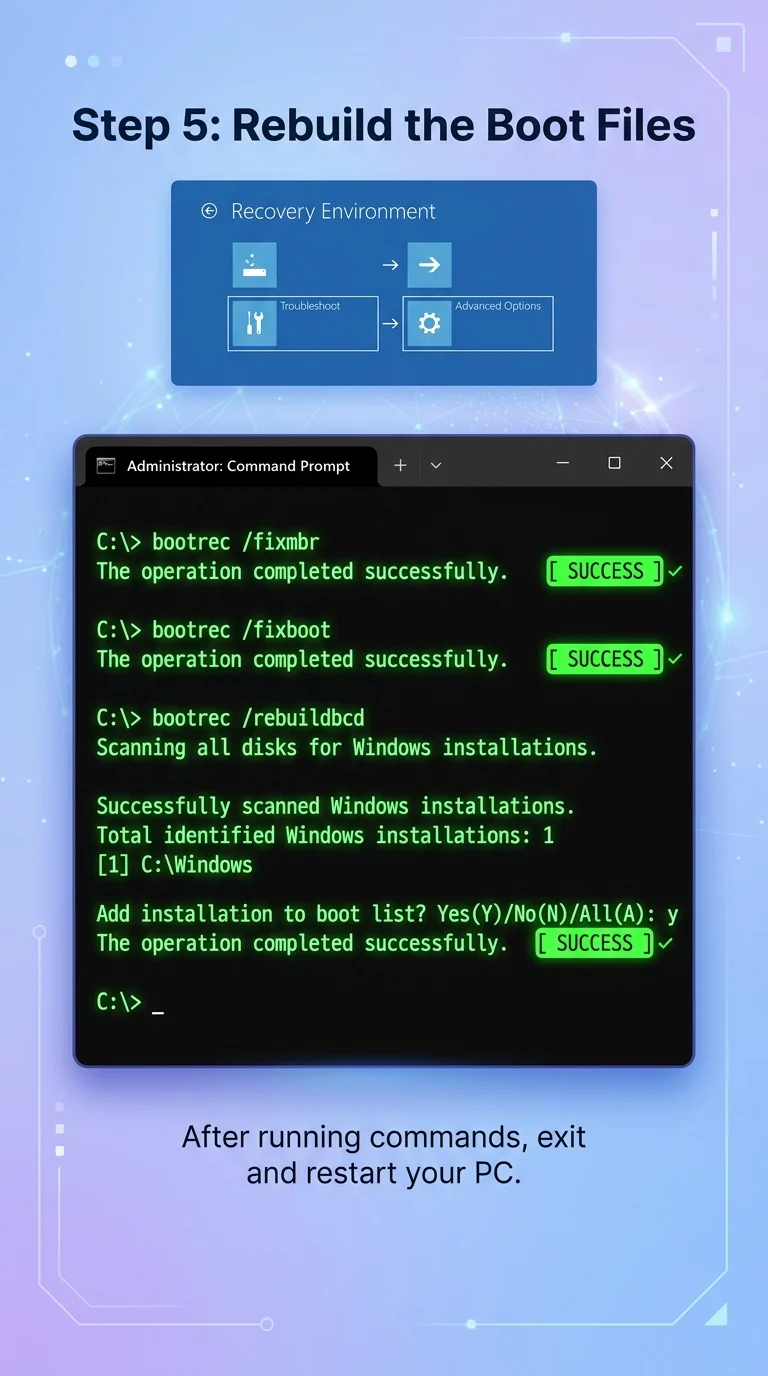
If the boot order and partition style are both correct but the error persists, the boot configuration data (BCD) itself may be corrupted. Boot from the Windows USB, choose “Repair your computer,” then open Command Prompt through Troubleshoot > Advanced Options. Run these commands one at a time: bootrec /fixmbr, bootrec /fixboot, and bootrec /rebuildbcd. This rewrites the boot files so the firmware can locate your installed Windows copy again.
Step 6: Verify the Drive Was Initialized Correctly During Installation
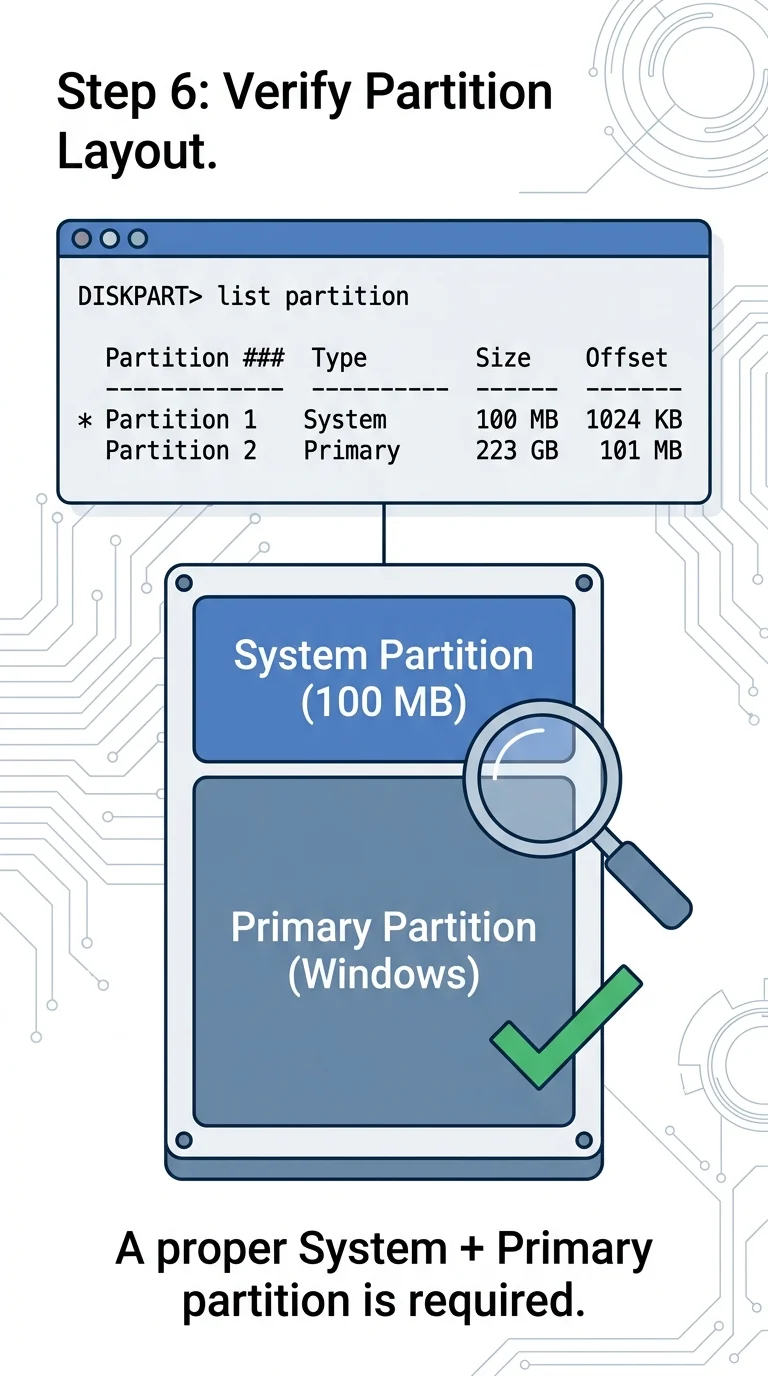
Occasionally, the drive itself was never properly initialized with the right partition table during setup. Boot from the USB again, choose “Repair your computer” > Command Prompt, and run diskpart, then list disk and select disk 0 (adjust the number to your drive), followed by list partition. You should see a proper System partition and a Primary partition. If the layout looks empty or incorrect, you’ll need to reinstall Windows and let the installer create the partitions fresh, rather than using a pre-existing or manually altered layout.
Conclusion
The “No OS Installed” error looks alarming, but it’s rarely a sign of data loss — it’s almost always a mismatch between how the boot media was created and how your BIOS is trying to read it. Working through partition style, boot order, and boot file integrity in that order resolves the vast majority of cases without needing a full reinstall.