 Vipin PG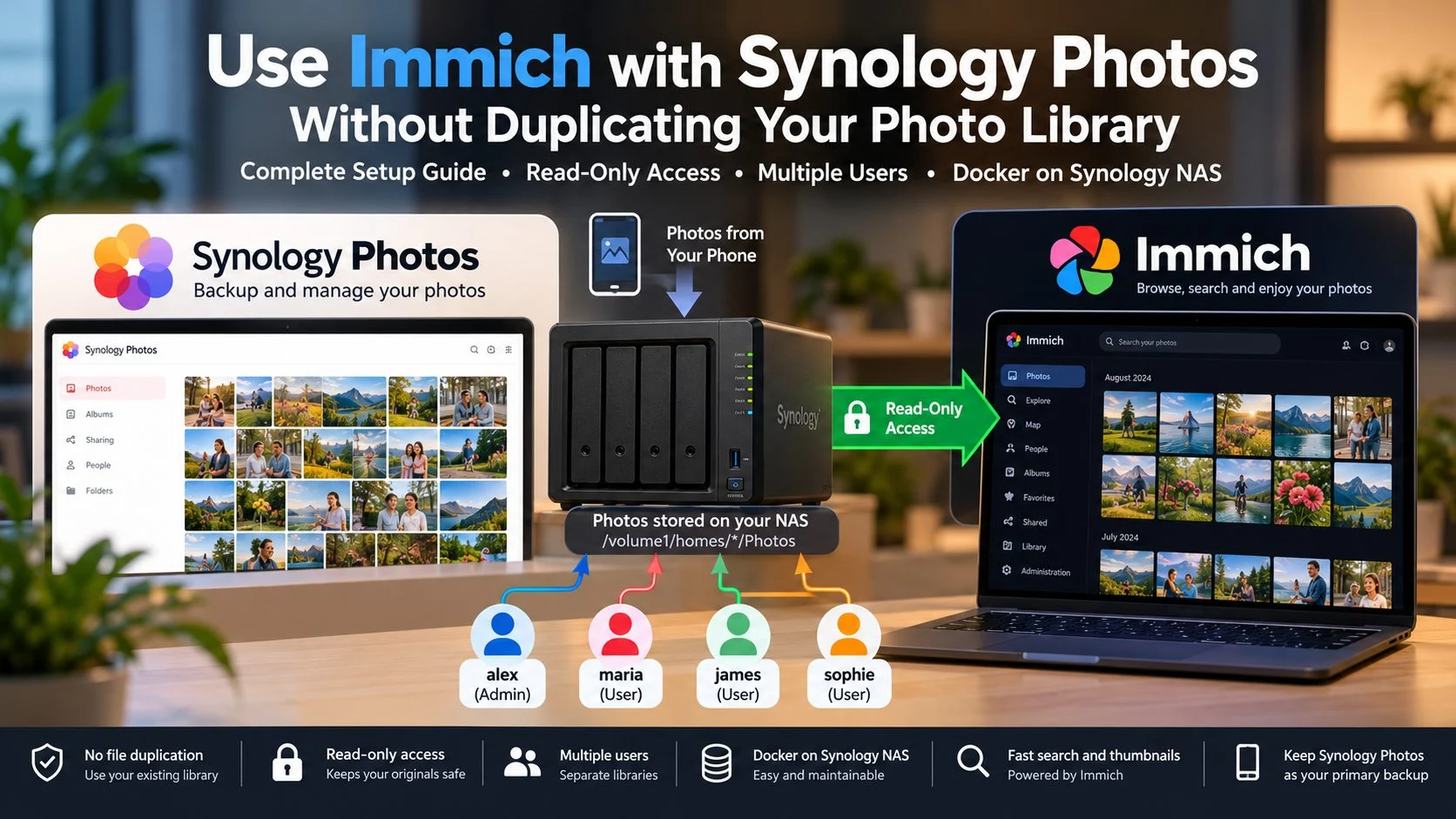
I use Synology Photos for phone backups and Immich to browse the same files. This walkthrough covers the Docker installation, four separate user libraries, read-only access, indexing, and the checks that help protect the original photos.
Synology Photos was already backing up our phones to the NAS. I wanted to use Immich’s browsing interface with that collection, without moving the originals or making a second copy of every photo. Keeping both applications pointed at the existing files made more sense for this setup.
I kept Synology Photos responsible for the originals and added the photo directories to Immich as external libraries. Each Docker bind mount ends with :ro, so Immich can read the files without writing to those mounted folders.
The example has four accounts: alex, blair, casey, and drew. Addresses such as 192.0.2.10 and photos.example.com are placeholders. Check the paths on your own NAS and download the Compose files for the Immich release you install.
What the completed arrangement looks like
Synology Photos keeps the original media in Personal Space or Shared Space. Immich scans those directories, stores file references in its database, and creates its own thumbnails and other derived data.
This arrangement saves the space that would be used by a second set of original files. Immich still needs room for its database, thumbnails, video previews, and search-related data.
Before you begin
You need a Synology NAS that supports Container Manager, DSM 7 with Synology Photos configured, an administrator account for DSM, and either SSH access or access to Container Manager’s Projects interface. Ensure your NAS has enough resources for Immich alongside its other services. The current Immich requirements specify a minimum of 6 GB RAM and two CPU cores, with 8 GB RAM and four CPU cores recommended. Hardware suitability depends on the NAS model and workload.
- Back up first: a read-only mount reduces the risk of application-level writes, but it does not protect against disk failure, NAS administrator mistakes, ransomware, or changes made in Synology Photos.
- Check free space: set aside space for Immich’s PostgreSQL database, thumbnails, and video previews. The official estimate says thumbnail and transcoding files can add roughly 10 to 20% on average, depending on the library.
- Check support: install Container Manager from DSM Package Center if your model supports it. The dedicated Immich Synology instructions are a community-maintained deployment route.
- Identify storage volume: the examples use
/volume1. Change it if your NAS uses another volume.
.env, Immich database, and upload directory. This guide is written for a new deployment or a carefully planned configuration change.Step 1: Find the folders managed by Synology Photos
Synology Photos uses different paths for personal and shared photo storage:
| Synology Photos space | DSM/File Station location | Typical NAS filesystem path |
|---|---|---|
| Personal Space | /home/Photos when signed in as that user |
/volume1/homes/USERNAME/Photos |
| Shared Space | /photo |
/volume1/photo |
The personal-space and shared-space locations are defined in Synology’s Photos documentation. Personal Space requires the DSM user home service, found under Control Panel → User & Group → Advanced → User Home. Shared Space can be enabled in Synology Photos settings.
For the four example accounts, the source folders are:
/volume1/homes/alex/Photos
/volume1/homes/blair/Photos
/volume1/homes/casey/Photos
/volume1/homes/drew/Photos
Check that these folders already exist before continuing. You can inspect them in File Station or over SSH:
sudo ls -ld /volume1/homes/alex/Photos
sudo ls -ld /volume1/homes/blair/Photos
sudo ls -ld /volume1/homes/casey/Photos
sudo ls -ld /volume1/homes/drew/Photos
Shared Space is normally at /volume1/photo. Leave photos where Synology Photos stores them. Moving files for the sake of a Docker mount complicates backup and library management, and changing permissions recursively can interfere with DSM access controls.
Step 2: Create the Immich application directories
I placed the Immich application data in a separate directory, away from the Synology Photos folders:
/volume1/docker/immich-app/
├── docker-compose.yml
├── .env
├── library/
└── postgres/
Connect through SSH or create these directories using File Station:
sudo mkdir -p /volume1/docker/immich-app/library
sudo mkdir -p /volume1/docker/immich-app/postgres
cd /volume1/docker/immich-app
Immich writes its managed data to library and keeps the PostgreSQL database in postgres. Use suitable local storage for the database instead of an SMB or NFS share. On an HDD-backed NAS, check the DB_STORAGE_TYPE guidance in the official Synology installation documentation.
Step 3: Download the official Docker Compose and environment files
Download the official Compose and environment templates for the Immich release you are installing:
cd /volume1/docker/immich-app

sudo wget -O docker-compose.yml \
  https://github.com/immich-app/immich/releases/latest/download/docker-compose.yml

sudo wget -O .env \
  https://github.com/immich-app/immich/releases/latest/download/example.env
If the NAS does not have wget, download the files on a computer and place them in the project directory through File Station. Keep the service definitions and settings supplied by the matching official release.
Step 4: Configure Immich’s environment
Open .env and set the paths for your NAS. Generate a new database password and replace the example value:
UPLOAD_LOCATION=/volume1/docker/immich-app/library
DB_DATA_LOCATION=/volume1/docker/immich-app/postgres
TZ=Asia/Kolkata
IMMICH_VERSION=v3
DB_PASSWORD=REPLACE_WITH_A_RANDOM_ALPHANUMERIC_SECRET
Use a supported Immich version that matches the downloaded Compose file and set the timezone for your location. A long alphanumeric database password avoids common environment-file parsing problems. Keep the real .env private and retain any other required settings from the template.
Limit access to the environment file and check its ownership:
sudo chmod 600 /volume1/docker/immich-app/.envStep 5: Give Immich read-only access to the original photos
Find the immich-server service in docker-compose.yml. Under volumes:, keep the existing writable upload-storage mount and add the four source folders:
services:
  immich-server:
    # Keep the other settings supplied by Immich.
    volumes:
      - ${UPLOAD_LOCATION}:/data
      - /volume1/homes/alex/Photos:/external/alex:ro
      - /volume1/homes/blair/Photos:/external/blair:ro
      - /volume1/homes/casey/Photos:/external/casey:ro
- /volume1/homes/drew/Photos:/external/drew:roimmich-server service declaration.Each volume entry contains three parts:
/volume1/homes/alex/Photos : /external/alex : ro
          NAS source       Immich path   read-only
The first path is on the NAS. The second is the directory Immich sees inside its container. The final :ro makes the source read-only. Apply it to every Synology Photos mount, but leave Immich’s managed storage writable.
For Synology Photos Shared Space, first confirm that /volume1/photo exists and decide which Immich account should see it. Add a separate mount:
- /volume1/photo:/external/shared:roAssign the Shared Space path only to an Immich library whose owner is permitted to see those files. Immich external libraries have individual owners, and their sharing settings are separate from Synology Photos permissions. Avoid mounting all of /volume1/homes just to save a few configuration lines.
Step 6: Check permissions without weakening Synology security
A read-only mount can still fail if the container cannot read the files or traverse their parent folders. There is also a permissions risk in the other direction: a container with elevated host privileges may be able to read more than an ordinary DSM account. Check both the Docker mount and the underlying Synology permissions.
Inspect the folder permissions and the account under which the container runs. Where access is missing, make a narrow read/traverse permission change through DSM ACLs or a dedicated group. Avoid chmod -R 777, broad ACL resets, and changes to the owner of Synology Photos directories.
If the source folder lives on an encrypted volume, unlock or mount it before starting Immich. Double-check spelling too: some Docker mount configurations create an empty host folder when the requested source does not exist.
Step 7: Deploy the containers
Option A: From Synology Container Manager
- Open Container Manager → Project → Create.
- Give the project a name such as
immich-app. - Choose the folder
/volume1/docker/immich-app. - Use the
docker-compose.ymlalready saved there and review the configuration. - Skip the optional Web Station portal configuration for this initial LAN test.
- Complete the wizard and allow Container Manager to create the project.
Option B: From SSH
Validate the configuration before starting the containers:
cd /volume1/docker/immich-app
sudo docker compose config --quiet
sudo docker compose up -d
sudo docker compose ps
On NAS models where Compose is managed through Container Manager rather than the shell, use the Projects interface. Avoid replacing DSM’s Docker packages just to make a command available.
If a service fails to start, inspect its logs:
sudo docker compose logs --tail=100Immich normally listens on port 2283. With that port published by Compose and allowed through the DSM firewall, open:
http://192.0.2.10:2283The address 192.0.2.10 is reserved for examples. Substitute the NAS address on your LAN. Allow the application port only from trusted networks and keep the service off public router port forwards unless you have deliberately designed secure remote access.
Step 8: Create the administrator and user accounts
Open Immich in your browser and create the administrator account. In this example, Alex is the administrator. Under Administration → Users, add Blair, Casey, and Drew as standard users.
| Example account | Immich role | Library to import |
|---|---|---|
| Alex | Administrator | /external/alex |
| Blair | User | /external/blair |
| Casey | User | /external/casey |
| Drew | User | /external/drew |
These Immich accounts are separate from DSM accounts. Reusing a display name does not connect passwords, login sessions, or access rights between the applications.
Step 9: Create four external libraries
From the administrator account, open Administration → External Libraries → Create Library. Set the owner and import path for each account as described in the Immich external-library guide.
- Select Alex as the first library’s owner. Choose carefully: the owner cannot currently be changed after creation.
- Open the library’s Folders section and select Add.
- Enter
/external/alexas the import path, then save. - Give the library a helpful name, such as Alex Photos.
- Choose Scan or Scan New Library Files, depending on the interface version.
- Repeat for Blair, Casey, and Drew, using each account’s own path.
Enter the path seen by the Immich container. For Alex, use /external/alex. The NAS path /volume1/homes/alex/Photos belongs in the Docker mount configuration, not in Immich’s library import field.
If you mounted Shared Space, create a library for its intended owner and import /external/shared. Decide separately who can see those assets inside Immich. Existing Synology Photos shared albums and access rules are not imported automatically.
Step 10: Let Immich index the existing collection
The first scan reads the source directories and adds supported photos and videos to Immich. Background jobs extract available metadata, create thumbnails, and process previews or supported search features.
Check Administration → Jobs during the first import. Larger photo collections may take a while on a NAS with limited CPU or memory. Allow the existing jobs to finish before launching another full scan.
On smaller systems, reduce background-job concurrency if indexing competes with other NAS services. Video processing and machine-learning jobs may need particular attention. Immich documents the options in its FAQ.
Immich builds its own thumbnails and search data. It does not reuse Synology Photos’ thumbnail database, so the first scan uses CPU time and some disk space even though the source media stays untouched.
Step 11: Verify all mounts are truly read-only
After indexing, inspect the live mounts. A configuration file containing :ro is not enough if the running container was created from an older configuration.
Find the name of the Immich server container:
sudo docker ps --format 'table {{.Names}}\t{{.Status}}'Inspect its mounts, using the actual container name if it differs from immich_server:
sudo docker inspect immich_server \
  --format '{{range .Mounts}}{{println .Destination "writable=" .RW}}{{end}}'
For the four source mounts, look for these results:
/external/alex writable= false
/external/blair writable= false
/external/casey writable= false
/external/drew writable= false
The photo-source mounts should report RW=false. Immich’s own storage needs a writable mount. If a photo folder reports true, correct the Compose file and recreate the affected container.
Confirm that the server can list each photo folder:
sudo docker exec immich_server ls -la /external/alex
sudo docker exec immich_server ls -la /external/blair
sudo docker exec immich_server ls -la /external/casey
sudo docker exec immich_server ls -la /external/drew
These commands only read directories. There is no reason to attempt to delete or overwrite a real photo as a permission test. Check the live read-only flags, mount sources, and file readability instead.
Step 12: Keep Synology Photos as the only automatic uploader
Keep Synology Photos as the phone backup destination. If you install the Immich mobile app as a viewer, disable its automatic backup. Otherwise a phone could upload the same files to Immich’s separate managed library.
Albums, favorites, and some edits made inside Immich are recorded in Immich’s own database. They do not automatically appear in Synology Photos. The read-only source mounts also prevent Immich from writing changes or sidecar files back to the original directories.
Step 13: Set a sensible rescan schedule
A new photo reaches the NAS through Synology Photos. Immich sees it after an external-library scan or a supported filesystem-watch event.
I prefer scheduled scans for this setup. Immich provides automatic external-library scanning, and the interval can be adjusted in its administration settings. Start with the normal daily schedule and change it only if you need new backups to appear sooner.
Immich describes filesystem watching as experimental. It is less dependable with network-mounted sources. A scheduled scan is easier to diagnose, particularly when other NAS services are busy.
Step 14: Add a local HTTPS address, if you use a reverse proxy
Test with port 2283 first. If you already run Caddy, you can put a local HTTPS hostname in front of Immich. For example:
photos.example.com {
    tls internal
    reverse_proxy 192.0.2.10:2283
}
Both the hostname and upstream address are examples. Point Caddy to the reachable Immich server on your own network. When the proxy is on another machine, confirm that it can access the NAS port.
Keep the hostname private if Immich is for LAN use. With tls internal, devices must trust the local certificate authority. You can also use a certificate for a domain you own while resolving that hostname only on your private network.
Step 15: Test how new photos and removals behave
Add one harmless test photo to each example user’s Personal Space and check the following:
- Upload a new test picture through Synology Photos.
- Confirm the file appears in the correct NAS folder.
- Start a scan of that user’s Immich library, or wait for the scheduled scan.
- Confirm the image appears in the correct Immich account.
- Check another standard user account to confirm the image was not unintentionally exposed through a shared library or album.
- Repeat for the remaining accounts.
Moving or deleting a source file in Synology Photos changes what Immich sees at its next scan. Immich can treat a missing file as a removed asset, and moving a file may cause it to appear as a new item. Immich-only album associations or annotations can be affected. Read-only Docker mounts do not prevent changes made by Synology Photos or DSM administrators.
Common problems and how to fix them
| Problem | Likely cause | What to check |
|---|---|---|
| Library says path does not exist | Host path used instead of container path, typo, or missing mount | Use /external/alex; verify Compose mount and run ls inside the container. |
| Library scans but finds nothing | Empty source directory, nested permissions, exclusion pattern, or wrong folder | Compare NAS source to actual Synology Photos location; check read/traverse permission. |
| New phone pictures don’t appear | Rescan not yet run | Trigger a manual scan; confirm Synology Photos actually wrote files to that location. |
| Photos appear under wrong user | Library created with incorrect Immich owner | Review the owner and rebuild the affected library carefully if necessary; ownership cannot simply be edited. |
| NAS slows down during import | Thumbnail, video, or machine-learning workloads | Reduce job concurrency and schedule heavy processing during quiet hours. |
| Port 2283 not reachable | Container unhealthy, missing published port, DSM firewall, or wrong NAS address | Check container status, Compose ports, and LAN firewall rules. |
| Files can be modified from Immich | Original volume was mounted writable | Inspect Docker mounts and restore :ro before using the library. |
Security and backup practices worth keeping
- Mount only the folders needed. Avoid giving the Immich container access to unrelated NAS shares, home directories, SSH keys, or other application data.
- Restrict who can create libraries. Keep administration with trusted adults or operators; ordinary users should have standard accounts.
- Use strong credentials. Protect both DSM and Immich login accounts. Treat the
.envpassword as a secret. - Keep Immich local unless external access is necessary. Use a VPN or a carefully secured reverse proxy rather than exposing an unprotected port.
- Back up two distinct things. Preserve the original Synology photo directories and separately preserve Immich’s PostgreSQL database and managed data. A backup of the original photos alone does not preserve Immich albums, favorites, or indexes.
- Review upgrades before applying them. Read Immich’s release notes and back up its configuration/database. Never assume a new Compose template is drop-in compatible with an old database.
- Do not give Docker broad permissions to solve one read error. Repair the narrow permission issue instead of weakening DSM access controls.
Final verification checklist
- Synology Photos still receives and manages the original phone backups.
- Immich’s database and managed files are in a separate directory.
- All personal photo paths exist on the NAS.
- Every external source is mounted with
:ro. - Docker inspection shows
.RW=falsefor those mounts. - Each account owns the correct external library.
- At least one test asset appears for each intended user.
- No unexpected photo albums or shared libraries expose someone else’s files.
- Automatic Immich mobile upload is disabled if Synology Photos remains the sole uploader.
- Immich has a working scheduled scan and a separate backup plan.
Is this better than migrating everything to Immich?
I use this arrangement when Synology Photos is already doing the backup work and I want Immich’s library interface as well. It avoids migrating existing originals and keeps the backup workflow familiar.
There is maintenance involved. Immich needs database backups, room for generated files, and occasional rescans. Album sharing and permissions remain separate between the two applications. Moving source folders on the NAS also means updating the external library configuration.
For this design, I keep backup and original-file management in Synology Photos and use Immich for a separate viewing experience. The four source mounts stay read-only, and each user receives only the library intended for that account.