 Vipin PG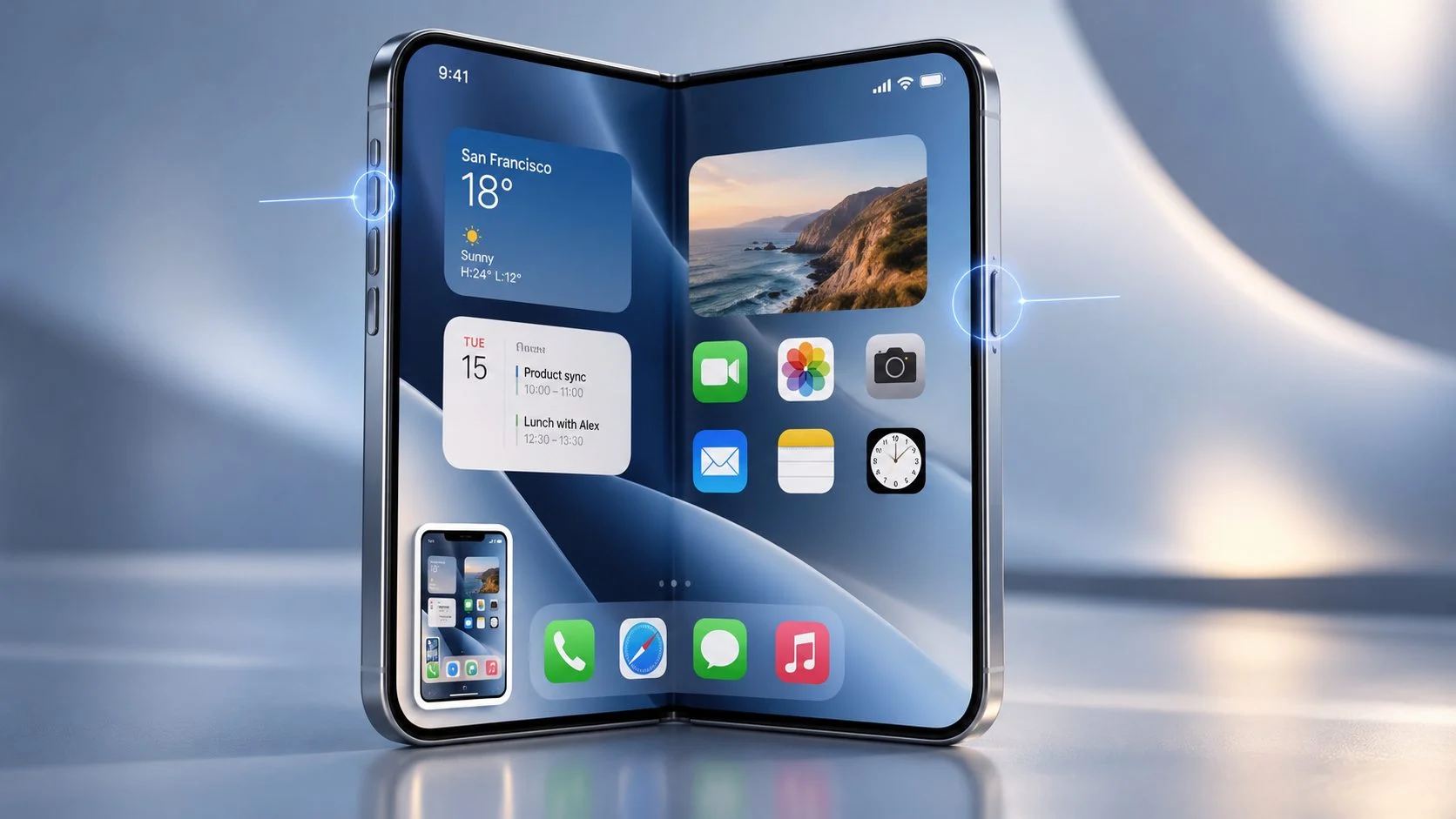
Taking a screenshot on the iPhone Duo works much like it does on a regular iPhone, although the foldable design changes where you’ll find the buttons. If you’ve just started using the Duo, the button placement might take a little getting used to, particularly when the phone is unfolded.
You can capture the screen using the Side and Volume Up buttons, just as you would on most recent iPhones. There are also ways to take screenshots without pressing any buttons, which can be useful when you’re working on the larger inner display.
Here’s how to use each method, along with a few settings worth checking if the button shortcut doesn’t work as expected.
How to take a screenshot on iPhone Duo using buttons
The quickest method is to press the Side button and Volume Up button at the same time.
- Open the app, webpage, or screen you want to capture.
- Locate the Side button and the Volume Up button on your iPhone Duo.
- Press both buttons simultaneously and release them quickly.
- The screenshot will appear as a preview or a small thumbnail, depending on your settings.
- Tap the preview to edit or share the screenshot. If you’re using thumbnail previews, you can leave the thumbnail alone and the screenshot will save automatically.
Try to press both buttons together without holding them down. Holding the Side button or pressing the buttons at different times may trigger another function instead.
Apple confirms this shortcut in its official instructions for taking screenshots on an iPhone.
Where are the screenshot buttons on iPhone Duo?
The button arrangement is one of the differences you’ll notice when moving from a conventional iPhone to the Duo.
When the iPhone Duo is unfolded, its volume buttons are positioned along the top edge. The Side button is on the right edge and includes Touch ID. There’s also a separate Camera Control button, but that isn’t used for screenshots.
You’ll need the Side button and whichever volume button is currently assigned to Volume Up.
If you’re having trouble identifying them, Apple’s iPhone Duo hardware guide shows the button locations.
Why the Volume Up button can change on iPhone Duo
The Duo has a feature called Dynamic Volume Buttons. Since the phone can be used in different orientations, this feature changes which physical button increases or decreases the volume.
With dynamic controls enabled, the button at the top or right generally increases the volume, while the button at the bottom or left decreases it in left-to-right language layouts.
For example, a volume button that works as Volume Up in one orientation may act as Volume Down after you rotate the device.
This can be confusing when taking screenshots because the shortcut requires the button currently functioning as Volume Up.
How to keep the volume buttons in fixed positions
If you prefer the same physical button to increase the volume every time, you can change the setting.
- Open Settings on your iPhone Duo.
- Go to Sounds & Haptics.
- Find Fixed Position Volume Controls.
- Turn the option on to keep each button’s function fixed, or turn it off to allow the functions to change with orientation.
With Fixed Position Volume Controls enabled, the same physical button continues to act as Volume Up even when you rotate the phone. With the setting disabled, the volume controls respond to the device’s orientation.
Rotation Lock can also affect this behavior. When the screen orientation is locked, the volume button functions follow that locked orientation.
If you regularly switch between folded and unfolded modes, fixed volume controls may make the screenshot shortcut easier to remember. Apple explains the behavior in its guide to iPhone Duo buttons and controls.
How to take a screenshot on iPhone Duo without buttons
Reaching both buttons while holding the unfolded Duo may feel awkward, especially when using it with one hand. iOS includes several alternatives that don’t require the usual button combination.
Method 1: Take a screenshot using Siri
Siri can capture the screen for you using a voice command.
- Open the screen you want to capture.
- Activate Siri using your usual method.
- Say “Take a screenshot.”
- Siri will capture the screen.
This is convenient when you’re holding the Duo unfolded and don’t want to change your grip. You can use the same command whether you’re viewing a webpage, an app, or the Home Screen.
Method 2: Take a screenshot using AssistiveTouch
AssistiveTouch adds a floating control to the screen. You can use it to access common iPhone functions without relying on the physical buttons.
To enable AssistiveTouch:
- Open Settings.
- Go to Accessibility > Touch.
- Select AssistiveTouch and turn it on.
- Tap the floating AssistiveTouch button.
- Open Device > More > Screenshot to capture the screen.
You can also customize the AssistiveTouch menu and add Screenshot as a direct option. That reduces the number of taps needed for future captures.
AssistiveTouch is worth considering if you take screenshots frequently or prefer on-screen controls while using the inner display.
Method 3: Take a screenshot using Back Tap
Back Tap is another iOS accessibility feature that lets you assign an action to a double or triple tap on the back of your iPhone.
To assign Screenshot to Back Tap:
- Open Settings > Accessibility > Touch.
- Scroll down and select Back Tap.
- Choose Double Tap or Triple Tap.
- Select Screenshot from the list of actions.
Once configured, try tapping the back of the device using the gesture you selected.
Back Tap can be useful, although how reliably it detects the gesture may depend on how you’re holding the phone and the case you’re using. If it doesn’t respond consistently, AssistiveTouch or Siri may be easier alternatives.
How to take a full-page screenshot on iPhone Duo
A normal screenshot captures what’s currently visible on your screen. If you want to save an entire webpage, including the content below the visible area, iOS supports full-page screenshots in compatible apps such as Safari.
To capture a full webpage:
- Open the webpage in Safari.
- Take a screenshot using the Side button and Volume Up shortcut.
- Open the screenshot preview.
- Select Full Page if the option appears.
- Scroll through the preview to check the captured content.
- Use the available save or share options to keep the screenshot.
The Full Page option isn’t available everywhere. Whether it appears depends on the app and the type of content you’re capturing.
Apple covers this feature along with the regular screenshot process in its iOS screenshot guide.
How to edit, crop, or share a screenshot
You don’t need another app for basic screenshot editing. After taking a screenshot, tap its preview to open the built-in editing tools.
To crop the screenshot, drag the crop handles until only the part you want remains. You can also use Markup to draw on the image or add annotations.
This is useful when sharing a screenshot of a setting, error message, or app screen. You can crop out unrelated content and mark the area you want someone to look at.
When you’re finished, use the save or share options. You can also discard the screenshot if you no longer need it.
Where are screenshots saved on iPhone Duo?
Screenshots saved to Photos can be found alongside your other images, but there’s a separate section that makes them easier to locate.
- Open the Photos app.
- Go to Collections.
- Scroll to Media Types.
- Tap Screenshots.
This section shows your saved screenshots together, so you won’t have to scroll through all your photos to find a particular capture.
Change how screenshot previews appear
iOS 27 provides options for how screenshots appear immediately after they’re taken.
You can use a full-screen preview or the smaller thumbnail that appears temporarily in the lower-left corner. The smaller preview is useful if you want to keep working without opening the screenshot editor every time.
There are also settings for screenshot formats, including SDR and HDR.
To review these options, open Settings and look for the Screen Capture settings.
What to do if screenshots aren’t working on iPhone Duo
If pressing the Side and Volume Up buttons doesn’t capture the screen, check the button combination before trying anything more complicated.
Make sure you’re pressing Volume Up
Dynamic Volume Buttons may have changed the function of the physical volume buttons after you rotated the phone. Press a volume button once to confirm which one increases the volume, then use it with the Side button.
Press both buttons at the same time
The screenshot shortcut requires a quick, simultaneous press. If you hold the buttons or press one much earlier than the other, the phone may respond differently.
Try pressing both together and releasing them immediately.
Check the fixed volume control setting
Go to Settings > Sounds & Haptics > Fixed Position Volume Controls.
If you find the changing button functions confusing, enable the setting and try taking another screenshot.
Try Siri or AssistiveTouch
If the button shortcut still doesn’t work, try asking Siri to take a screenshot or use AssistiveTouch.
If those methods work, you can focus on checking the physical buttons and the way you’re pressing them. If a button doesn’t respond during normal use either, follow Apple’s hardware troubleshooting instructions or contact Apple Support.
Can you take screenshots when iPhone Duo is folded or unfolded?
The screenshot shortcut is the same whether you’re using the Duo’s outer display or its larger inner display. Press the Side button and Volume Up together to capture the screen.
What changes is the position of your hands and how easily you can reach the buttons. On the unfolded device, you may need to adjust your grip to press both at once.
The button arrangement has already prompted discussion among iPhone users. In a Reddit discussion about screenshot ergonomics on the Duo, participants raised questions about reaching the buttons comfortably and suggested alternatives such as Siri and Back Tap.
Another discussion in the iPhone Duo community, originally about closing the foldable device, included a question about taking screenshots. The suggested shortcut was Volume Up and Power, which matches Apple’s documented button combination.
Apple hasn’t documented a separate screenshot shortcut for the unfolded display. Its general screenshot instructions also don’t explain every situation involving multiple apps in Split View, so the exact capture behavior in those layouts shouldn’t be assumed without testing it on the device.
Which screenshot method is best for iPhone Duo?
For occasional screenshots, the Side button and Volume Up combination is usually the simplest choice. It works directly from the hardware without requiring any setup.
If you often use the Duo unfolded, AssistiveTouch may be more comfortable because you can capture the screen through a floating control. Siri is another option when your hands are occupied, while Back Tap is worth trying if you prefer a gesture.
It’s also worth checking Fixed Position Volume Controls if you find yourself pressing the wrong volume button after rotating the phone. Once you’re familiar with the Duo’s button placement, the screenshot process is much the same as on any recent iPhone.