Vipin PG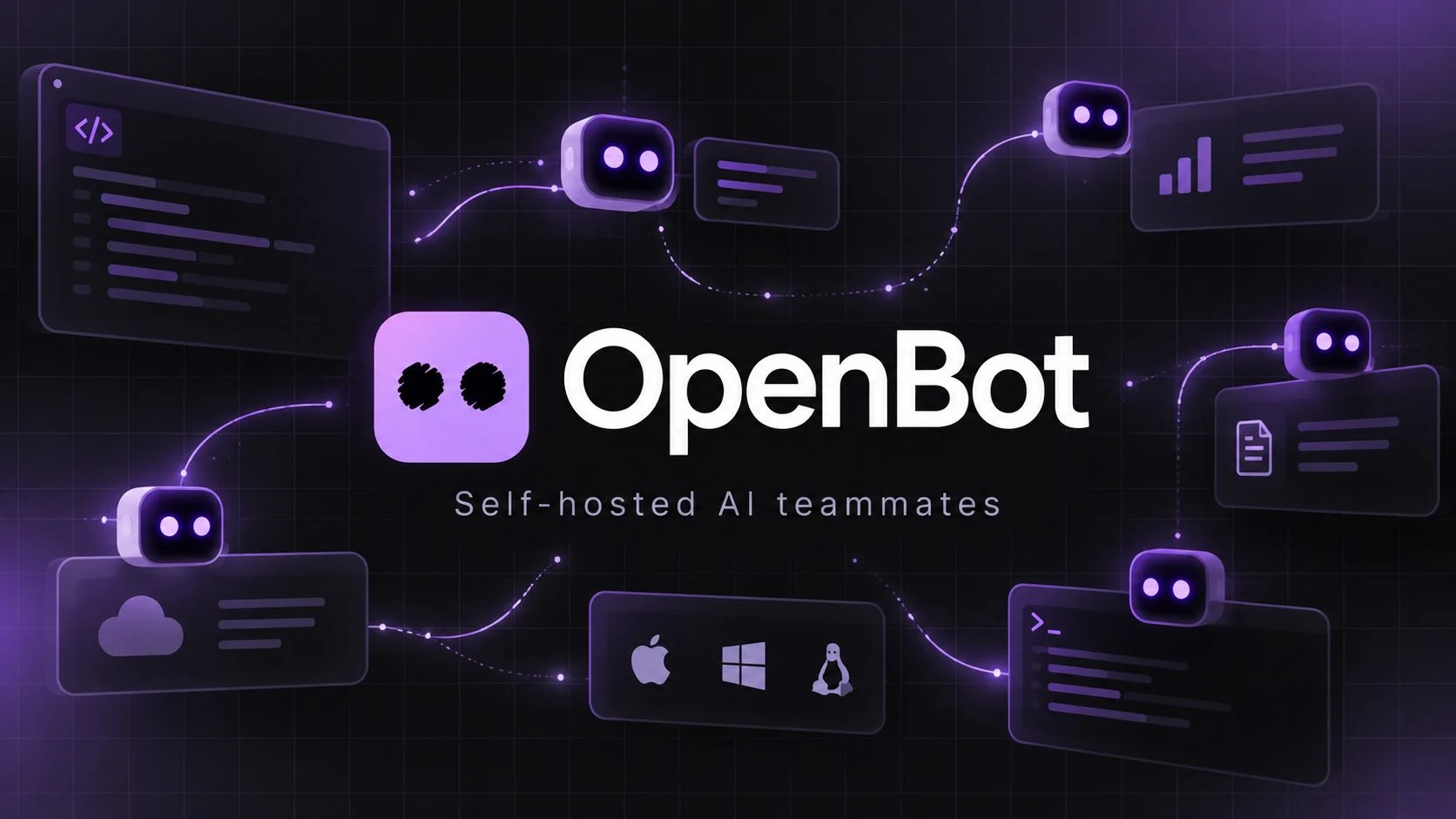
I wanted an AI agent that could keep working while my main computer was off. Grok Bot and OpenAI’s ChatGPT dots offered the kind of persistent-agent experience I had in mind: agents with context, tools and their own computers, able to handle tasks over time. I wanted to run the agent host on hardware I control.
That led me to OpenBot, a local-first multi-agent workspace from Nightly Labs. I installed it on an always-on Linux machine, updated it to version 0.30.0, and spent time working through its providers, routines, browser and remote-access features.
OpenBot gives agents powered by Codex, Claude Code, Grok, Gemini, OpenCode, Cursor and other compatible runtimes a persistent place to work. Each has its own workspace, conversations, queue and settings. I can choose a different provider for each agent and manage them in the same environment.
Why I chose an always-on host
I already used the Linux machine for development and AI tooling. I wanted it to become a permanent agent host, with persistent project files and specialized agents I could reach from another computer or my phone.
My requirements were practical:
- Keep the agent environment on my own hardware.
- Use existing AI subscriptions and provider CLIs.
- Give specialized agents their own workspaces and let them communicate.
- Let agents run commands, use a browser and work with files.
- Schedule recurring tasks and keep them running when my main computer is off.
- Access the host from other computers and mobile devices.
Grok Bot and ChatGPT dots rely heavily on infrastructure their vendors operate. With OpenBot, the machine running the application is the primary host. My everyday computers can sleep, restart or move between networks while the Linux machine keeps working.
Desktop / Laptop / Phone
          |
          v
   OpenBot remote client
          |
          v
 Always-on Linux host
          |
          +-- OpenBot
          |
          +-- AI provider runtimes
          |
          +-- agent workspaces
          |
          +-- browser
          |
          +-- scheduled routines
          |
          +-- project files
What OpenBot manages
OpenBot has no large language model of its own. It provides a persistent workspace and orchestration layer for agent runtimes such as Codex and Claude Code, which connect to their respective AI providers.
User
  |
  v
OpenBot
  |
  +-- Agent A -- Codex -- OpenAI
  |
  +-- Agent B -- Claude Code -- Anthropic
  |
  +-- Agent C -- Gemini / Antigravity -- Google
  |
  +-- Agent D -- Grok CLI -- xAI
  |
  +-- Agent E -- OpenCode -- configured provider
  |
  +-- Agent F -- custom ACP agent
  |
  +-- Agent G -- local OpenAI-compatible model
It manages agent identities and instructions, workspaces, conversation state and message queues. It also handles browser sessions, file transfers, scheduled routines, communication between agents, remote access, skills, MCP connections, usage information and server management.
This is why it appealed to me: choosing the workspace does not commit me to one model vendor. Improvements to Codex or Claude Code can also make the corresponding OpenBot agent more capable.
The license needs a closer look
I initially approached OpenBot as a free, open-source alternative to Grok Bot and ChatGPT dots. The project has used that description in some public material, but current releases use the PolyForm Noncommercial License 1.0.0.
The license lets you inspect and modify the source and use it for permitted noncommercial purposes. Commercial use requires a separate license from the copyright holder. Versions up to and including 0.1.11 remain available under Apache-2.0.
For modern releases, the precise description is free, source-available and self-hostable for noncommercial use. It is not open source in the strict OSI sense. That still fits my personal agent setup, but anyone planning commercial use or redistribution needs to account for the license.
Installing the headless Linux server
Version 0.29.0 introduced official headless Linux installation. For Ubuntu 24.04 on x86-64 or ARM64, the official installation command is:
curl -fsSL https://raw.githubusercontent.com/nightly-labs/openbot/main/scripts/install-server.sh | sudo bash
Then associate the server with an OpenBot account:
sudo openbot login
The login uses an email verification code, so there is no password to include in the command. Once authenticated, the machine appears as an OpenBot server in supported clients.
The installer sets up a service environment and runs OpenBot in server mode. It places the application under:
/opt/OpenBot
The service uses a virtual X display through Xvfb, allowing the machine to run without a physical display attached.
Server commands I keep handy
To see the installed version, account state, server status and whether an update has been staged:
openbot status
To check the version alone:
openbot version
To inspect logs:
openbot logs
To follow them continuously:
openbot logs -f
To control the service:
sudo openbot start
sudo openbot stop
sudo openbot restart
To update the installation:
sudo openbot update
My update to 0.30.0
OpenBot 0.30.0 was released on October 5, 2026, soon after my initial setup. It added an official Docker image and several agent-management features, building on the headless server support introduced in 0.29.0.
I updated my native installation using the supported command:
sudo openbot update
OpenBot downloads and validates the release, stages it, stops the service, applies the update and starts the server again. The service user’s home directory is preserved, so workspaces, application data and server identity survive upgrades and application reinstalls.
OpenBot also refuses to downgrade over a newer database. A release may migrate the database to a format that an older version cannot read.
Running OpenBot in Docker
Although I started with the native Linux server, the official Docker image introduced in 0.30.0 interests me because it provides an additional boundary between agents and the host operating system.
The image is:
ghcr.io/nightly-labs/openbot
It is available for both architectures:
linux/amd64
linux/arm64
The official Docker Compose setup is:
curl -fsSLO https://raw.githubusercontent.com/nightly-labs/openbot/main/docker/compose.yaml
curl -fsSLO https://raw.githubusercontent.com/nightly-labs/openbot/main/docker/seccomp.json

docker compose up -d
docker compose exec openbot openbot login
Connections and ports
The container does not expose a conventional web application port. It makes outbound connections to OpenBot account services and AI providers, uses the Signal service for connection setup, and uses TURN relays when needed.
The internal Team API listens only on this address inside the container:
127.0.0.1
There is normally no need to expose an OpenBot application port directly to the internet. This takes some adjustment if you usually run self-hosted applications behind a reverse proxy.
Persistent data and updates
The official container stores persistent data under:
/data
The recommended volume mapping is:
-v openbot-data:/data
That volume includes:
/data/.config/OpenBot
/data/OpenBot
/data/.local/share/keyrings
It can also hold provider login state, including Codex and Claude configuration. I would treat the whole data directory like a user’s home folder: it may contain conversations, account sessions, browser data, provider credentials and agent workspaces.
The native server can update itself; the Docker build requires a new image and a recreated container:
docker compose pull
docker compose up -d
Keeping the same persistent volume lets the new container resume with the existing OpenBot state.
Giving each agent a place to work
Each OpenBot agent has its own workspace and state. A typical directory looks like this:
~/OpenBot/Agents/<agent-id>
Agents can deliberately share files through:
~/OpenBot/Shared
I can assign separate responsibilities to agents such as:
Developer
Researcher
DevOps
Security Reviewer
Content Writer
QA Agent
Project Coordinator
Each can have its own model, provider, reasoning setting and instructions, along with its workspace, browser state, notifications, skills, routines and conversation history. That lets me keep projects and responsibilities separate while retaining the context each agent needs.
Providers and local models
OpenBot 0.30 supports several agent runtimes:
- Codex uses the local Codex App Server and can work with an existing ChatGPT/Codex login.
- Claude Code supports existing local Claude authentication.
- Grok CLI can authenticate through its CLI login or an xAI API key.
- OpenCode supports its free models and OpenCode Go configuration, and OpenBot can manage the runtime.
- Gemini uses Google’s Antigravity ACP server. OpenBot can download and manage the compatible runtime.
- Cursor works through the Cursor agent CLI and ACP interface.
- Cline has also been added as a supported provider.
OpenBot can connect to arbitrary OpenAI-compatible endpoints, which is useful if you already run an AI gateway or local inference server. It can also detect local model servers such as:
Ollama
LM Studio
This allows at least some agents to use local inference.
Managing provider CLIs
For supported providers, OpenBot can download a managed CLI runtime and check for new versions at startup and periodically while running. The application and its provider runtimes can update independently.
It can also use a CLI you maintain yourself. These environment variables override provider executable locations:
OPENBOT_CODEX_PATH
OPENBOT_CLAUDE_PATH
OPENBOT_GROK_PATH
OPENBOT_OPENCODE_PATH
OPENBOT_CURSOR_PATH
OPENBOT_CLINE_PATH
OPENBOT_ANTIGRAVITY_PATH
That suited my Linux host, which already had command-line AI and development tools installed.
Custom ACP agents
OpenBot supports external agents that implement the Agent Client Protocol, or ACP. Compatible agents can become additional providers, extending the application beyond its built-in integrations.
Version 0.30.0 improved support for custom agents organized by directory. It can run separate agent processes for separate folders and keep their model lists distinct. This is useful if you experiment with custom routing stacks, local models or alternative agent harnesses.
Switching providers
An agent can change providers while keeping its identity, workspace and OpenBot conversation. For example, I could start with:
Developer
Provider: Codex
Then switch to:
Developer
Provider: Claude Code
Version 0.30.0 improved the handoff by passing work-state information to the new provider. This can include executed commands, the end of command output, changed file paths, tool activity, searches and progress notes. Known secrets are filtered before the handoff.
For longer conversations, OpenBot monitors context usage per agent and can compact the conversation before the model runs out of context. That helps when an agent is intended to stay active for weeks or months.
Task queues and communication
Agents have persistent FIFO task queues. When an agent is busy, additional instructions can wait. Queue controls include:
paused
resumed
cancelled
Queue state survives crashes and restarts, so pending work is not automatically lost. I can give an agent more work while it is still handling the current task.
Agents can also communicate directly, exchanging messages, replies, reactions, images and files. A possible handoff sequence is:
Researcher
    |
    v
Developer
    |
    v
Security Reviewer
    |
    v
QA Agent
A message can supply context without starting a new model turn on the receiving agent. That is useful when the recipient needs information but has no new work to do.
Channels
A channel is a shared conversation involving several agents, for example:
#website-project

Researcher
Developer
Security Reviewer
Content Writer
One agent can own the current task while others participate through delegation and handoffs. Channel controls include:
Stop
Resume
Reassign
Archive
Restore
Channels can also have their own instructions, memory and routines.
Scheduled routines and local triggers
OpenBot calls scheduled tasks Routines. They let an agent wake up without a manual prompt, with runs appearing in the same agent context. A routine might contain:
Every morning:
Check the project repository.
Review new issues.
Summarize anything requiring attention.
Or a weekly instruction:
Every Sunday:
Inspect dependency updates.
Report potentially breaking changes.
Version 0.29.0 added local script triggers. A script on the OpenBot computer can trigger a routine and provide a payload, allowing workflows such as:
CI process finishes
       |
       v
Local shell script
       |
       v
OpenBot routine
       |
       v
Developer agent
       |
       v
Inspect build result
The Local scripts option is disabled by default and must be enabled for the relevant agent. On an always-on Linux host, this lets operating-system automation wake an agent when an event needs attention.
Handling provider limits
Several agents sharing a Claude or Codex account can reach its usage limit. OpenBot 0.30 can show that the account is limited, identify waiting agents and display a reset time when the provider supplies one.
Routines can either:
wait until the account resets
Or:
skip that scheduled run
Waiting is the default. A temporary quota limit can delay a scheduled task without making it fail permanently.
Browser access and 1Password
OpenBot has a persistent embedded browser. Agents can open and inspect websites, navigate, click controls, fill forms, download files and carry out browser workflows. Browser state can persist between tasks, including cookies and authenticated sessions, so it needs to be treated as sensitive data.
Version 0.30.0 added direct 1Password integration. OpenBot can create a restricted vault named:
Shared with OpenBot
Credentials deliberately placed in that vault can be used for website logins. The browser can fill usernames, passwords and authenticator/TOTP codes without the agent needing to see the password or authenticator secret. I prefer that to pasting credentials into a conversation.
Computer Use and remote desktop
The optional Computer Use driver lets an agent control graphical applications as well as work with files and shell commands. It supports:
macOS
Windows
Linux
The driver launches when needed and stops with OpenBot. On macOS, it requires Screen Recording and Accessibility permissions; Windows and Linux do not use that macOS permission system.
Computer Use can be disabled per agent. I would leave it disabled for a research agent that only needs browser access and enable it for an agent whose work requires desktop control.
Remote desktop lets a human observe and control the host remotely. It uses Sunshine and Moonlight Web components. On Linux, it currently works with x64/X11 environments. Wayland is unsupported, and the ARM64 AppImage does not include the same remote desktop runtime.
Connecting from another device
I can reach the host through the OpenBot desktop application, mobile application or browser client. The browser client is available through OpenBot’s web application, so I do not need to expose a local web panel directly to the internet.
Host/client communication uses WebRTC. Where possible, the encrypted connection is direct:
Remote client
      |
      | encrypted WebRTC
      |
      v
OpenBot host
If NAT or firewall conditions prevent a direct connection, a TURN relay can carry it. OpenBot’s Signal service coordinates connection setup. This arrangement normally avoids the need for incoming port forwarding.
According to the project’s privacy documentation, the central service does not relay or store normal chats, files, commands or remote desktop media as application data.
Mobile access and accounts
The phone is a client; the host runs the agent:
Phone
  |
  v
Encrypted remote connection
  |
  v
OpenBot server
  |
  v
AI provider
That fits my setup: the Linux machine does the work, and I can check on it from another device. Version 0.30 expanded the iPhone client’s server features, including access to server routines and per-server usage information.
An OpenBot account is optional for use entirely on one computer. It becomes relevant for remote connections, joined servers, mobile access, team membership and some server integrations.
Skills, Marketplace and integrations
Skills package task-specific instructions and procedures for reuse. I can keep specialized instructions in separate skills and attach the relevant ones when needed. OpenBot can expose operations for agents to:
list skills
read skills
create skills
revise skills
install skills
The Marketplace contains Agents, Skills and Plugins. Its launch catalog includes prebuilt agents and skills for development, research, security, operations, project management and content work. Installing a Marketplace agent imports a reusable configuration or template; it does not copy the creator’s private conversation history or workspace files.
MCP and GitHub
Agents can use local or remote MCP servers to work with external systems. This lets integrations operate outside the OpenBot application itself. OpenBot stores the MCP credentials it handles through operating-system secret storage and masks sensitive values in diagnostic output.
Version 0.30 added contextual connector suggestions. If an agent needs GitHub and the connection has not been configured, OpenBot can show a connection card in the conversation, helping the user set up the missing integration.
Slack
Connecting Slack creates a Slack Orchestrator agent. It can route a request such as:
@OpenBot investigate this issue
To the appropriate agent:
Slack
  |
  v
OpenBot Slack Orchestrator
  |
  +-- Researcher
  |
  +-- Developer
  |
  +-- DevOps
  |
  +-- Security Agent
Responses return to the originating Slack conversation. Other users can work with the internal agent team through Slack without opening the OpenBot interface.
Shared data, transfers and attachments
OpenBot provides a shared SQLite database for structured agent records:
~/OpenBot/Shared/Data/agent-data.db
It can hold research findings, server inventories, content queues, issue tracking, project state, monitoring observations and task history. Those records can be more precise than information kept in free-form conversation history.
OpenBot also tracks files transferred between agents. Transfer records can contain the owner, recipient, file size and SHA-256 information. Managed transfers live in the OpenBot Shared area.
Chat attachments include MP3 audio and MOV video. The documented limits are:
- 100 MB per file.
- 250 MB total per message.
- Up to 10 files per message.
OpenBot gives the agent the original file. Whether it can analyze that file depends on the selected agent’s capabilities and tools.
Where data and credentials go
OpenBot keeps workspaces, conversations, attachments, browser state, queues and local team data on the host. Cloud inference still sends prompts and relevant context to the selected provider:
Codex - OpenAI
Claude Code - Anthropic
Grok - xAI
Gemini - Google
Cursor - Cursor
A local model running through a local compatible server can keep the inference path local. That depends on the endpoint I choose.
OpenBot generally uses the underlying provider tools’ normal login mechanisms, including configuration directories such as:
~/.codex
~/.claude
It does not copy those credentials into its central account service. An OpenBot account and an AI-provider account are separate.
Local usage reporting can track token and activity counts, provider, model, timestamps, estimated cost and internal turn/session identifiers. According to the project’s privacy documentation, these analytics records exclude message contents and provider credentials.
Permissions and isolation
The developers describe OpenBot as a development preview. Full Access agents can have broad permissions, and the documentation explicitly refers to:
danger-full-access
approvalPolicy: never
An agent may be able to read and modify files, execute programs, access the network and control the embedded browser. I would be careful about giving untrusted prompts unrestricted access to a machine containing personal or production data.
Workspace only mode
Workspace only mode primarily limits writable locations to the agent’s workspace, the OpenBot shared folder and permitted temporary locations. Full Access remains the default for supported agents.
Restrictions vary by provider and platform. Some providers cannot currently start in Workspace-only mode on certain Windows and Linux configurations. I would give each agent the access its work requires.
Docker isolation
A container can let agents work with broad permissions inside it while limiting their access to the physical host. Mounting sensitive host resources can undermine that boundary. I would avoid exposing the Docker socket:
/var/run/docker.sock
Code with access to that socket can control Docker itself, compromising the intended isolation. I would also avoid unnecessarily mounting the host’s entire home directory.
Agents configuring other agents
OpenBot lets agents inspect or modify parts of another agent’s setup, including its profile, model, reasoning effort, skills, routines, Workspace-only restrictions and notification settings.
Some sensitive actions remain under human control. An agent cannot grant another agent Full Access, enable Computer Use, change auto-approval policy or rewrite MCP configuration without the relevant human-controlled permissions. This allows agents to help assemble a team while limiting their ability to raise one another’s privileges.
Moving from Grok Bot
OpenBot has an import workflow for existing Grok Bot agents. It can carry over the agent’s name, instructions, avatar, skills, routines and memories, along with optional workspace files.
It does not directly copy the full conversation history. Important information can be retained as memories, and workspace files go into an imported directory. That gives existing Grok Bot users a migration path.
Choosing between OpenBot, Grok Bot and dots
The location of the agent computer is a practical difference between OpenBot and Grok Bot. Grok Bot includes a vendor-operated cloud computer. OpenBot is built around a computer I control.
With OpenBot, workspaces can remain on my machine, I can use several providers and existing AI plans, and I can run local models. An always-on Linux host gives me direct access to the filesystem and runtime. The software is free for permitted noncommercial use, but I am responsible for maintaining the server. Grok Bot removes that responsibility for users who want its cloud computer.
OpenAI calls its product dots. A dot is an always-on agent powered by GPT-6 Astra, with its own cloud computer and access to OpenAI’s plugin ecosystem. Like OpenBot, dots have persistent identities, support long-running work and tool use, connect to external applications and can be reached through multiple interfaces.
Dots are an OpenAI-managed service. OpenBot lets me choose the provider for each agent, so I could have a setup such as:
Researcher       - Claude
Developer        - Codex
Fast assistant   - Grok
Google workflow  - Gemini
Local task       - local model
Custom worker    - ACP agent
Dots are simpler if I want OpenAI to operate the infrastructure and supply the model, cloud computer and application ecosystem together. OpenBot fits my preference for owning the agent computer and using multiple providers in one environment.
Where OpenBot fits in my setup
After installing and testing it, I see OpenBot as the central host for my agents. This is the setup I am aiming for:
                ALWAYS-ON OPENBOT HOST
                         |
       +-----------------+------------------+
       |                 |                  |
       v                 v                  v
   Developer         Researcher           DevOps
       |                 |                  |
     Codex            Claude             ACP/CLI
       |                 |                  |
       +-----------------+------------------+
                         |
                    Shared files
                         |
                    Shared database
                         |
                       MCP
                         |
                    GitHub / Apps
                         |
                     Routines
                         |
                Browser / Computer Use
                         |
       +-----------------+----------------+
       |                 |                |
       v                 v                v
    Desktop            Browser          Mobile
The features make sense together. Persistent workspaces give scheduled routines ongoing context. Remote access lets me use the always-on host from another device. Messaging, shared files and structured data let agents using different providers collaborate, while MCP and browser control extend the work they can do.
The project is changing quickly, so I would not install it and expect to leave it unattended for years. I would keep up with release notes, back up the database and watch provider CLI changes. Agent permissions, browser credentials, Computer Use access, MCP integrations and exposed host directories all need attention.
I am comfortable with those responsibilities on an experimental agent machine. On a production server with unrelated sensitive workloads, I would isolate OpenBot much more aggressively.
OpenBot makes sense for someone who already runs an always-on PC, server or VPS, uses coding-agent CLIs or several AI providers, and wants control over persistent workspaces. Existing ChatGPT or Claude subscriptions, recurring tasks and remote access are further reasons to consider it. Someone choosing a cloud agent specifically to avoid maintaining a computer will have less reason to self-host.
For my personal, noncommercial setup, OpenBot gives the Linux machine a useful job: hosting agents that keep their workspaces, accept queued tasks, run routines and remain reachable from other devices. The development-preview status, permissions and license still need attention. What keeps me interested is being able to use my existing subscriptions and hardware while choosing a provider for each agent’s work.