Vipin PG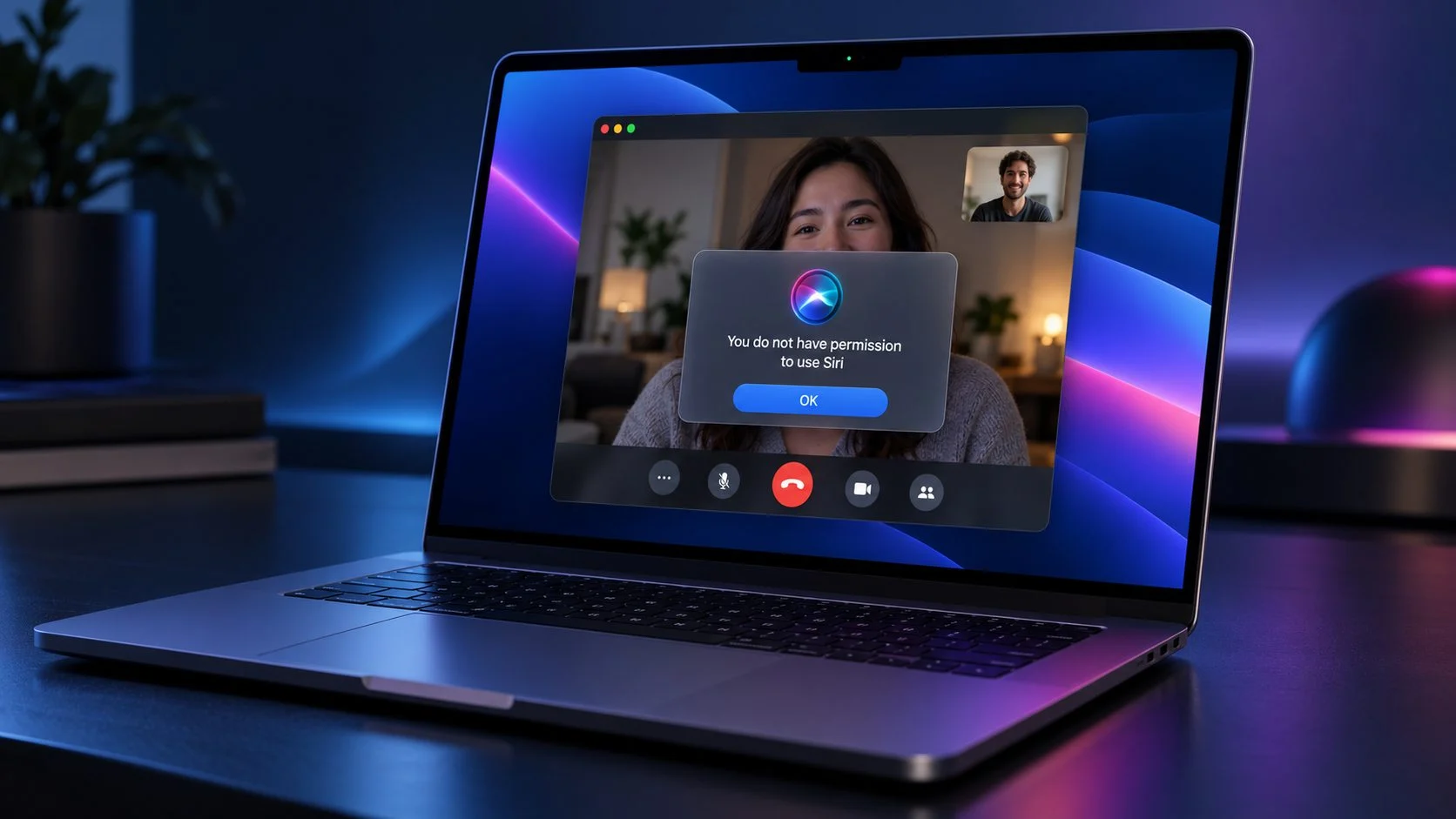
Some macOS 27 users are seeing a strange alert when they answer an incoming FaceTime call:
“You do not have permission to use Siri”
The call itself may connect normally. Audio works, FaceTime continues running, and closing the alert does not end the call.
That makes the message confusing. The user did not ask Siri to do anything.
There is, however, a documented connection between FaceTime and Siri-related services in macOS 27. Apple added Call Context, which can show useful information about the person or business involved in a call. Apple also ties Call Context controls to Siri App Access and Siri Suggestions.
That connection makes Call Context one of the first things worth checking.
Apple has not confirmed that Call Context is causing this specific alert, and the issue is not currently listed as a known macOS 27.2 beta problem. The steps below start with supported settings that can help narrow down the cause without changing hidden macOS preferences.
Start with Siri App Access
Open:
System Settings > Siri > App Access
Apple uses this section to control how Siri works with individual apps.
Depending on the app and your macOS configuration, you may see options such as:
- Learn from this application
- Show Siri Suggestions in application
Check FaceTime first.
If Siri-related options are available for FaceTime, turn them off temporarily. Then quit FaceTime, open it again, and answer another incoming call.
If the warning stops appearing, the problem is probably connected to the Siri Suggestions or Call Context path used during a call.
You can turn the options back on later to confirm the result.
Mail and Messages are also worth checking because Apple says Call Context can use information found in those apps.
Disabling these Siri settings does not disable FaceTime calling. It limits Siri’s access to information from the selected app.
Call Context is the main clue
Apple’s macOS 27 FaceTime documentation says a Call Context card can appear when you start or answer a FaceTime audio call.
The card may contain information related to the caller, including things such as:
- birthdays
- tickets
- order information
- confirmation numbers
- information from Mail or Messages
Apple directs users to Siri settings when explaining how to control this feature.
This gives FaceTime a legitimate reason to contact a Siri-related service when a call starts.
A possible sequence is:
Incoming call > FaceTime connects > Call Context requests Siri-related data > macOS checks Siri access > the permission alert appears
The final step is still an inference. Apple has not published a technical explanation for this particular error.
What Apple has documented is the FaceTime, Call Context, and Siri App Access connection.
Test FaceTime Audio and FaceTime Video separately
Try both types of calls before changing more settings.
Have someone call you using FaceTime Audio. Answer the call and note whether the Siri warning appears.
Then repeat the test with FaceTime Video.
This distinction matters because Apple’s documentation specifically associates Call Context with FaceTime audio calls.
If the result looks like this:
FaceTime Audio: warning appears
FaceTime Video: no warning
Call Context becomes a stronger suspect.
If the alert appears with both audio and video calls, the problem may be lower in the shared FaceTime or Siri services used by macOS.
Either result is useful if you later report the bug to Apple.
Try Siri Classic
macOS 27 includes Apple’s newer Siri AI system, but Apple also provides Siri Classic.
If the warning started after installing macOS 27 or one of the Golden Gate beta releases, changing the Siri mode is a useful test.
Open:
System Settings > Siri
Turn Siri off.
Turn it back on and choose Use Siri Classic if that option is available on your Mac.
Restart the Mac, then answer another FaceTime call.
If the warning disappears with Siri Classic, the newer Siri integration may be involved.
This still does not prove where the bug is located. It does help isolate which part of the system triggers it.
Check Screen Time restrictions
The exact wording of the alert also makes Screen Time worth checking.
Open:
System Settings > Screen Time > Content & Privacy
Look for the Siri or Intelligence and Siri restrictions available on your version of macOS.
Make sure Siri has not been blocked.
The wording and location of these controls can differ between macOS releases and configurations.
If Content & Privacy restrictions are already disabled, move on to the next check.
Check Device Management
A managed Mac can have restrictions that are not controlled through the normal Siri settings.
Open:
System Settings > General > Device Management
Look for configuration profiles or organization management.
This matters most on:
- company Macs
- school Macs
- Macs previously enrolled in device management
- Macs with manually installed configuration profiles
Apple’s device management system allows administrators to restrict Siri and related services.
If the Mac belongs to a company or school, do not remove management profiles just to test FaceTime. Ask the administrator whether Siri has been disabled through MDM.
A personal Mac can also contain configuration profiles, so it is worth checking even if the computer is not currently managed by an organization.
Microphone permission is probably not the problem
FaceTime microphone access can be checked under:
System Settings > Privacy & Security > Microphone
FaceTime should have microphone access if you want to use audio during calls.
Still, microphone permission is unlikely to explain this specific alert when all of the following are true:
- the call connects normally
- the other person can hear you
- you can hear the other person
- closing the Siri warning does not interrupt the call
Microphone permission controls audio capture. The alert specifically refers to permission to use Siri.
If FaceTime audio already works, spending more time resetting microphone access is unlikely to solve this particular problem.
Create a temporary macOS user for one test
A separate macOS user account can tell you whether the problem is tied to your existing account.
Create a temporary local user:
System Settings > Users & Groups > Add User
Sign in to the new account.
Set up FaceTime and test an incoming call.
There are two useful outcomes.
If the Siri warning does not appear in the new account, the problem is probably stored somewhere in your normal user’s Siri, FaceTime, or related preference data.
If the same warning appears in the new account, a system-level macOS problem becomes more likely.
You do not need to move your files or start using the new account permanently. This is only a diagnostic test.
Restart after changing Siri settings
Some Siri and FaceTime services stay active in the background even after their apps are closed.
After changing Siri App Access, switching Siri modes, or changing Screen Time restrictions, restart the Mac before deciding that a setting had no effect.
Then reproduce the issue using the same type of FaceTime call.
Changing several settings at once makes the result harder to interpret. Change one setting, restart if appropriate, and test again.
Update macOS
Open:
System Settings > General > Software Update
Install a newer macOS build if one is available.
This matters more if you are using a beta release.
The reported problem began during the Golden Gate beta period and has continued into later builds for at least some users. A bug inside FaceTime’s interaction with Siri cannot always be fixed from System Settings.
Apple may need to change the underlying macOS code.
Is this a confirmed macOS 27.2 bug?
Apple has not publicly confirmed this exact problem.
As of October 5, 2026, the published macOS 27.2 beta release notes do not list the “You do not have permission to use Siri” alert when answering FaceTime calls.
The absence of an entry does not rule out a macOS bug. Apple’s beta release notes do not contain every reported issue.
For now, the safest description is that this appears to be a macOS 27 FaceTime and Siri integration problem reported by users, with Call Context providing the clearest documented connection between the two services.
Report it through Feedback Assistant
If the problem continues on a current beta build, send Apple a report through Feedback Assistant.
Open Feedback Assistant from Spotlight and include the exact macOS version and build number.
Describe the steps needed to reproduce the problem:
- Receive an incoming FaceTime call.
- Answer it on the Mac.
- The “You do not have permission to use Siri” alert appears.
- Close the alert.
- The FaceTime call continues normally.
Include the results of the audio and video tests if you performed them.
Also mention:
- whether Siri AI or Siri Classic was enabled
- whether disabling Siri App Access changed anything
- whether Screen Time restrictions were enabled
- whether the Mac is managed
- whether the problem also happened in a new macOS user account
Those details give Apple a narrower test case than a report that only says FaceTime displayed an error.
Avoid old Terminal fixes for now
Older Siri troubleshooting guides sometimes recommend commands that modify Siri preference files or kill Siri-related background processes.
I would avoid those methods for this problem unless Apple documents them for macOS 27.
Siri has changed substantially in macOS 27, and commands written for older versions may target settings or services that no longer behave the same way.
The supported controls already give you several safer tests:
- Siri App Access
- Siri Suggestions
- Siri Classic
- Screen Time
- Device Management
- a separate macOS user account
Those tests can narrow down the cause without changing undocumented system settings.
What is most likely happening?
The strongest documented clue is Call Context.
macOS 27 can use Call Context when a FaceTime audio call starts or is answered. Apple manages parts of that feature through Siri access controls.
If macOS tries to request Call Context information while answering the call and encounters an incorrect Siri authorization state, the system could display the permission warning while allowing FaceTime itself to continue.
That explanation fits the reported behavior, but Apple has not confirmed it.
For now, I would start with System Settings > Siri > App Access, test FaceTime Audio separately from FaceTime Video, and then try Siri Classic. If the alert survives those checks on the latest macOS build, the next useful step is a Feedback Assistant report with the exact reproduction steps.