Vipin PG
If you’re switching to a new Apple Watch, selling your current one, or just dealing with a connection issue, removing it the right way matters more than people think, skip a step, and you could end up with a watch that’s still locked to your Apple ID. Here’s the full process, start to finish.
Step 1: Open the Watch App and Keep Both Devices Close
Find the Watch app on your iPhone’s Home Screen, it has a dark watch face icon and comes pre-installed on every iPhone. Before you start, keep your Apple Watch and iPhone near each other so they stay connected over Bluetooth throughout the process.

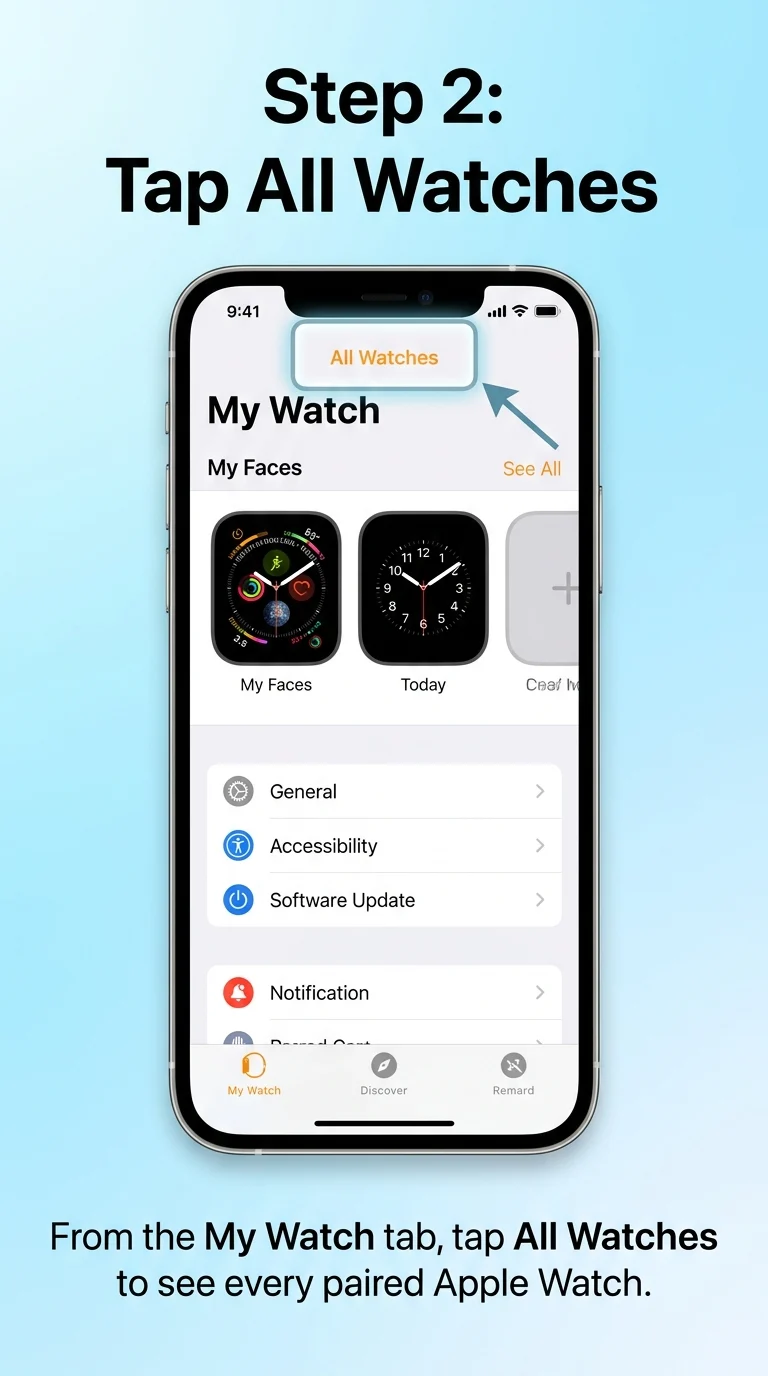
Step 2: Go to My Watch, Then Tap “All Watches”
Inside the Watch app, you’ll land on the My Watch tab by default. Tap “All Watches” at the top of the screen, this shows every Apple Watch that’s ever been paired with this iPhone, not just the one you’re currently wearing.
Step 3: Tap the Info Icon Next to Your Watch
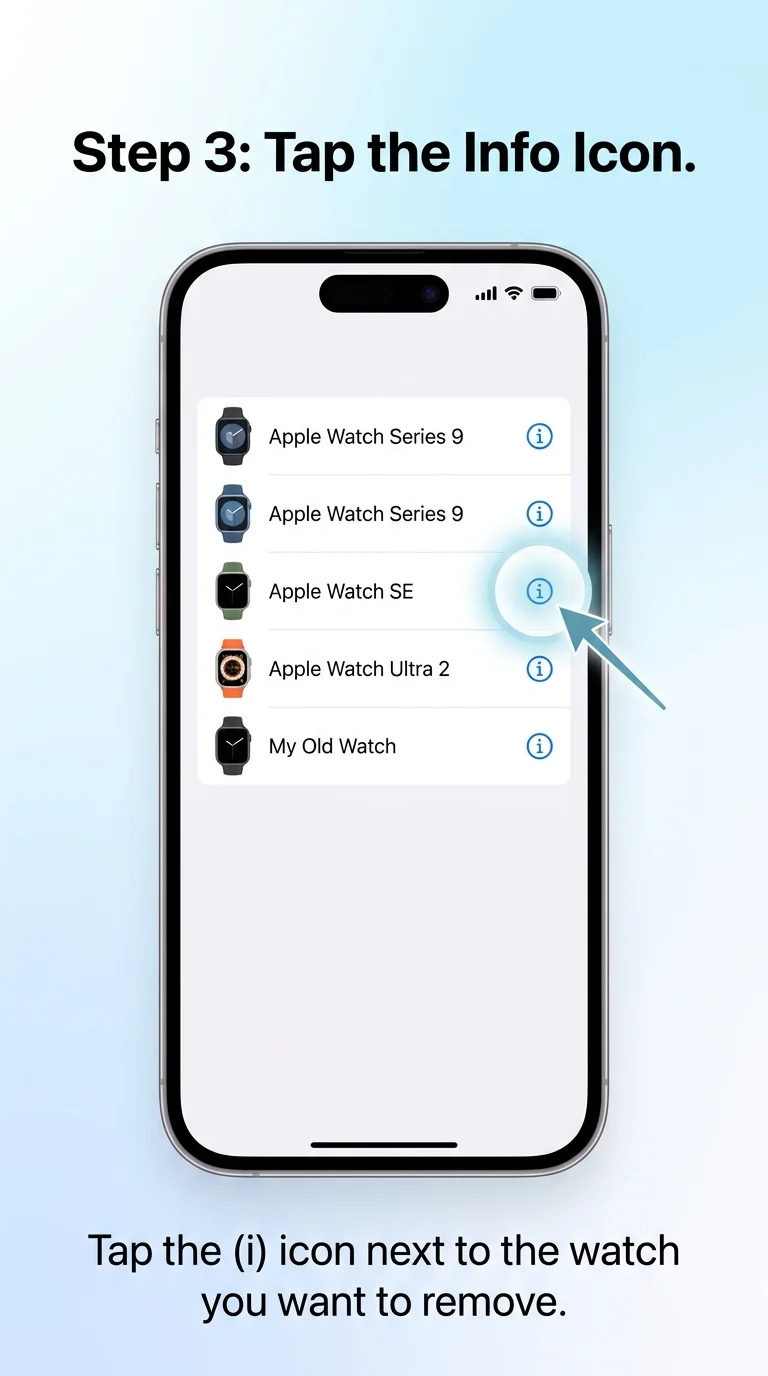
Find the specific watch you want to remove from the list and tap the blue (i) icon beside its name. This opens a dedicated settings page for that watch.
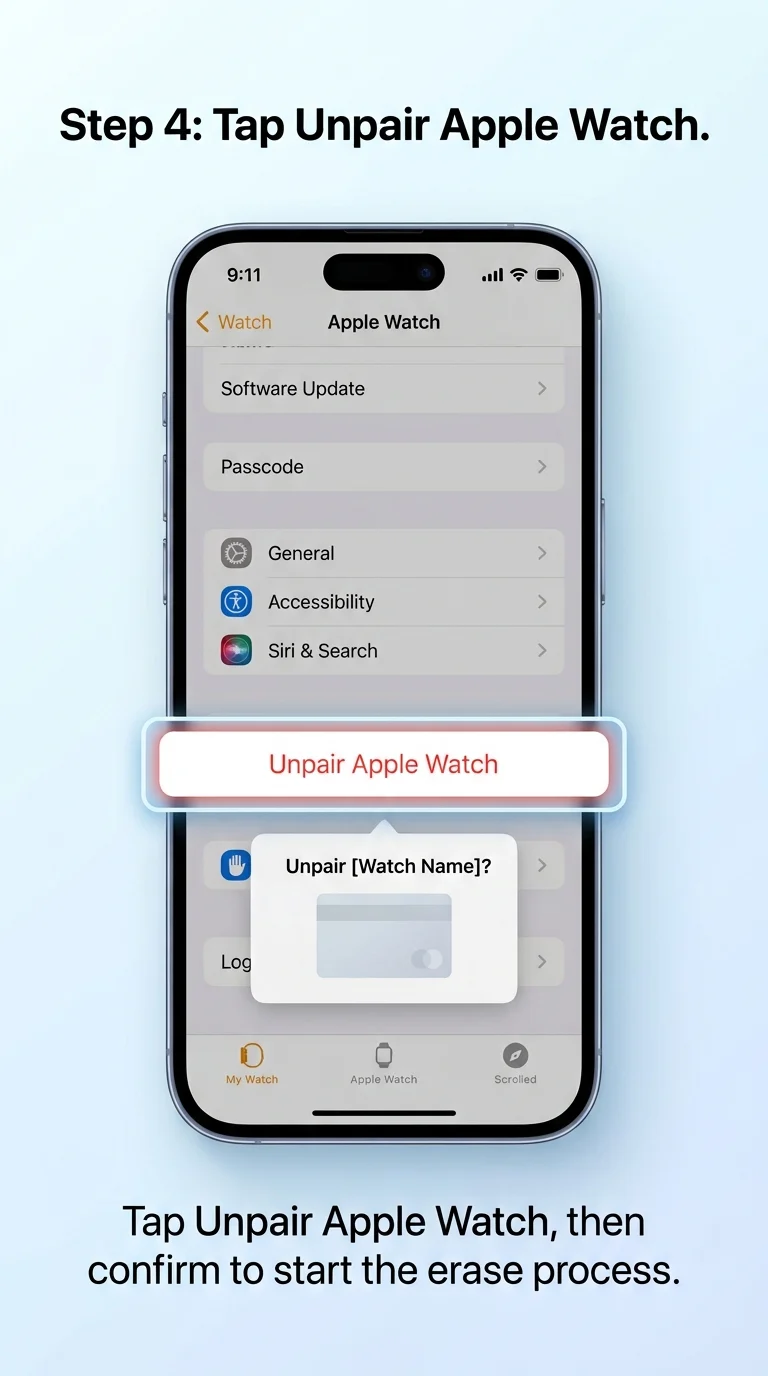
Step 4: Tap “Unpair Apple Watch”
Scroll down on the watch’s settings page and tap “Unpair Apple Watch,” then tap “Unpair [your watch’s name]” again to confirm. This starts the full erase process, which automatically wipes everything on the watch, including any Apple Pay cards.
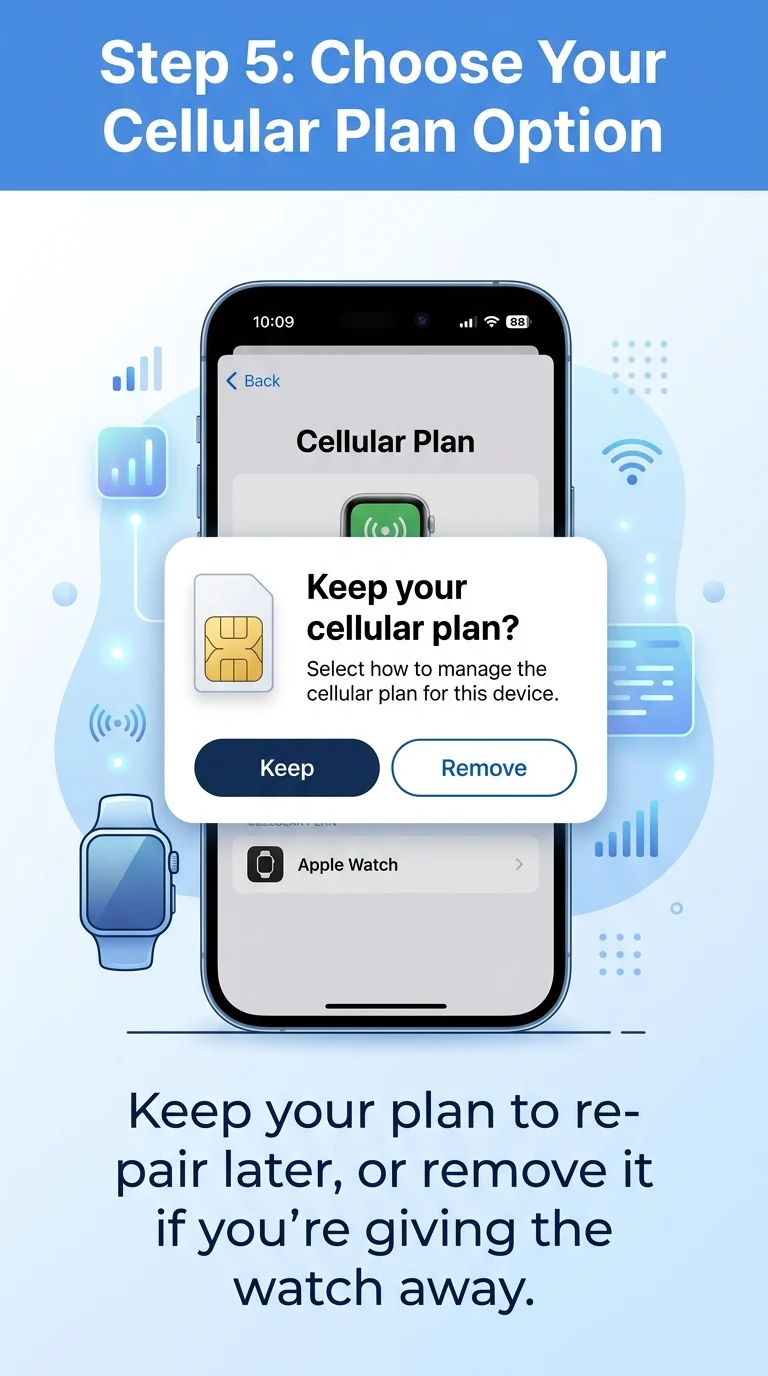
Step 5: Choose What Happens to Your Cellular Plan (If Applicable)
If your Apple Watch has a cellular plan, you’ll be asked whether to keep or remove it. Keep it if you plan to pair this same watch again later. Remove it if you’re selling, gifting, or trading the watch in, you may also need to contact your carrier separately to fully cancel the line.
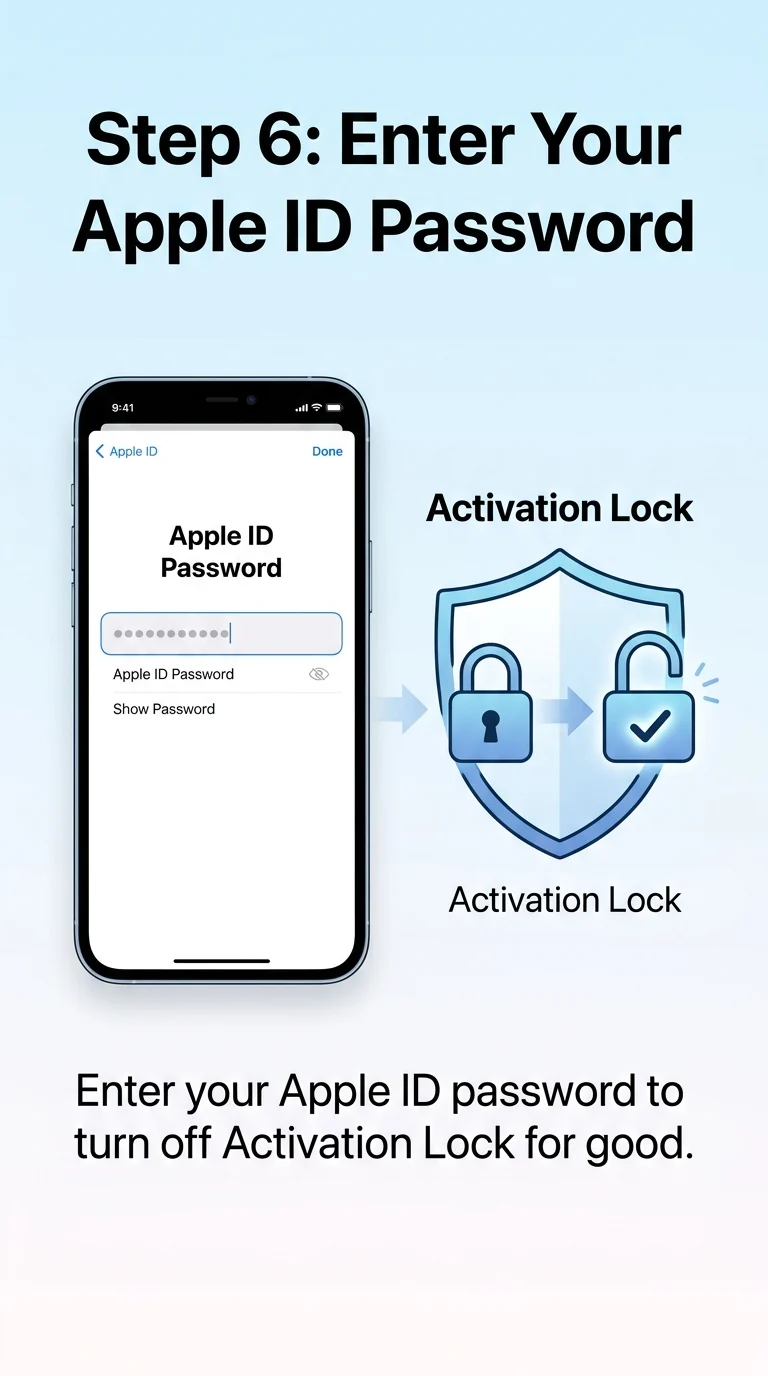
Step 6: Enter Your Apple ID Password to Turn Off Activation Lock
Type your Apple ID password when prompted, then tap Unpair one last time. This is the step that actually turns off Activation Lock, the security feature tying the watch to your account, it’s the one thing that simply turning off Bluetooth or deleting the Watch app will never do, which is exactly why those shortcuts aren’t the right way to remove a watch.
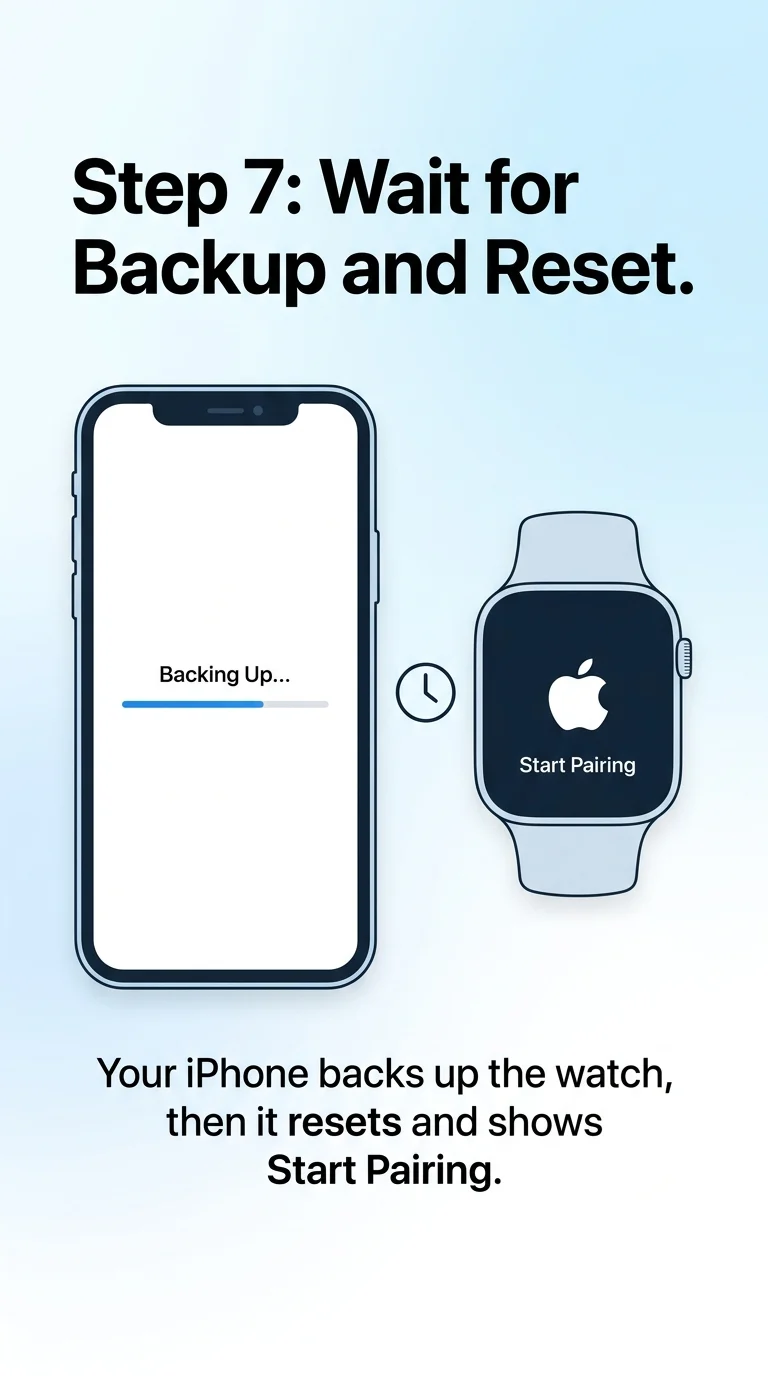
Step 7: Wait for the Backup, Then Confirm the Reset
Before erasing anything, your iPhone creates a fresh backup of your Apple Watch’s data, including most of your settings and health information, so don’t close the app early. Once it’s done, the watch resets itself to factory settings and shows the “Start Pairing” screen, confirming it’s fully disconnected and ready to be set up again, sold, or given away.
Why This Method Is the Right Way
Unpairing through the Watch app does more than disconnect your Apple Watch, it backs up your data, erases everything on the watch (including Apple Pay cards), and removes Activation Lock so it can be paired again by you or someone else. Shortcuts like turning off Bluetooth or just deleting the Watch app skip all of that, which is exactly why this method is the right way to remove an Apple Watch from your iPhone.