Vipin PG
CE-37813-2 is a PlayStation Network connectivity error that appears when your PS4 tries to reach Sony’s servers but the connection fails or times out. It can happen on both Wi-Fi and LAN, and it’s almost always tied to your network setup rather than a fault with your console itself. Here’s how to work through it, from the quickest fix to the more thorough ones.
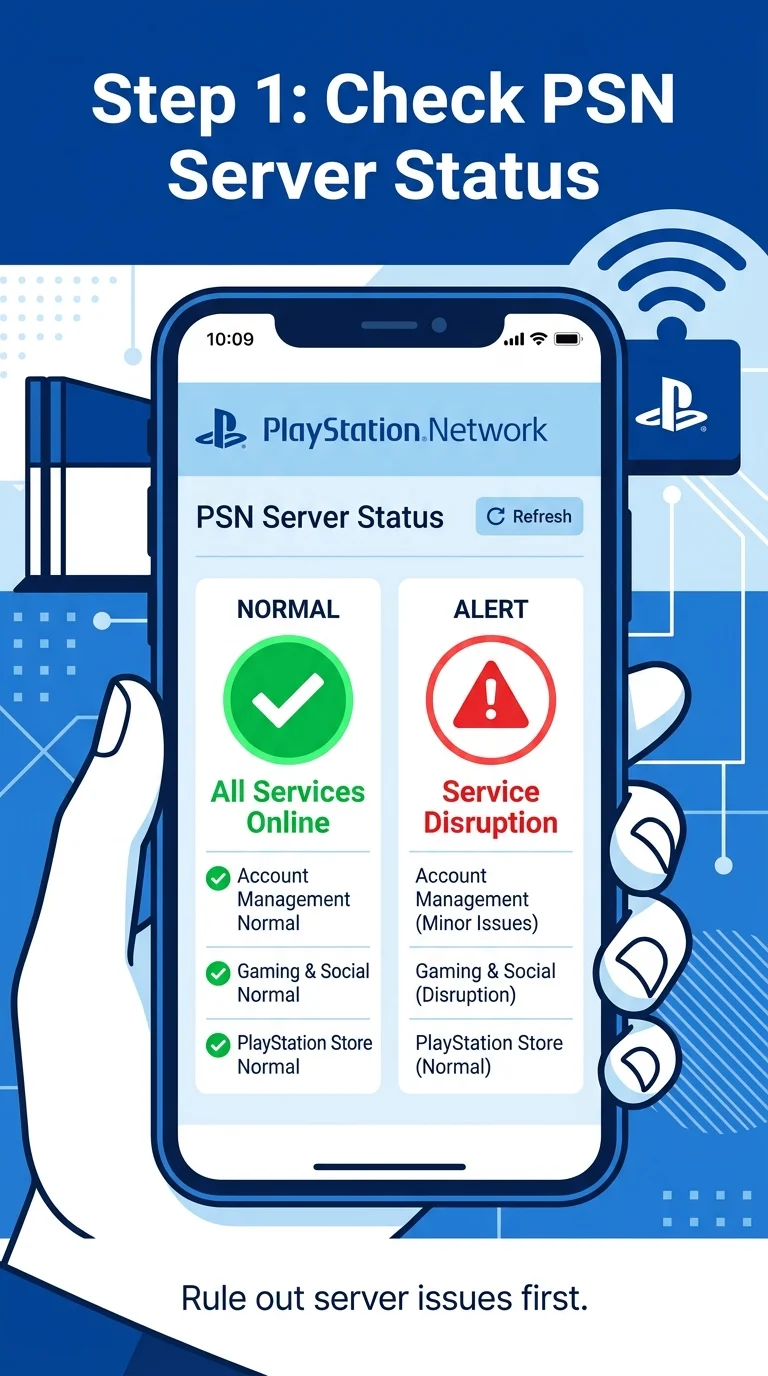
Step 1: Check the PlayStation Network Status Page
Before touching any settings, rule out the simplest cause: Sony’s servers might be down for maintenance or dealing with an outage. Open a browser on your phone or PC and visit the official PlayStation Network status page. If it shows an issue with PSN sign-in or gameplay services, there’s nothing to fix on your end — just wait it out and try again later.
Step 2: Restart Your PS4 and Router
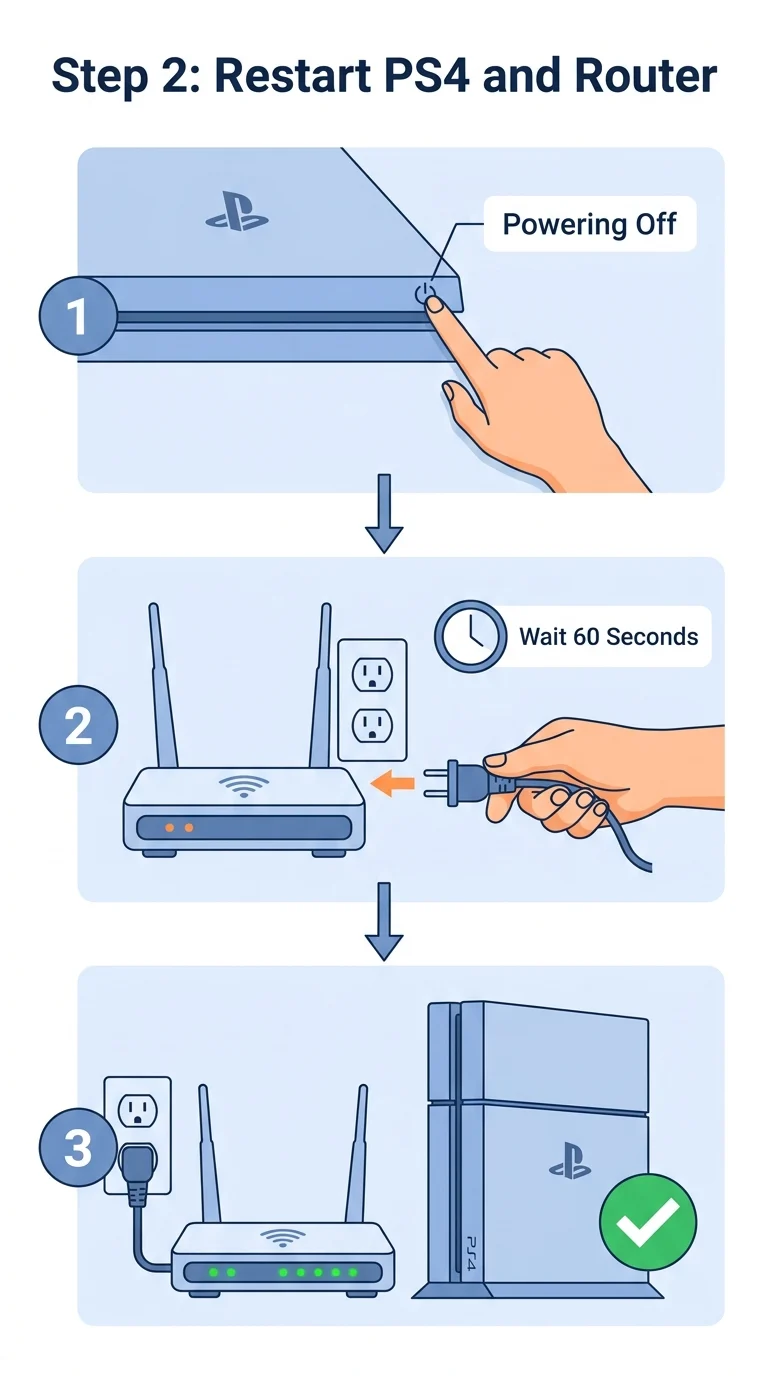
If PSN is online and the error is still happening, a full power cycle clears out temporary connection glitches. Turn off your PS4 completely (don’t just put it to rest mode), unplug your router and modem, wait about 60 seconds, then plug everything back in. Let the router fully reconnect before turning the PS4 back on.
Step 3: Switch to a Wired (LAN) Connection
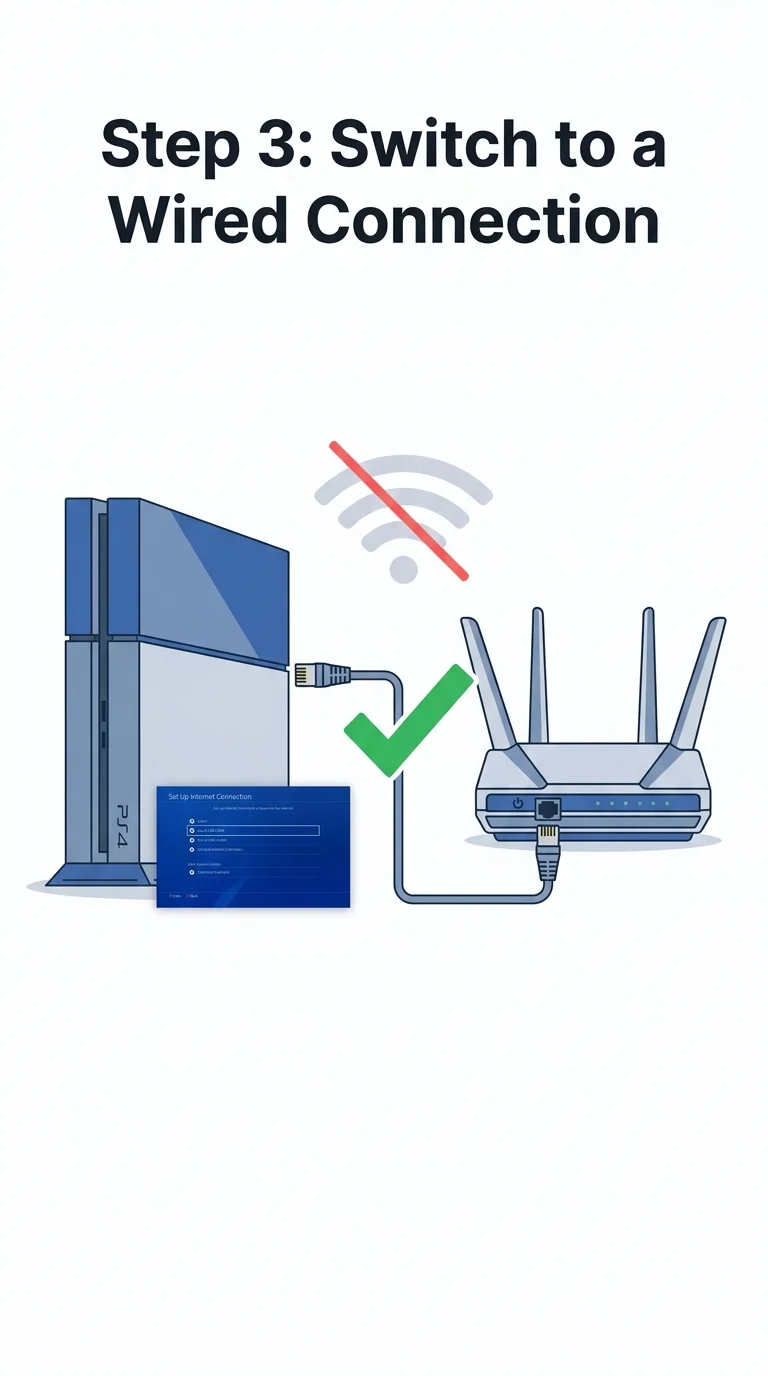
Wi-Fi interference or a weak signal is one of the most common causes of CE-37813-2. If you have an Ethernet cable available, connect it directly from your router to your PS4. Go to Settings > Network > Set Up Internet Connection and choose Use a LAN Cable. A wired connection is more stable and often resolves the error immediately.
Step 4: Set a Manual DNS on Your PS4
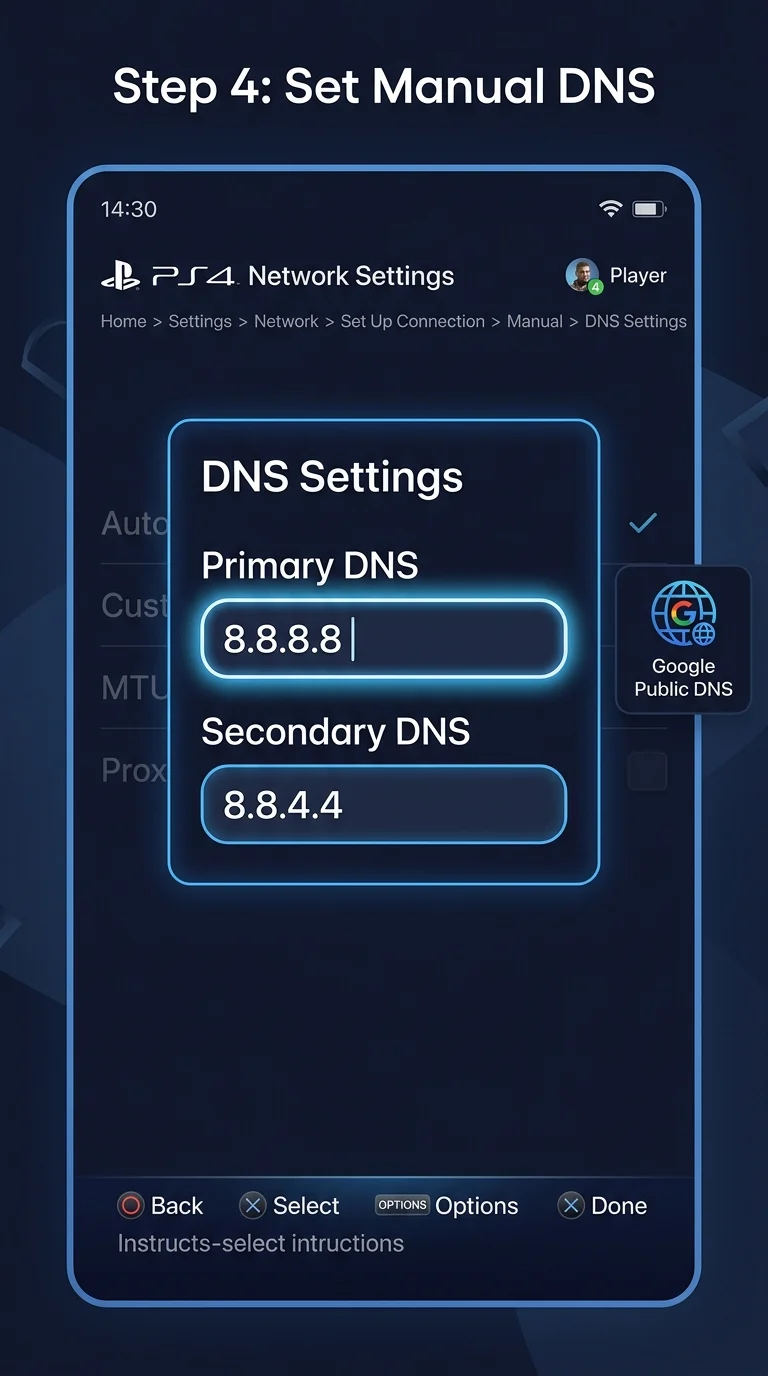
Your default DNS server (usually provided by your ISP) can sometimes be inconsistent, causing PSN connection failures. Switching to a public DNS often stabilizes the connection. Go to Settings > Network > Set Up Internet Connection, choose Custom, keep IP Address Settings on Automatic, then set DNS Settings to Manual. Enter 8.8.8.8 as the Primary DNS and 8.8.4.4 as the Secondary DNS, then continue with the default settings for the remaining steps.
Step 5: Rebuild the PS4 Database in Safe Mode
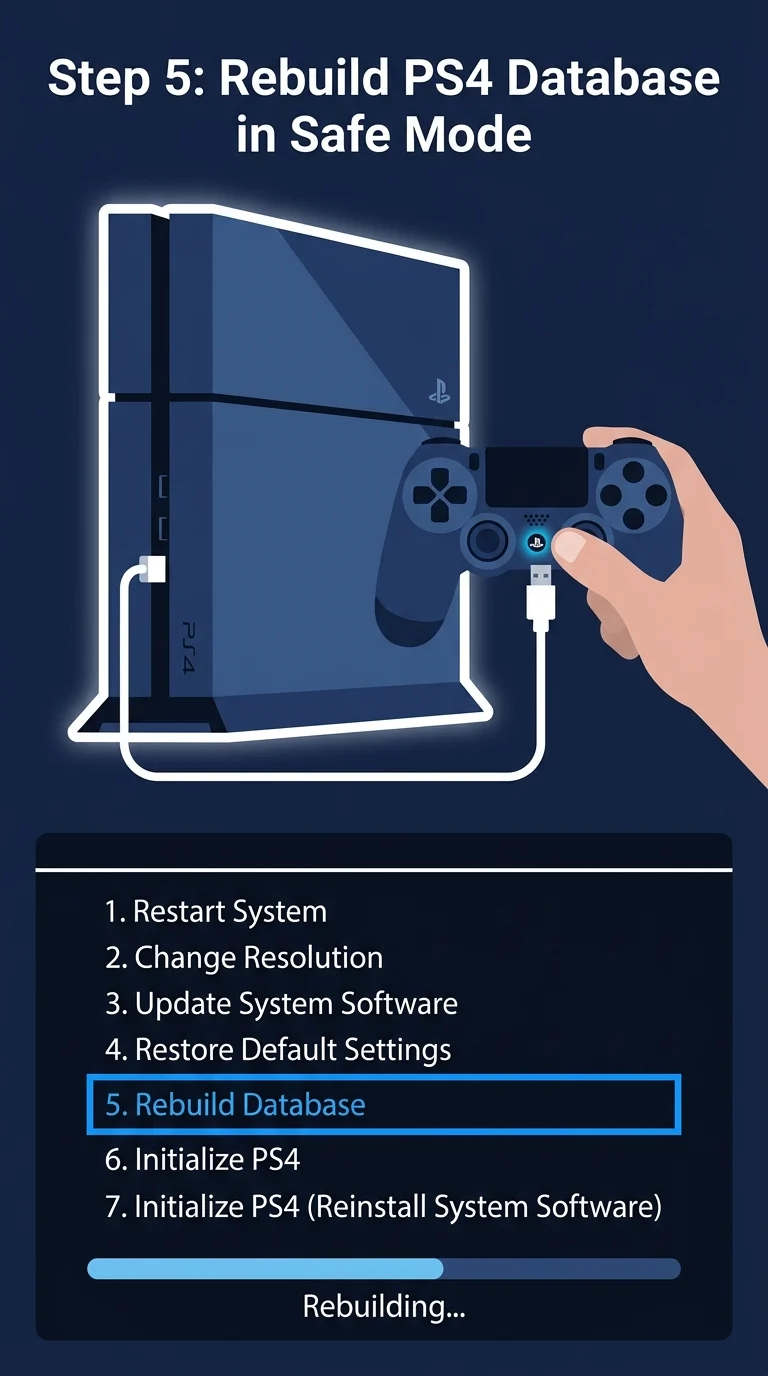
If the error persists, a corrupted system database could be the culprit — especially if it started right after a system update. Rebuilding the database doesn’t delete your saved games or data. Turn off the PS4 completely. Press and hold the Power button until you hear a second beep (about 7 seconds), then release it. Connect your controller with a USB cable and press the PS button to enter Safe Mode. Select Rebuild Database and let the process finish.
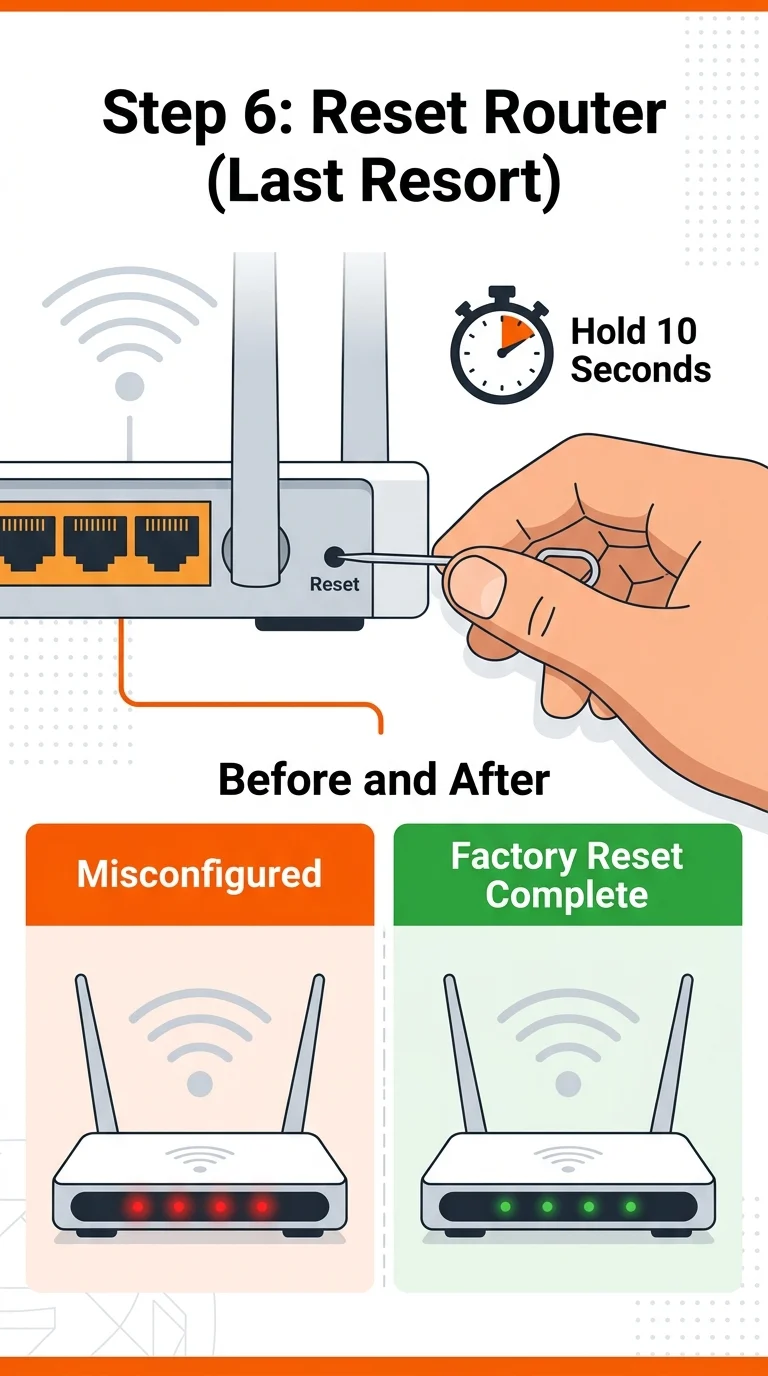
Step 6: Reset Your Router to Factory Settings
If none of the above works, the issue may be with your router’s configuration rather than the PS4. As a last resort, reset your router to factory settings using the small reset button (usually held for 10 seconds), then set up your Wi-Fi network again and reconnect your PS4. This clears any misconfigured settings, blocked devices, or outdated firmware conflicts that could be triggering the error.
Conclusion
CE-37813-2 almost always comes down to a shaky connection between your PS4 and the PlayStation Network — whether that’s a server hiccup, weak Wi-Fi, outdated DNS, or a database glitch. Working through these steps in order, from the simple restart to a full database rebuild, resolves the error for the vast majority of PS4 users without needing a trip to a repair shop.