Vipin PG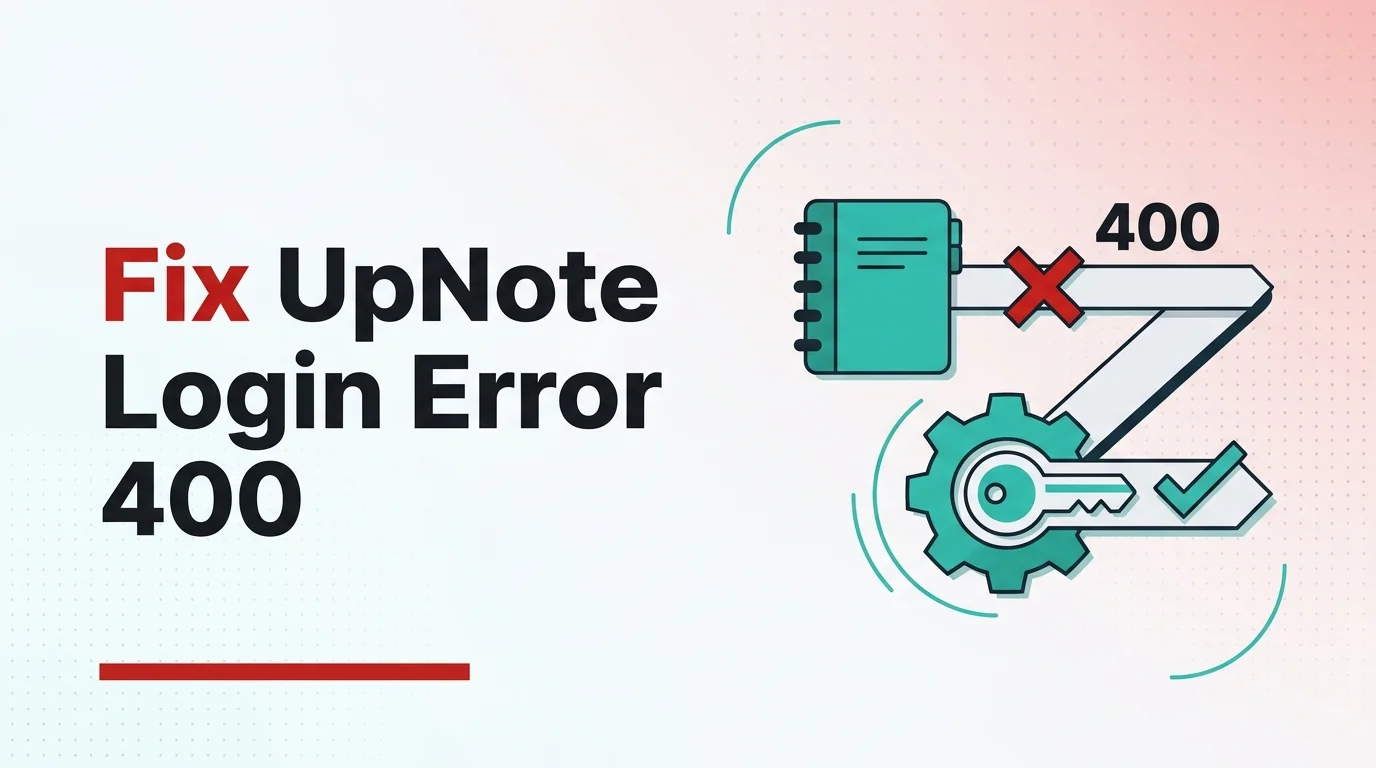
I ran into this while trying to sign in to UpNote on my Mac. The app just wouldn’t log in, and instead threw this cryptic error:
“Request failed with status code 400: POST https://us-central1-get-senna.cloudfunctions.net/createACToken”
No explanation, no obvious next step — just a broken sign-in and a URL that looked like something meant for developers, not regular users. Since I couldn’t find a clear answer anywhere, I went through the troubleshooting myself, step by step, until I found the actual cause. Here’s everything I tried, in order, and what finally explained it.
Step 1: Update UpNote to the Latest Version
The first thing I checked was whether I was running an outdated version, since a similar-looking error (“firebase-app-check-token-is-invalid”) is known to get fixed by updating. I went to Settings > Help > Check for updates, and confirmed I was already on the latest version, 9.19.1. That ruled out the most common fix right away.
Step 2: Clear UpNote’s Local App Data
Next, I figured a corrupted or stuck local cache might be causing the sign-in token to fail. I fully quit UpNote and deleted its local data folder:
~/Library/Containers/com.getupnote.desktop/Data/Library/Application Support/UpNote/
I relaunched the app and tried signing in fresh. Same error, no change. This ruled out a local cache issue.

Step 3: Check the System Clock
Firebase App Check tokens are time-sensitive, so even a small clock drift can cause a login to be rejected. I checked System Settings > General > Date & Time and confirmed “Set automatically” was already enabled. Not the cause either, but worth ruling out since it’s a two-second check.
Step 4: Test the Network — Disable Pi-hole and Change DNS
Since I run Pi-hole with DNS-over-HTTPS at home, my next suspicion was that a blocklist was silently blocking Google/Firebase or Apple’s App Attest domains. I disabled Pi-hole and also changed my DNS settings directly to rule out any filtering. I tried signing in again. Still the exact same 400 error. This ruled out DNS and local network blocking entirely.
Step 5: Check Console.app for the Real Error
With hardware and network ruled out, I opened Console.app to see if there was a more specific error hiding behind the generic 400 message. This is a good habit for any app-level login failure on Mac — it often reveals whether the problem is local (like a failed device attestation) or purely server-side.
Step 6: The Real Cause — Confirmed by UpNote Support
After ruling out the app version, local cache, system clock, and the entire network path, I checked UpNote’s own help documentation directly for this exact error message. That’s where I found the real answer: UpNote’s support page confirms this specific 400 error on the createACToken request is caused by high load on their servers, and they were actively working on resolving it.
In other words — nothing on my end was ever going to fix it. It wasn’t my Mac, my network, or my DNS. It was UpNote’s backend struggling with request volume.
What to Do If You See This Error
- Don’t panic — it’s very likely not your device or account.
- Confirm you’re on the latest UpNote version, just to rule that path out.
- Wait a few hours and try signing in again — the issue tends to be intermittent, tied to load spikes rather than a full outage.
- Keep using UpNote normally while signed out; your notes will sync automatically once sign-in works again.
- If it persists for several days, reach out to UpNote support directly with the exact error text.
If you’ve been staring at this same error message wondering what’s broken on your end — nothing is. It’s a temporary backend load issue on UpNote’s side, and the only real fix right now is a bit of patience.