 Vipin PG
If a YouTube video suddenly has no sound, the cause is usually something small and quick to fix rather than a deeper technical problem. Go through the steps below in order — most people find the fix within the first two or three steps.
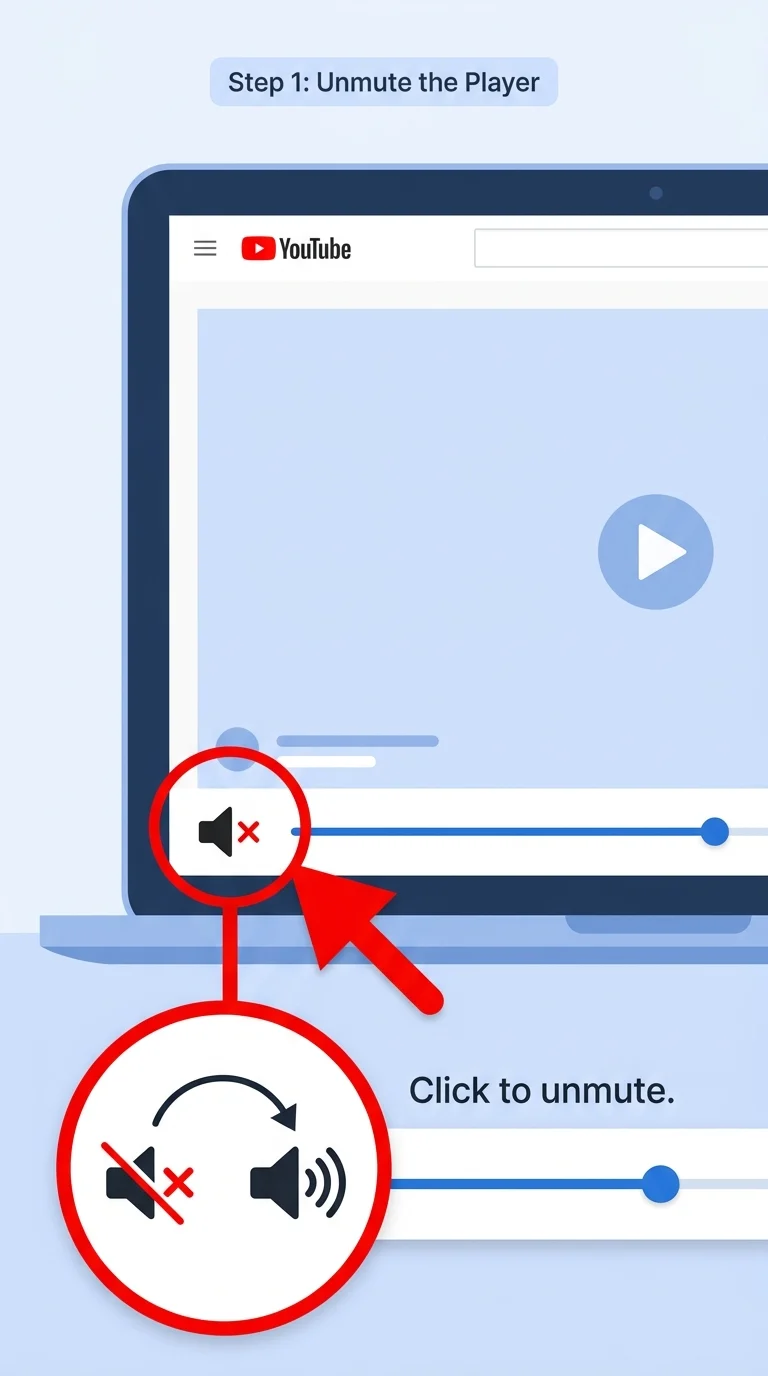
Step 1: Check YouTube’s Own Volume Slider and Mute Icon
Look at the bottom-left corner of the YouTube video player. There’s a small speaker icon next to the volume slider. Click it once to make sure it isn’t muted, then drag the slider to the right to confirm the volume is turned up. It’s easy to accidentally click this icon while trying to pause or skip the video.
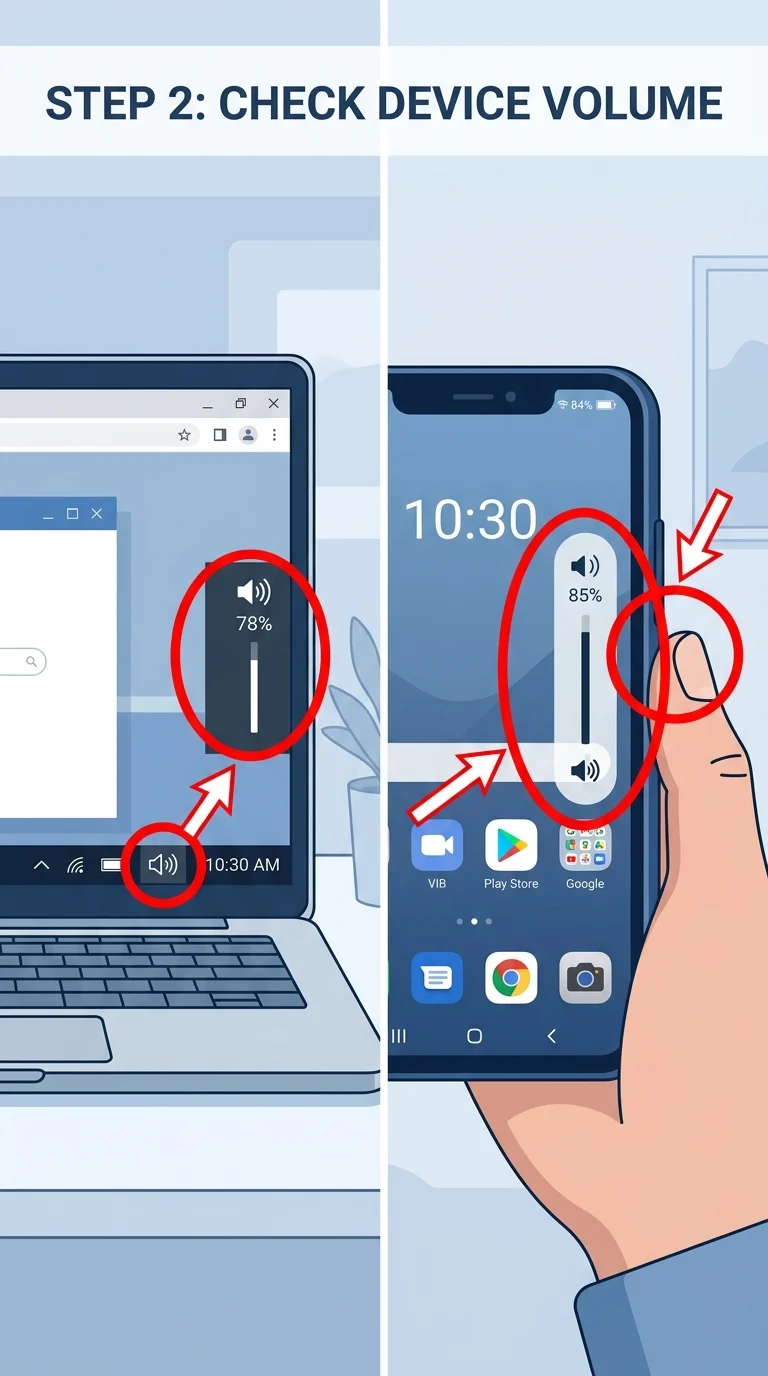
Step 2: Check Your Device’s System Volume
Separate from YouTube, your computer, phone, or tablet has its own master volume. Check the volume buttons on your device or the speaker icon in your taskbar/control center to make sure it isn’t muted or set to zero. On Windows, click the speaker icon in the bottom-right corner. On Mac, check the speaker icon in the top menu bar. On phones, use the physical volume buttons.
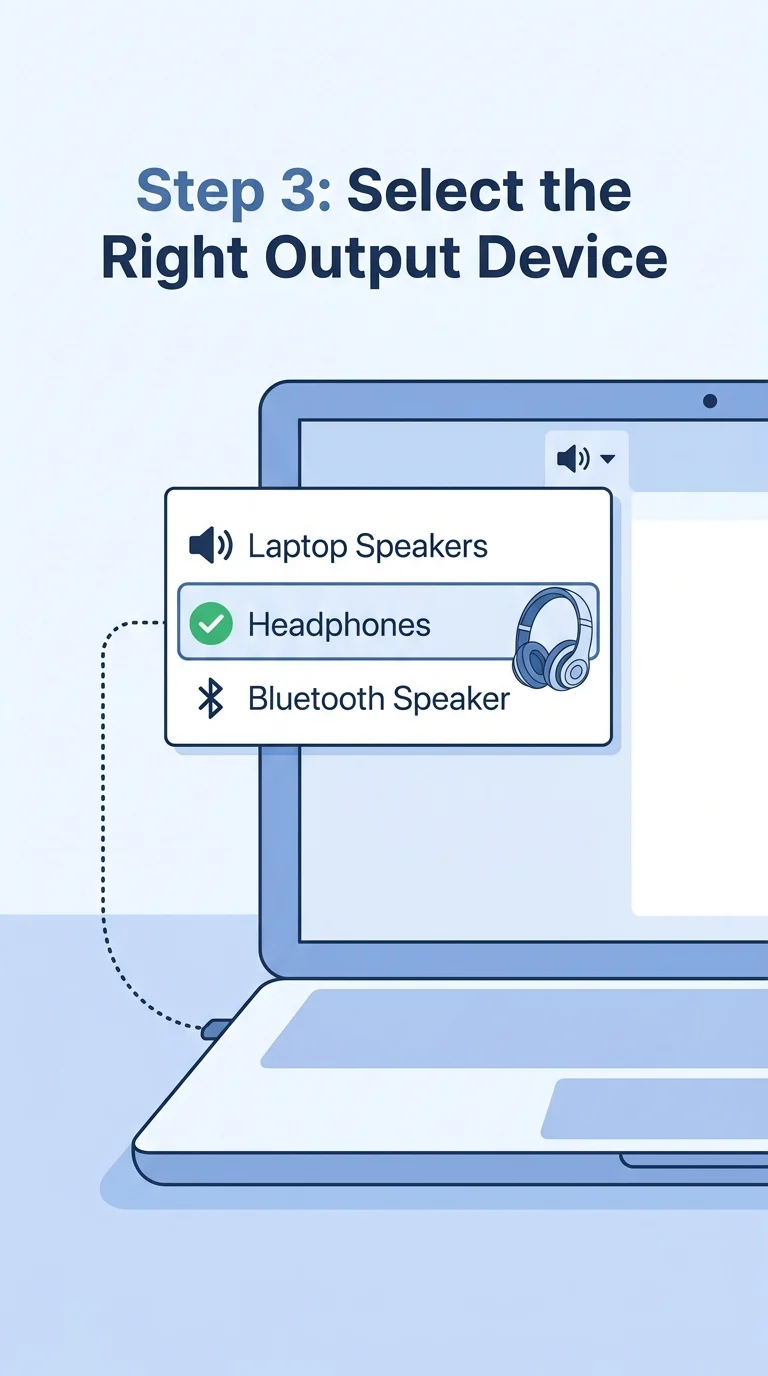
Step 3: Confirm the Correct Speaker or Headphone Is Selected
If you have headphones, Bluetooth speakers, or multiple audio devices connected, your computer might be sending sound to the wrong one. Right-click the speaker icon in your taskbar (Windows) or check Sound settings (Mac), and make sure the output device you’re actually using — like your headphones or laptop speakers — is selected.
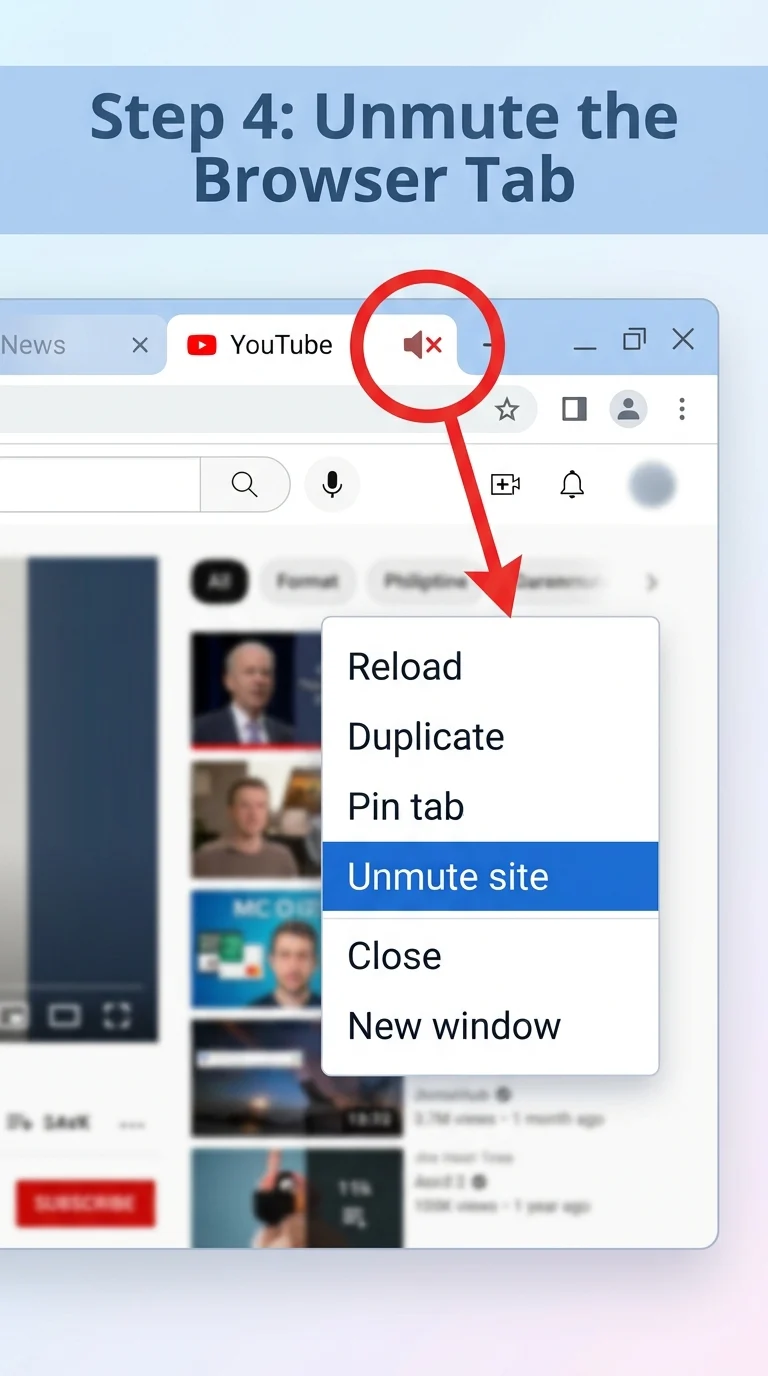
Step 4: Unmute the Browser Tab
Browsers like Chrome, Edge, and Firefox let you mute individual tabs. If you accidentally muted the YouTube tab, you’ll see a small speaker-with-a-line-through-it icon on the tab itself. Right-click the tab and select “Unmute site,” or click directly on that small icon.
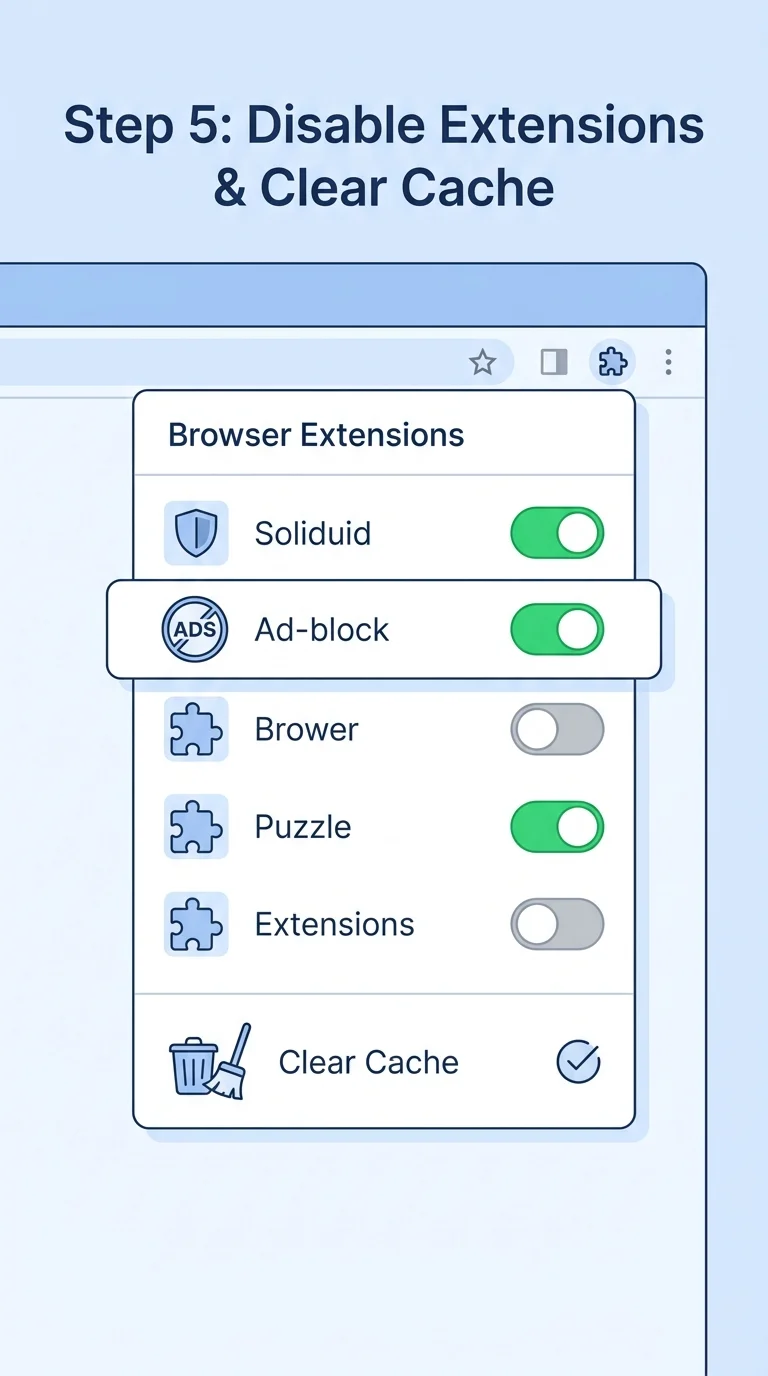
Step 5: Turn Off Browser Extensions and Clear Cache
Ad blockers, privacy extensions, or script blockers can sometimes interfere with a video’s audio without blocking the video itself. Temporarily disable your extensions (or try YouTube in an Incognito/Private window, which disables most extensions automatically) and see if sound returns. If it does, clearing your browser cache and cookies afterward often prevents the issue from coming back.
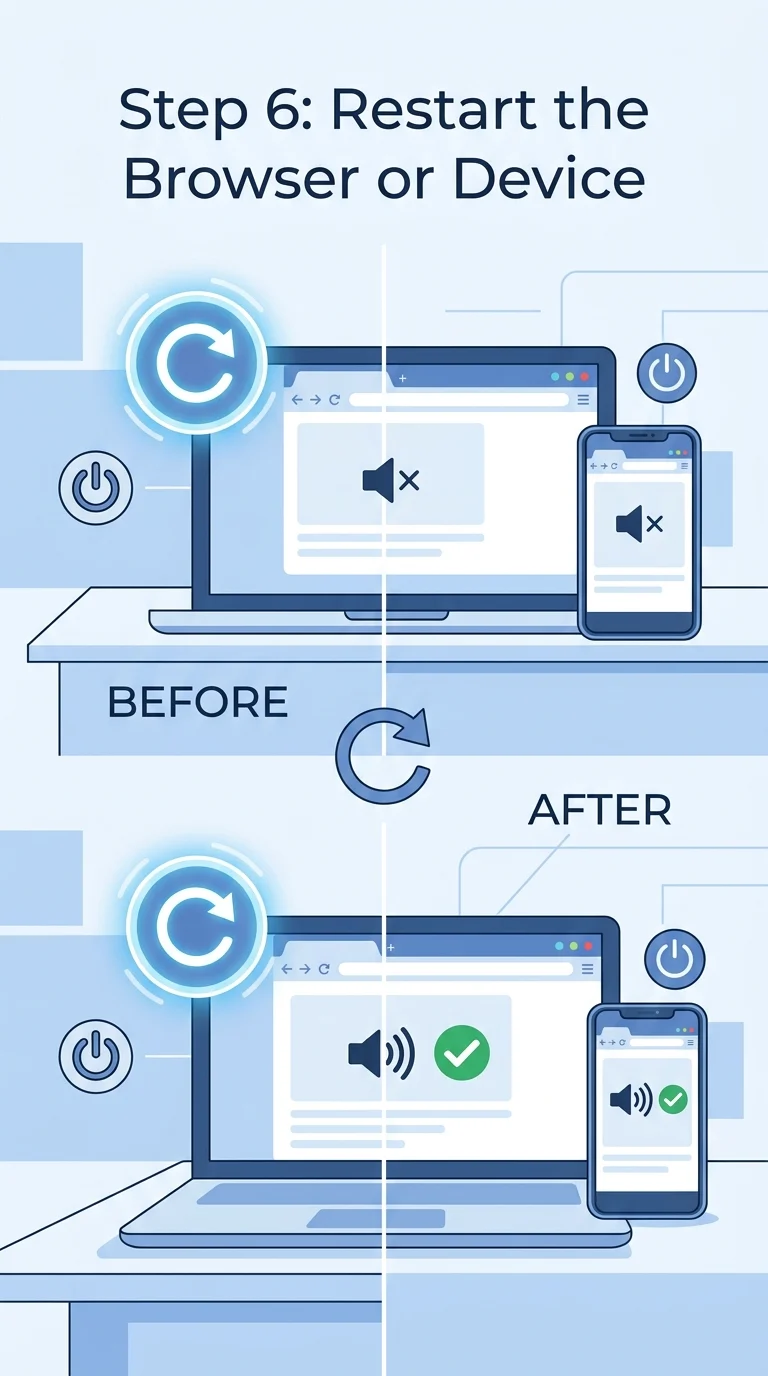
Step 6: Restart Your Browser, App, or Device
A simple restart clears out temporary glitches that cause audio to stop working. Fully close your browser (not just the tab) or the YouTube app and reopen it. If that doesn’t help, restart your device completely — this resolves most lingering audio driver or system glitches.
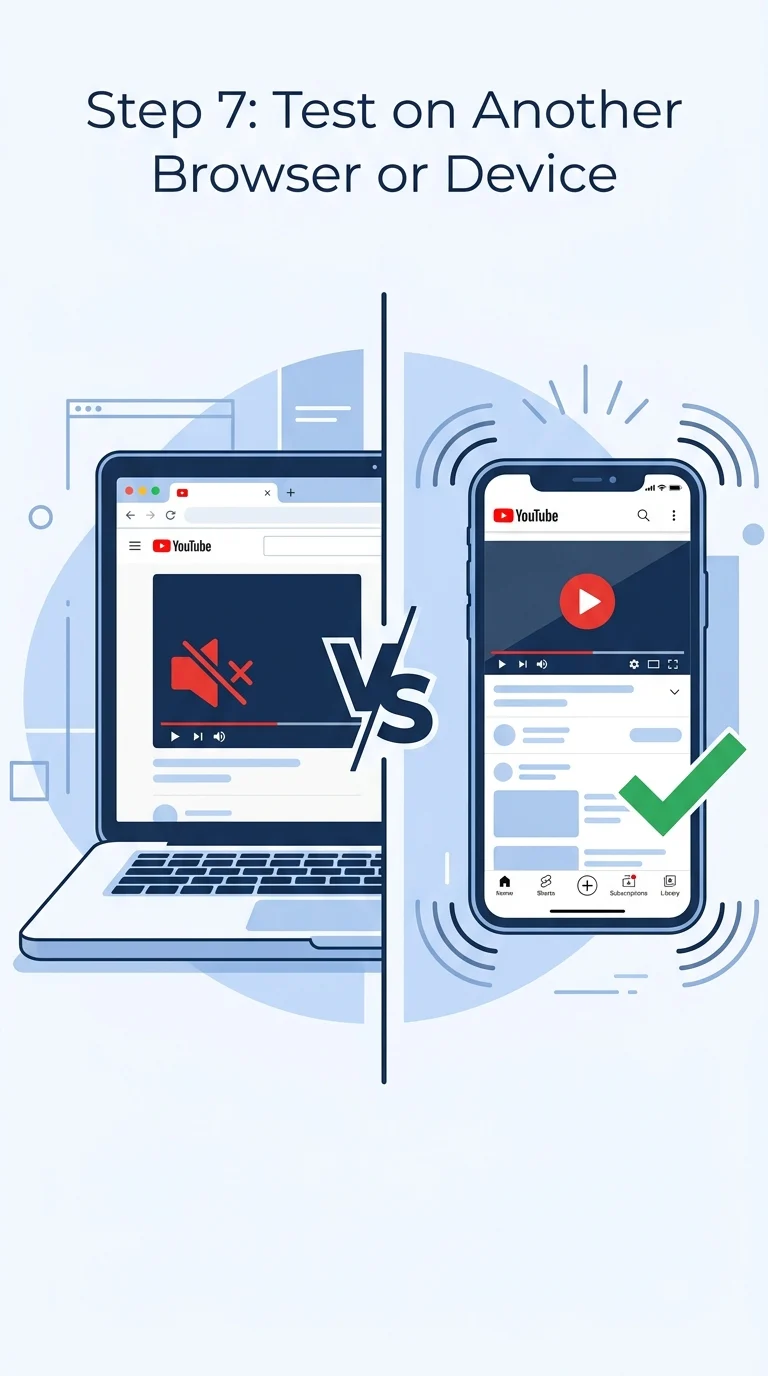
Step 7: Try a Different Browser or Device to Isolate the Problem
If none of the above worked, open YouTube in a different browser (or on your phone if you were using a computer). If sound works fine there, the issue is specific to your
original browser or device settings, not YouTube itself — which narrows down what to fix next.
Conclusion
No volume on YouTube is rarely a serious problem — it’s almost always one of these seven quick checks, starting with the player’s own mute icon and working through your device, browser, and output settings. Following these steps in order gets your sound back in just a few minutes without needing any technical troubleshooting beyond what’s covered here.