Vipin PG
When Windows shows an "Out of Memory" or "Your computer is low on memory" error, it means the system has run out of both physical RAM and page file space to run your programs safely. This can happen even on PCs with a lot of RAM if a single app or background process is leaking memory. Below are the fixes in the order you should try them, from quick and safe to more advanced.
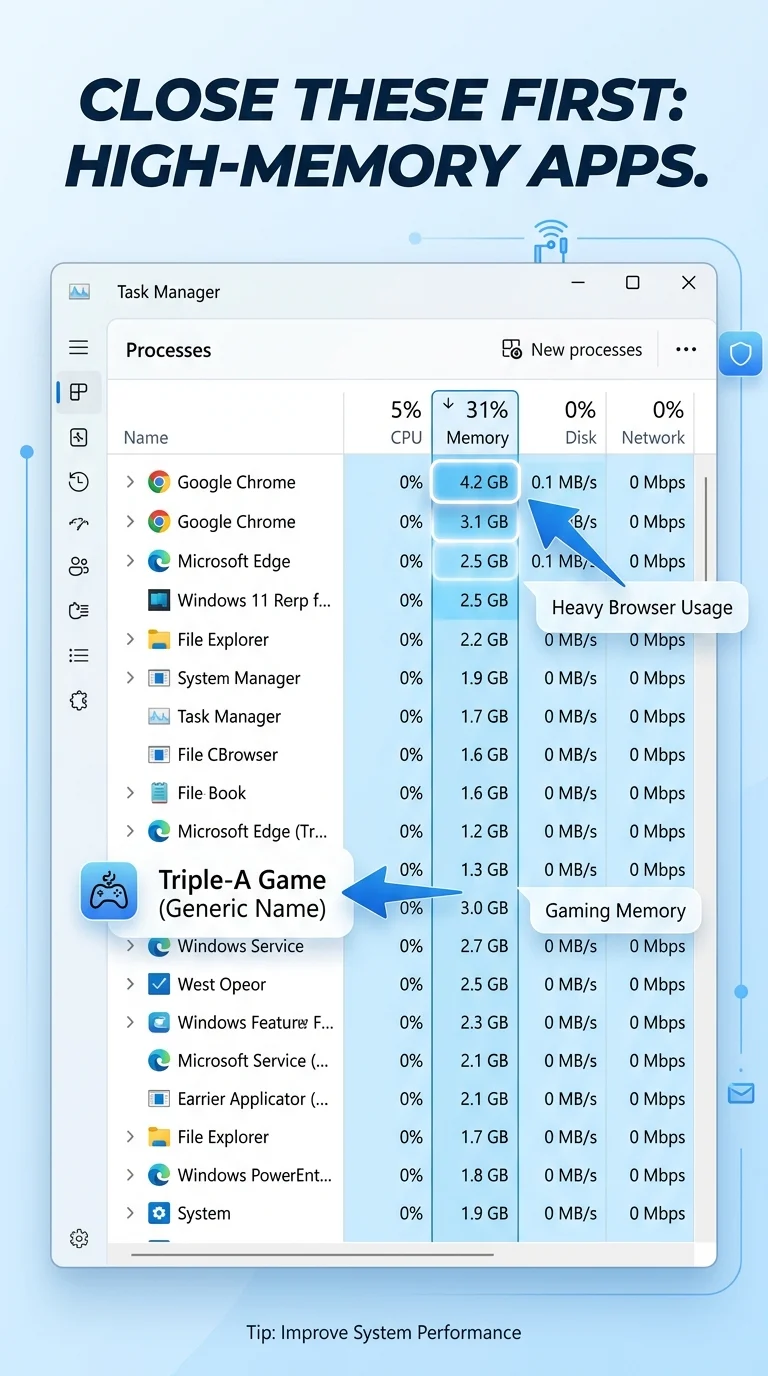
Step 1: Close Memory-Heavy Apps and Browser Tabs
Open Task Manager (Ctrl + Shift + Esc), click the "Memory" column to sort by usage, and close any app or browser using an unusually large amount of RAM. Browsers with many open tabs are one of the most common causes of this error.
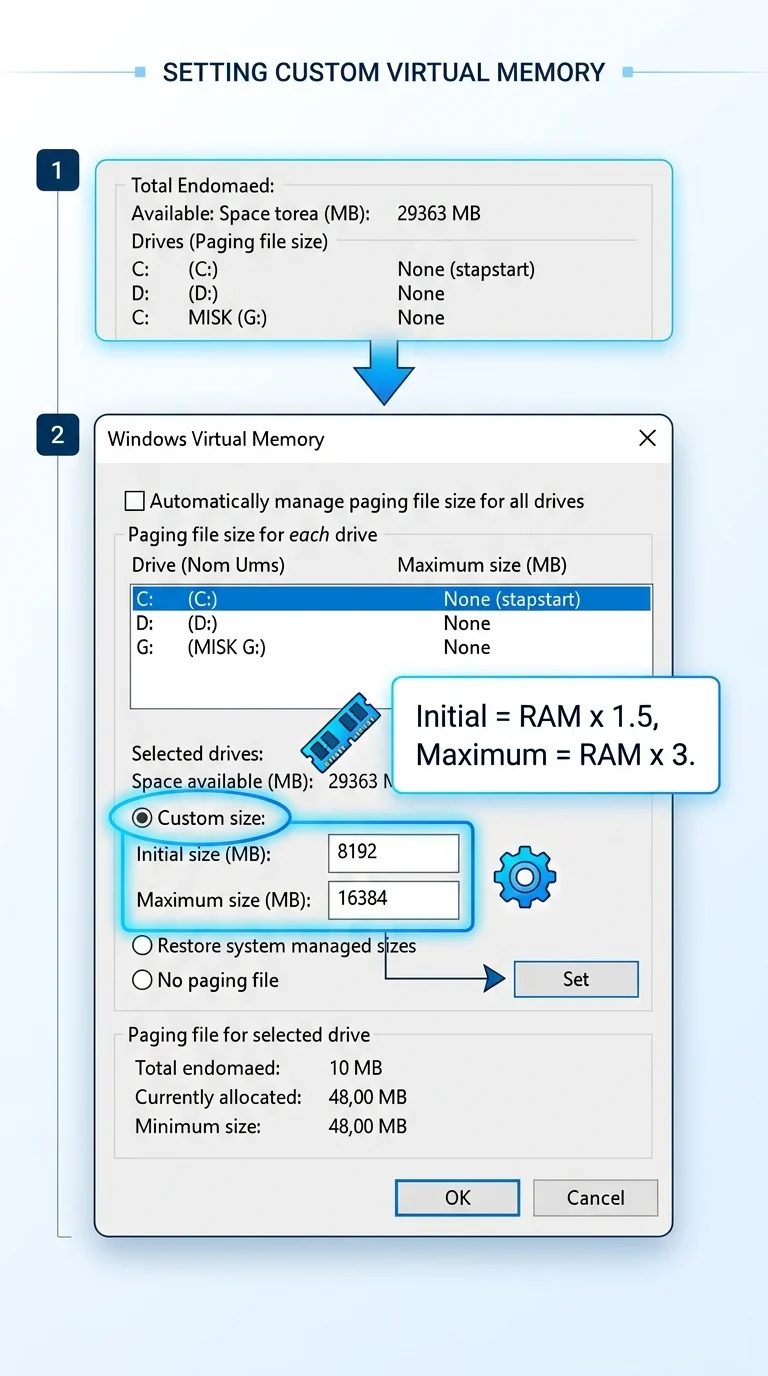
Step 2: Increase Virtual Memory (Page File) Size
Go to Settings > System > About > Advanced system settings > Performance Settings > Advanced tab > Virtual Memory > Change. Uncheck "Automatically manage paging file size," select your system drive, choose "Custom size," and set the initial and maximum size to about 1.5x and 3x your physical RAM (in MB). Click Set, then OK, and restart your PC.
Step 3: Disable Unnecessary Startup Programs
Open Task Manager, go to the "Startup apps" tab, and disable programs you don't need running in the background at boot. Fewer background processes means more memory stays free for the apps you're actively using.

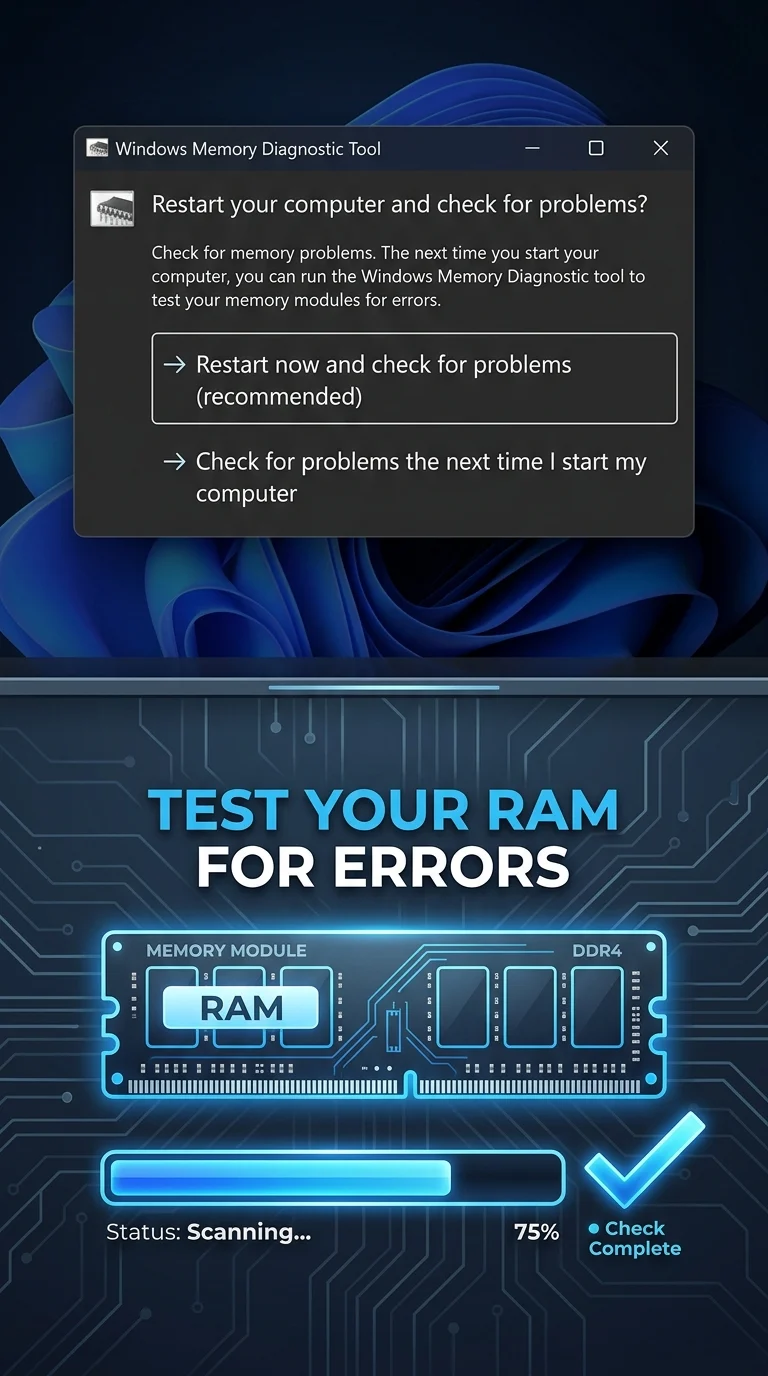
Step 4: Run Windows Memory Diagnostic Tool
Type "Windows Memory Diagnostic" into the Start menu search and open it. Choose "Restart now and check for problems." Your PC will restart and scan the RAM for hardware errors, showing results after you log back in.
Step 5: Update Outdated Device Drivers
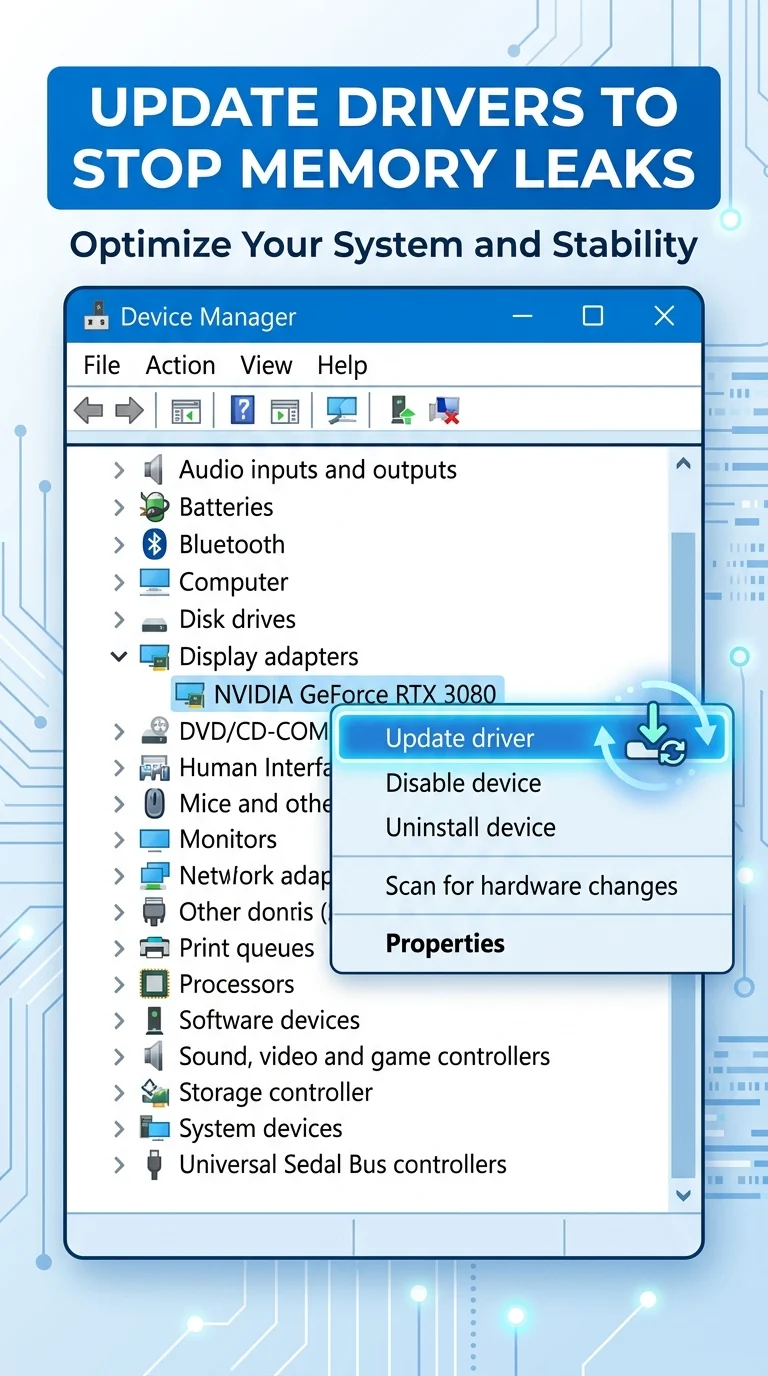
Open Device Manager, especially checking display, chipset, and storage drivers, since outdated ones can cause memory leaks. Right-click each device, select "Update driver," and choose "Search automatically for drivers." Restart your PC after updates finish.
Step 6: Scan Your PC for Malware
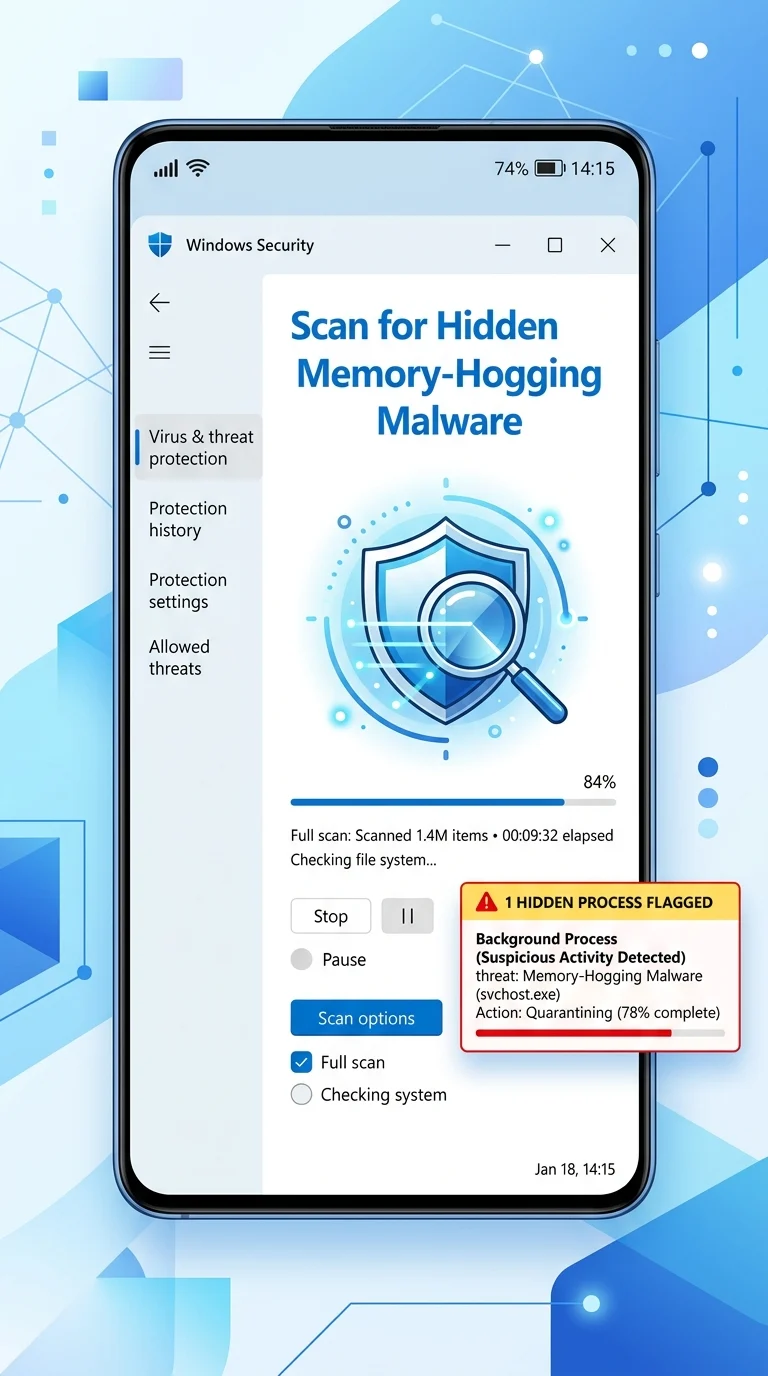
Open Windows Security, go to "Virus & threat protection," and run a full scan. Malware and cryptomining scripts often run hidden background processes that consume large amounts of RAM continuously.
Step 7: Upgrade Your RAM (If Nothing Else Works)
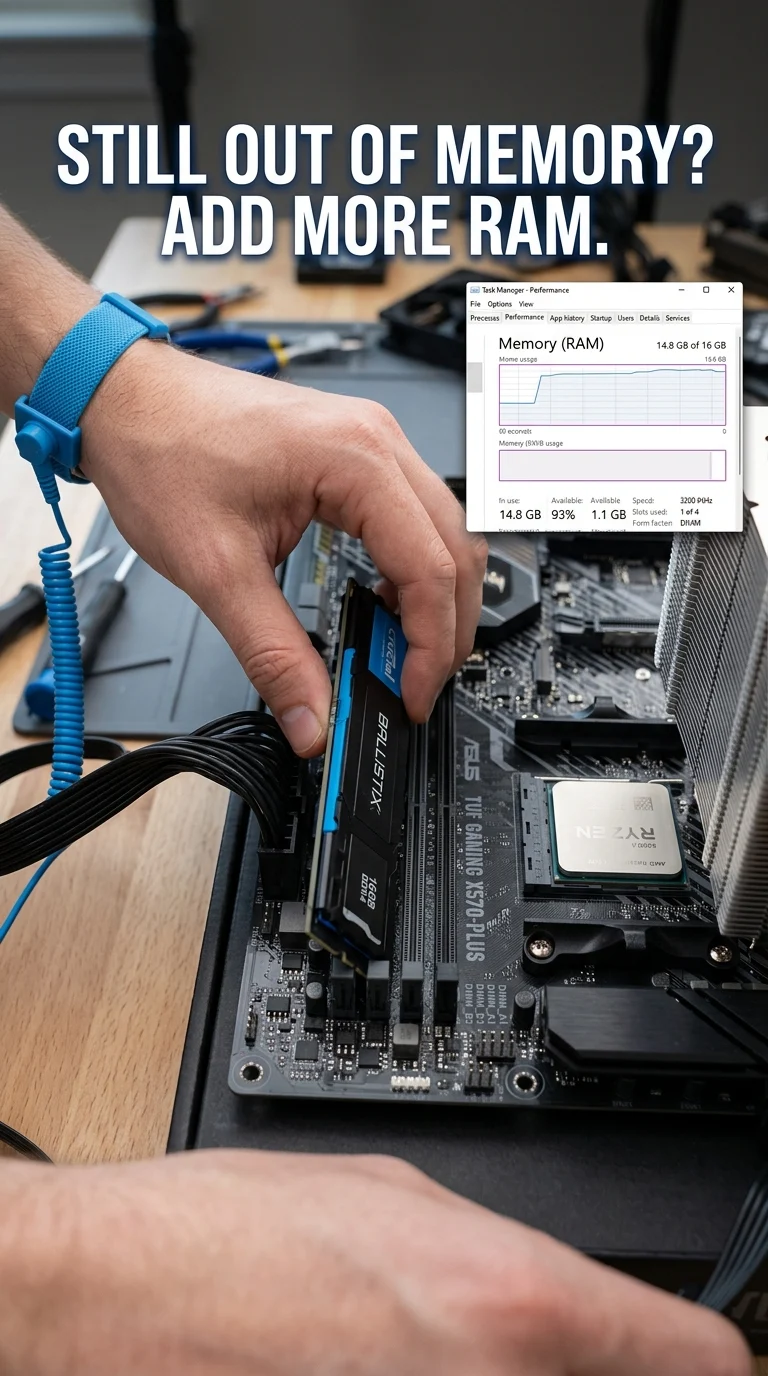
If the error keeps happening even after trying every software fix, and your usage genuinely needs more memory (heavy multitasking, editing, gaming), the most reliable fix is adding more physical RAM. Check your current RAM and slots available in Task Manager's Performance tab before buying.
Conclusion
The Out of Memory error on Windows almost always comes down to too many demands on limited RAM and page file space. Working through these seven steps in order clears out the most common causes first, and if the error still shows up afterward, it usually points to a real hardware limit that only a RAM upgrade can solve.