
 Vipin PG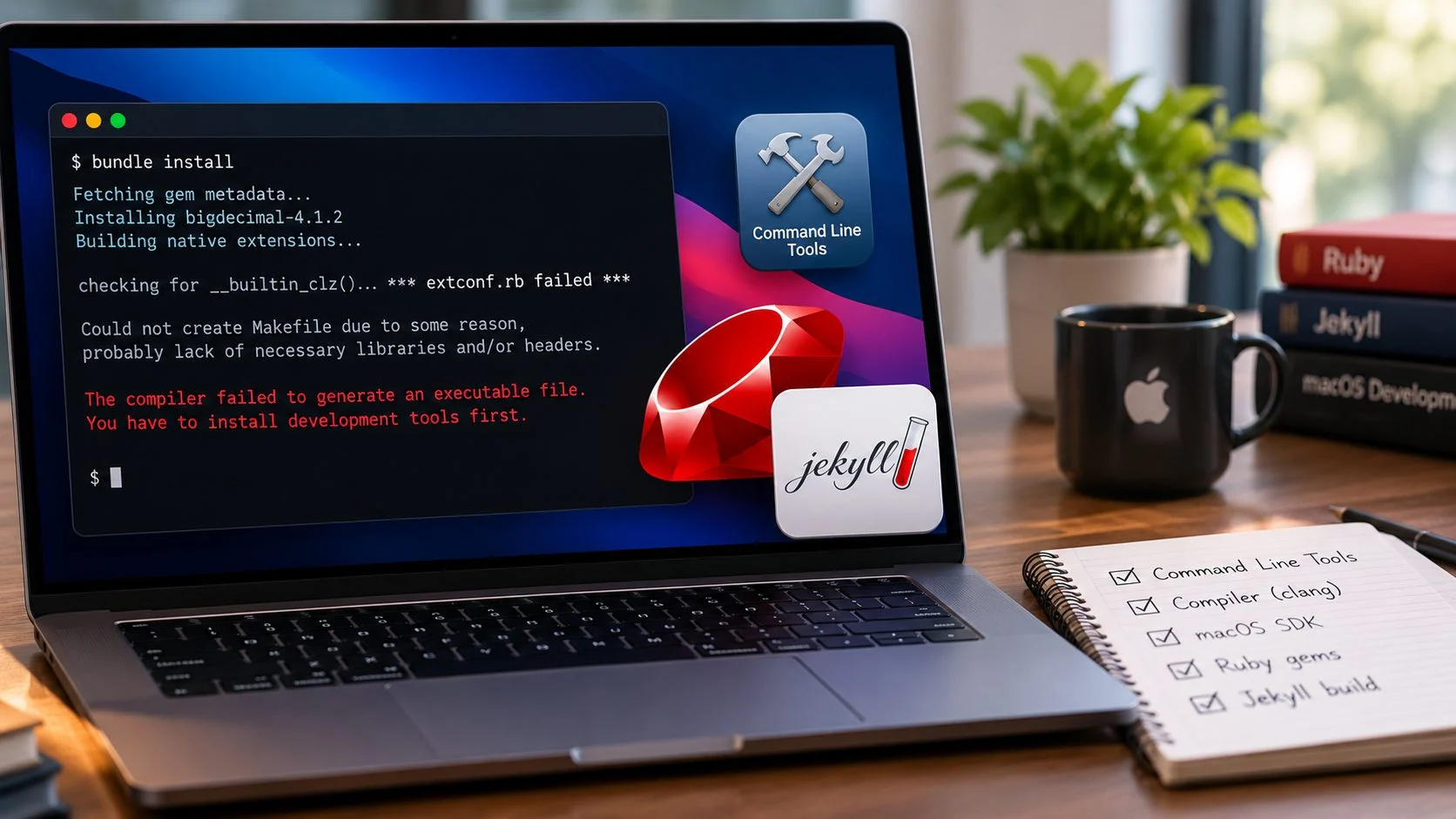
A macOS upgrade can sometimes leave a working Ruby development environment in a strange state. Ruby is installed, Homebrew is running, and Apple’s Command Line Tools are present. Everything looks fine until you try to install a gem that needs to compile native code.
This can be particularly frustrating with Jekyll. A website that worked before the upgrade may suddenly refuse to build because Bundler cannot install dependencies such as bigdecimal or eventmachine.
A recent example appeared in a Stack Overflow question posted on October 26, 2026. After upgrading to macOS Golden Gate 27.0.1, a developer found that Ruby gems containing C extensions would no longer compile. Command Line Tools 27.0.0.0 was already installed, but Software Update kept offering the same installation again.
The developer removed and reinstalled Command Line Tools, accepted the installation license, and tried the suggested Xcode license command. The Ruby build still failed.
There are several things worth checking in this situation. An incorrect developer directory, a missing macOS SDK, old compiler settings, or a Ruby installation configured against an earlier toolchain can all interfere with native gem compilation.
We’ll work through the checks in a practical order, starting with the compiler itself. That should help identify which component needs attention before making changes to Ruby or the Jekyll project.
What happens when Ruby gems stop building after a macOS upgrade?
The environment described in the original report looked like this:
| Component | Configuration |
|---|---|
| Operating system | macOS Golden Gate 27.0.1 |
| Processor | Apple Silicon |
| Ruby | 4.0.9, installed through Homebrew |
| Bundler | 4.0.11 |
| Ruby platform | arm64-darwin27 |
| Command Line Tools | 27.0.0.0 |
| Full Xcode | Not installed |
| Application | Jekyll website |
When the developer ran the usual dependency installation command:
bundle installBundler reported missing gems, including:
eventmachine-1.2.7
http_parser.rb-0.8.1
bigdecimal-4.1.2
While attempting to install bigdecimal, Ruby stopped during a compiler feature check. The reported error included:
checking for __builtin_clz()... *** extconf.rb failed ***

Could not create Makefile due to some reason,
probably lack of necessary libraries and/or headers.

The compiler failed to generate an executable file.

You have to install development tools first.
The last line makes it sound as though Command Line Tools are missing. That is one possible cause, but Ruby can display the same message when the installed compiler cannot complete a build.
The failure could come from an unavailable SDK, incorrect linker options, incompatible architecture settings, or another issue with the development environment. The build log is needed to identify the specific cause.
Why Ruby needs a C compiler for some gems
Jekyll is written in Ruby, but some of the gems it depends on include components written in C or C++.
These components are called native extensions. They allow Ruby packages to perform operations using compiled code or interact with system libraries.
For example, bigdecimal provides precise decimal arithmetic. The eventmachine gem contains native components used for event-driven networking.
When Bundler installs a gem with a native extension, RubyGems may need to compile its source code for the current system.
The process generally looks like this:
bundle install
      |
      v
Read Gemfile and resolve dependencies
      |
      v
Download or locate gem packages
      |
      v
Native extension requires compilation
      |
      v
Run extconf.rb using Ruby's mkmf module
      |
      v
Check compiler, headers and libraries
      |
      +--- Tests pass
      |         |
      |         v
      |    Generate Makefile
      |         |
      |         v
      |    Compile and install extension
      |
      +--- Tests fail
                |
                v
           Build stops
                |
                v
           Check mkmf.log
Ruby uses an extension configuration script named extconf.rb. This script commonly relies on the mkmf module to determine which compiler features, libraries, and header files are available.
During these checks, Ruby may attempt to compile and link small C programs. If the compiler fails, the extension configuration can stop before generating a Makefile.
What does “checking for __builtin_clz()” mean?
One detail from the original error is:
checking for __builtin_clz()The __builtin_clz() function is a compiler-provided operation used to count leading zero bits in an integer.
Its appearance in the error output doesn’t establish that this function is defective or unsupported. It identifies the feature test being performed when the build failed.
For example, Ruby might be testing a compiler feature while the linker is unable to locate a required system library. The feature check would fail even though the compiler understands the function.
The underlying error should be recorded in mkmf.log. We’ll examine that file after checking whether the system compiler works independently of Ruby.
1. Check the active Ruby and Homebrew installation
Before reinstalling anything, check which Ruby installation your Terminal is using.
Open Terminal and run:
sw_vers
uname -m
arch
These commands show the macOS version and the system architecture.
For a native Terminal session on Apple Silicon, the architecture should normally be:
arm64Now check Ruby and Bundler:
which ruby
ruby -v

which bundle
bundle -v
If Ruby was installed through Homebrew, check the Homebrew prefix as well:
which brew
brew --prefix
On Apple Silicon, Homebrew normally uses:
/opt/homebrewIntel installations generally use /usr/local.
This matters because a Mac can have more than one Homebrew or Ruby installation. For example, a native Apple Silicon installation and an older Intel installation running through Rosetta may coexist.
Use the following commands to see which executables are available:
type -a ruby
type -a gem
type -a bundle
If Ruby, RubyGems, and Bundler are being selected from different installations, investigate that inconsistency before continuing.
The official Homebrew common issues documentation explains several situations involving macOS upgrades, developer tools, and Homebrew installation paths.
2. Check which Command Line Tools directory macOS is using
Apple provides standalone Command Line Tools for developers who don’t need the full Xcode application. The package includes Clang, build utilities, and the macOS SDK.
Check the active developer directory:
xcode-select -pFor a standalone Command Line Tools installation, the normal path is:
/Library/Developer/CommandLineToolsIf the command points to an outdated or missing Xcode installation, compiler operations may fail.
When the standalone tools are installed at the standard location, select them using:
sudo xcode-select --switch /Library/Developer/CommandLineToolsYou will need to enter your administrator password.
This changes the active developer directory. It doesn’t download or reinstall anything.
Apple describes developer directory selection in its Command Line Tools configuration documentation.
Check the installed package receipt
macOS keeps package receipts that record information about installed components.
Check the Command Line Tools executable package:
pkgutil --pkg-info=com.apple.pkg.CLTools_ExecutablesIf the receipt exists, the output should include installation information and a version number.
A receipt confirms that macOS has a record of the package. It doesn’t guarantee that every required file is present or functioning correctly.
For that, we’ll test the compiler.
3. Test whether Clang can compile a simple C program
This is the test I would run before spending more time reinstalling Ruby gems.
Start with:
xcrun --find clang
xcrun clang --version
The first command finds the compiler selected by Apple’s developer tools. The second displays its version.
Neither command proves that the compiler can produce a working executable. It may launch successfully while still having problems locating the SDK, headers, or system libraries.
Create a small test program
Run the following command in Terminal:
cat > /tmp/ruby-compiler-test.c <<'EOF'
#include <stdio.h>

int main(void) {
    puts("Compiler and linker are working");
    return 0;
}
EOF
This creates a small C file in the temporary directory.
Now compile it:
xcrun clang /tmp/ruby-compiler-test.c \
  -o /tmp/ruby-compiler-test
If compilation completes without errors, run the executable:
/tmp/ruby-compiler-testThe expected output is:
Compiler and linker are workingIf you see that message, the compiler has successfully built and linked a basic C program.
This doesn’t guarantee that every native Ruby gem will compile. A particular gem may require additional libraries or compiler options. However, it confirms that the basic Clang toolchain is functioning.
What if the compiler test fails?
Pay attention to the exact message displayed by Clang.
For example:
fatal error: 'stdio.h' file not foundThis suggests that the compiler cannot locate standard C header files.
Another possible error is:
ld: library 'System' not foundThat points toward an SDK or linker search-path problem.
These are examples of errors you may encounter, not confirmed output from the original Stack Overflow report.
If the basic program cannot compile, focus on Command Line Tools, the SDK, and compiler settings before changing Ruby. A broken system compiler will continue affecting native-extension builds regardless of how many times you reinstall a gem.
4. Verify the macOS SDK
The macOS SDK contains the headers and libraries required to compile software for macOS.
When Command Line Tools are installed correctly, xcrun should be able to locate an appropriate SDK.
Run:
xcrun --show-sdk-pathFor standalone Command Line Tools, the output normally resembles:
/Library/Developer/CommandLineTools/SDKs/MacOSX.sdkCheck the selected SDK version:
xcrun --show-sdk-versionThen verify that the SDK directory exists:
ls -ld "$(xcrun --show-sdk-path)"If xcrun cannot locate the SDK, or the reported directory doesn’t exist, investigate the Command Line Tools installation.
Try compiling with the SDK explicitly selected
Sometimes the SDK is present, but compilation uses an incorrect search path.
Try the following:
SDK="$(xcrun --sdk macosx --show-sdk-path)"

xcrun clang -isysroot "$SDK" \
  /tmp/ruby-compiler-test.c \
  -o /tmp/ruby-compiler-test-sdk
Run the resulting program:
/tmp/ruby-compiler-test-sdkIf the explicit SDK test succeeds while normal compilation fails, examine the compiler environment and SDK selection.
For an ordinary Jekyll setup, you generally shouldn’t need to specify the SDK path manually every time a gem is installed.
5. Check for outdated compiler environment variables
Old shell configuration can cause trouble after a macOS upgrade.
Developers sometimes set custom compiler flags or SDK paths when building specific applications. Those settings may remain in their shell configuration long after the original project is gone.
Run:
env | grep -E '^(SDKROOT|DEVELOPER_DIR|MACOSX_DEPLOYMENT_TARGET|CC|CFLAGS|CPPFLAGS|LDFLAGS|ARCHFLAGS)='Some variables worth checking are:
SDKROOT: Specifies the SDK location.DEVELOPER_DIR: Overrides the selected developer directory.CC: Specifies the C compiler.CFLAGS: Supplies additional compiler options.LDFLAGS: Supplies linker options.MACOSX_DEPLOYMENT_TARGET: Specifies the target macOS version.ARCHFLAGS: Can affect the target architecture.
Imagine an old configuration containing an SDK path that no longer exists:
SDKROOT=/Library/Developer/CommandLineTools/SDKs/OldMacOSX.sdkSuch a setting could interfere with compilation even when the current Command Line Tools package is installed correctly.
Test compilation without those overrides
You can temporarily remove the common compiler-related variables for a single command:
env -u SDKROOT \
    -u DEVELOPER_DIR \
    -u MACOSX_DEPLOYMENT_TARGET \
    -u CC \
    -u CFLAGS \
    -u CPPFLAGS \
    -u LDFLAGS \
    -u ARCHFLAGS \
    xcrun clang /tmp/ruby-compiler-test.c \
    -o /tmp/ruby-compiler-test-clean
This doesn’t change your permanent shell configuration.
If the clean test succeeds but the original compiler test fails, one of those environment settings may be responsible.
Check your shell configuration files, including ~/.zshrc, ~/.zprofile, or ~/.bash_profile, depending on the shell you use.
Correct the outdated setting rather than removing every compiler variable without checking why it was added.
6. Find the actual Ruby error in mkmf.log
If the basic compiler tests succeed but bundle install still fails, inspect Ruby’s native-extension build log.
RubyGems recommends looking at the underlying build output when native extensions fail. Its official troubleshooting guide covers common installation failures.
The log is commonly named:
mkmf.logIn the original macOS 27.0.1 report, the bigdecimal log was located at:
/opt/homebrew/lib/ruby/gems/4.0.0/extensions/arm64-darwin-27/4.0.0/bigdecimal-4.1.2/mkmf.logYour path may differ depending on the Ruby version, gem installation directory, and architecture.
To locate build logs in your gem home, run:
find "$(gem env home)" -name mkmf.log -printIf the relevant log is stored elsewhere, check the path printed in Bundler’s installation error.
Read the failed compiler checks
Once you have the log path, inspect its final lines:
tail -n 100 "/path/to/mkmf.log"Replace /path/to/mkmf.log with the actual file location.
You can also search the file for common error messages:
grep -nE 'error:|fatal error:|ld:|clang:|not found|failed' \
  "/path/to/mkmf.log"
One detail worth remembering is that mkmf.log may contain failed feature tests that are completely normal. Build scripts often check whether optional functions or libraries exist.
Look for the compiler or linker failure associated with the fatal extconf.rb error.
For example, a missing standard header points toward the SDK or compiler configuration. An architecture mismatch points toward incompatible binaries or build flags. A missing third-party library may affect only one particular gem.
Test Ruby’s compiler configuration directly
Ruby includes the mkmf module used by native-extension build scripts.
You can run a simple link test through Ruby itself:
ruby -rmkmf -e 'abort "Compiler test failed" unless try_link("int main(void) { return 0; }"); puts "Ruby compiler test passed"'If this succeeds, Ruby can compile and link a basic test through its extension-building configuration.
If the standalone Clang test succeeds but this Ruby test fails, inspect Ruby’s build settings and the error recorded by mkmf.
7. Repair Command Line Tools if the compiler is broken
If the checks above show that Clang or the SDK installation is damaged, repair Command Line Tools before attempting another Ruby gem installation.
Apple explains the supported installation methods in its Command Line Tools installation documentation.
Install the available Command Line Tools update
First, check Software Update:
softwareupdate --listIf a compatible Command Line Tools update is available, install it through macOS System Settings.
You can also request the installer using:
xcode-select --installIf the tools are already installed, macOS may report that no installation is required.
For the original Stack Overflow case, this approach had already been tried. Repeating the same installation without examining the compiler output is unlikely to reveal anything new.
Download Command Line Tools directly from Apple
When Software Update behaves unexpectedly, you can obtain Command Line Tools from Apple Developer Downloads.
Choose a release compatible with your installed macOS version. Check the package’s requirements rather than assuming that a matching major version number guarantees compatibility.
Install the downloaded package using Apple’s installer, then verify the result:
xcode-select -p
xcrun --find clang
xcrun --show-sdk-path
Repeat the simple C compilation test from Step 3 afterward.
Perform a clean reinstall when necessary
If the installation is clearly damaged and a normal update does not help, removing the standalone tools before reinstalling them may be appropriate.
Apple’s standard Command Line Tools directory is:
/Library/Developer/CommandLineToolsThe installation can be removed using:
sudo rm -rf /Library/Developer/CommandLineToolsBe careful with this command. It permanently removes the specified directory. Confirm the path and make sure you have a compatible replacement installer or a reliable way to reinstall Command Line Tools before proceeding.
After reinstalling, select the standalone tools again:
sudo xcode-select --switch /Library/Developer/CommandLineToolsThen check the SDK and run the compiler test.
If you’ve already completed a clean reinstall and the same error persists, further removal is unlikely to help until the actual compiler failure has been identified.
8. Fix Command Line Tools repeatedly appearing in Software Update
The repeated Software Update notification is one of the more unusual details in the reported macOS 27.0.1 case.
The developer had Command Line Tools 27.0.0.0 installed, yet macOS continued offering the same update after installation.
This may indicate inconsistent installation records, an incomplete installation, or a Software Update detection problem. The public report doesn’t contain enough information to establish which one is responsible.
Start by checking the installed package information:
pkgutil --pkg-info=com.apple.pkg.CLTools_ExecutablesList related package receipts:
pkgutil --pkgs | grep -i commandlineThen check the update catalog:
softwareupdate --listCompare the installed package version with the version being offered.
Should you clear the Command Line Tools package receipt?
Some troubleshooting discussions mention this command:
sudo pkgutil --forget com.apple.dt.commandlinetoolsApple documents receipt management in the context of controlling Command Line Tools update notifications after removing the tools.
However, forgetting a package receipt doesn’t repair compiler binaries, missing headers, or SDK libraries.
I wouldn’t use this command simply to hide a repeated update while the Mac still needs Command Line Tools for development.
First make sure the compiler works. If Software Update continues offering an already installed package afterward, investigate the update state as a separate problem.
9. Check Homebrew Ruby after fixing the compiler
Once a basic C program compiles successfully, check whether the existing Ruby installation is compatible with the repaired development environment.
Start by updating Homebrew’s metadata:
brew updateRun the diagnostic command:
brew doctorRead any warnings related to developer tools, installation paths, or system libraries.
Homebrew’s official troubleshooting guide provides further information about diagnosing package and environment problems.
Next, inspect the installed Ruby formula:
brew info ruby
brew list --versions ruby
Ruby stores compiler and build configuration information through its RbConfig module.
You can inspect some of those settings with:
ruby -rrbconfig -e 'puts RbConfig::CONFIG.values_at("CC", "LDSHARED", "host", "arch", "configure_args")'These values can help identify the compiler, linker, architecture, and configuration options Ruby expects to use.
When should Homebrew Ruby be reinstalled?
If the standalone compiler test succeeds but Ruby’s native-extension tests fail, reinstalling Homebrew Ruby may be reasonable after investigating the configuration.
Run:
brew reinstall rubyA reinstall may replace Ruby components that are inconsistent with the current development environment.
It is not guaranteed to fix the issue, especially if the problem comes from shell environment variables or Bundler configuration.
Keep the project’s Gemfile and Gemfile.lock intact. A Ruby reinstall may also require reinstalling some gems afterward.
When the process finishes, verify the selected Ruby installation:
which ruby
ruby -v
ruby -e 'puts Gem.ruby'
Check Bundler as well:
which bundle
bundle -v
Make sure the commands are using the intended Ruby environment.
10. Check Bundler’s configuration and native gem settings
Bundler supports configuration settings that change how dependencies are selected and built.
To inspect the current settings, run:
bundle config listLook for custom installation paths, platform options, and compiler flags.
One setting worth checking is:
force_ruby_platformWhen enabled, this setting can cause Bundler to compile gems from source instead of using available precompiled platform packages.
This may be intentional, but it can expose compiler problems that weren’t visible when precompiled packages were used.
Bundler also allows individual gems to have custom build options. A setting for a gem such as eventmachine might contain library paths or compiler flags added for an earlier environment.
Review those settings and correct any paths that are no longer valid.
The available options are described in the Bundler configuration reference.
11. Reinstall the missing gems and test Jekyll
After checking the compiler, SDK, Ruby installation, and Bundler configuration, return to the Jekyll project directory.
Start with:
bundle checkThis checks whether the dependencies required by the project are installed.
Then retry the installation with verbose output:
bundle install --verboseVerbose output is helpful if another native extension fails because it provides more context about the installation process.
Rebuild existing native extensions
RubyGems includes a pristine command that can restore an installed gem from its original package.
For example:
gem pristine bigdecimal --extensionsBundler also provides:
bundle pristineThese commands are useful when installed gems or their native extensions need to be restored.
They don’t replace bundle install when dependencies are missing, and they won’t repair a broken system compiler.
Check whether the Jekyll website builds
Once Bundler finishes installing the required gems, test the project:
bundle exec jekyll buildIf the build succeeds, start the local development server:
bundle exec jekyll serveThis checks that Jekyll can load its dependencies and build the website using the repaired environment.
Should you run bundle update?
For an existing website, I’d avoid running a broad bundle update until the original compilation problem has been diagnosed.
That command can change dependency versions and update Gemfile.lock. Newer gems might introduce compatibility changes unrelated to the macOS upgrade.
Try restoring the dependencies specified by the existing lockfile first.
If a particular gem is later confirmed incompatible with the installed Ruby or macOS version, updating that dependency can be considered separately.
12. Do you need the full Xcode application?
The original Stack Overflow answer suggested accepting the Xcode license with:
sudo xcodebuild -licenseThe developer tried the command and received an error similar to:
xcode-select: error: tool 'xcodebuild' requires Xcode,
but active developer directory
'/Library/Developer/CommandLineTools'
is a command line tools instance.
This is consistent with how Apple’s development tools are packaged.
The xcodebuild utility belongs to the full Xcode installation. The standalone Command Line Tools package doesn’t include every tool provided with the IDE.
For ordinary Jekyll development and most Ruby native-extension builds, standalone Command Line Tools are sufficient.
Installing full Xcode may provide another compiler and SDK installation, but it also adds a much larger development environment.
Unless the project specifically requires full Xcode, there is little reason to install it before checking the existing compiler and SDK.
Common Ruby gem compilation errors and their likely causes
If you are seeing a different error from the one in the original report, the following reference may help narrow it down.
| Symptom | What to check | Possible solution |
|---|---|---|
| Invalid active developer path | Output of xcode-select -p |
Select the correct installed developer directory. |
| Clang cannot be located | Command Line Tools installation | Repair or reinstall compatible Command Line Tools. |
| SDK path is missing | xcrun --show-sdk-path |
Check SDK installation and developer directory selection. |
stdio.h not found |
SDK headers and compiler search paths | Verify the SDK and environment variables. |
| System library cannot be found | Linker options and SDK configuration | Inspect the linker error and library paths. |
| Basic Clang test works, but Ruby fails | Ruby’s compiler configuration | Inspect RbConfig and mkmf.log. |
| Only one native gem fails | That gem’s build log and dependencies | Check compatibility and required libraries. |
| Wrong architecture is being used | Ruby, Homebrew and Terminal architecture | Use a consistent ARM64 or Intel environment. |
| Command Line Tools update keeps returning | Package receipts and Software Update state | Verify the installed version and investigate update detection. |
| Gems install but Jekyll fails | Jekyll configuration and project dependencies | Run bundle exec jekyll build and inspect its output. |
A shorter troubleshooting sequence
If you’re comfortable working in Terminal and want to narrow down the problem quickly, start with these checks:
# Check macOS and architecture
sw_vers
uname -m

# Check Ruby and Homebrew
which ruby
ruby -v
brew --prefix

# Check the selected developer tools
xcode-select -p
xcrun --find clang
xcrun --show-sdk-path

# Check Command Line Tools registration
pkgutil --pkg-info=com.apple.pkg.CLTools_Executables

# Look for compiler environment overrides
env | grep -E '^(SDKROOT|DEVELOPER_DIR|CC|CFLAGS|CPPFLAGS|LDFLAGS|ARCHFLAGS)='

# Check Homebrew configuration
brew doctor
Follow these commands with the C compilation test from Step 3.
If the test fails, investigate the compiler and SDK. If it succeeds but Ruby’s own compilation test fails, examine Ruby’s configuration. When both work and a particular gem still fails, its mkmf.log should be the next place to look.
Why this problem can appear after upgrading macOS
Major macOS releases can introduce a new Darwin version, updated system libraries, and changes to the developer toolchain.
Some applications may continue working because they use binaries that have already been compiled. Ruby gems containing native extensions can expose a problem when they attempt to compile code against the current environment.
For example, Ruby may have been installed before the operating system upgrade, while its native gems are being rebuilt afterward. If compiler settings still reference paths from the earlier environment, the build may fail.
Command Line Tools compatibility is also worth checking after a major upgrade. Apple advises developers to use tools compatible with their installed macOS release, and Homebrew’s upgrade guidance covers problems that can arise when developer tools or libraries change.
These are known categories of development environment problems. They do not establish that macOS Golden Gate 27.0.1 has a widespread Ruby compiler regression.
The original Stack Overflow question documents one affected setup, and its complete compiler failure has not yet been identified from the public information.
What is the likely fix for the macOS 27.0.1 case?
Given the reported symptoms, I’d start by examining the complete mkmf.log file and running the standalone Clang test.
The repeated Command Line Tools installation prompt makes the developer-tool installation worth investigating. However, the public report doesn’t establish whether the update loop is causing the Ruby compilation error or whether the two issues are separate.
There are several possible outcomes:
- If Clang cannot compile a basic C program, the next step is to investigate the selected developer directory, SDK, and Command Line Tools installation.
- If Clang works but Ruby’s
mkmftest fails, Ruby’s build configuration becomes the main area to examine. - If both tests succeed but
bigdecimalstill fails, the gem’s actual compiler log should reveal whether a particular build option or dependency is responsible. - If the gems compile successfully after repairs but Software Update still repeats the installation, the remaining update notification can be investigated separately.
The developer has already tried reinstalling Command Line Tools and accepting the installation license. Those steps didn’t resolve the reported failure. There is currently no basis for presenting either as a confirmed fix for that exact case.
Final thoughts
When Bundler reports that the compiler cannot generate an executable, checking Command Line Tools is reasonable. But an installed developer-tools package can still have problems with SDK selection, compiler settings, or linker configuration.
For a Jekyll project that stops working after a macOS upgrade, start with a small C compilation test and inspect mkmf.log. Those two checks usually provide a better direction than repeatedly reinstalling Ruby or individual gems.
Once the failing component has been corrected, reinstall the missing dependencies and confirm that bundle exec jekyll build completes successfully.
For the macOS Golden Gate 27.0.1 report, the specific root cause remains unconfirmed. The full compiler log is needed to determine which repair applies to that machine.