 Vipin PG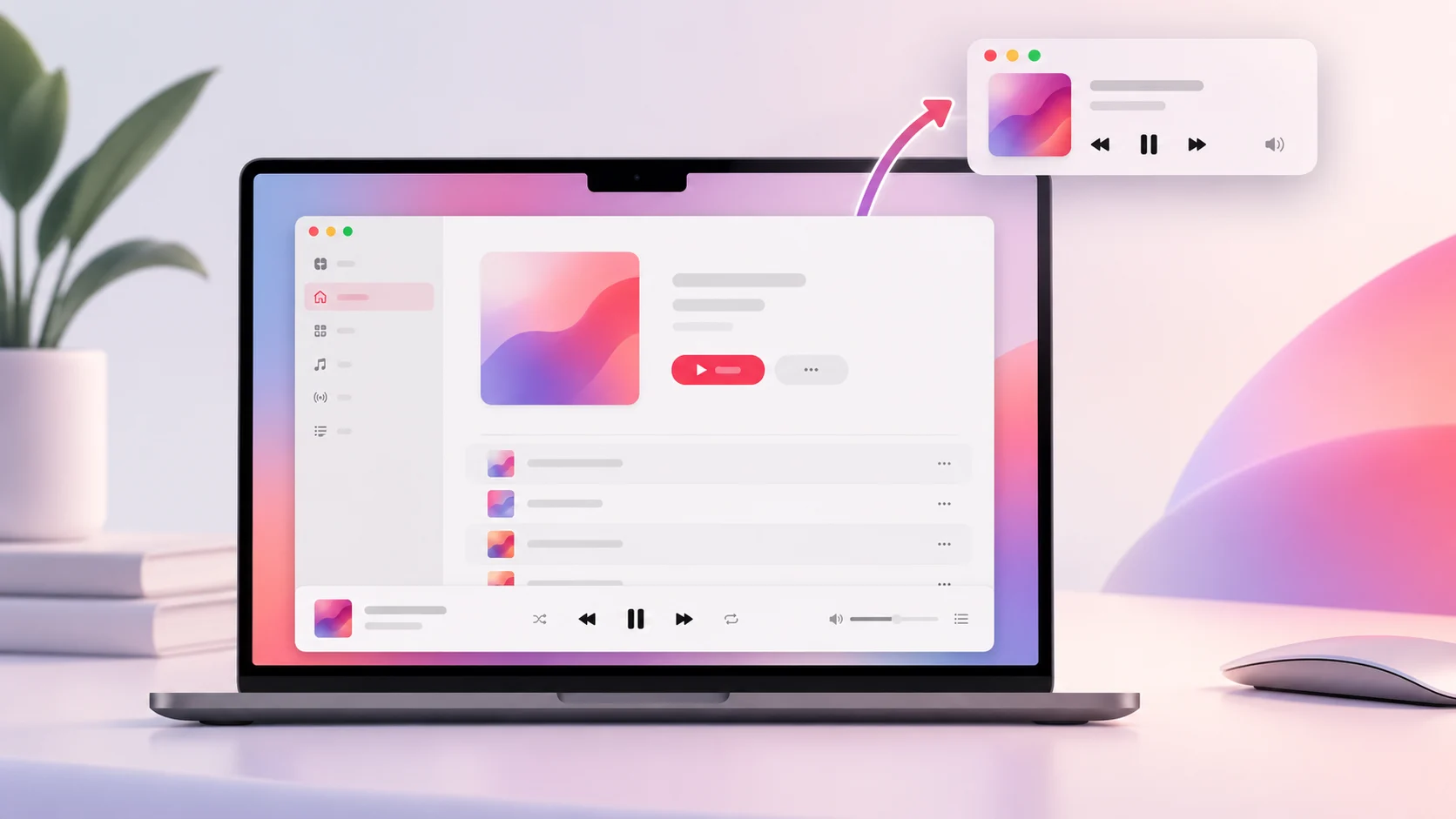
If you’ve been using Apple Music on a Mac for years, you’re probably familiar with having the playback controls at the top of the window. The play and pause buttons, track navigation, and song information were all in one familiar place.
In newer versions of macOS, those controls appear along the bottom of the Music window. You might notice the difference after upgrading your Mac, especially if you’re coming from an older version where the controls were positioned at the top.
Unfortunately, Apple Music doesn’t currently have a setting to move the main playback bar back to the top. There are, however, two built-in ways to access your music controls near the top of the screen. You can use the movable MiniPlayer or add Now Playing to the Mac’s menu bar.
Here’s how both options work, along with a few useful shortcuts that make the new layout easier to live with.
Why are Apple Music’s playback controls at the bottom?
The Music app has undergone several interface changes since Apple replaced iTunes on the Mac. One of the more noticeable differences in recent macOS versions is the location of the playback controls.
In the older layout, the playback area occupied the top section of the application window. In the newer arrangement, it sits below the music library and browsing area.
Here’s a simplified illustration of the difference:
Illustration showing the general position of the controls. It is not an exact screenshot of either interface.
The change was discussed in an Apple Support Community thread posted on October 23, 2026. A MacBook Pro user running macOS 27.0.1 asked whether it was possible to move the playback controls from the bottom back to the top.
A community contributor explained that the Music window’s layout couldn’t be changed and suggested using MiniPlayer instead. Another contributor pointed out that the bottom-positioned controls were already present in macOS 26.
So, while you might have noticed the change after updating to macOS 27, the layout wasn’t introduced exclusively with that version.
Can you move the playback controls back to the top?
There is currently no supported option in Apple Music to change the position of the main playback bar.
You can resize the Music window, use full-screen mode, and customize parts of the library sidebar. Apple’s Music window customization guide explains those options, but it doesn’t include a setting for moving playback controls.
The playback bar itself cannot be dragged to another position inside the application. Changing the window size won’t move it back to the top either.
If your music plays normally and the controls are simply in a different place, there’s no reason to reset your music library or reinstall macOS. The position is part of the newer interface.
For anyone who prefers having the controls near the top, MiniPlayer is the closest alternative.
Method 1: Move Apple Music controls to the top using MiniPlayer
Apple Music includes a smaller playback window called MiniPlayer. It lets you control your music without keeping the entire Music application open on the desktop.
The useful part is that you can move this window wherever you want. Place it near the top-right corner, keep it beside another application, or move it somewhere that doesn’t cover your work.
Step 1: Start playing music
Open the Music app on your Mac and play a song from your library or another supported music source.
Apple’s official MiniPlayer guide specifies that a song must be playing before you can switch to MiniPlayer.
Step 2: Open MiniPlayer
With Music active, open the Window menu from the macOS menu bar and select Switch to MiniPlayer.
The regular Music window switches to a smaller player. Depending on its current appearance, you may see the album artwork, song information, and playback controls.
You can also use the keyboard shortcut Option + Command + M or Shift + Command + M to switch MiniPlayer on or off.
Step 3: Move MiniPlayer to your preferred position
Drag the MiniPlayer window to the top of your screen. The upper-right corner is a convenient place to try because it usually leaves the central area of the desktop free.
You can also keep it near the upper-left corner if that better suits how you arrange your applications.
This doesn’t alter the layout of the main Music window. It gives you a separate playback interface that you can position more conveniently.
Step 4: Hide the large album artwork
MiniPlayer can display the current song’s album artwork, but the larger appearance isn’t always necessary if you mainly want the playback buttons.
- Open MiniPlayer.
- Click the More button in the player controls.
- Select Hide Large Artwork.
MiniPlayer switches to a more compact appearance. If you want the artwork back, open the same menu and select Show Large Artwork.
The compact version is useful if you want a small playback window near the top without taking up much screen space.
Step 5: Keep MiniPlayer above other windows
If you’re listening to music while browsing or working in another app, MiniPlayer may be covered when you switch between windows.
Apple provides a setting to keep the player visible.
- Open the Music app.
- Click Music in the menu bar.
- Choose Settings.
- Open the Advanced tab.
- Enable Keep MiniPlayer on top of all other windows.
With this enabled, MiniPlayer remains above other normal application windows, making it easier to pause or skip a song while you’re working.
You can disable the option later if you’d rather have the player behave like an ordinary window.
What can you control from MiniPlayer?
MiniPlayer supports more than basic playback. Apple also includes controls for adjusting volume, viewing lyrics, checking the Playing Next queue, and moving to a different position in the current track.
There’s also an option to open the Full Screen Player if you want a larger playback interface.
When you want to return to the regular Music window, click the MiniPlayer’s close button. You can then continue browsing your albums and playlists in the main app.
Method 2: Put music controls in the Mac menu bar
If you don’t want a separate MiniPlayer window on your desktop, macOS has another option called Now Playing.
Now Playing lets you access media controls from the menu bar at the top of the screen. It’s particularly useful when Music is running in the background and you’re working in another application.
Step 1: Open Menu Bar settings
Click the Apple menu and open System Settings. Select Menu Bar from the sidebar.
Step 2: Configure Now Playing
Find Now Playing in the menu-bar settings. You can choose when its icon should appear.
- Show When Active: Displays Now Playing when media playback is active.
- Always Show: Keeps the control visible in the menu bar.
For most users, Show When Active should be enough. The icon appears when you need it without occupying menu-bar space all the time.
Apple explains these options in its macOS Menu Bar settings documentation.
Step 3: Control music from the menu bar
Start playing something in Apple Music. When the Now Playing icon appears, click it to open the playback controls.
You can pause playback or switch tracks without opening the main Music window.
Now Playing is a good option if you prefer keeping your desktop clear. It doesn’t provide the same full set of features as MiniPlayer, but it gives you quick access to common playback actions from the top of the screen.
Method 3: Use keyboard shortcuts instead of the playback bar
If you’re frequently switching between Music and other applications, keyboard shortcuts can save you from having to locate the playback controls every time.
Apple Music supports several shortcuts for controlling the player and opening useful parts of the application.
| Action | Keyboard shortcut |
|---|---|
| Open or close MiniPlayer | Option + Command + M or Shift + Command + M |
| Open or close Full Screen Player | Shift + Command + F |
| Increase Music volume | Command + Up Arrow |
| Decrease Music volume | Command + Down Arrow |
| Show the current song in the list | Command + L |
| Show Playing Next | Option + Command + U |
| Focus the search field | Command + F |
You can find these and other combinations in Apple’s Music keyboard shortcuts guide.
If your Mac keyboard has dedicated media keys, those may also be useful for controlling playback without switching to the Music window.
MiniPlayer or Now Playing: Which is better?
Both are useful, although they work differently. MiniPlayer gives you a separate window that you can place wherever you like. Now Playing keeps the controls accessible through the Mac’s menu bar.
| Feature | MiniPlayer | Now Playing |
|---|---|---|
| Access controls near the top | Yes, movable | Yes, menu bar |
| Separate playback window | Yes | No |
| Play, pause and track navigation | Yes | Yes |
| Large album artwork | Optional | Not the main purpose |
| Access lyrics and Playing Next | Yes | More limited |
| Keep visible while using other apps | Yes, with the relevant setting | Accessible from menu bar |
| Restore the original top playback bar | No | No |
If you want something resembling the old top-positioned controls, try MiniPlayer with the large album artwork hidden. Place it near the top of your desktop and enable the setting to keep it above other windows.
If you don’t want another window taking up space, Now Playing is probably the easier choice.
What if the MiniPlayer option is missing?
If you can’t find Switch to MiniPlayer in the Window menu, first make sure a song is playing.
You can also try opening MiniPlayer through the album artwork in Music’s playback area. Apple’s documentation describes an option to switch to MiniPlayer or Full Screen Player from there.
If the menu names or settings look different, check the macOS version selected in the Apple Music User Guide. Some details vary between macOS releases.
Can Terminal or hidden settings restore the old layout?
Apple doesn’t document a Terminal command or hidden preference that moves the Music playback bar back to the top.
It’s possible to find commands online that claim to change undocumented application settings. However, there isn’t a verified, supported command for restoring this particular layout.
It’s better to avoid deleting Music preferences or running unverified Terminal commands for a layout change. Those actions could affect other settings without solving the original problem.
Is the bottom playback bar a bug in macOS 27?
The available information suggests it’s part of the intended Music interface.
In the October 23, 2026 Apple Support Community discussion, one contributor confirmed that the playback controls were already at the bottom in macOS 26.
That means the arrangement isn’t necessarily the result of a problem introduced during a macOS 27 update.
If the playback controls are visible and working normally, there’s no indication that the Music installation is damaged. Problems such as missing buttons, frozen playback, or unresponsive controls would need separate troubleshooting.
How to request the old playback layout from Apple
If you’d prefer the original top-positioned controls, you can submit a feature request through Apple’s official feedback page.
Visit the Apple Music feedback page and explain that you’d like an option to choose between top and bottom playback controls.
It may help to explain why the previous location worked better for you, especially if the new arrangement interrupts your usual workflow.
Apple doesn’t guarantee that feature requests will lead to changes, but feedback is the appropriate way to suggest this kind of customization.
Frequently asked questions
Can I drag the Apple Music playback bar to the top?
No. The playback bar in the main Music window has a fixed position. There is no supported setting for dragging it to the top.
How can I get Apple Music controls at the top of my screen?
Use MiniPlayer and move its window near the top of your desktop, or enable Now Playing in the macOS menu bar.
Can I hide the album artwork in MiniPlayer?
Yes. Open MiniPlayer, click the More button, and select Hide Large Artwork to switch to a smaller appearance.
Can MiniPlayer stay visible when I open other applications?
Yes. Open Music Settings, select Advanced, and enable Keep MiniPlayer on top of all other windows.
Did macOS 27 introduce the bottom playback controls?
No. The bottom playback layout was already present in macOS 26, according to the Apple Support Community discussion from October 2026.
Do I need an Apple Music subscription to use MiniPlayer?
No. MiniPlayer also works with music stored in your local library. Some streaming content and services require an Apple Music subscription, but the MiniPlayer feature itself doesn’t.
Will reinstalling Music restore the controls to the top?
No. Reinstalling isn’t an established way to restore the earlier layout because the position of the controls is part of the newer Music interface.
Final thoughts
Apple Music doesn’t currently let you move its main playback controls back to the top of the window. For anyone accustomed to the older layout, the bottom playback bar can feel awkward at first, particularly when switching between Music and other applications.
The closest workaround is MiniPlayer. You can make it compact, move it near the top of the screen, and keep it visible while you work. If you’d rather avoid a floating window, the Now Playing control in the menu bar gives you quick access to playback without opening Music.
Neither option changes the main Music window, but both make the new arrangement easier to use. For an actual choice between top and bottom playback controls, Apple would need to add a layout setting in a future Music update.