Vipin PG
This happens because Chrome treats the new tab page and your “homepage” as two different things. Setting a homepage URL doesn’t automatically change what shows up when you open a new tab or start the browser — those are controlled separately. Here’s how to set it up correctly so your homepage actually loads.
Step 1: Open Chrome Settings and Go to Appearance
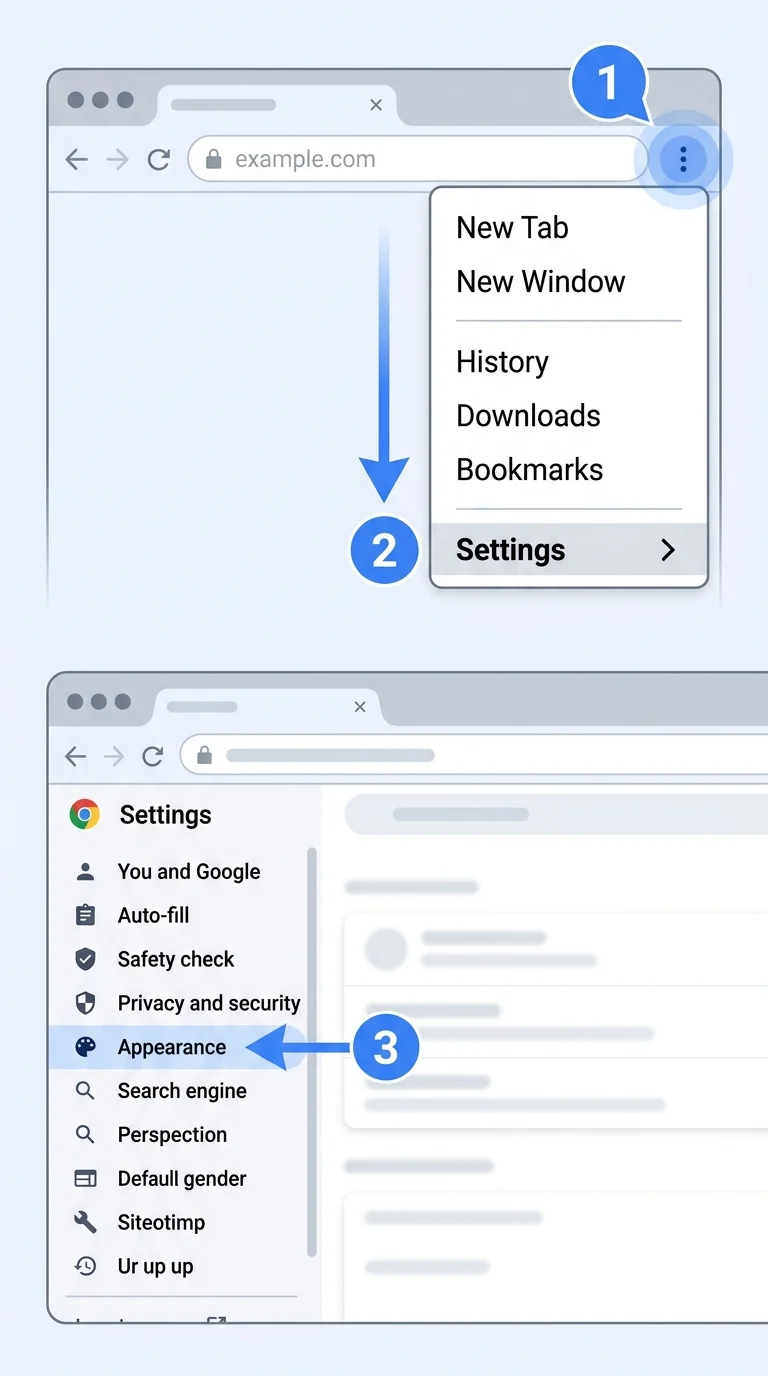
Click the three dots in the top-right corner of Chrome, select Settings, then click Appearance in the left sidebar. This is where the Home button setting lives, separate from the startup settings.
Step 2: Turn On the Home Button and Enter Your Homepage URL
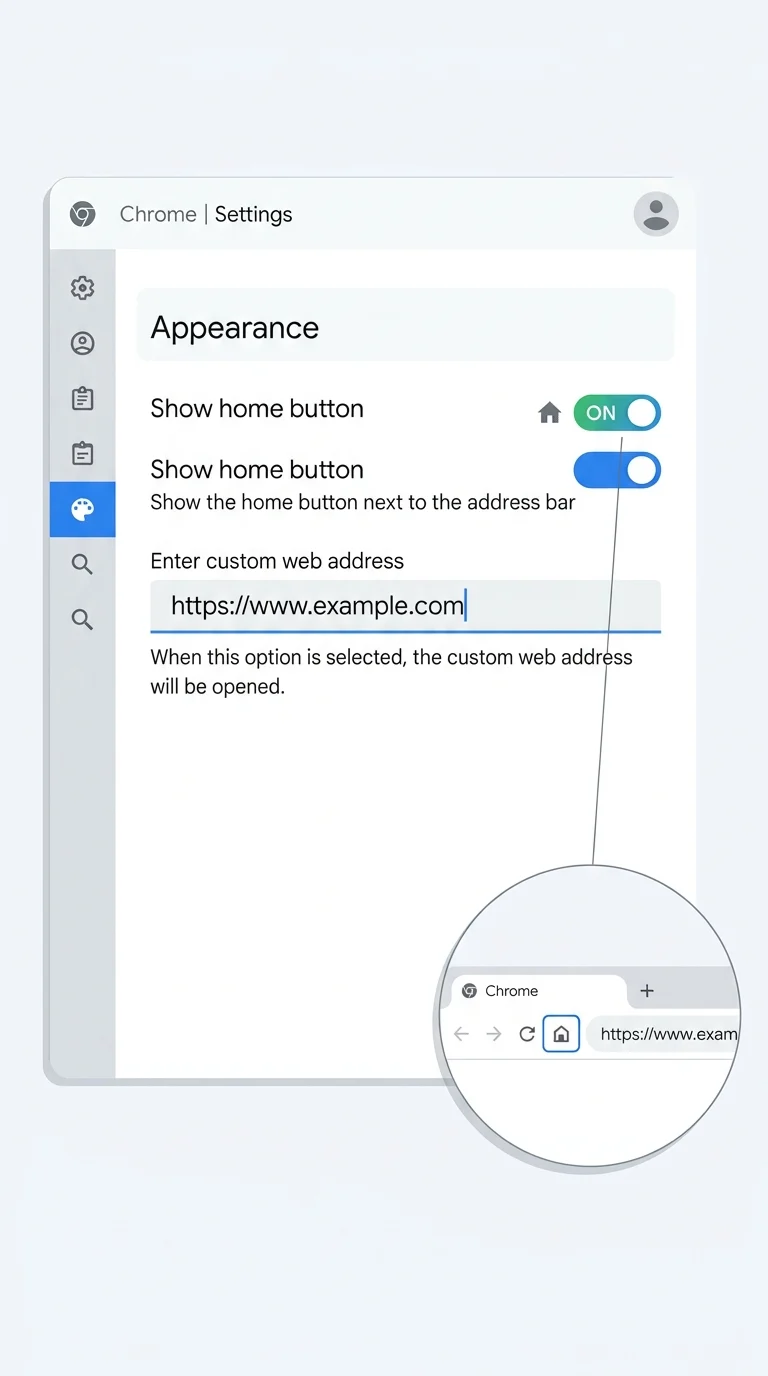
Under Appearance, find Show home button and toggle it on. Select Enter custom web address and type the URL you want as your homepage (for example, your favorite news site or a search engine). This makes the Home icon next to the address bar actually take you to that page.
Step 3: Set Your Homepage Under “On Startup” Too
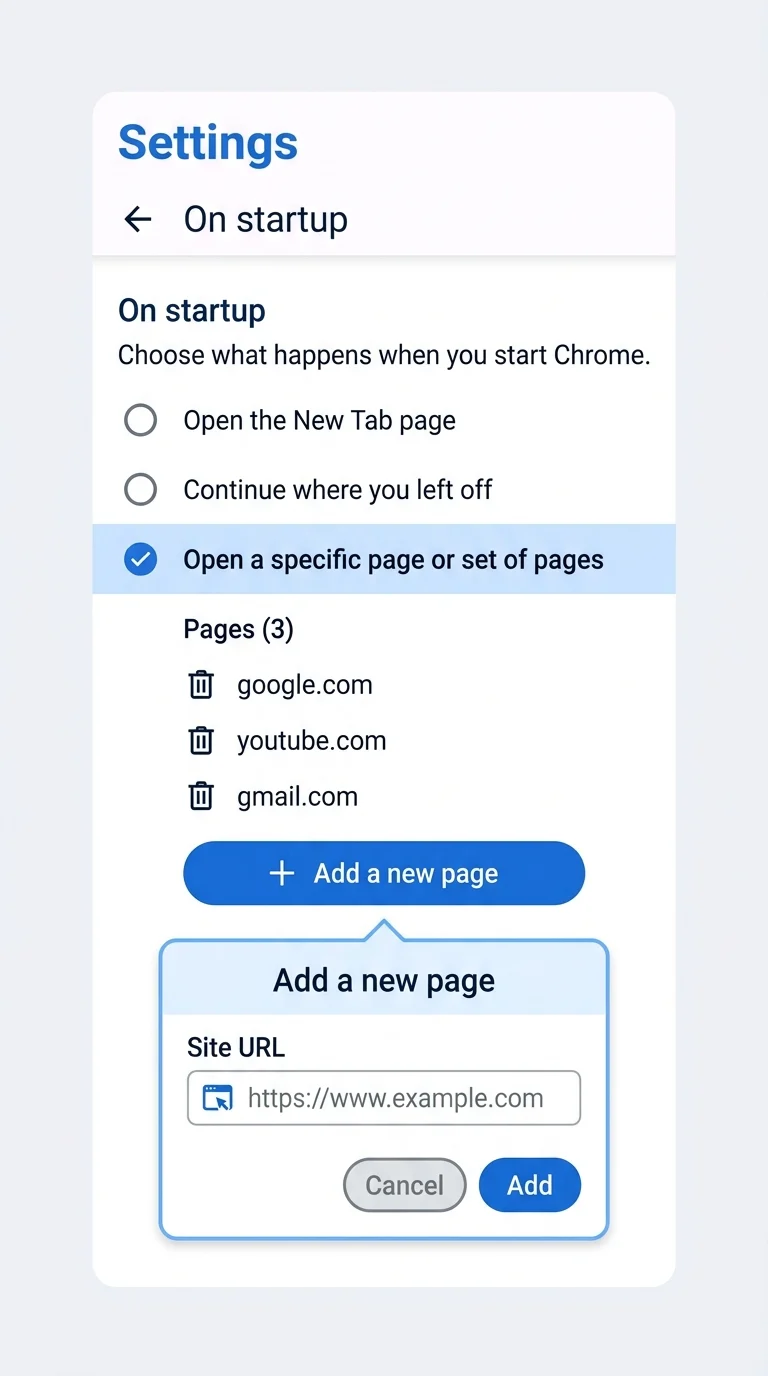
Scroll down in Settings to the On Startup section. Choose Open a specific page or set of pages, then click Add a new page and enter the same URL you used in Step 2. This is the setting that actually controls what loads when Chrome first opens, and it’s the one most people miss.
Step 4: Check for Extensions Hijacking Your New Tab Page
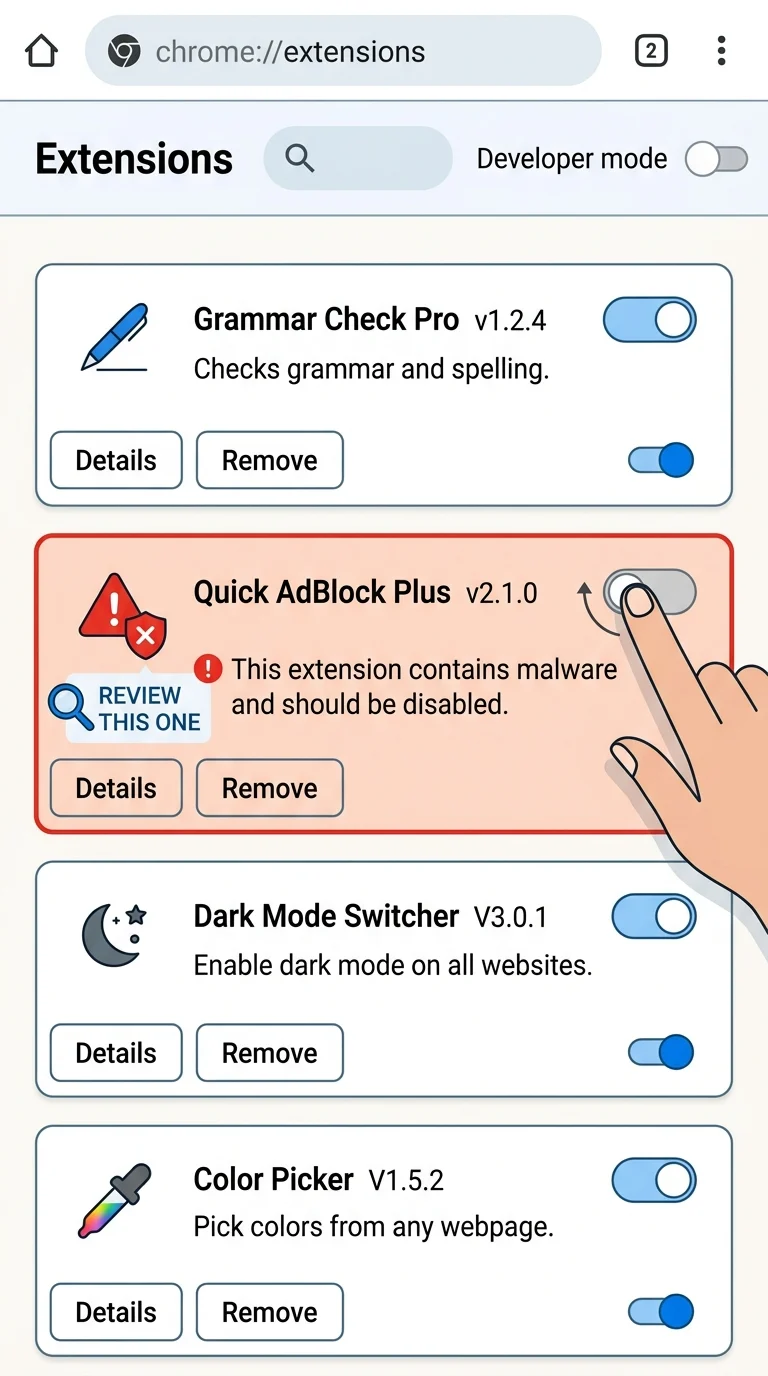
If the “Search Google or type a URL” page keeps appearing even after Steps 2 and 3, an extension may be overriding your new tab page. Go to chrome://extensions in your address bar, review the list, and disable any extension you don’t recognize or that relates to “new tab,” “search,” or “homepage” customization. Restart Chrome and check again.
Step 5: Reset Chrome Settings if the Problem Persists
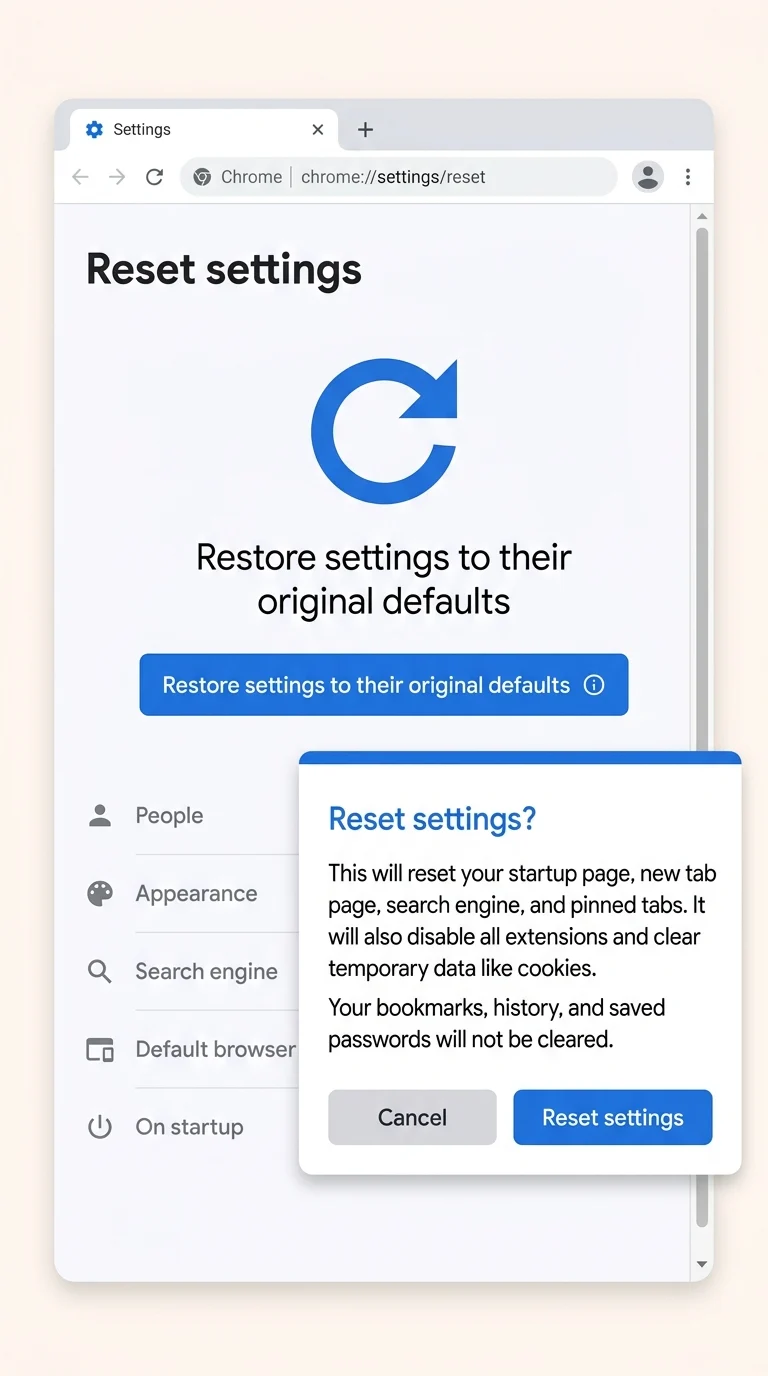
If the homepage still won’t stick, your settings may have been altered by a recently installed program. Go to Settings, scroll to Reset settings, and click Restore settings to their original defaults. This clears your startup pages, new tab settings, and extensions’ control over them, so you’ll need to redo Steps 2 and 3 afterward, but it usually resolves stubborn cases.
Step 6: Check for Managed Browser Policies (Work or School Devices)
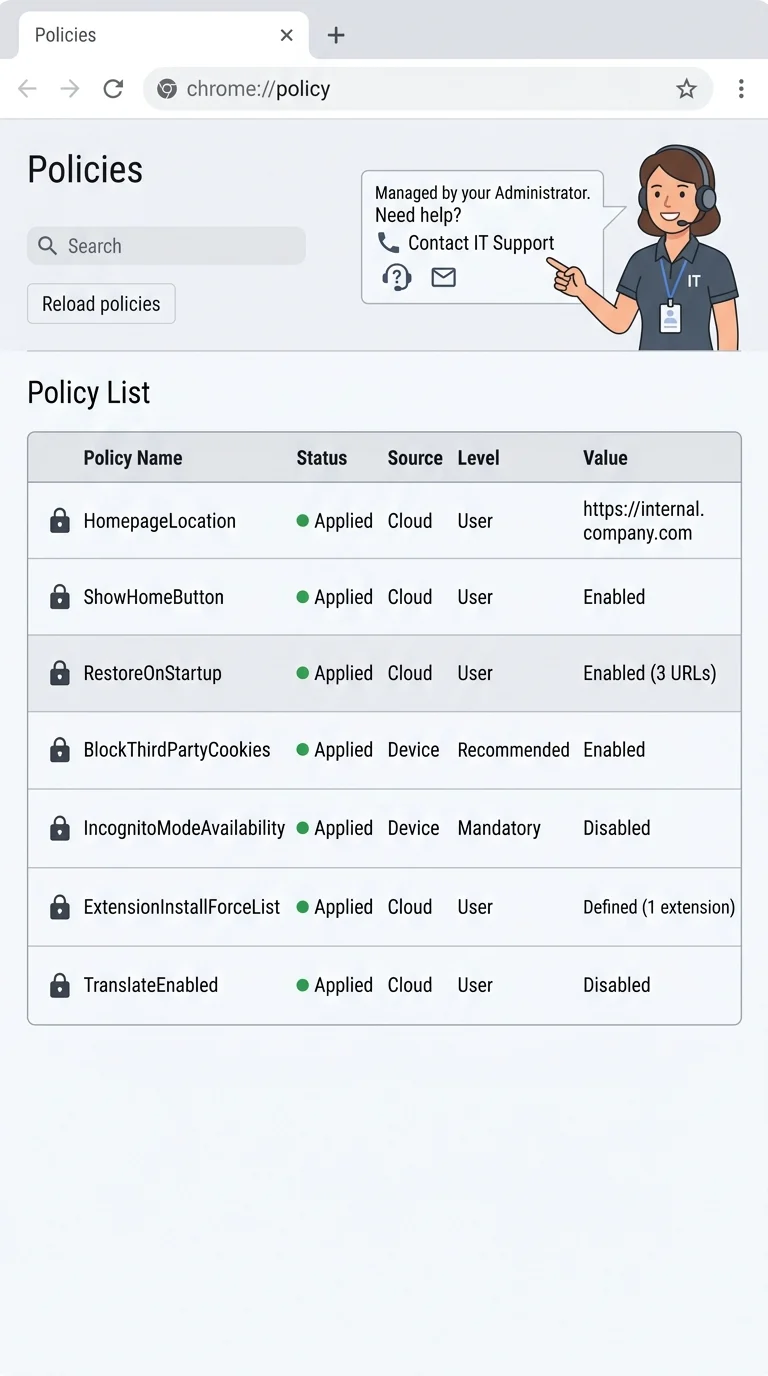
If you’re using a work, school, or company-issued computer, your homepage settings might be locked by an IT administrator. Type chrome://policy into your address bar and look for any entries related to “HomepageLocation” or “NewTabPageLocation.” If these appear, the setting is controlled centrally and you’ll need to contact your IT department to change it.
Conclusion
The “Search Google or type a URL” page shows up because Chrome’s homepage and startup settings are independent of each other, not because something is broken. Once both are set correctly, and extensions or policies aren’t interfering, your homepage will load every time you open the browser or click the Home button.