Vipin PG
If you’ve noticed a persistent pop-up in OneNote that says “Please wait while OneNote inserts the document” , and it just won’t go away no matter how long you wait , you’re not alone. This notification usually appears when OneNote tries to embed a file (like a PDF or Word document) into a page but gets stuck partway through. Instead of completing the task or failing gracefully, it just keeps looping. The good news is that this is a known issue with straightforward fixes.
Step 1: Close and Reopen OneNote
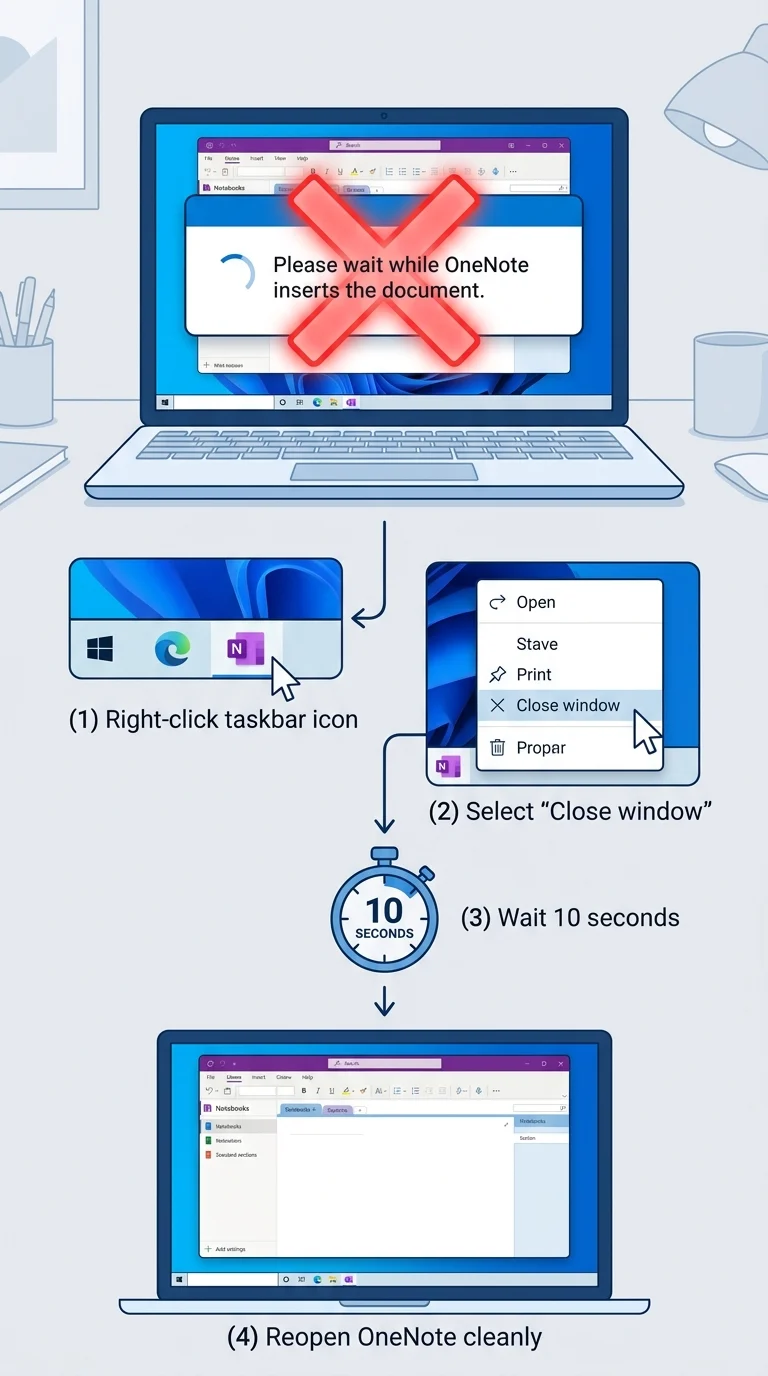
The first thing to try is a clean restart of OneNote. Sometimes the insertion process hangs in memory even if the action itself has completed or failed. Closing the app fully , not just minimizing it , clears that stuck process.
- On Windows, right-click the OneNote icon in the taskbar and choose Close window, or press Alt + F4.
- On Mac, go to OneNote > Quit OneNote.
- Wait about 10 seconds, then reopen OneNote and check if the notification is gone.
Step 2: End the OneNote Process from Task Manager
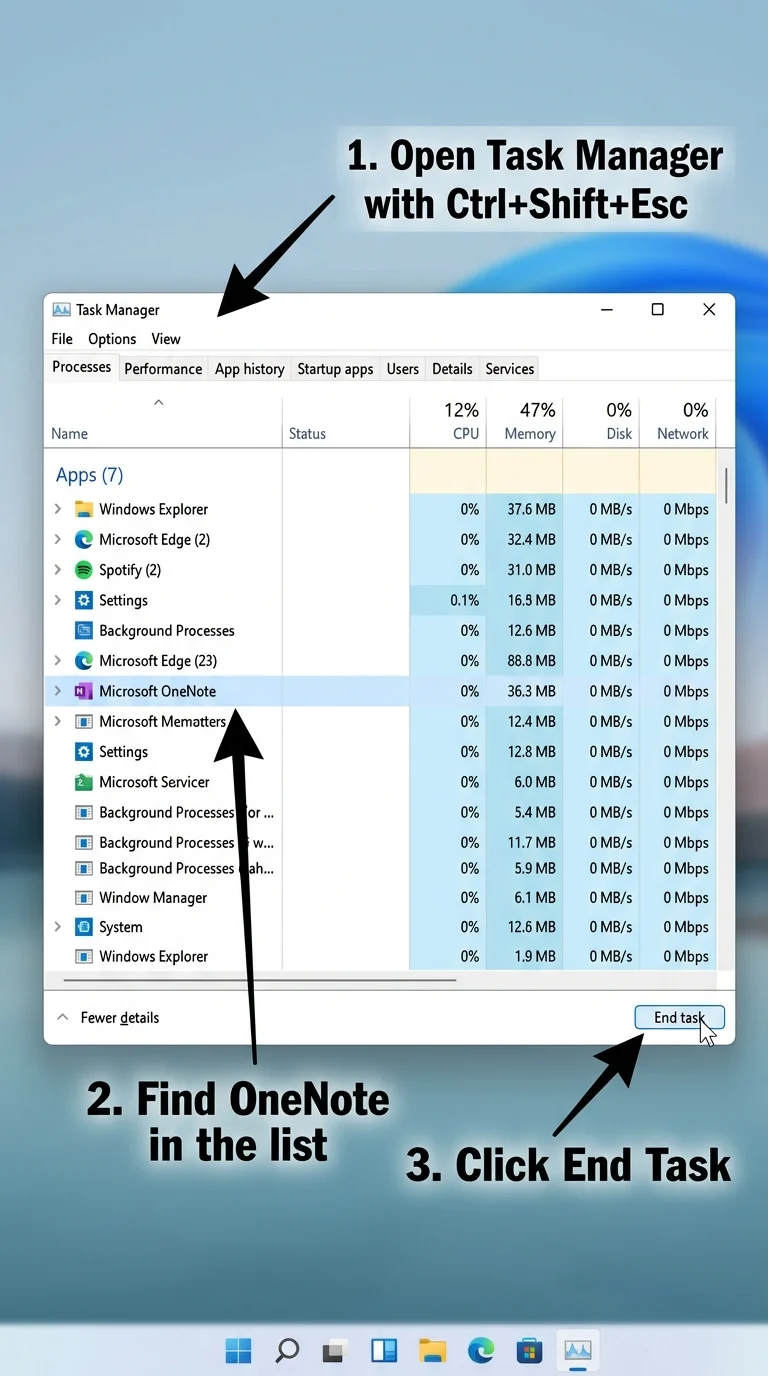
If simply closing OneNote doesn’t help, the process might still be running in the background. Force-stopping it from Task Manager ensures it fully shuts down before you restart.
- Press Ctrl + Shift + Esc to open Task Manager.
- Look for OneNote or ONENOTE.EXE in the list of processes.
- Click on it and then click End Task at the bottom right.
- Reopen OneNote normally and check if the notification returns.
Step 3: Delete the Stuck Page or Undo the File Insertion
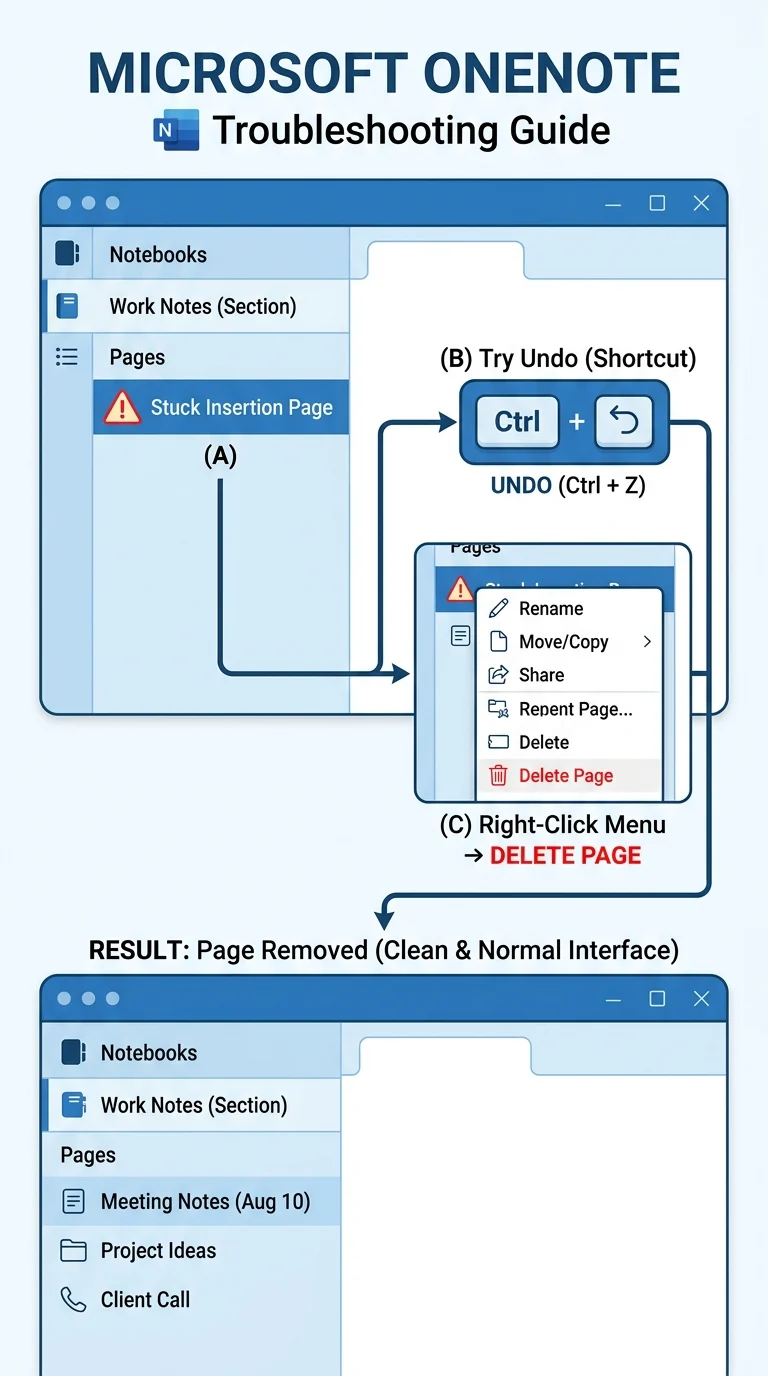
The notification is often tied to a specific page where the file insertion was attempted. If you can identify that page, deleting it or undoing the action can stop the loop immediately.
- Open OneNote and look for the page where you were inserting the document.
- Press Ctrl + Z to undo the last action (the file insert).
- If the notification disappears after undoing, that confirms the page was the source.
- If Ctrl + Z doesn’t work, right-click the page in the page list and choose Delete Page. You can recreate it after fixing the issue.
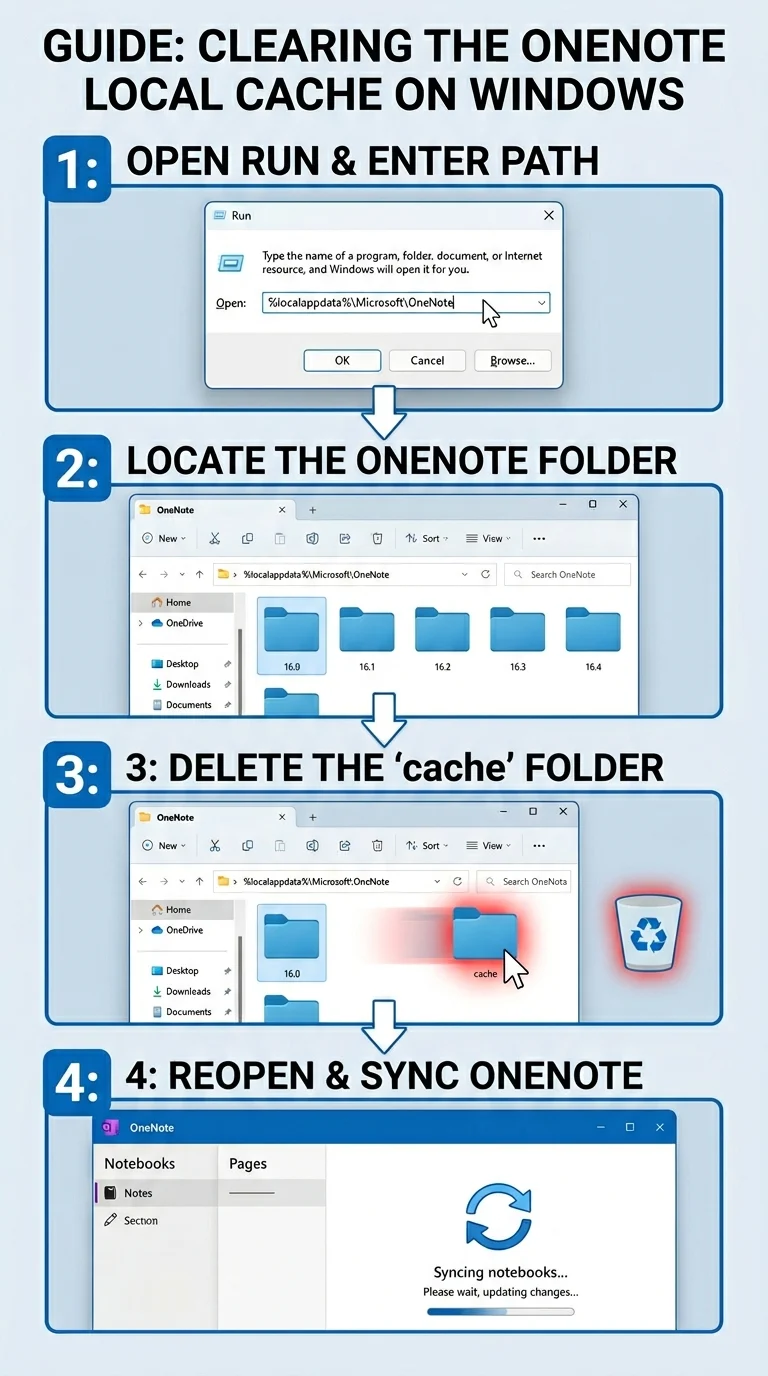
Step 4: Clear the OneNote Local Cache
OneNote stores temporary files and cached data locally. When this cache becomes corrupted or overloaded, it can cause operations like file insertion to get stuck in a loop. Clearing it forces OneNote to rebuild a fresh local state.
- Close OneNote completely (use Task Manager if needed as in Step 2).
- Press Windows + R to open the Run dialog.
- Type
%localappdata%\Microsoft\OneNoteand press Enter. - Open the folder matching your OneNote version (e.g., 16.0).
- Delete the cache folder inside it. OneNote will recreate it automatically.
- Reopen OneNote and let it re-sync your notebooks.
Step 5: Check and Reduce the Size of the File You’re Inserting
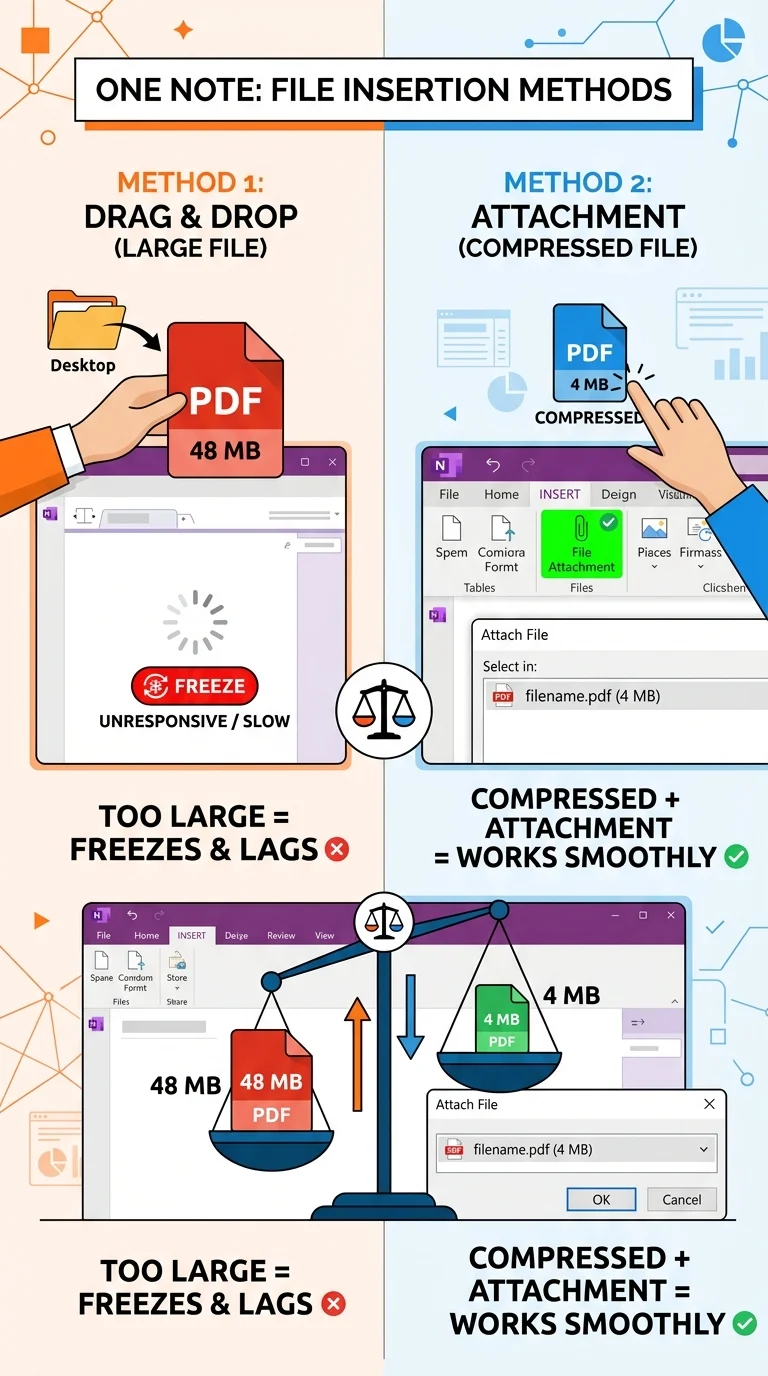
OneNote can struggle to insert large files , especially PDFs with many pages or high-resolution images. If the file you were trying to insert is large, that alone may be causing the hang.
- Try compressing the PDF using a free tool like ilovepdf.com or Adobe Acrobat’s compress option.
- For Word documents, remove embedded images or reduce image resolution before inserting.
- As an alternative, try inserting the file as a file attachment (a link) rather than as a printout, which is much lighter on resources.
- Go to Insert > File Attachment instead of Insert > File Printout.
Step 6: Repair Microsoft Office (For OneNote Desktop App)
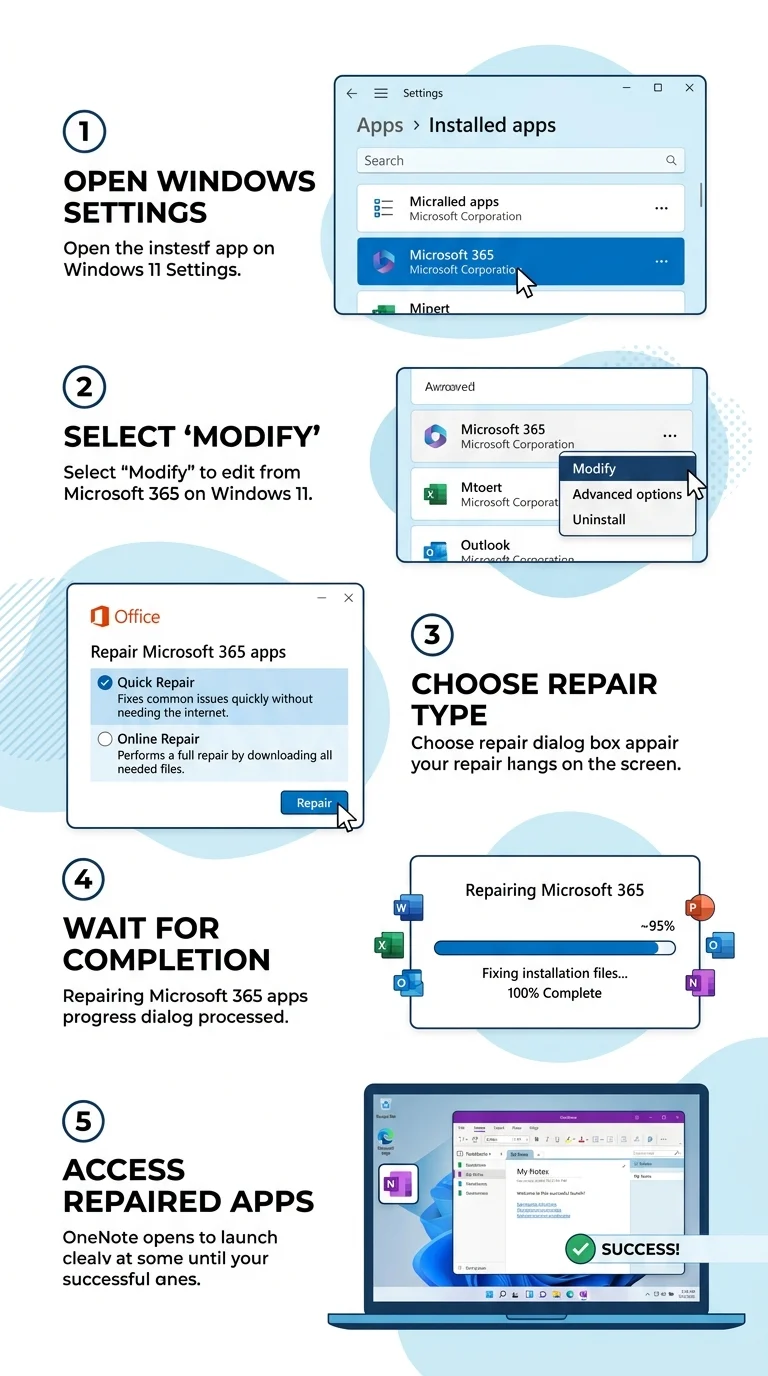
If none of the above steps have resolved the issue, the OneNote installation itself might have a corrupted component. Running an Office repair fixes underlying file issues without uninstalling your apps or losing your data.
- Open Settings on Windows and go to Apps > Installed Apps.
- Find Microsoft Office (or Microsoft 365) in the list.
- Click the three-dot menu next to it and select Modify.
- Choose Quick Repair first and click Repair. Wait for it to complete.
- If the problem persists, run Online Repair, which is more thorough but requires an internet connection.
- Reopen OneNote after the repair finishes.
The Notification Should Stop for Good Now
The “Please wait while OneNote inserts the document” message is essentially OneNote stuck in a loop on a failed file operation. In almost all cases, clearing the cache (Step 4) or undoing the stuck insertion (Step 3) is what finally resolves it. If you’re dealing with large files regularly, making it a habit to insert them as file attachments rather than printouts will prevent this issue from coming back. And if the problem ever reappears after an Office update, a Quick Repair is the fastest way to clean things up.