Vipin PG
Forgetting your mobile hotspot password is common, especially when you set it up once and never touched it again. The good news is that both iPhone and Android store this password in plain sight within your settings menu, so you don't need any special tools or apps to recover it. Below is a simple walkthrough for each platform.
How to Find the Hotspot Password on iPhone
Step 1: Open Settings and Go to Personal Hotspot
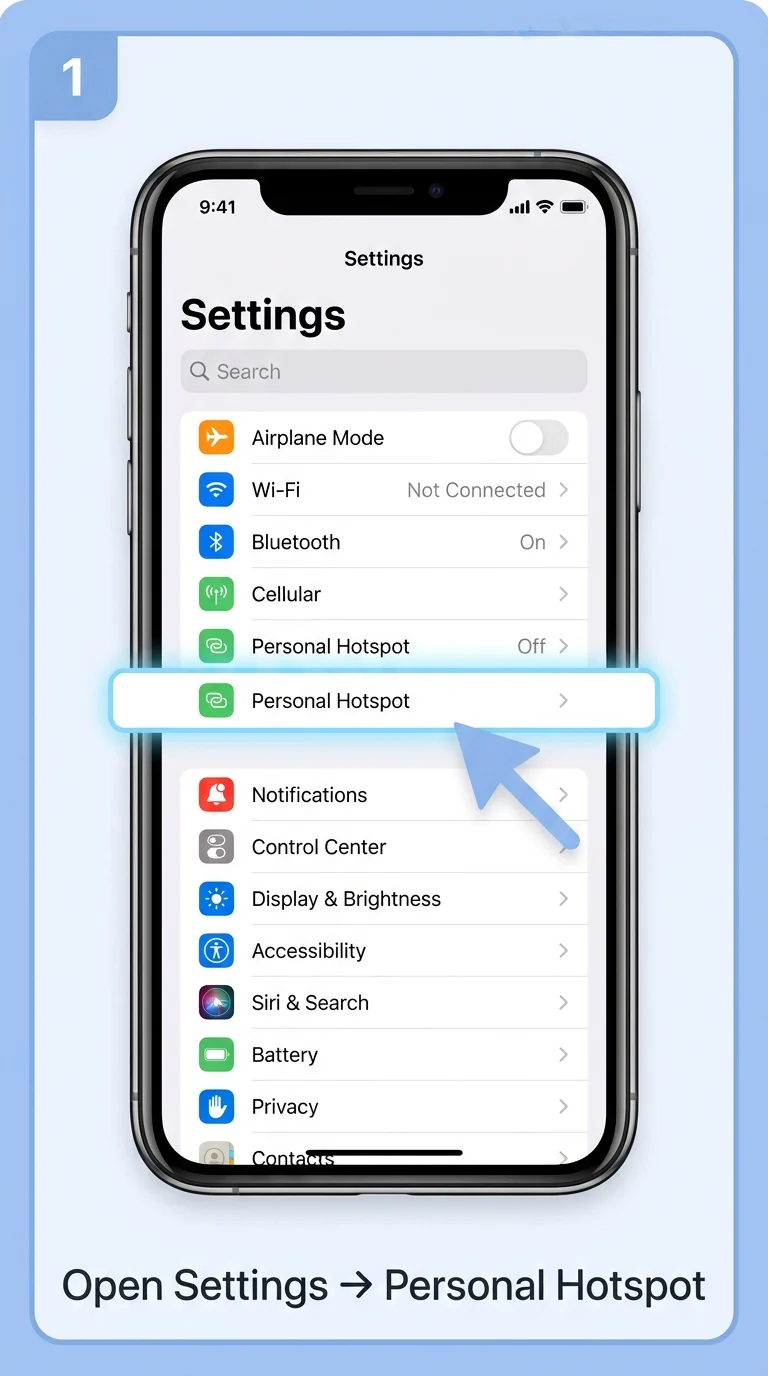
On your iPhone, open the Settings app and scroll down to find Personal Hotspot. If you don't see it directly, it may be listed under Cellular or Mobile Data depending on your carrier and iOS version. Tap on it to open the hotspot configuration screen.
Step 2: Locate the Wi-Fi Password Field
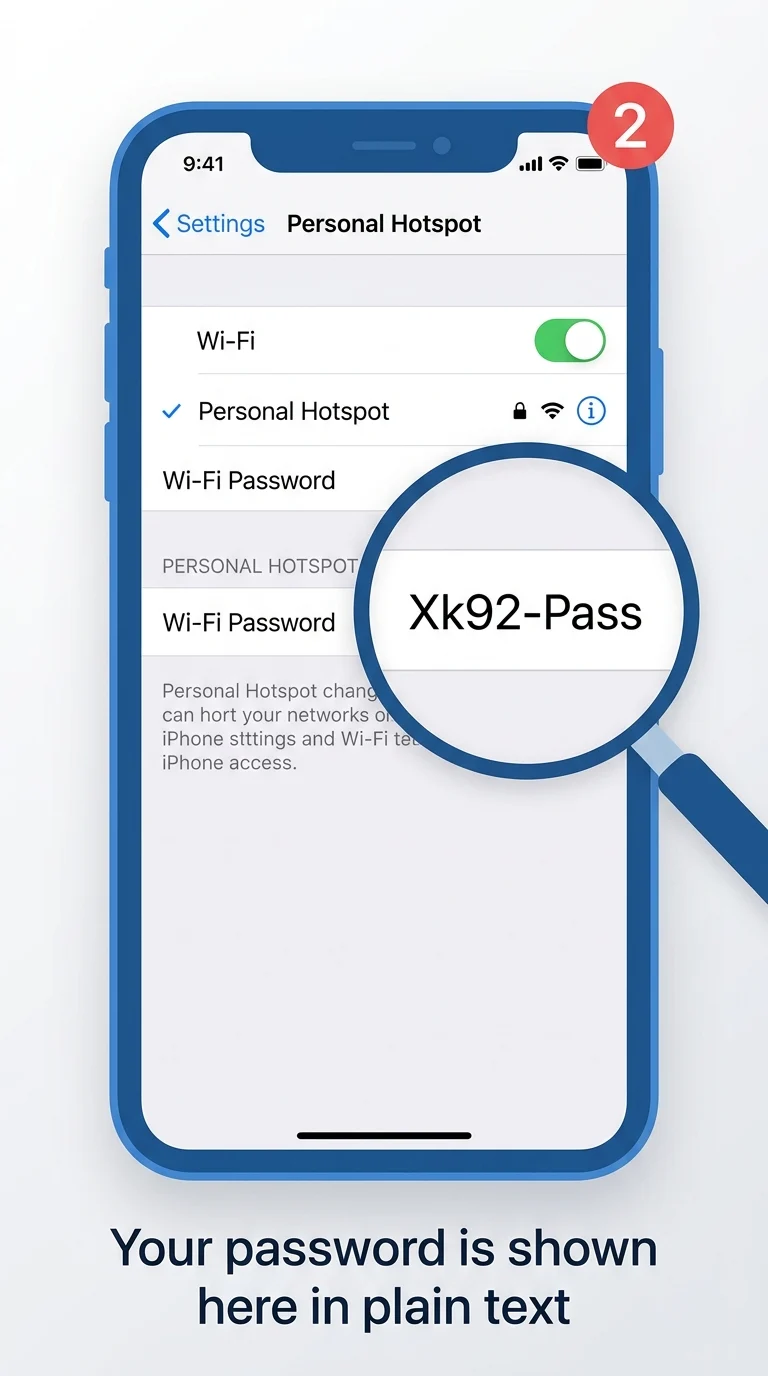
Once inside the Personal Hotspot screen, you'll see a toggle to turn the hotspot on or off, and right below it, a field labeled Wi-Fi Password. This field displays your current hotspot password in plain text, so you can read it directly without needing to tap anything else.
Step 3: Tap to Edit or Copy the Password
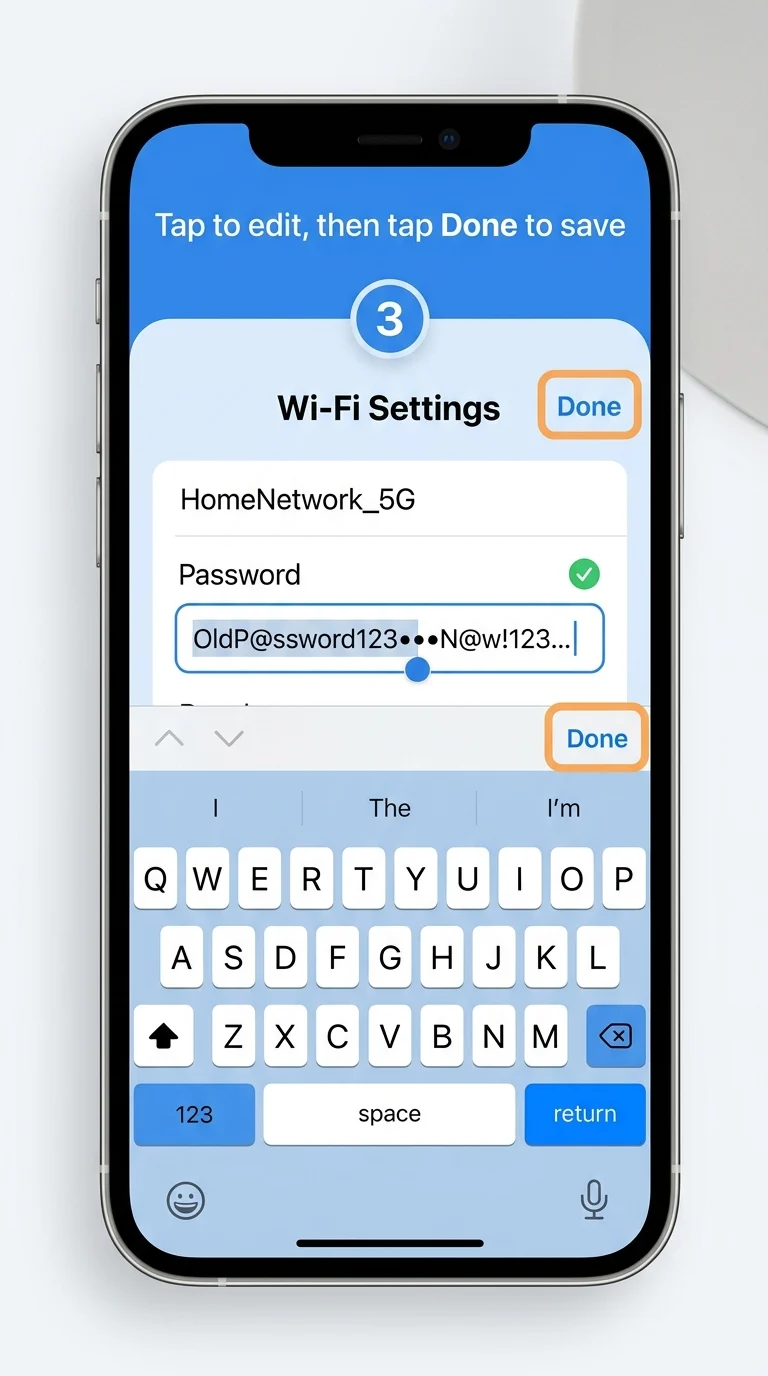
If you want to change the password instead of just viewing it, tap directly on the Wi-Fi Password field. This opens an editable text box where you can clear the existing password and type a new one, ideally at least 8 characters long, mixing letters and numbers for better security. Tap Done to save your changes.
How to Find the Hotspot Password on Android
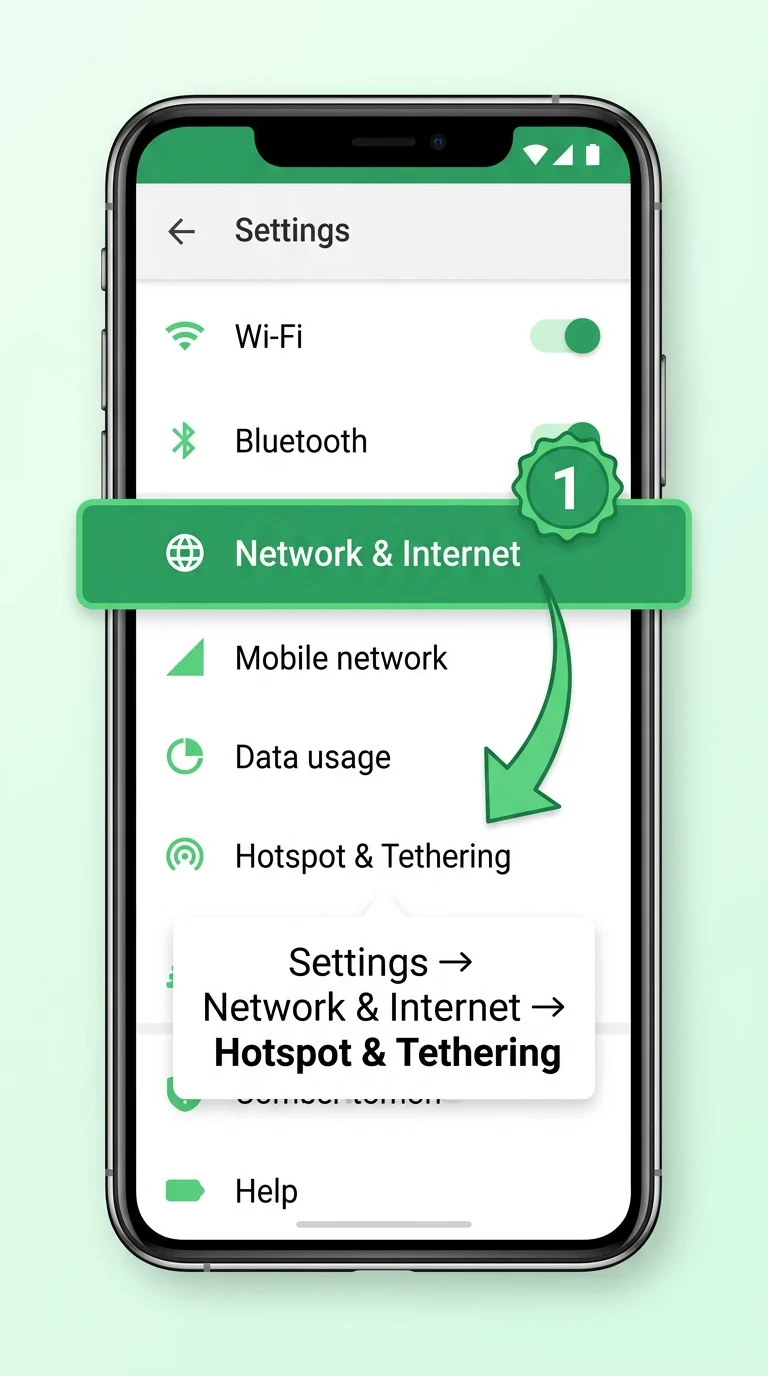
Step 1: Open Network Settings
On most Android phones, open Settings and tap Network & Internet (this may be labeled Connections on Samsung devices). From there, select Hotspot & Tethering, which is where all your sharing options live, including Wi-Fi hotspot, Bluetooth tethering, and USB tethering.
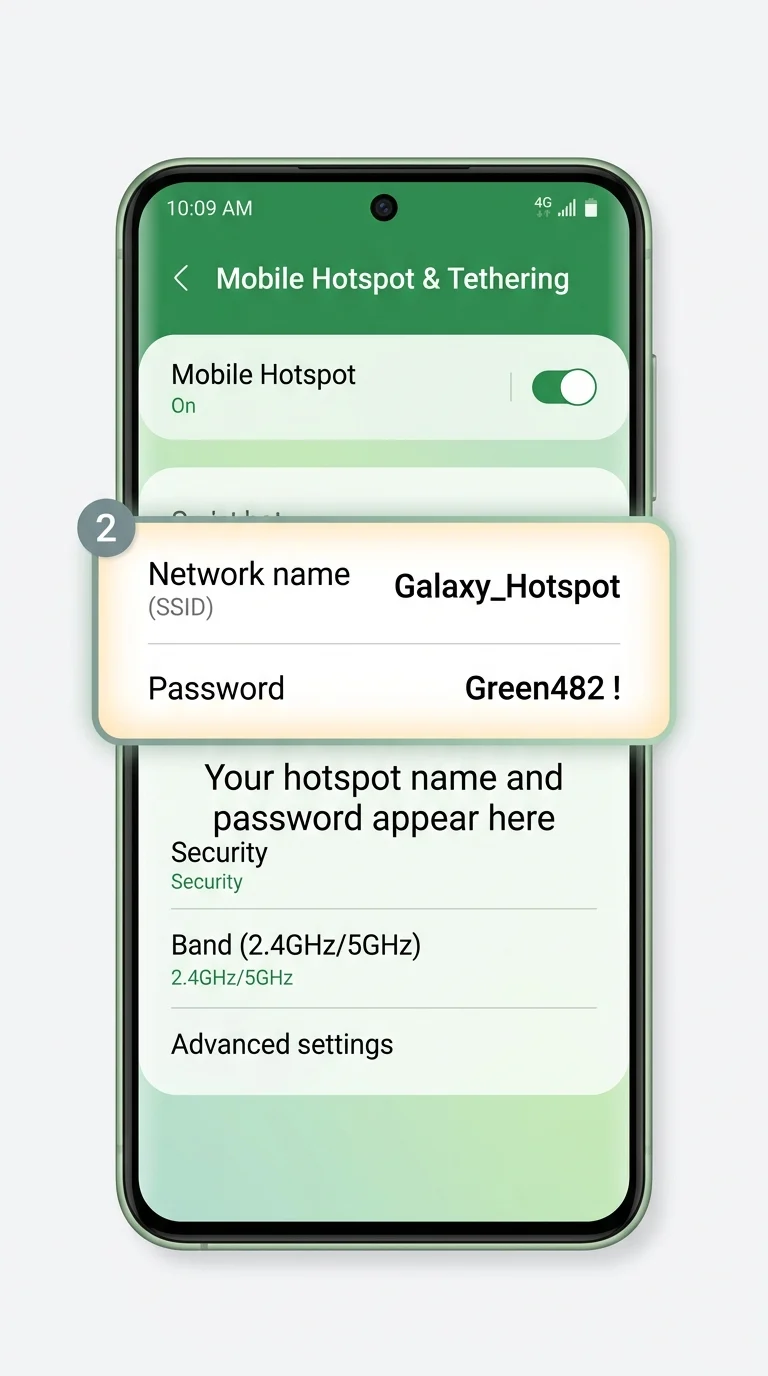
Step 2: Open Wi-Fi Hotspot Settings
Inside the Hotspot & Tethering menu, tap on Wi-Fi Hotspot. This opens a dedicated screen showing your hotspot's network name (SSID) and password together, along with a toggle to turn hotspot sharing on or off.
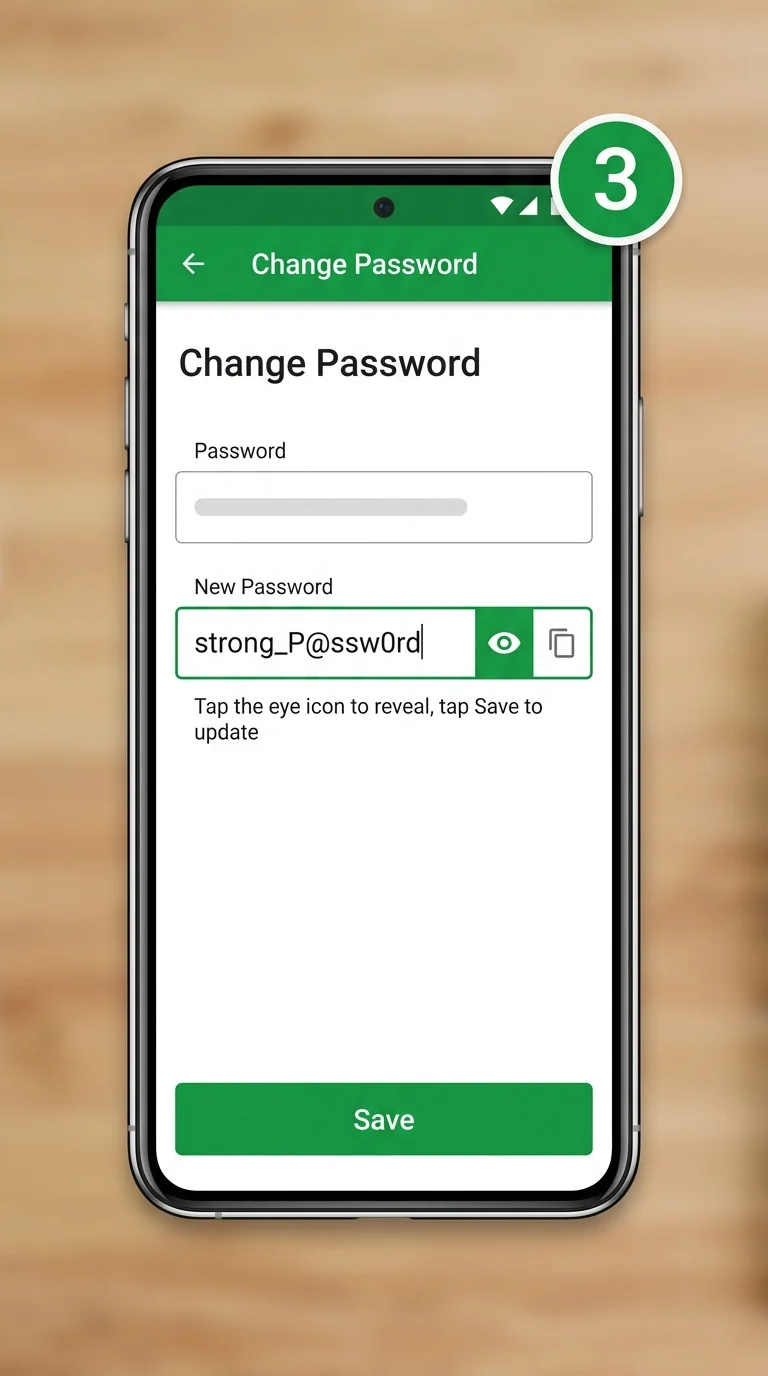
Step 3: Reveal or Change the Password
Tap the Password field to reveal the hidden characters by tapping the eye icon, or tap and hold to copy it directly to your clipboard. If you'd like to change it, clear the field and enter a new password, then tap Save to apply the update immediately.
Conclusion
Whether you're on an iPhone or an Android device, your hotspot password is never truly hidden. It sits right inside your device's settings, ready to be viewed, copied, or changed whenever you need it. Following these steps, you can find your mobile hotspot password on iPhone and Android in under a minute, without resetting your device or relying on any third-party app.