Vipin PG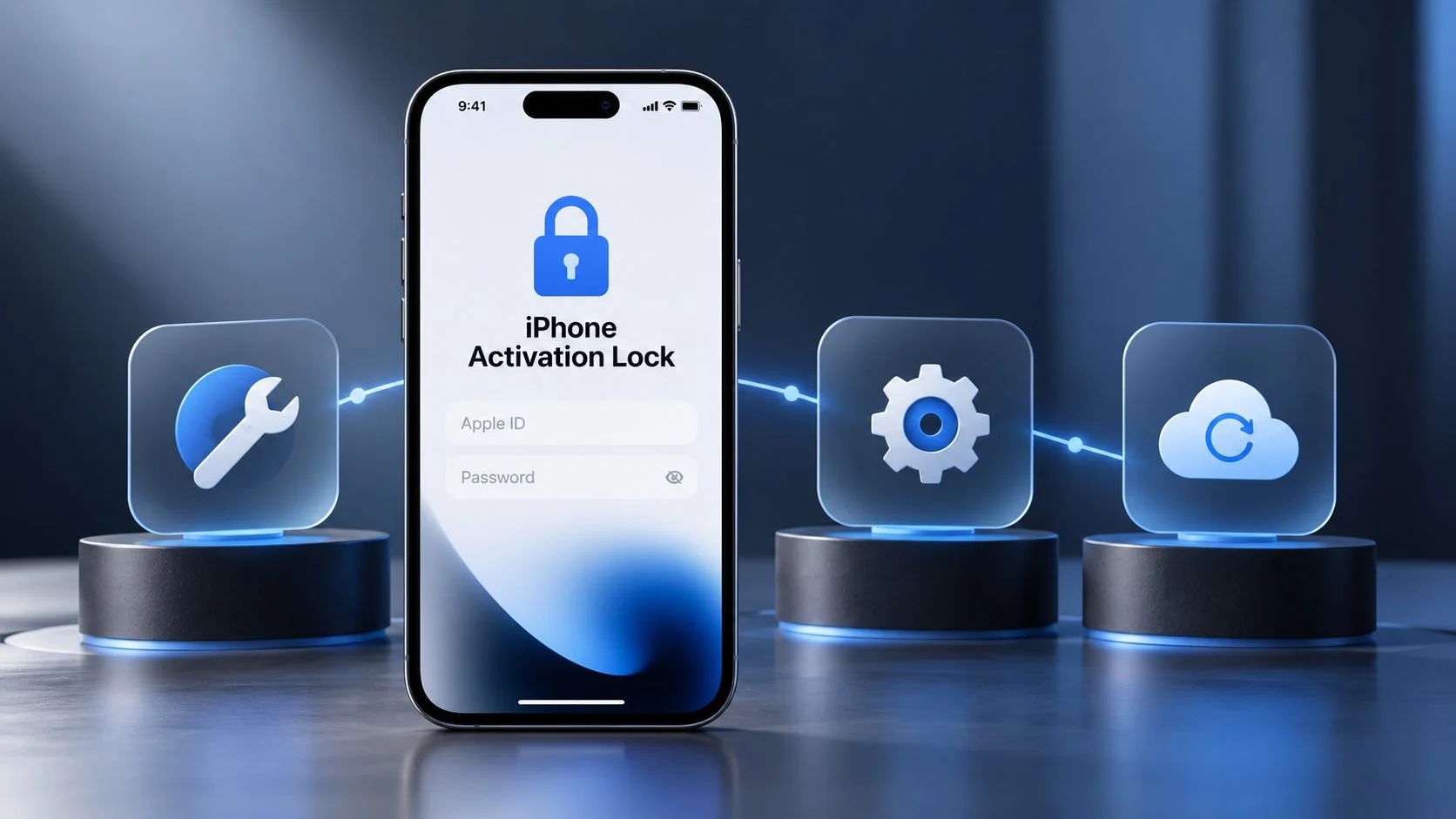
Buying a second-hand iPhone can be a good way to get an Apple device at a lower price. Problems can arise when the iPhone is still linked to the previous owner’s Apple Account. If Find My was enabled, the device may display the “iPhone Locked to Owner” screen after being erased or reset.
Normally, the previous owner can remove the device from their account remotely. If you cannot reach them, start with Apple’s available recovery options, especially if you have valid proof of purchase.
For a device you legally own or are authorized to manage, some third-party iPhone tools also provide Activation Lock-related functions for supported models and iOS versions. This guide looks at three such tools, their stated features, and the limitations you should check before using them.
Activation Lock is an anti-theft feature. The tools discussed here should only be used on an iPhone or iPad that you own or have permission to manage.
Activation Lock Explained: Why Your iPhone Is Still Locked
Activation Lock is an Apple security feature connected to Find My. When Find My is enabled, the device becomes associated with the owner’s Apple Account. A factory reset does not remove this association.
This is why a second-hand iPhone can still show an Activation Lock screen even after its previous data has been erased.
Apple recommends asking the previous owner to remove the device from their account. A legitimate owner may also be able to contact Apple Support with appropriate proof of purchase.
If those options are unavailable, some third-party Activation Lock tools provide options for certain iPhone models and iOS versions. Compatibility is often much narrower than it is for ordinary screen-passcode tools, so check the exact device and iOS version before paying for software.
Top 3 Activation Lock Tools for Verified Device Owners
Top 1: TunesKit iPhone Unlocker
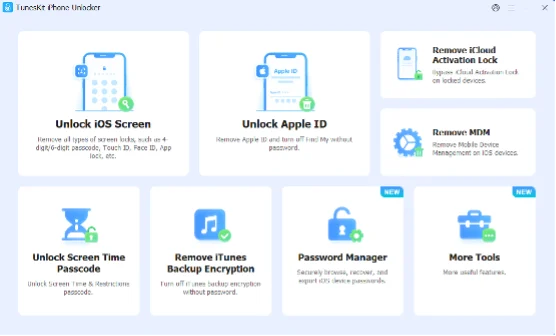
TunesKit iPhone Unlocker is an iOS utility designed for several types of iPhone lock problems. Its feature set includes screen passcode removal, Apple Account-related functions, MDM removal, Screen Time passcode removal, and Activation Lock-related functions.
For Activation Lock, the device must be supported by the software, and the feature should only be used on a device you own or are authorized to manage.
Key Features, Pros, and Limitations
- Activation Lock-related removal functions for supported devices
- The vendor advertises a jailbreak-free process for compatible devices
- Can remove several types of screen locks if you forgot iPhone passcode
- Supports a range of iPhone and iPad models and iOS versions
- Available for Windows and Mac
- Provides a guided interface for users without advanced technical knowledge
- Covers several iPhone lock-related functions in one application
- A computer and USB connection are required
- Full functionality requires a paid license
- Activation Lock support depends on the device model and iOS version
Top 2: iRemove Tools
iRemove Tools is another option associated with iCloud and Activation Lock-related situations. It provides different tools for particular iPhone and iPad models and iOS versions.
The software focuses more directly on Activation Lock scenarios than general screen-passcode problems. This can make its compatibility requirements more specific.
Check the supported device list carefully before using it. Activation Lock methods can differ between hardware generations and iOS releases, and a feature available for one model may not be available for another.
iRemove Tools supports a range of older iPhone and iPad devices and provides tools for specific device configurations. Some procedures may require more technical knowledge, and available functions vary by model and iOS version.
As with the other products covered here, it should only be used on a device you legally own or have permission to manage.
Top 3: Tenorshare 4uKey
Tenorshare 4uKey is another iPhone utility covering several types of device locks. Its product information includes screen passcode functions, Apple ID-related features, MDM-related functions, Screen Time removal, and iCloud Activation Lock options.
For its Activation Lock feature, the product information referenced in the original draft lists support for iPhone 6S through iPhone X running iOS 12 through iOS 16.7.10. Compatibility can change between software releases, so check Tenorshare’s current device list before purchasing.
The software also advertises a jailbreak-free Activation Lock process for supported configurations.
Its other functions cover several common iPhone access problems, including an iPhone unavailable fix, screen passcodes, MDM, and Screen Time.
The application is available for Windows and macOS and uses a guided interface. Activation Lock support is limited to specific device and iOS combinations, a computer is required, and the complete feature set requires a paid license.
How to Handle Activation Lock When the Previous Owner Is Unavailable
The safest starting point is the official route. If possible, ask the previous owner to remove the iPhone from their Apple Account. If the device belongs to you and you have appropriate purchase documentation, Apple Support may also be able to review your case.
If you decide to use a third-party tool on a device you own or are authorized to manage, check its compatibility and limitations first.
Here, TunesKit iPhone Unlocker is used as an example of how these applications generally handle the process.
Step 1: Install TunesKit iPhone Unlocker
Install TunesKit iPhone Unlocker on your Windows PC or Mac and connect the iPhone using a USB cable.
Open the Activation Lock-related function and read the information shown by the software before continuing. Confirm that your exact iPhone model and iOS version are supported.
Step 2: Follow the Device Preparation Instructions
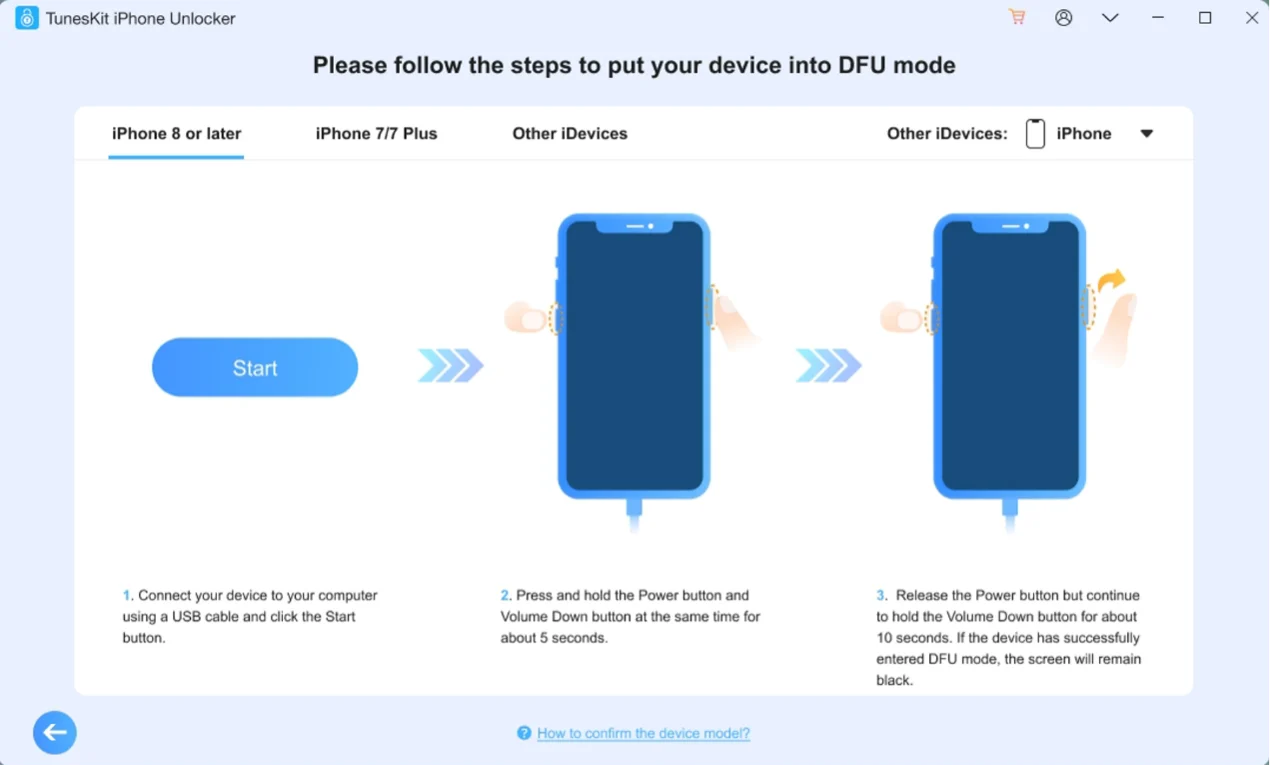
The software will detect the connected iPhone and provide the device preparation instructions required for the supported process.
Some configurations may require the device to enter DFU mode. Follow the instructions shown by the software for your specific iPhone rather than using instructions intended for a different model.
Step 3: Complete the Process
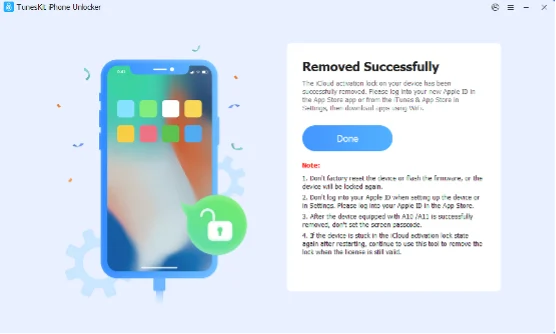
Once the supported device is prepared, the software can continue with its Activation Lock-related procedure.
Keep the iPhone connected during the process and pay attention to any warnings about device functionality, account services, resets, updates, or other restrictions.
After completion, check what functions remain available before setting up the iPhone for regular use.
How to Choose an Activation Lock Tool
Device compatibility should be the first check. Find your exact iPhone model and iOS version, then compare them with the vendor’s current compatibility information. Activation Lock support is usually more restricted than ordinary screen-passcode support.
Next, check how the vendor describes the result. Terms such as “bypass,” “remove,” and “unlock” do not always describe the same process. A tool that allows a device to proceed past one screen may not remove the account association in the same way as Apple’s official process.
Check whether the procedure requires jailbreaking or other device changes. Read any limitations that apply after the process, especially restrictions involving Apple services, cellular functions, resets, updates, or signing in with another account.
Ease of use also matters. A guided desktop application may be easier to follow than a process that relies on manual commands or several separate utilities.
Finally, check the vendor’s documentation, supported-device list, customer support options, and license terms before purchasing.
FAQs
Can I remove Activation Lock without the previous owner?
If you legitimately own the device, start by trying to have the previous owner remove it from their Apple Account. If you have suitable proof of purchase, Apple Support may also be an option.
Some third-party tools advertise Activation Lock functions that do not require the previous owner’s credentials on certain supported devices. Compatibility and post-process functionality can be limited, so check the exact restrictions first.
These tools should only be used on a device you own or have explicit authorization to manage.
Does a factory reset remove Activation Lock?
No. A factory reset erases the device, but it does not remove the Activation Lock association.
If Find My was enabled, Apple’s activation process can still request the Apple Account associated with the device during setup. This is why a used iPhone should have Activation Lock removed by the seller before ownership is transferred.
Is Activation Lock bypass the same as removing the Apple Account?
Not necessarily. Different tools use terms such as “bypass,” “remove,” and “unlock” for different processes.
Check exactly what the software does and what restrictions remain afterward. A third-party process should not automatically be assumed to provide the same result as having the legitimate account holder remove the device from their Apple Account.
Conclusion
Activation Lock is designed to protect an iPhone associated with Find My, including after the device has been erased. If you encounter the lock on a second-hand or previously managed iPhone, try the previous owner or Apple’s supported recovery process first.
For a device you legally own or are authorized to manage, TunesKit iPhone Unlocker, iRemove Tools, and Tenorshare 4uKey provide Activation Lock-related options for certain supported configurations. TunesKit’s guided interface and advertised jailbreak-free option may be useful for compatible devices, while iRemove Tools and 4uKey cover their own sets of models and software versions.
Before paying for any of them, I recommend checking the exact iPhone model, iOS version, current compatibility list, and any restrictions that apply after the process.