Vipin PG
Closing your Cash App account permanently removes your access to the app, disconnects any linked Cash Card, and erases your ability to send or receive money through it. You can’t reopen a closed account later — if you ever want Cash App again, you’ll need to sign up fresh with your details. The whole process takes about two minutes and is done entirely from your phone.
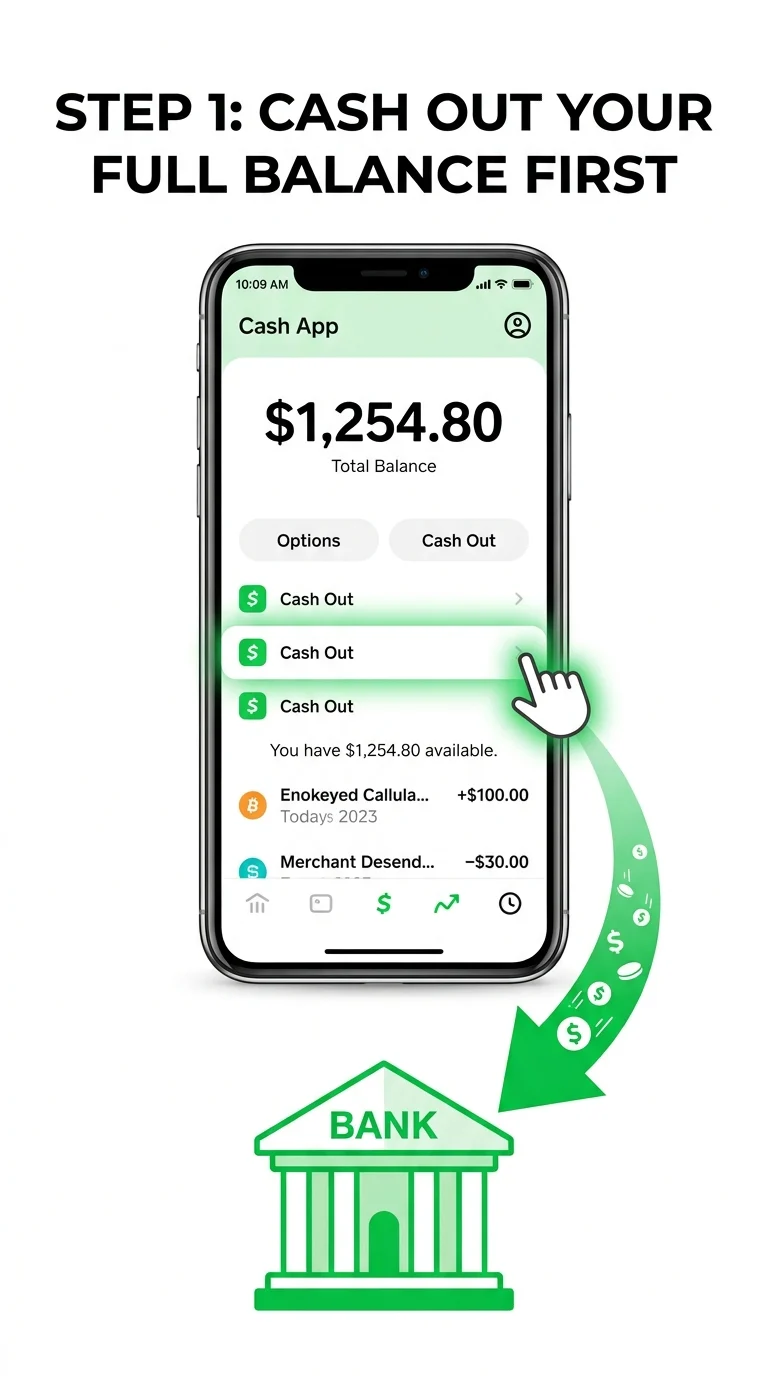
Step 1: Cash Out or Transfer Your Full Balance
Cash App won’t let you close an account that still holds money. Open your balance tab and either cash out to your linked bank account or send the remaining funds to someone else. Your balance needs to show $0.00 before you can move forward.
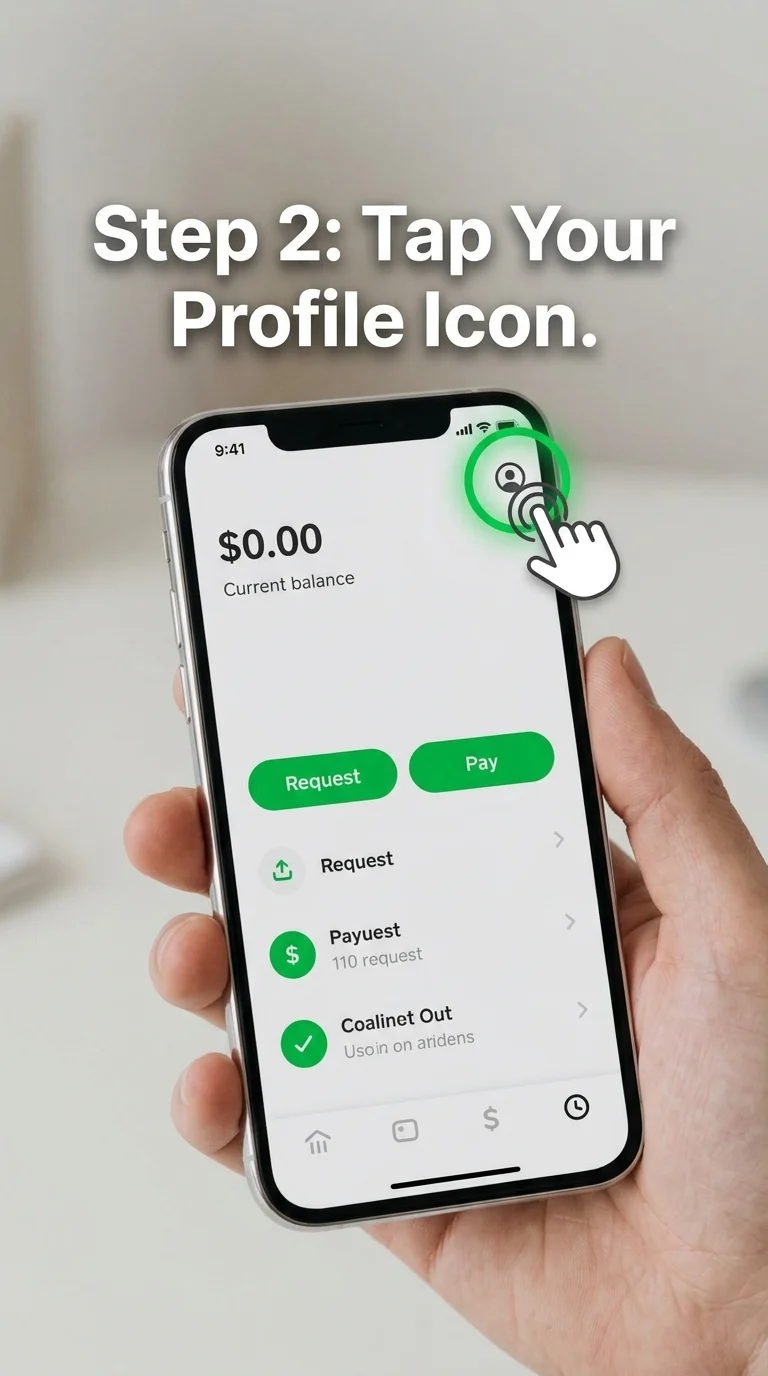
Step 2: Open Cash App and Tap Your Profile Icon
Launch the app and tap the small profile icon in the top-right corner of the home screen. This opens your account settings menu.
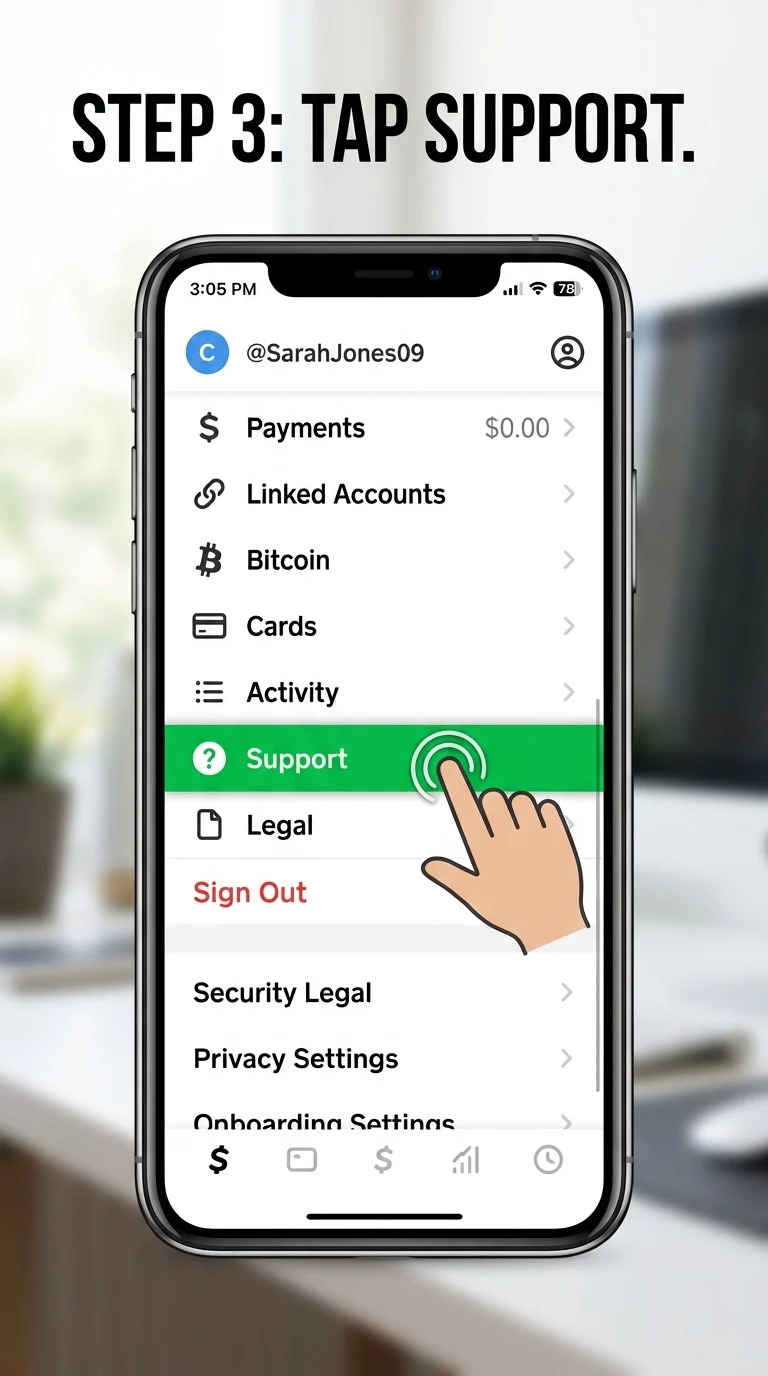
Step 3: Scroll Down and Tap “Support”
On your profile page, scroll down past your personal details until you see the “Support” option, and tap it.
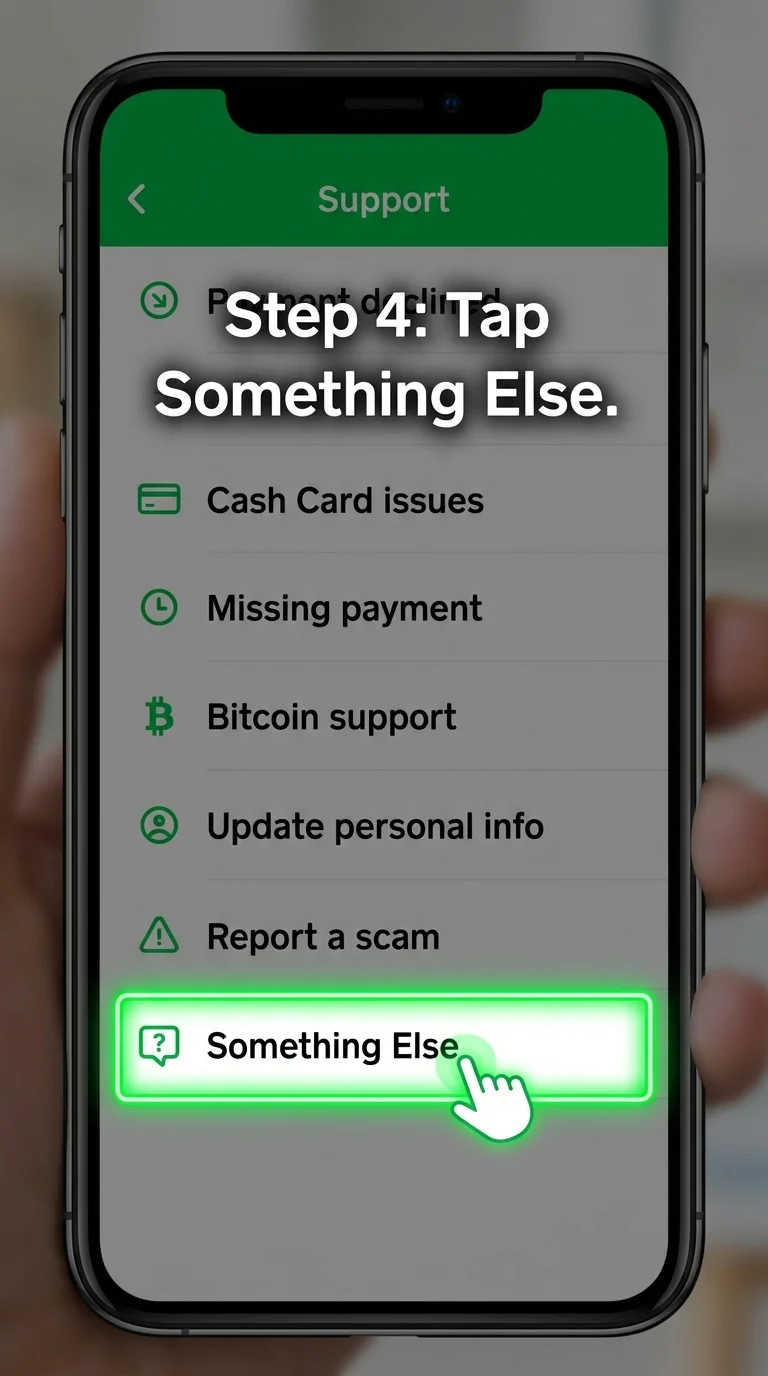
Step 4: Tap “Something Else”
Inside the Support menu, tap “Something Else” — this leads you past the automated help topics and into general account options.
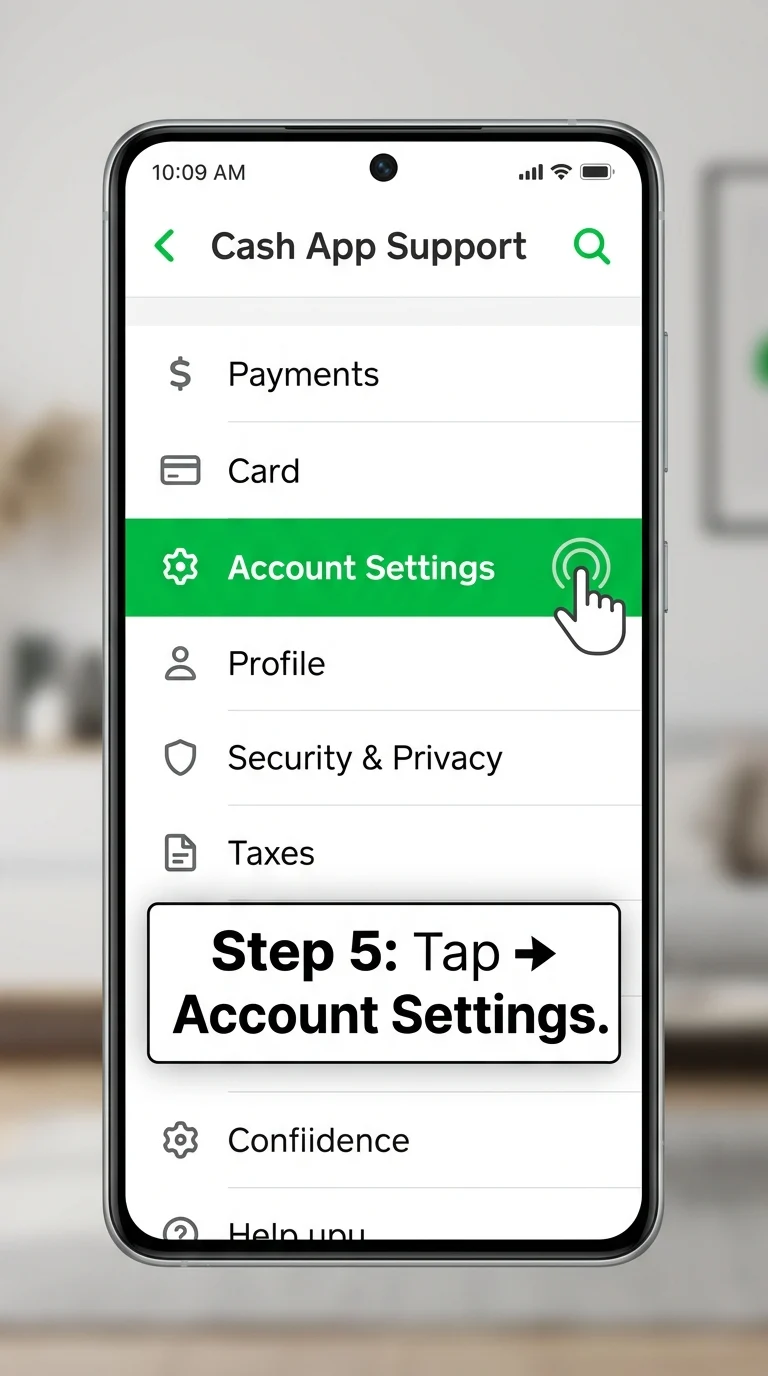
Step 5: Go to “Account Settings”
After tapping “Something Else,” you’ll see a new list of options. Select “Account Settings” from this list.
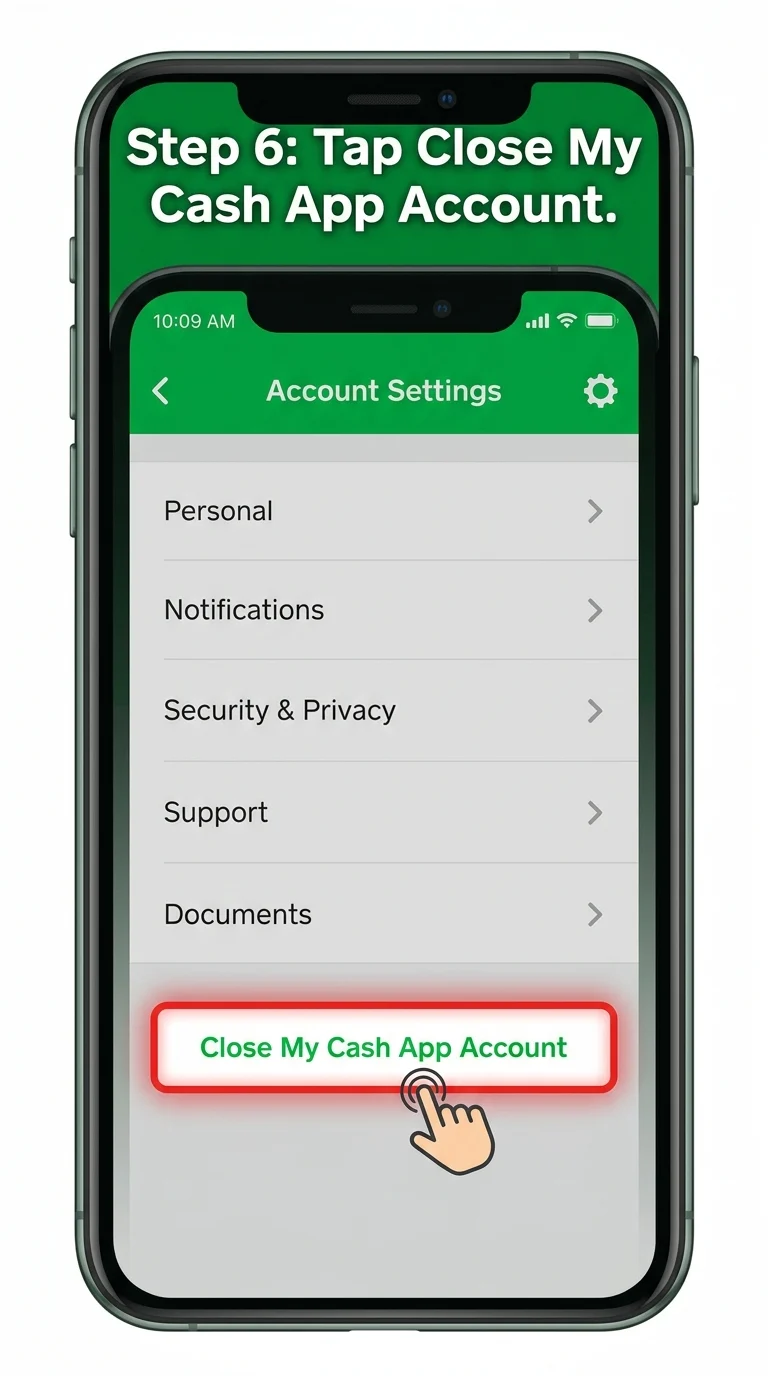
Step 6: Tap “Close My Cash App Account”
Inside Account Settings, scroll down to find “Close My Cash App Account” and tap it. This starts the account closure process.
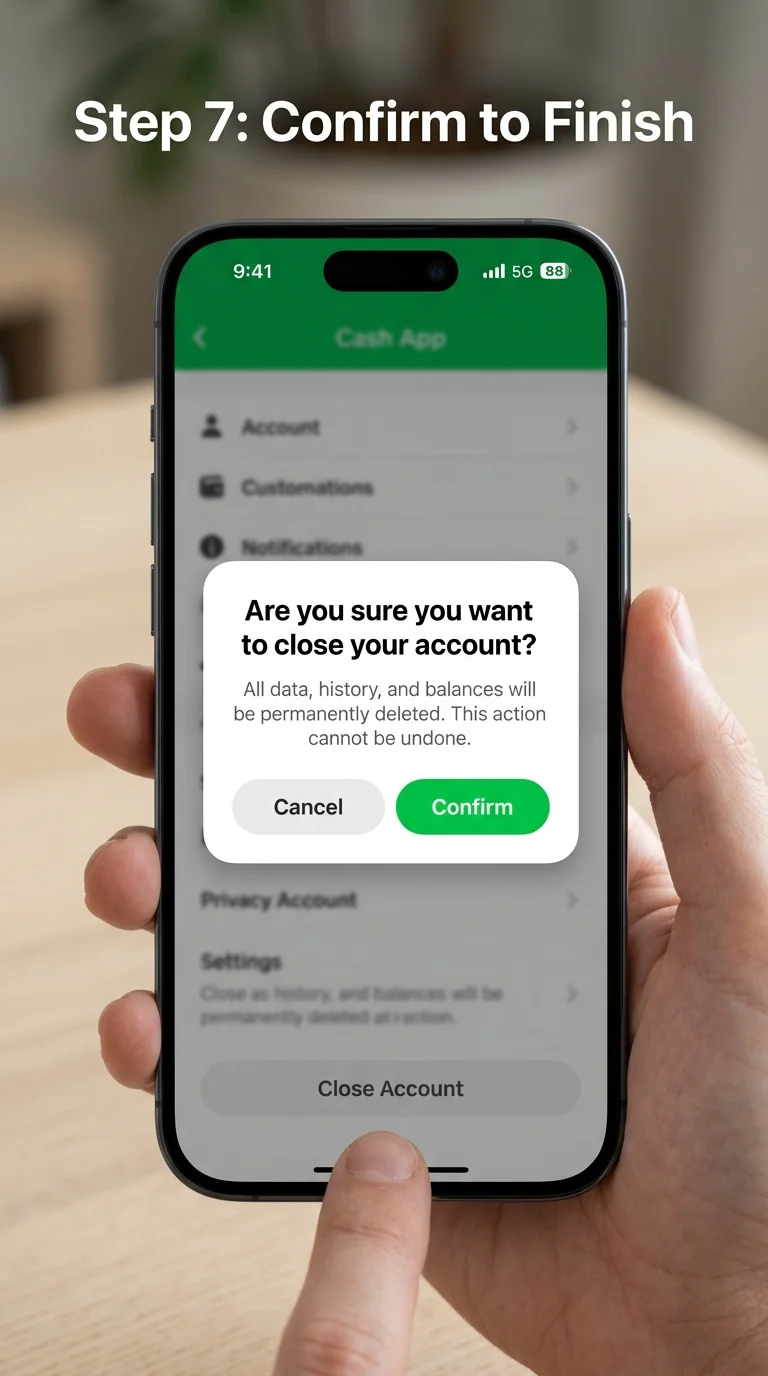
Step 7: Confirm the Account Closure
Cash App will show a confirmation prompt asking if you’re sure. Tap “Confirm” (or the equivalent button) to finalize the closure. You’ll receive an email shortly after confirming that your account has been closed.
Conclusion
Following these seven steps permanently closes your Cash App account, cutting off access to the app and any linked Cash Card. Keep in mind that while the account itself is gone, Cash App may retain some transaction records for a period as required by financial regulations — this is standard for any payment platform and doesn’t mean your account is still active. Once you get the confirmation email, the deletion is complete.