Vipin PG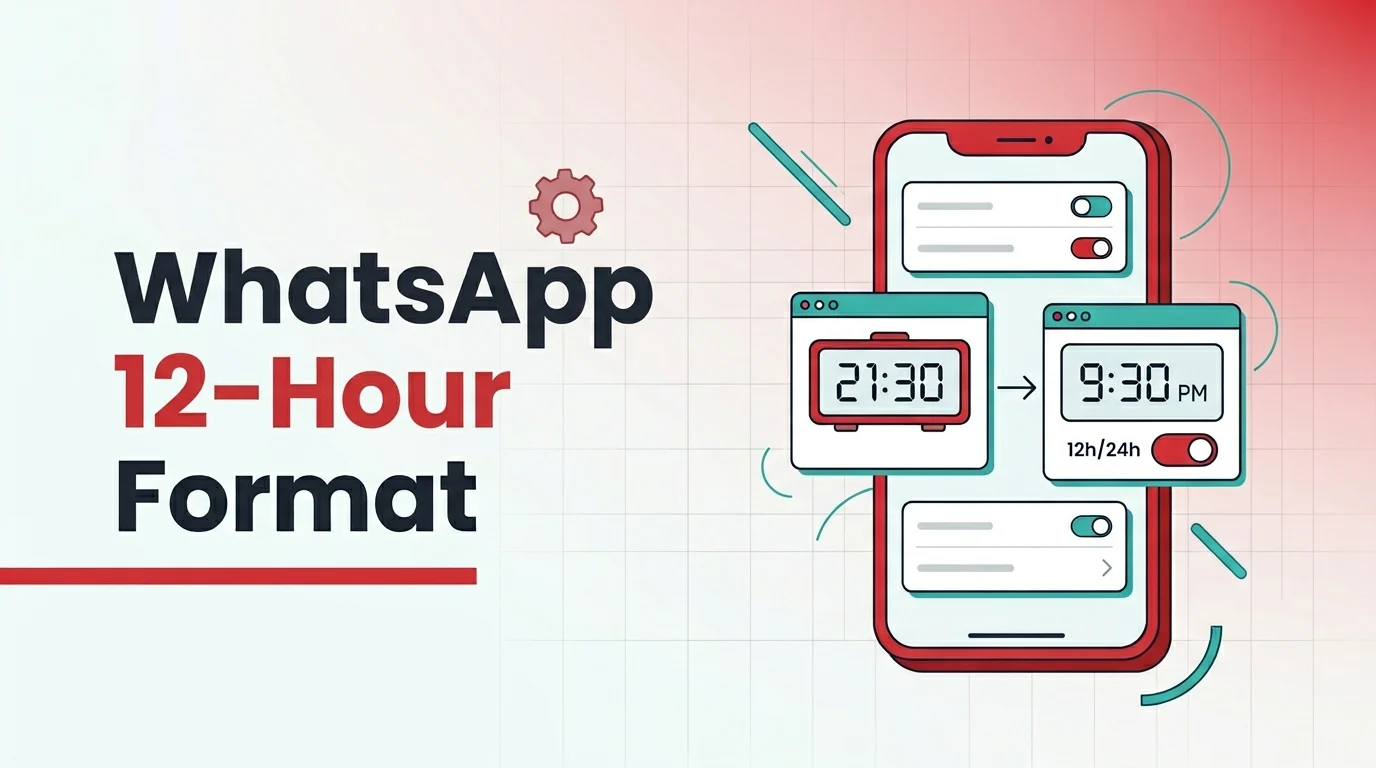
When WhatsApp suddenly flips to 24-hour time, most people start tapping through every menu in the app looking for a clock setting. Spoiler: it’s not there. That’s what makes this so frustrating. WhatsApp doesn’t have its own time-format switch — it just copies whatever your phone, language, or region is already doing.
So you won’t find the fix buried in chat settings, notification preferences, or some experimental feature. You need to change how your device handles time, and WhatsApp will follow along. On some phones that’s a simple toggle. On others, especially if you’re seeing weird formatting in WhatsApp Web or Desktop, you might also need to check language or region settings.
What’s really controlling the time format
WhatsApp’s own support docs point users straight back to device-level date and time settings when timestamps look off. That tells you everything: the app leans on your system’s time handling instead of managing it separately. On iPhone, Apple gives you a direct switch through iPhone clock format. Android works the same way, though the exact menu path depends on your phone’s brand.
That’s why two people running identical WhatsApp versions can see completely different timestamp styles. A Samsung might show one menu, a Pixel another, and WhatsApp Web sometimes pulls from browser or locale behavior instead of just your desktop clock.
| Platform | Where to change it | Does WhatsApp have its own switch? | What you need to do for 12-hour time | Extra note |
|---|---|---|---|---|
| iPhone | Settings > General > Date & Time | No | Turn 24-Hour Time off | Applies system-wide, not just to WhatsApp |
| Android | Usually Settings > System/General management > Date & time | No | Disable Use 24-hour format | Menu names differ by manufacturer |
| Samsung Galaxy | Settings > General management > Date and time | No | Turn off Use 24-hour format | Samsung labels this setting clearly |
| WhatsApp Web/Desktop | Usually browser, app, system language, or locale behavior | No | Check language/region if time still looks wrong | Desktop behavior can be less predictable |
Data last verified: April 2026
Switching to 12-hour time on iPhone
On iPhone, this is pretty simple. Open Settings, tap General, then Date & Time, and flip off 24-Hour Time. Apple’s documentation confirms that’s the master control for how time displays across your entire phone, which is why WhatsApp picks it up automatically. If you’re already poking around in settings, TechRounder’s guide to WhatsApp privacy settings is worth a look too.
What happens after you change it
Once you turn that switch off, WhatsApp should start showing timestamps in 12-hour AM/PM format. Usually it’s instant. If your chat list or an open conversation still shows the old style, just close WhatsApp and reopen it once.
Switching to 12-hour time on Android
Android follows the same logic, but there’s one catch: every manufacturer names the menu differently. Google’s help docs confirm your phone’s time display lives in system clock or date-and-time settings, while Samsung’s support sends users to General management and Date and time. What you’re hunting for is a toggle called Use 24-hour format. Turn it off, and WhatsApp should follow. If your timestamps are actually wrong instead of just formatted oddly, WhatsApp’s timestamp fix guide is the better starting point.
Where to find it on different Android phones
- Pixel and stock Android: Settings > System > Date & time
- Samsung Galaxy: Settings > General management > Date and time
- Other Android skins: search Settings for 24-hour or Date & time
If the option’s already off and WhatsApp still looks wrong, restart the app first. If that doesn’t help, restart your phone. Some Android skins hang onto UI formatting longer than they should.
Why Web or Desktop might ignore your changes
Here’s where things get messy. Mobile WhatsApp usually respects your phone setting without issue. Web and desktop clients? Not always. Community threads keep pointing to language or locale behavior as the reason date and time formatting gets stuck in a US pattern or refuses to leave 12-hour format even after you’ve changed a clock toggle. That lines up with what people actually see: Web and Desktop often pull from broader locale rules, not just one simple switch. If you’re troubleshooting linked devices, TechRounder’s article on WhatsApp Web access is a good next step.
If Web or Desktop won’t budge
- Close the WhatsApp desktop app or browser tab completely.
- Check your system language and regional format.
- If you use WhatsApp Web, verify the browser language order.
- Reopen WhatsApp Web/Desktop and check a fresh chat timestamp.
When both the date style and time style look off, language and region settings matter even more. On Android especially, community reports show WhatsApp often follows language locale rules for how it formats things.
When changing the clock format doesn’t work
If the problem isn’t 12-hour versus 24-hour but timestamps that are clearly wrong, treat it like a device time issue, not a WhatsApp preference issue. Make sure automatic date, automatic time, and automatic time zone are all turned on. WhatsApp specifically calls out those settings when message times are incorrect. If other WhatsApp features are acting weird too, the site’s guide on WhatsApp status issues walks through similar troubleshooting steps.
- Enable automatic date and time
- Enable automatic time zone
- Restart WhatsApp
- Restart the phone if the old format is still cached
- Update WhatsApp if you’re on an older build
If you’re also cleaning up media handling and chat storage, TechRounder’s walkthrough on WhatsApp media downloads is another useful settings check while you’re already in the app.
Bottom line
Don’t waste time hunting for a hidden WhatsApp clock setting. It doesn’t exist. Change your phone’s time format first, then check language or region settings if WhatsApp Web or Desktop still won’t cooperate.