Vipin PG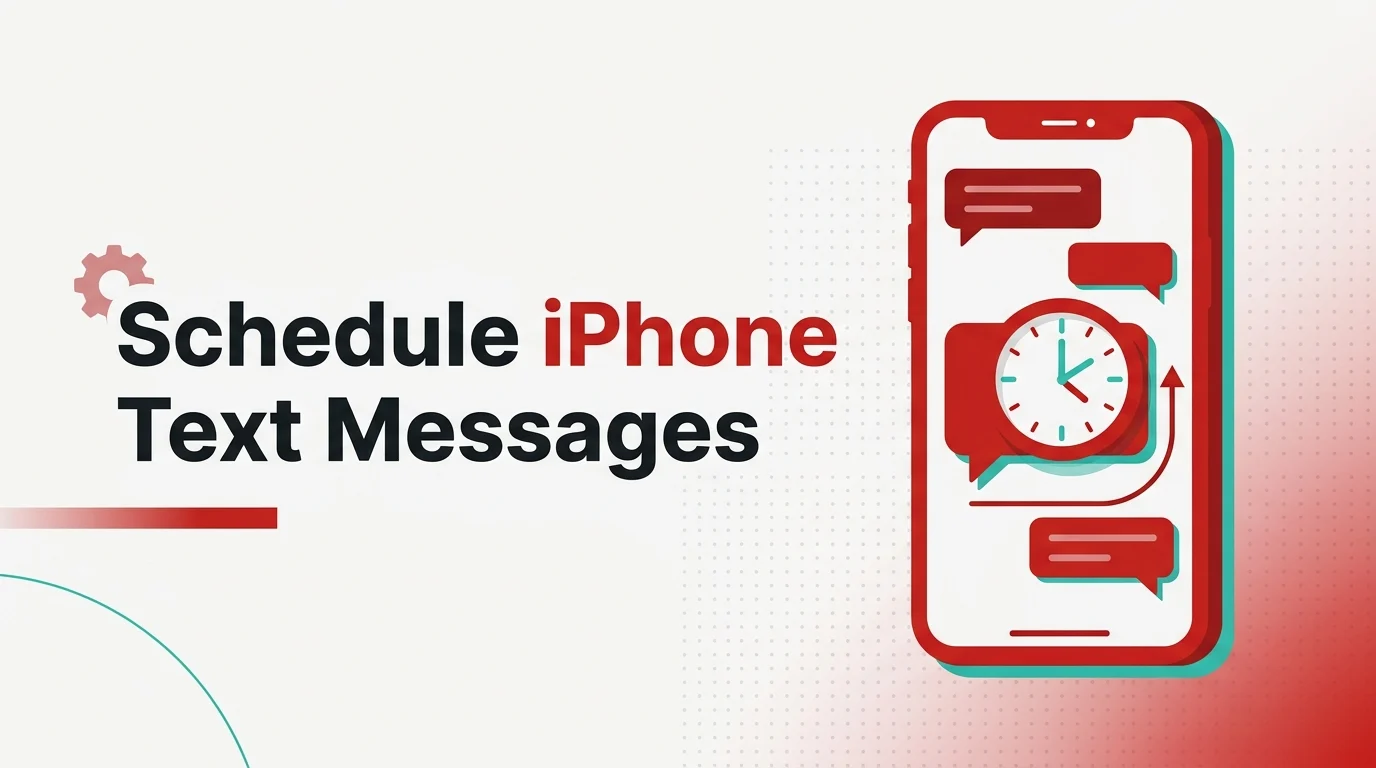
You can finally stop playing the "don't forget to text them at 8 AM" game on iPhone. Apple's built-in option is good now, but it still doesn't solve every scheduling use case. That's where people get tripped up. They see one guide saying the feature exists, another saying it doesn't, and half the App Store promising automation that turns out to be a reminder with extra steps.
The real answer depends on what you mean by scheduled. If you want a one-time delayed iMessage, the Messages app is now the cleanest way to do it. If you want recurring texts, trigger-based sends, or help with WhatsApp and other platforms, you're looking at Shortcuts or a third-party app. The important part is knowing which path truly auto-sends and which one just nudges you when the time comes.
What actually works on iPhone right now
Apple now supports delayed sending directly inside Messages, but the feature is documented as an iMessage workflow, not a universal SMS scheduler. Apple's current iPhone guide says you can schedule a message up to 14 days ahead, edit it, reschedule it, send it immediately, or delete it before delivery. That makes it the best built-in choice for most people who are messaging inside Apple's ecosystem or at least starting from an iMessage-capable thread. For the broader Messages setup behind that, TechRounder's iMessage sync guide is a useful companion if your conversations are not behaving consistently across devices.
Where things get messy is older advice and green-bubble expectations. Apple's own documentation says "You must be using iMessage," while many users still expect scheduled sending to behave like a carrier-level SMS timer. That is why third-party schedulers remain popular even after Apple added Send Later.
The best method depends on the kind of message
Data last verified: April 2026
| Method | Best for | Auto-send level | Main limit | Who should use it |
|---|---|---|---|---|
| Messages → Send Later | One-time delayed personal texts | Built-in scheduled send | Apple documents it as an iMessage feature and caps scheduling at 14 days | Anyone on a current iPhone who wants the simplest native method |
| Shortcuts personal automation | Recurring reminders, repeated texts, trigger-based workflows | Can run automatically for supported triggers | Takes setup time and is less friendly for one-off messages | Power users who want repeatable automation |
| Scheduled app | Multi-platform planning, reminders, SMS service workflows | Mixed; app claims auto-send for some paths and reminder-based flow for others | Features vary by platform and in-app purchase tier | Users who want Messages, WhatsApp, Telegram, email, and recurring flows in one place |
| Kyew | Reminder-driven personal or bulk-style text prep | Notification-first, then manual send | Not true hands-off auto-send for regular texts | Users who mainly want to prewrite messages and be prompted later |
That table is the part most articles skip. They lump everything together as "scheduling," when there are really two buckets: native delayed delivery and scheduled reminders that still need your tap. If your goal is "write now, send exactly then, with no extra tap," the built-in Messages option is the first thing to try. If your goal is "repeat this every Monday" or "remind me to send this on birthdays," Shortcuts or an app makes more sense.
Use Apple's built-in Send Later first
When this is the right choice
This is the one I'd point most iPhone users to first because it is the least fragile setup. Open a conversation in Messages, tap the add button, choose Send Later, pick the time, then send the message. Apple says the pending message stays visible with a dashed outline until delivery, can be edited before send time, and is removed from Apple's servers once delivered. Apple also says the window is limited to 14 days, so this is a practical delayed-send feature, not a long-term scheduling system. Apple's own Send Later guide is clear on those limits.
What to expect in real use
Send Later is best for situations like "message my client tomorrow at 9 AM," "wish someone happy birthday at midnight," or "send that follow-up after office hours." It is not ideal for repeating schedules, campaign-style texting, or anything that depends on cross-platform messaging rules being perfectly predictable.
If the option is missing, check whether iMessage is enabled and whether the conversation is behaving like an iMessage thread. Apple's Messages app listing also now advertises Send Later directly, which is a good sign that this is not some hidden experiment anymore. If iMessage itself is unstable, TechRounder's activation fix guide is the first thing I'd try before blaming scheduling.
Shortcuts is still the better option for recurring automation
Shortcuts becomes more useful the moment your requirement changes from "send this once later" to "send this every week" or "run this when a condition is met." Apple's Shortcuts guide says you can create a personal automation with a trigger such as Time of Day, then add actions, test the workflow, and save it. Apple also documents that many trigger types can run automatically without asking, including Time of Day, Message, Wi-Fi, Bluetooth, App, and Battery Level. The official automation setup guide and run without asking page are worth checking if you want the cleanest native workaround.
A practical Shortcuts setup
The easiest pattern is a Time of Day automation with a Send Message action. Pick the time, choose daily, weekly, or monthly repeat if needed, add your message, assign the recipient, and test it once before trusting it. This is especially handy for recurring check-ins, shift reminders, medication nudges to family members, or business follow-ups that need a simple repeat cadence.
The tradeoff is maintenance. Shortcuts is powerful, but it is still an automation builder. If you only need one delayed message every now and then, it is overkill. It shines when you want repeat rules that Apple's Send Later feature does not even try to cover.
Third-party apps are mostly for reminders, templates, and multi-platform workflows
This is where you need to read the App Store text carefully. Many iPhone scheduler apps are useful, but they are not all true auto-senders. Some prepare the message and notify you at the scheduled time. That is still valuable, especially if you want message templates, birthday imports, recurring reminders, or WhatsApp support, but it is different from hands-off delivery.
Scheduled
Scheduled positions itself as a broader communication planner. Its App Store listing says it can schedule across iOS Messages, WhatsApp, Telegram, Line, email, and SMS, with iOS Shortcuts support and an SMS service for automatic text messaging. That makes it the more ambitious option if you want one dashboard for repeated reminders and multi-channel outreach. The listing for Scheduled on iPhone is worth reading closely because the exact send behavior depends on which channel you use.
Kyew
Kyew is easier to understand because it is more honest about the workflow in practice. Its listing says you write the message, set the due date, then get notified and send it. Reviews on the App Store also reinforce that it is useful for planning and bulk-style personal outreach, but not a pure automatic sender for normal iPhone texts. For people who want prepared messages, groups, and recurring schedules without wrestling with Shortcuts, Kyew for iPhone is one of the better fits.
If a third-party scheduler starts acting flaky, do not waste half an hour guessing. On iPhone, app weirdness often comes down to stale local data, notification permissions, or Focus mode suppressing alerts. TechRounder's iPhone cache cleanup walkthrough is useful here because many scheduler failures are really app-state failures.
How to choose the right scheduling method
Pick Messages → Send Later if the message is one-time, time-sensitive, and you want the most native experience possible. Pick Shortcuts if you need repeat schedules or trigger-based logic. Pick a third-party app if you want templates, birthdays, groups, or cross-platform planning and you are fine with either notifications or an app-managed workflow.
There is one more angle that matters if you work across Apple devices. If you also use a Mac, your Messages setup can affect how consistent the experience feels between iPhone and desktop. TechRounder's Messages sign-out guide is useful if your Mac is receiving or syncing conversations in a way that makes scheduled messaging harder to track.
What to do if Send Later is missing
- Check iMessage first. Apple documents Send Later as an iMessage feature, so make sure iMessage is turned on and the conversation is not falling back to a non-iMessage path.
- Update iOS. Older how-to guides often describe the pre-Send-Later era. On a current iPhone, the native feature should be present in supported setups.
- Test with a known iMessage thread. This quickly tells you whether the issue is the feature itself or the specific conversation.
- Review notification and Focus settings. This matters more for third-party apps, especially the ones that rely on a notification to complete the send.
- Use Shortcuts when native scheduling is too limited. Repeating reminders and recurring sends are exactly where Shortcuts still wins.
Where this is heading
Apple has already solved the easy part: one-time delayed sending inside Messages. The next thing to watch is whether Apple expands that into a broader scheduler for repeat rules and non-iMessage workflows. Until that happens, the best setup is simple: use Send Later for clean one-offs, use Shortcuts for recurring logic, and use apps only when you genuinely need templates, reminders, or multi-platform scheduling.