 Vipin PG
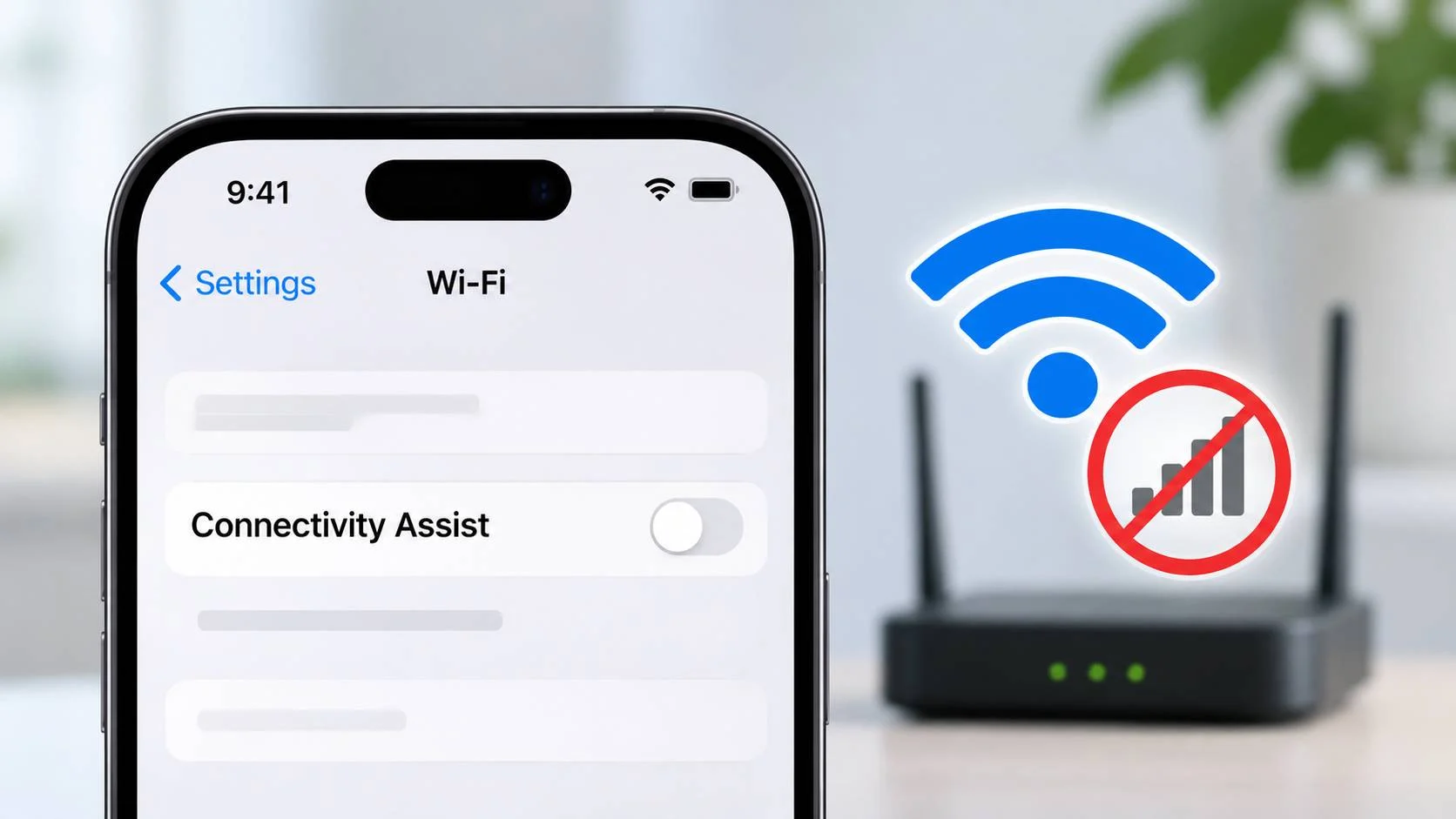
There is currently no verified way to force Connectivity Assist to remain off permanently for every Wi-Fi network on an iPhone. If you disable the setting for a particular network and find that it keeps turning itself back on, there is a workaround worth trying.
According to Apple, Connectivity Assist does not operate when cellular Low Data Mode is enabled. This allows you to keep cellular data available while preventing Connectivity Assist from using it. You can also disable cellular data completely if you need to make sure your iPhone does not use it as a fallback.
These options can help you manage the problem, although they do not explain why the switch resets. They also cannot guarantee that every internet request will pass through your home network’s ad blocker. To understand what is happening, you’ll need to check a few settings and compare how your iPhone behaves under different conditions.
What is Connectivity Assist on iPhone?
Connectivity Assist allows your iPhone to use cellular data alongside Wi-Fi when the wireless connection becomes slow or unreliable. It replaces the older Wi-Fi Assist feature and is intended to help maintain internet connectivity when Wi-Fi is not performing well.
The downside is that your iPhone may consume cellular data even while connected to Wi-Fi. Apple acknowledges this behavior and recommends disabling Connectivity Assist for individual networks when you need to remain on Wi-Fi, particularly if your network has specific configurations such as router-level ad blocking.
You can read more about how the feature works in Apple’s official Connectivity Assist guidance.
This becomes relevant if you use a home network with Pi-hole, AdGuard Home, or another router-level DNS blocker. When your iPhone sends a request through cellular data, that request may bypass the DNS filtering configured on your home network.
However, seeing an advertisement on your iPhone does not automatically mean Connectivity Assist is responsible. Browser settings, encrypted DNS, VPN connections, application behavior, and the configuration of your ad blocker can all influence which requests are filtered.
Turn off Connectivity Assist in both locations
Before trying other solutions, check the two Connectivity Assist settings available on your iPhone. One controls the feature generally, while the other applies to a particular Wi-Fi network.
- Open Settings > Wi-Fi and confirm that Wi-Fi is enabled.
- Scroll down to find Connectivity Assist and turn it off.
- Find your currently connected Wi-Fi network and tap the information (i) button beside its name.
- Look for the network-specific Connectivity Assist option and disable it as well.
- Disconnect and reconnect to the Wi-Fi network. Open its information screen again and check whether Connectivity Assist is still disabled.
If the setting remains off, you can repeat the test after restarting your iPhone. Another option is to enable Airplane Mode briefly, disable it, reconnect to Wi-Fi, and check the setting again.
Apple’s iPhone documentation indicates that disabling Connectivity Assist should keep the phone using Wi-Fi while connected to a Wi-Fi network. The reported issue, however, concerns the way the general setting and individual network setting interact.
Even if the network-specific switch turns itself back on, that alone does not prove that your phone has started using cellular data. The actual network traffic needs to be checked separately.
This behavior was described in an Ask Different discussion about Connectivity Assist. The original questioner reported that the per-network setting kept enabling itself on iOS 27.0.1.
Another participant mentioned that the setting remained disabled during an Airplane Mode test on iOS 27.2. While this observation may help with troubleshooting, it does not confirm that iOS 27.2 fixes the issue. The reports also do not establish whether the reset is intentional behavior or a software bug.
Check whether an iOS update changes the behavior
It is worth checking for an available iOS update, especially if the problem started after a previous update.
Open Settings > General > Software Update and check whether a newer version is available for your iPhone.
If you decide to install it, note your current iOS version and build number first. After updating, disable Connectivity Assist again and repeat the Wi-Fi reconnect test.
Compare the results to see whether the setting behaves differently. There is no confirmed software fix for the reported issue, so an update should be treated as another troubleshooting step rather than a guaranteed solution.
Use cellular Low Data Mode to prevent Connectivity Assist from operating
If the per-network switch keeps resetting, cellular Low Data Mode is the most useful workaround documented by Apple.
Apple states that Connectivity Assist is not used when cellular Low Data Mode is active. You can therefore leave cellular data enabled while preventing the feature from operating under this condition.
To enable it:
- Open Settings > Cellular or Mobile Data, depending on your region.
- Select Cellular Data Options. If your iPhone uses Dual SIM, you may need to select the cellular line first.
- Find Low Data Mode and enable it. On some devices or cellular plans, you must open Data Mode before selecting Low Data Mode.
- Make sure the setting is enabled for the line your iPhone uses for cellular data.
- Reconnect to your Wi-Fi network and test whether the unwanted cellular fallback behavior continues.
The menu names and available options can vary according to your carrier, SIM configuration, and cellular technology. Apple’s Low Data Mode support article explains the different settings.
Keep in mind that Low Data Mode does more than affect Connectivity Assist. It also reduces certain background activities, including automatic downloads and updates. You may notice changes in how some apps refresh their content.
There is another limitation. Enabling Low Data Mode does not necessarily make the per-network Connectivity Assist switch remain off. It prevents the feature from being used while the documented condition is active, even if the switch continues to display an unexpected state.
If you later disable Low Data Mode or change the cellular line used for data, check the configuration again.
Turn off cellular data for a stronger temporary workaround
If you want to prevent your iPhone from using ordinary cellular internet access while testing your home Wi-Fi connection, disabling cellular data is the more direct option.
Go to Settings > Cellular or Mobile Data and turn off Cellular Data.
With cellular data disabled, Connectivity Assist has no ordinary cellular data connection available for fallback. Your iPhone can continue using Wi-Fi, including your home network and its configured DNS filtering.
The trade-off is that apps will lose ordinary cellular internet access when you move outside Wi-Fi coverage. You must turn cellular data back on when you need that access again.
This approach is useful when testing whether unexpected traffic is passing through cellular data. It does not repair the Connectivity Assist switch or change how that switch behaves after cellular data is re-enabled.
Can System Services or configuration profiles permanently disable Connectivity Assist?
You may come across suggestions involving System Services, configuration profiles, mobile device management, or other Wi-Fi settings. These options need some care because none has been verified as a permanent solution to the reported switch-resetting problem.
Cellular System Services
Apple allows you to review cellular data usage associated with system services. Its cellular data support documentation explains where these statistics are available.
These counters can help you investigate data consumption. However, the documentation does not establish a separate System Services switch that permanently blocks Connectivity Assist while allowing all other cellular services to operate normally.
Configuration profiles and MDM restrictions
Configuration profiles and mobile device management (MDM) can control various iPhone settings, especially on devices managed by businesses or educational institutions.
However, no Apple-documented configuration profile key or MDM restriction has been verified that forces Connectivity Assist off for every Wi-Fi network.
If your iPhone is managed by an organization, consult its administrator before attempting to modify or remove management profiles.
Forget the Wi-Fi network and reconnect
Forgetting and reconnecting to a network is another troubleshooting option. It can help determine whether the problem is associated with a particular saved Wi-Fi configuration.
Open Settings > Wi-Fi, tap the information button next to the network, and choose Forget This Network. Then reconnect using the Wi-Fi password.
After joining, disable the network-specific Connectivity Assist option again and check whether it stays off.
You will need to enter the Wi-Fi password again, and some previously saved network settings may need to be configured again. There is no verified evidence that forgetting a network permanently resolves the Connectivity Assist problem.
Check the Private Wi-Fi Address setting
Private Wi-Fi Address is another setting you can examine when troubleshooting unusual behavior on a particular network.
Changing it may help isolate a network-specific issue, although it has not been verified as a fix for Connectivity Assist.
Remember that changing the private address may cause your router to recognize the iPhone as a different device. This can affect device-specific DNS policies, access restrictions, or other network rules.
Record the original setting before making changes so you can restore it afterward if necessary.
How to find out whether your iPhone is actually using cellular data
A Connectivity Assist switch turning itself on does not necessarily mean your iPhone is sending internet traffic through cellular data. Similarly, seeing the Wi-Fi icon at the top of the screen cannot tell you which connection handled an individual request.
If your concern is that cellular traffic is bypassing your home network’s DNS blocker, a controlled test can help you investigate.
Step 1: Check your cellular data usage
Connect your iPhone to your home Wi-Fi network.
Open Settings > Cellular or Mobile Data and look at the cellular data statistics for the app you intend to test. You can also check any relevant System Services usage counters.
Note the displayed values before proceeding.
These numbers are cumulative and may not update in real time. They also do not necessarily identify Connectivity Assist traffic separately from other cellular data usage.
Step 2: Reproduce the behavior with cellular data enabled
Keep cellular data enabled and connect to your home Wi-Fi.
Open the app or website where you noticed the problem. If possible, use the same test page or domain throughout your testing.
Record the time and check whether the cellular data counters increase after the test.
An increase may indicate cellular data activity, but remember that apps and background services can use data independently. The counter alone cannot establish that Connectivity Assist caused the traffic.
Step 3: Repeat the test with Low Data Mode
Enable cellular Low Data Mode using the instructions provided earlier.
Reconnect to the same Wi-Fi network and repeat the test using the same app or website.
Compare the results with your earlier observations. If practical, conduct a third test after turning cellular data off completely.
Try to keep the Wi-Fi connection, test page, and other conditions as consistent as possible. This makes it easier to identify whether cellular connectivity is affecting the result.
Step 4: Compare the DNS or router logs
If you use Pi-hole, AdGuard Home, or another DNS filtering service, check its query log around the time of each test.
Look for requests associated with your iPhone and compare what appears when cellular data is enabled, when Low Data Mode is active, and when cellular data is disabled.
A missing DNS request does not automatically mean the phone used cellular data. DNS caching, encrypted DNS, VPN configurations, and application-specific networking can prevent a request from appearing in your expected DNS log.
For example, an app may reuse a previously resolved address without making a fresh DNS query. Your ad blocker would not necessarily show a new lookup even though the app is still communicating over Wi-Fi.
For more reliable evidence about a particular connection, packet capture or network-monitoring tools that distinguish traffic across Wi-Fi and cellular interfaces may be necessary.
Cellular usage statistics and DNS logs are useful for spotting patterns. On their own, they cannot prove that Connectivity Assist routed a particular request through cellular data.
How to report a Connectivity Assist switch that keeps turning on
If the per-network Connectivity Assist setting repeatedly enables itself after you have turned it off, reporting the behavior to Apple can help document the problem.
You can use Apple’s Feedback Assistant through the app or its web interface.
Include enough information for Apple to reproduce the behavior:
- The exact iPhone model, iOS version, and build number.
- Whether the general Connectivity Assist setting was disabled when the problem occurred.
- The Wi-Fi network’s Connectivity Assist setting before and after it changed.
- The steps that triggered the reset, such as restarting the iPhone, toggling Airplane Mode, or disconnecting and reconnecting to Wi-Fi.
- What you expected to happen and what actually happened.
- Whether the behavior continued after updating iOS.
- Screenshots, screen recordings, or relevant diagnostic information if available.
Check any screenshots or diagnostic files for personal information before submitting them.
It is also helpful to mention whether the problem occurs on a single Wi-Fi network or across multiple saved networks. If you tested cellular Low Data Mode, include those observations as well.
What should you do until the issue is resolved?
If Connectivity Assist keeps turning itself back on for a particular Wi-Fi network, start by disabling both the general and network-specific settings. Reconnect to Wi-Fi and check whether the change persists.
When the switch continues to reset, enabling cellular Low Data Mode is the most directly documented workaround. Apple states that Connectivity Assist is not used under this condition, so you can keep cellular data available without relying on the network-specific switch staying off.
For situations where you need to eliminate ordinary cellular data fallback during testing, temporarily disabling cellular data provides a stronger safeguard.
If your main concern is bypassing Pi-hole, AdGuard Home, or another home network ad blocker, compare your cellular usage and DNS logs before assuming Connectivity Assist is responsible. A resetting switch and an advertisement appearing on the screen are not enough to identify the route used by a network request.
The reported switch-resetting behavior remains unresolved without a confirmed explanation or fix from Apple. Until more information is available, cellular Low Data Mode offers a documented way to prevent Connectivity Assist from operating while keeping ordinary cellular data access enabled.