 Vipin PG
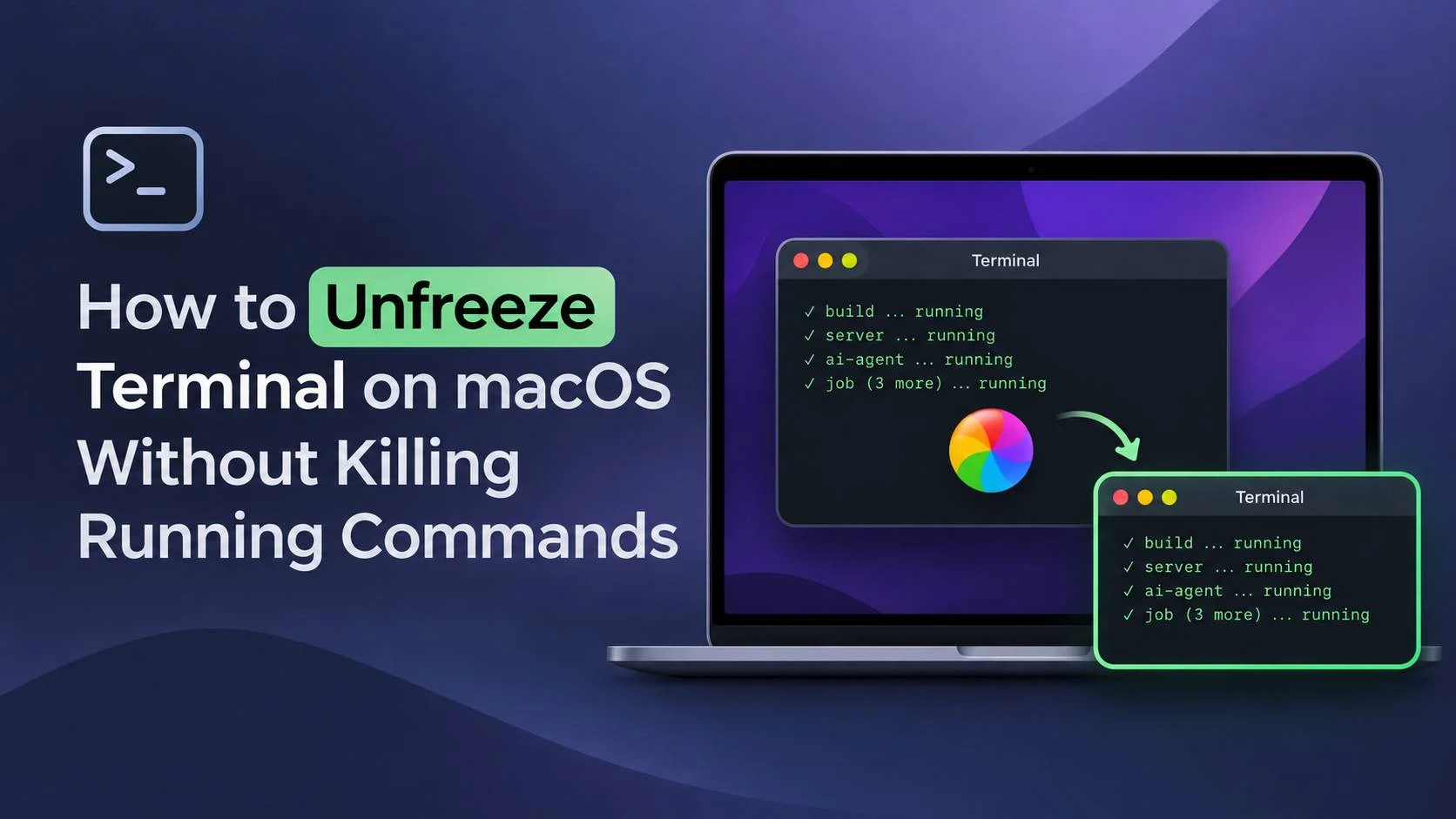
When Terminal.app freezes on a Mac, force-quitting it can be a difficult decision if you have important commands running. A software build might be halfway through, a development server may still be serving requests, or an SSH session or AI coding agent could have been running for hours. Closing Terminal may interrupt that work.
A case reported on November 2, 2026, describes a way to recover an unresponsive Terminal on macOS 27.0.1 without closing the original application or ending its six running jobs. The user briefly suspended the Terminal process with SIGSTOP and resumed it with SIGCONT.
The technique is worth knowing if Terminal is showing the spinning beachball and you can still access a separate working shell. It succeeded in the reported case, although it has not been established as a reliable fix for every Terminal freeze. Identifying the right process and preparing a way to resume it are essential precautions.
Why Terminal can freeze while commands remain active
Terminal.app provides the windows and interface where you interact with command-line programs. The shell and the programs launched from it run as separate processes. As a result, a frozen Terminal window doesn’t necessarily mean that every program inside it has stopped.
Consider a Mac with several Terminal windows open. One contains a long-running build, another is running a local server, and a third has an SSH connection. If Terminal’s interface stops responding, the server might continue working and the build might keep processing data. A command that needs to display more output, however, could become blocked if the terminal is no longer consuming that output. Interactive programs may also be left waiting for input.
This is why it’s useful to distinguish a frozen application interface from a failed command. Apple’s Terminal User Guide describes how its windows are used for shell sessions. Those sessions are associated with Terminal, but the application interface and the commands it starts do not all share one process ID.
What happened in the macOS 27.0.1 incident?
The workaround comes from a firsthand report published on Ask Different on November 2, 2026. The affected computer was an M2 MacBook Air with 16 GB of memory running macOS 27.0.1 (build 26A434) and Terminal 2.15 (488).
Switching to an existing Terminal window triggered the spinning beachball. The application would not accept keyboard input or respond to clicks, but six command-line jobs were still present. Force-quitting Terminal could have disrupted those jobs, so the user tried to recover the original process.
Locking and unlocking the screen made no difference. Neither did turning the display off and on. The user also launched another Terminal instance with open -n -a Terminal. That new instance responded normally, while the original windows stayed frozen.
During troubleshooting, the user temporarily discarded terminal output in four sessions to release jobs blocked while writing to their terminals. The jobs could continue, but the Terminal windows still did not respond. That discarded output was lost, an important limitation when discussing whether the recovery involved any data loss.
Samples of the frozen application showed its main thread waiting in graphics-related code. Other threads were waiting in Metal and GPU-related operations. The user eventually suspended the original Terminal application for half a second and resumed it. The original interface started responding again.
The six jobs survived, and both the Terminal PID and its start time remained unchanged. The author said OpenAI Codex helped investigate the problem and draft the report, but the author checked the result personally. The community answer describes one successful recovery; it has not been shown to work consistently across other Macs or freezes.
How to unfreeze Terminal without quitting the running commands
The recovery uses a second working shell to send signals to the frozen Terminal application process. Do not send them to a shell, build command, AI agent, or an entire process group by mistake.
Step 1: Get access to another working shell
If the original Terminal won’t accept input, use another command-line interface on the same Mac. This could be iTerm2, an editor’s integrated terminal, an existing SSH connection from another device, or a separately launched Terminal instance.
From a shell that still works, you can request another Terminal instance with:
open -n -a TerminalThe -n option asks macOS to open a new application instance. It worked in the reported incident, though it did not repair the old windows by itself. Opening Terminal normally from Finder or Spotlight may bring the frozen instance forward instead.
If you cannot obtain an independent working shell, you will not be able to use this command-line procedure as written.
Step 2: Find the original Terminal application’s PID
Each process has a numeric process ID, or PID. If you opened a second Terminal instance, there may now be more than one Terminal PID, so check carefully before proceeding.
You can open Activity Monitor, choose View > All Processes, and search for Terminal. If the PID column is hidden, enable it under View > Columns. Apple’s Activity Monitor documentation explains the available process details.
Alternatively, run this from the working shell:
ps -axo pid,lstart,command | grep '[T]erminal.app/Contents/MacOS/Terminal'The result includes matching process IDs and start times. The start time helps distinguish an older, frozen instance from one you just launched. Do not assume the oldest process is necessarily the one that froze; check it against Activity Monitor and your open windows.
Step 3: Verify the PID before touching it
For the examples below, suppose the frozen Terminal PID is 12345. Replace that number with the PID you verified on your Mac:
PID=12345
ps -p "$PID" -o pid=,lstart=,command=
Check the output again. It must refer to the original Terminal application, rather than a shell or one of the jobs it is running. Keep the PID positive; negative process IDs and certain other values can target process groups instead of a single process.
Step 4: Set up a fallback to resume Terminal
A suspended process will remain stopped until it receives a resume signal or is otherwise acted upon. For that reason, the original report included a separate helper that would automatically send SIGCONT after two seconds if the process was still the same one.
In your working shell, first save the verified process start time:
STARTED="$(ps -p "$PID" -o lstart=)"
echo "$STARTED"
Make sure the command prints the expected start time. Then launch this background helper:
(
  /bin/sleep 2
  if [ "$(ps -p "$PID" -o lstart=)" = "$STARTED" ]; then
    /bin/kill -CONT "$PID"
  fi
) >/dev/null 2>&1 &
The helper waits two seconds before checking whether the PID still reports the saved start time. If it does, the helper sends the resume signal. The start-time check reduces the risk of signaling a different process if the original Terminal exits and its PID gets reused, although it cannot eliminate every possible race condition.
Keep the separate shell available while you attempt recovery. A helper running through an independent SSH connection can offer additional separation from the affected Terminal interface.
Step 5: Pause and resume the frozen Terminal
With the fallback ready, run:
/bin/kill -STOP "$PID"
/bin/sleep 0.5
/bin/kill -CONT "$PID"
kill is the standard utility for sending process signals. Here, -STOP suspends the selected process without asking it to exit, sleep 0.5 waits half a second, and -CONT allows the process to run again.
This is the sequence that recovered the Terminal interface in the original report. The half-second delay is what the user tried; there is no evidence that it is a universal requirement or that a longer pause would produce a better result.
Step 6: Check the original windows and running jobs
Switch back to the original Terminal windows. Try clicking between windows and, where a normal shell prompt is available, entering a harmless command. Do not type blindly into an interactive process that may still be busy.
Check whether the jobs that mattered are still running. A responsive window alone does not confirm that a build finished correctly, an SSH connection survived, or a server is healthy.
You can also check the original application’s process ID, start time, and state:
ps -p "$PID" -o pid=,lstart=,state=,command=If the PID and start time are unchanged, the original process is still present. That was also part of how the Ask Different author confirmed that the recovery had preserved the existing Terminal instance.
Why might STOP and CONT fix a beachballing Terminal?
macOS applications execute work on multiple threads. A blocked main thread can leave the interface unable to process clicks or keyboard events. Apple’s documentation on understanding application hangs explains how waits on the main thread can cause an app to appear frozen.
In the reported Terminal incident, process samples repeatedly showed the main thread waiting in calls that included:
CABackingStoreGetFrontTexture
_dispatch_sync_f_slow
__DISPATCH_WAIT_FOR_QUEUE__
_dispatch_event_loop_wait_for_ownership
_dispatch_kq_poll
kevent_id
Threads associated with GPU and Metal work were also waiting. This points toward a hang involving graphics-related operations, but the samples alone do not prove which component caused it.
SIGSTOP tells the operating system to stop scheduling the target process for execution. SIGCONT lets it run again. This is different from the termination signals SIGTERM and SIGKILL.
Apple discusses a relevant detail in Understanding EINTR: suspending and continuing a process can interrupt some blocking system calls. In Apple’s example, a blocked read() call returns with an interrupted-system-call condition after STOP and CONT signals.
One possibility is that suspending and resuming Terminal changed the state of a blocking wait or allowed a pending operation to proceed when the process resumed. That is a plausible explanation, not a demonstrated diagnosis. Some system calls are automatically restarted, and the report does not show that the signals reset the GPU or clear a specific CoreAnimation deadlock.
Why were the six running commands still alive?
The user sent the signals to the PID of Terminal.app itself. The commands inside its windows were separate processes and were not deliberately included in the STOP/CONT sequence.
That doesn’t mean they were unaffected by the freeze. A command writing to its terminal may block if the interface stops consuming output. A program waiting for input can be stalled until the interface is available again.
In this incident, all six jobs retained their process identities after the original Terminal recovered. Four sessions had previously been placed in an output-discarding state to release blocked writes, so some text was lost during troubleshooting. The outcome supports the possibility of preserving running jobs, but it cannot be described as a proven zero-data-loss recovery method.
What to do if Terminal is still frozen
Check whether the process is still suspended
If the resume command did not execute, the application may simply still be stopped. From your independent shell, recheck that the PID belongs to the original Terminal process and send:
/bin/kill -CONT "$PID"Do not reuse an old PID without checking it again. Process IDs can be reassigned after an application exits.
Collect a sample if Terminal keeps beachballing
If Terminal resumed execution but remains unresponsive, collect diagnostic information before escalating to more disruptive actions.
In Activity Monitor, select the frozen application and use Sample Process. Apple’s guide to system diagnostics in Activity Monitor describes the available tools.
You can also take a five-second sample from another shell:
sample "$PID" 5 -file ~/Desktop/terminal-hang.txtThe report can help identify whether the main thread is waiting repeatedly in the same function. It may be useful when reporting the problem to Apple or investigating recurring hangs. Inspect the report before sharing it publicly, since diagnostic files can contain local paths and process information.
If the original Terminal process has exited
STOP/CONT cannot bring back a terminated application process. If the original PID no longer exists, check whether any jobs are still running independently and whether they can be reconnected through a session manager or another application-specific recovery mechanism.
Apple’s general guidance for unresponsive Mac apps covers force-quitting when an application cannot be recovered. That can be necessary, but it is potentially disruptive when commands are attached to Terminal windows. Some jobs may receive hangup signals or lose access to their terminal; others may survive depending on how they were started.
Commands and mistakes to avoid
- Do not use
kill -9for this recovery. It sendsSIGKILLand forcibly terminates the target process. - Do not replace the PID with a shell or job PID. The reported recovery specifically targeted Terminal.app.
- Do not use
killall Terminalas a shortcut. It can target multiple application instances rather than the one you verified. - Do not target a process group. A negative or zero PID can change which processes receive a signal.
- Do not enable output-discarding just because it appeared in the original report. That earlier troubleshooting step discarded terminal text and was not shown to be required for STOP/CONT to work.
Also, do not assume that every spinning beachball has the same cause. Terminal may hang because of a graphics wait, a blocked extension, filesystem activity, or another issue. This particular recovery has been documented in one incident; there is no evidence that it resolves all those situations.
Protect long-running Terminal jobs with tmux
If you regularly keep builds, remote sessions, servers, or AI coding agents running in Terminal, a terminal multiplexer can make an application freeze less disruptive.
tmux runs sessions under its own server process, allowing you to detach from a session and reconnect later through another terminal. If Terminal.app becomes unresponsive, you may be able to open iTerm2 or another shell and attach to the same tmux session.
After installing tmux, start a named session:
tmux new -s long-workRun your command inside that session. To detach while leaving the session running, press Ctrl+B, release the keys, then press D.
Reconnect later with:
tmux attach -t long-worktmux cannot retroactively protect an ordinary Terminal session that was started outside it. It also won’t protect against every failure, including a Mac losing power or the underlying command crashing. For important work, save logs and use application-specific checkpoint or recovery features where available.
Frequently asked questions
Can I unfreeze Terminal on macOS 27 without force-quitting it?
It may be possible. A macOS 27.0.1 user recovered an existing Terminal application by sending SIGSTOP and SIGCONT to its verified PID. The result has been documented once, so it should be treated as a troubleshooting option rather than a guaranteed repair.
Will STOP and CONT kill the commands inside Terminal?
Those signals do not request termination of the targeted process. When sent only to Terminal.app, they also do not directly target all the commands running inside its windows. The commands may still be affected by blocked terminal input or output, so check their state after recovery.
Will the same trick work on older versions of macOS?
The STOP and CONT signals have been part of Unix process control for many years, including on older versions of macOS. The reported Terminal recovery, however, was on macOS 27.0.1. Success on other versions has not been established by that report.
Does this reset the Mac’s graphics system?
There is no evidence that it does. The original process samples showed graphics-related waits, but they did not establish the root cause. Suspending and continuing the application may affect certain waits without resetting the GPU.
Can I do this entirely through Activity Monitor?
Activity Monitor is useful for identifying the process and collecting samples. A separate shell is more practical for the timed STOP/CONT sequence and its automatic resume safeguard.
Is Ctrl+Z the same as sending SIGSTOP to Terminal?
No. In a typical interactive shell, Ctrl+Z suspends the foreground job through shell job control. This method sends a signal directly to the Terminal application process by PID.
Is there any risk of losing output or work?
Yes. The original report preserved six jobs, but some terminal output had already been discarded during earlier troubleshooting. The method does not guarantee that every command, connection, or unsaved result will survive.
Should you try this before force-quitting Terminal?
If Terminal is beachballing while important command-line work may still be alive, the STOP/CONT sequence is a reasonable option to consider before force-quitting. You need a separate working shell, a verified Terminal PID, and a resume safeguard. The commands take only a moment to run once those checks are complete.
The November 2026 incident shows that an original Terminal process can sometimes become responsive again without restarting its attached jobs. It does not establish why the recovery worked or how often it will succeed. For recurring or business-critical sessions, tmux and reliable log files provide a more dependable way to recover access when a terminal interface fails.