Vipin PG
Most “how to reset graphics card” guides jump straight to uninstalling the driver, which wipes out custom resolutions, color calibration, fan curves, and game profiles in the process. That’s overkill for most problems, and unnecessary even when a full reset is genuinely needed. This guide walks through the resets in order of how much they disturb your setup, starting with the one that changes nothing at all, and shows exactly where and how to back up your settings if you do need to go further.
Step 1: Try the Driver-Only Soft Reset First
Before touching Device Manager, try the built-in Windows shortcut: Win + Ctrl + Shift + B. This restarts the graphics driver in place, without uninstalling anything. Your screen will flash black for a second and you may hear a beep, then the display returns to normal. Nothing about your NVIDIA/AMD/Intel settings, color profiles, or game-specific configurations is touched, because the driver files themselves are never removed. This alone fixes temporary freezes, flickering, and stuttering caused by a driver that’s simply stuck, not corrupted. 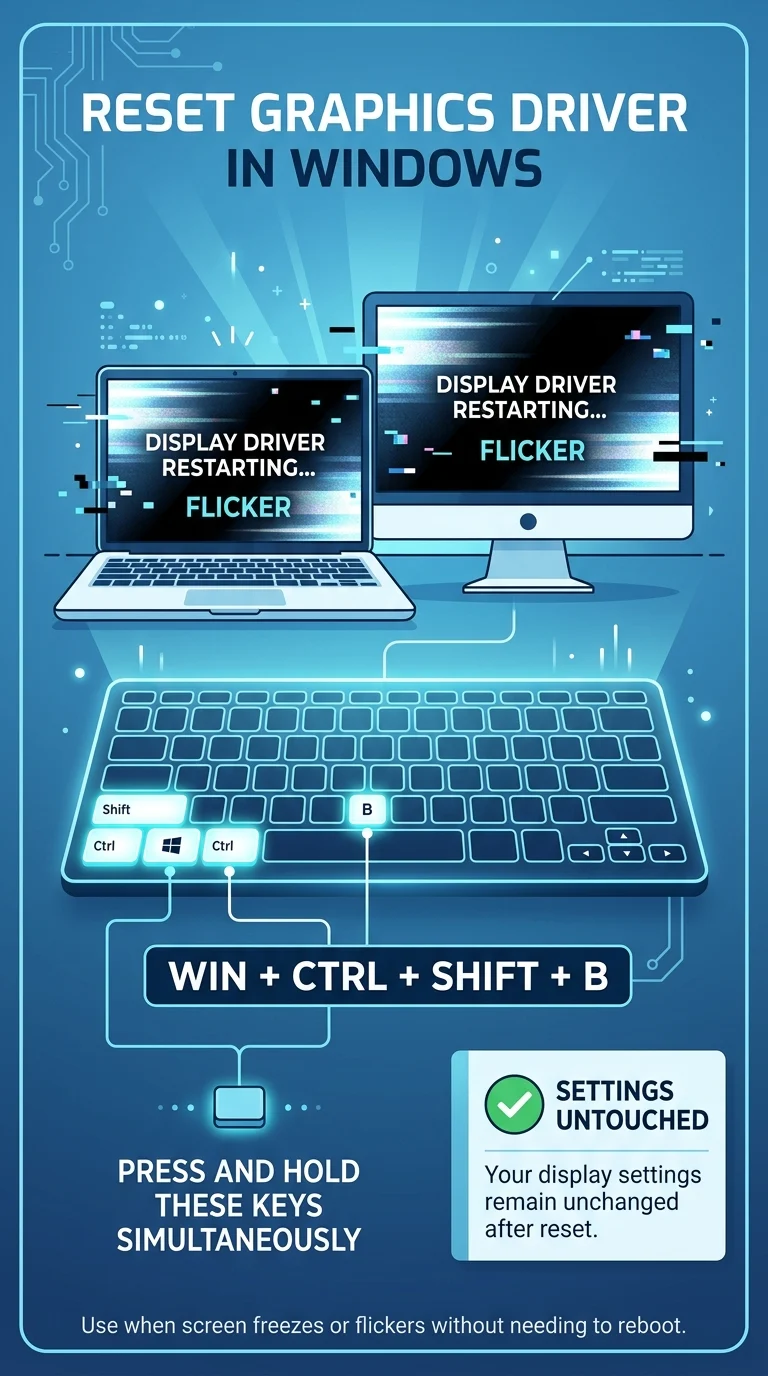
Step 2: Back Up Your Current GPU Settings Before Going Further
If the soft reset didn’t fix the problem, back up your settings now, before you touch Device Manager. The method depends on your GPU brand:
- NVIDIA: Download NVIDIA Profile Inspector (free, third-party) and use its Export option to save all 3D and program-specific profiles to a single .nip file. For custom resolutions specifically, go to NVIDIA Control Panel > Display > Change Resolution > Customize, and use the export icon to save that as XML.
- AMD: Open AMD Software (Adrenalin), go to Settings > Preferences > Snap Settings, and export a snapshot of your current configuration to a zip file.
- Intel: Intel’s Graphics Command Center doesn’t have a built-in export tool, so screenshot your custom settings (resolution, color, power profiles) as a manual reference instead.
Save these backup files somewhere outside your system drive, like a USB drive or cloud folder, so they survive even if the reset goes wrong. 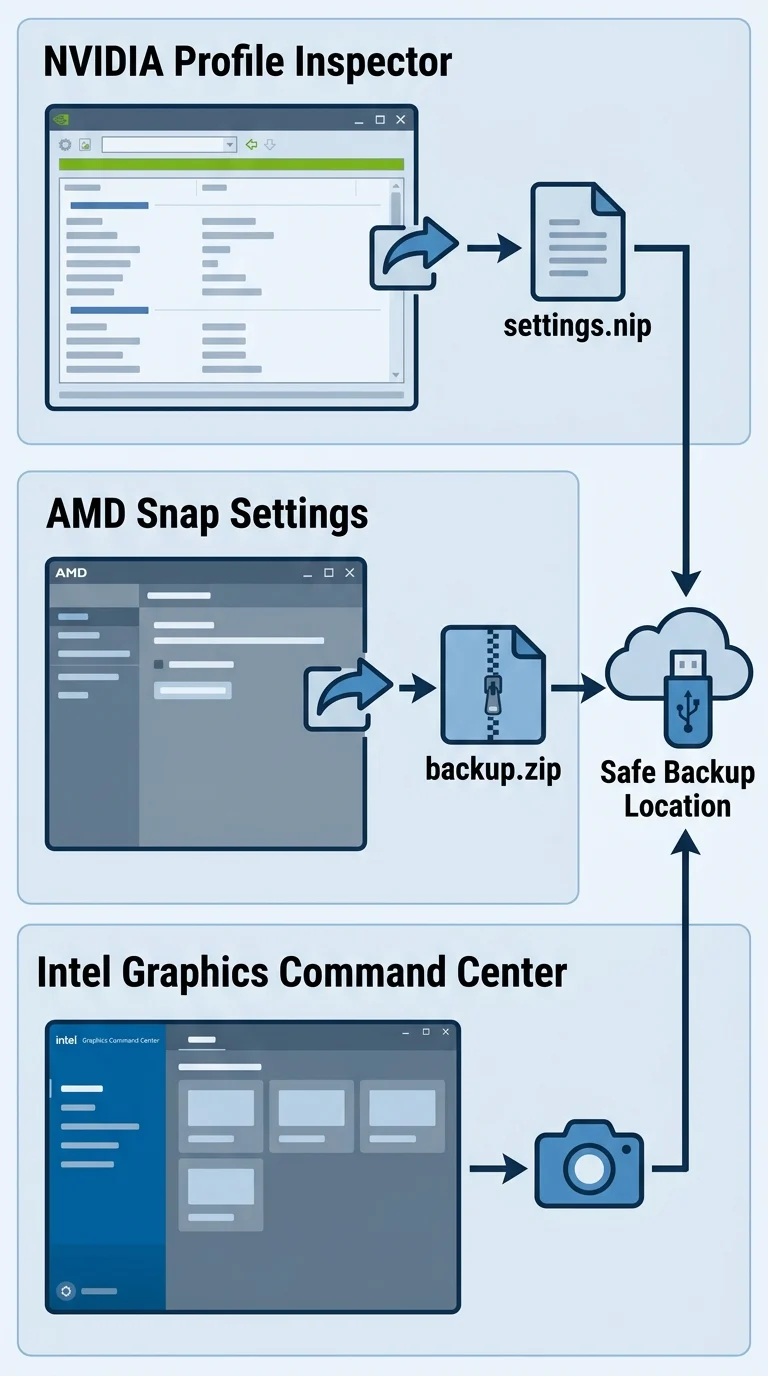
Step 3: Restart the Driver via Device Manager (Still No Data Loss)
This is the middle-ground option: it forces a full driver restart without deleting the driver files or its saved settings.
- Press Windows + X and select Device Manager.
- Expand Display adapters.
- Right-click your graphics card and select Disable device.
- Wait about 10 seconds, then right-click again and select Enable device.
Because you’re only disabling and re-enabling, not uninstalling, your profiles stay exactly where they were. This resolves most driver crashes and rendering glitches that the keyboard shortcut couldn’t clear. 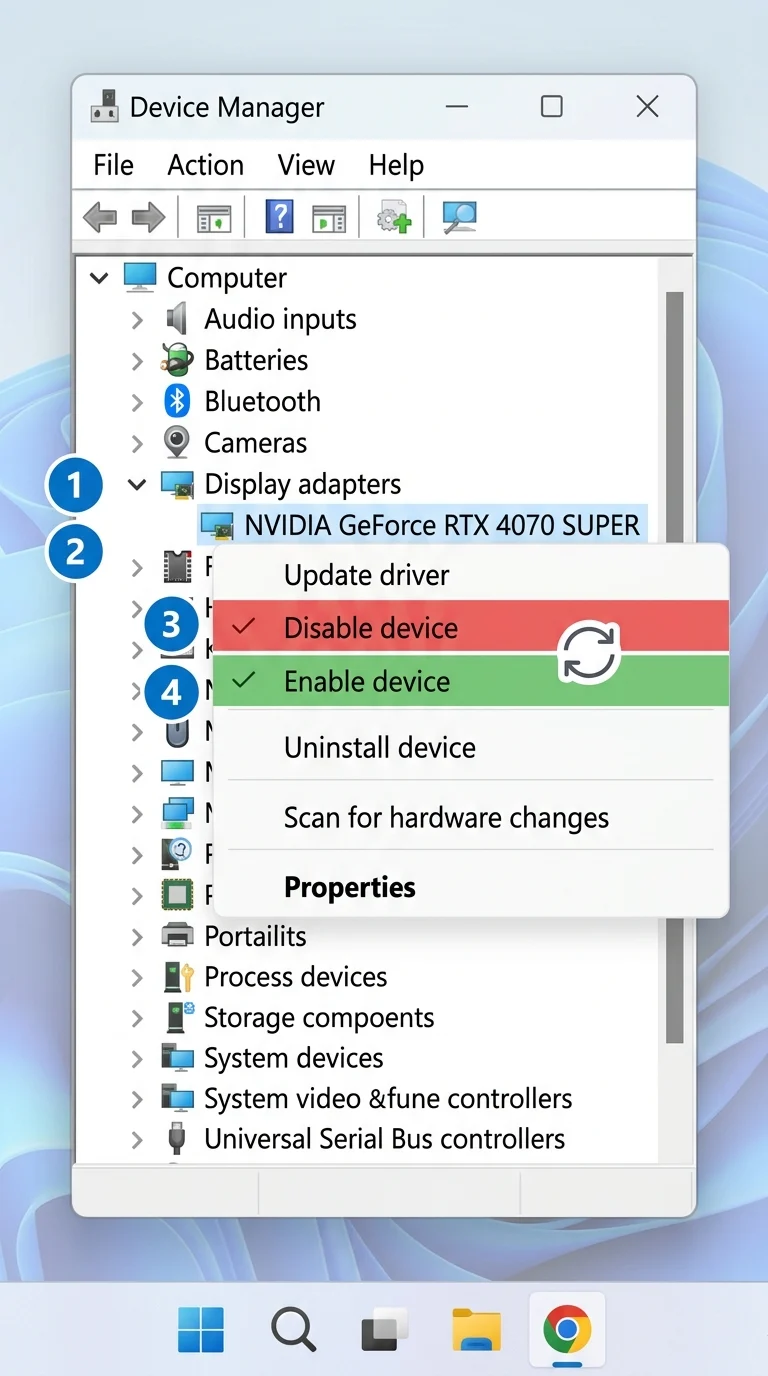
Step 4: Fully Uninstall the Driver (Only If Steps 1–3 Didn’t Work)
If problems persist, a full driver removal is the last resort:
- Open Device Manager and expand Display adapters.
- Right-click your graphics card and select Uninstall device.
- Check the box for “Delete the driver software for this device”.
- Click Uninstall and restart your PC.
This does wipe custom profiles and configurations, which is exactly why you backed them up in Step 2. For especially stubborn corruption, Display Driver Uninstaller (DDU) run in Safe Mode clears out leftover registry entries a standard uninstall can miss. 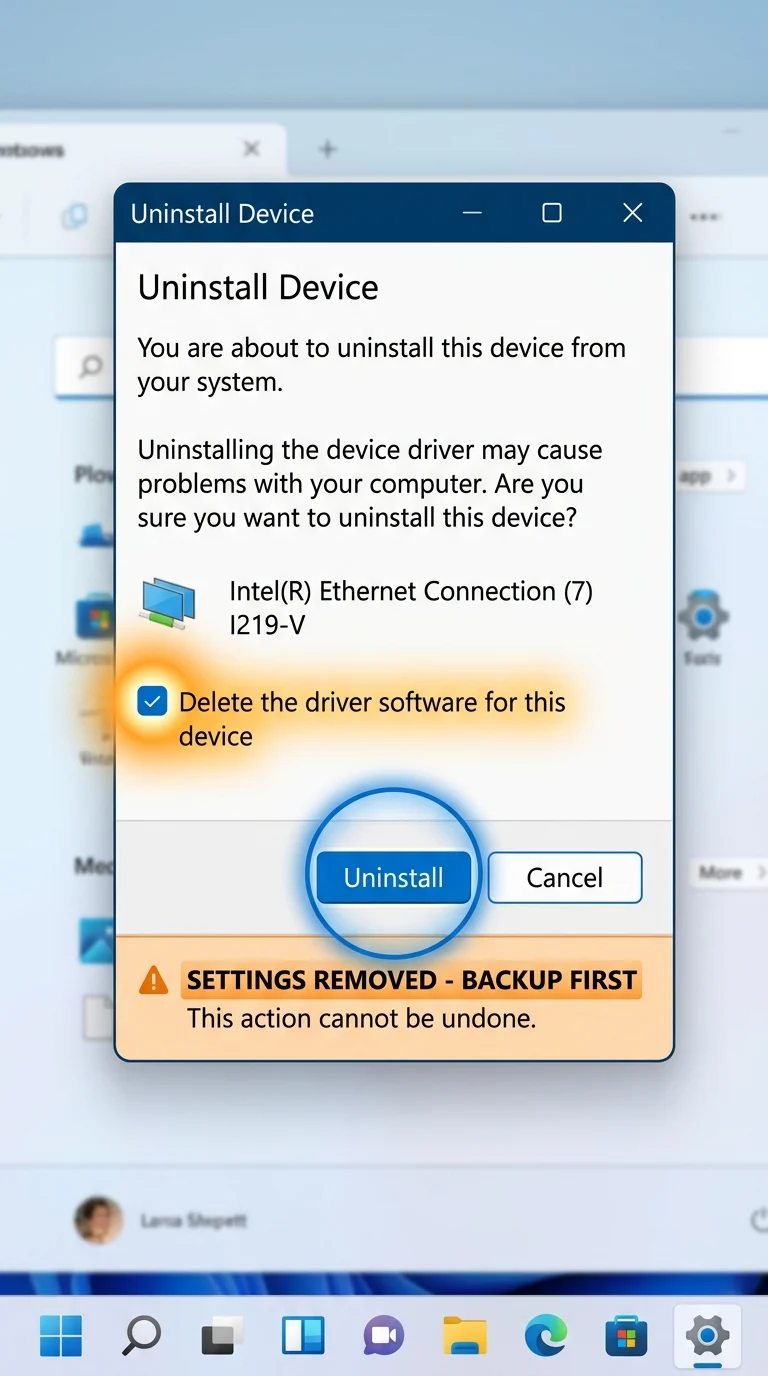
Step 5: Install a Fresh Driver
Go directly to the manufacturer’s site rather than relying on Windows Update, which often installs an older or generic version:
- NVIDIA: nvidia.com/drivers
- AMD: amd.com/support
- Intel: intel.com/content/www/us/en/support
Download the latest driver for your exact GPU model, run the installer, and restart when prompted. 
Step 6: Restore Your Backed-Up Settings
Once the fresh driver is installed and stable:
- NVIDIA: Reopen Profile Inspector, choose Import Profiles, and select your saved .nip file, then click Apply.
- AMD: Open AMD Software > Preferences > Snap Settings, and import the zip file you exported earlier.
- Intel: Manually reapply your settings using the screenshots you saved.
Restart your PC one more time to make sure everything applies cleanly, then confirm your custom resolutions, color calibration, and game profiles are all back in place. 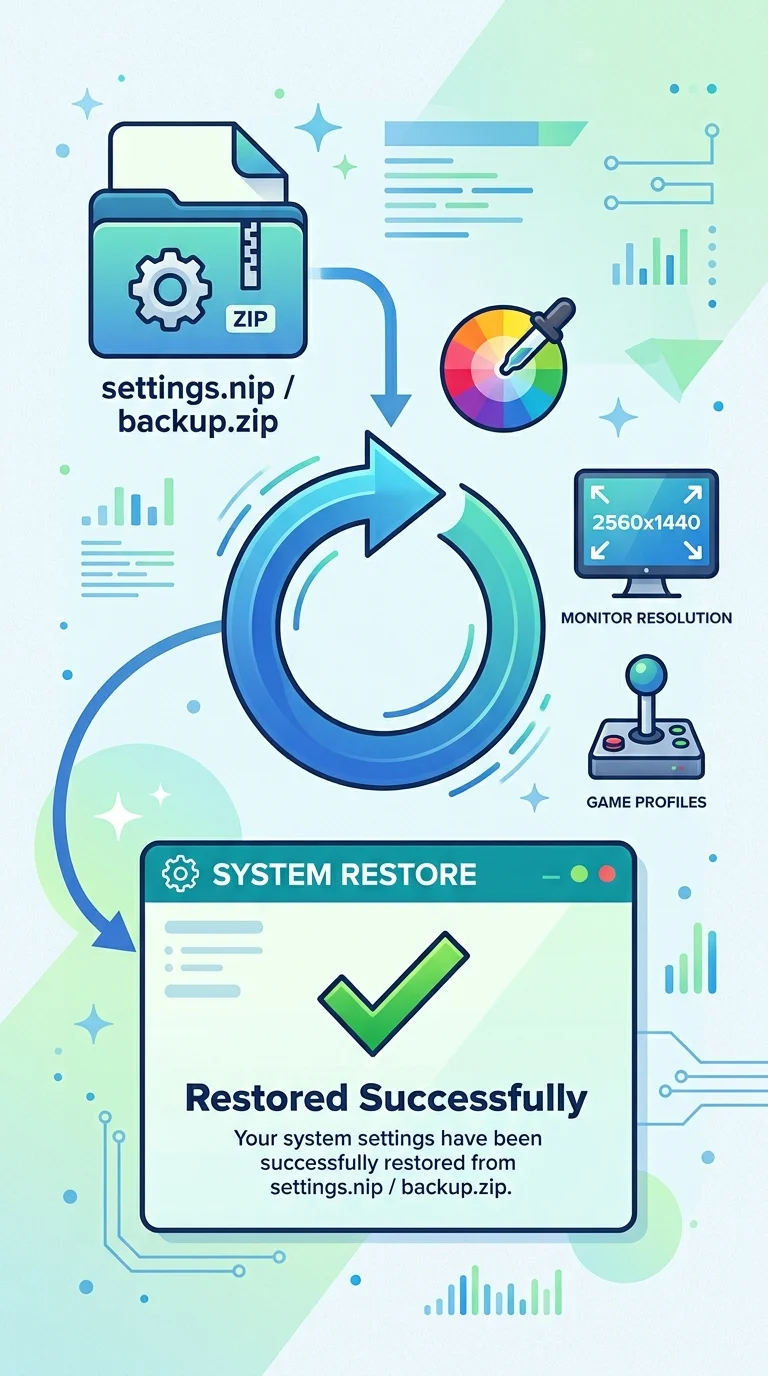
Conclusion
The fastest way to reset a graphics card without losing your settings is to work through the least disruptive fix first: the driver shortcut, then a Device Manager disable/enable, and only reach for a full uninstall once those fail. Combined with a quick export of your NVIDIA, AMD, or Intel profiles beforehand, you get a clean, working driver without having to manually rebuild your color calibration, resolutions, or overclocking profiles from scratch.