Vipin PG
We’ve all been there — you’re working on something important, and suddenly an app just stops responding. The cursor turns into a spinning wheel, the window goes white, and clicking anything does nothing. Windows is smart enough to detect this and might even say “Not Responding” in the title bar. But it doesn’t always close the app for you.
How to Force Stop a Frozen or Unresponsive App on Windows
Here are all the ways you can force-close a frozen or unresponsive app on Windows, from the quickest method to the more advanced ones.
Step 1: Try Closing It the Normal Way First
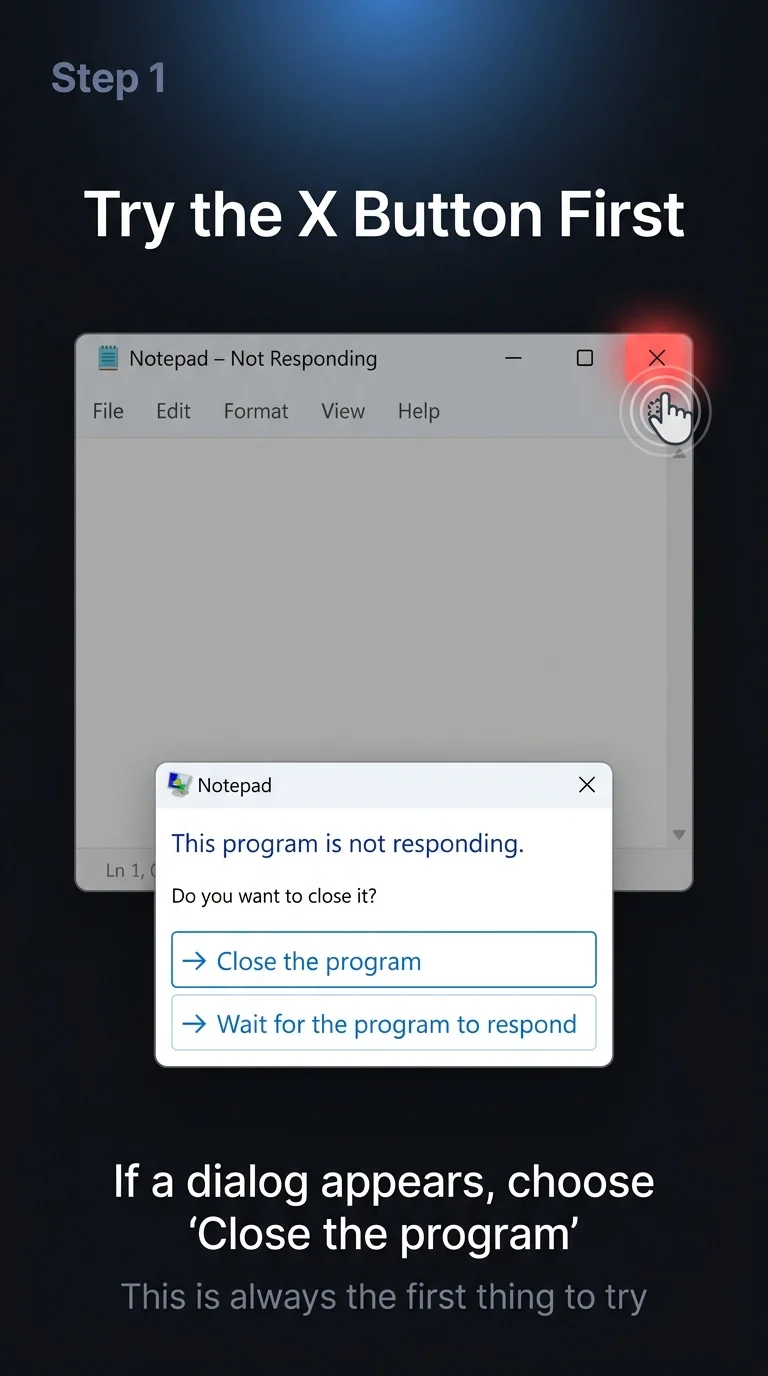
Before jumping into anything advanced, try clicking the X button on the app’s window. Sometimes the app just needs a second to catch up. If a dialog pops up asking whether to close or wait, choose Close the program.
If the window is completely stuck and the X button doesn’t respond, move on to the next step.
Step 2: Use Task Manager to End the Task (Fastest Method)
Task Manager is the go-to tool for killing stuck apps. Here’s how to use it:
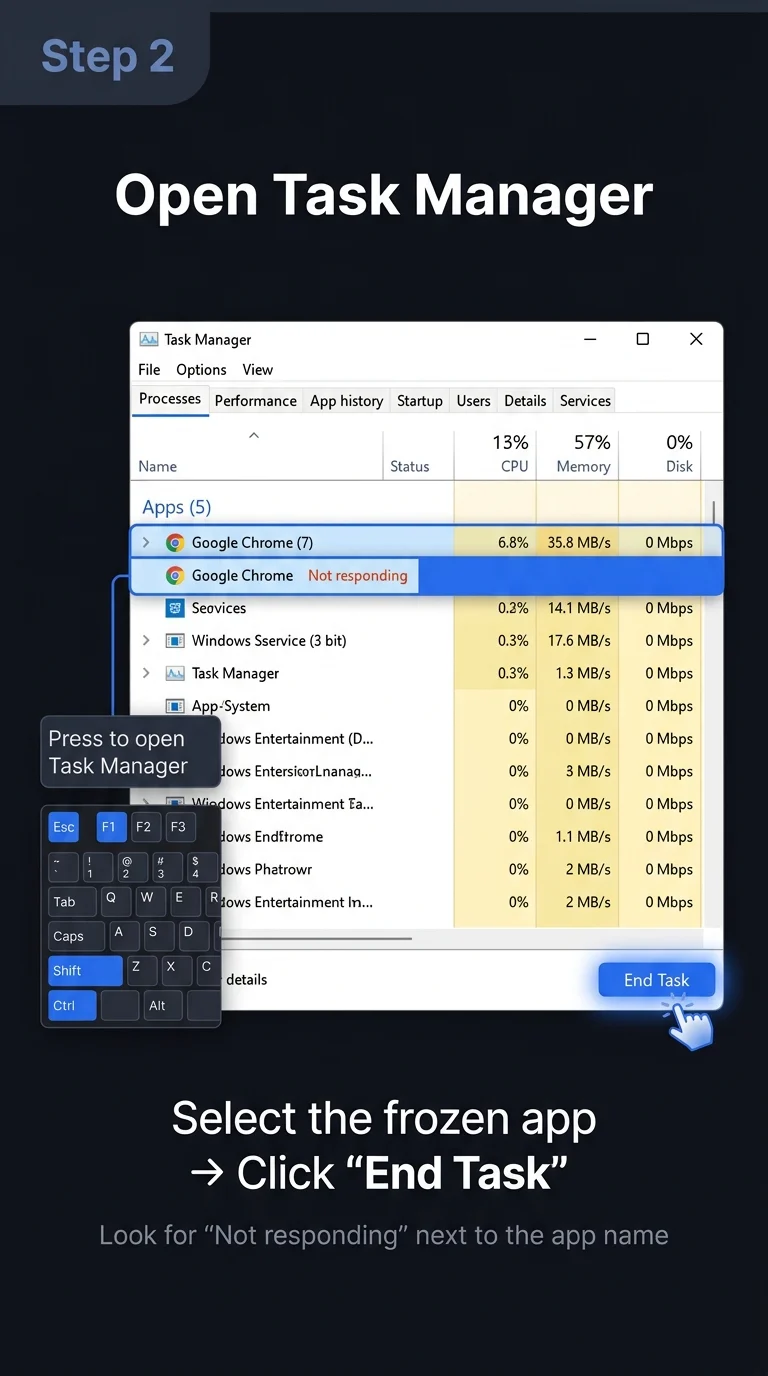
- Press Ctrl + Shift + Esc on your keyboard. Task Manager will open directly.
- Under the Processes tab, look for the app that’s frozen. It might say “Not responding” next to it in gray text.
- Click on that app to select it.
- Click the End Task button at the bottom-right (Windows 11) or bottom (Windows 10).
The app will close immediately. Any unsaved work in that app will be lost, so only do this when you’re sure the app is truly frozen.
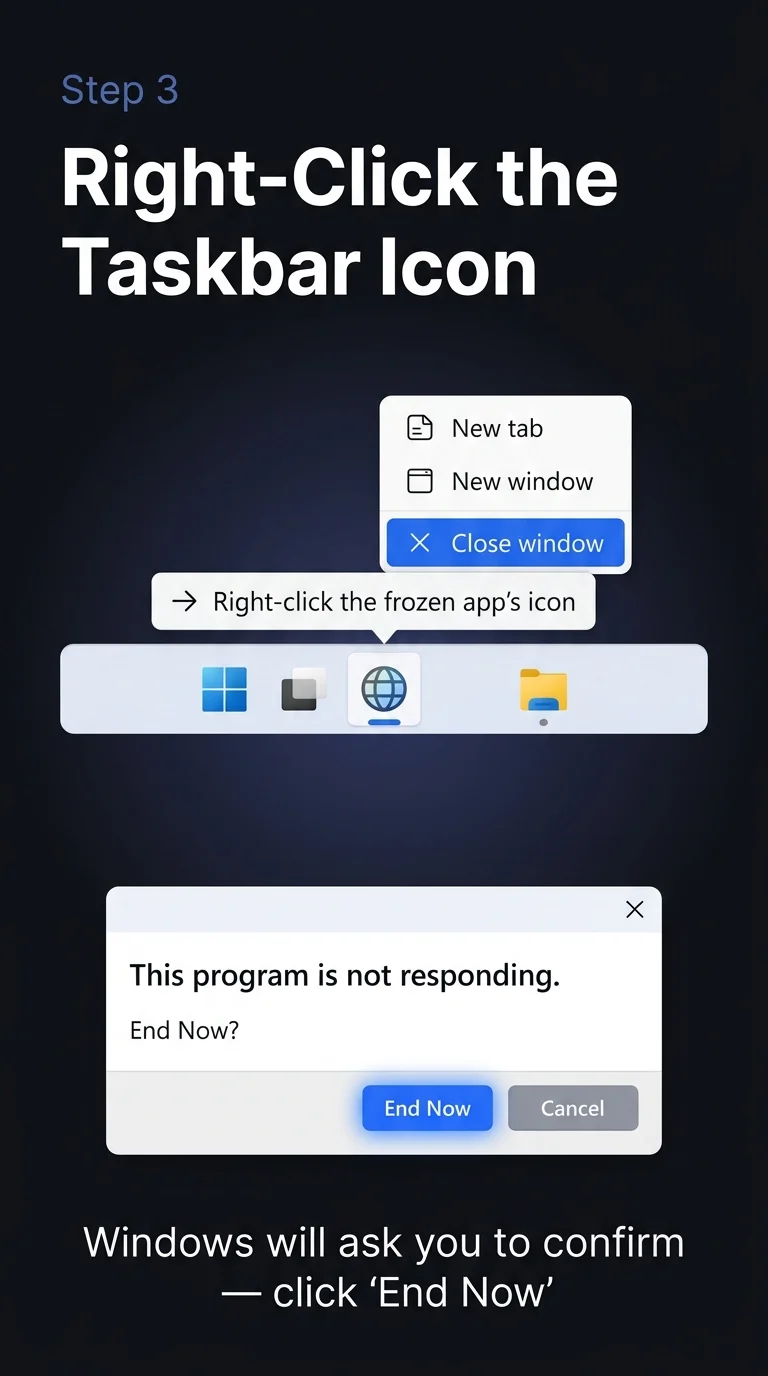
Step 3: Use the Right-Click Taskbar Option
If Task Manager feels like too many steps, here’s a quicker alternative directly from the taskbar:
- Look at the taskbar at the bottom of your screen and find the frozen app’s icon.
- Right-click on that icon.
- From the context menu that appears, click Close window.
Windows will attempt to close the app. If it’s truly frozen, a prompt will ask if you want to force close it — click End Now.
Step 4: Use the Run Dialog with the “taskkill” Command
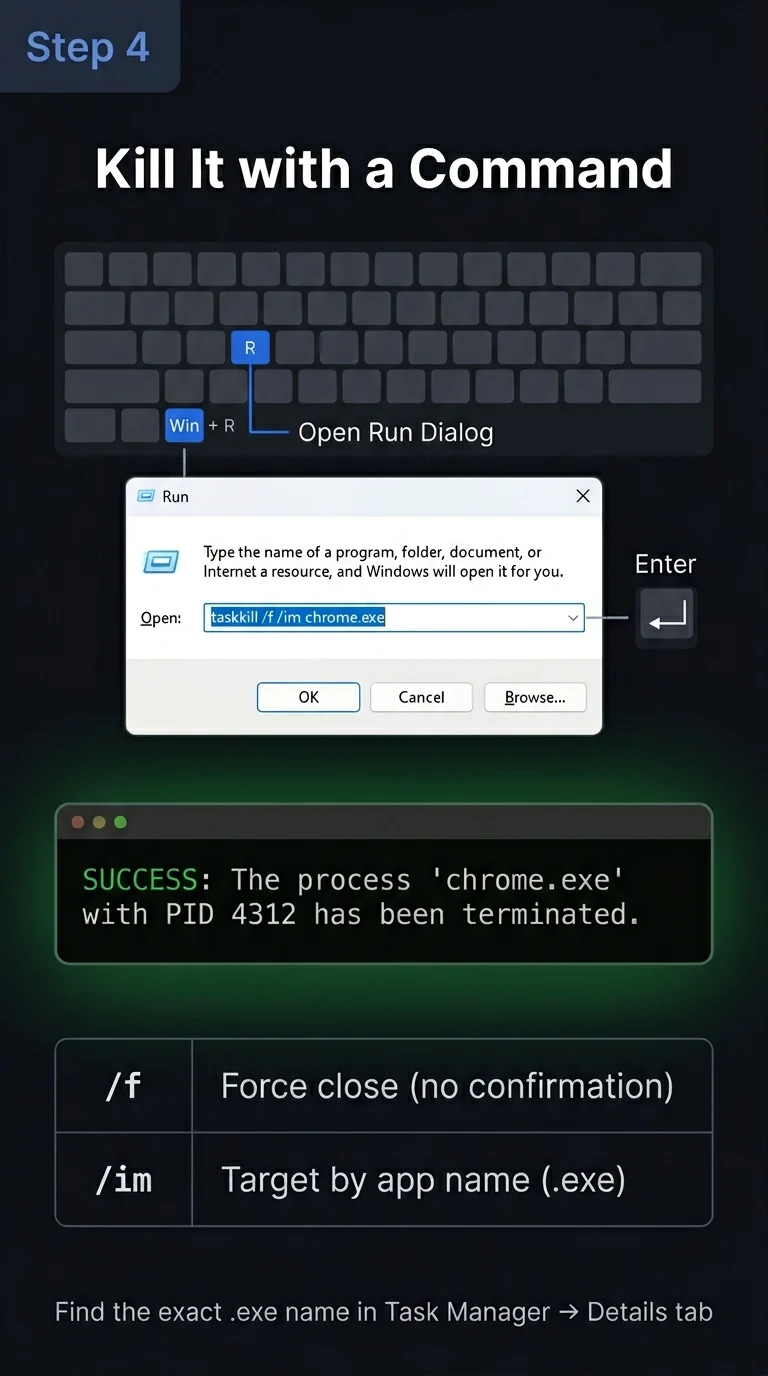
If Task Manager itself is frozen or not opening, you can kill the app using a command. This is quick and powerful:
- Press Windows key + R to open the Run dialog.
- Type the following command and press Enter:
taskkill /f /im AppName.exeReplace AppName.exe with the actual process name of the app. For example, to close Chrome, you’d type:
taskkill /f /im chrome.exeThe /f flag forces the kill, and /im means “image name” (the .exe file name). If you’re not sure about the exact .exe name, you can find it in Task Manager under the Details tab.
Step 5: Use Command Prompt for More Control
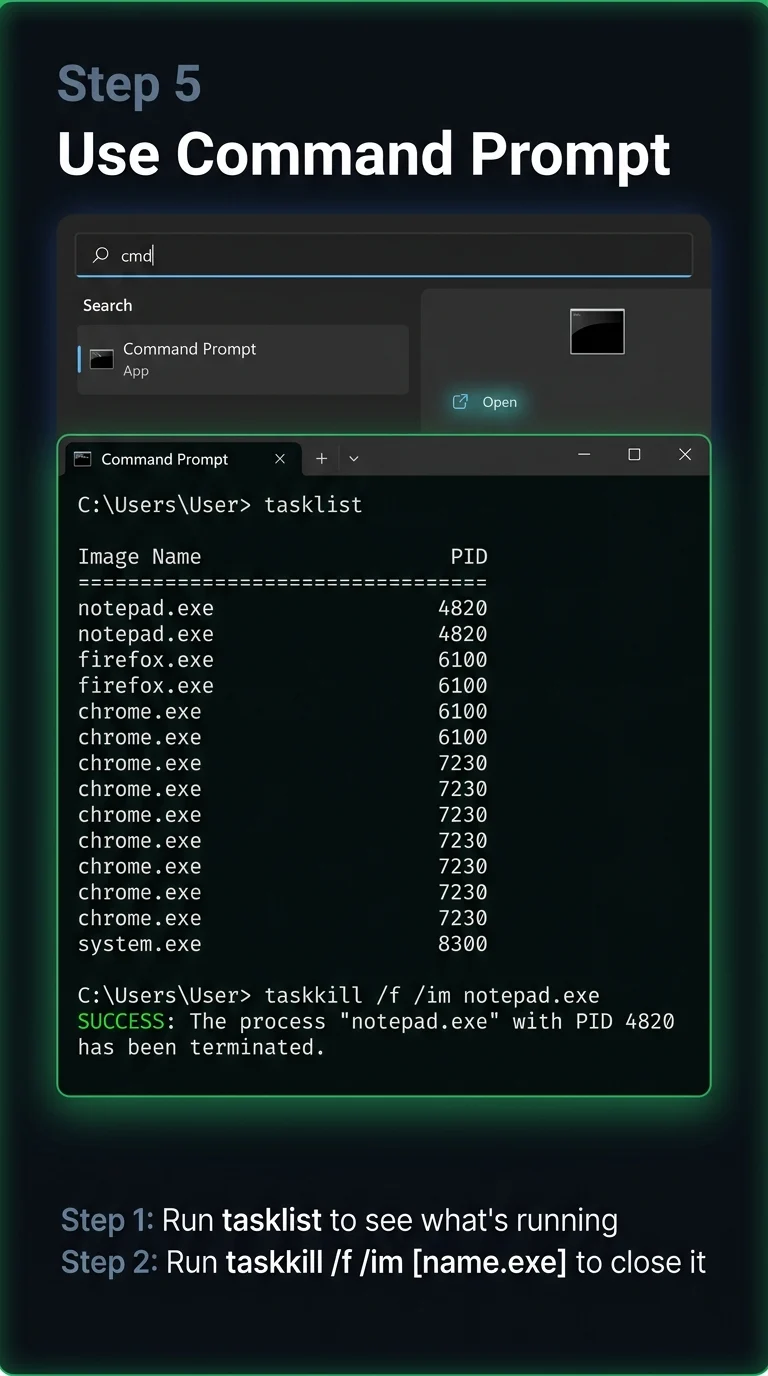
If you prefer using Command Prompt (or if the Run dialog isn’t working), you can do the same thing with a bit more visibility into what’s running:
- Press Windows key + S, type cmd, and open Command Prompt.
- To see all running processes and their names, type:
tasklist- Scroll through the list to find the frozen app’s name (like
notepad.exeorfirefox.exe). - Then type the kill command:
taskkill /f /im AppName.exeThis gives you the full picture of what’s running before you decide what to kill.
Step 6: When Nothing Works — Restart Your Computer
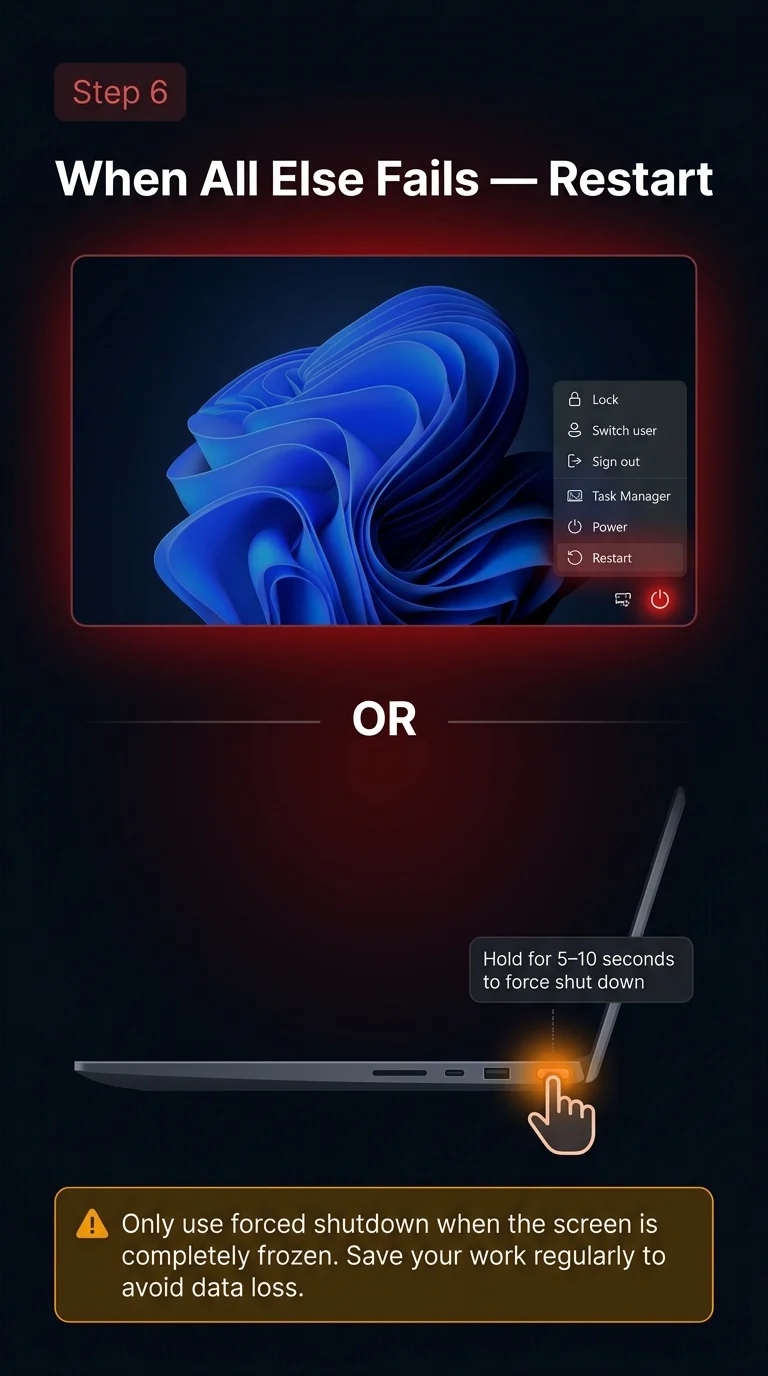
If the app is so frozen that it has locked up your entire system — nothing clicks, keyboard shortcuts don’t work, even the mouse is stuck — then a full restart is your only safe option.
Try these in order:
- Press Ctrl + Alt + Delete and choose Restart from the power icon at the bottom-right.
- If even that doesn’t work, hold down the physical power button on your PC or laptop for 5–10 seconds until it shuts off. Then press it again to start.
A forced shutdown isn’t ideal (it can occasionally cause minor file system issues), but it’s safe to do occasionally when everything else has failed.
So, Which Method Should You Use?
For most people, Task Manager (Step 2) is the quickest and most reliable way to close a frozen app. It takes about 10 seconds and doesn’t require any technical knowledge. The keyboard shortcut to remember is Ctrl + Shift + Esc.
If Task Manager itself is stuck, the taskkill command (Step 4) is your next best bet. And if the whole system is frozen solid, don’t panic — just hold the power button and restart. Windows is pretty resilient and will usually recover just fine.
The key thing to remember: a frozen app doesn’t mean something is broken. It happens to everyone, and these methods will get you back on track in under a minute.