Vipin PG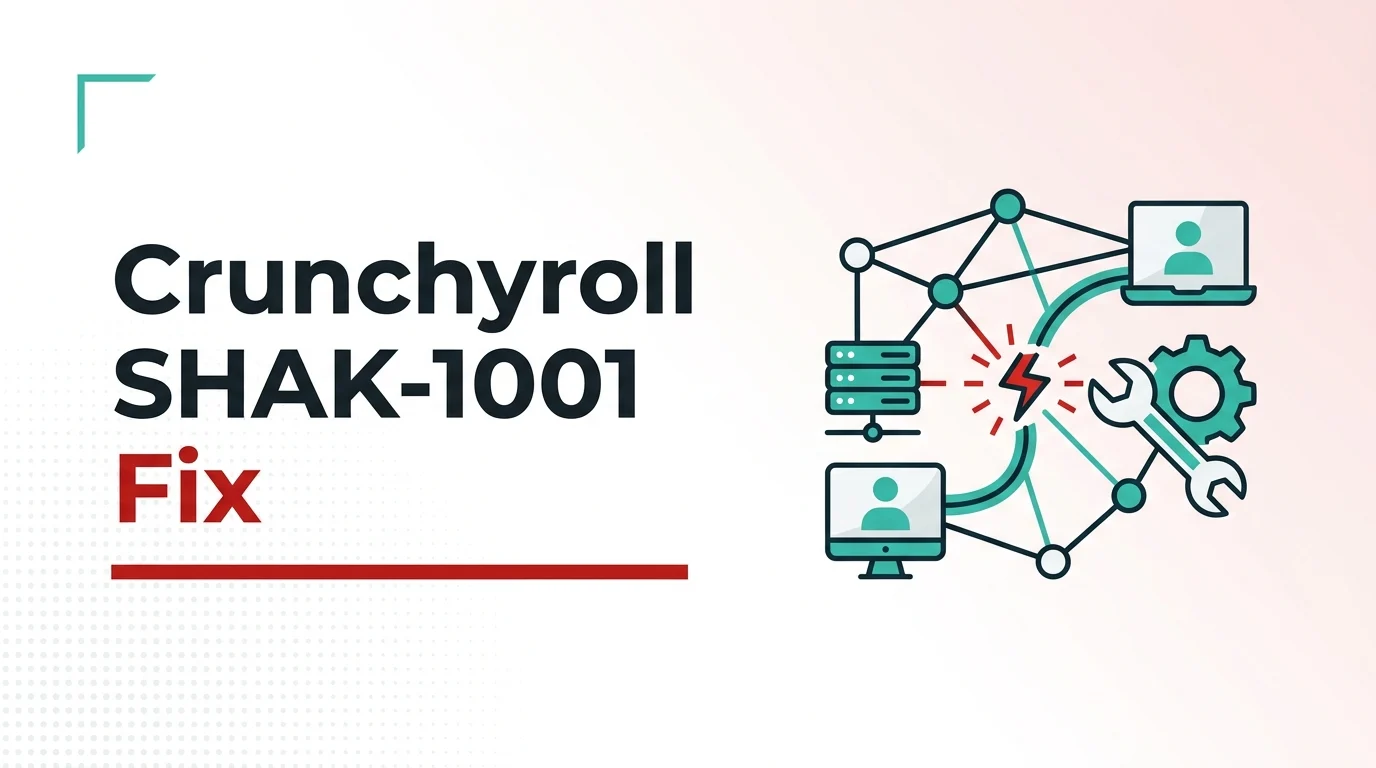
I ran into this error a couple of nights ago, right in the middle of an episode, on my Fire TV Stick. The screen froze, then threw up “Oops! Something went wrong. Try again. Code: SHAK-1001,” and no amount of pressing play would get it going again. Turns out this isn’t some rare glitch — it’s a fairly common connection hiccup between the Crunchyroll app and its video player (called Shaka Player), and once you know what’s actually going wrong, it’s not hard to fix. Here’s exactly what worked for me, in the order I tried it.
Step 1: Force Stop the App and Clear Its Cache
This is the one that fixed it for me, so I’d start here before anything else. On my Fire TV, I went into Settings, then Applications, then Manage Installed Applications, and selected Crunchyroll. I hit Force Stop first, then went back in and cleared the cache. On Android phones the path is almost identical — Settings, Apps, Crunchyroll, Clear Cache. This clears out corrupted temporary data that’s usually the real cause of SHAK-1001, without touching your login or saved shows.
Step 2: Fully Power Cycle Your Device
A regular restart wasn’t enough for me the first time — the device just holds onto whatever bad connection state caused the error in the first place. I unplugged the Fire TV Stick from the power outlet completely, waited about a minute, and plugged it back in. That full power cycle seems to reset the connection in a way a soft restart doesn’t. If you’re on a phone or smart TV, a normal restart usually does the trick.
Step 3: Check Your Wi-Fi and Try Switching Networks
If clearing the cache and restarting doesn’t fix it, the next thing worth checking is your connection itself. I ran a quick speed test and my Wi-Fi was fine, but if yours is shaky, try switching from Wi-Fi to mobile data (or vice versa) just to see if the error follows the network. A weak or unstable signal can interrupt the handshake between the app and Crunchyroll’s servers, which is exactly what this error code is pointing to.
Step 4: Turn Off Any VPN or Network Ad Blockers
Crunchyroll actively blocks a lot of VPN traffic, and it can also get tripped up by network-level ad blockers. I don’t run a VPN on my TV, but if you do, disable it and try streaming again. Same goes for any DNS-based ad blockers on your router — temporarily turning them off is worth testing if you’re still stuck.
Step 5: Update the Crunchyroll App
Older app versions sometimes can’t complete the connection properly with Crunchyroll’s current servers. I checked and my app was already up to date, but if yours isn’t, updating it through your device’s app store is a quick thing to rule out before moving to a full reinstall.
Step 6: Reinstall the App
I didn’t need to go this far, but if none of the above works, uninstalling Crunchyroll completely and reinstalling it fresh resets all the connection and handshake settings the app relies on. You’ll need to log back in afterward, but your account and watch history stay intact since none of that is stored locally.
Step 7: Check If It’s a Server-Side Issue
If you’ve done all of this and the error is still showing up, it might not be on your end at all. Crunchyroll’s servers occasionally get overloaded, especially during big releases, and SHAK-1001 can show up for a lot of people at once when that happens. Checking Crunchyroll’s server status or seeing if others are reporting the same issue can save you from troubleshooting something that isn’t actually broken on your device.
Why This Fixes It
SHAK-1001 is a connection error, not a broken account or a broken show — so the fix is almost always about clearing out bad local data or resetting the connection, not anything more serious. In my case, clearing the cache and fully power cycling the Fire TV Stick was enough to get everything talking to Crunchyroll’s servers properly again, and I was back to watching within a few minutes.