Vipin PG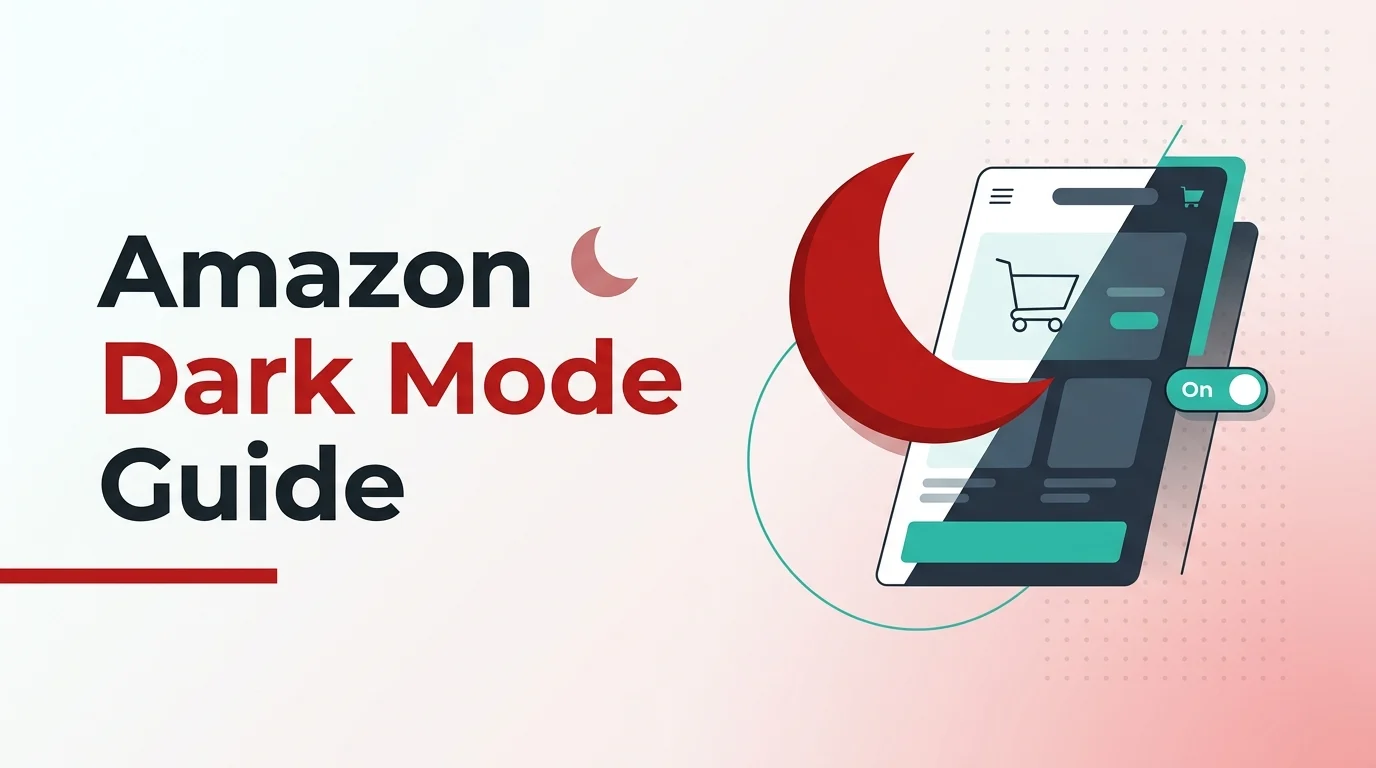
Scrolling through Amazon late at night with a bright white screen glaring back at you? Yeah, it’s not great. And here’s where it gets frustrating: the answer to “how do I fix this” actually depends on which part of Amazon you’re using. The mobile app, the website on your laptop, Alexa, Kindle, they all handle dark mode differently.
What trips people up is this: there’s no single switch that darkens everything Amazon-related. You’re either using a built-in theme where Amazon actually bothered to add one, or you’re working around it with browser tricks and accessibility settings where they didn’t.
Where you can actually get Amazon dark mode
The easiest way to think about this is platform by platform. Some parts of the Amazon ecosystem have real dark mode support. Others? You’re on your own.
Data last verified: April 2026
| Amazon surface | Native dark mode available? | What works best | What to expect |
|---|---|---|---|
| Amazon Shopping app on Android | Not consistently exposed as a dedicated in-app toggle | Try system dark theme first, then Android force-dark behavior if your phone supports it | Can work, but some screens or images may look off |
| Amazon Shopping app on iPhone | No reliable native in-app dark mode toggle | Use Smart Invert or per-app accessibility settings | Readable for many screens, but product images and some colors may invert badly |
| Amazon website in Chrome, Edge, or Firefox | No universal built-in Amazon website dark mode | Use a browser extension or browser-level darkening tools | Usually the easiest option on desktop |
| Alexa app | Yes | Use the built-in color theme setting | Most reliable Amazon dark mode experience |
| Kindle app | Yes, device-theme aware in supported cases | Use device dark mode and in-app reading/theme controls where available | Works better than the Shopping app because Kindle has actual theme support |
If you just want amazon.com to stop burning your retinas, a browser extension is probably your best bet. It’s more reliable than hoping the Shopping app will respect your phone’s theme settings. And if your browser already has decent theming built in, this is usually the fastest fix.
Getting Amazon dark mode on Android
Android gives you the best shot at making the Amazon Shopping app look dark, even though the app doesn’t exactly make it easy. Results vary depending on your phone and Android version, but it’s still the most workable option for mobile.
Method 1: Turn on your phone’s dark theme
Start with the obvious move. Go into your phone’s display settings and flip the system to dark mode. On some phones, that’s enough to darken at least parts of the Amazon app. If you need help finding those settings, this phone settings guide walks through where they usually hide.
- Open Settings.
- Tap Display or Display & Brightness.
- Enable Dark theme or Dark mode.
- Close and reopen the Amazon app.
If nothing changes, your phone probably isn’t forcing the app into dark mode automatically. That’s where the next method comes in.
Method 2: Use Android’s force-dark behavior
Some Android phones have a developer option that tries to darken apps that weren’t designed with dark mode in mind. It’s not the same as proper app support, but it can make late-night Amazon browsing way more comfortable.
- Open Settings and go to About phone.
- Tap Build number several times until developer options are enabled.
- Go back to Settings and open System or Additional settings.
- Open Developer options.
- Look for Override force-dark or a similarly named setting.
- Turn it on, then reopen Amazon.
This works because Android can apply dark treatment to apps that still show mostly light UI. It’s effective, though not flawless. Product photos, rating stars, or buttons might occasionally look weird. If you’re using a phone from OPPO, Realme, or another brand with custom theme controls, those platform-specific settings can also affect the outcome, which is why something like this ColorOS dark mode guide can be helpful even beyond just Amazon.
Getting Amazon dark mode on iPhone
On iPhone, the Amazon Shopping app is still the problem child. Turning on iOS dark mode doesn’t reliably make the app go dark. Your best workaround is Apple’s invert-color accessibility feature.
Use Smart Invert for the Amazon app
Smart Invert is better than the old-school inversion because it tries not to flip images and media everywhere. It’s still not a real theme, though, think of it as a band-aid rather than a solution.
- Open Settings.
- Tap Accessibility.
- Tap Display & Text Size.
- Turn on Smart Invert.
On some iPhones, per-app accessibility settings let you target just Amazon without messing up everything else. That’s the version most people prefer when it’s available. The catch is obvious: product images, banners, and brand colors can look strange. If you want to see how app-level dark mode is supposed to work when it’s done right, this older Paytm dark mode guide shows the difference.
Getting Amazon dark mode on desktop
Desktop is where most people get the smoothest experience, not because Amazon gives you a great built-in theme on the website, but because browsers and extensions do a pretty good job filling the gap.
Option 1: Use your browser’s dark appearance
Chrome, Edge, and other Chromium browsers can switch their own interface to dark mode. That doesn’t automatically darken amazon.com, but it at least removes the bright browser frame around the page.
- Open your browser settings.
- Set the browser or system appearance to Dark.
- Reload Amazon.
This helps a bit, but the page itself will probably still be mostly white.
Option 2: Use a dark-mode extension for amazon.com
If you spend long sessions comparing products, reading reviews, or managing orders on desktop, an extension is usually the most practical answer. Tools like Dark Reader or Amazon-specific dark-mode extensions can restyle amazon.com directly. Stick with reputable extensions, check recent reviews, and disable them if checkout pages or image-heavy sections start looking broken.
- Open your browser’s extension store.
- Install a trusted dark-mode extension.
- Enable it for Amazon only, or globally if you prefer.
- Test the home page, search results, product pages, and checkout before keeping it on full time.
If you also use Kindle on desktop, it’s worth noting that Amazon’s reading products are usually ahead of the Shopping experience on theming. That older piece on Kindle for PC is relevant here because Kindle has handled reading-oriented display preferences better than the store app for years.
Amazon apps that already have proper dark mode
This is where Amazon is way less confusing. Some Amazon-owned apps already include real theme settings, and they work exactly how you’d expect.
Alexa app
The Alexa app is the clearest example. You can open the app settings, find the Alexa app settings area, and choose a color theme like Light or Dark. If all you wanted was dark mode in an Amazon-branded app, Alexa is straightforward.
Kindle app
Kindle is also better behaved. Depending on the device and app version, it can follow the system appearance or give you reading-specific theme controls. That makes sense because Kindle is built around long reading sessions, where brightness and contrast matter way more.
What usually goes wrong
Most complaints about Amazon dark mode come from three predictable issues.
- The app ignores dark mode completely. That usually means the Amazon Shopping app isn’t exposing a native theme on your device, so you need a workaround instead.
- Images look inverted or ugly. This is common with Smart Invert on iPhone and with forced dark rendering on Android.
- The website looks broken after enabling an extension. Try excluding checkout pages, switching to a different rendering mode, or using a better-maintained extension.
If you only shop occasionally, the easiest answer is to use dark mode in your browser at night and leave the mobile app alone. If you’re on Amazon constantly from your phone, Android gives you more room to experiment than iPhone does right now.
What to do next
Figure out where you use Amazon most often, then pick the least complicated route for that device. On Android, test system dark mode and force-dark options. On iPhone, try Smart Invert only if the bright UI is genuinely bothering you. On desktop, a good browser extension is still the most practical fix until Amazon adds broader native support.