Vipin PG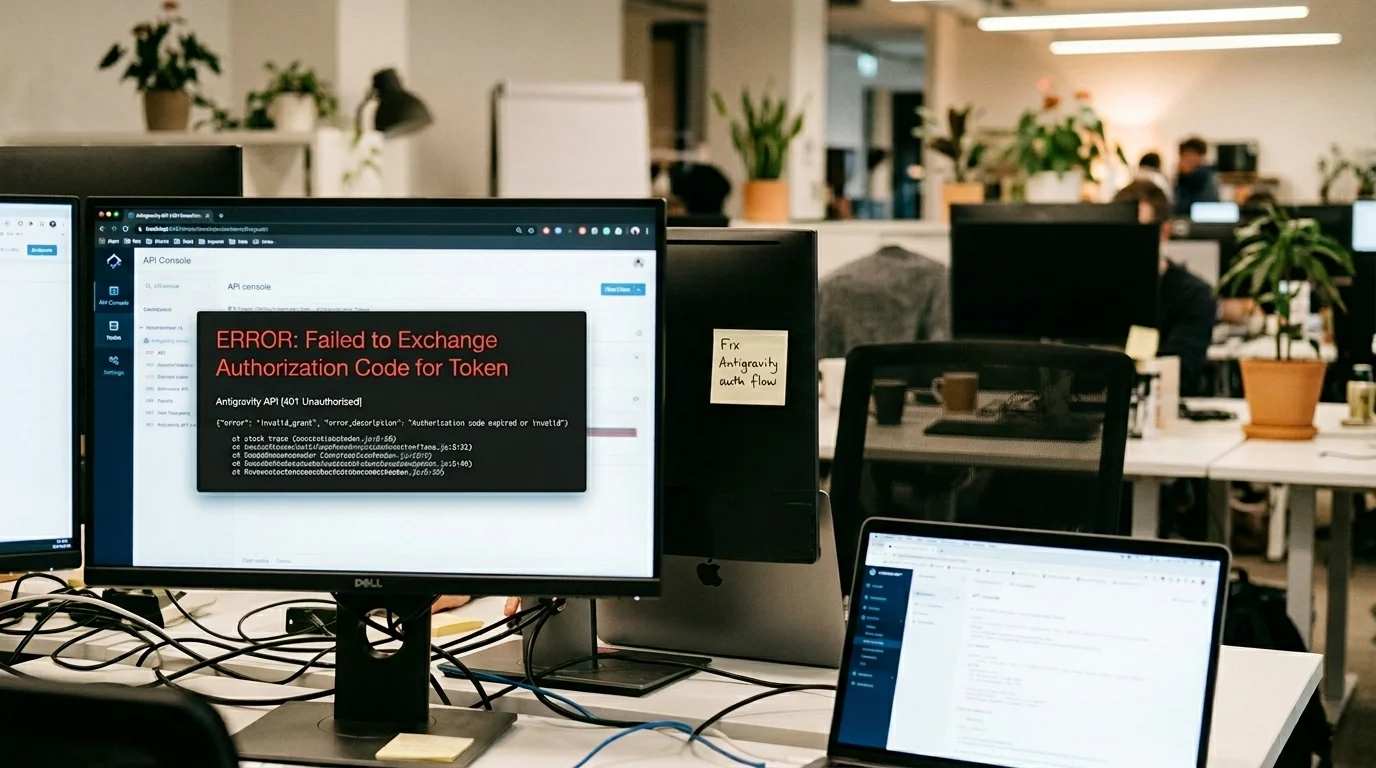
If you’ve hit the “Failed to exchange authorization code for token” error in the Google Antigravity desktop app on Windows , right after what looked like a perfectly successful browser sign-in , you’re in good company. A number of users have run into this exact wall, where the Google OAuth process goes through just fine on the browser side, but the app fumbles the token handoff on the local end.
What Does This Error Actually Look Like?
The pattern is consistent across reports. You click “Sign in with Google,” your browser opens, you authenticate, and the browser may even flash a success message. Then you switch back to the Antigravity desktop client and get hit with this:
“There was an unexpected issue setting up your account. Failed to exchange authorization code for token.”
Some users have also spotted related entries in their logs, including:
- “Failed to get OAuth token: key not found”
- “failed to set auth token”
These log messages confirm the failure isn’t happening during the browser sign-in , it’s happening after, when the desktop app tries to pick up and store that token.
Why Does This Error Happen on Windows Specifically?
Google Antigravity is available across Windows, macOS, and Linux, but this problem appears to be a Windows-specific issue. Something goes wrong during the handoff between the browser’s OAuth flow and the app’s token exchange or storage step. The leading theory is that the Node.js/Electron networking layer inside Antigravity is rejecting the TLS certificate chain during that post-authentication exchange. Temporarily disabling TLS certificate verification has resolved the problem for some users, which supports that explanation.
Safer Things to Try Before Editing Any App Files
Before touching anything inside the app’s installation folder, run through these first , they’ve fixed the issue for some users with no risk involved:
- Fully quit and relaunch Antigravity (not just minimize it , close it completely from the system tray).
- Disable any VPN temporarily and try signing in again.
- Set Chrome as your default browser, then retry the sign-in flow.
- Reboot Windows, or uninstall and reinstall Antigravity fresh.
- Switch to a different network to rule out network-specific interference.
- Check for interference from antivirus software, HTTPS inspection tools, corporate proxies, or certificate-filtering products , these are more common culprits than people expect.
- Test whether the issue follows your Windows user profile or affects all users on the machine.
Corporate network setups and aggressive antivirus tools are worth checking before anything else.
How to Fix It: The gaxios.js Workaround for Windows
If the safer steps don’t work, here’s the temporary fix that’s been circulating among affected users.
Step 1: Close Antigravity Completely
Make sure Antigravity is fully shut down , not minimized or sitting in the system tray.
Step 2: Open the Bundled gaxios Source File
Navigate to this folder on your machine:
C:\Users\<YourUsername>\AppData\Local\Programs\Antigravity\resources\app\node_modules\gaxios\build\cjs\src\ Open gaxios.js in Notepad or any text editor you prefer.
Step 3: Insert One Line of Code
Find this line in the file:
const https_1 = require("https");Paste this directly underneath it:
process.env.NODE_TLS_REJECT_UNAUTHORIZED = "0";Step 4: Save the File and Relaunch the App
Save the file, start Antigravity back up, and try the Google sign-in flow again.
What Does That Code Change Actually Do?
Setting NODE_TLS_REJECT_UNAUTHORIZED to “0” tells Node.js to stop validating TLS certificates when making HTTPS connections. That’s what prevents the app from choking on whatever certificate issue is blocking the token exchange. It works , but it does reduce your connection security, which is why this is a short-term fix only.
Is This Workaround Safe to Leave In?
No , and it’s worth being direct about that. The Node.js documentation is clear that disabling TLS certificate validation makes HTTPS connections insecure. Don’t leave this change in place longer than necessary. Once you’re signed in successfully:
- Verify the app is authenticated and working normally.
- Remove the inserted line from
gaxios.jsor restore the original file. - Keep an eye on Antigravity updates , an official fix may ship soon.
- Consider sharing your findings on Google’s Antigravity forum to help with reproducibility.
Frequently Asked Questions
What causes the “Failed to exchange authorization code for token” error in Google Antigravity?
The error occurs when the Antigravity desktop app on Windows can’t complete the OAuth token handoff after a successful browser sign-in. The most likely cause is the app’s Node.js/Electron layer rejecting a TLS certificate during the post-authentication exchange, though corporate proxies and antivirus tools that inspect HTTPS traffic can trigger the same failure.
Does this error only happen on Windows?
Yes, this specific error appears to be Windows-only. Google Antigravity runs on Windows, macOS, and Linux, but the token exchange failure after OAuth has only been widely reported on Windows machines so far.
Is the gaxios.js fix safe to use?
It’s safe enough as a short-term workaround to get past the login screen, but you shouldn’t leave it in place permanently. Disabling TLS certificate validation makes HTTPS connections insecure, so once the app is authenticated and working, remove the added line and restore the original file.
What should I try before editing gaxios.js?
Start with the no-risk steps: fully quit and relaunch the app, disable your VPN, set Chrome as your default browser, and check whether your antivirus or corporate network is intercepting HTTPS traffic. These fixes work for some users and carry no security trade-offs.
Will Google release an official fix for this error?
There’s no confirmed timeline yet. Google Antigravity launched in public preview, so bugs like this are still being tracked and addressed. Keeping the app updated and watching the official Antigravity forum is the best way to catch a patch when it ships.