 Vipin PG
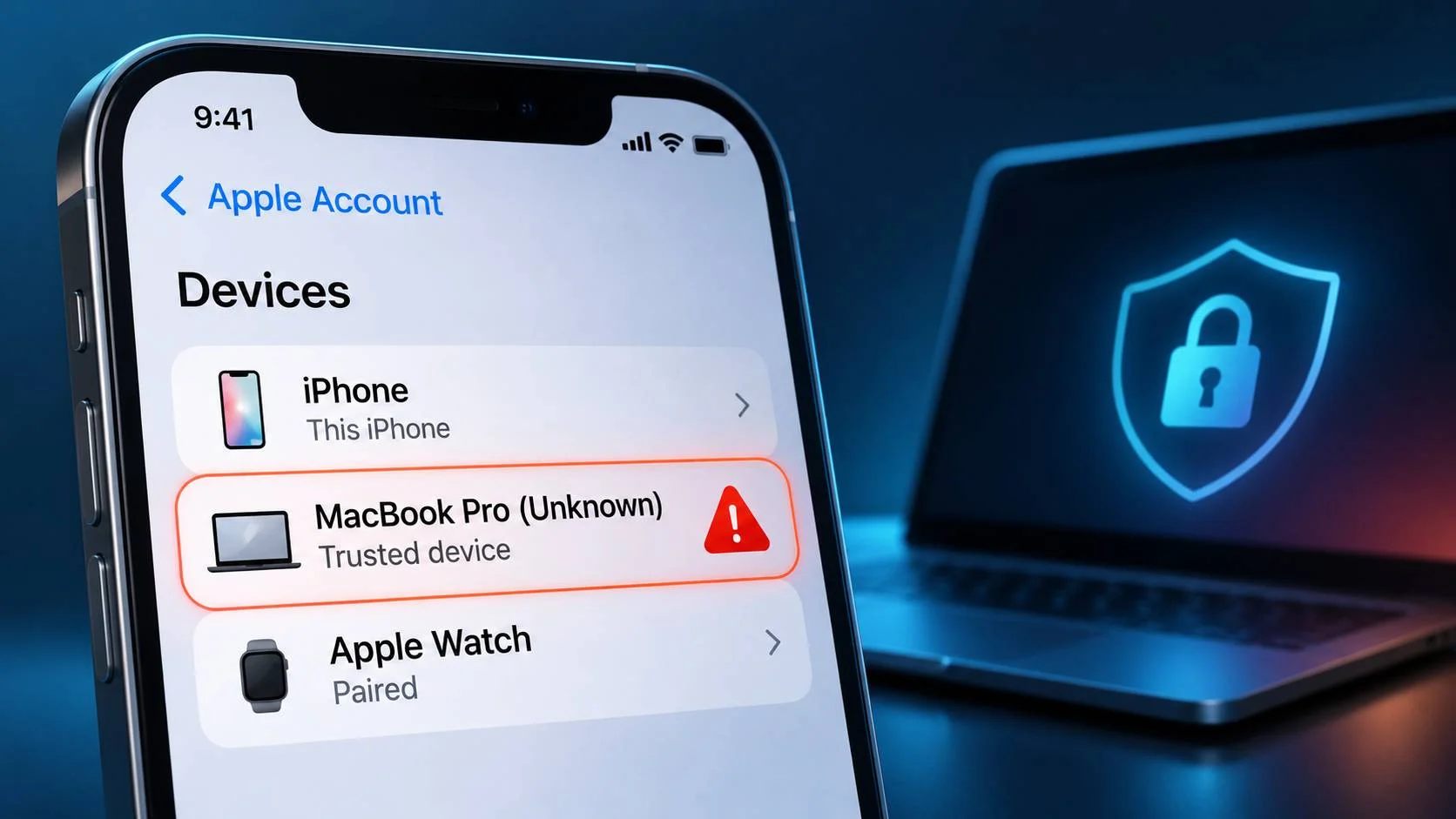
Have you found a MacBook Pro or iMac in your Apple Account device list that you have never owned? You may be wondering how it got there, especially if you have two-factor authentication enabled.
Several iPhone users started reporting this issue recently. Some found an unfamiliar MacBook in their Apple Account settings, while others received notifications about another device having access to their Messages. Naturally, many wondered whether someone had accessed their accounts without permission.
The recent reports have also raised questions about a security incident involving Optimizely, a website experimentation platform. Attackers used malicious JavaScript on hundreds of websites, with some of the code targeting iPhones and iPads.
There are several possible explanations for an unfamiliar MacBook appearing in your account. Some third-party iOS app installation tools can create virtual Mac entries during authentication. It could also be an old device you forgot about, or someone may have gained access to your Apple Account.
Here’s how to identify the possible cause, check whether your account is safe, and understand whether the Optimizely attack has anything to do with these reports.
Why Is a MacBook You Don’t Own Showing Up on Your Apple ID?
There are three main explanations for an unfamiliar Mac appearing in your Apple Account:
- A phantom Mac created by a sideloading tool: Some third-party iOS app installation tools generate a virtual Mac identity when authenticating with Apple’s servers.
- An old or forgotten device: It could be a Mac you previously used, a Hackintosh, a family member’s computer, or another device where you signed in to an Apple service.
- Unauthorized account access: Someone may have obtained your Apple Account credentials and completed the authentication process without your permission.
Each situation requires a different response. If the entry came from a sideloading tool, it may be harmless. If someone has actually signed in to your account, you need to secure it immediately.
What Does a Trusted Device on Your Apple Account Mean?
When you open Settings on your iPhone, tap your name and scroll down, Apple displays a list of devices associated with your account.
These devices have signed in to your Apple Account and can use supported Apple services. Depending on the device and its authentication status, it may have access to iCloud information and other account features.
Apple says a trusted device can be used to:
- Receive two-factor authentication verification codes.
- Change your Apple Account password.
- Update personal account information.
- Access information synced through iCloud.
This explains why an unfamiliar trusted device deserves attention. Someone with unauthorized access could potentially use it to access personal information or interfere with your account.
However, there is something many users misunderstand about Apple’s device list: it does not contain only Apple products.
According to Apple’s support documentation, Android phones, Windows PCs and streaming devices can also appear in the list if you use them with your Apple Account for services such as Apple Music or Apple TV.
For example, if you previously signed in to Apple Music on an Android phone, that device may appear in your account. The same applies to a Windows computer used with an Apple service.
Trusted devices, trusted phone numbers and Messages notifications
These three account-related items are often confused, although they serve different purposes.
| Item | What it means |
|---|---|
| Trusted device | A device that can receive verification codes and help with account security. |
| Trusted phone number | A phone number that can receive verification codes through SMS or automated calls. |
| Messages in iCloud notification | A notification related to Messages syncing across devices signed in to your Apple Account. |
If you receive a notification saying another device can access your Messages, check your Messages settings and signed-in devices separately. The notification alone does not establish that a stranger is reading your conversations.
1. A Fake MacBook Created by Sideloading Apps
One known explanation for unfamiliar MacBook entries is the use of third-party iOS app installation tools.
If you have installed applications outside the App Store using SideStore, AltStore, Sideloadly or similar tools, the Mac entry could be related to the authentication process used by that software.
What is Anisette authentication?
Some third-party app installation tools need to communicate with Apple’s servers to authenticate an Apple Account and generate development certificates. These certificates allow users to install and sign applications outside the App Store.
During this process, the tools need device identity information. Some of them use an Anisette server to generate the required authentication data by simulating an Apple device environment.
The generated identity may look like a Mac. When Apple’s servers receive this information, a MacBook Pro or iMac entry can appear in the Apple Account device list, even though the user has never owned that computer.
SideStore confirms that these Macs are not real
This behaviour is documented by SideStore itself. Its official FAQ includes a question titled “I saw an iMac or MacBook Pro get added to my account. Is it safe, and is it a real Mac?”
SideStore explains that these Macs are not real computers. They are automatically generated by the Anisette server to assist with login.
The documentation also states that private data is not sent to the Anisette server. The information supplied by the server is used by SideStore during authentication.
This explains why some users find a MacBook Pro in their Apple Account even though they have never purchased or used a Mac.
Which sideloading tools can cause this?
Several third-party iOS app installation and signing tools use authentication methods that may produce these entries. They include:
- SideStore
- AltStore
- Sideloadly
- iLoader
- LiveContainer
- GSAPort
The exact behaviour depends on the application and its authentication method. Not every tool necessarily creates the same type of entry.
If you have used any of these tools, check its documentation and authentication history before assuming that an unfamiliar Mac is an intruder.
How to identify a phantom MacBook
There is a community-reported clue that may help identify a generated Mac entry: its serial number.
Open the unfamiliar device in your Apple Account and check whether a serial number is displayed.
- Blank serial number: This may indicate a generated device identity.
- A serial number containing repeated characters: Some users have reported entries containing repeated zeros, which may also indicate a phantom device.
- A normal-looking alphanumeric serial number: This may belong to a real computer, although it does not prove that the computer belongs to an attacker.
This serial-number method comes from community observations. Apple does not document it as an official security test.
A blank or repeated-character serial number is a useful clue, but it should not be your only check. A realistic serial number also does not automatically mean that someone has accessed your account.
You can also check whether the device appears in Find My. An Anisette-generated Mac typically does not behave like a physical computer with a real location.
2. It Could Be a Real Device You Forgot About
Sometimes the unfamiliar Mac is a real computer that you previously used or allowed someone else to use. You may have forgotten about an old device that is still associated with your Apple Account.
Some common possibilities include:
- An old MacBook or iMac that you no longer own.
- A Hackintosh, which is a non-Apple computer configured to run macOS.
- A family member’s Mac that you used for Apple services.
- A work computer where you signed in to Apple Music or another Apple service.
- A refurbished or second-hand Mac that was previously associated with your account.
- A friend’s computer that you used temporarily.
Even if you no longer use these devices, their entries may remain associated with your account until you remove them.
Why are Android devices also appearing?
Some users have reported unfamiliar Android devices in their Apple Account lists. This can happen when someone has previously signed in to Apple Music or another supported Apple service on an Android device.
Apple explicitly states that Android phones and Windows computers can appear in the device list. Therefore, an unfamiliar device name does not necessarily indicate unauthorized access.
3. Could Someone Have Actually Hacked Your Apple Account?
Unauthorized Apple Account access is a genuine security concern. Someone who obtains your account credentials and successfully completes the required authentication may be able to add an unfamiliar device.
Two-factor authentication makes unauthorized access much harder, but it cannot prevent every type of attack.
Some ways attackers may gain access include:
- Password leaks: Your Apple Account password may have been exposed in another website’s data breach, especially if you reuse passwords.
- Phishing: A fake Apple login page may trick you into entering your password and verification code.
- MFA fatigue: An attacker repeatedly sends authentication requests, hoping that you will eventually approve one by mistake.
- SIM swapping: Someone takes control of your phone number to receive SMS verification codes.
- Session theft: Malware on a computer may steal an authenticated session or other sensitive information.
Warning signs of a genuine Apple Account compromise
An unfamiliar device alone does not confirm that someone has taken over your account. Look for other suspicious activity as well.
1. Unexpected sign-in notifications
You receive an Apple Account notification about a new device signing in, but you did not initiate the sign-in.
2. Password change notifications
You receive an alert that your Apple Account password has been changed or that someone has requested a security change.
3. Unknown trusted phone numbers
You find a phone number in your trusted phone number list that does not belong to you or anyone you have authorised.
4. Unexpected account recovery changes
A recovery contact or recovery key has been added or changed without your permission.
5. Unrecognised purchases
You notice App Store purchases, subscriptions or other transactions that you did not make.
6. Multiple unfamiliar devices
You find several unfamiliar devices appearing around the same time, particularly alongside unexpected sign-in notifications or account changes.
A single unauthorized device can also indicate a compromise. You do not need to find multiple devices before taking action.
Is the Unknown MacBook Connected to the Recent Optimizely Website Attack?
The timing of the Reddit reports has raised questions about a possible connection to the Optimizely security incident. The attack was reported shortly before the unfamiliar MacBook discussions started attracting attention.
However, there is currently no confirmed evidence connecting the two events.
What happened in the Optimizely security incident?
On November 16, 2026, security researcher Scott Helme of Report URI published an investigation into malicious JavaScript delivered through websites using Optimizely’s Web experimentation platform.
The investigation identified:
- 178 affected organisations.
- 188 infected JavaScript snippets.
- 1,611 snippets fetched and checked during the investigation.
- Malicious code injected through Optimizely’s Project JavaScript functionality.
Some of the affected organisations included Zoom, BBC, CNN, Salesforce, GitLab, IKEA, HSBC, Equifax, Air France-KLM, Ledger and Peacock.
The malicious code included several functions, such as cryptocurrency wallet address replacement, payment-card information theft, cookie theft, screenshot capture and attempts to exploit vulnerabilities in iPhones and iPads.
How did the attackers inject malicious code?
The investigation found that the attackers modified the Project JavaScript field in Optimizely.
This feature allows website owners to add custom JavaScript to their websites through the Optimizely dashboard. The attackers used it to insert malicious code into affected websites.
The scripts continued to load from cdn.optimizely.com, a legitimate content delivery domain used by Optimizely.
Since affected websites already trusted this domain, the malicious code could be delivered through an existing connection. This made the attack harder for ordinary visitors to recognise.
How did the attack target iPhone users?
The malicious code also included two iOS exploit chains designed to target older versions of Apple’s mobile operating system.
| Exploit | Reported target |
|---|---|
| Coruna | iOS 13 through iOS 17 |
| DarkSword | iOS 18.x |
The exploit chains attempted to take advantage of vulnerabilities in compatible iPhones and iPads. The code also included mechanisms to identify devices and deliver the relevant exploit.
There is an important distinction between delivering an exploit and successfully compromising a device. As reported by MacRumors and Report URI, it remains unclear how many iPhones or iPads were successfully compromised.
Can the Optimizely attack add a MacBook to your Apple Account?
There is currently no evidence that it did.
The documented Optimizely campaign involved malicious code running through website content. Its reported objectives included collecting payment information, manipulating cryptocurrency addresses and stealing browser-related data.
Adding a trusted device to an Apple Account involves authentication with Apple’s account services. The published investigation does not identify a mechanism in the malicious code for registering new Apple Account devices.
There is also no public evidence linking the November MacBook reports to this campaign.
Even if an iPhone were successfully compromised through an exploit, that would not automatically cause a new MacBook to appear in the owner’s Apple Account. An attacker with access to a compromised phone might attempt to obtain sensitive information, but registering another device is a separate process.
The two events are currently best treated as separate security concerns. The timing has caused understandable suspicion, but researchers have not established a connection between them.
Fake MacBook vs Real Apple Account Compromise: How to Tell the Difference
The following comparison covers some of the clues that may help you identify the source of an unfamiliar device.
| What to check | Sideloading-related phantom Mac | Possible account compromise |
|---|---|---|
| Sideloading history | Often present | Not required |
| Serial number | May be blank or generated | May look realistic |
| Find My | Usually unavailable | May be available |
| Device name | Generic MacBook Pro or iMac | Could be any device |
| Sign-in notification | May match your own activity | May be unexpected |
| Trusted phone numbers | Usually unchanged | May contain unknown numbers |
| Account recovery settings | Usually unchanged | May have unexpected changes |
| Number of devices | May be one stable entry | Could be one or more |
| Device returns after removal | Possible after the tool authenticates again | Requires further investigation |
| Recommended action | Check the sideloading tool | Secure your Apple Account |
These are diagnostic clues, not definitive tests. A realistic serial number does not prove an attack, and a blank serial number does not replace a proper account security check.
How to Check an Unknown Device on Your Apple Account
If you find an unfamiliar MacBook, follow these steps to investigate it before deciding what to do.
Step 1: Check the device details
On your iPhone:
- Open Settings.
- Tap your name at the top.
- Scroll down to the device list.
- Select the unfamiliar MacBook or other device.
- Check the available information, including its model and serial number.
You can also visit account.apple.com and sign in to review your devices.
If you have used a sideloading tool, compare the device entry with your recent app installation and authentication activity.
Step 2: Check Find My
Open Find My and check whether the unfamiliar device appears there.
A phantom Mac generated by an Anisette server typically does not behave like a physical Mac with a real location.
If the device appears to have an actual location, investigate it further. However, the absence of a Find My location does not prove that a device is fake. Find My availability depends on the device and its settings.
Step 3: Search your email for Apple Account notifications
Search your email inbox for terms such as:
- Apple Account
- New device
- Sign-in notification
- Password changed
- Verification code
Check whether you received a notification about a new sign-in that you did not initiate.
An unexpected sign-in notification deserves immediate attention. However, the absence of an email does not prove that nobody has accessed your account.
Step 4: Review trusted phone numbers
- Open Settings on your iPhone.
- Tap your name.
- Select Sign-In & Security.
- Open the available account security settings.
- Review the trusted phone numbers.
Make sure every listed number belongs to you or someone you intentionally trust. If you find an unfamiliar number, secure your account and remove it.
Step 5: Check account recovery settings
Review your account recovery options, including:
- Recovery contacts.
- Recovery key, if enabled.
- Any unfamiliar recovery-related changes.
An unknown recovery contact or unexpected recovery key is a reason to investigate immediately.
Step 6: Review app-specific passwords
Apple allows users to generate app-specific passwords for applications that need access to certain Apple Account services.
Visit your Apple Account’s Sign-In and Security settings and review the app-specific passwords. Revoke any password you do not recognise.
If you suspect a genuine account compromise, consider revoking all existing app-specific passwords and creating new ones only for services you still use.
Step 7: Review Sign in with Apple
On your iPhone:
- Open Settings.
- Tap your name.
- Select Sign in with Apple.
- Review the applications connected to your account.
Remove access for applications you do not recognise or no longer use.
Step 8: Check your iPhone’s iOS version
Go to Settings > General > About and find the iOS version installed on your iPhone.
Compare it with Apple’s latest security releases and install the latest update available for your device. This is particularly important if you visited a website affected by the Optimizely incident.
Step 9: Run Apple’s Safety Check
Apple includes a feature called Safety Check that helps users review privacy and security settings.
To access it:
- Open Settings.
- Select Privacy & Security.
- Scroll down to Safety Check.
- Select Manage Sharing & Access.
- Review the information and permissions shown.
Safety Check helps you review information sharing, location access, connected applications and account-related settings.
It is not a malware scanner and cannot confirm whether your iPhone has been compromised by an exploit.
How to Remove an Unknown MacBook From Your Apple Account
If you identify a device that you no longer use or do not recognise, you can remove it from your account.
Method 1: Using your iPhone
- Open Settings.
- Tap your name.
- Scroll down to the device list.
- Select the unfamiliar MacBook.
- Tap Remove from Account.
- Confirm the removal.
Method 2: Using Apple’s website
- Visit account.apple.com.
- Sign in to your Apple Account.
- Open the Devices section.
- Select the unfamiliar device.
- Choose Remove from Account.
According to Apple, removing a device signs it out of Apple services and prevents it from accessing iCloud or receiving two-factor authentication verification codes through that account.
However, removing a device alone does not secure an account if someone still has your password and can complete authentication. You should also review your password, trusted phone numbers and recovery settings.
What if the MacBook appears again after removal?
If the unfamiliar Mac returns after you remove it, check whether you use SideStore or another sideloading tool.
The application may generate the same type of device entry when it authenticates with Apple’s servers again. Removing the entry may therefore only clean up your device list temporarily.
Check the sideloading tool’s Anisette configuration as well.
SideStore allows users to configure the Anisette URL in its settings. It documents using an official server or a self-hosted anisette-v3-server.
SideStore also warns that older Anisette servers shared by many users can cause Apple Account locking issues.
If you encounter authentication errors such as -80045, check the tool’s documentation for the appropriate cache reset or troubleshooting steps.
For Sideloadly users on macOS 27, the reported workaround includes selecting Remote under Anisette Authentication.
These configuration changes are relevant only if you use the corresponding sideloading tool.
What to Do If Someone Has Actually Accessed Your Apple Account
If you find an unfamiliar device alongside suspicious sign-in notifications, unknown trusted phone numbers or unexpected account changes, treat it as a possible account takeover.
Follow these steps to secure your account.
1. Change your Apple Account password
Change your password using a trusted device. Do not follow password-reset links sent through unexpected emails or messages. Open Settings directly or visit Apple’s official account website.
Choose a new, unique password that you do not use on other websites.
2. Remove unfamiliar devices
Review your device list and remove devices you cannot identify or do not control. If you cannot remove an unfamiliar device, contact Apple Support.
3. Check trusted phone numbers
Review every trusted phone number and remove numbers you do not recognise. An attacker who has added their own number may be able to maintain access to account verification processes.
4. Review recovery contacts and recovery keys
Check whether someone has added or changed a recovery contact or recovery key. Correct anything you did not authorise.
5. Revoke app-specific passwords
Revoke app-specific passwords you do not recognise. If the account has genuinely been compromised, consider revoking all existing app-specific passwords and creating new ones for trusted applications.
6. Review Sign in with Apple connections
Check the applications that have access through Sign in with Apple. Revoke access for applications you do not recognise or no longer use.
7. Check saved payment information
Review your payment methods in the following places:
- Settings > Your Name > Payment & Shipping.
- Wallet.
- Safari > Settings > AutoFill > Saved Credit Cards.
Check for unfamiliar cards or payment information. If you find an unauthorised transaction, contact your bank or card issuer immediately. Deleting a card from your Apple Account does not resolve an unauthorised transaction.
8. Review passwords saved in iCloud Keychain
If there is evidence that an attacker accessed your account or compromised a device, consider changing passwords for important accounts saved in iCloud Keychain.
Prioritise email accounts, banking services, financial applications, cryptocurrency exchanges and other accounts that can be used to reset your passwords.
Make these changes from a trusted device.
9. Use Safety Check
Review information sharing, location access and connected applications through Apple’s Safety Check. Pay particular attention to anything you did not authorise.
10. Enable Stolen Device Protection
Apple’s Stolen Device Protection adds extra security when someone attempts to make sensitive changes to your iPhone or Apple Account.
It uses biometric authentication and, in certain situations, a security delay for important changes.
You can find it under Settings > Face ID & Passcode > Stolen Device Protection.
11. Consider hardware security keys
Apple supports physical security keys for Apple Account two-factor authentication. These provide an additional authentication method and can help protect against certain phishing attacks.
They require careful setup, and you should maintain backup keys in case one is lost or damaged.
12. Consider Advanced Data Protection
Apple’s Advanced Data Protection provides end-to-end encryption for additional categories of iCloud data.
However, it also changes how account recovery works. If you lose access to your account and cannot use your recovery methods, Apple cannot recover the end-to-end encrypted information for you.
Understand the recovery requirements before enabling it.
13. Contact Apple Support
If you cannot remove an unfamiliar device, find unexpected account changes or believe someone has taken control of your account, contact Apple Support.
Never share your password or verification codes with anyone claiming to be an Apple representative.
Which iOS Version Protects Your iPhone From the Optimizely Attack?
If you visited an affected website, checking your iOS version is particularly important.
The Optimizely campaign included two exploit chains targeting different iOS versions:
- Coruna targeted older versions ranging from iOS 13 through iOS 17.
- DarkSword targeted iOS 18.x.
The investigation also identified older patched-version references in the exploit code. These historical references should not be treated as the latest security requirements.
As of November 18, 2026, Apple’s listed releases include:
| Device | Release | Release date |
|---|---|---|
| iPhone 11 and later | iOS 27.2.1 | November 9, 2026 |
| iPhone 11 and later (previous branch) | iOS 26.7.3 | November 9, 2026 |
| iPhone XS, XR and iPad 7th generation | iOS 18.7.12 | November 9, 2026 |
| Mac | macOS 27.2.1 | November 9, 2026 |
These are the releases listed in Apple’s update history as of November 18, 2026. Availability depends on the device and its supported software branch.
Install the latest software update Apple offers for your particular device. You can check the Apple security releases page for the latest information.
Visited an Affected Website? Here’s What You Should Do
If you visited one of the affected websites during the incident, take a few additional precautions.
1. Update your iPhone
Install the latest iOS version available for your device. This is the most important general precaution because the attack attempted to exploit vulnerabilities in older iOS versions.
If you are still running an older release, install the available security update as soon as possible.
2. Check for unusual website behaviour
According to Report URI’s investigation, pages running on iOS 18.6 or earlier could reload approximately every 60 seconds as the malicious code attempted to retry the exploit.
If a website you visited during the affected period kept refreshing itself, make a note of it and investigate further. This behaviour alone does not prove that your iPhone was infected.
3. Check cryptocurrency transactions and wallet addresses
The malicious code included functionality to replace cryptocurrency wallet addresses. It could check addresses in page text, forms, links and images, as well as information copied to the clipboard.
The code reportedly checked address formats and checksums before attempting replacement.
If you copied a cryptocurrency address from an affected website during the incident, verify it against a trusted source before sending money. Also review recent wallet transactions for anything you do not recognise.
Report URI reported that approximately $7,040 had been stolen across five wallets as of 19:25 UTC on November 16, 2026.
4. Review recent card transactions
The attack also included payment-card skimming functionality. The malicious code attempted to capture card information entered into website forms, including:
- Card number.
- Expiration date.
- CVV security code.
According to the investigation, card details entered into hosted Stripe or Adyen payment iframes were outside the reach of this particular skimming method.
If you entered payment details directly into an affected website, review your recent card transactions and contact your bank if you notice anything suspicious.
Visiting an affected website alone does not mean that your card details were stolen. You do not need to cancel every card simply because you visited one of these websites.
5. Don’t block Optimizely’s content delivery domain
You may come across recommendations to block cdn.optimizely.com to protect yourself.
This is not a useful general solution. The domain is a legitimate content delivery host used by many websites. The incident involved malicious code being delivered through it after attackers modified website configurations.
Blocking the entire domain can break legitimate website functionality without providing meaningful protection against this incident.
What Not to Do When You Find an Unknown MacBook
When an unfamiliar device appears on your Apple Account, avoid making decisions based only on speculation.
- Don’t immediately assume you have been hacked. A phantom Mac created by a sideloading tool is a known phenomenon. Check your sideloading history and device details first.
- Don’t ignore an unfamiliar device. Even if you have two-factor authentication enabled, investigate devices you cannot identify.
- Don’t factory-reset your iPhone immediately. A factory reset is not the first step for an unfamiliar Apple Account entry. Secure your account and review its settings first.
- Don’t panic if a phantom Mac returns. A sideloading tool may recreate the entry during its next authentication session.
- Don’t share your Apple Account credentials or verification codes. Never give your password or verification code to someone who contacts you claiming to be Apple Support.
- Don’t reuse an old password. If you suspect an account compromise, choose a new and unique password.
Frequently Asked Questions
Can an unknown MacBook read my iMessages?
It depends on the device’s actual access and account configuration.
A device signed in to your Apple Account may be able to access Messages if the relevant services and settings are enabled.
A phantom Mac generated by an Anisette server is not automatically a real computer reading your messages. If you find an unfamiliar physical device or suspicious account activity, review your Messages settings and secure your account.
Can an unknown MacBook access my iCloud Photos?
A genuine device signed in to your Apple Account may be able to access iCloud Photos if the relevant syncing and account permissions are enabled.
A generated phantom Mac entry does not, by itself, establish that someone has accessed your photos.
Can someone see my saved passwords and credit cards?
A genuinely compromised account or device could create risks for information stored in iCloud Keychain, depending on the attacker’s level of access and your security settings.
However, an unfamiliar Mac entry alone does not prove that saved passwords or payment details have been exposed. Review your account security and payment activity if you suspect unauthorized access.
Why did I receive a notification saying another device can see my Messages?
Messages in iCloud allows conversations to sync across supported devices signed in to your Apple Account.
A notification about Messages syncing does not necessarily mean an unknown person has accessed your conversations. Review the devices signed in to your account and check your Messages settings.
Why can’t I remove an unfamiliar device from my Apple Account?
Apple maintains different types of device associations. A device signed in to your Apple Account is not necessarily the same as a device associated with your account for purchases.
Apple has a 90-day association restriction for certain media and purchase-related services. This is different from being unable to remove an unauthorized signed-in device.
If you receive an error when trying to remove a device, check which type of association is involved and contact Apple Support if the problem continues.
Will changing my Apple Account password remove the unknown MacBook?
Changing your password helps protect your account, but you should also review and remove unfamiliar devices. Check your trusted phone numbers and recovery settings as well.
Should I remove a fake MacBook created by SideStore?
You can remove it if you want to keep your device list clean. However, the entry may return when SideStore authenticates with Apple’s servers again.
If you have identified it as an Anisette-generated entry and there are no other signs of account compromise, repeatedly removing it may not solve the underlying cause.
Does two-factor authentication prevent Apple Account hacking?
Two-factor authentication adds an important layer of protection because an attacker generally needs more than just your password.
However, phishing, social engineering, SIM swapping and stolen authentication sessions can still create security risks. Never approve an unexpected verification request.
Is the Optimizely attack responsible for the unknown MacBook reports?
There is currently no confirmed connection between the two events.
The Optimizely incident involved malicious website scripts and attempts to exploit iOS vulnerabilities. The published investigation does not report that the malicious code added devices to Apple Accounts.
The unfamiliar MacBook reports may have separate explanations, including Anisette-generated entries from sideloading tools.
Final thoughts
Finding a MacBook you don’t own in your Apple Account can be alarming, especially if you have two-factor authentication enabled and have never purchased a Mac.
One known explanation is Anisette authentication used by third-party iOS app installation tools. These tools can generate virtual Mac identities, which may appear as MacBook Pro or iMac entries in an Apple Account. Old Macs, Hackintoshes, Android phones and other devices used with Apple services can also appear in the list.
Check the device’s serial number, available details and Find My status. Review your sign-in notifications, trusted phone numbers and account recovery settings as well.
The Optimizely incident is a separate security concern. It involved malicious website scripts that attempted to steal information and exploit older iOS versions. Although the campaign reached iPhone and iPad users, successful device compromises have not been established.
If you cannot explain an unfamiliar device and find other signs of unauthorized access, secure your Apple Account immediately. If the entry comes from a sideloading tool and you find no other warning signs, it may simply be a phantom Mac.