
 Vipin PG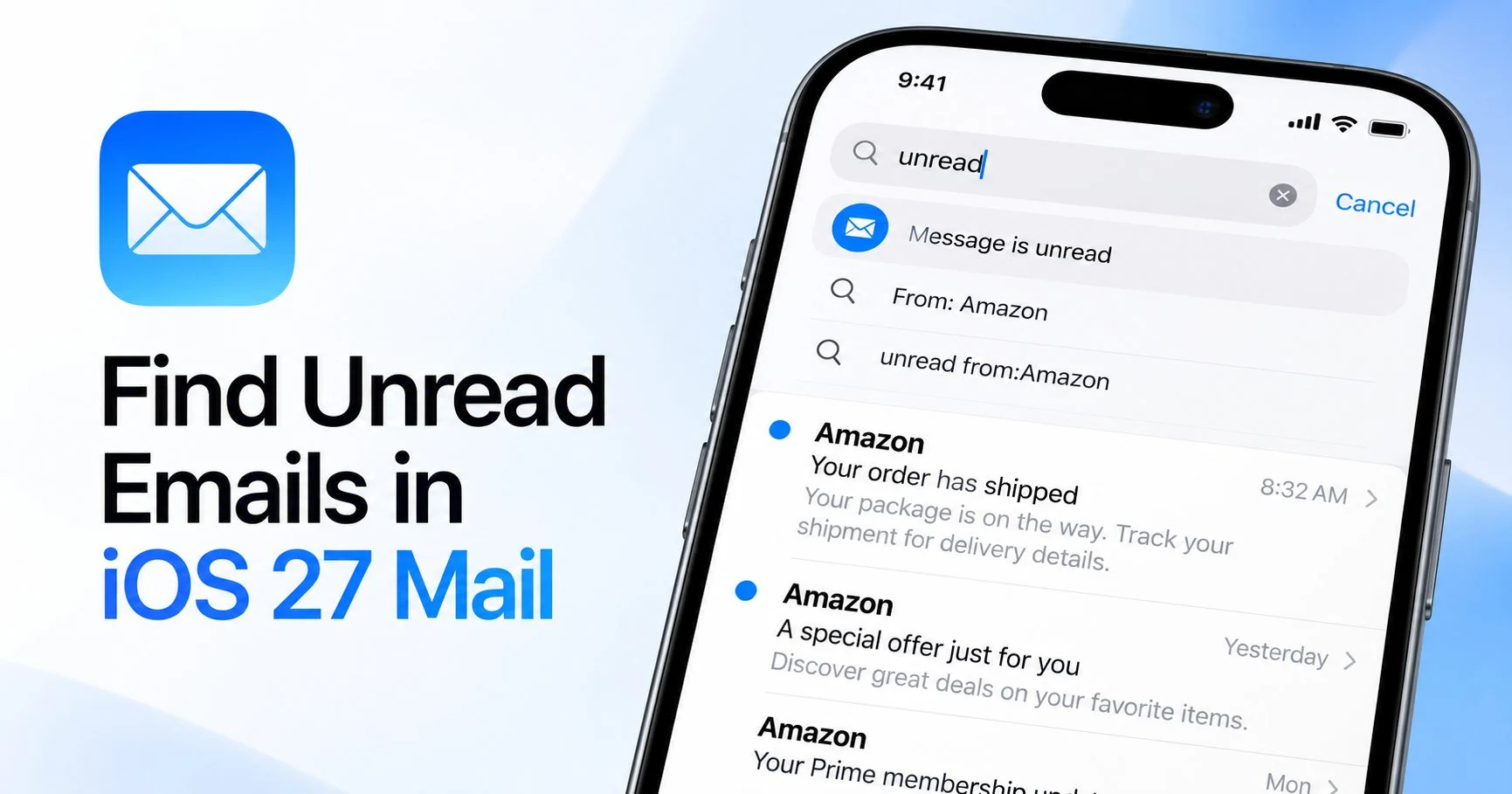
Trying to find unread emails from a particular company in the iPhone Mail app? Normally, you should be able to search for a sender, apply an unread condition, and see only the messages you haven’t opened. However, some users have reported difficulties doing this after updating to iOS 27.
For example, searching for Amazon may bring up hundreds of emails, including messages you’ve already read. The unread search suggestion that helped narrow those results in iOS 26 may also be missing.
Apple still documents an option to search specifically for unread messages. If that option isn’t appearing or doesn’t work as expected, there are other ways to find and delete the emails you want. The steps below cover Apple Mail’s search and filtering features, along with alternatives for Gmail and other email accounts.
Why is Apple Mail showing read emails when searching for unread messages?
The problem was raised in an October 28, 2026 discussion on Reddit. An iPhone user explained that they previously searched for “message is unread” in iOS 26 and selected a suggestion marked with a blue indicator. They could then add a company name, such as Amazon, to narrow the results.
After moving to iOS 27, the user could no longer find that suggestion. Another commenter recommended searching for Amazon directly, but that returned emails that had already been read.
The difficulty comes from how Mail handles search terms and message conditions. Searching for “Amazon” can find messages containing that name in the sender information, subject, or email content. It doesn’t automatically limit the results to unread messages.
To find only unread Amazon emails, Mail needs to apply both conditions:
- The email matches Amazon as the sender or company being searched.
- The message is marked as unread.
Apple’s official iPhone Mail search guide continues to describe an unread search suggestion. So far, the Reddit report does not establish whether the missing suggestion is an intentional interface change or a software issue affecting certain users.
Method 1: Use the unread search suggestion in Apple Mail
Start with Apple’s documented search method. One small detail worth checking is the wording entered into the search field. Apple’s instructions use the word “unread” rather than requiring the full phrase “message is unread”.
- Open the Mail app on your iPhone.
- Go to your Inbox or another mailbox.
- Tap the search field and type
unread. - Check the suggestions displayed below the search field.
- Look for Message is unread under Suggestions.
- Tap that suggestion to apply the unread condition.
- Tap the search field again and try entering the company name, such as
Amazon. - Check whether the results contain only unread messages from the intended company.
The important step is selecting the suggested condition. Typing “unread” as ordinary text may search for that word in messages rather than filter by read status.
If Mail accepts the unread suggestion but adding Amazon causes read messages to appear again, the combined search isn’t giving you the result you need. Don’t use those results for bulk deletion without checking them.
This method is consistent with Apple’s documented unread search feature, although the exact behavior of combining that condition with a company search has not been independently confirmed on iOS 27.
Method 2: Use the Unread filter in the mailbox
If “Message is unread” doesn’t appear in search suggestions, try the filtering option available in the mailbox itself. This is separate from Mail’s search suggestions and can help you find messages that haven’t been opened.
- Open Mail and select the mailbox containing the emails.
- Find the filter button, usually shown as a circle with horizontal lines near the bottom of the message list.
- Tap the button to enable filtering.
- Tap Filtered by to review the available conditions.
- Choose Unread and remove any other conditions you don’t need.
- Return to the message list and check the results.
The mailbox should now show unread messages according to the active filter. You can look through the list for emails from Amazon or whichever company you want to clean up.
You can also try searching while the filter is enabled, but check whether Mail keeps the unread condition active. If the search shows read messages again, return to the filtered mailbox instead of assuming the search results are restricted.
This approach is useful when the missing search suggestion is the main problem, although it may require more manual review if the mailbox contains unread messages from many different senders.
Method 3: Find messages through the Unread mailbox
Apple Mail also has a dedicated Unread mailbox. If you regularly deal with unread emails across different accounts, this can be easier than applying the same filter every time.
- Open Mail and go back to the Mailboxes screen.
- Look for a mailbox named Unread.
- If it isn’t visible, tap Edit and enable the Unread mailbox.
- Open Unread to see messages that are currently marked unread.
- Find the messages from the company you want to manage.
If the interface allows searching within the Unread mailbox, try entering the company’s name and selecting the current mailbox as the search scope. Check the results carefully, since search behavior and mailbox filtering may differ.
This method can also help troubleshoot missing unread messages. For example, if an email appears in the Unread mailbox but not through the unread search suggestion, Mail may be handling those two views differently.
Similar inconsistencies have been mentioned in an earlier Reddit discussion about unread messages missing from the Mail filter. Those reports concern related behavior and do not confirm the cause of the iOS 27 issue.
Method 4: Find unread emails from Amazon or another company using Gmail
If your Apple Mail account uses Gmail, Google’s own search system is a useful alternative. Gmail supports search operators that combine sender information with the unread status of messages.
You can use these operators in the Gmail app or on the Gmail website. They are documented in Google’s Gmail search help.
Search for unread Amazon emails in Gmail
Open Gmail and enter the following search:
from:(amazon.com) is:unreadThe from: operator looks for matching sender information, while is:unread restricts the results to messages marked unread.
Keep in mind that Amazon may send emails from different addresses or domains depending on the country and type of notification. For more accurate results, check the sender address of a genuine Amazon email and use that address or domain in your search.
Other useful Gmail searches
| What you want to find | Gmail search |
|---|---|
| All unread emails | is:unread |
| Unread emails matching Amazon senders | from:(amazon.com) is:unread |
| Unread messages in the inbox | in:inbox is:unread |
| Unread emails older than six months | is:unread older_than:6m |
| Unread Amazon emails older than six months | from:(amazon.com) is:unread older_than:6m |
These searches are particularly helpful when you have hundreds of unread emails and want to narrow them down before deleting anything.
Remember that these are Gmail search operators. Apple does not document the same syntax for the iPhone Mail app, so entering these commands directly into Apple Mail may not produce the expected results.
What about Outlook, iCloud Mail, and Yahoo?
If you’re using another email provider, its own app or website may offer more suitable filtering controls.
For Outlook, search for the sender and use the available unread filter. If your account supports combining both conditions, review the matching messages before deleting them.
For iCloud accounts, you can compare the results in Apple Mail with iCloud Mail on the web. This is also useful for checking whether the messages are correctly marked unread on the server.
Yahoo Mail users can try similar sender searches and unread filtering in Yahoo’s own interface. The available options and exact steps depend on the provider.
You don’t need to remove your email account from Apple Mail to try these alternatives.
How to delete multiple unread emails from the same company
After locating the messages, you can select and delete those you no longer need. Before doing that, check the sender and subject lines. Companies such as Amazon send promotional emails alongside order receipts, delivery updates, refund information, and account notifications.
Deleting every unread message from the same company could remove information you may need later.
Delete multiple emails in Apple Mail
- Open the mailbox or search results containing the emails.
- Tap Select or Edit, depending on the screen.
- Select the messages you want to remove.
- Tap Trash or Delete if that action is available.
- If the available action is Archive, use the Move option to send the selected emails to Trash, where supported.
- Check that the intended messages have been removed.
On supported message lists, you may be able to select several emails by dragging through their selection circles. This can be quicker than tapping each message individually.
What if Select All is missing after searching?
Some users have noticed that Apple Mail doesn’t display the same bulk-selection controls in every view. For example, Select All may be available in a normal mailbox but absent from search results.
This has been discussed in an iPhone Reddit thread about selecting all emails after a mailbox search.
If Select All isn’t available, you can select the messages individually or use the drag-selection gesture when supported. For a very large collection of emails, the provider’s website may be more convenient.
Bulk-delete unread Amazon emails using Gmail
Gmail’s desktop website is a practical option when you need to remove hundreds of matching emails.
- Open Gmail in a desktop browser.
- Search for
from:(amazon.com) is:unread, or use a verified sender address. - Review the results to make sure they match the emails you intend to remove.
- Use the selection checkbox to select the displayed results.
- If Gmail offers an option to select all conversations matching the search, check its scope before proceeding.
- Click the Delete button to move the selected conversations to Trash.
Be careful when conversation view is enabled. Gmail may group several related emails together, including both read and unread messages. Selecting a matching conversation for deletion can affect messages you didn’t intend to remove.
If you’re unsure, delete a small batch first and check the result before selecting everything.
How to fix the missing unread search suggestion in iOS 27
If Apple’s unread search suggestion is still missing, a few checks can help identify whether the issue concerns the search interface, mailbox settings, or the email account itself.
1. Search for “unread” instead of the full phrase
Apple’s instructions recommend entering unread and choosing Message is unread under Suggestions.
If you’ve been entering message is unread, try the shorter term. Pay attention to the suggestions that appear while typing rather than immediately submitting the search.
2. Change the search scope
Mail can search the current mailbox or all mailboxes. If the search is restricted to one folder, messages stored elsewhere may not appear.
Try searching from the main Inbox and then from All Mailboxes. If you use multiple accounts, repeat the test in the individual account where the messages are stored.
3. Check for an existing mailbox filter
Open the mailbox’s filtering controls and see whether another condition is enabled. Temporarily remove unrelated filters and test the unread option by itself.
Also check whether the results change when you disable and re-enable the Unread filter.
4. Close and reopen Mail
Close the Mail app and open it again. Repeat the search using the word unread.
If the suggestion still doesn’t appear, restart the iPhone and try once more. Restarting can clear temporary app problems, although it has not been confirmed as a specific fix for this iOS 27 report.
5. Check the same emails through your provider
Sign in to your email account through its official website and check whether the messages are marked unread there.
If Gmail or iCloud shows the correct unread status while Apple Mail displays different results, the issue may involve Mail’s search, message display, or synchronization.
If the same discrepancy appears on the provider’s website, review the message status and account settings before making changes to the iPhone.
6. Check for an iOS update
Go to Settings > General > Software Update and see whether a newer version is available for your iPhone.
Software updates can resolve application problems, but there is no confirmed Apple release note identifying a specific update that fixes the missing unread suggestion described in the October 2026 report.
7. Avoid removing the email account unless necessary
Removing and adding an account again is sometimes used to troubleshoot synchronization problems, but it shouldn’t be the first response to a missing search suggestion.
Before considering this step, make sure your messages are available on the email provider’s server and that you can sign in again. Check for any locally stored drafts or messages that might be lost.
There is also no reason to reset the entire iPhone or downgrade iOS based solely on this reported issue.
Frequently asked questions
Can I search only unread Amazon emails in iOS 27 Mail?
Apple documents an unread search condition, and you can try combining it with Amazon as a search term. However, a user has reported that the suggestion used for this workflow in iOS 26 no longer appears in iOS 27. If the combined search doesn’t work, try the Unread mailbox or use your email provider’s advanced search.
Why does searching for Amazon also show read emails?
Searching for Amazon alone doesn’t apply an unread filter. Mail may return messages containing the company name in their sender details, subject, or content. You need an additional unread condition to narrow the results.
Does the is:unread command work in Apple Mail?
is:unread is a Gmail search operator. Apple recommends entering unread in Mail’s search field and selecting Message is unread under Suggestions. Don’t assume Gmail’s search commands work in Apple Mail.
Can I search unread messages across several email accounts?
Apple Mail supports multiple accounts and an All Mailboxes view. However, the selected search scope can affect which messages appear. If you’re missing emails, compare the results from All Mailboxes with the individual account’s Inbox and Unread mailbox.
Why are some unread emails missing from the Unread filter?
This can happen when the message list and unread status aren’t being displayed consistently. Similar problems have been reported by users of earlier iOS versions. Compare the Unread mailbox with a search using the unread suggestion, then check the same messages through your email provider to confirm their status.
Can I delete all unread emails from one sender at once?
It depends on the available selection controls. Apple Mail may not offer Select All in every search-results view. Gmail’s web interface provides more advanced search and selection features, although you should check whether you’re selecting individual messages or complete conversations.
Will deleting an email in Apple Mail also delete it from Gmail or iCloud?
For a normally synchronized account, deleting an email in Apple Mail generally updates the message on the provider’s server. The message is usually moved to Trash and may be permanently removed later according to the provider’s retention policy.
If you only want to hide messages from your Inbox without deleting them, consider archiving instead.
How can I stop unwanted company emails from accumulating?
For newsletters and promotional messages you no longer want, use the sender’s legitimate unsubscribe option when available.
Gmail also provides filtering features that can organize incoming mail automatically. Avoid creating a broad rule that deletes every email from a company you regularly purchase from, since transactional and account-related messages may come from related sender addresses.
Which method works best?
| Your situation | What to try |
|---|---|
| The unread suggestion is available | Select Message is unread, then try adding the sender name. |
| The unread suggestion is missing | Use Mail’s built-in Unread filter. |
| You want to see unread messages from several accounts | Open the Unread mailbox and check the account scope. |
| You use Gmail and need precise results | Combine the from: and is:unread operators in Gmail. |
| You need to delete hundreds of emails | Use the provider’s web interface for easier bulk management. |
| Unread messages are missing or showing incorrectly | Compare Mail with the same account on the provider’s website. |
Final thoughts
For most users, the first thing to try is entering unread in Apple Mail and selecting Message is unread from the search suggestions. If that option appears, you can test whether adding a sender or company name narrows the results correctly.
When the suggestion is missing, the Unread mailbox and mailbox filtering controls offer alternatives. Gmail users have another option through Google’s search operators, which are particularly useful for finding unread messages from a specific sender before deleting them in bulk.
The October 28, 2026 Reddit report shows that the previous combined-search workflow isn’t working as expected for at least one iOS 27 user. Apple still documents unread searching, and the available reports don’t establish that the feature has been officially removed.
Until the exact behavior is clarified, check the unread status and sender information before selecting a large number of emails for deletion. If Apple Mail keeps mixing read and unread results, using the email provider’s own search interface is the more dependable approach.