


Nowadays, WiFi turns on automatically on Android devices due to several reasons. Have you ever experienced that your Android phone WiFi turns on automatically after just a few seconds once you turn it off? If yes is your answer, then it would be very annoying to turn it off again and again for sure.
As per some sources, there is a feature from Google which turns on the Wi-Fi automatically even if you are going to turn it off manually. However, most Android users do not appreciate this feature, and they want to get rid of it.
Are you looking for the vital steps to follow for stopping WiFi from turning on automatically on the android devices? If yes, then here you would come to know about the vital steps right now!
 Step 3: Now you need to tap on the menu option on the top right corner. You can see 3 dots at the top corner. Click on that.
Step 4: Now you will get additional options. From that click on Advanced.
Step 3: Now you need to tap on the menu option on the top right corner. You can see 3 dots at the top corner. Click on that.
Step 4: Now you will get additional options. From that click on Advanced.
 Step 5: On the Advanced page, you will get additional WiFi preferences. You can notice an option by which WiFi automatically On/Off option. Just turn that off.
 Turning off that feature will stop your Wifi from automatically turning on when a WiFi network is detected.
You can also turn off the Connect to open network toggle while you are on that page easily. However, it would be better for you to understand that connecting to the open network is unsafe for your privacy and may also face some issues. Therefore, make sure you are turning it off so that you would never connect to unknown open networks.
Related: How to Set Default SIM in Samsung Phone For Calls And SMS
At last, if your Wi-Fi is still turning on by itself, then there are still a few things you can try from your side. If the issue is related to viruses or any glitch, then chances are you would be able to get back the normal functionality of your WiFi after the factory reset.
You should note that a factory reset will delete all of your personal data that is not on your SD card, so it is highly recommended to create a backup before proceeding further for sure. The factory reset is the last option you need to consider if you face the same issues.
Turning off that feature will stop your Wifi from automatically turning on when a WiFi network is detected.
You can also turn off the Connect to open network toggle while you are on that page easily. However, it would be better for you to understand that connecting to the open network is unsafe for your privacy and may also face some issues. Therefore, make sure you are turning it off so that you would never connect to unknown open networks.
Related: How to Set Default SIM in Samsung Phone For Calls And SMS
At last, if your Wi-Fi is still turning on by itself, then there are still a few things you can try from your side. If the issue is related to viruses or any glitch, then chances are you would be able to get back the normal functionality of your WiFi after the factory reset.
You should note that a factory reset will delete all of your personal data that is not on your SD card, so it is highly recommended to create a backup before proceeding further for sure. The factory reset is the last option you need to consider if you face the same issues.
Steps to Stop Wifi to turn on Automatically on Android
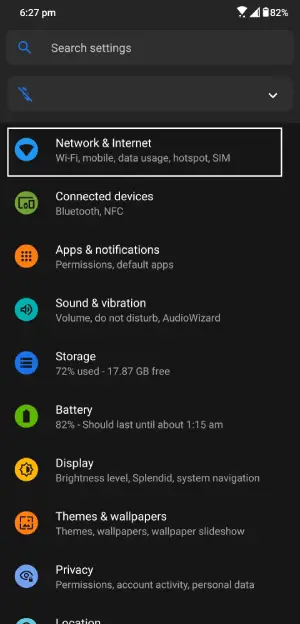
Step 1: The first step is to Unlock your smartphone and go into the settings section Related: How to Enable and Disable Data Roaming on Android Mobile Phone Step2: After selecting the setting option, you need to tap the Network and Internet settings and then go to WiFi. On some devices, it is mentioned as Connections rather than Network.
Step 3: Now you need to tap on the menu option on the top right corner. You can see 3 dots at the top corner. Click on that.
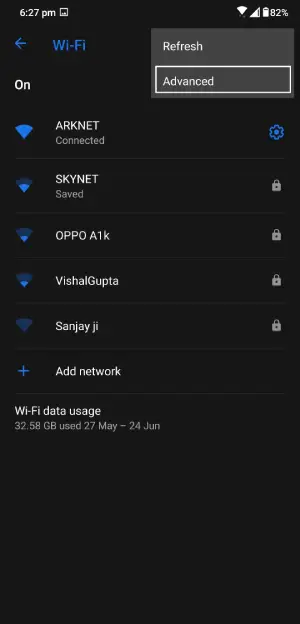
Step 4: Now you will get additional options. From that click on Advanced.
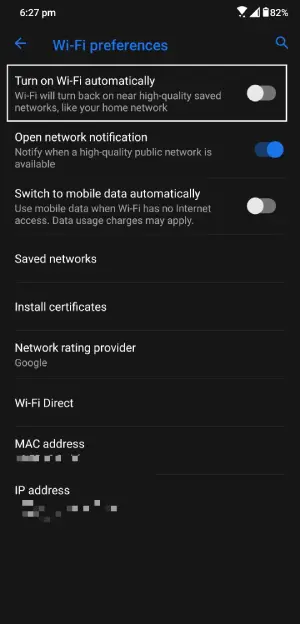
Step 5: On the Advanced page, you will get additional WiFi preferences. You can notice an option by which WiFi automatically On/Off option. Just turn that off.
Turning off that feature will stop your Wifi from automatically turning on when a WiFi network is detected.
You can also turn off the Connect to open network toggle while you are on that page easily. However, it would be better for you to understand that connecting to the open network is unsafe for your privacy and may also face some issues. Therefore, make sure you are turning it off so that you would never connect to unknown open networks.
Related: How to Set Default SIM in Samsung Phone For Calls And SMS
At last, if your Wi-Fi is still turning on by itself, then there are still a few things you can try from your side. If the issue is related to viruses or any glitch, then chances are you would be able to get back the normal functionality of your WiFi after the factory reset.
You should note that a factory reset will delete all of your personal data that is not on your SD card, so it is highly recommended to create a backup before proceeding further for sure. The factory reset is the last option you need to consider if you face the same issues.