Vipin PG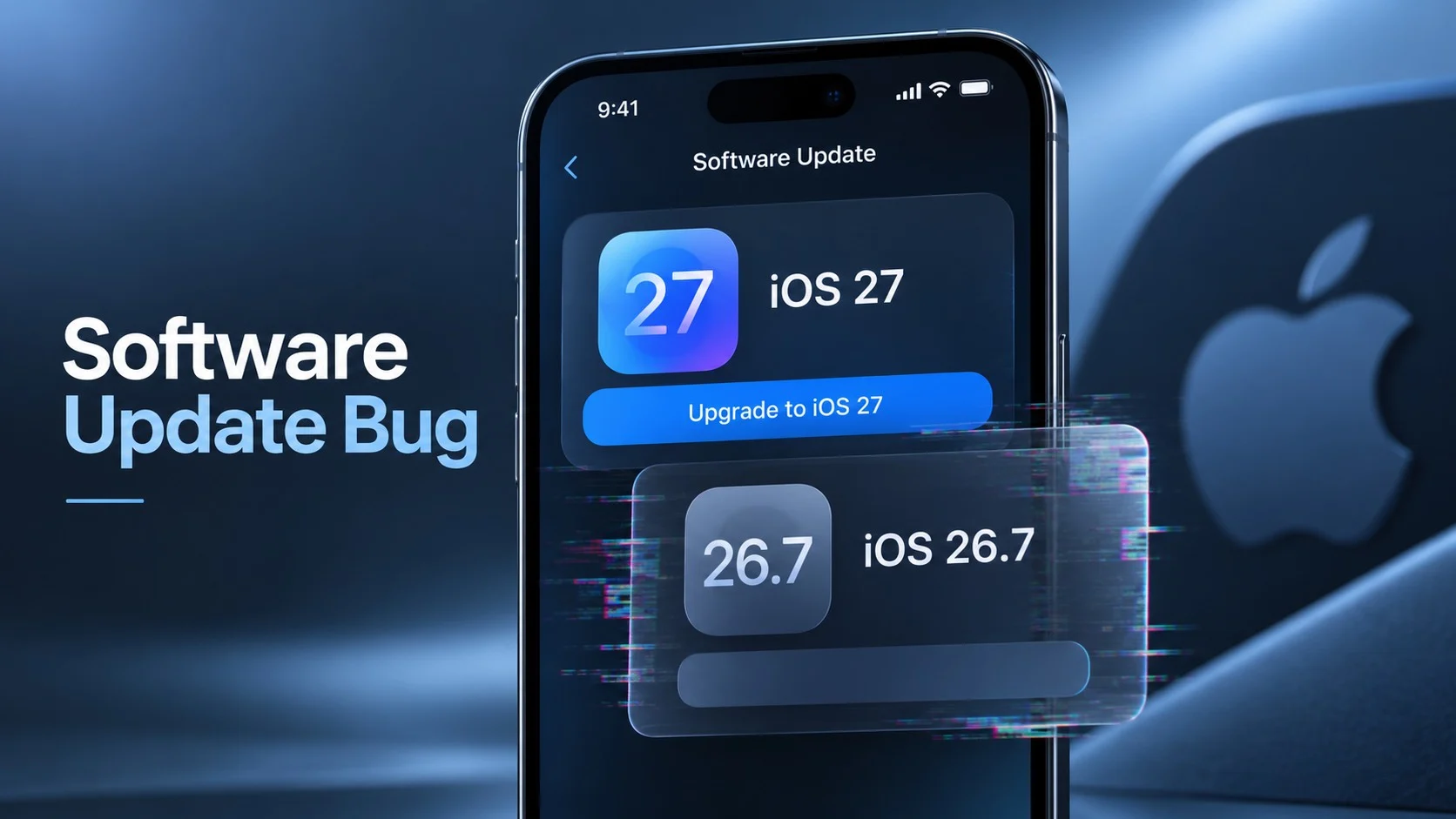
Some iPhone users trying to install iOS 27 are running into a strange Software Update bug. The iPhone correctly shows an option to “Upgrade to iOS 27,” but tapping it can open an update page labeled iOS 26.7 instead.
The problem is unusually confusing because iOS 26.7 is also a real Apple software update. Apple released iOS 26.7 and iOS 27 at the same time, giving compatible iPhone owners the choice to stay on iOS 26 or move to the new major release.
Reports from affected users suggest that the second, much larger iOS 26.7 download shown after selecting iOS 27 can actually contain the iOS 27 upgrade. Some users installed the mislabeled package and found iOS 27 running after the restart.
There are conflicting reports, though. Apple has not published a technical explanation for the problem, so users who see the wrong version name should avoid assuming that every affected download behaves the same way.
Why iOS 26.7 appears beside iOS 27
Apple released iOS 27 publicly on September 14, 2026. At the same time, it released iOS 26.7 for users who prefer to remain on iOS 26 while continuing to receive security fixes.
This creates two legitimate update paths on compatible iPhones.
For many users, iOS 26.7 appears as the regular update near the top of Settings > General > Software Update. The larger iOS 27 release appears separately under “Also Available.”
That arrangement is expected. The problem starts when an iPhone owner taps “Upgrade to iOS 27” and the next screen again identifies the software as iOS 26.7.
What the iOS 27 update bug looks like
iClarified reproduced the problem while attempting to install iOS 27. According to its report, the iPhone initially offered iOS 27 under “Also Available.” After selecting the upgrade, Settings presented another iOS 26.7 update with a download size of 20.23 GB.
The site also tried installing the genuine iOS 26.7 update first. Once that update was installed, Software Update continued to offer “Upgrade to iOS 27.” Selecting it brought up the large iOS 26.7 package again.
Similar reports appeared on Reddit shortly after iOS 27 was released. One user reported seeing a normal iOS 26.7 update of 1.58 GB, while selecting iOS 27 opened another update labeled iOS 26.7 at 20.71 GB.
Those numbers are examples from individual devices. They should not be treated as standard download sizes for either version.
The large iOS 26.7 download may actually be iOS 27
Several affected users went ahead with the download despite the incorrect label. After installation, their iPhones were running iOS 27.
One user in the Reddit discussion reported selecting iOS 27, seeing iOS 26.7 during the download, and finding iOS 27.0 installed after the phone restarted. A commenter on the original iClarified report described the same result.
This points toward a Software Update presentation or metadata problem on at least some affected devices. The phone receives the requested iOS 27 update, while the update screen displays the iOS 26.7 name or artwork.
That explanation has not been confirmed by Apple. There are also reports from users who installed the larger package and remained on iOS 26.7, with the iOS 27 option still appearing afterward. For that reason, file size alone cannot confirm which version an iPhone will install.
Do you need to install iOS 26.7 before iOS 27?
There is no evidence that iOS 26.7 is a required first step for installing iOS 27.
The confusion partly came from users seeing both releases at once. Some assumed Apple was forcing the smaller iOS 26.7 update before allowing the major upgrade.
iClarified’s test does not support that theory. The site installed iOS 26.7 and then selected iOS 27, only to encounter the same incorrect iOS 26.7 label again.
If an iPhone already offers “Upgrade to iOS 27,” users do not need to install iOS 26.7 simply because the newer upgrade is available underneath it.
Download size is only a clue
A large difference in download size can help explain why users suspect the mislabeled package is actually iOS 27.
A maintenance update within iOS 26 may be much smaller than a complete upgrade to a new major iOS release. In the reports above, the second package shown after selecting iOS 27 was many gigabytes larger than the regular iOS 26.7 download.
Update sizes still vary by device and starting software version. An iPhone may also need different files depending on its current installation state.
There is no universal download size that users should look for to identify iOS 27. A 9 GB, 15 GB or 20 GB download should not be treated as proof that the package is iOS 27.
How to check which iOS version was actually installed
If you already installed the update, checking the installed version is more reliable than trying to work out what happened from the download screen.
Open Settings > General > About and look at the iOS Version field.
Apple’s Developer release page lists the public release as iOS 27.0, build 24A437, released on September 14, 2026.
This is also useful for anyone who saw earlier references to build 24A435. Apple’s current release information identifies 24A437 as the public iOS 27.0 build.
What to do if the update still says iOS 26.7
If you selected iOS 27 and the next page unexpectedly shows iOS 26.7, there is little reason to rush through an update whose identity is unclear.
Some users report that refreshing the Software Update page caused the correct iOS 27 name to appear. In one Reddit discussion, the update initially showed iOS 26.7 and changed to iOS 27 after the page was refreshed. Other users in the same discussion said the incorrect label remained on their devices.
If refreshing does not fix it, waiting and checking again later is the simplest option.
Users who specifically want to install iOS 27 can also check for the update using a Mac. Apple officially supports updating an iPhone through Finder:
- Back up the iPhone before starting the update.
- Connect the iPhone to a Mac running macOS Catalina or later.
- Open Finder and select the iPhone in the sidebar.
- Open the General tab and click “Check for Update.”
- If Finder offers the correct update, click “Download and Update” and follow the onscreen instructions.
Be careful with the nearby “Restore iPhone” option. Apple’s documentation states that a factory restore removes the information and settings stored on the device. It is not the normal update option.
Users staying on iOS 26 should be careful
The labeling error is especially relevant to people who deliberately want to remain on iOS 26.
iOS 26.7 is a legitimate update. Apple released it as the current iOS 26 update alongside iOS 27, and it includes security fixes without requiring users to move to the new major version.
If you want to stay on iOS 26, use the genuine iOS 26.7 update presented as the normal update. Avoid selecting “Upgrade to iOS 27” and then proceeding with a large package simply because the next screen happens to call it iOS 26.7.
User reports show that this mislabeled package can result in iOS 27 being installed.
Has Apple fixed the iOS 27 update bug?
There are signs that the problem has already disappeared for some users.
A Reddit thread posted after the initial rollout includes reports from users who saw the update name change from iOS 26.7 to iOS 27 after refreshing Software Update. Other people in the same thread were still seeing the wrong label.
As of September 15, Apple has not published a technical explanation of the problem in the release or standard update documentation available at publication time. There is no official confirmation that the issue has been fully corrected for every affected device.
The evidence available so far points to a Software Update display problem affecting at least part of the iOS 27 rollout. Apple officially released iOS 27.0 as build 24A437, and many users who encountered the incorrect iOS 26.7 label still ended up with that new major version installed.
If your iPhone still shows conflicting version information, check the update screen again before proceeding rather than relying on the download size. We will update this article if Apple publishes an explanation or confirms that the Software Update issue has been resolved.