Vipin PG
Remote work in 2026 looks different from what it did four years ago. Return-to-office mandates are real, hybrid schedules are now the norm for many companies, and the novelty of working from home has long worn off. But one thing has not changed: if your remote setup is poor, your work suffers — regardless of what your company’s policy says. Whether you work fully remote, hybrid, or just need a productive home base for the days you are off-site, getting your setup right is the single most impactful thing you can do for your output and your wellbeing.
This guide walks you through every layer of a remote work setup that genuinely works — physical space, hardware, connectivity, software, and daily habits — in the order you should actually think about them.
Step 1: Pick the Right Space Before Buying Any Gear
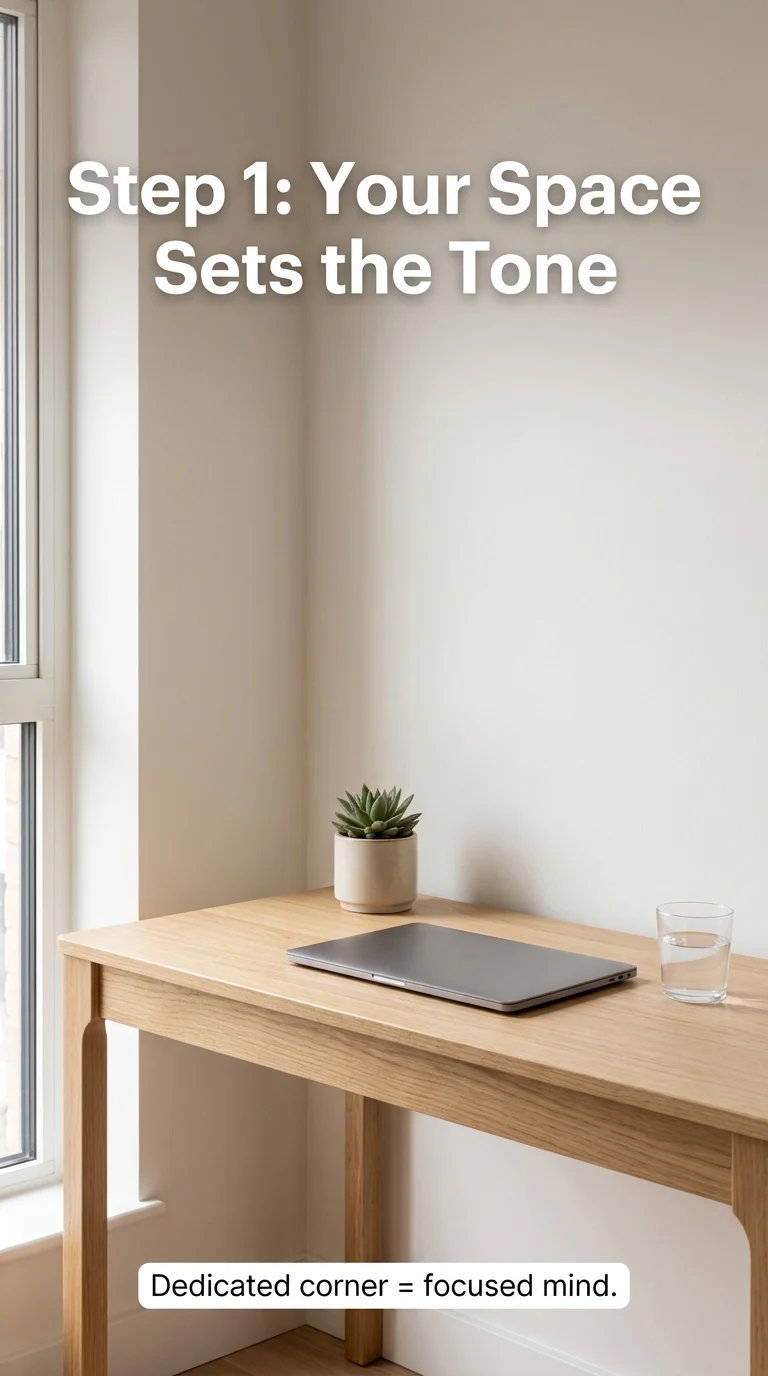
Everything starts with where you sit. A dedicated space — even a small corner of a room — is the single biggest predictor of remote work success. Your brain needs a physical signal that says “work happens here.” Without it, focus becomes a daily fight.
- Separate your workspace from where you sleep or relax, even if it is just a desk facing a wall in the bedroom.
- Choose a spot with natural light coming from the side, not behind or directly in front of your screen.
- Prioritise low foot traffic and minimal background noise from household members.
- If you share a home, set and communicate your work hours so interruptions are minimal during deep work periods.
Step 2: Get Your Chair and Desk Right (Ergonomics First)
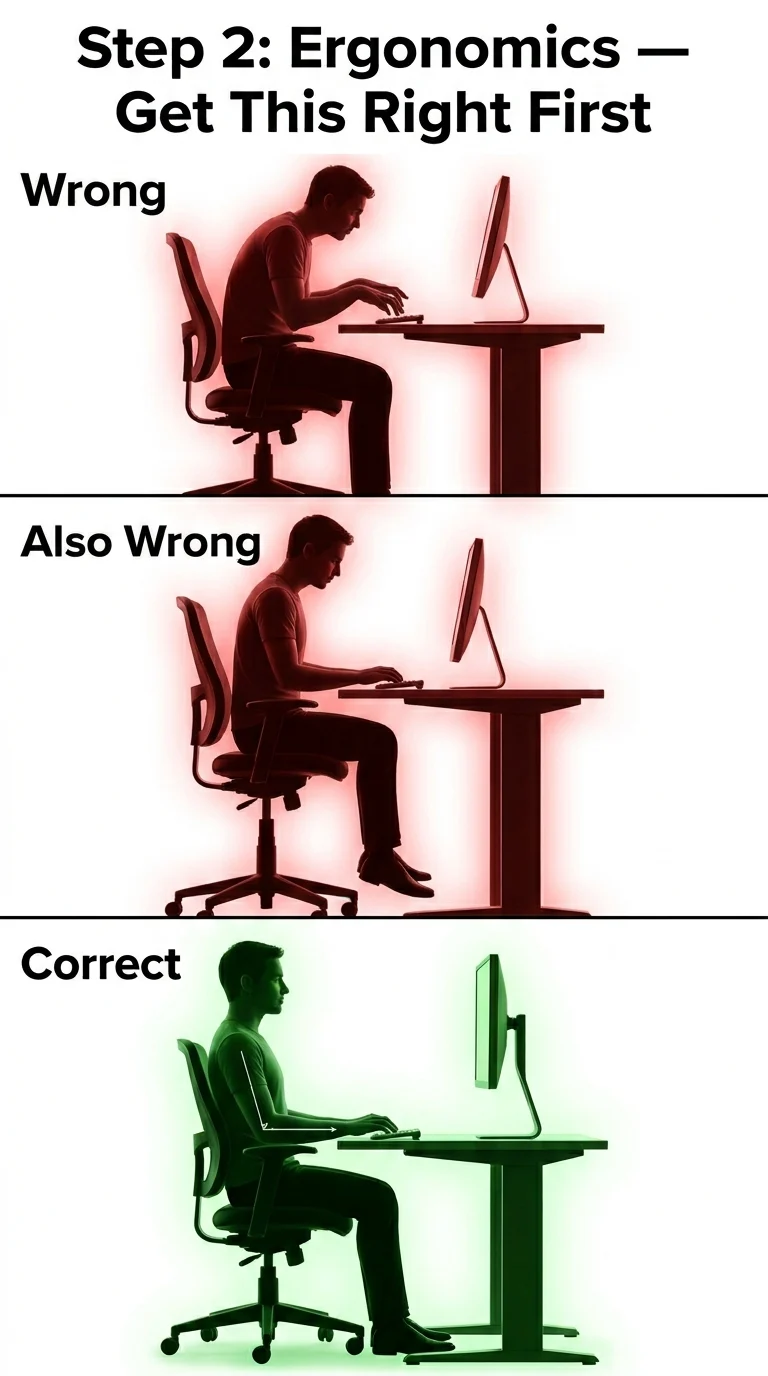
Poor ergonomics is the silent productivity killer. Back pain, neck strain, and wrist fatigue accumulate slowly and then hit hard. Fixing this is not about spending a lot of money — it is about correct positioning.
- Chair: Your feet should be flat on the floor and your knees at roughly 90 degrees. Lumbar support at the lower back is non-negotiable for long sessions.
- Desk height: When seated, your elbows should bend at 90 degrees when your hands rest on the keyboard. A standing desk option (even a converter) adds meaningful variety through the day.
- Monitor height: The top of your screen should be at or just below eye level. If you use a laptop, add a stand and an external keyboard.
- Wrist position: Keep wrists neutral — not bent up or down — when typing.
Step 3: Sort Your Internet — It Is Your Lifeline
A fast computer with a bad connection is useless during a video call. Your internet setup deserves as much attention as your hardware.
- Speed: For comfortable remote work with video calls, aim for at least 50 Mbps download and 20 Mbps upload. More is better, especially if others in your home are streaming or gaming simultaneously.
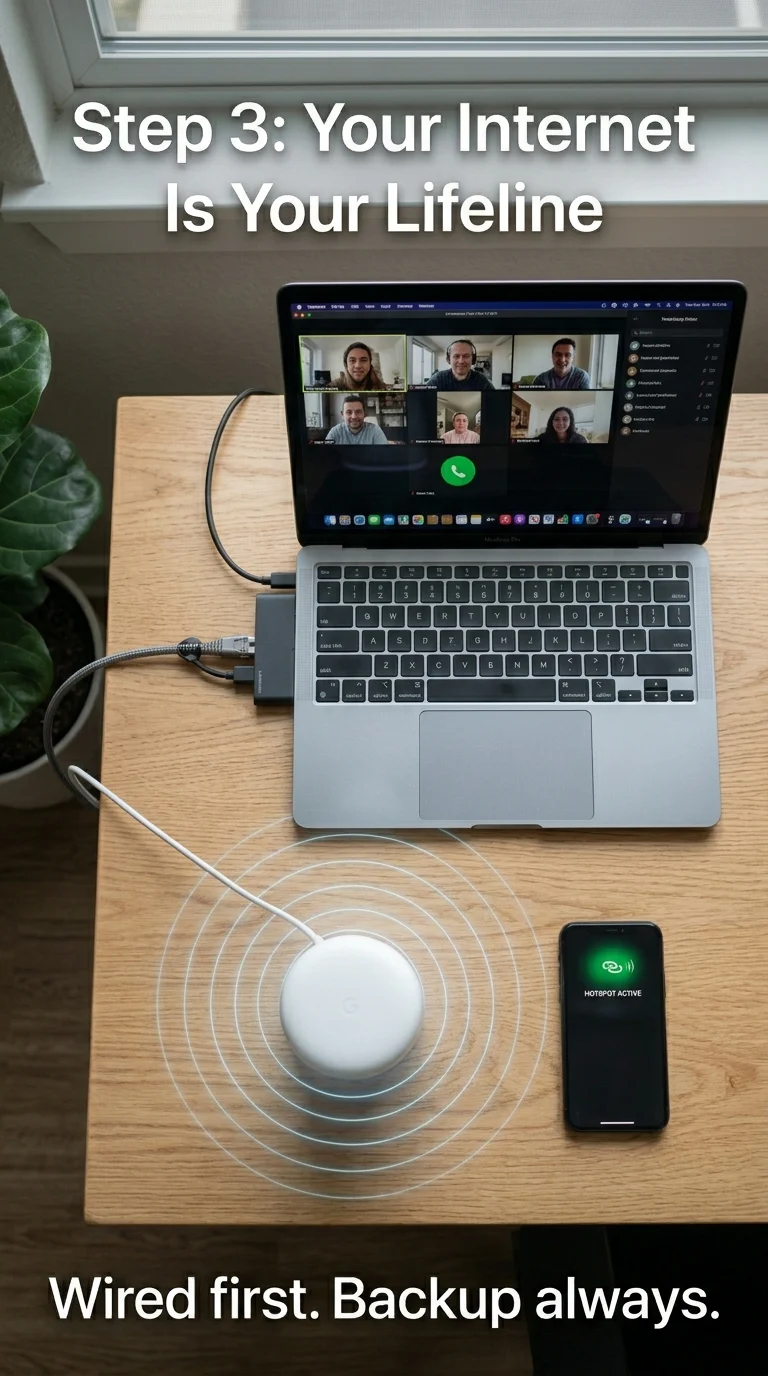
- Wired over Wi-Fi: If at all possible, run an ethernet cable from your router to your desk. It eliminates the drops and lag that Wi-Fi introduces, especially during calls.
- Router placement: If wired is not an option, place your router in the same room as your workspace or invest in a Wi-Fi mesh system to eliminate dead spots.
- Backup plan: Have a mobile hotspot or a second SIM-based connection ready for outages. Losing connectivity mid-meeting without a backup is avoidable stress.
Step 4: Choose Hardware That Does Not Let You Down
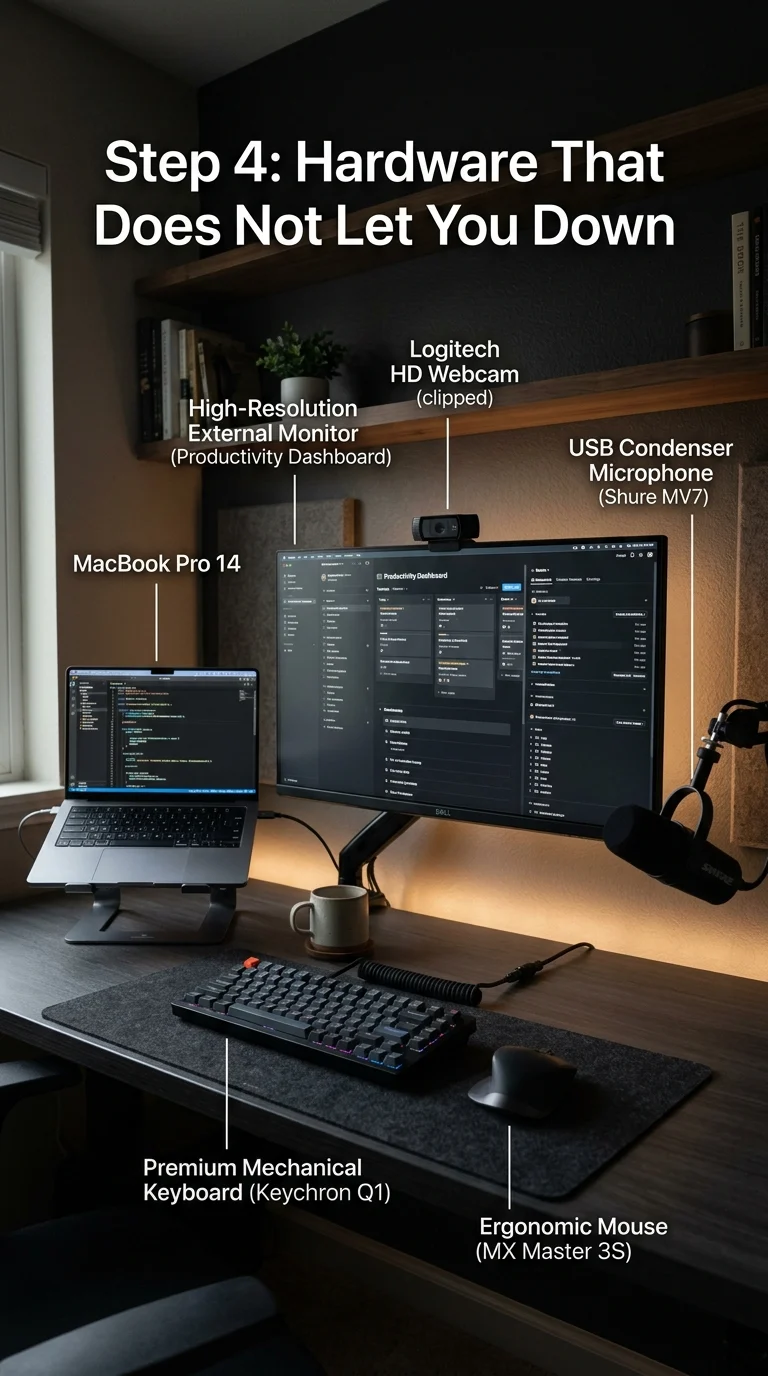
You do not need the most expensive equipment — you need reliable equipment. Here is how to think about each component.
- Laptop or desktop: A mid-range laptop with at least 16 GB RAM and a modern processor (Apple M-series, Intel Core Ultra, or AMD Ryzen 7+) handles most remote work without slowdowns.
- External monitor: A second screen is one of the highest-ROI upgrades available. Even a basic 24-inch 1080p monitor dramatically improves multitasking.
- Webcam: Built-in laptop cameras are poor quality. A dedicated 1080p webcam (Logitech C920 or equivalent) makes a visible difference in how you appear on calls.
- Microphone or headset: Audio quality matters more than video quality on calls. A USB condenser mic or a quality headset with a boom mic eliminates background noise and makes you sound professional.
- Keyboard and mouse: If you use a laptop stand, a separate keyboard and mouse are essential — and they reduce strain significantly.
Step 5: Manage Lighting — For Your Eyes and Your Camera
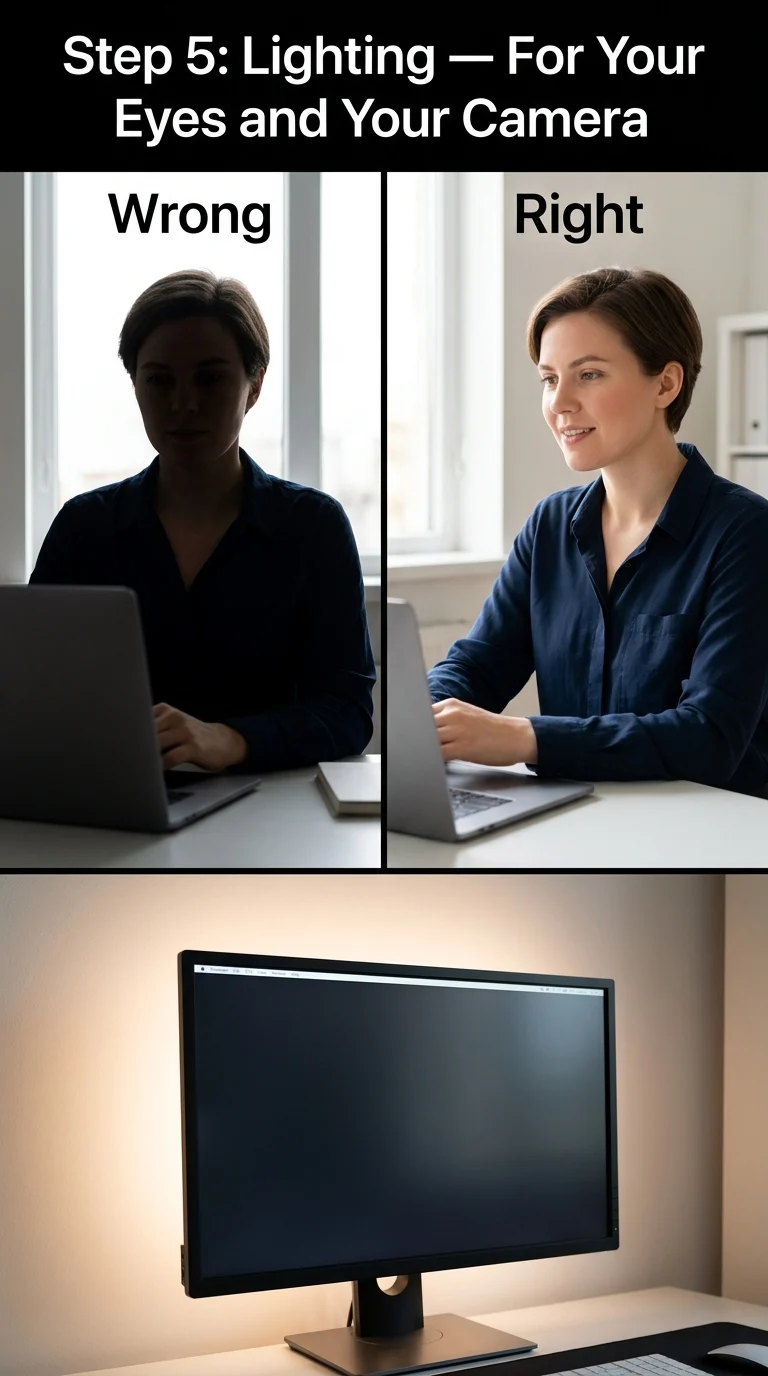
Lighting affects both your health and how you come across on video calls. Bad lighting on a call signals unprofessionalism even when the work is excellent.
- Avoid backlit positions: Do not sit with a window directly behind you — you will appear as a dark silhouette on camera.
- Face the light: Natural light in front of you is ideal. If that is not possible, a simple ring light or an LED panel placed in front of and slightly above your face works well.
- Ambient desk lighting: A monitor bias light (an LED strip behind your screen) reduces eye fatigue during long sessions by balancing the contrast between screen brightness and the surrounding room.
- Colour temperature: Use warm light (around 3000K) in the evening to avoid disrupting your sleep, and cooler daylight-balanced light (5000–6500K) during work hours for alertness.
Step 6: Set Up Your Core Software Stack
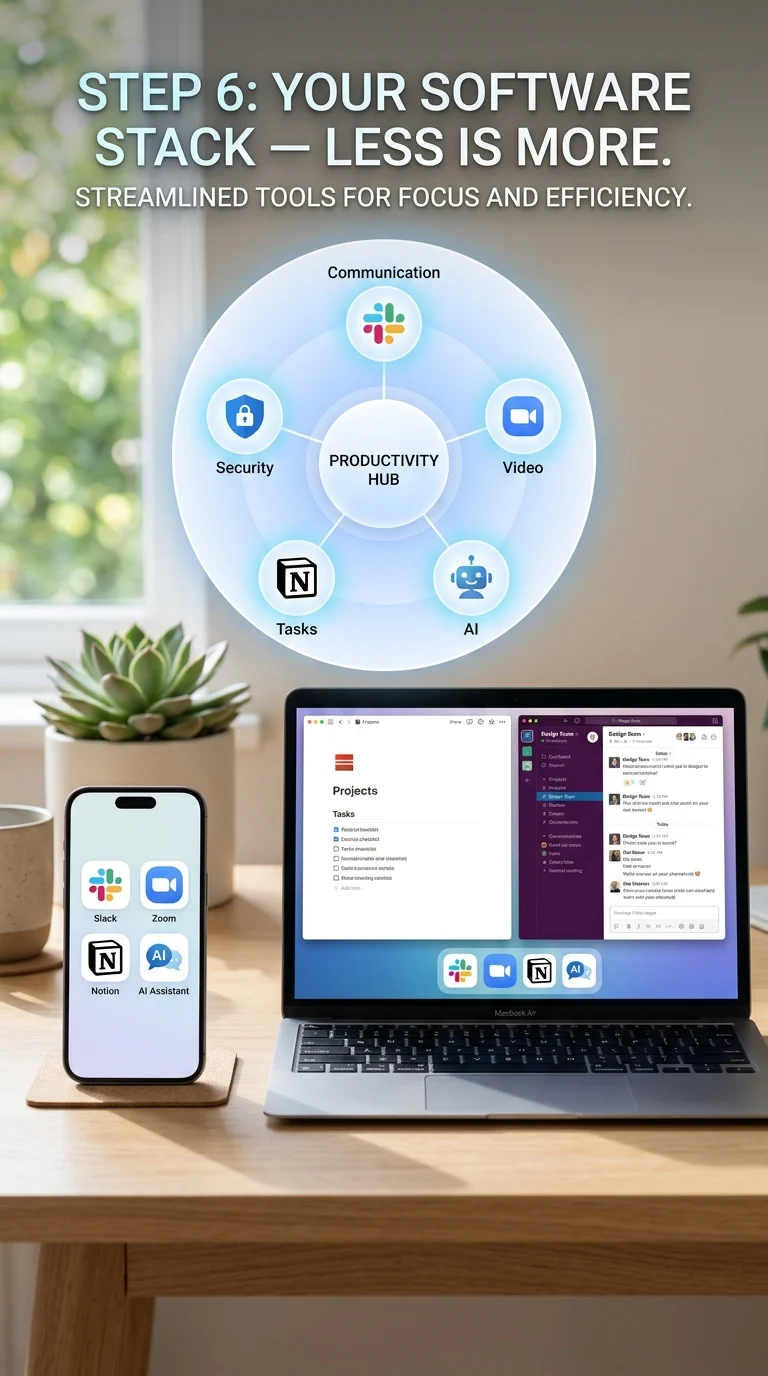
The right tools reduce friction, not add to it. In 2026, AI-assisted tools have become embedded in everyday remote work — knowing how to use them is now a basic skill, not a bonus.
- Communication: Slack or Microsoft Teams for async messaging. Keep email for external communication only where possible.
- Video calls: Zoom or Google Meet. Both work well — pick whichever your team already uses and stick to it.
- Task management: Notion, Todoist, or Linear (for technical teams). The goal is one place where your work lives, not five.
- AI assistant: An AI tool integrated into your daily workflow (for drafting, summarising, researching) now adds a measurable productivity lift — practical AI usage among remote workers has risen from 49% to 75% in the past two years.
- Security: A VPN for accessing company systems on home networks, multi-factor authentication on every work account, and a password manager. Non-negotiable in 2026.
Step 7: Build a Daily Routine That Holds the Setup Together
The best physical and digital setup falls apart without structure. Remote work blurs the line between work and personal time more than any office environment can. A routine is what keeps that line visible.
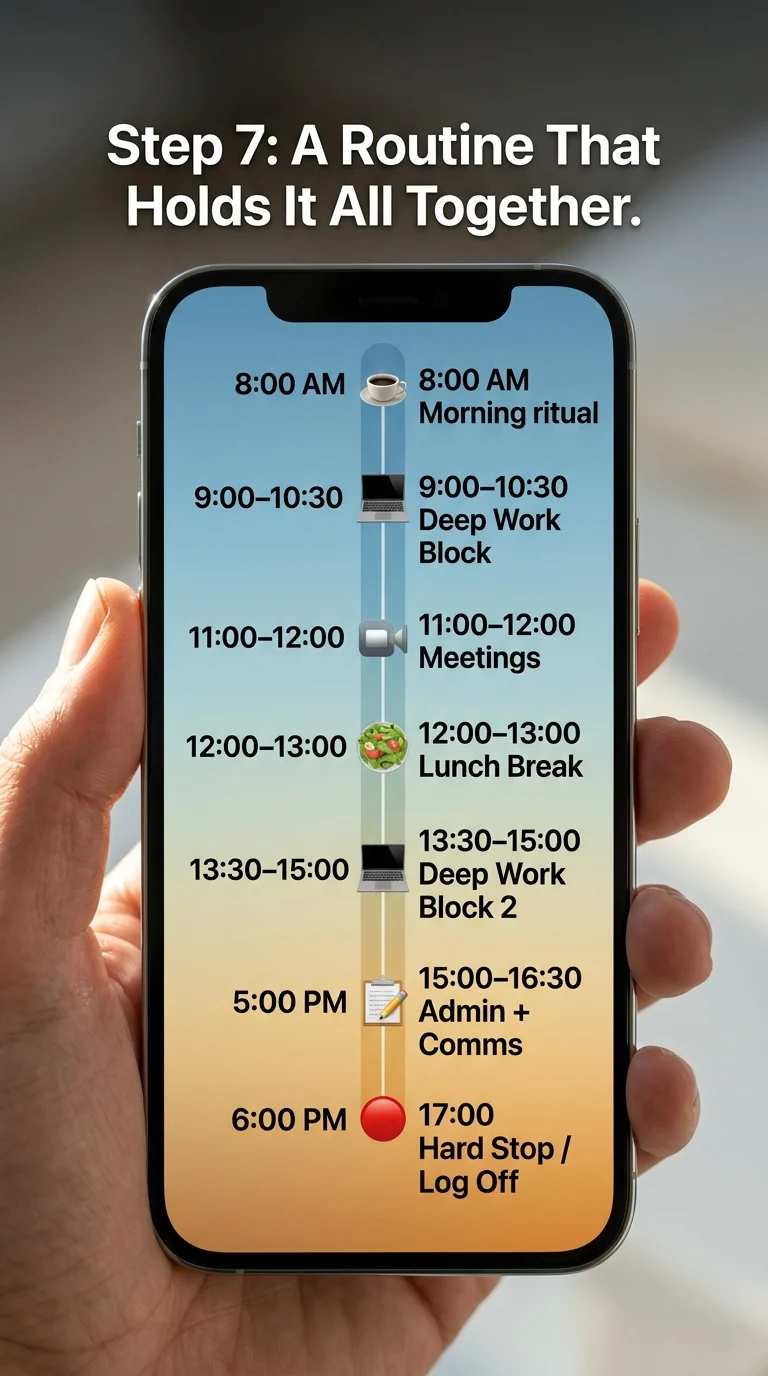
- Fixed start and end times: Log on and log off at consistent times. This is not just for discipline — it signals availability to your team and protects your personal time.
- A morning trigger: Something that signals the transition into work mode — making coffee, a short walk, or a five-minute review of the day’s tasks. Avoid checking messages before this ritual.
- Time blocking: Group deep work (writing, coding, analysis) into 90-minute blocks. Batch meetings together rather than letting them scatter through the day.
- Micro-breaks: Step away from the screen every 60–90 minutes for at least five minutes. This is not optional — sustained focus requires it.
- Hard stop: Close your work apps and, if possible, leave the workspace area at end of day. The psychological separation is as important as the physical one.
The Setup Is Not About 2026 — It Is About How You Work
Return-to-office mandates may shift the number of days you work from home, but they cannot change what makes a remote or hybrid session productive. The right space, ergonomic positioning, solid internet, capable hardware, good lighting, a lean software stack, and an intentional daily routine — these are not trends. They are fundamentals. Whether your company is fully remote, hybrid three days a week, or in the middle of an RTO push, the days you do work off-site will only be as good as the setup behind them. Get the foundations right once, and they will serve you regardless of what any corporate policy does next.