Vipin PG
If you’ve edited video for any length of time, you know where the hours actually go. It’s rarely the fun part — choosing the right cut, building rhythm, finding the emotional beat. It’s the grind before and after that: scrubbing through forty minutes of footage to find the one usable take, syncing three camera angles by hand, writing captions word by word, then exporting the same video five different ways for five different platforms.
That grind is exactly what AI has gotten good at. Not replacing editors — most of these tools are upfront that they’re assistants, not directors — but quietly eating the repetitive 70% of the job so editors can spend their time on the 30% that actually requires judgment. Here’s where that time actually disappears, stage by stage.
Why an Edit Used to Eat a Full Day
Before getting into what AI changes, it helps to be honest about where the old 8 hours went. A typical edit breaks down roughly like this: an hour or two just logging and organizing footage, two to three hours cutting a rough version, an hour cleaning up audio and removing filler words, another hour on color, an hour on captions, and an hour or more re-exporting and resizing for Instagram, YouTube Shorts, and whatever else needs a vertical version. None of that is creative work. It’s logistics. And logistics is exactly what software is supposed to be good at.
Stage 1: Where AI Saves the Most Time — Before You Even Start Cutting
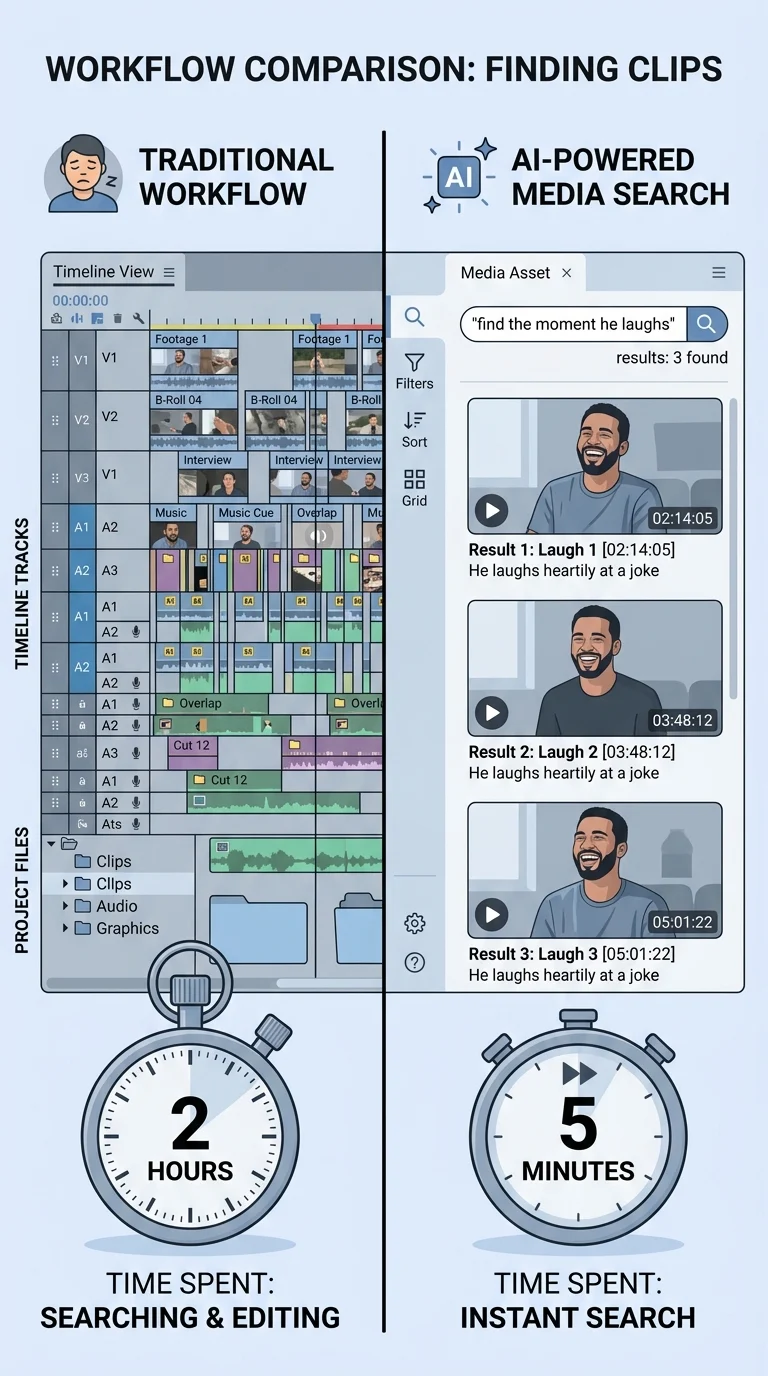
The biggest, least glamorous time sink in editing is just figuring out what you have. Scrubbing through hours of raw footage looking for one good soundbite is the kind of task that quietly destroys an afternoon.
Adobe addressed this directly with Media Intelligence in Premiere Pro, which lets editors search through visuals, transcripts, and metadata across thousands of shots in seconds instead of manually scrubbing the timeline. DaVinci Resolve does something similar with IntelliSearch, letting you instantly search for people and content using plain language, with results appearing as whole clips in the Media Pool. Resolve also uses its Neural Engine for automatic facial recognition, which can sort and organize clips into bins based on who’s in the shot without anyone tagging anything by hand.
Descript skips the search problem altogether by transcribing everything the moment you import it, turning your raw footage into a searchable, editable document from the start.
This is also the stage where the biggest time-savings claims come from, and they’re not just marketing. An industry analysis of AI-assisted video workflows found that editors typically save 60–90% of prep time, which means the creative decisions about pacing and structure can start almost immediately instead of after hours of manual cleanup.
Stage 2: Inside the Edit — Cutting, Cleanup, and Color
Once the footage is organized, the next time sink is the actual cut: trimming silences, removing filler words, fixing audio, and getting the color consistent across clips shot in different lighting.
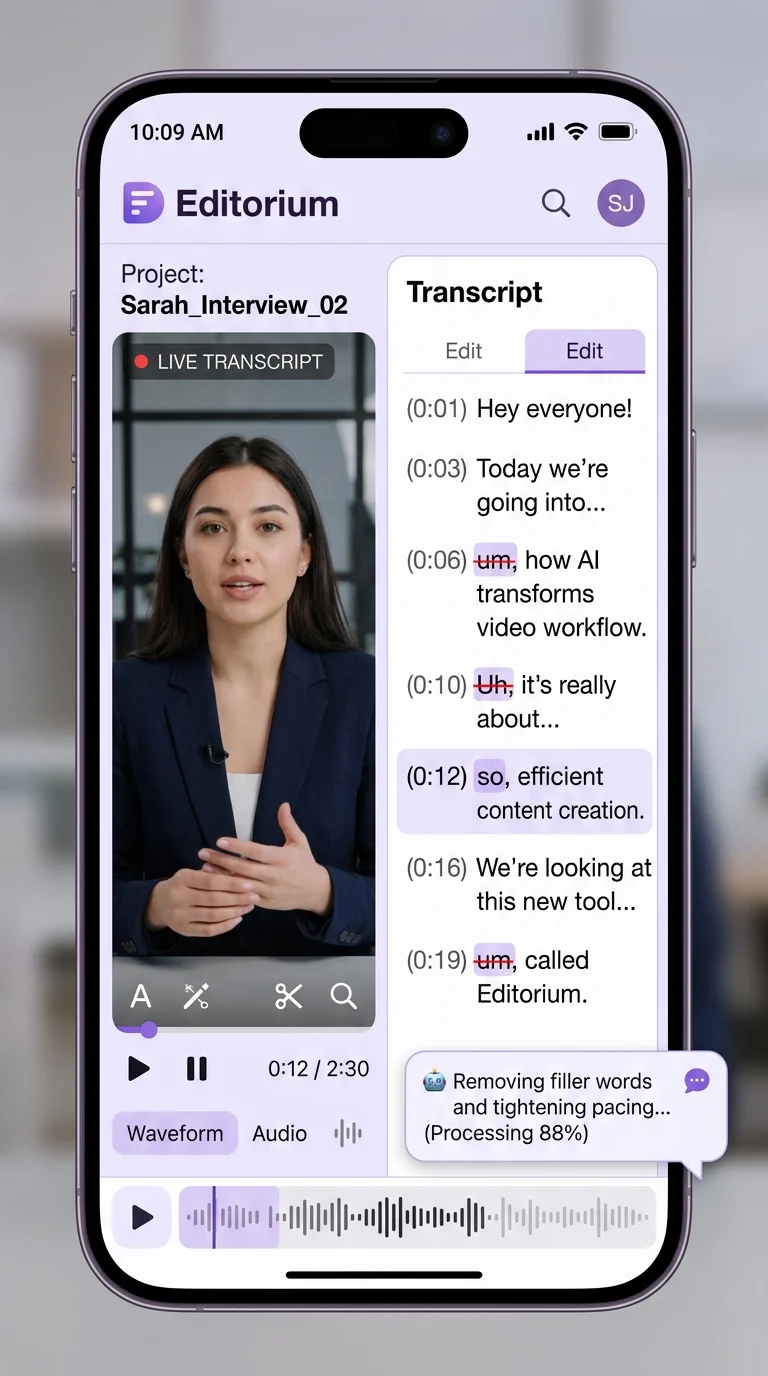
Descript’s whole approach is built around this problem. Because the video is represented as a transcript, deleting a sentence deletes that part of the video, and trimming dead air is as simple as deleting a line of text. Its AI co-editor, Underlord, goes a step further — it’s described as an agentic assistant that can take a single instruction like tightening pacing or removing filler words and carry it out across the whole project rather than requiring a separate click for every fix. A 2026 independent review estimated that this text-based approach reduces editing time by 60–70% for spoken-word content specifically, which covers most YouTube videos, podcasts, interviews, and tutorials.
On the Adobe side, Premiere Pro’s newer AI tools tackle different parts of the same problem. Generative Extend can seamlessly add a few extra frames to the beginning or end of a clip, which used to mean a reshoot if a take cut off a beat too early. Object Masking now works with a single click to identify and isolate an object or person, then track it throughout the shot, a job that used to require manual rotoscoping. And Adobe’s new Color Mode, which entered public beta in April 2026, was built in direct collaboration with hundreds of working editors to make consistent color grading faster across a sequence.
DaVinci Resolve handles the color side with its own AI tools — Magic Mask for isolating a subject to grade it separately from the background, and Auto Color and Shot Match, which give clips shot at different times or on different cameras a consistent look without manual node-by-node adjustment.
Audio cleanup has gotten faster too. Adobe’s Enhance Speech tool can clean up dialogue automatically, and Premiere now supports bulk bleep or mute across the entire timeline in one go instead of finding and fixing each instance individually.
Stage 3: After the Cut — Captions, Translation, and Repurposing
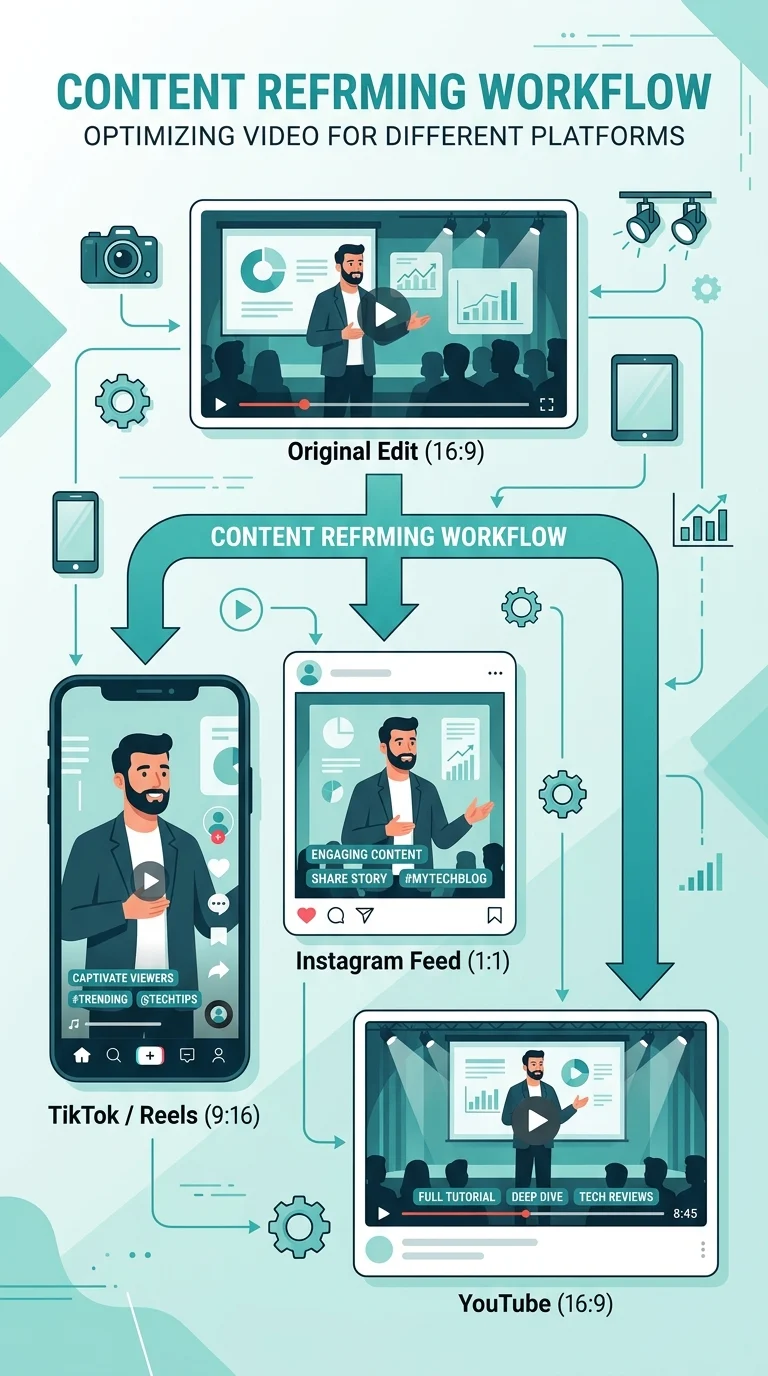
The final stretch of editing used to mean exporting the same video multiple times: a horizontal version for YouTube, a vertical one for Reels and TikTok, a square one for Instagram feed, and captions for all of them.
Premiere Pro’s Auto Reframe now analyzes a clip, identifies the main subject, and reframes it automatically for different aspect ratios while keeping the subject in view. CapCut, which has become the default for short-form repurposing, does the same thing with its Smart Reframe and Auto Captions tools. One independent reviewer who tested CapCut’s AI features over three weeks found that smart reframe alone can save 20 to 30 minutes per video compared to manually creating separate edits for each platform, and that across all its AI features, CapCut can realistically save 1 to 2 hours per video depending on the workflow. A separate hands-on review found that manual captioning of a 10-minute video can take 45 to 60 minutes by hand, versus under 30 seconds with CapCut’s auto-caption tool.
On the translation side, Premiere Pro can now auto-generate captions in over 27 languages, and Descript offers translation and dubbing into 30+ languages with AI-proofread accuracy — both useful if you’re trying to reach an audience beyond a single market without re-recording anything.
Zoom out across an entire production pipeline and the savings compound. Industry data cited from Socialive found that AI assistance on video projects saves an average of 14 hours per project and reduces per-video costs by approximately $1,500, while a broader aggregation of research across the AI video industry put overall time savings from AI-assisted workflows at 60–80% compared to conventional editing pipelines.
So Does “8 Hours to 2” Actually Hold Up?
It’s worth being honest that no two editing projects are identical, so treat the numbers below as a directional estimate built from the ranges above rather than a guarantee. But stacked together, they show how the math gets there.
| Task | Traditional time | AI-assisted time | Tools commonly used |
|---|---|---|---|
| Logging and organizing footage | 1–2 hours | 10–15 minutes | Premiere Media Intelligence, Resolve IntelliSearch, Descript transcription |
| Rough cut and trimming | 2–3 hours | 30–45 minutes | Descript text-based editing, Underlord |
| Audio cleanup and filler removal | 45–60 minutes | 10–15 minutes | Studio Sound, Enhance Speech, Underlord |
| Color grading and matching | 1–1.5 hours | 15–20 minutes | DaVinci Resolve Auto Color/Shot Match, Premiere Color Mode |
| Captions and translation | 45–60 minutes | 5–10 minutes | Premiere Translate Captions, CapCut Auto Captions, Descript dubbing |
| Reframing and exporting for platforms | 1–2 hours | 15–20 minutes | CapCut Smart Reframe, Premiere Auto Reframe |
| Total | ~7–9 hours | ~1.5–2 hours |
Where AI Still Falls Short
None of this means an edit is now hands-off. Auto-captions still need a proofread pass — accuracy drops noticeably with accents, jargon, or background noise. Auto-reframe can crop out something important if the subject moves unpredictably. And the agentic tools, like Underlord, are explicit that they work best with clear instructions and a human checking the output, not as a fire-and-forget solution. The pacing, the story decisions, the “does this actually feel right” judgment calls — that part hasn’t moved. AI just clears the runway so editors get to that part faster, and with more energy left for it.
Where to Start
If you’re editing solo, the honest move is to fix whichever stage is actually slowing you down rather than adopting every tool at once. If you’re drowning in raw footage, start with a tool that lets you search and transcribe. If your bottleneck is repurposing one video into five formats, an auto-reframe tool will save you more time than anything else on this list. Most editors end up stacking two or three of these rather than switching their entire workflow overnight — and that’s usually enough to feel the difference.